

Grafana Mimir is a horizontally-scalable, highly available long-term metrics storage backend for Prometheus. While Prometheus stores metrics locally with limited retention, Mimir provides durable storage that can hold months or years of data and query it efficiently. It accepts metrics via the Prometheus remote write API, making it a drop-in backend for existing Prometheus setups or Grafana Alloy.
This guide covers installing Mimir 3.0 on Ubuntu 24.04 and Debian 13 in monolithic (single-binary) mode with filesystem storage, configuring it to receive metrics from Alloy or Prometheus, and connecting it to Grafana as a data source.
Prerequisites
- A server running Ubuntu 24.04 LTS or Debian 13 with at least 2GB RAM
- Root or sudo access
- Grafana Alloy or Prometheus configured with remote_write to send metrics
- Grafana installed for visualization
1. Download and Install Mimir
Mimir does not have official deb packages – it is distributed as a static binary from GitHub. Download the latest release:
curl -fsSLo /tmp/mimir https://github.com/grafana/mimir/releases/latest/download/mimir-linux-amd64
chmod +x /tmp/mimir
sudo mv /tmp/mimir /usr/local/bin/mimir
Verify the version:
mimir --versionYou should see the installed version:
Mimir, version 3.0.4 (branch: release-3.0, revision: 75e092c110)
  go version:       go1.25.8
  platform:         linux/amd64
2. Create the Mimir User and Directories
Create a dedicated system user and the required data directories:
sudo useradd --system --no-create-home --shell /usr/sbin/nologin mimir
sudo mkdir -p /etc/mimir
sudo mkdir -p /var/lib/mimir/{blocks,tsdb,tsdb-sync,compactor,rules,data-ruler}
sudo chown -R mimir:mimir /var/lib/mimir /etc/mimir
3. Configure Mimir
Mimir runs in monolithic mode by default – all components (ingester, distributor, compactor, querier, store-gateway, ruler) run in a single process. This is the simplest deployment model and works well for small to medium workloads.
Create the configuration file:
sudo vi /etc/mimir/mimir.yamlAdd the following configuration. Replace YOUR_SERVER_IP with your server’s actual IP address and YOUR_INTERFACE with the name of your primary network interface (run ip -4 route show default | awk '{print $5}' to find it – typically ens3, eth0, or enp0s3):
multitenancy_enabled: false

server:
  http_listen_address: 0.0.0.0
  http_listen_port: 9009
  grpc_listen_port: 9095
  log_level: warn

common:
  storage:
    backend: filesystem
    filesystem:
      dir: /var/lib/mimir/blocks

blocks_storage:
  tsdb:
    dir: /var/lib/mimir/tsdb
  bucket_store:
    sync_dir: /var/lib/mimir/tsdb-sync

compactor:
  data_dir: /var/lib/mimir/compactor
  sharding_ring:
    instance_addr: YOUR_SERVER_IP
    instance_interface_names: [YOUR_INTERFACE]
    kvstore:
      store: memberlist

distributor:
  ring:
    instance_addr: YOUR_SERVER_IP
    instance_interface_names: [YOUR_INTERFACE]
    kvstore:
      store: memberlist

ingester:
  ring:
    instance_addr: YOUR_SERVER_IP
    instance_interface_names: [YOUR_INTERFACE]
    kvstore:
      store: memberlist
    replication_factor: 1

ruler:
  rule_path: /var/lib/mimir/data-ruler
  ring:
    instance_addr: YOUR_SERVER_IP
    instance_interface_names: [YOUR_INTERFACE]
    kvstore:
      store: memberlist

ruler_storage:
  backend: filesystem
  filesystem:
    dir: /var/lib/mimir/rules

store_gateway:
  sharding_ring:
    instance_addr: YOUR_SERVER_IP
    instance_interface_names: [YOUR_INTERFACE]
    replication_factor: 1
    kvstore:
      store: memberlist

frontend:
  instance_interface_names: [YOUR_INTERFACE]

memberlist:
  bind_addr:
    - YOUR_SERVER_IP

activity_tracker:
  filepath: /var/lib/mimir/activity.log
A few critical points about this configuration:
- instance_addr and instance_interface_names must be set on every ring component – Mimir defaults to looking for
eth0oren0interfaces. On cloud VMs where the interface is named differently (likeens3), Mimir will fail to start without these settings. This catches most people during initial setup - blocks_storage.tsdb.dir and filesystem.dir must be different paths – using the same directory for both causes a validation error at startup
- replication_factor: 1 is required for single-node deployments. The default is 3, which requires a 3-node cluster
- Port 9009 is used for the HTTP API (where Prometheus/Alloy writes and Grafana reads). The default Mimir port is 8080 but 9009 avoids conflicts with other services
4. Create the Systemd Service
Create a systemd unit file for Mimir:
sudo vi /etc/systemd/system/mimir.serviceAdd the following content:
[Unit]
Description=Grafana Mimir
Documentation=https://grafana.com/docs/mimir/latest/
After=network-online.target
Wants=network-online.target

[Service]
Type=simple
User=mimir
Group=mimir
ExecStart=/usr/local/bin/mimir --config.file=/etc/mimir/mimir.yaml
Restart=on-failure
RestartSec=5
LimitNOFILE=65536

[Install]
WantedBy=multi-user.target
5. Start and Enable Mimir
Reload systemd, then start and enable Mimir:
sudo systemctl daemon-reload
sudo systemctl enable --now mimir
Mimir takes about 15-30 seconds to become fully ready as the ingester ring stabilizes. Check the service status:
sudo systemctl status mimirThe service should show as active and running:
● mimir.service - Grafana Mimir
     Loaded: loaded (/etc/systemd/system/mimir.service; enabled; preset: enabled)
     Active: active (running) since Mon 2026-03-23 22:16:49 UTC
       Docs: https://grafana.com/docs/mimir/latest/
   Main PID: 6620 (mimir)
      Tasks: 8 (limit: 9489)
     Memory: 38.4M (peak: 48.6M)
     CGroup: /system.slice/mimir.service
             └─6620 /usr/local/bin/mimir --config.file=/etc/mimir/mimir.yaml
After 15-30 seconds, verify readiness:
curl -s http://localhost:9009/readyA healthy Mimir returns ready. If you see “Ingester not ready: waiting for 15s after being ready”, wait a few more seconds and try again – the ingester needs time to join the ring.
6. Open Firewall Port
If UFW is active, allow the Mimir HTTP port:
sudo ufw allow 9009/tcp7. Send Metrics from Alloy to Mimir
Configure Grafana Alloy to remote_write metrics to Mimir. Add this block to your Alloy configuration at /etc/alloy/config.alloy:
prometheus.remote_write "mimir" {
  endpoint {
    url = "http://localhost:9009/api/v1/push"
  }
}
If you are using Prometheus instead of Alloy, add a remote_write section to your Prometheus configuration at /etc/prometheus/prometheus.yml:
remote_write:
  - url: http://localhost:9009/api/v1/push
After restarting Alloy or Prometheus, verify metrics are flowing by checking the available metric names:
curl -s 'http://localhost:9009/prometheus/api/v1/label/__name__/values' | python3 -c "import sys,json; d=json.load(sys.stdin); print(f'Metrics stored: {len(d[\"data\"])}')"With Alloy’s unix exporter sending system metrics, you should see 250+ metric names within a minute.
8. Add Mimir as a Grafana Data Source
In Grafana, Mimir appears as a Prometheus data source since it implements the same query API. Go to Connections > Data sources > Add data source, select Prometheus, and set the URL to http://localhost:9009/prometheus.
Alternatively, provision it automatically:
sudo vi /etc/grafana/provisioning/datasources/mimir.yamlAdd the following:
apiVersion: 1
datasources:
  - name: Mimir
    type: prometheus
    access: proxy
    url: http://localhost:9009/prometheus
    isDefault: true
    editable: true
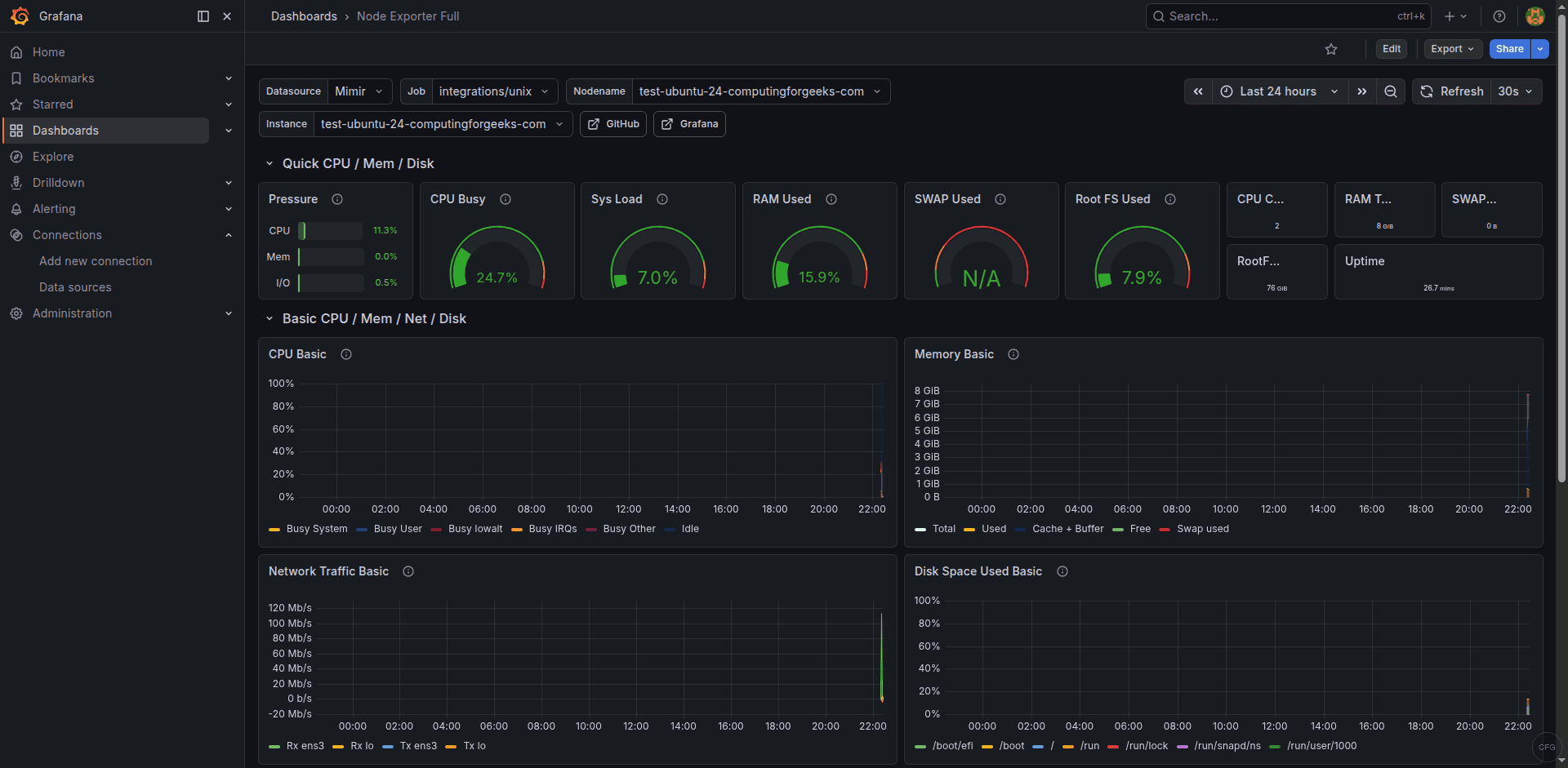
Restart Grafana and import the Node Exporter Full dashboard (ID 1860) from Grafana.com. You should immediately see CPU, memory, disk, and network panels populated with data from Mimir:
Troubleshooting Common Issues
Error: “no useable address found for interfaces [eth0 en0]”
This is the most common startup failure. Mimir tries to detect its address from the eth0 or en0 network interfaces, but cloud VMs often use different names like ens3, enp0s3, or ens192. The fix is to set instance_addr and instance_interface_names on every ring component in the configuration, as shown in step 3. Run ip link show to find your actual interface name.
Error: “blocks storage filesystem directory cannot overlap with tsdb directory”
The blocks_storage.filesystem.dir and blocks_storage.tsdb.dir must point to different directories. The filesystem dir stores compacted blocks while the tsdb dir stores the write-ahead log. Use /var/lib/mimir/blocks and /var/lib/mimir/tsdb respectively.
Error: “failed to access directory ./data-ruler/: permission denied”
Mimir’s ruler tries to create a data directory at a relative path by default. Set ruler.rule_path to an absolute path that the mimir user owns, such as /var/lib/mimir/data-ruler.
Summary
Grafana Mimir gives your Prometheus metrics setup long-term storage and horizontal scalability. The monolithic deployment covered here is a solid starting point – a single Mimir instance with filesystem storage can handle hundreds of active series and months of retention. For larger deployments, switch to object storage (S3, GCS, or MinIO) and consider the microservices deployment mode for independent scaling of write and read paths.
