

Aider is an open source AI pair programming tool that runs entirely in your terminal. With over 42,000 GitHub stars and 5.7 million PyPI installs, it connects to LLMs like Claude, GPT-4, and Gemini to edit code directly in your local git repository – making real changes, creating commits, and respecting your existing codebase structure. Unlike browser-based AI coding tools, Aider works where developers already live: the command line.
This guide walks through installing Aider on macOS, Linux, and Windows, configuring it with your preferred AI model, and using its full feature set – from repo maps and auto-commits to linting, testing, voice input, and scripting mode. Every command and config example here was tested with Aider 0.86.2 on macOS and Ubuntu 24.04.
Prerequisites
Before installing Aider, make sure you have:
- Python 3.9 – 3.12 – required for pipx and pip installs (Homebrew handles its own Python)
- Git – Aider is git-native and expects to run inside a git repository
- An API key from at least one AI provider – Anthropic (Claude), OpenAI (GPT-4), Google (Gemini), or any OpenAI-compatible endpoint
- A terminal – macOS Terminal/iTerm2, Linux shell, Windows Terminal, or WSL
Step 1: Install Aider on macOS
macOS users have three installation options. Homebrew is the cleanest method since it manages dependencies automatically.
Option A: Homebrew (recommended)
brew install aiderHomebrew installs Aider along with all dependencies. The install pulls in 9,558 files totaling about 397 MB:
==> Fetching aider
==> Installing aider
==> Pouring aider--0.86.2.sonoma.bottle.tar.gz
🍺  /opt/homebrew/Cellar/aider/0.86.2: 9,558 files, 397.0MB
Option B: pipx (isolated environment)
pipx install aider-chatOption C: pip (system-wide or venv)
pip install aider-chatAfter installation, verify it works:
aider --versionThe output confirms the installed version:
aider 0.86.2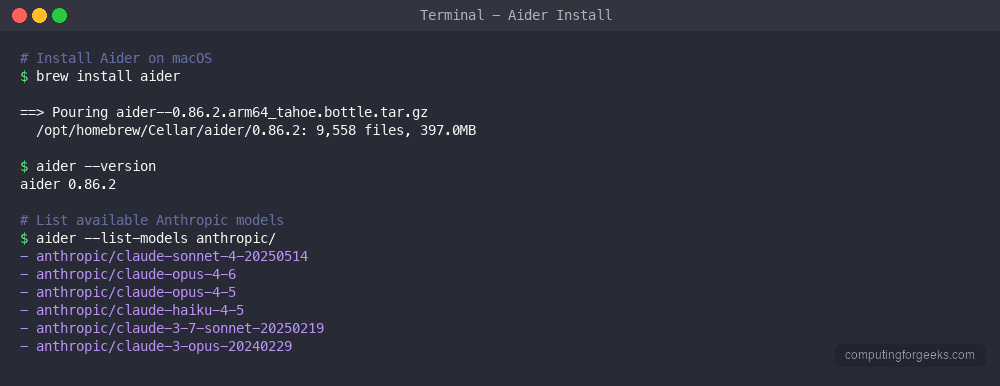
Step 2: Install Aider on Linux
On Linux distributions like Ubuntu, Debian, Fedora, and RHEL, pipx is the recommended installation method. It creates an isolated environment so Aider’s dependencies don’t conflict with system packages.
Option A: pipx (recommended)
First install pipx if you don’t have it. On Ubuntu/Debian:
sudo apt update
sudo apt install pipx
pipx ensurepath
On Fedora/RHEL:
sudo dnf install pipx
pipx ensurepath
Then install Aider:
pipx install aider-chatThe pipx install places the aider binary at ~/.local/bin/aider and keeps all dependencies in an isolated virtualenv.
Option B: One-liner install script
Aider provides an official install script that handles everything automatically:
curl -LsSf https://aider.chat/install.sh | shOption C: pip
pip install aider-chatVerify the installation:
aider --versionYou should see the version number confirmed:
aider 0.86.2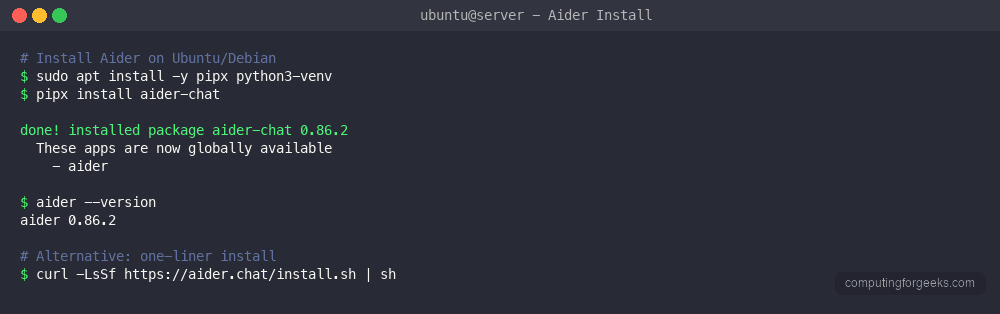
Step 3: Install Aider on Windows
Windows users can install Aider natively with pip or through WSL for a Linux-like experience.
Option A: pip in PowerShell or Command Prompt
Make sure Python 3.9-3.12 is installed from python.org, then run:
pip install aider-chatOption B: PowerShell one-liner
powershell -ExecutionPolicy ByPass -c "irm https://aider.chat/install.ps1 | iex"Option C: WSL (Windows Subsystem for Linux)
If you run WSL with Ubuntu, follow the Linux installation steps from Step 2. This gives you the full Linux terminal experience with Aider.
Step 4: Configure API Keys
Aider needs an API key from at least one AI provider. You have three ways to provide it, listed from most to least permanent.
Method 1: .env file (recommended)
Create a .env file in your git repository root. This keeps keys out of your shell history:
vi .envAdd your API key for the provider you want to use:
# Anthropic (Claude models)
ANTHROPIC_API_KEY=sk-ant-api03-xxxxxxxxxxxxx

# OpenAI (GPT models)
OPENAI_API_KEY=sk-xxxxxxxxxxxxx

# Google (Gemini models)
GEMINI_API_KEY=xxxxxxxxxxxxx

# DeepSeek
DEEPSEEK_API_KEY=xxxxxxxxxxxxx
Add .env to your .gitignore so API keys never get committed:
echo ".env" >> .gitignoreMethod 2: Environment variables
Export the key in your shell profile (~/.bashrc, ~/.zshrc):
export ANTHROPIC_API_KEY=sk-ant-api03-xxxxxxxxxxxxxMethod 3: Inline with –api-key flag
Pass the key directly when launching Aider – useful for one-off sessions or testing different providers:
aider --api-key anthropic=sk-ant-api03-xxxxxxxxxxxxxThe config precedence order is: CLI flags override environment variables, which override .env file values, which override .aider.conf.yml defaults.
Step 5: Configure Aider with .aider.conf.yml
Aider reads its configuration from a YAML file named .aider.conf.yml. It searches for this file in three locations (in order): the git repository root, the current working directory, and ~/.aider.conf.yml in your home directory.
Create the config file in your project root for project-specific settings, or in your home directory for global defaults:
vi .aider.conf.ymlHere is a well-tuned configuration that works with Claude models:
## Model settings
model: anthropic/claude-sonnet-4-20250514
dark-mode: true

## Git integration
auto-commits: true

## Output formatting
stream: true
pretty: true

## Repository map
map-tokens: 2048

## Code quality
auto-lint: true
Here is what each setting does:
| Setting | Purpose |
|---|---|
model | The AI model to use for code editing. Format is provider/model-name |
dark-mode | Adjusts output colors for dark terminal backgrounds |
auto-commits | Automatically git commit after each successful edit |
stream | Stream model responses token by token instead of waiting for the full response |
pretty | Enable colorized, formatted output with markdown rendering |
map-tokens | Token budget for the repository map. Higher values give the model more context about your codebase |
auto-lint | Run your project’s linter after every code change |
To see all available models for a provider, use the --list-models flag:
aider --list-models anthropic/This returns the available Anthropic models:
- anthropic/claude-sonnet-4-20250514
- anthropic/claude-opus-4-6
- anthropic/claude-opus-4-5
- anthropic/claude-haiku-4-5
- anthropic/claude-3-7-sonnet-20250219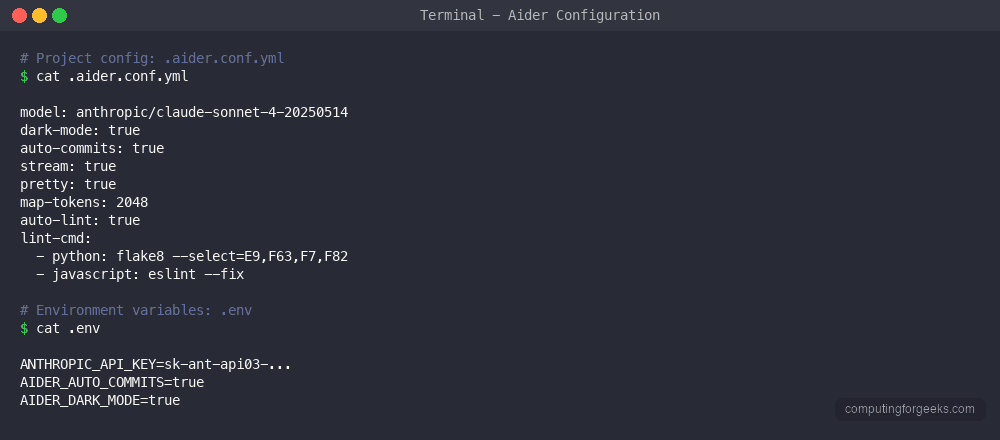
Step 6: Your First Aider Session
Navigate to a git repository and launch Aider. If you already configured a model in .aider.conf.yml, simply run:
cd your-project
aider
Or specify a model directly on the command line:
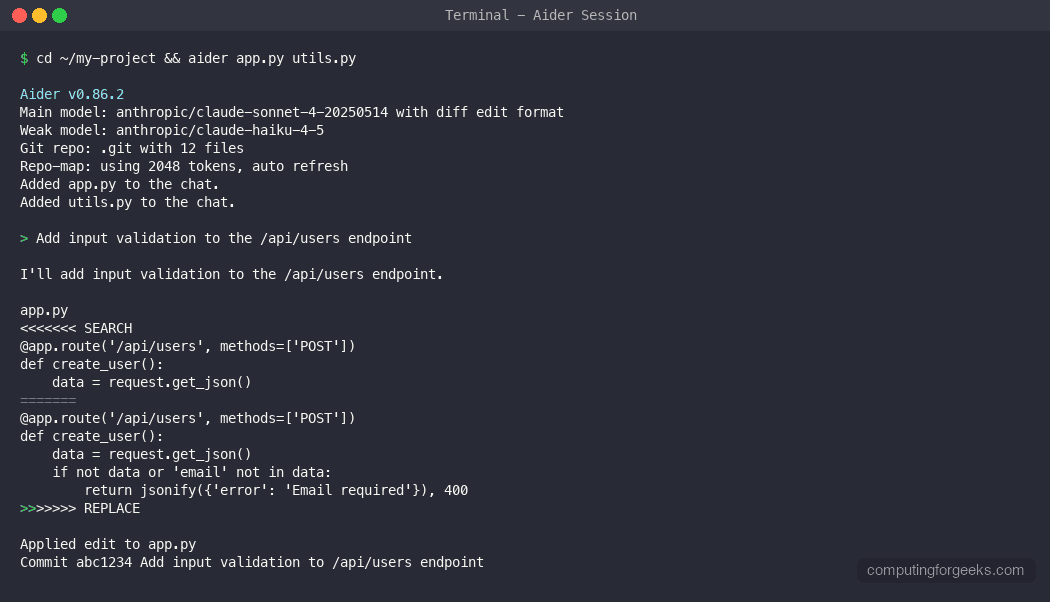
aider --model anthropic/claude-sonnet-4-20250514Aider starts up showing the model, edit format, git repo status, and repo map configuration:
Aider v0.86.2
Main model: anthropic/claude-sonnet-4-20250514 with diff edit format, infinite output
Weak model: anthropic/claude-3-5-haiku-20241022
Git repo: .git with 7 files
Repo-map: using 2048 tokens, auto refresh
You can add files to the chat context so Aider knows what code to work with:
/add src/app.py src/utils.pyNow ask Aider to make changes. Type your request in plain English:
Add error handling to the database connection function in app.py. Use try/except and log the error before re-raising.Aider sends the file contents plus your request to the AI model, receives the proposed changes, applies them to your files, and – if auto-commits is enabled – creates a git commit with a descriptive message. You see the exact diff of what changed, review it, and continue the conversation or undo with /undo.
Step 7: Understanding Aider Edit Formats
Aider supports multiple edit formats that control how the AI model proposes code changes. The format affects both accuracy and token usage. Set it with the --edit-format flag or in your config file.
| Format | How It Works | Best For |
|---|---|---|
diff | Search/replace blocks – finds existing code and replaces it | Most editing tasks. Default for capable models like Claude Sonnet |
whole | Rewrites entire files | Smaller files or when making extensive changes throughout a file |
udiff | Unified diff format (like git diff) | Models that understand standard diff format well |
architect | Two-model mode – one model plans, another executes | Complex refactors where planning matters. Use with --architect |
The diff format (search/replace) is the default for most capable models and the most token-efficient. The model outputs a SEARCH block containing existing code and a REPLACE block with the modified version. Aider matches the search text against the file and applies the replacement.
To use architect mode, launch Aider with the --architect flag:
aider --architectIn architect mode, a stronger model (like Claude Opus) plans the changes and describes them in natural language, then a faster model (like Claude Sonnet) translates that plan into actual code edits. This two-step approach produces better results for complex multi-file refactors.
Step 8: Repository Map
One of Aider’s most powerful features is the repository map. Before each request, Aider builds a condensed map of your entire codebase – showing file names, class definitions, function signatures, and import relationships. This gives the AI model structural awareness of your project without sending every file’s full contents.
The --map-tokens setting controls how many tokens this map can use. The default is 1,000 tokens. For larger projects, increase it:
aider --map-tokens 2048To see what the map looks like for your project, run:
aider --show-repo-mapThis prints the repository map and exits. It helps you understand what context the AI model receives about your codebase. If your project has hundreds of files, a higher map-tokens value means the model sees more of the project structure and can make better decisions about which files to modify.
The map automatically refreshes between requests, so if you add or rename files outside of Aider, the map updates on the next prompt. If you are working in a monorepo or very large codebase with thousands of files, consider using OpenCode or similar tools that handle repo indexing differently.
Step 9: Git Integration
Aider is deeply integrated with git. By default, it automatically commits every change the AI makes, giving you a clean history of AI-assisted edits that you can review, revert, or squash. This is one of the features that sets Aider apart from tools like Claude Code.
Auto-commits
When auto-commits is enabled (the default), Aider creates a git commit after each successful edit. The commit message describes what changed and is prefixed with “aider:” for easy filtering in git log.
To disable auto-commits and handle commits yourself:
aider --no-auto-commitsUndo changes
If Aider makes a change you don’t want, undo it immediately with the /undo command inside the chat. This runs git revert on the last Aider commit, cleanly reversing the change while preserving history.
Dirty files and uncommitted changes
Aider handles dirty working trees gracefully. If you have uncommitted changes when you start Aider, it will commit them first (with a message like “wip”) before making its own edits. This ensures you can always cleanly undo Aider’s work without losing your own changes.
No-git mode
To use Aider outside a git repository or without any git integration:
aider --no-gitThis disables all git features including auto-commits, undo, and repo mapping. Useful for quick one-off edits or working with files outside a repository.
Step 10: Aider In-Chat Commands
Inside an Aider session, commands start with /. These control what files are in context, switch modes, run external commands, and manage the conversation. If you use lazygit or similar terminal tools, this command pattern will feel familiar.
| Command | What It Does |
|---|---|
/add file1.py file2.py | Add files to the chat context so Aider can read and edit them |
/drop file1.py | Remove a file from the chat context |
/ask question | Ask about the code without making any edits (read-only mode) |
/code instruction | Switch to code editing mode and provide an instruction |
/architect instruction | Switch to architect mode for complex multi-step changes |
/run command | Run a shell command and optionally share its output with the AI |
/undo | Undo the last Aider commit (git revert) |
/diff | Show the diff of changes since the last commit |
/map | Display the current repository map |
/tokens | Show token usage for the current conversation |
/model model-name | Switch to a different AI model mid-session |
/help | Show all available commands |
/voice | Toggle voice input mode (requires a microphone) |
/web url | Scrape a web page and add its content to the chat context |
/editor | Open your default editor to compose a multi-line message |
The /add and /drop commands are the most frequently used. Adding only the files relevant to your current task keeps the context focused and reduces token costs. You can use glob patterns too:
/add src/**/*.pyFor the full reference covering every CLI flag, all 43 slash commands, edit formats, model aliases, the .aider.conf.yml schema, headless mode, –apply with SEARCH/REPLACE blocks, and real session captures, see the Aider cheat sheet.
Step 11: Linting and Testing Integration
Aider can automatically run your linter and test suite after every code change. If the linter finds issues, Aider reads the errors and attempts to fix them in a follow-up edit. This creates a tight feedback loop that catches bugs immediately.
Configure a linter
Set per-language linters using the --lint-cmd flag. The format is "language: command":
aider --lint-cmd "python: flake8 --max-line-length 120" --auto-lintOr set it in .aider.conf.yml:
lint-cmd:
  - "python: flake8 --max-line-length 120"
  - "javascript: eslint"
auto-lint: true
With auto-lint enabled, every AI edit triggers the linter automatically. If flake8 reports warnings, Aider feeds them back to the model and asks it to fix them before committing.
Configure test commands
Similarly, set a test command and enable auto-testing:
aider --test-cmd "pytest tests/ -x" --auto-testOr in the config:
test-cmd: "pytest tests/ -x"
auto-test: true
When auto-test is enabled, Aider runs your test suite after each code change. If tests fail, it reads the failure output and tries to fix the code to make tests pass. The -x flag tells pytest to stop on the first failure, which keeps the error output focused for the AI.
Step 12: Non-Interactive and Scripting Mode
Aider isn’t limited to interactive chat. You can send a single message, let Aider make the changes, and exit – perfect for CI/CD pipelines, batch processing, or scripted workflows.
Single-message mode
Use --message (or -m) to send one instruction:
aider --message "Add type hints to all functions in utils.py" utils.pyAider processes the request, makes the changes, commits, and exits. No interactive prompt needed.
Auto-confirm everything
For fully automated scripts, combine --message with --yes-always to skip all confirmation prompts:
aider --message "Update all deprecated API calls" --yes-always src/*.pyScripting in CI/CD
Here is an example of using Aider in a CI pipeline to auto-fix linting issues:
aider \
  --model anthropic/claude-sonnet-4-20250514 \
  --message "Fix all flake8 warnings" \
  --yes-always \
  --auto-commits \
  --lint-cmd "python: flake8" \
  src/*.py
This runs Aider against all Python files in src/, fixes linting issues, and commits the changes – all without human interaction.
Step 13: Voice Input and Web Scraping
Aider includes two features that extend the standard text-based workflow: voice input and web scraping.
Voice input
Use the /voice command inside a session to dictate your coding request through your microphone. Aider uses speech-to-text to transcribe your words and treats them as a normal prompt. This is useful for longer, more nuanced instructions that are faster to speak than type.
Voice input requires an OpenAI API key (it uses the Whisper model for transcription).
Web scraping
The /web command fetches a web page and adds its content to the conversation context:
/web https://docs.python.org/3/library/asyncio.htmlThis is useful when you want the AI to reference documentation, API specs, or examples from a URL while editing your code. The page content gets added to the chat context just like a file would.
Demo: Refactoring a Python Flask App with Aider
Here is a practical example of using Aider to refactor a Flask application. Start by launching Aider in your Flask project directory and adding the relevant files:
cd ~/projects/my-flask-app
aider --model anthropic/claude-sonnet-4-20250514
Add your application files to the context:
/add app.py models.py routes.pyNow ask Aider to refactor the monolithic app.py into a proper Flask blueprint structure:
Refactor app.py to use Flask blueprints. Move the user routes to a users blueprint in routes/users.py and the API routes to routes/api.py. Keep the app factory pattern in app.py.Aider will:
- Create the new
routes/directory structure - Move route handlers into separate blueprint files
- Update imports and registrations in
app.py - Auto-commit with a message like “aider: refactor routes into Flask blueprints”
If you have tests, run them right from the chat:
/run pytest tests/ -vIf any tests fail, share the output with Aider and ask it to fix the issues. The /undo command is always available if you need to roll back.
Aider vs OpenCode vs Claude Code
All three are terminal-based AI coding tools, but they take different approaches. For a quick-reference alternative, see the OpenAI Codex CLI cheat sheet which covers another popular option. Here is how they compare:
| Feature | Aider | OpenCode | Claude Code |
|---|---|---|---|
| Language | Python | Go (single binary) | Node.js |
| Multi-model support | Yes – any OpenAI-compatible API, Anthropic, Google, DeepSeek, Ollama | Yes – OpenAI, Anthropic, Google, local models | Anthropic only |
| Git integration | Deep – auto-commits, undo, dirty file handling | Basic – no auto-commits | Yes – auto-commits with permission |
| Repo map | Yes – configurable token budget | No built-in map | Yes – automatic indexing |
| Edit format | diff, whole, udiff, architect | diff only | Custom diff format |
| Voice input | Yes – via Whisper | No | No |
| Auto-lint/test | Yes – built-in | No | No built-in (uses tool calls) |
| Non-interactive mode | Yes – --message flag | No | Yes – -p flag |
| Config format | YAML (.aider.conf.yml) | JSON (.opencode.json) | JSON (.claude/settings.json) |
| Install size | ~400 MB (Homebrew) | ~20 MB (single binary) | ~100 MB (npm) |
| License | Apache 2.0 | MIT | Proprietary |
Aider’s strength is its model flexibility and deep git integration. OpenCode wins on minimalism and speed. Claude Code offers the tightest integration with Anthropic’s models and automatic tool use. Choose based on whether you need multi-model support (Aider), a lightweight single binary (OpenCode), or deep Anthropic integration (Claude Code).
Troubleshooting Common Aider Issues
Here are the most common problems you might run into and how to fix them.
API key errors
If you see “API key not found” or authentication errors, check that your key is set correctly. Use --verbose to see what Aider is loading:
aider --verboseThe verbose output shows which config files were loaded, which environment variables were found, and which model is being used. This makes it easy to spot if your .env file isn’t being read or if the wrong key is being used.
Model not found
If Aider reports a model name error, verify the exact model name with:
aider --list-models openai/Model names must include the provider prefix (e.g., anthropic/claude-sonnet-4-20250514, not just claude-sonnet-4).
Python version conflicts
Aider requires Python 3.9 through 3.12 for pip/pipx installs. If you see dependency errors, check your Python version:
python3 --versionIf your system Python is too old or too new, use pyenv or install a compatible version alongside your system Python.
Large repository performance
For very large repositories (thousands of files), the repo map generation can be slow. Lower the token budget or disable it:
aider --map-tokens 512Or only add the specific files you’re working on rather than relying on the full repo map.
Git not initialized
Aider expects to run inside a git repository. If you get a git error, initialize the repo first:
git init
git add .
git commit -m "Initial commit"
Or use --no-git to bypass git entirely.
Vi keybindings
If you prefer vi-style navigation in the Aider prompt, enable it with:
aider --vimOr set vim: true in your .aider.conf.yml.
Aider CLI Quick Reference
Aider has 133 CLI flags. Here are the most useful ones organized by category:
| Flag | Purpose |
|---|---|
--model MODEL | Set the main chat model |
--architect | Enable architect/editor two-model mode |
--api-key PROVIDER=KEY | Set API key inline |
--dark-mode | Optimize colors for dark terminals |
--light-mode | Optimize colors for light terminals |
--auto-commits | Enable automatic git commits after changes |
--no-auto-commits | Disable automatic git commits |
--map-tokens N | Set repo map token budget (default 1000) |
--edit-format FORMAT | Set edit format: diff, whole, udiff |
--message "text" | Send one message then exit |
--yes-always | Auto-confirm all prompts |
--vim | Enable vi keybindings |
--no-git | Disable git integration entirely |
--lint-cmd "lang: cmd" | Set per-language linter command |
--test-cmd CMD | Set the test command |
--auto-lint | Run linter after every AI edit |
--auto-test | Run tests after every AI edit |
--show-repo-map | Print the repo map and exit |
--list-models PREFIX | List available models matching a prefix |
--verbose | Show debug output for troubleshooting |
Run aider --help to see the complete list of all 133 flags. Refer to the official Aider documentation for detailed explanations of each option.
Conclusion
Aider brings AI pair programming to your terminal with deep git integration, multi-model support, and a flexible configuration system. The combination of auto-commits, repo mapping, and lint/test integration creates a workflow where AI-assisted changes are tracked, verified, and easily reversible.
For production use, keep your API keys in .env files (never committed to git), set up linting and test commands to catch issues automatically, and use the --message flag to integrate Aider into your CI/CD pipelines for automated code maintenance tasks.
Looking at other terminal AI coding agents? See our OpenCode vs Claude Code vs Cursor comparison and OpenCode installation guide.
Also check out Claw Code, another open-source terminal AI coding agent written in Rust with multi-model support.
