This guide offers all the steps to configure Samba Share on KDE Neon | Kubuntu.
Samba is a free software that provides a standard Windows interoperability suite of programs for Linux and Unix. It uses SMB (Server Message Block) protocol which is a network file and resource sharing protocol that uses a client-server model that makes Samba seamlessly integrate Linux/Unix Servers and Desktops into Active Directory environments.
It provides secure, stable, and fast file transfers for all clients using SMB/CIFS protocols like Windows and Linux.
The point to note is that CIFS (Common Internet File System) is sometimes interchangeably used to refer to SMB. This is because it was a common Microsoft SMB introduced in Windows 95.
SMB Share
It is also known as SMB file share, it is simply a shared resource that is set up on an SMB network with respect to the Unix directories. A good example to understand is to picture network printers that are shared using SMB. In Windows, these SMB shares appear like normal Windows Accessible folders on the network while Unix users can choose to mount the shares using mount.cifs command or use a utility like smbclient to read the shares.
Samba includes SWAT(Samba Web Administration Tool) which is a graphical management tool that can be used to set up Samba through a web browser.
In this Guide, I will show you how to:
- Install Samba on KDE Neon
- Configure Samba file server on KDE Neon
- Connect to a Samba Share from Windows and Linux
Prerequisites: Make sure you are logged in as a user with sudo privileges.
Install Samba on KDE Neon | Kubuntu
First, update the package index and perform upgrades for installed packages:
sudo apt update
sudo apt upgrade
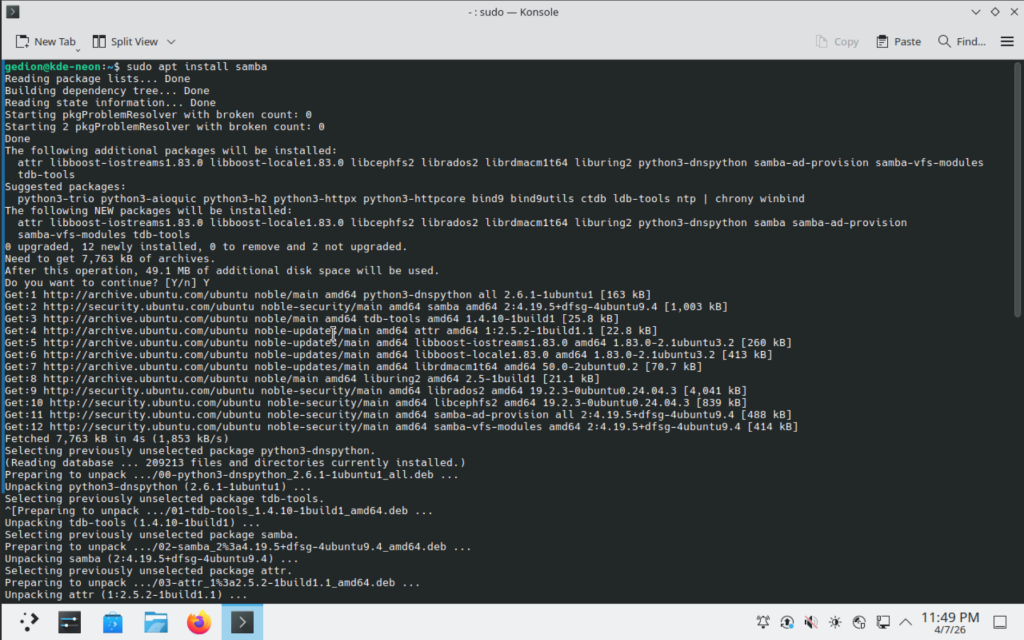
Then continue to install Samba using
sudo apt install sambaType Y when prompted with the disk space the software will use to continue the installation.
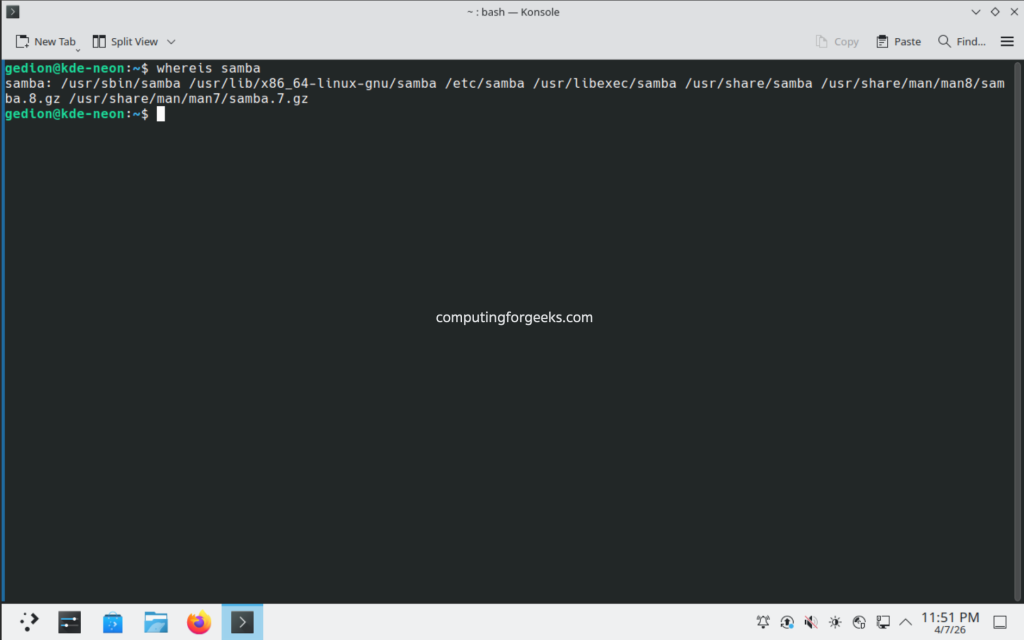
We can check if the installation was successful by using.
whereis sambaSample Output:
To check whether Samba is running
sudo systemctl status smbdThe output should resemble something like this. Use q to exit.
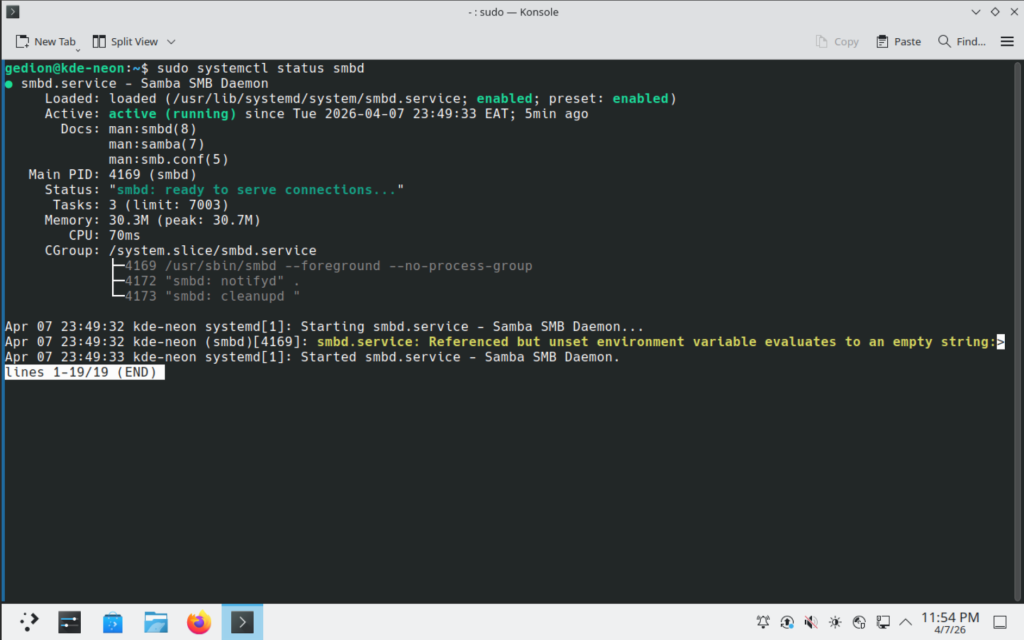
Configuring Samba on KDE Neon/Kubuntu
Now that Samba is up and running, We have to create a directory for it to share.
mkdir $HOME/sambashare/Replace the username with your username. sambashare is the file that we will share and it is located in /home/$USER directory.
Let us add a file to our directory.
cd $HOME/sambashare/
touch file1.txt
Use ls to list the contents on the directory.
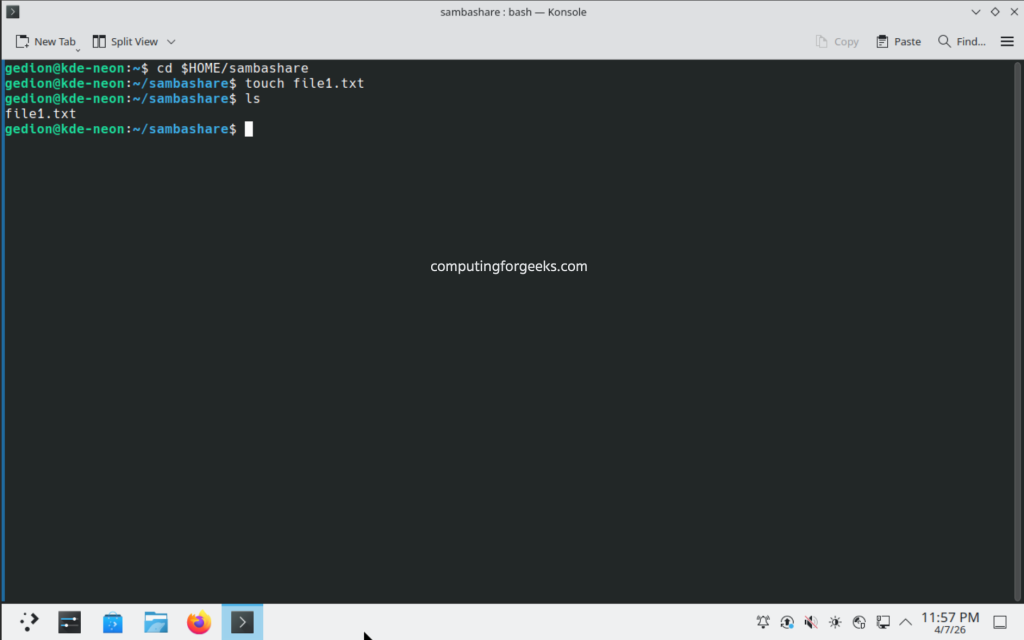
The configuration file for Samba is located at /etc/samba/smb.conf. Before we edit the file, we should create a backup.
Navigate back to your home directory by using cd .. Then move the config file to another file with a different file extension.
sudo mv /etc/samba/smb.conf /etc/samba/smb.conf.backupWe will then create a new configuration file to add the new directory as a share. We will open it with an editor like nano or vim.
sudo vim /etc/samba/smb.confAdd this command to the file
[sambashare]
    comment = Samba on Ubuntu
    path = /home/gedion/sambashare
    read only = no
    browsable = yes
Replace my username with yours. Save your work by using ctrl-x to exit then press Y to save the file then Enter to exit the editor.
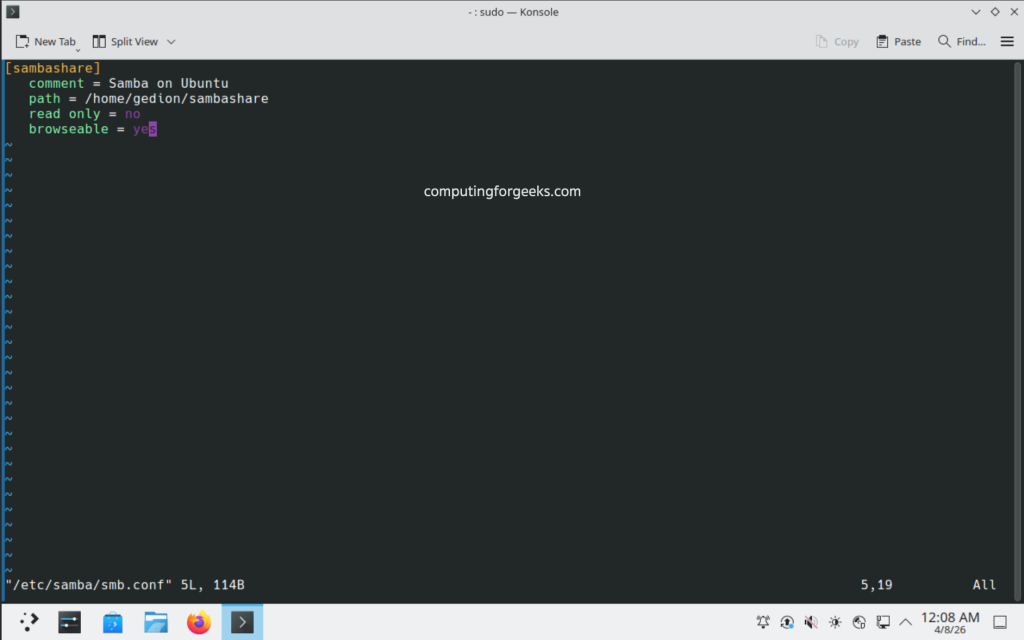
To view the configurations made, Use the following command
sudo testparmIt will list the file contents as follows.
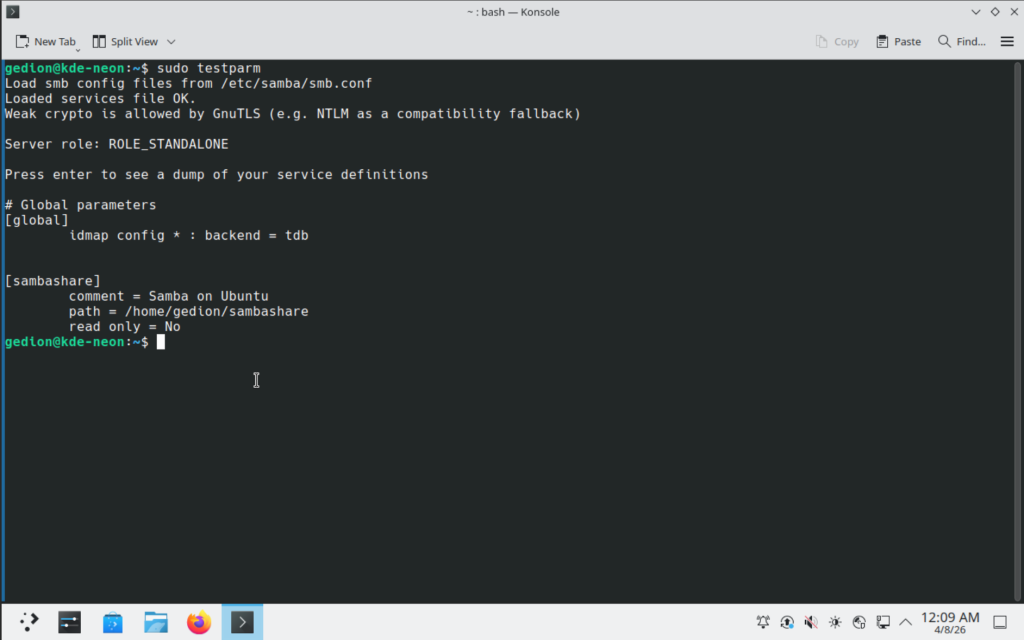
Restart Samba.
sudo service smbd restartThis will enable the changes to take effect.
To allow Samba traffic, update the firewall rules.
sudo ufw allow sambaThe output looks like this.
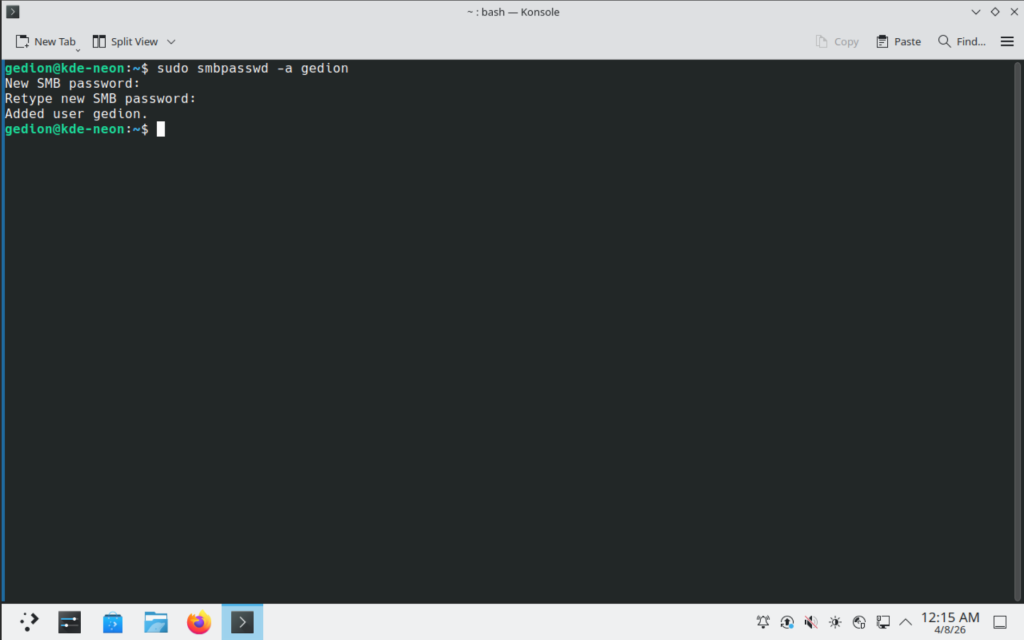
Setting up user account
Use a username that belongs to the system account.
sudo smbpasswd -a gedionThen type in a password that you will use to connect to the samba share.
Connecting to Samba Share from Windows
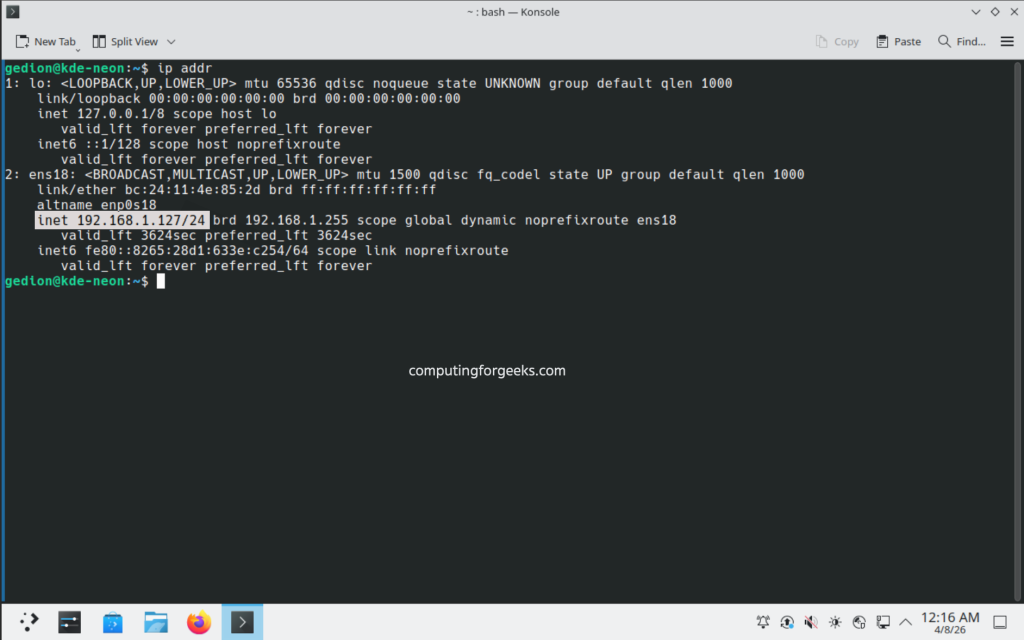
We will use your system’s IP address to connect. Check the IP address as follows:
$ ip a The output will be shown as below:
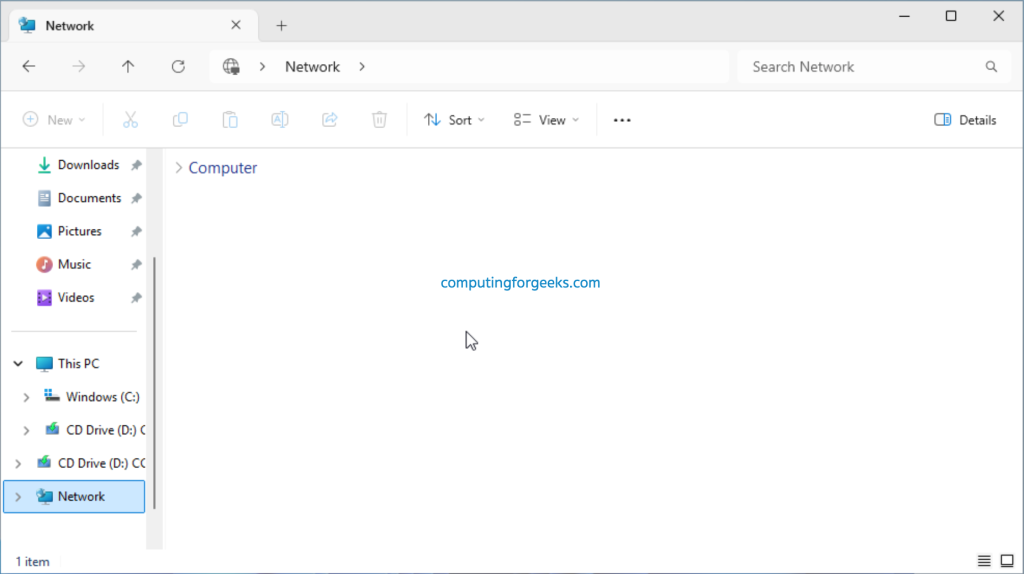
Go to your Windows System and open fire up the File Explorer and click on Network tab:
Then click on the network search bar, and input the IP address of the samba server:
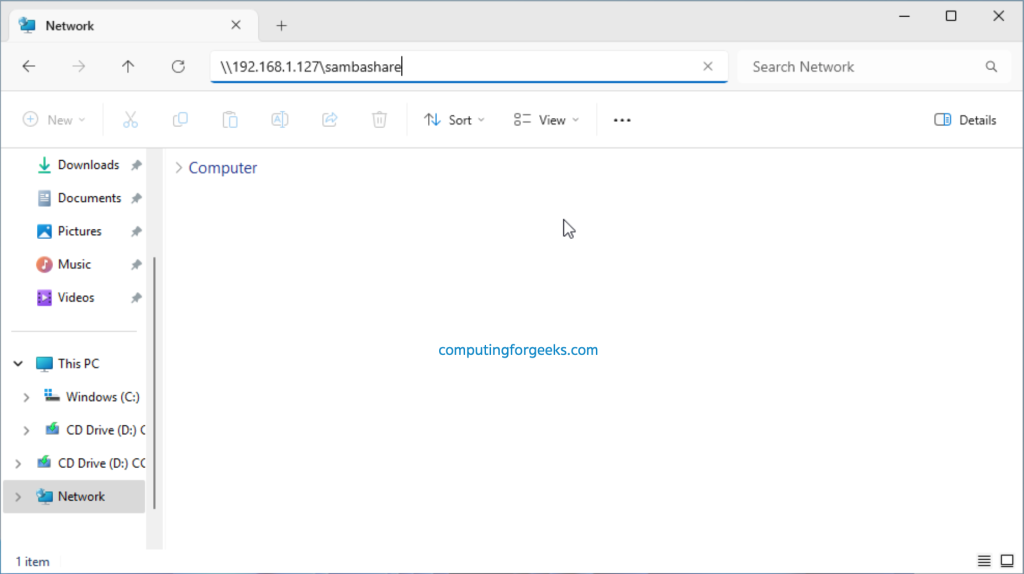
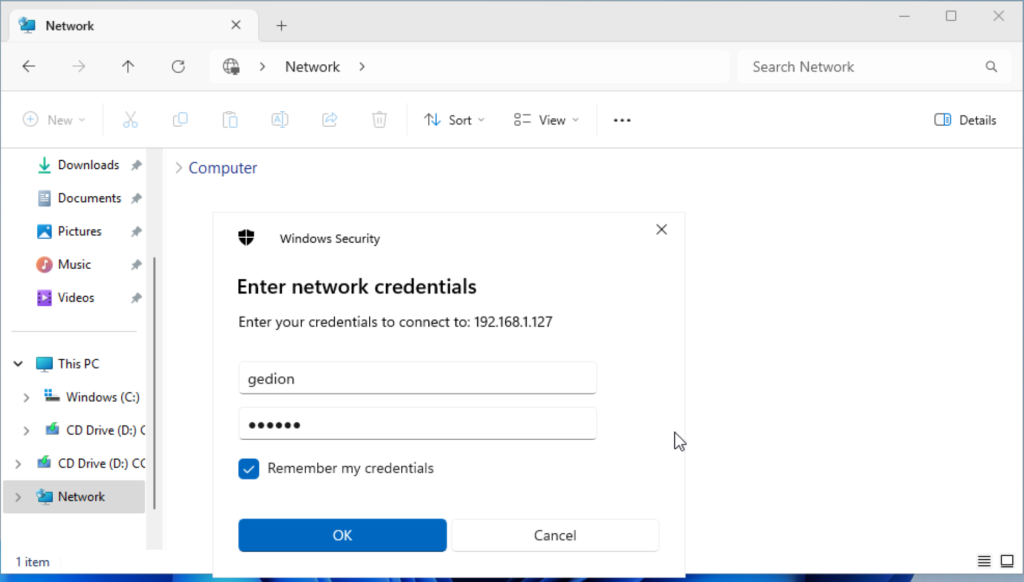
When you hit entter, it will open a window to put in your credentials.
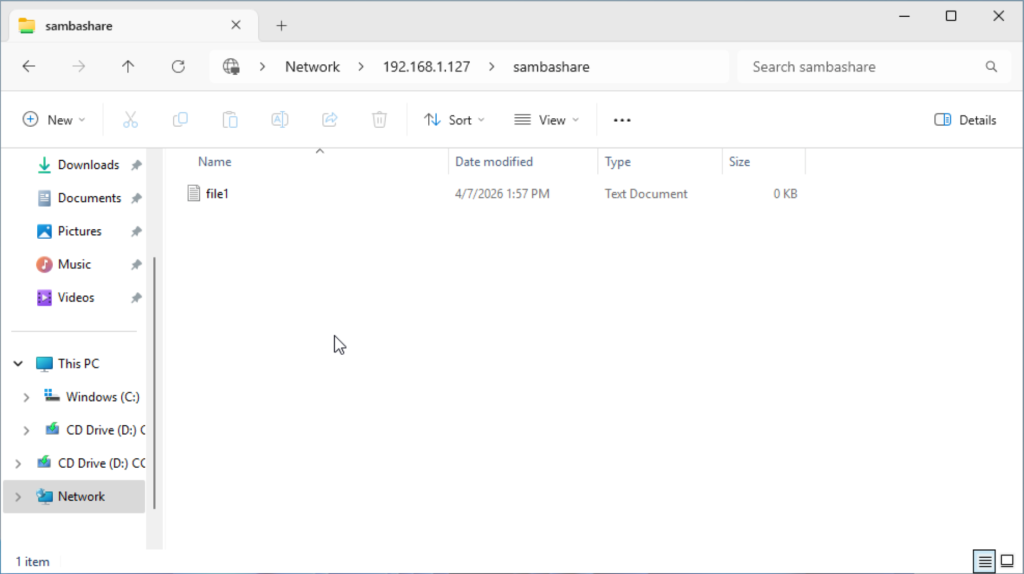
Then if you open the folder, You will find the file we created.
Connect to Samba Share form Linux system
Install samba client packages:
# RHEL based systems
sudo yum -y install samba samba-client cifs-utils

# Debian based systems
sudo apt update
sudo apt install smbclient
In Linux, Open the default file manager and on the search bar enter this:
smb://ip-address/sambashareOr connect using the terminal as follows:
smbclient //<server-ip>/sambashare -U gedion
Mounting using command line
Create directory where samba share is to be mounted:
sudo mkdir /mnt/backupsInteractive terminal mount.
smb://ip-address/sambashare
mount -t cifs -o user=samba_user1,password=userpassword //ip-address/sambashare  /mnt/backups
Syntax for automatic mounting using/etc/fstab.
//ip-address/sambashare /mnt/backups cifs user=samba_user1,password=userpassword,soft,rw 0 0Conclusion
In this tutorial, You have learned how to install Samba on KDE Neon. Set a user and configure the Samba config file with certain parameters. You also learned how to connect to the Samba share from Windows and Linux.