

Installing Windows 11 or Windows 10 OS on a PC from a USB stick is nowadays the most popular option when compared to the old DVD disc method. To create a bootable Windows USB stick we’ll need a tool that allows us to make bootable media devices. On Windows and Linux, the most popular solutions are WoeUSB and Rufus. In this guide we look at how you can create a bootable Windows 11 / Windows 10 USB medium form a macOS operating system.
Before we can go further, insert the USB stick and confirm it works.
$ diskutil list


/dev/disk0 (internal, physical):
   #:                       TYPE NAME                    SIZE       IDENTIFIER
   0:      GUID_partition_scheme                        *1.0 TB     disk0
   1:                        EFI EFI                     314.6 MB   disk0s1
   2:                 Apple_APFS Container disk1         1.0 TB     disk0s2

/dev/disk1 (synthesized):
   #:                       TYPE NAME                    SIZE       IDENTIFIER
   0:      APFS Container Scheme -                      +1.0 TB     disk1
                                 Physical Store disk0s2
   1:                APFS Volume Macintosh HD - Data     598.3 GB   disk1s1
   2:                APFS Volume Macintosh HD            10.2 GB    disk1s2
   3:              APFS Snapshot com.apple.os.update-... 10.2 GB    disk1s2s1
   4:                APFS Volume Preboot                 3.8 GB     disk1s3
   5:                APFS Volume Recovery                1.2 GB     disk1s4
   6:                APFS Volume VM                      5.4 GB     disk1s5

/dev/disk2 (external, physical):
   #:                       TYPE NAME                    SIZE       IDENTIFIER
   0:      GUID_partition_scheme                        *30.8 GB    disk2
   1:       Microsoft Basic Data                         2.1 GB     disk2s1
   2:                        EFI ANACONDA                12.2 MB    disk2s2
   3:       Microsoft Basic Data                         307.2 KB   disk2s3
My USB device is available on /dev/disk2
Download Windows 11 ISO
Visit Microsoft website to download Windows 11 ISO file.
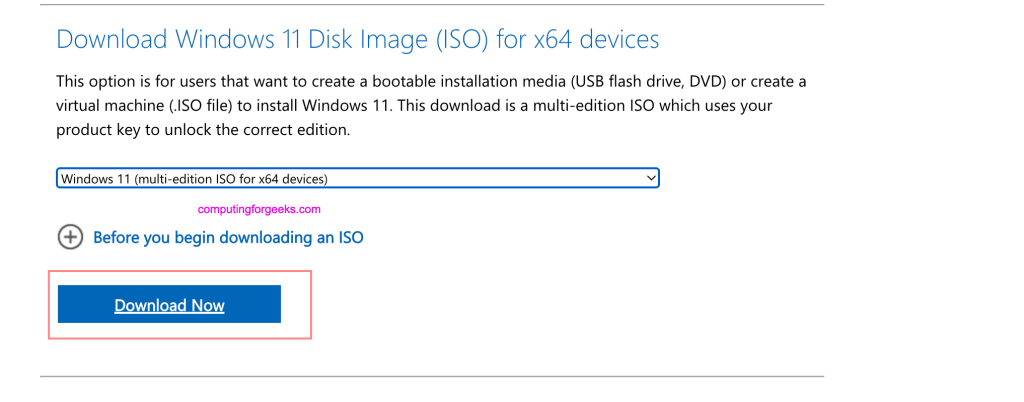
Wait for the download process to complete then progress to the next step.
Create Bootable Windows 11 USB Medium
Once the ISO is available locally we can begin to make our USB device bootable.
Method 1: Manual method of copying files
Install wimlib using brew. This tool is used for interacting with the Windows Imaging (WIM) files.
$ brew install wimlib
==> Downloading https://ghcr.io/v2/homebrew/core/wimlib/manifests/1.14.3
....
==> Installing dependencies for wimlib: ca-certificates and openssl@3
==> Installing wimlib dependency: ca-certificates
==> Downloading https://ghcr.io/v2/homebrew/core/ca-certificates/manifests/2023-08-22-1
Already downloaded: /Users/jkmutai/Library/Caches/Homebrew/downloads/ee5843c6049b06251f85ff5520afc763b2d62190ebee334b78115b8bebac8885--ca-certificates-2023-08-22-1.bottle_manifest.json
==> Pouring ca-certificates--2023-08-22.all.bottle.1.tar.gz
==> Regenerating CA certificate bundle from keychain, this may take a while...
🍺  /usr/local/Cellar/ca-certificates/2023-08-22: 3 files, 221.7KB
==> Installing wimlib dependency: openssl@3
==> Downloading https://ghcr.io/v2/homebrew/core/openssl/3/manifests/3.2.0
Already downloaded: /Users/jkmutai/Library/Caches/Homebrew/downloads/f4198e1c20f075acafccf58da7f0da06963e40006c4c127cbc667a85750039df--openssl@3-3.2.0.bottle_manifest.json
==> Pouring [email protected]
🍺  /usr/local/Cellar/openssl@3/3.2.0: 6,805 files, 32.4MB
==> Installing wimlib
==> Pouring wimlib--1.14.3.sonoma.bottle.tar.gz
🍺  /usr/local/Cellar/wimlib/1.14.3: 64 files, 2.7MB
==> Running `brew cleanup wimlib`...
Disable this behaviour by setting HOMEBREW_NO_INSTALL_CLEANUP.
Hide these hints with HOMEBREW_NO_ENV_HINTS (see `man brew`).
Removing: /usr/local/Cellar/wimlib/1.13.6... (64 files, 2.6MB)
Removing: /Users/jkmutai/Library/Caches/Homebrew/wimlib--1.13.6... (485.8KB)
....
Erase all data in the USB disk.
$ diskutil eraseDisk MS-DOS "WINDOWS-USB" GPT /dev/disk2
Started erase on disk2
Unmounting disk
Creating the partition map
Waiting for partitions to activate
Formatting disk2s2 as MS-DOS (FAT) with name WINDOWS-USB
512 bytes per physical sector
/dev/rdisk2s2: 59645440 sectors in 1863920 FAT32 clusters (16384 bytes/cluster)
bps=512 spc=32 res=32 nft=2 mid=0xf8 spt=32 hds=255 hid=411648 drv=0x80 bsec=59674624 bspf=14562 rdcl=2 infs=1 bkbs=6
Mounting disk
Finished erase on disk2
The erase removes all volumes and creates a new partitioning scheme containing one new empty file system volume. In the example we’re using the GPT format. The disk will have the volume name WINDOWS-USB.
If GPT fails for any reason you can use MBR
diskutil eraseDisk MS-DOS "WINDOWS-USB" MBR /dev/disk2In preparation for Windows 11 ISO data transfer to the USB medium, we need to mount the ISO file in a folder.
hdiutil mount /path/to/iSO/fileExample;
$ hdiutil mount Win11_23H2_English_x64.iso
/dev/disk5          	                               	/Volumes/CCCOMA_X64FRE_EN-US_DV9
We can see the mount point automatically created is /Volumes/CCCOMA_X64FRE_EN-US_DV9. Remember our devices is located in /dev/disk2.
Next we copy all Windows ISO contents into the USB Drive:
rsync -vha --exclude=sources/install.wim /Volumes/CCCOMA_X64FRE_EN-US_DV9/* /Volumes/WINDOWS-USBConfirm success of files copying.
....
sent 780.69M bytes  received 18.61K bytes  13.35M bytes/sec
total size is 780.43M  speedup is 1.00
Check your size of the install.wim file.
$ duh /Volumes/CCCOMA_X64FRE_EN-US_DV9/sources/install.wim
5.5G	/Volumes/CCCOMA_X64FRE_EN-US_DV9/sources/install.wim
Split install.wim file in two parts if the size is bigger than 4GB
wimlib-imagex split /Volumes/CCCOMA_X64FRE_EN-US_DV9/sources/install.wim /Volumes/WINDOWS-USB/sources/install.swm 3800This may take some time to finish.
Splitting WIM: 3732 MiB of 5604 MiB (66%) written, part 1 of 2
...
Splitting WIM: 5604 MiB of 5604 MiB (100%) written, part 2 of 2
Finished splitting "/Volumes/CCCOMA_X64FRE_EN-US_DV9/sources/install.wim"
The resulting files have extension .swm. SWM is for legacy reasons when you need to split a WIM across multiple media because it doesn’t fit as one file.
$ duh  /Volumes/WINDOWS-11/sources/install*
3.7G	/Volumes/WINDOWS-11/sources/install.swm
1.8G	/Volumes/WINDOWS-11/sources/install2.swm
When done eject USB device to use it for OS installation.
$ diskutil eject /dev/disk2
Disk /dev/disk2 ejected
Method 2: Using Boot Camp Assistant
macOS has a utility called Boot Camp Assistant that allows its users to install Windows operating systems alongside macOS. Note that his only works on Intel-based Mac computers. It will partition a disk, create Windows partition, and set the boot environment that allows booting Windows.
Only use this method if your Windows 11 ISO file is less than 4.5GB is size, and install.wim less than 4 GB. Also it will not work on Macs with Apple Silicon CPU.
Launch the application under Finder > Applications > Utilities and select Boot Camp Assistant.
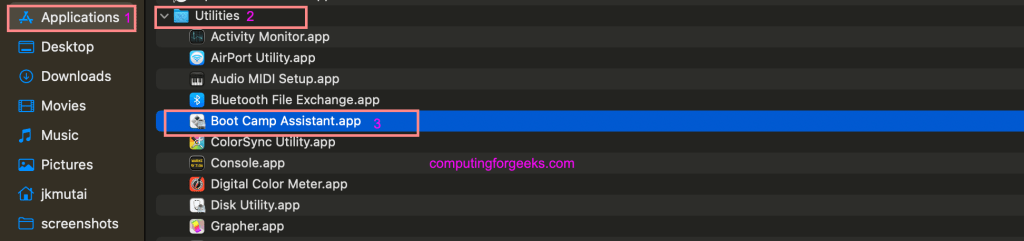
If the size is >4.5GB, don’t use this method. Like in below example.

Use Continue and choose the ISO file for installation.
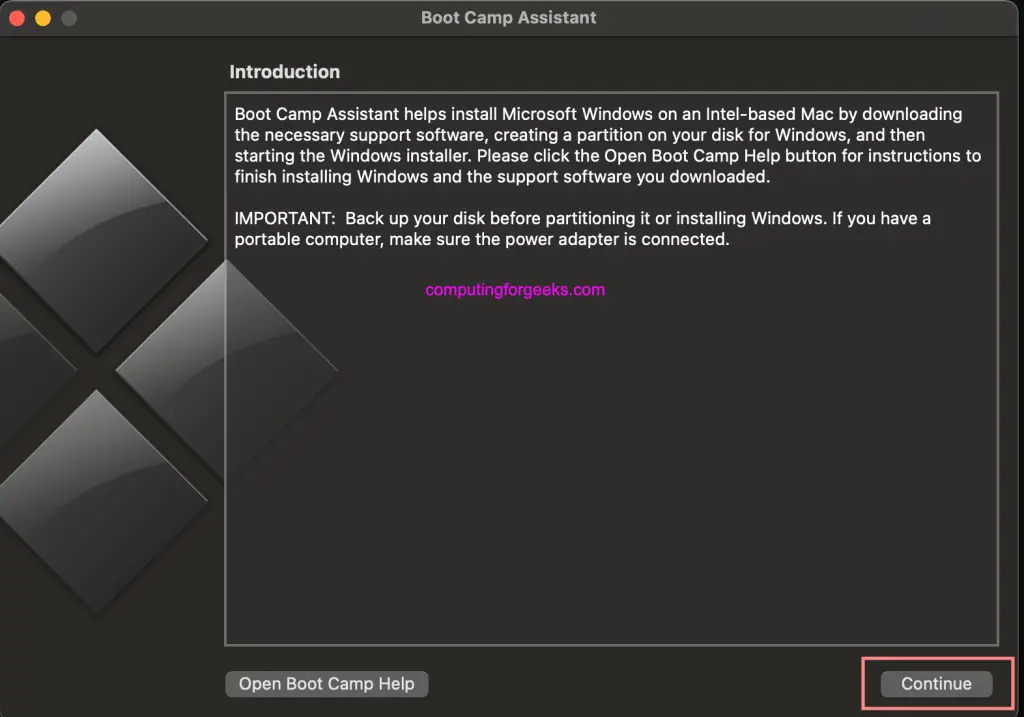
In the next screen navigate to the path to choose Windows ISO image from your OS internal storage and select Continue.
Boot Camp Assistant then work to creating a bootable Windows 10 or Windows 11 bootable USB device. Once the process is complete, unmount your USB drive by right-clicking > Eject from Finder volume mount or from CLI.
diskutil eject /dev/disk2 #Replace disk2 with yours as seen in diskutil list output.Method 3: Using UUByte ISO Editor
UUByte ISO Editor too allows you to create Windows bootable USB on macOS. If install.wim file is larger than 4GB in size, this tool can split it. This ISO Editor works on both Intel and Apple Silicon Mac. Visit the Downloads page to get the trial.
wget https://www.uubyte.com/download/uubyte-iso-editor.dmg
open uubyte-iso-editor.dmg
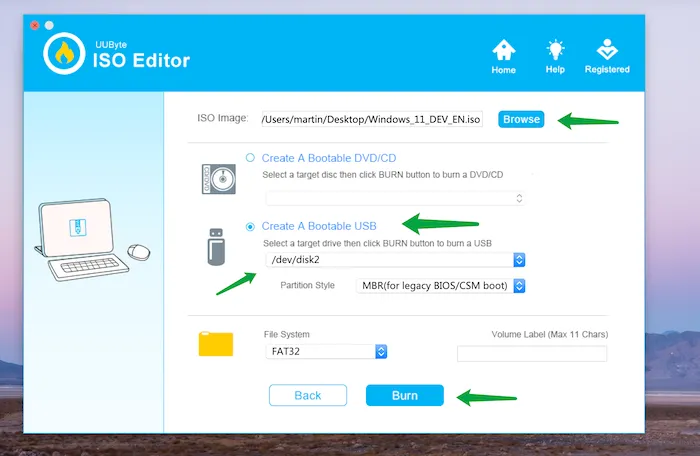
To create a bootable USD device with Windows 11/10 ISO image, select “Burn” in the menu.
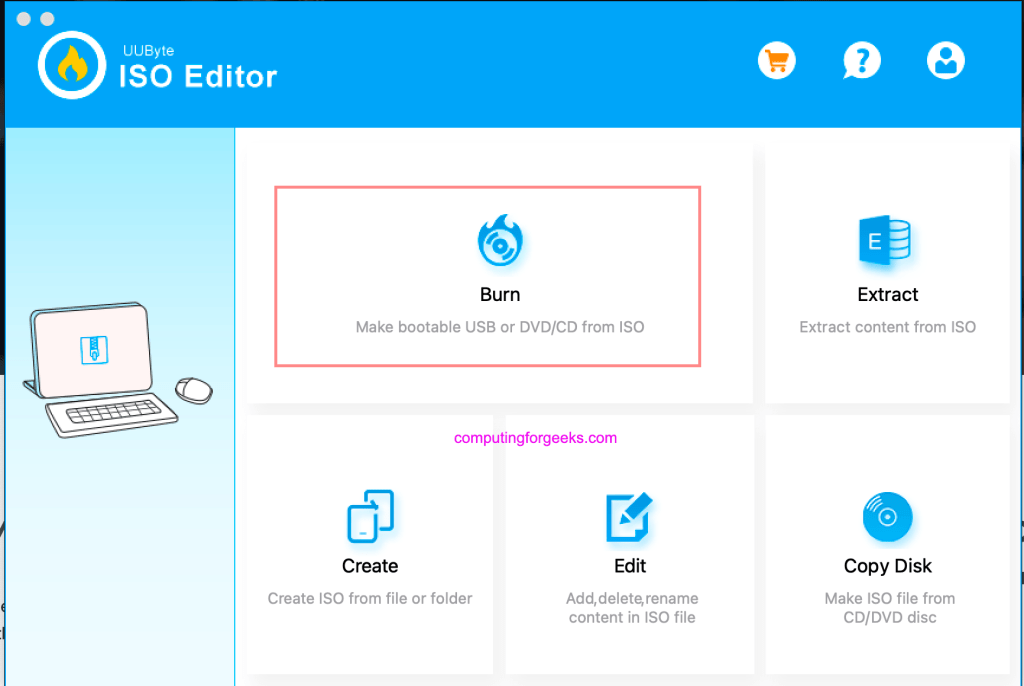
In the next page, choose your Windows ISO file under “ISO Image“, then “Create A Bootable USB” and select the drive from drop-down list. You can leave other settings as default.
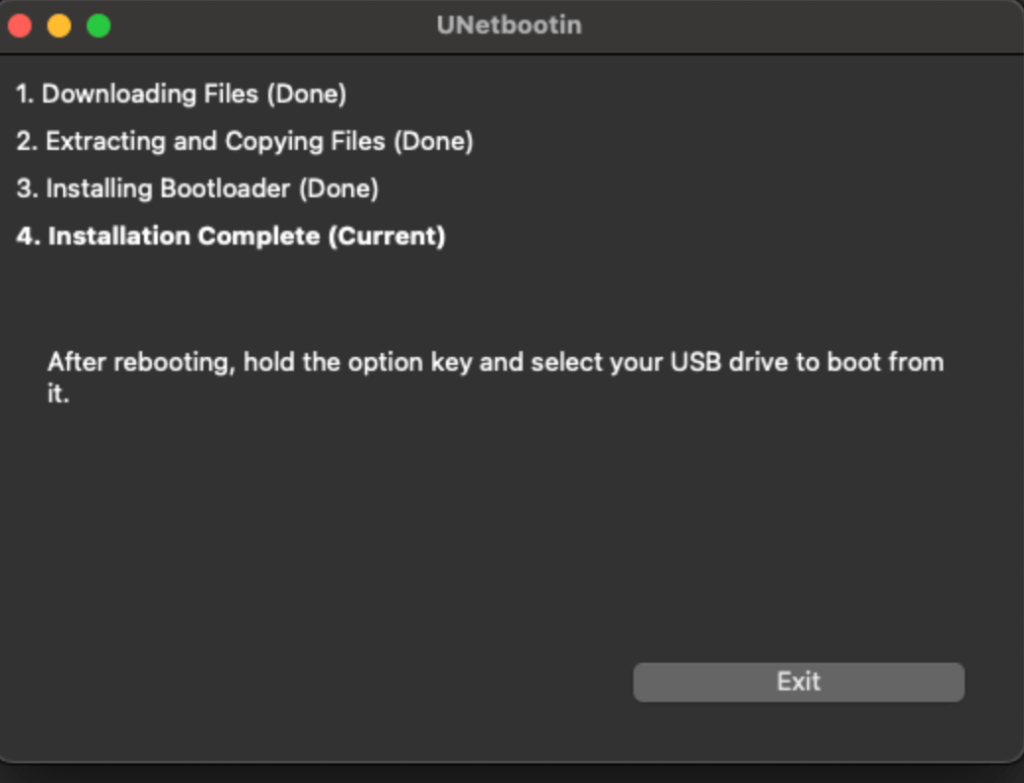
Method 4: Using UNetbootin
UNetbootin is a tool that enables you to create bootable Live USB drives Linux and Windows operating systems.
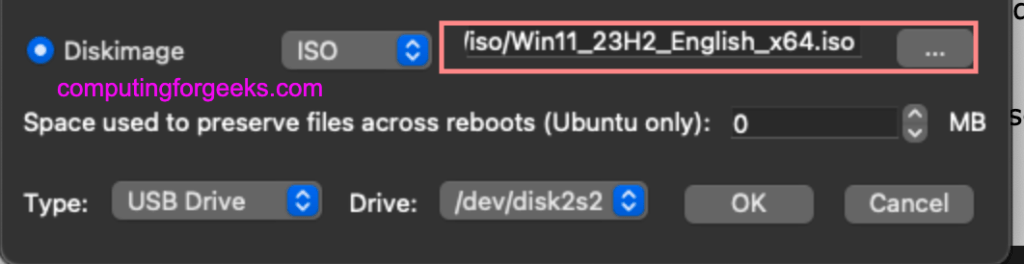
Visit UNebootin Downloads page and get the latest release of the software for macOS. For Windows ISO image, select the “Diskimage” option and open path to your ISO image.
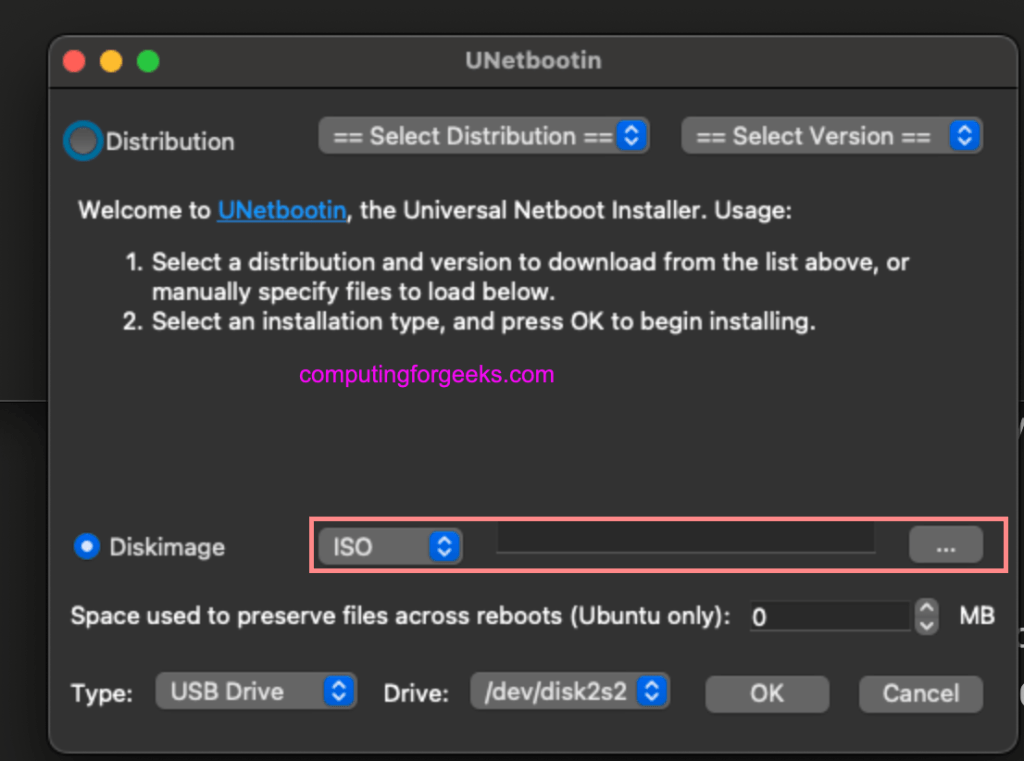
Choose the “USB drive” in Type, and select your USB drive under Drive. For me this is /dev/disk2
The process should begin.
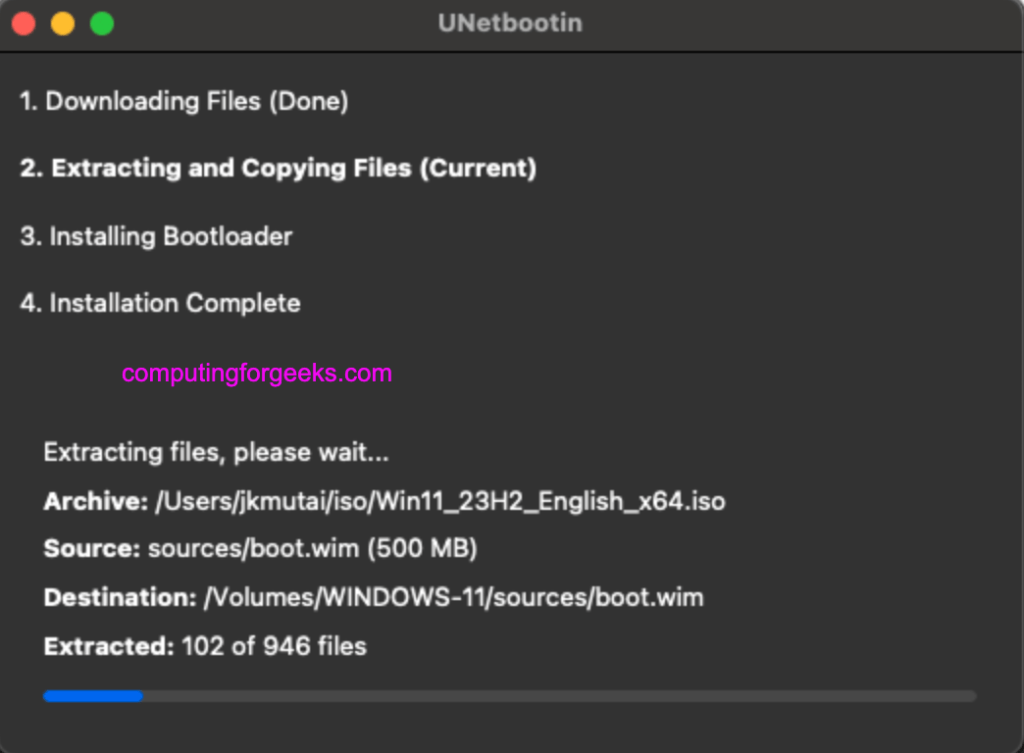
Wait for it to finish then eject the disk and begin windows installation in your computer using the bootable USB device just created.
Conclusion
To this end we’ve been able to create a bootable USB stick on macOS and you can now boot the computer and install Windows 11 operating system. Other times the boot may fail because of BIOS settings that need modifications or drivers to be loaded for installation of Computer’s NVME/SSD or HDD storage disks.



If you use ExFAT instead of MS-DOS as the partition format, you don’t have to split up the install.wim file – just tested it on a new Win 11 after finding this after `dd` kept failing to write a good USB from the ISO.