Containerization is one of the highly adopted technologies in the decade. This has forced companies around the world to modernize their application for cloud use. Containerization can be defined as the packaging of an application in a lightweight executable. The container ships all the libraries and dependencies required to run an application. This brings more advantages as there is flexibility, scalability, improved performance and many more.
The huge task that comes with this technology is how to manage the containers. This can be overwhelming if the complexity of the environment increases. The normal way of managing Docker containers involves running the commands directly from the Docker CLI or using Docker Compose. These methods have some limitations and drawbacks, which include:
- Limited to Single Host: You only have the ability to manage single-host deployments. This can be a challenge if you have a multi-host environment that needs to be managed.
- Less Flexibility in Scaling: The don’t provide advanced auto-scaling features. Scaling is done manually which can be challenging at times.
- Manual Container Configuration: This can be time-consuming and prone to errors, especially with large environments.
- Memorization of commands: Those who are new to Docker, may find the commands too complex to understand.
In this guide, we will learn about some of the best UI Applications that you can use to manage Docker Containers
1. Portainer
Portainer is a lightweight container management tool developed by Potainer.io. This organization believes that containerization should be available to everyone and not only those who know the commands. This web-based container management platform, plays a significant role in accelerating container adoption.
By using Portainer, you are able to:
- Easily manage containers, you can start, stop, kill, restart, pause, resume, remove and create contaienrs
- Add, delete and edit networks
- Manage container volumes
- Deploy apps easily using the templates
- Manage docker images
- Check and monitor the Docker Engine
- Add a custom registry
- Manage Docker Swarm
- Add more users to manage Docker.
To install Portainer, follow the aid provided in the guide below:
Once installed, select the container environment to be added. For this case, we will add Docker.

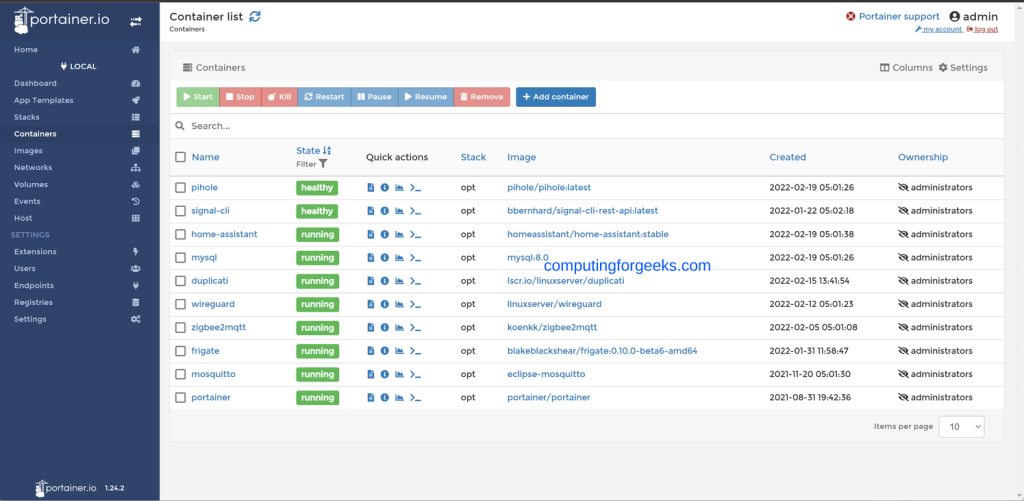
You will then have the Portainer dashboard to manage your Docker containers.
2. OrbStack
OrbStack provides a simple way to run and manage Docker containers and Linux. It provides a light, fast and easy-to-use UI from which you can manage the Docker images, containers, volumes etc. This tool can act as a drop-in replacement for Docker Desktop.
The features and benefits associated with OrbStack are:
- Light as a feather: It has very low CPU, disk and memory usage. This native Swift app does not drain the battery as well.
- Effortless integration: It can be integrated with several other tools. You get to enjoy CLI integration, file sharing, and remote SSH editing with Linux machines.
- Robust connectivity: You are able to connect between machine and containers and use IPV6 without struggling. You can also use DNS and VPNs effortlessly.
- Unbelievably simple: It can act as a drop-in replacement for Docker Desktop to help you get started with Linux machines in 1 minute with the simple, yet powerful app.
- Lightning fast: It starts within seconds with fast networking, VirtioFS file sharing, smooth Rosetta x86 emulation and other optimizations for some workloads.
OrbStack can be installed using two methods. Currently, it supports MacOS 12.3+. Use any of the below methods to install OrbStack.
The first method involves downloading and installing the package from the official OrbStack downloads page.
The second method is to install it using Homebrew by running the command:
brew install orbstackOnce installed, use it to manage your Docker containers and Linux

3. Yacht Web Interface
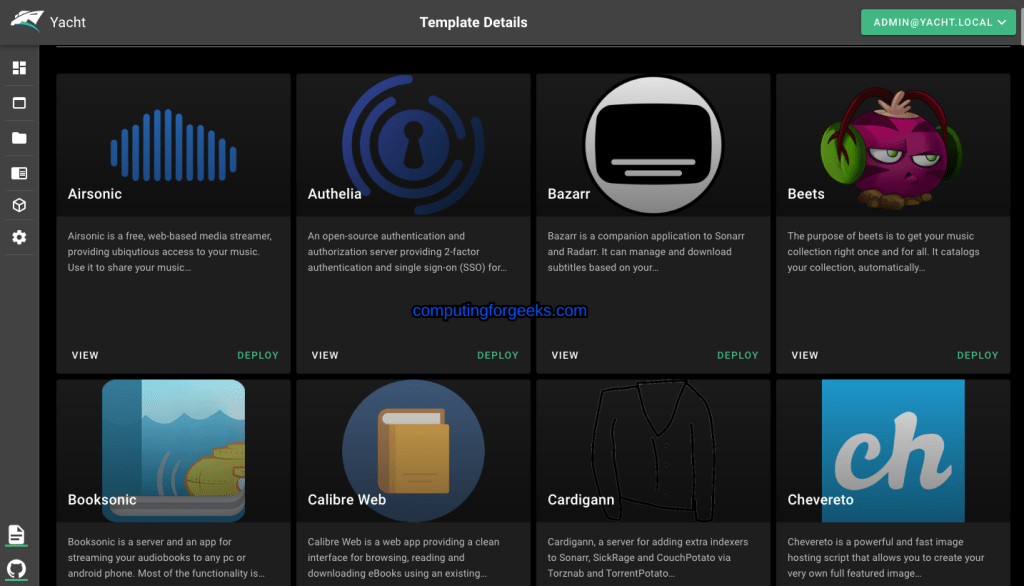
Yacht is a web UI tool that makes docker management completely easy. Users are able to use templates and perform other deployments in a single click.
This tool provides several features and benefits. Some of them include:
- Easily update the templates
- Basic Container Management
- Compatibility with Docker-Compose
- Centralized settings for volume management and similar QOL functionality.
- Advanced Container Management. You can easily edit and modify containers as desired.
There are other planned features that include user management, container monitoring, schedules jobs etc.
To install Yatch web interface, follow the aid provided in the guide below:
Once installed, you can access the web interface running on the specified port.
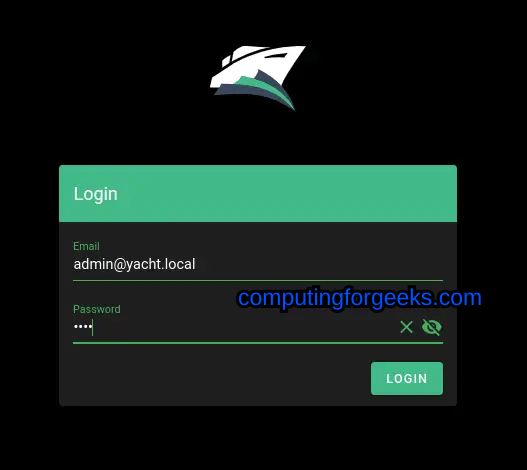
Now you can proceed and manage the Docker containers.
4. Docker Desktop
Docker Desktop is one of the popular tools used to manage Docker containers. This tool provides a UI That enables users to build and share containerized applications. It comes with several components that include Docker Engine, Docker CLI client, Docker Content Trust, Docker Compose, Kubernetes and Credential Helper.
This tool is highly preferred because it provides the ability to work with the desired language and development tool. It also provides access to Docker Hub and also allows users to extend their environment by rapidly auto-building, integration and collaboration.
The other features associated with Docker Desktop are:
- Ease of management: It makes it absolutely easy to automate installation, scaling and management of containers. It also offers the ability to toggle between Linux and Windows Server environments to build applications on Windows.
- Share applications on any cloud platform: Docker Desktop allows users to share their containerized apps in multiple languages and frameworks
- Fast and reliable performance with native Windows Hyper-V virtualization
- Automatic updates: this guarantees up-to-date versions and security
- Volume mounting for code and data: including file change notifications and easy access to running containers on the localhost network
- Easy to scale: For those who have a small startup, Docker Desktop will enable them to grow and scale confidently with such as Hardened Docker Desktop.
Download and install Docker Desktop from the official Docker Desktop Downloads page. You can get help on how to install Docker Desktop by following the guide below:
After installing it, launch the desktop app from your App Menu

You can then enjoy the awesomeness of this tool.

5. Rancher Desktop
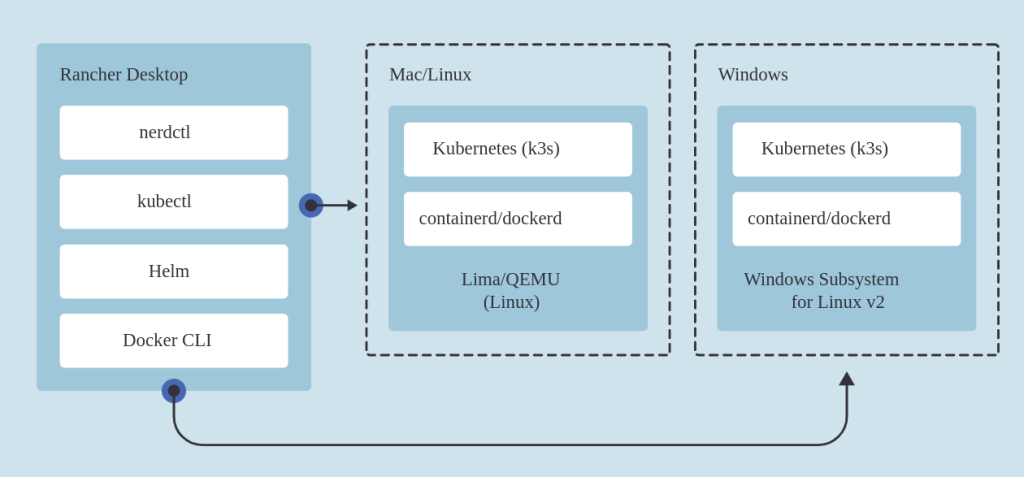
Rancher Desktop is an electron-based application that simplifies container deployment tasks in production. It wraps up other tools while providing a simplified user experience to create and manage containers. On Linux and MacOS systems, it uses a virtual machine to run containerd or dockerd and Kubernetes. On Windows systems, it uses Windows Subsystem for Linux v2 to run the containers.
Below is a diagram illustrating how Rancher Desktop works
Rancher Desktop is preferred due to the following reasons:
- It comes with built-in container images, there is no requirement for a registry
- It can run on Linux, Windows and MacOS systems
- Authorization and Role-Based Access Control using the Rancher API server. It makes it easier to manage user identities that correspond to external authentication systems such as Active Directory, and GitHub, in addition to local users.
- Proper logging capabilities that can be integrated with various popular logging services and tools outside of your Kubernetes clusters.
- It is free and open source.
To install Rancher Desktop, follow the below guides:
Once installed, launch the Rancher Desktop app:

Once the initial settings have been performed, you can pull the container image.
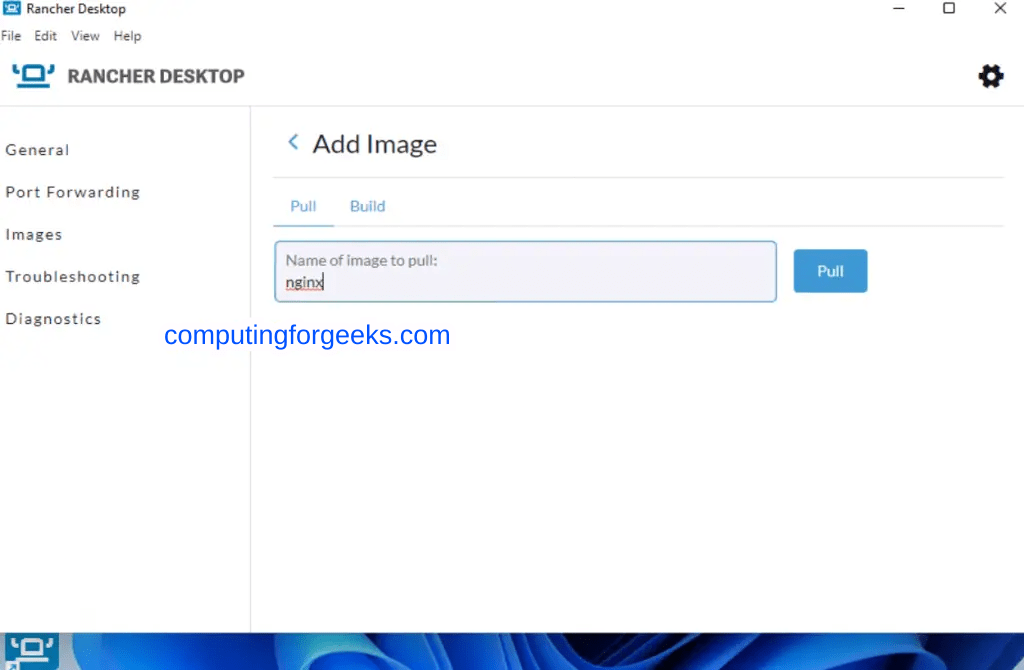
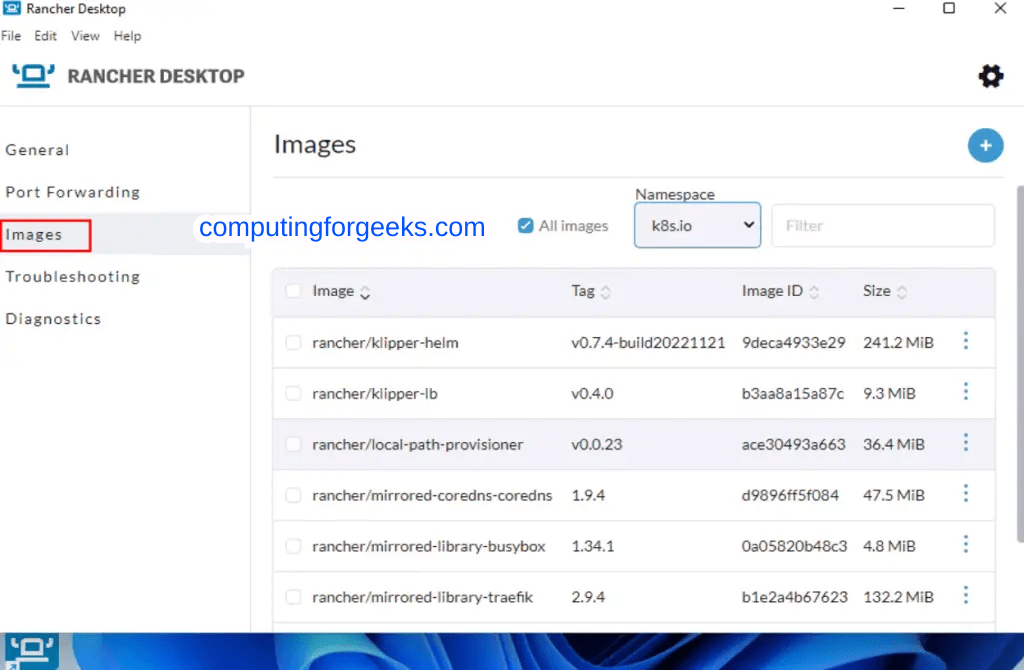
You can also use nerdctl, kubectl, helm and Docker CLI to manage the images and containers. The available images can be viewed as shown:
6. Lima
Lima is an abbreviation of Linux Machines. This tool makes it possible to launch Linux virtual machines with automatic file sharing and port forwarding just as WSL 2. The main goal of this tool was to promote the adoption of containerd including nerdctl (contaiNERD ctl) to Mac users. In addition to that, Lima supports other container engines such as Docker, Podman, Kubernetes etc. It can also be used to run other non-MacOS systems such as Linux, NetBSD, etc.
To install Lima, use the below commands on MacOS:
brew install lima
limactl start
Once installed, Lima can be used to manage Docker containers. To run a sample container, execute the command:
- Using Containerd
lima nerdctl run --rm hello-world- Using Docker
limactl start template://docker
export DOCKER_HOST=$(limactl list docker --format 'unix://{{.Dir}}/sock/docker.sock')
docker run --rm hello-world- Using Kubernetes
imactl start template://k8s
export KUBECONFIG=$(limactl list k8s --format 'unix://{{.Dir}}/copied-from-guest/kubeconfig.yaml')
kubectl apply -f ...
7. Podman Desktop
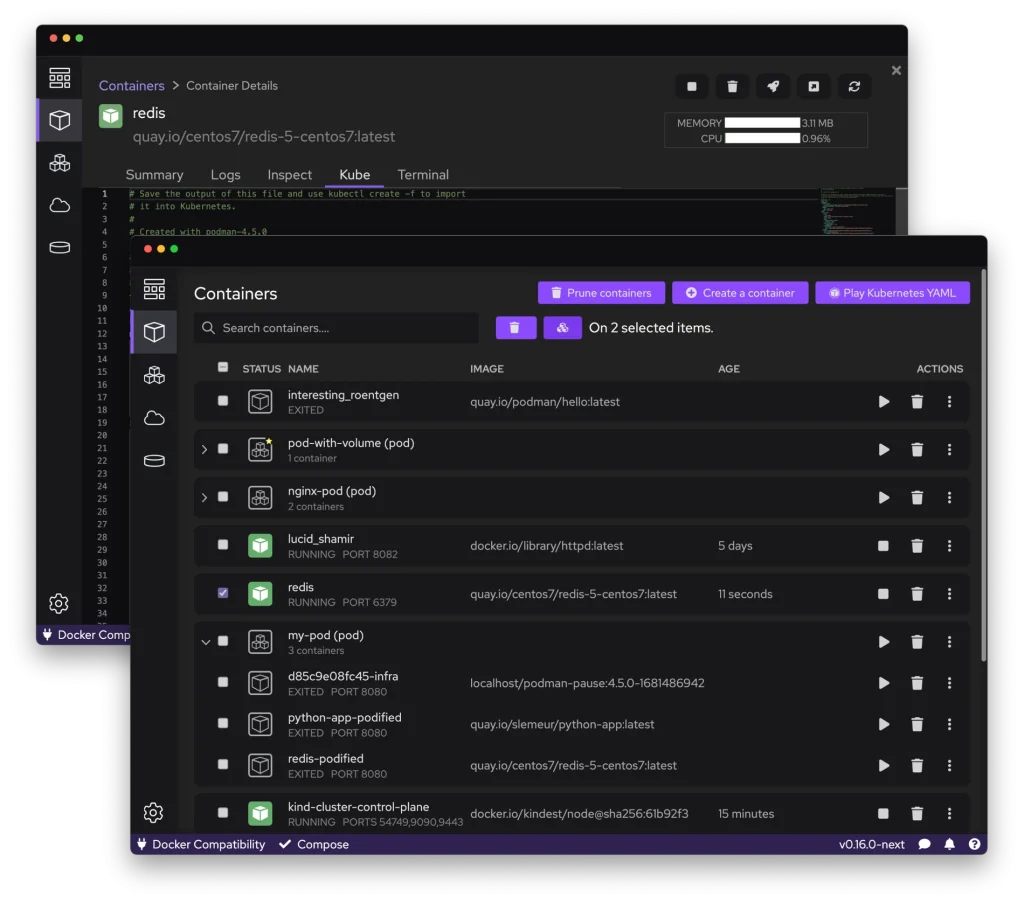
Podman Desktop is an open-source tool that provides a UI to simplify the management of containers and Kubernetes in the local environment. This tool is supported on Windows, MacOS and Linux systems.
Podman Desktop offers a lot of features and benefits that include:
- Ability to build, run and manage containers: It allows users to build images from Containerfile and Dockerfile. You can also pull and run containers from remote registries. Once the images have been built, you can push them to a remote registry as well.
- Support for Kubernetes: It allows users to work with pods, you can start, inspect and manage pods. You also have the ability to work with Kubernetes YAML directly with the Podman engine. Users are able to generate Kubernetes YAML from the pods.
- Multiple configuration options: Podman Desktop provides several config options such as registries, proxy, resource utilization and container engines.
There are a number of ways to install Podman Desktop on your system.
One of the methods is downloading the required file for your system from the Podman Desktop downloads page.
The other method involves using package managers. You can use the below commands:
##On Windows(Using Winget)
winget install -e --id RedHat.Podman-Desktop

##On MacOS(Using HomeBrew)
brew install podman-desktop

##On Linux(Using Flatpak)
flatpak install flathub io.podman_desktop.PodmanDesktop
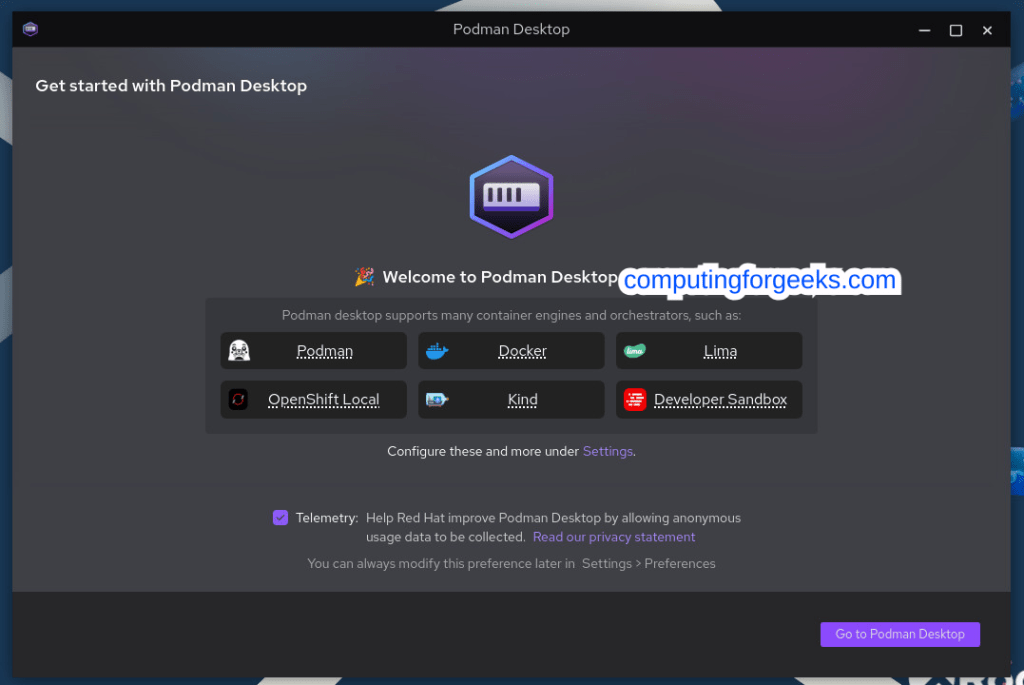
Once started, you will see this window:
You can pull the desired image to use:
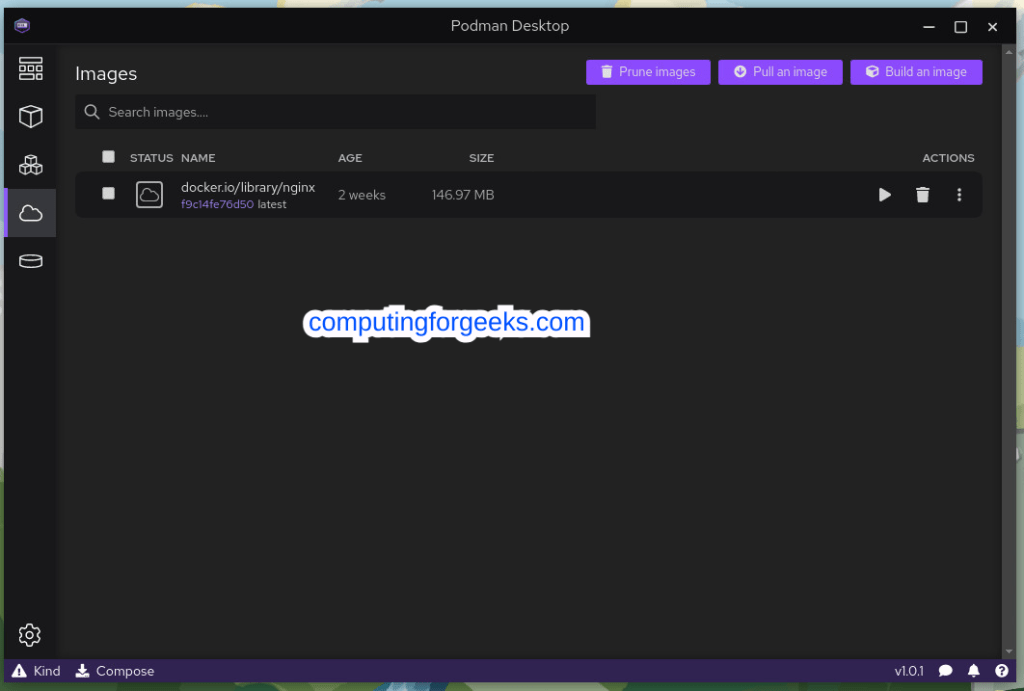
You can then run and manage the containers as desired:
Closing Thoughts
In this guide, we have learned about some of the best UI Applications for Managing Docker Containers. Now you can choose one of the tools that fascinates you and eliminate the tussle involved when managing a large/complex environment. I hope this was informative.
See more: