Rocky Linux 10 ships a lean default AppStream: java-21-openjdk for long-term stability and java-25-openjdk for teams already moving to the newest LTS. The older module streams that let you pick from Java 8, 11, 17, and 21 in one shot are gone in this release. If a workload still depends on Java 17 or Java 11, you pull it from Eclipse Temurin or Azul Zulu instead.
This guide walks through both OpenJDK builds from the Rocky AppStream, the Oracle JDK RPM from oracle.com, swapping the default Java with alternatives, setting JAVA_HOME system-wide, and an end-to-end smoke test that compiles and runs a real class. The same package names apply to AlmaLinux 10 and RHEL 10 with no changes. Rocky Linux 9 and AlmaLinux 9 are covered separately near the end because the module-stream story there is still alive.
Verified working: April 2026 on Rocky Linux 10.1 (kernel 6.12, SELinux enforcing) with OpenJDK 21.0.10 LTS and OpenJDK 25.0.2 LTS from the AppStream.
Prerequisites
You need:
- Rocky Linux 10, AlmaLinux 10, or RHEL 10 with
sudoor root access. The same commands also work on Rocky 9 / AlmaLinux 9; see the Rocky 9 section for the package-name deltas. - Internet connectivity (
dnfhits the AppStream mirrors and, optionally, Oracle’s download CDN). - Around 600 MB free under
/usrif you plan to install both OpenJDK 21 and OpenJDK 25.
If you don’t have a Rocky 10 host yet, spin up a cheap VPS. Hetzner’s CX22 tier and DigitalOcean’s $4 droplet both boot Rocky 10 cloud images in under a minute. DigitalOcean droplets come with $200 in credit for new accounts, which covers months of Java testing. On an existing box, fresh-install tips for Rocky 10 live in our Rocky Linux 10 post-installation guide.
Step 1: Check what Rocky 10 AppStream offers
Before pulling packages, confirm which OpenJDK streams are in the AppStream. The search command below filters the noise and shows only the runtime/devel lines:
dnf search openjdk 2>&1 | grep -E '^java-[0-9]+-openjdk(-devel|-headless)?\.' | sort -uOn a clean Rocky 10.1 box you get exactly two streams, both LTS:
java-21-openjdk-devel.x86_64 : OpenJDK 21 Development Environment
java-21-openjdk-headless.x86_64 : OpenJDK 21 Headless Runtime Environment
java-21-openjdk.x86_64 : OpenJDK 21 Runtime Environment
java-25-openjdk-devel.x86_64 : OpenJDK 25 Development Environment
java-25-openjdk-headless.x86_64 : OpenJDK 25 Headless Runtime Environment
java-25-openjdk.x86_64 : OpenJDK 25 Runtime Environment
This is a real change from Rocky 9. The java-11-openjdk, java-17-openjdk, and java-1.8.0-openjdk packages that used to live in the AppStream are not in Rocky 10. The dnf module system that fronted them is also gone (try dnf module list java and you’ll see a deprecation warning plus “No matching Modules to list”). If a workload still pins Java 17 or Java 11, the path on Rocky 10 is Eclipse Temurin, Azul Zulu, or Amazon Corretto, all of which ship their own RPM repos.
Step 2: Install OpenJDK 21 LTS
OpenJDK 21 is the current LTS (released September 2023, supported through September 2031 by Red Hat). It’s the right default for production services on Rocky 10 unless a specific dependency forces 25.
Install the headless runtime plus the development toolchain:
sudo dnf install -y java-21-openjdk-headless java-21-openjdk-develServer workloads (Tomcat, Elasticsearch, Kafka, Zookeeper) want headless because they don’t need AWT or the audio libraries. The devel subpackage brings javac, jar, and jshell. If you need the full desktop Java stack with font rendering and Swing, install java-21-openjdk instead of the headless variant.
Verify both runtime and compiler:
java --version
javac --version
The real build string on Rocky 10.1 looks like this:
openjdk 21.0.10 2026-01-20 LTS
OpenJDK Runtime Environment (Red_Hat-21.0.10.0.7-1) (build 21.0.10+7-LTS)
OpenJDK 64-Bit Server VM (Red_Hat-21.0.10.0.7-1) (build 21.0.10+7-LTS, mixed mode, sharing)
javac 21.0.10
The Red Hat build ID at the end confirms you’re on Red Hat’s OpenJDK, not an ad-hoc tarball. That matters for security updates because AppStream pushes Red Hat CPU releases every quarter.
Step 3: Install OpenJDK 25 alongside OpenJDK 21
OpenJDK 25, released September 2025, is the newest LTS in the OpenJDK cadence. Run it next to OpenJDK 21 when you need both a stable production JDK and a recent one for builds or integration tests:
sudo dnf install -y java-25-openjdk-headless java-25-openjdk-develBoth JDKs now coexist under /usr/lib/jvm/. The directory listing is how you’ll point JAVA_HOME at whichever one a service needs:
ls -d /usr/lib/jvm/java-*-openjdkOn the test VM this returns both install roots:
/usr/lib/jvm/java-21-openjdk
/usr/lib/jvm/java-25-openjdk
Even though both runtimes are installed, java --version still reports OpenJDK 21 because the AppStream ships a higher alternatives priority for the LTS that Red Hat has supported longest. Switching the default is the next step.
Step 4: Switch the default Java with alternatives
The alternatives system lets you flip /usr/bin/java and /usr/bin/javac between installed JDKs without touching PATH or JAVA_HOME. Interactive mode walks you through the menu:
sudo alternatives --config javaThe menu lists every registered runtime. Enter the number next to the one you want:
There are 2 programs which provide 'java'.

  Selection    Command
-----------------------------------------------
*+ 1           /usr/lib/jvm/java-21-openjdk/bin/java
   2           /usr/lib/jvm/java-25-openjdk/bin/java

Enter to keep the current selection[+], or type selection number:
For scripted rollouts, skip the prompt with --set:
sudo alternatives --set java /usr/lib/jvm/java-25-openjdk/bin/java
sudo alternatives --set javac /usr/lib/jvm/java-25-openjdk/bin/javac
Confirm the switch took effect:
java --versionThe runtime now reports OpenJDK 25:
openjdk 25.0.2 2026-01-20 LTS
OpenJDK Runtime Environment (Red_Hat-25.0.2.0.10-3) (build 25.0.2+10-LTS)
OpenJDK 64-Bit Server VM (Red_Hat-25.0.2.0.10-3) (build 25.0.2+10-LTS, mixed mode, sharing)
One gotcha worth knowing. If you’ve already exported JAVA_HOME and prepended $JAVA_HOME/bin to PATH in a shell profile, the login shell resolves java out of that JDK’s bin directory before it ever reaches /usr/bin/java. That means alternatives --set changes the symlink but your interactive shell keeps using the old version. To see what alternatives actually does, run /usr/bin/java --version with the absolute path, or open a fresh shell without the profile loaded.
Roll the default back when you’re done:
sudo alternatives --set java /usr/lib/jvm/java-21-openjdk/bin/java
sudo alternatives --set javac /usr/lib/jvm/java-21-openjdk/bin/javac
With the default flipped back to 21, services that read /usr/bin/java go back to the LTS that Red Hat backports CPU updates to quarterly. The next section ties this to JAVA_HOME so Tomcat, Jenkins, and similar servers land on the same JDK.
Step 5: Set JAVA_HOME system-wide
Application servers like Tomcat, Jenkins, and the Maven wrapper read JAVA_HOME to locate the JDK. The cleanest place to set it globally on Rocky Linux is a dedicated script under /etc/profile.d/, which every login shell sources.
Open the file with your editor of choice:
sudo vi /etc/profile.d/java.shPaste the two export lines and save:
export JAVA_HOME=/usr/lib/jvm/java-21-openjdk
export PATH=$JAVA_HOME/bin:$PATH
Give it the right mode and source it in your current shell:
sudo chmod 644 /etc/profile.d/java.sh
source /etc/profile.d/java.sh
Check the value landed:
echo "JAVA_HOME=$JAVA_HOME"
which java
You should see the 21 path resolve first because of the prepended PATH:
JAVA_HOME=/usr/lib/jvm/java-21-openjdk
/usr/lib/jvm/java-21-openjdk/bin/java
For a systemd service you’d rather point at a specific JDK directly. Drop Environment=JAVA_HOME=/usr/lib/jvm/java-25-openjdk inside the unit’s [Service] section and skip the profile.d trick. Deeper patterns for JDK selection across users and services are in our Configure JAVA_HOME on Rocky Linux / RHEL / Fedora guide.
Step 6: Install Oracle JDK 21 from the official RPM
Some commercial Java stacks ship TCK-tested binaries that only Oracle’s own JDK satisfies. Oracle distributes an .rpm directly from oracle.com; no registration is required for the current LTS line under the NFTC license for development and commercial use at internal scale.
Download the latest Oracle JDK 21 RPM. wget is reliable for this kind of large static download:
cd /tmp
wget https://download.oracle.com/java/21/latest/jdk-21_linux-x64_bin.rpm -O /tmp/jdk-21.rpm
Install with dnf (it resolves the trivial dependencies and places the JDK at /usr/lib/jvm/jdk-21-oracle-x64):
sudo dnf install -y /tmp/jdk-21.rpmInstallation output confirms the package version:
Installed:
  jdk-21-2000:21.0.10-8.x86_64
Complete!
Oracle’s RPM creates a convenience symlink at /usr/java/latest so you don’t have to hunt for the real install path. Verify the build:
/usr/java/latest/bin/java --versionOracle’s build string includes the HotSpot VM tag Oracle uses for its commercial support contracts:
java 21.0.10 2026-01-20 LTS
Java(TM) SE Runtime Environment (build 21.0.10+8-LTS-217)
Java HotSpot(TM) 64-Bit Server VM (build 21.0.10+8-LTS-217, mixed mode, sharing)
If you want the Oracle JDK to be the system default, point JAVA_HOME at it:
echo 'export JAVA_HOME=/usr/java/latest' | sudo tee /etc/profile.d/java.sh
echo 'export PATH=$JAVA_HOME/bin:$PATH' | sudo tee -a /etc/profile.d/java.sh
source /etc/profile.d/java.sh
Review Oracle’s licensing before you roll this out to production. The NFTC covers development, testing, prototyping, and internal business use but not hosting Java applications for third-party paying users without a subscription.
Step 7: Smoke test with a Hello class
A real compile-and-run cycle proves the toolchain is wired up. Create Hello.java with your editor:
vi /tmp/Hello.javaPaste this class and save:
public class Hello {
    public static void main(String[] args) {
        System.out.println("Hello from OpenJDK " + System.getProperty("java.version"));
        System.out.println("Vendor: " + System.getProperty("java.vendor"));
        System.out.println("Home:   " + System.getProperty("java.home"));
    }
}
Compile and run:
cd /tmp
javac Hello.java
java Hello
The runtime prints its version, vendor, and install root, which is a good triple-check on which JDK is active:
Hello from OpenJDK 21.0.10
Vendor: Red Hat, Inc.
Home:   /usr/lib/jvm/java-21-openjdk
Running the same compiled class against the OpenJDK 25 JVM just needs the absolute path. The class file from javac 21 is forward-compatible, so the same bytecode runs on the newer VM:
/usr/lib/jvm/java-25-openjdk/bin/java -cp /tmp HelloThis prints:
Hello from OpenJDK 25.0.2
Vendor: Red Hat, Inc.
Home:   /usr/lib/jvm/java-25-openjdk
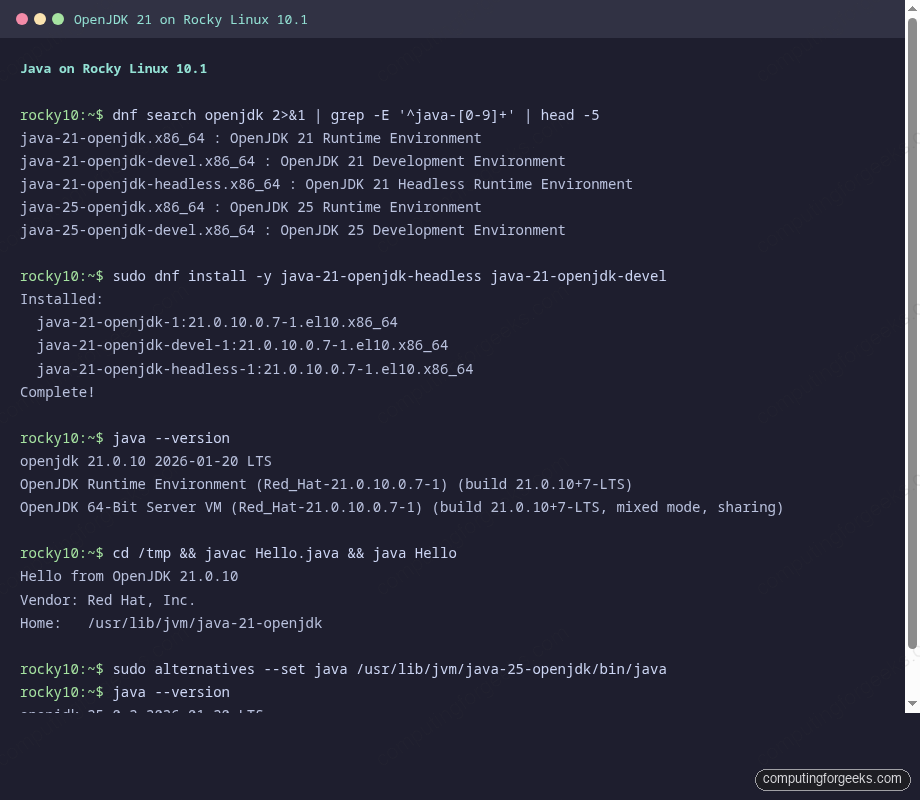
The screenshot below captures the install, version check, and the compile-run output on the Rocky 10.1 test VM:
With the toolchain working, you can move on to whatever actually needs Java, whether that’s a Tomcat app server via our Tomcat on Rocky Linux with SSL guide or a Maven build per Install Maven on Rocky Linux / AlmaLinux / Fedora.
Installing on Rocky Linux 9 and AlmaLinux 9
Rocky 9 and AlmaLinux 9 still ship the older module-based story: java-1.8.0-openjdk, java-11-openjdk, java-17-openjdk, and java-21-openjdk are all in the AppStream and coexist cleanly. The workflow is otherwise identical.
Install Java 21 LTS:
sudo dnf install -y java-21-openjdk-headless java-21-openjdk-develInstall Java 17 (the most common legacy target on Rocky 9):
sudo dnf install -y java-17-openjdk-headless java-17-openjdk-develInstall Java 11 if a workload still requires it:
sudo dnf install -y java-11-openjdk-headless java-11-openjdk-develAll three coexist under /usr/lib/jvm/. Use alternatives --config java to flip the default exactly as on Rocky 10, and drop a matching /etc/profile.d/java.sh pointing JAVA_HOME at whichever version you picked.
For the full Rocky 9 walkthrough plus the module-stream flags, we keep the dedicated guide at Install Java LTS on RHEL / Rocky Linux / AlmaLinux.
Installing Java 11 and Java 17 on Rocky 10 (Temurin and Corretto)
If a legacy workload pins Java 17 or Java 11 but you’re on Rocky 10, Eclipse Temurin and Amazon Corretto are the two paths that survive future kernel and glibc bumps. Both ship yum/dnf repos signed with GPG keys you can trust for long-term installs.
Eclipse Temurin 17 via Adoptium’s repo. First create the repo file:
sudo vi /etc/yum.repos.d/adoptium.repoPaste the following contents and save:
[Adoptium]
name=Adoptium
baseurl=https://packages.adoptium.net/artifactory/rpm/rocky/$releasever/$basearch
enabled=1
gpgcheck=1
gpgkey=https://packages.adoptium.net/artifactory/api/gpg/key/public
Then install the Temurin 17 JDK:
sudo dnf install -y temurin-17-jdkAmazon Corretto 11 via Amazon’s signed repo:
sudo rpm --import https://yum.corretto.aws/corretto.key
sudo curl -Lo /etc/yum.repos.d/corretto.repo https://yum.corretto.aws/corretto.repo
sudo dnf install -y java-11-amazon-corretto-devel
Both register themselves with alternatives, so the same alternatives --config java menu lists them next to the AppStream OpenJDK builds. Temurin installs at /usr/lib/jvm/temurin-17-jdk; Corretto at /usr/lib/jvm/java-11-amazon-corretto. Running real Java workloads is exactly where a dedicated VPS with real RAM pays off. Hetzner Cloud ships 8 GB / 4-vCPU boxes in Europe for under €8 a month if you need more headroom than a typical Rocky 10 droplet.
OpenJDK LTS version matrix for Rocky Linux
Picking which Java to standardize on is the question this table tries to answer. LTS support windows follow the Red Hat OpenJDK life cycle on Rocky; Oracle and community builds follow Oracle’s own cadence.
| Version | Rocky 10 AppStream | Rocky 9 AppStream | Red Hat support end | Common use today |
|---|---|---|---|---|
| OpenJDK 8 | Not shipped | java-1.8.0-openjdk | Nov 2026 | Legacy enterprise apps, Jenkins plugins |
| OpenJDK 11 | Not shipped | java-11-openjdk | Oct 2027 | Older Spring Boot 2.x, Elasticsearch 7.x |
| OpenJDK 17 | Not shipped | java-17-openjdk | Oct 2029 | Spring Boot 3.x, Kafka 3.x, Elasticsearch 8.x |
| OpenJDK 21 | java-21-openjdk | java-21-openjdk | Sep 2031 | New services, Spring Boot 3.2+, modern Kotlin |
| OpenJDK 25 | java-25-openjdk | Via Temurin/Corretto | Sep 2033 | Greenfield builds, projects on ZGC/Loom |
| Oracle JDK 21 | oracle RPM | oracle RPM | Sep 2031 (Oracle) | Commercial apps requiring Oracle TCK binaries |
The cleanest decision today is to build new services on OpenJDK 21 and keep OpenJDK 25 available on the same host for CI builds that target the newest LTS. Workloads still on Java 11 or 17 are fine on Rocky 9 for the next two to four years; on Rocky 10 they need Temurin or Corretto.
Troubleshooting
“No match for argument: java-17-openjdk-headless”
This is the main surprise moving from Rocky 9 to Rocky 10. The java-17-openjdk stream is not in the Rocky 10 AppStream, and neither is java-11-openjdk or java-1.8.0-openjdk. The dnf module system that fronted them has been deprecated. Install Temurin or Amazon Corretto from their official RPM repos as shown above.
java –version still shows the old JDK after alternatives –set
If JAVA_HOME is exported and $JAVA_HOME/bin is prepended to PATH in /etc/profile.d/java.sh (or ~/.bashrc), the shell resolves java from that JDK’s bin directory before ever reaching /usr/bin/java. Run /usr/bin/java --version with the absolute path to see what alternatives actually pointed at, then update JAVA_HOME to match the new default and re-source the profile.
SELinux denies a custom Java service
Rocky 10 ships SELinux in enforcing mode. Services that launch Java from a non-standard location (a bundled JDK under /opt/myapp/jdk, for example) trip the default policy. Check recent denials with ausearch -m avc -ts recent. The fix is usually one semanage fcontext rule plus restorecon on the bundled JDK directory rather than disabling SELinux. Our Rocky 10 post-installation tips covers the pattern for custom service binaries.
Oracle JDK “dnf install” fails with a signature error
Oracle’s RPM is signed but the key isn’t always in the default RHEL keyring. If dnf install /tmp/jdk-21.rpm fails with a GPG error, import Oracle’s key manually: sudo rpm --import https://www.oracle.com/a/tech/docs/javase-rpm-public-key.asc and retry.
OpenJDK LTS version comparison
For teams that want to pick exactly one JDK across the fleet, this is the short version of the decision: OpenJDK 21 is the current safe default on both Rocky 9 and Rocky 10, with OpenJDK 25 worth adopting once your framework ecosystem has caught up (Spring Boot 3.3+, Kafka 3.8+, most major JPA implementations). Legacy workloads on Java 17 or Java 11 should plan a migration to 21 within the next twelve months because the gap between Red Hat EOL and framework EOL keeps narrowing.
Oracle JDK stays useful only where a commercial dependency is TCK-bound to Oracle’s specific binary. For everything else, the Red Hat build of OpenJDK gets the same CPU updates, the same bytecode, and no licensing minefield. Start greenfield services on java-21-openjdk-headless and skip the Oracle RPM unless the vendor document explicitly calls for it.
Need a hardened Rocky Linux 10 environment wired up end-to-end (Java runtimes, reverse proxy, monitoring, backups, TLS)? Our DevOps team has done it across hundreds of sites and can turn it around in a week.
Want short, high-signal Linux and DevOps guides in your inbox once a week? Join the ComputingForGeeks newsletter.