

OpenStack Glance is the image service that stores and serves virtual machine disk images to Nova compute nodes. Every VM you launch in OpenStack starts from an image registered in Glance. This guide is a complete reference for uploading cloud images for all major Linux distributions, BSD systems, and Windows Server into your OpenStack environment.
All images listed here are official vendor-provided cloud images with cloud-init pre-installed for SSH key injection and instance metadata. We cover Rocky Linux 10/9, AlmaLinux 10/9, Ubuntu 24.04/22.04, Debian 13/12, Fedora 42, CentOS Stream 10/9, FreeBSD 14, openSUSE, Arch Linux, Flatcar, Fedora CoreOS, and Windows Server.
Prerequisites
- A running OpenStack deployment with Glance configured on the controller node
- Admin credentials sourced (
source admin-openrc.sh) - The
openstackCLI client installed - Enough disk space in
/var/lib/glance/images/(or your configured Glance backend)
Default Cloud Image Login Usernames
Cloud images use SSH key-based authentication. Password login is disabled by default. The table below lists the default username for each distribution – you’ll need this when connecting to instances.
| Distribution | Default Username | Notes |
|---|---|---|
| Rocky Linux 9/10 | rocky | |
| AlmaLinux 9/10 | almalinux | |
| Ubuntu 24.04/22.04 | ubuntu | |
| Debian 13/12 | debian | |
| Fedora 42 | fedora | |
| CentOS Stream 10/9 | cloud-user | |
| RHEL 10/9 | cloud-user | Requires Red Hat subscription for image |
| openSUSE Leap | opensuse | |
| Arch Linux | arch | |
| FreeBSD 14 | freebsd | |
| OpenBSD | openbsd | |
| NetBSD | netbsd | |
| Fedora CoreOS | core | Requires Ignition config |
| Flatcar Linux | core | Requires Ignition/cloud-config |
| Cirros (testing) | cirros | Password: gocubsgo |
| Windows Server | Administrator | Requires cloudbase-init |
Understanding Glance Image Upload Options
Before uploading, here’s what the key flags mean:
| Flag | Description | Common Value |
|---|---|---|
--container-format | Container wrapping the disk image | bare (no container) |
--disk-format | Format of the virtual disk | qcow2, raw, vmdk |
--file | Local path to the image file | |
--public | Make visible to all projects | |
--protected | Prevent accidental deletion | |
--property | Set metadata (os_distro, hw_disk_bus, etc.) | |
--min-disk | Minimum disk size in GB required to boot | |
--min-ram | Minimum RAM in MB required to boot |
Upload Cirros Test Image
Cirros is a tiny Linux image built specifically for testing OpenStack. Start here to verify your Glance setup works before uploading production images.
VERSION=$(curl -s http://download.cirros-cloud.net/version/released)
wget http://download.cirros-cloud.net/$VERSION/cirros-$VERSION-x86_64-disk.img

openstack image create \
    --container-format bare \
    --disk-format qcow2 \
    --public \
    --file cirros-$VERSION-x86_64-disk.img \
    Cirros-Test
Upload Rocky Linux Cloud Images
Rocky Linux 10:
wget https://download.rockylinux.org/pub/rocky/10/images/x86_64/Rocky-10-GenericCloud-Base.latest.x86_64.qcow2

openstack image create \
    --container-format bare \
    --disk-format qcow2 \
    --public \
    --property os_distro=rocky \
    --property os_admin_user=rocky \
    --min-disk 10 \
    --min-ram 512 \
    --file Rocky-10-GenericCloud-Base.latest.x86_64.qcow2 \
    Rocky-Linux-10
Rocky Linux 9:
wget https://download.rockylinux.org/pub/rocky/9/images/x86_64/Rocky-9-GenericCloud.latest.x86_64.qcow2

openstack image create \
    --container-format bare \
    --disk-format qcow2 \
    --public \
    --property os_distro=rocky \
    --property os_admin_user=rocky \
    --min-disk 10 \
    --min-ram 512 \
    --file Rocky-9-GenericCloud.latest.x86_64.qcow2 \
    Rocky-Linux-9
Upload AlmaLinux Cloud Images
AlmaLinux 10:
wget https://repo.almalinux.org/almalinux/10/cloud/x86_64/images/AlmaLinux-10-GenericCloud-latest.x86_64.qcow2

openstack image create \
    --container-format bare \
    --disk-format qcow2 \
    --public \
    --property os_distro=almalinux \
    --property os_admin_user=almalinux \
    --min-disk 10 \
    --min-ram 512 \
    --file AlmaLinux-10-GenericCloud-latest.x86_64.qcow2 \
    AlmaLinux-10
AlmaLinux 9:
wget https://repo.almalinux.org/almalinux/9/cloud/x86_64/images/AlmaLinux-9-GenericCloud-latest.x86_64.qcow2

openstack image create \
    --container-format bare \
    --disk-format qcow2 \
    --public \
    --property os_distro=almalinux \
    --property os_admin_user=almalinux \
    --min-disk 10 \
    --min-ram 512 \
    --file AlmaLinux-9-GenericCloud-latest.x86_64.qcow2 \
    AlmaLinux-9
Upload Ubuntu Cloud Images
Ubuntu 24.04 LTS (Noble):
wget https://cloud-images.ubuntu.com/noble/current/noble-server-cloudimg-amd64.img

openstack image create \
    --container-format bare \
    --disk-format qcow2 \
    --public \
    --property os_distro=ubuntu \
    --property os_admin_user=ubuntu \
    --min-disk 10 \
    --min-ram 512 \
    --file noble-server-cloudimg-amd64.img \
    Ubuntu-24.04
Ubuntu 22.04 LTS (Jammy):
wget https://cloud-images.ubuntu.com/jammy/current/jammy-server-cloudimg-amd64.img

openstack image create \
    --container-format bare \
    --disk-format qcow2 \
    --public \
    --property os_distro=ubuntu \
    --property os_admin_user=ubuntu \
    --min-disk 10 \
    --min-ram 512 \
    --file jammy-server-cloudimg-amd64.img \
    Ubuntu-22.04
Upload Debian Cloud Images
Debian 13 (Trixie):
wget https://cloud.debian.org/images/cloud/trixie/daily/latest/debian-13-generic-amd64-daily.qcow2

openstack image create \
    --container-format bare \
    --disk-format qcow2 \
    --public \
    --property hw_disk_bus=scsi \
    --property hw_scsi_model=virtio-scsi \
    --property os_type=linux \
    --property os_distro=debian \
    --property os_admin_user=debian \
    --min-disk 5 \
    --file debian-13-generic-amd64-daily.qcow2 \
    Debian-13
Debian 12 (Bookworm):
wget https://cloud.debian.org/images/cloud/bookworm/latest/debian-12-generic-amd64.qcow2

openstack image create \
    --container-format bare \
    --disk-format qcow2 \
    --public \
    --property hw_disk_bus=scsi \
    --property hw_scsi_model=virtio-scsi \
    --property os_type=linux \
    --property os_distro=debian \
    --property os_admin_user=debian \
    --min-disk 5 \
    --file debian-12-generic-amd64.qcow2 \
    Debian-12
Upload Fedora Cloud Image
Check the Fedora Cloud downloads page for the latest release.
wget https://download.fedoraproject.org/pub/fedora/linux/releases/43/Cloud/x86_64/images/Fedora-Cloud-Base-Generic-43-1.6.x86_64.qcow2

openstack image create \
    --container-format bare \
    --disk-format qcow2 \
    --public \
    --property os_distro=fedora \
    --property os_admin_user=fedora \
    --min-disk 5 \
    --min-ram 512 \
    --file Fedora-Cloud-Base-Generic-43-1.6.x86_64.qcow2 \
    Fedora-43
Upload CentOS Stream Cloud Images
CentOS Stream 10:
wget https://cloud.centos.org/centos/10-stream/x86_64/images/CentOS-Stream-GenericCloud-10-latest.x86_64.qcow2

openstack image create \
    --container-format bare \
    --disk-format qcow2 \
    --public \
    --property os_distro=centos \
    --property os_admin_user=cloud-user \
    --min-disk 10 \
    --file CentOS-Stream-GenericCloud-10-latest.x86_64.qcow2 \
    CentOS-Stream-10
Upload openSUSE Leap Cloud Image
wget https://download.opensuse.org/distribution/leap/15.6/appliances/openSUSE-Leap-15.6-Minimal-VM.x86_64-Cloud.qcow2

openstack image create \
    --container-format bare \
    --disk-format qcow2 \
    --public \
    --property os_distro=opensuse \
    --property os_admin_user=opensuse \
    --min-disk 10 \
    --file openSUSE-Leap-15.6-Minimal-VM.x86_64-Cloud.qcow2 \
    openSUSE-Leap-15.6
Upload SUSE Linux Enterprise (SLES) Image
Download the SLES cloud image from the official SLES downloads page (requires SUSE account).
$ ls SLES15-SP6-Minimal-VM.x86_64-Cloud-GM.qcow2
SLES15-SP6-Minimal-VM.x86_64-Cloud-GM.qcow2

openstack image create \
    --container-format bare \
    --disk-format qcow2 \
    --public \
    --property os_distro=sles \
    --min-disk 10 \
    --file SLES15-SP6-Minimal-VM.x86_64-Cloud-GM.qcow2 \
    SLES15-SP6
Upload Arch Linux Cloud Image
wget https://linuximages.de/openstack/arch/arch-openstack-LATEST-image-bootstrap.qcow2

openstack image create \
    --container-format bare \
    --disk-format qcow2 \
    --public \
    --property os_distro=arch \
    --property os_admin_user=arch \
    --file arch-openstack-LATEST-image-bootstrap.qcow2 \
    Arch-Linux
Upload Fedora CoreOS Image
Fedora CoreOS is a container-focused OS that uses Ignition for configuration instead of cloud-init. Download from Fedora CoreOS downloads.
RELEASE=43.20260301.3.1
wget https://builds.coreos.fedoraproject.org/prod/streams/stable/builds/$RELEASE/x86_64/fedora-coreos-$RELEASE-openstack.x86_64.qcow2.xz

unxz fedora-coreos-$RELEASE-openstack.x86_64.qcow2.xz

openstack image create \
    --container-format bare \
    --disk-format qcow2 \
    --public \
    --property os_distro=fedora-coreos \
    --file fedora-coreos-$RELEASE-openstack.x86_64.qcow2 \
    Fedora-CoreOS
Upload Flatcar Container Linux Image
Flatcar is a container-optimized Linux distribution. Check the Flatcar releases page for the latest stable version.
wget https://stable.release.flatcar-linux.net/amd64-usr/current/flatcar_production_openstack_image.img.bz2
bunzip2 flatcar_production_openstack_image.img.bz2

openstack image create \
    --container-format bare \
    --disk-format qcow2 \
    --public \
    --property os_distro=flatcar \
    --file flatcar_production_openstack_image.img \
    Flatcar-Container-Linux
Upload FreeBSD / OpenBSD / NetBSD Images
Unofficial but well-maintained OpenStack images for BSD systems are available at bsd-cloud-image.org.
FreeBSD 14 (UFS):
wget https://object-storage.public.mtl1.vexxhost.net/swift/v1/1dbafeefbd4f4c80864414a441e72dd2/bsd-cloud-image.org/images/freebsd/14.2/2024-12-07/ufs/freebsd-14.2-ufs-2024-12-07.qcow2

openstack image create \
    --container-format bare \
    --disk-format qcow2 \
    --public \
    --property os_distro=freebsd \
    --property os_admin_user=freebsd \
    --file freebsd-14.2-ufs-2024-12-07.qcow2 \
    FreeBSD-14.2
FreeBSD 14 (ZFS):
wget https://object-storage.public.mtl1.vexxhost.net/swift/v1/1dbafeefbd4f4c80864414a441e72dd2/bsd-cloud-image.org/images/freebsd/14.2/2024-12-07/zfs/freebsd-14.2-zfs-2024-12-07.qcow2

openstack image create \
    --container-format bare \
    --disk-format qcow2 \
    --public \
    --property os_distro=freebsd \
    --property os_admin_user=freebsd \
    --file freebsd-14.2-zfs-2024-12-07.qcow2 \
    FreeBSD-14.2-ZFS
OpenBSD 7.6:
wget https://github.com/hcartiaux/openbsd-cloud-image/releases/download/v7.8_2025-10-22-09-25/openbsd-min.qcow2

openstack image create \
    --container-format bare \
    --disk-format qcow2 \
    --public \
    --property os_distro=openbsd \
    --property os_admin_user=openbsd \
    --file openbsd-min.qcow2 \
    OpenBSD-7.8
Upload Windows Server Image
Windows cloud images require cloudbase-init (the Windows equivalent of cloud-init) and VirtIO drivers. Pre-built evaluation images are available from Cloudbase Solutions.
# Download Windows Server 2022 evaluation image from Cloudbase
wget https://cloudbase.it/euladownload.php?h=kvm -O windows_server_2022_kvm.qcow2

openstack image create \
    --container-format bare \
    --disk-format qcow2 \
    --public \
    --property os_distro=windows \
    --property hw_disk_bus=virtio \
    --property hw_vif_model=virtio \
    --min-disk 40 \
    --min-ram 2048 \
    --file windows_server_2022_kvm.qcow2 \
    Windows-Server-2022
For production Windows images, build your own using the Windows OpenStack Imaging Tools with your own license key and VirtIO drivers.
Bulk Set Images to Public and Protected
After uploading all images, set them to public visibility and enable deletion protection in one shot:
for IMAGE_ID in $(openstack image list -f value -c ID); do
    openstack image set --public --protected "$IMAGE_ID"
    echo "Protected: $IMAGE_ID"
done
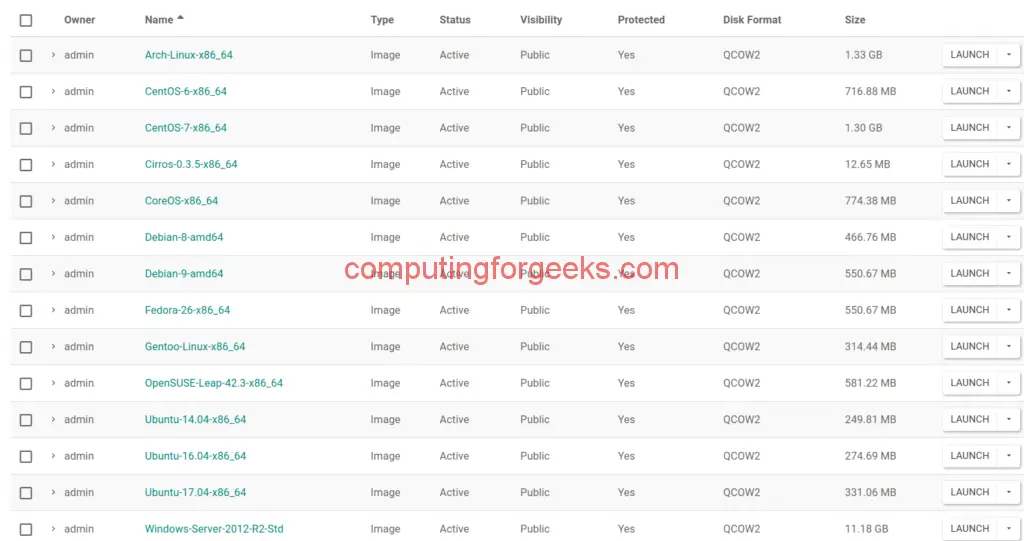
Verify from the Horizon dashboard under Admin > Compute > Images. All images should show Protected: Yes and Visibility: Public.
Verify Uploaded Images
List all images and confirm they’re active:
$ openstack image list
+--------------------------------------+------------------------+--------+
| ID                                   | Name                   | Status |
+--------------------------------------+------------------------+--------+
| a1b2c3d4-e5f6-7890-abcd-ef1234567890 | Rocky-Linux-10         | active |
| b2c3d4e5-f6a7-8901-bcde-f12345678901 | AlmaLinux-10           | active |
| c3d4e5f6-a7b8-9012-cdef-123456789012 | Ubuntu-24.04           | active |
| d4e5f6a7-b8c9-0123-defa-234567890123 | Debian-13              | active |
| e5f6a7b8-c9d0-1234-efab-345678901234 | Fedora-42              | active |
| f6a7b8c9-d0e1-2345-fabc-456789012345 | CentOS-Stream-10       | active |
+--------------------------------------+------------------------+--------+
Check details of a specific image:
openstack image show Rocky-Linux-10Troubleshooting
Upload fails with “413 Request Entity Too Large”:
The Glance API or reverse proxy has a file size limit. For Nginx, increase client_max_body_size in the Glance vhost. For HAProxy, increase tune.maxrewrite.
Image stays in “queued” status:
Check Glance API logs: tail -f /var/log/glance/api.log. Common cause: insufficient disk space in the Glance store directory or incorrect file permissions on /var/lib/glance/images/.
Instance fails to boot from image:
- Verify the disk format matches what you specified (
qcow2vsraw):qemu-img info <image-file> - Check that the image has cloud-init installed (required for SSH key injection)
- For Debian images, the
hw_disk_bus=scsiandhw_scsi_model=virtio-scsiproperties are required or the disk won’t be detected
Permission denied when uploading:
Make sure you sourced the admin credentials file: source admin-openrc.sh. Regular project users cannot upload public images unless the Glance policy allows it.
Conclusion
Your OpenStack Glance image service now has production-ready cloud images for all major Linux distributions, BSD systems, and Windows Server. Set up OpenStack compute flavors next to define the CPU, RAM, and disk sizes for your instances. For automated image updates, consider scripting the download and upload process with a cron job that checks for new image releases weekly.
Related guides:

dear all, this article is very useful. so let me help you in maintaining it for other users. The latest Ubuntu 24.04 box is showing a wrong text. Probably a copy-paste error from Jammy.
You should change it to:
wget https://cloud-images.ubuntu.com/noble/current/noble-server-cloudimg-amd64.img
openstack image create \
–container-format bare \
–disk-format qcow2 \
–file noble-server-cloudimg-amd64.img \
Ubuntu-24.04
Hope this will be helpful.
Regards
Sure thanks for the alert. We have updated the post accordingly.