

The workforce of today is more mobile than ever. They must use their laptops, tablets, and cellphones productively. To enable IT departments to run virtual desktops and apps on-premises or in the cloud and remotely deliver these desktops and applications, many have used VMware Horizon as a result.
From work laptops, personal computers, thin client devices, Macs, tablets, or smartphones, end users can access their customized virtual desktops or applications. Furthermore, IT may maintain the security and compliance of company data by storing virtual desktops and applications on-premises or on a private or public cloud, such as Microsoft Azure, VMware CloudTM on AWS, Google Cloud, IBM Cloud, or another partner cloud. For IT, this entails being able to streamline operations and keep expenses in check while yet providing excellent productivity for end users working whenever, whenever, and on any device.
What is VMware Horizon
VMware Horizon is the virtual desktop host platform for vSphere that enables a digital workspace with the efficient delivery of virtual desktops and applications that equips workers anywhere, anytime, and on any device. With deep integration into the VMware technology ecosystem, the platform offers an agile cloud-ready foundation, modern best-in-class management, and end to end security that empowers today’s Anywhere Workspace. Below are some of the Feature that benefits both IT and End Users: –

Features that benefit IT admins
As an IT admin, you will find these features save time and costs, while supporting security and ease of management:
- Streamlined image management
By centrally managing and distributing desktop images across Horizon environments, on-premises and in the cloud, you can reduce both the time and the expense of producing and maintaining virtual desktop and application images. Track changes to images, easily organize updates or image rollbacks, and automatically replicate an image to numerous places. - Application management
You can simplify application delivery by packaging each app once and deploying it across multiple Horizon environments, both on-premises and in the cloud. You can reduce image count, maintenance, and complexity of application packaging by managing applications separately from the image.
- Centralized monitoring
With real-time health monitoring of user sessions, virtual desktops, and apps across various Horizon settings, including on-premises and in the cloud, you can reduce downtime with a single user interface. To swiftly troubleshoot user experiences with detailed analytics, you can employ a help desk service. - Flexible hybrid and multi-cloud deployment options
You can deploy and manage desktops and apps on-premises or in the public cloud, such as Microsoft Azure, VMware Cloud™ on AWS, Google Cloud, and IBM, and other partner clouds. - Multi-OS support for deployment of virtual desktops and hosted apps
With Horizon, you can quickly deliver Windows and Linux resources at scale across multiple data centers. You can publish apps from Windows and Linux servers, or Windows desktops. - User-specific settings and smart policy options
You can configure policies to limit what each user group can access based on their role, device, or location. You can configure user-specific Windows desktop and application settings that are applied in the context of the client device, location, or other conditions using VMware Dynamic Environment Manager. When a triggering event occurs, such as signing in, running an app, reconnecting, and so on, policies are implemented. You can also set features such as folder redirection for storing personal user data such as documents, photos, and other media.
Features that benefit end users
Your end users will find these features improve experience, provide consistency, and support ease of use:
- Easy access from any device
The software client app— VMware Horizon Client—is available on your device of choice. To access your virtual desktops and applications, you can connect to your VM from a Windows, macOS, Linux, iOS, Chromebook, or Android device. Or you can use a web browser as an HTML client. - Improved user experience
Your consumers get a smooth, consistent experience when you deliver Windows as a service and automate the delivery of resources, desktops, and apps to each user. Each user sees only what is allotted to them and nothing more, regardless of the device they check in from. They have access to all of the virtual desktops and apps they require to conduct their job. - Optimized experience with unified communication and collaboration
With enhanced audio and video support for Microsoft Teams, Zoom, Cisco WebEx, and other communication and collaboration applications, you can improve user experience and increase productivity. Multiple users can view and alter the same desktop in real time thanks to session collaboration. - Streamlined access
You can simplify the login process with the Single-Sign-On option, a feature of Horizon. Your end users log in only once and get access to all the desktops and apps they need to do their jobs. No need to log in separately to each virtual desktop or app. - High-definition, graphically intensive display options
You can deliver an immersive, feature-rich user experience with the Blast Extreme display protocol, a key component of Horizon. The Blast display protocol allows you to deliver rich 2D and 3D graphics and responsive, high-fidelity displays to your end users. You can integrate Horizon with NVIDIA, Intel, and AMD for even more high-end graphics and multimedia.
What’s new with Horizon 8?
Horizon 8 introduces flexible deployment options and hybrid and multi-cloud capabilities that enable organizations to take advantage of the cloud. Continuously updated management services in the Horizon Control Plane let organizations unify management and entitlement across Horizon pods in different data centers and clouds.
The updated Horizon platform includes:
- Cloud platform support for the native VMware stack, including:
– Horizon on Azure VMware Solution (AVS)
– Horizon on Google Cloud VMware Engine (GCVE)
– Horizon on VMware Cloud™ on Dell EMC - Instant Clone Smart Provisioning removes the requirement for a parent VM, helping reduce costs by increasing the desktop-per-host consolidation ratio
- REST APIs to enable automation and orchestration of Horizon administration functions.
- An optimized VDI experience with popular collaboration tools, including Microsoft Teams
- Linux-hosted apps to leverage Linux OS and reduce costs..
- Improved smart profile policies with Dynamic Environment Manager
- Digital watermarking capabilities for data auditing and privacy perseverance
- High-resolution 8K display support for a better experience with modern display technology.
Upgrading to Version 8.4
Prerequisites
- Check the compatibility: Make sure that the new version of VMware Horizon is compatible with your existing hardware, software, and operating system.
- Review the system requirements: Review the system requirements of the new version of VMware Horizon to ensure that your system meets the minimum hardware and software requirements.
- Back up your data: It is essential to back up all your data and configurations before upgrading VMware Horizon. This will help you restore your data if anything goes wrong during the upgrade process. Most preferably take a VMware snapshot.
- Check for known issues and fixes: Review any known issues and fixes in the release notes of the new version to be aware of any potential problems or limitations.
Steps followed during the upgrade process.
- Download the latest Horizon Connection Server Installer.
- Run the downloaded VMware-Horizon-Connection-Server-x86_64-8.4.0.exe.
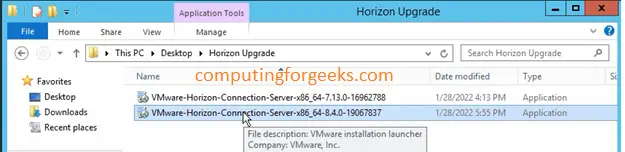
- In the Welcome to the Installation Wizard for VMware Horizon Connection Server page, click Next.
- In the License Agreement page, select I accept the terms, and click Next.
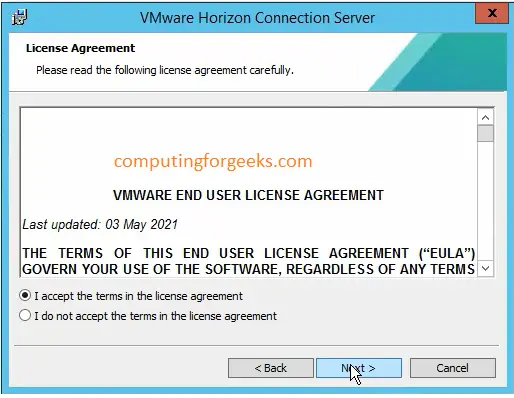
- You can opt to join the User Experience Improvement Program or Not. In our case we opted out for now.
- In the Operational Data Collection page, click Next.

- In the Ready to Install the Program page, click Install.
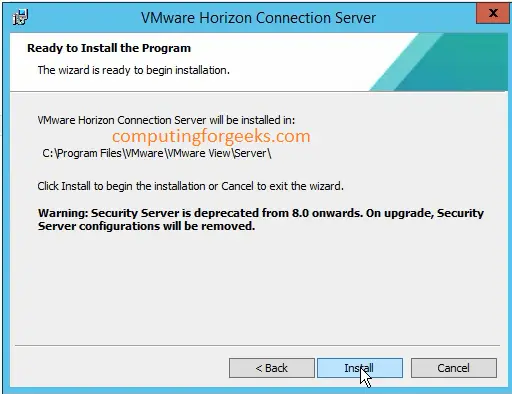
NB: Once you upgrade to Horizon version 8.0 onwards the Security Server will be deprecated and no longer need hence the configuration will be removed. This has been replaced with VMware Unified Access Gateway.
- Click Finish once the process is complete.
Post Configuration
Once the update is complete the firewall rules need to be changed to point to the connection servers instead of the security server since the security server is dropped on version 8. To replace the security server VMware has introduced Unified Access Gateway which is deployed optionally for more security.
Below are more configuration changes that you may need to perform: –
a) Connection server settings after Upgrade
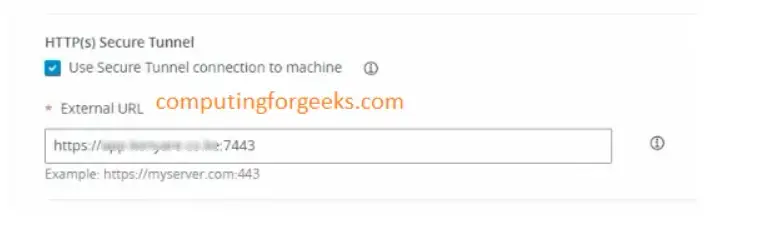
After the Upgrade most of the connection server settings might be returned to default especially the port. Make sure you note down the port you were using for the main/admin Horizon link and the Blast URL.
In our case we had to change the admin link port from 443 to 7443 as indicated below.
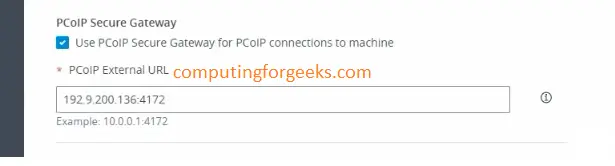
b) PCoIP (PC over IP)
PCoIP (PC over IP) provides an optimized desktop experience for the delivery of a published application or an entire remote desktop environment, including applications, images, audio, and video content for a wide range of users on the LAN or across the WAN. PCoIP can compensate for an increase in latency or a reduction in bandwidth, to ensure that end users can remain productive regardless of network conditions.
The PCoIP display protocol can be used for published applications and for remote desktops that use virtual machines, physical machines that contain Tetradic host cards, or shared session desktops on an RDS host.
c) VMware Blast Extreme
Optimized for the mobile cloud, VMware Blast Extreme supports the broadest range of client devices that are H.264 capable. Of the display protocols, VMware Blast offers the lowest CPU consumption for longer battery life on mobile devices. VMware Blast Extreme can compensate for an increase in latency or a reduction in bandwidth and can leverage both TCP and UDP network transports.
The VMware Blast display protocol can be used for published applications and for remote desktops that use virtual machines or shared-session desktops on an RDS host. The RDS host can be a physical machine or a virtual machine. The VMware Blast display protocol does not operate on a single-user physical computer, except for the enterprise edition of Windows 10 RS4 and later builds.
In our case we went with the default 8443 port for blast with a defined link name as show below:

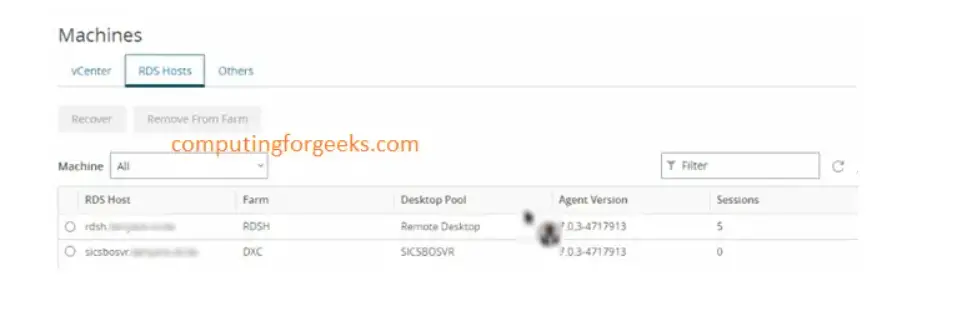
d) RDSH Servers
RDSH is a role within the Remote Desktop Services (RDS) feature for Windows Server. For RDSH to function, the RDS role must be enabled. I will be using Windows 2016 Standard Server. Both the Standard and Datacenter editions support RDS, but Essentials does not.
To enable the RDS role, I logged in to my Windows Server machine as Administrator. Then, I brought up the Administrative Tools, double-clicked Server Manager, selected Role-based or feature-based installation, and clicked Next.
Licensing
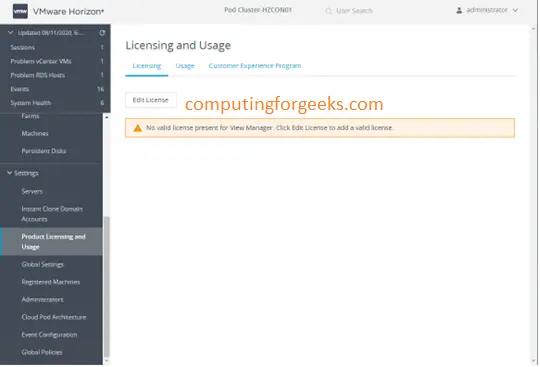
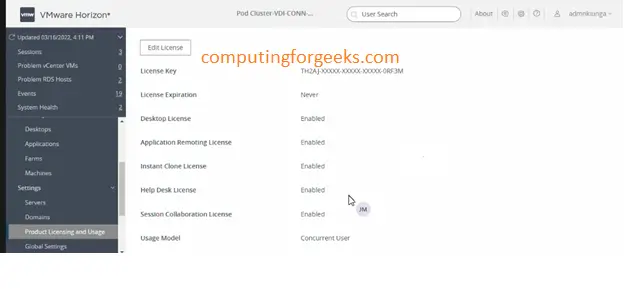
One other detail we needed to give attention to after upgrading to VMware Horizon 8 is licensing. Since this is a new family of VMware Horizon, the VMware Horizon 7 licensing will not work after the upgrade. You will need to enter your VMware Horizon 8 2006 licensing to activate Horizon in your environment after the upgrade.
Upgrade Possibility
Licenses will be upgraded to the new version in accordance with the following guidelines:
- Only licenses, or portions of licenses, with active support and subscription contracts on the day VMware Horizon 8 becomes generally available (referred to as “the GA date”) will be eligible for upgrade.
- If your subscription has ended or will expire before the GA date, you will still have access to your existing VMware Horizon licenses, but you will not be able to upgrade to VMware Horizon 8 license keys.
- If your support and subscription have expired prior to the GA date, you can choose to have them reinstated later. If you do, you’ll be able to upgrade to VMware Horizon 8 licenses at that point.
Recommended books:
NOTE:
To ensure a problem-free license upgrade, it is advised to cooperate in verifying that your license and subscription data are correct with VMware. Please take the time to review your account and contact VMware Support if the information is not consistent with your expectation. If corrections are needed, please make them prior to the delivery of your Horizon 8 licenses.
More on VMware