

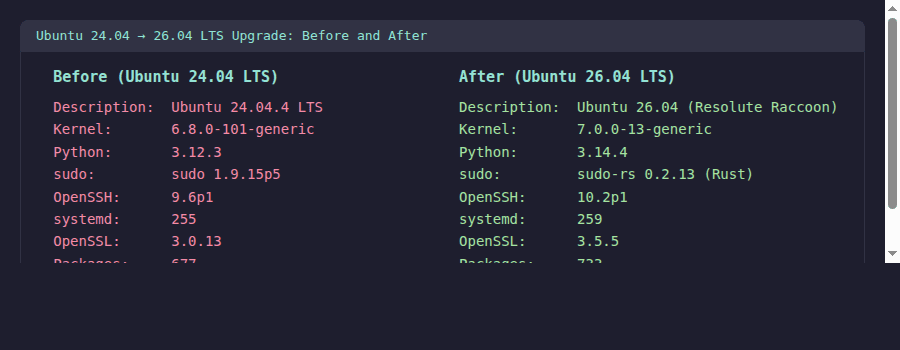
Upgrading from Ubuntu 24.04 to 26.04 takes about 15 minutes on a decent connection. The process replaces 700+ packages, swaps the kernel from 6.8 to 7.0, drops Python 3.12 for 3.14, and switches your sudo binary to the Rust-based sudo-rs. This catches more people off guard than the kernel change.
We ran this upgrade on a live Ubuntu 24.04.4 LTS server and documented every step. The machine came back clean on the other side, but there are a few things to watch for, especially around third-party repositories and the new sudo behavior.
Last verified: April 2026 | Tested upgrade from Ubuntu 24.04.4 LTS (kernel 6.8.0-101) to Ubuntu 26.04 LTS (kernel 7.0.0-13)
Before You Start
- Ubuntu 24.04 LTS (Noble Numbat) fully updated
- A working backup of your data (snapshots, rsync, or whatever you trust)
- At least 5 GB of free disk space
- Console access (VNC, IPMI, or cloud provider console) in case SSH drops during the upgrade
- 30 minutes of your time
If you’re upgrading a production server, do this on a test clone first. We’re serious about that. If you’re coming from Ubuntu 22.04, you’ll need to upgrade to 24.04 first, then continue to 26.04. Ubuntu doesn’t support skipping LTS releases.
What Changes in the Upgrade
Here’s what moved between 24.04 and 26.04:
| Component | Ubuntu 24.04 | Ubuntu 26.04 |
|---|---|---|
| Kernel | 6.8.0 | 7.0.0 |
| Python | 3.12 | 3.14 |
| sudo | sudo 1.9.15p5 (C) | sudo-rs 0.2.13 (Rust) |
| OpenSSH | 9.6p1 | 10.2p1 |
| systemd | 255 | 259 |
| GCC | 13 | 15 |
| OpenSSL | 3.0 | 3.5 |
| Codename | Noble Numbat | Resolute Raccoon |
For a full breakdown of new features, check our Ubuntu 26.04 LTS features guide.
With that context in mind, here is the upgrade process.
Step 1: Fully Update Ubuntu 24.04
The upgrade tool refuses to run if your current system has pending updates. Clean that up first:
sudo apt update && sudo apt upgrade -yFollow up with a dist-upgrade to handle any held-back packages:
sudo apt dist-upgrade -yRemove packages that are no longer needed:
sudo apt autoremove -yYour 24.04 system is fully current and ready for the upgrade.
Step 2: Install the Update Manager
The update-manager-core package provides the do-release-upgrade tool. It’s usually present by default, but verify:
sudo apt install -y update-manager-coreConfirm the upgrade prompt is set to LTS releases:
cat /etc/update-manager/release-upgradesThe prompt is set to LTS releases:
Prompt=ltsIf this says never, change it to lts before proceeding.
Step 3: Check for Available Upgrade
Run the upgrade check to see if 26.04 is offered:
sudo do-release-upgrade -cIf Ubuntu 26.04 has been officially released (April 23, 2026), you’ll see a message confirming the upgrade is available. If you’re running this before the official release date, use the -d flag to access the development release:
sudo do-release-upgrade -d -cWith 26.04 confirmed available, start the upgrade.
Step 4: Run the Upgrade
Start the upgrade. For SSH sessions, the tool opens a backup SSH listener on port 1022 in case your main connection drops:
sudo do-release-upgrade -dDrop the -d flag after April 23 when 26.04 is officially released. The -d tells it to upgrade to the development version.
The upgrade tool will:
- Disable third-party repositories and PPAs (it re-enables compatible ones afterward)
- Download new package lists from the 26.04 repositories
- Calculate the upgrade (expect 700+ packages to change)
- Ask you to confirm before downloading
- Download and install all new packages
- Ask about a few config file conflicts (keep the existing version unless you have a reason not to)
- Clean up obsolete packages
- Prompt for a reboot
On our test server (4 cores, 4 GB RAM, 100 Mbps connection), the full process took about 12 minutes from start to reboot prompt.
For non-interactive upgrades (useful in scripts or automation), use:
sudo do-release-upgrade -d -f DistUpgradeViewNonInteractiveThis automatically answers “yes” to all prompts and keeps existing config files on conflicts. Only use this if you’ve already tested the upgrade on a clone.
Step 5: Reboot
After the upgrade completes, reboot to load the new kernel:
sudo rebootWait a minute for the server to come back, then reconnect.
Step 6: Verify the Upgrade
Confirm you’re running Ubuntu 26.04:
lsb_release -aThe output confirms Ubuntu 26.04:
Distributor ID:	Ubuntu
Description:	Ubuntu Resolute Raccoon (development branch)
Release:	26.04
Codename:	resolute
Check the kernel version (should be 7.0.x after reboot):
uname -rKernel 7.0 is now loaded:
7.0.0-13-genericVerify key system components:
python3 --version && sudo --version | head -1 && ssh -V 2>&1All key components show the new versions:
Python 3.14.4
sudo-rs 0.2.13-0ubuntu1
OpenSSH_10.2p1 Ubuntu-2ubuntu3, OpenSSL 3.5.5 27 Jan 2026
Run a final update to catch any packages released after the upgrade tool was built:
sudo apt update && sudo apt upgrade -yThe system is fully upgraded. Clean up leftover packages next.
Post-Upgrade Cleanup
Remove old kernels and packages no longer needed:
sudo apt autoremove -y --purgeCheck for disabled third-party repos. The upgrade tool disables PPAs and third-party sources by adding .distUpgrade to the filename:
ls /etc/apt/sources.list.d/*.distUpgrade 2>/dev/nullIf any appear, check whether those repos have been updated for Ubuntu 26.04 (resolute). Re-enable them by removing the .distUpgrade extension and updating the codename from noble to resolute. Docker is a common one that needs re-adding; see our guide to install Docker CE on Ubuntu 26.04 for the updated repo setup.
Check disk usage (the upgrade typically adds 500 MB to 1 GB to the root partition):
df -h /The upgrade added about 1 GB to the root partition:
Filesystem      Size  Used Avail Use% Mounted on
/dev/sda1        48G  3.5G   44G   8% /
Cleanup is done. A few things need attention on the upgraded system.
Things to Watch After Upgrading
sudo-rs replaces sudo. The behavior is nearly identical for common operations, but some edge cases differ. Scripts that rely on sudo’s -S flag (read password from stdin) or complex sudoers syntax should be tested. The command is still called sudo, so no PATH changes are needed.
Python 3.14 replaces 3.12. If you have Python virtual environments, they’ll need rebuilding. The venv module won’t load environments created with an older Python. Rebuild them with python3 -m venv --clear /path/to/venv.
OpenSSH 10.2 has stricter defaults. Some older SSH clients may have trouble connecting if they use deprecated algorithms. Check /etc/ssh/sshd_config if you see authentication failures from legacy systems. Our SSH server configuration guide covers the relevant settings.
Kernel 7.0 changes I/O scheduling. If you run databases or high-I/O workloads, benchmark after the upgrade. The new kernel defaults are generally better, but your specific tuning parameters may need adjustment. Check our journalctl log filtering guide to dig through systemd 259 logs if anything looks off.
Can I upgrade directly from Ubuntu 22.04 to 26.04?
No. Ubuntu requires sequential LTS upgrades: 22.04 to 24.04 first, then 24.04 to 26.04. Each hop takes 10 to 15 minutes, so budget about 30 minutes for the full 22.04 to 26.04 path including reboots.
Is it safe to upgrade a production server?
Test on a clone first. The upgrade itself is reliable (we’ve never had a failed LTS-to-LTS upgrade on a clean system), but your applications may depend on specific Python, PHP, or library versions that change between releases. Validate your stack before touching production. Once the upgrade succeeds, follow our guide to harden your Ubuntu 26.04 server to lock things down with the new defaults.
What if the upgrade fails halfway through?
The upgrade tool creates a recovery state. If it’s interrupted, reconnect (possibly via the backup SSH on port 1022) and run sudo dpkg --configure -a followed by sudo apt -f install. If the system is unrecoverable, restore from your backup. You did make a backup, right?