

Timeshift takes filesystem snapshots of your Linux system so you can roll back to a known good state when an update, config change, or package install goes sideways. It uses rsync with hardlinks (similar to how macOS Time Machine works) or native BTRFS snapshots, depending on your filesystem. The tool is now maintained by the Linux Mint project and ships in the default repos for Ubuntu, Debian, and Linux Mint.
This guide walks through installing Timeshift, creating and managing snapshots from both the GUI and command line, scheduling automatic backups, and restoring your system from a snapshot. Everything here was tested on Ubuntu 24.04 LTS and applies equally to Debian 13, Debian 12, and Linux Mint 22. If you manage Linux desktops or workstations, Timeshift should be one of the first things you set up after a fresh install.
Last verified: March 2026 | Tested on Ubuntu 24.04.4 LTS (kernel 6.8.0-101), Timeshift 24.01.1
Prerequisites
Before you begin, make sure you have:
- Ubuntu 24.04/22.04, Debian 13/12, or Linux Mint 22/21
- A user account with
sudoprivileges - Enough free disk space for snapshots (at least 5 GB free on the backup partition; more for systems with lots of packages installed)
- ext4 or BTRFS filesystem (Timeshift supports both; ext4 uses RSYNC mode, BTRFS uses native snapshots)
Step 1 – Install Timeshift on Ubuntu / Debian / Linux Mint
Timeshift is available in the default repositories for all three distributions. On Linux Mint, it comes pre-installed. For Ubuntu and Debian, install it with apt:
sudo apt update
sudo apt install -y timeshift
Verify the installation by checking the version:
timeshift --versionYou should see the installed version confirmed:
Timeshift 24.01.1On Ubuntu 24.04, the repo ships version 24.01.1. Linux Mint typically includes a newer version since the Mint team maintains Timeshift upstream. The package pulls in rsync as a dependency automatically.
Step 2 – Create Your First Snapshot (CLI)
Timeshift works from both the GUI and command line. The CLI is especially useful for servers, headless systems, or when you want to script snapshot creation before running upgrades. Start by listing available storage devices:
sudo timeshift --list-devicesTimeshift scans for partitions with Linux filesystems and selects a default backup device:
First run mode (config file not found)
Selected default snapshot type: RSYNC
Mounted '/dev/sda1' at '/run/timeshift/13699/backup'
Selected default snapshot device: /dev/sda1

Devices with Linux file systems:

Num     Device          Size  Type  Label
------------------------------------------------------------------------------
0    >  /dev/sda1    20.4 GB  ext4  cloudimg-rootfs
1    >  /dev/sda16  957.4 MB  ext4  BOOT
On the first run, Timeshift creates a configuration file at /etc/timeshift/timeshift.json and defaults to RSYNC mode for ext4 filesystems. Now create your first snapshot:
sudo timeshift --create --comments "Fresh install baseline" --tags DThe --tags flag categorizes the snapshot. Available tags are: O (ondemand), B (boot), H (hourly), D (daily), W (weekly), and M (monthly). The first snapshot takes longer because it copies all system files:
Estimating system size...
Creating new snapshot...(RSYNC)
Saving to device: /dev/sda1, mounted at path: /run/timeshift/13907/backup
Syncing files with rsync...
Created control file: /run/timeshift/13907/backup/timeshift/snapshots/2026-03-24_17-24-02/info.json
RSYNC Snapshot saved successfully (49s)
Tagged snapshot '2026-03-24_17-24-02': ondemand
The first snapshot of this Ubuntu 24.04 system (2.7 GB of data) completed in 49 seconds. Subsequent snapshots are much faster because Timeshift uses rsync with hardlinks, which means only changed files are copied. A second snapshot after installing a small package took just 7 seconds and used only 141 MB of additional space.
Step 3 – List and Manage Snapshots
View all existing snapshots with:
sudo timeshift --listThe output shows the backup device, mode, and all available snapshots:
Device : /dev/sda1
UUID   : 3f0a11d4-9521-46d7-bc7d-9ba98277c3e2
Path   : /run/timeshift/14431/backup
Mode   : RSYNC
Status : OK
2 snapshots, 13.9 GB free

Num     Name                 Tags  Description
------------------------------------------------------------------------------
0    >  2026-03-24_17-24-02  D     Fresh install baseline
1    >  2026-03-24_17-25-09  D     After installing cowsay
To check how much disk space each snapshot consumes, look at the snapshot directory:
sudo du -sh /timeshift/snapshots/*Because of hardlinks, incremental snapshots use very little extra space:
2.7G    /timeshift/snapshots/2026-03-24_17-24-02
141M    /timeshift/snapshots/2026-03-24_17-25-09
To delete a specific snapshot, pass its name:
sudo timeshift --delete --snapshot '2026-03-24_17-25-09'Timeshift confirms the removal:
Removing '2026-03-24_17-25-09'...
Removed '2026-03-24_17-25-09'
To remove all snapshots at once, use sudo timeshift --delete-all. Be careful with this on production systems where you might need a rollback point.
Step 4 – Schedule Automatic Snapshots
Manual snapshots are fine, but the real value of Timeshift comes from scheduled automatic snapshots. The configuration lives in /etc/timeshift/timeshift.json. Open it with your preferred editor:
sudo vi /etc/timeshift/timeshift.jsonThe schedule and retention settings look like this:
{
  "backup_device_uuid" : "3f0a11d4-9521-46d7-bc7d-9ba98277c3e2",
  "do_first_run" : "false",
  "btrfs_mode" : "false",
  "stop_cron_emails" : "true",
  "schedule_monthly" : "false",
  "schedule_weekly" : "false",
  "schedule_daily" : "true",
  "schedule_hourly" : "false",
  "schedule_boot" : "true",
  "count_monthly" : "2",
  "count_weekly" : "3",
  "count_daily" : "5",
  "count_hourly" : "6",
  "count_boot" : "5",
  "exclude" : [
    "/root/**",
    "/home/ubuntu/**"
  ],
  "exclude-apps" : []
}
Set any schedule option to "true" to enable it. The count_* values control how many snapshots of each type Timeshift keeps before rotating old ones. For a typical workstation, enabling daily snapshots with 5 retained copies and boot snapshots with 5 copies provides good coverage without wasting disk space.
After changing the config, run --check to activate the schedule:
sudo timeshift --checkTimeshift reads the config and sets up the cron jobs:
Boot snapshots are enabled
Last boot snapshot not found
Tagged snapshot '2026-03-24_17-24-02': boot
Daily snapshots are enabled
Last daily snapshot is 0 hours old
Added cron task: /etc/cron.d/timeshift-hourly
Added cron task: /etc/cron.d/timeshift-boot
Timeshift creates cron entries in /etc/cron.d/ that call timeshift --check at the appropriate intervals. The --check command only creates a snapshot if one is due according to the schedule, so running it manually at any time is safe.
Step 5 – Exclude Directories from Snapshots
By default, Timeshift excludes user home directories from RSYNC snapshots. This is intentional because Timeshift focuses on system files, not personal data. Your documents, downloads, and desktop files need a separate backup solution like Restic or Kopia.
To add custom exclusions, edit the exclude array in /etc/timeshift/timeshift.json:
"exclude" : [
    "/root/**",
    "/home/ubuntu/**",
    "/var/log/**",
    "/tmp/**",
    "/var/cache/apt/archives/**"
]
Excluding /var/log, /tmp, and the apt cache reduces snapshot size without losing anything critical. Logs regenerate naturally, and cached packages can be re-downloaded. In the GUI, you can manage exclusions from the Settings tab under “Filters”.
Step 6 – Restore System from a Snapshot (CLI)
This is the whole point of Timeshift. When something breaks after an update or config change, you can roll the entire system back. To restore interactively from the command line:
sudo timeshift --restoreTimeshift lists available snapshots and prompts you to select one. For scripted or non-interactive restores, specify the snapshot name directly:
sudo timeshift --restore --snapshot '2026-03-24_17-24-02' --yesYou can also restore to a different device (useful when migrating or repairing a system from a live USB):
sudo timeshift --restore --snapshot '2026-03-24_17-24-02' --target /dev/sdb1 --grub /dev/sdbThe --grub flag tells Timeshift to reinstall the GRUB bootloader on the specified device after restoring. Skip it with --skip-grub if your boot configuration hasn’t changed. After the restore completes, the system reboots into the snapshot state.
Restore from a Live USB
If your system won’t boot at all, boot from an Ubuntu live USB and install Timeshift in the live session:
sudo apt update && sudo apt install -y timeshiftThen run the restore command with your root partition as the target. Timeshift detects snapshots on the device automatically. This approach saved more than one system that went down after a bad kernel update.
Step 7 – Use Timeshift with the GUI
Launch Timeshift from the application menu or run sudo timeshift-gtk from a terminal. The GUI walks you through an initial setup wizard on first launch.
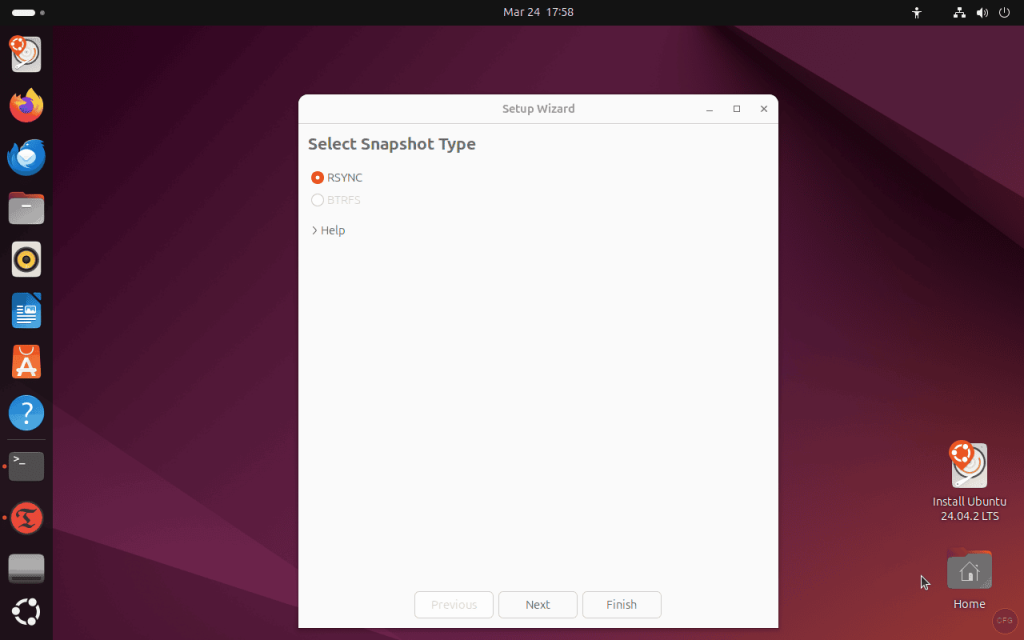
Setup Wizard
The first screen asks you to choose between RSYNC and BTRFS snapshot modes. For ext4 filesystems (the default on Ubuntu and Debian), select RSYNC. BTRFS mode is only available if your root filesystem is formatted as BTRFS.
Next, select the backup device. Timeshift shows all partitions with enough free space. Your root partition works fine, but using a separate partition or external drive is safer because it protects against disk failure too.
The schedule screen lets you enable monthly, weekly, daily, hourly, and boot snapshots with retention counts for each. Enable at least daily snapshots for a workstation.
Finally, choose whether to include user home directories. For RSYNC mode, leaving them excluded is recommended since Timeshift is designed for system rollback, not personal file backup.
Creating and Restoring Snapshots via GUI
The main window shows all existing snapshots with their tags, dates, and descriptions. Click Create to take a new snapshot. You can add a comment describing why you took it (for example, “before dist-upgrade” or “working NVIDIA config”).
To restore, select a snapshot from the list and click Restore. Timeshift shows which files will be changed and asks you to confirm the target device and GRUB reinstallation options before proceeding. After confirmation, the system restores and reboots.
RSYNC vs BTRFS: Which Snapshot Mode to Use
Timeshift supports two snapshot modes with fundamentally different approaches:
| Feature | RSYNC Mode | BTRFS Mode |
|---|---|---|
| Filesystem required | ext4, xfs, or any Linux FS | BTRFS only |
| How it works | Copies files with rsync, uses hardlinks for unchanged files | Creates native BTRFS subvolume snapshots (copy-on-write) |
| Snapshot speed | First: minutes. Incremental: seconds | Near-instant (all snapshots) |
| Disk usage | Full copy initially, then only changed files | Minimal (COW, only changed blocks) |
| Can backup to external drive | Yes | No (same BTRFS volume only) |
| Restore from live USB | Yes | Yes |
| Best for | Most users, ext4 systems, external backup | Systems already using BTRFS |
If your root filesystem is ext4 (the default for Ubuntu and Debian installations), RSYNC mode is your only option and works well. If you specifically chose BTRFS during installation, BTRFS mode gives you nearly instant snapshots with minimal disk overhead. You can check your filesystem type with df -hT / to see whether you have ext4 or btrfs.
Timeshift CLI Quick Reference
Here are the most commonly used Timeshift commands for quick reference:
| Command | What it does |
|---|---|
sudo timeshift --list | List all snapshots with tags and descriptions |
sudo timeshift --list-devices | Show available backup devices |
sudo timeshift --create --comments "description" | Create a snapshot with a description |
sudo timeshift --create --tags D | Create a daily-tagged snapshot |
sudo timeshift --check | Create a snapshot only if one is due per schedule |
sudo timeshift --restore | Interactive restore (prompts for snapshot selection) |
sudo timeshift --restore --snapshot 'NAME' --yes | Non-interactive restore of a specific snapshot |
sudo timeshift --delete --snapshot 'NAME' | Delete a specific snapshot |
sudo timeshift --delete-all | Delete all snapshots |
Troubleshooting Common Issues
Error: “Selected snapshot device is not available”
This happens when the backup device configured in /etc/timeshift/timeshift.json is no longer connected or the UUID has changed (common after disk replacement). Fix it by running sudo timeshift --list-devices to find the correct device, then update the backup_device_uuid value in the config file. You can also delete the config file and let Timeshift recreate it on the next run:
sudo rm /etc/timeshift/timeshift.json
sudo timeshift --list-devices
Error: “Not enough disk space”
Timeshift needs enough free space on the backup partition to store at least one full snapshot. On a typical Ubuntu desktop, this means 5 to 15 GB depending on how many packages are installed. Free up space by deleting old snapshots (sudo timeshift --delete-all) or switching to a larger backup partition. You can also add more exclusions to reduce snapshot size.
Snapshots not being created automatically
Check that at least one schedule is enabled in /etc/timeshift/timeshift.json and that the cron daemon is running. Verify with:
systemctl status cron
ls -la /etc/cron.d/timeshift*
If the cron files are missing, run sudo timeshift --check to regenerate them. Also check that the cron package is installed, since minimal server installations sometimes omit it.
Restore not working: “Failed to mount device”
This usually means the target partition is already mounted or in use. If restoring from a live USB, make sure you unmount all partitions from the target disk first. If restoring from the running system, Timeshift handles unmounting automatically, but occasionally a stubborn mount point (especially /boot/efi) causes issues. Unmount it manually with sudo umount /boot/efi before retrying the restore.
Home directory files missing after restore
By default, Timeshift excludes home directories from RSYNC snapshots. This is by design. Timeshift is a system restore tool, not a file backup tool. If you need to back up personal files, use a dedicated backup tool like Restic or rsync with Lsyncd. You can optionally include home directories by removing the exclusion patterns from the config file, but this significantly increases snapshot size.
Best Practices for Timeshift Snapshots
After running Timeshift in production on workstations for years, a few practices make a real difference:
- Snapshot before upgrades – Always create a manual snapshot before running
apt dist-upgradeor installing new kernel versions. Tag it with a descriptive comment so you know exactly what state to roll back to. - Use a separate partition – Storing snapshots on the same partition as your root filesystem works, but a separate partition (or external drive) protects against disk failure. Any ext4 partition with enough space works.
- Keep daily + boot schedules enabled – Daily snapshots with 5 retained copies and boot snapshots with 5 copies give you a solid week of rollback points. This catches both gradual issues (daily) and boot-breaking changes (boot).
- Monitor disk space – Timeshift rotates old snapshots automatically based on retention counts, but keep an eye on free space, especially on smaller drives. The
sudo timeshift --listcommand shows free space on the backup device. - Back up home directories separately – Timeshift handles system files. Use Kopia or another tool for documents, photos, and personal data. Two separate tools working together is more reliable than one tool trying to do everything.
Frequently Asked Questions
Does Timeshift back up user files?
No, not by default. Timeshift excludes /home and /root directories from RSYNC snapshots. It is designed for system rollback, not personal data backup. You can change this behavior in the exclusion settings, but a dedicated file backup tool is a better choice for personal files.
How much disk space do Timeshift snapshots use?
The first RSYNC snapshot copies all system files (typically 3 to 10 GB depending on installed packages). Subsequent snapshots use hardlinks and only store changed files. In testing on a fresh Ubuntu 24.04 system with 2.7 GB of system data, the first snapshot used 2.7 GB and the second used only 141 MB.
Can I restore from a live USB if my system won’t boot?
Yes. Boot from an Ubuntu or Linux Mint live USB, install Timeshift with sudo apt install timeshift, and run sudo timeshift --restore. Timeshift detects snapshots on connected devices and lets you restore to the target partition.
What is the difference between RSYNC and BTRFS mode?
RSYNC mode copies files using rsync and works on any Linux filesystem (ext4, xfs, etc.). BTRFS mode uses native filesystem snapshots, which are nearly instant and use minimal disk space, but only works if your root partition is BTRFS. Most Ubuntu and Debian installations use ext4 by default.
Summary
Timeshift gives you a reliable way to snapshot and restore your Ubuntu, Debian, or Linux Mint system. With automatic daily and boot snapshots enabled, you always have a clean rollback point when updates or configuration changes go wrong. The CLI interface makes it scriptable for headless servers, while the GUI keeps it accessible on desktops. Pair it with a file-level backup tool for home directories, and your system recovery strategy is covered.
