

Greetings and welcome to this guide on how to stream desktop applications and containerized applications on a browser. Many times system admins and DevOps engineers find themselves in situations where they need to access desktop and containerized applications from a server. This guide is here to help you achieve that.
In the guide, we will discuss Kasm Workspaces and how it can be used to stream desktop and Containerized Applications.
What is Kasm Workspaces?
Kasm Workspaces can be defined as an open-source container streaming platform that allows users to access desktop and application resources remotely from the browser. You can also install, configure and control the applications as if they were in the office. This tool provides enterprise-grade orchestration, preventing data loss and providing a web streaming technology that offers a lot of advantages to your organization.
Kasm Workspaces offers the following:
- Desktop workspaces: It allows users to access their desktop in seconds surely from a browser on any device from anywhere. This eliminates the need to use VPN or client tools, and you can also customize the desktop as desired.
- Web Isolation Workspaces: It keeps your web browsing secure eliminating the risk of your endpoint being compromised. This is achieved using web content filtering, web-native and agentless architecture etc.
- Application Workspace: Kasm handles the hard work for you to allow the streaming of containerized applications effortlessly
When deploying Kasm Workspaces, you have two main options:
- Self-hosted server: This allows you to install and manage the workspaces on your own in the organization
- Cloud deployment: This is a deployed and managed option, Kasm will host and manage the workspaces for you to allow you focus on service delivery.
Below is an image of how Kasm Workspaces works:
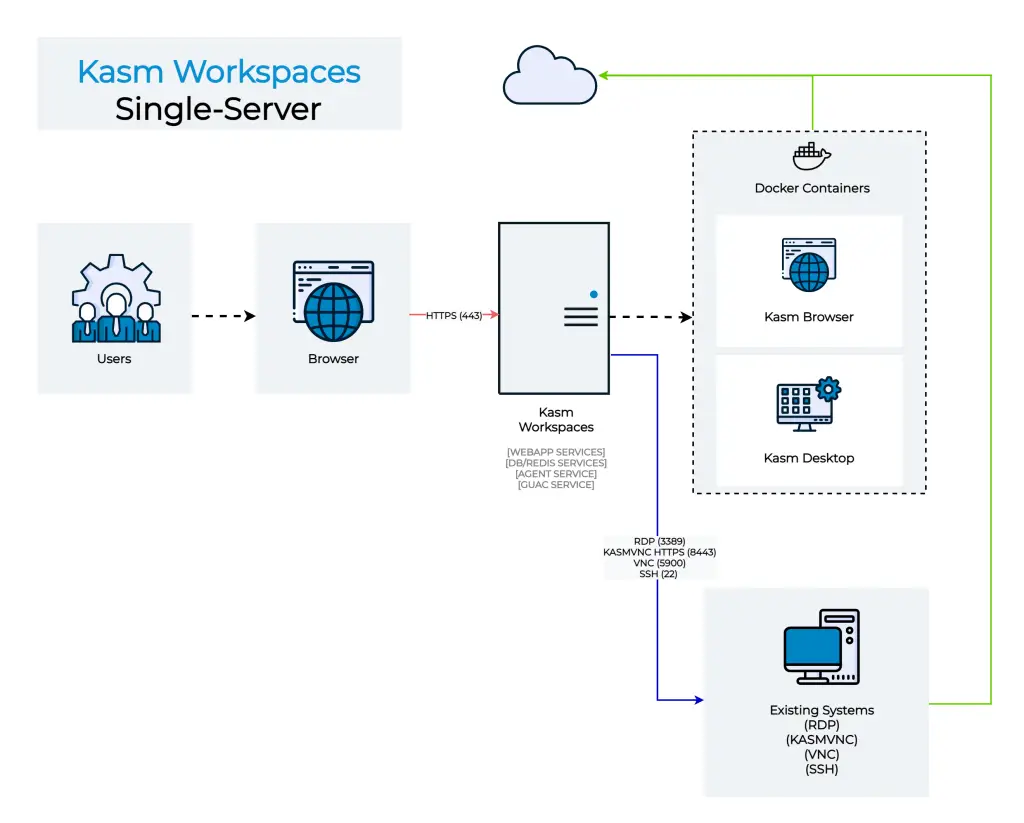
The below steps will help you install Kasm Workspaces in your environment and use it to stream your desktop and containerized applications
System Requirements For Kasm Installation
For the self-hosted option, you can either do a single-server or multi-server setup. Below are the requirements for Kasm Installation:
- Supported operating systems: They include:
- Ubuntu 18.04 / 20.04 / 22.04 (amd64/arm64)
- Debian 10 / 11 / 12 (amd64/arm64)
- CentOS 7 / 8 / 9 (amd64/arm64)
- Oracle Linux 7 / 8 / 9 (amd64/arm64)
- Raspberry Pi OS (Debian) 10 / 11 / 12 (arm64)
- RedHat 7 / 8 / 9 (amd64/arm64)
- CPU: 2 cores
- Memory: 4GB
- Storage: 50GB SSD recommended
Users are also required to create a SWAP partition if they do not have it. The size of the partition will depend on the needs of your deployment. You still have an option to create this partition during the installation as we will do in the guide.
Install Docker and Docker Compose
During the installation of Kasm Workspaces, it will attempt to install the compatible Docker and Docker-compose versions. If they are already installed, the process will be skipped.
The required versions are:
- Docker: 18.06 and above
- Docker Compose: 2.1.1 and above
On our page, we have documentation to help you install both Docker and Docker Compose on your Linux system.
Once installed, check the versions:
$ docker version
Client: Docker Engine - Community
 Version:           24.0.6
.....
Server: Docker Engine - Community
 Engine:
  Version:          24.0.6
....

$ docker-compose version
Docker Compose version v2.22.0
Install Kasm Workspaces on Linux
Once all the requirements are met, you can proceed and install the Workspaces on your system. First, you need to download the latest release of Kasm Workspaces by visiting the official Kasm downloads page.
It is also possible to download the archive using wget. Navigate to /tmp and download the archive:
cd /tmp
wget https://kasm-static-content.s3.amazonaws.com/kasm_release_1.15.0.06fdc8.tar.gz
Extract the downloaded file:
tar -xf kasm_release_1.15.0.06fdc8.tar.gzYou can then the Kasm Workspaces installer using any of the below commands depending on your environment:
##Default installation
sudo bash kasm_release/install.sh

##To automate SWAP creation
sudo bash kasm_release/install.sh --accept-eula --swap-size 8192
In the above commands, you can create a desired username and password by passing the --admin-password and --user-password to create a username and password.
For the unautomated installation, proceed as shown:
...
I have read and accept End User License Agreement (y/n)? y
....
Do you want to create a swap partition on this system (y/n)? y
...
Depending on configuration a normal Workspace will consume 2-4GB of memory.
1) 4GB,
2) 8GB,
3) 12GB,
4) 16GB,
5) custom
How large of a swap file would you like to create: 2
...
Once complete, you will have Kasm workspaces running on port 443. You will see the login creds provided:
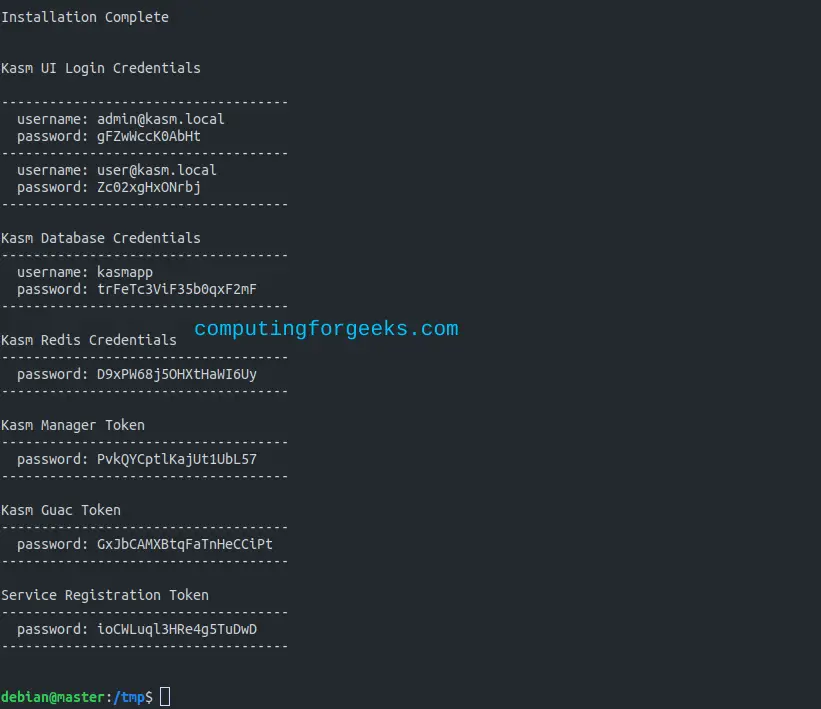
Access Kasm Workspaces Web UI
Now you can access and use Kasm workspaces to stream applications using the URL https://domain_name or https:/server_IP.
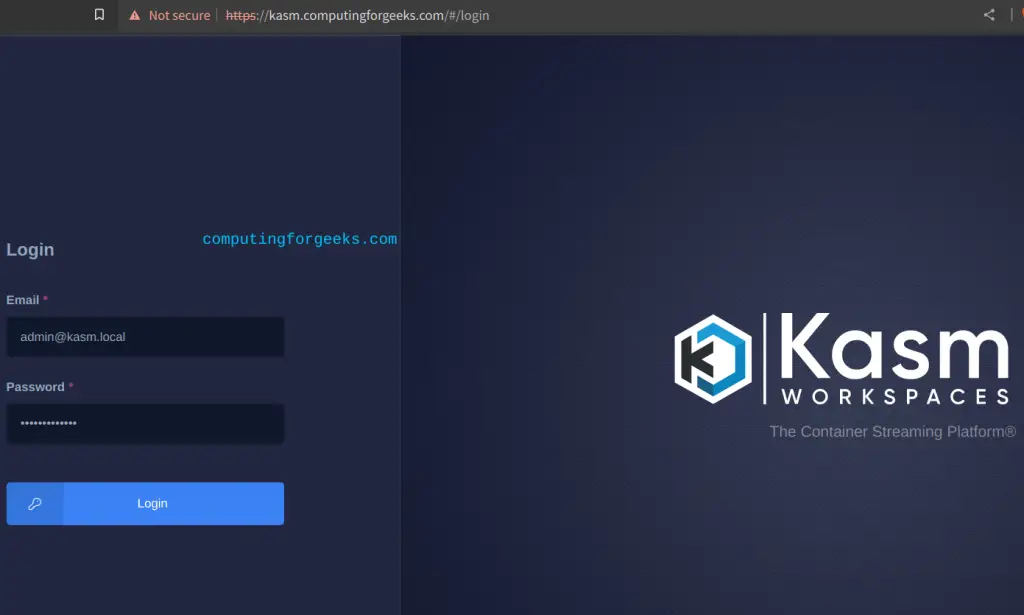
On the above page, log in with the Kasm UI creds provided after the installation(if you did not create your own). Once authenticated, you will see this window.
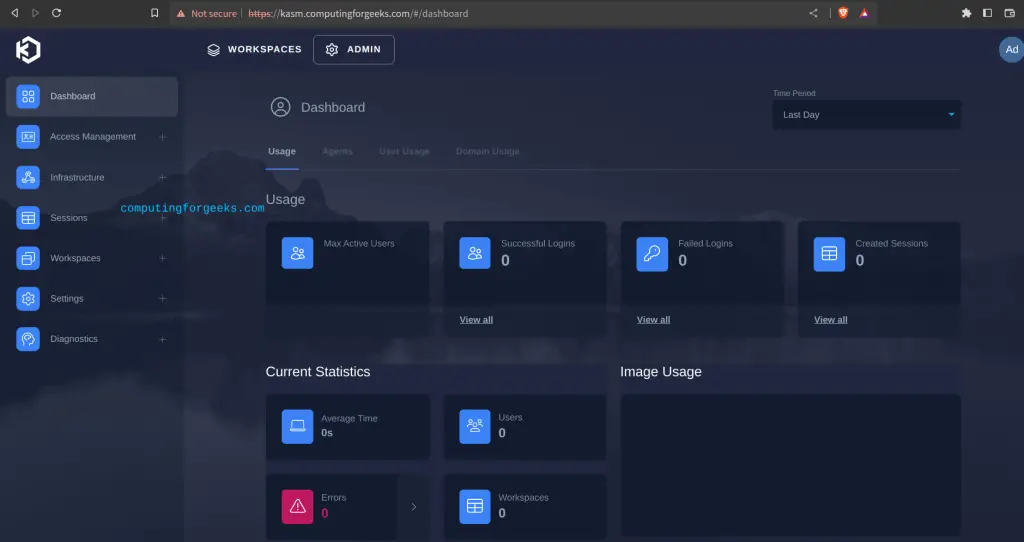
Once here, you can perform various activities. You can manage access, and reset the users’ passwords as desired. You can create groups and authentication with LDAP, OpenID, SAML etc.
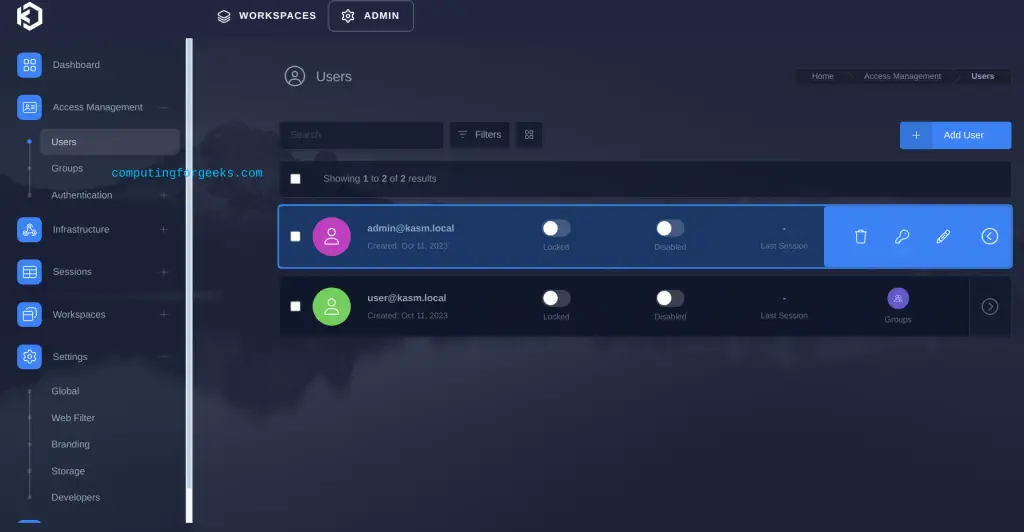
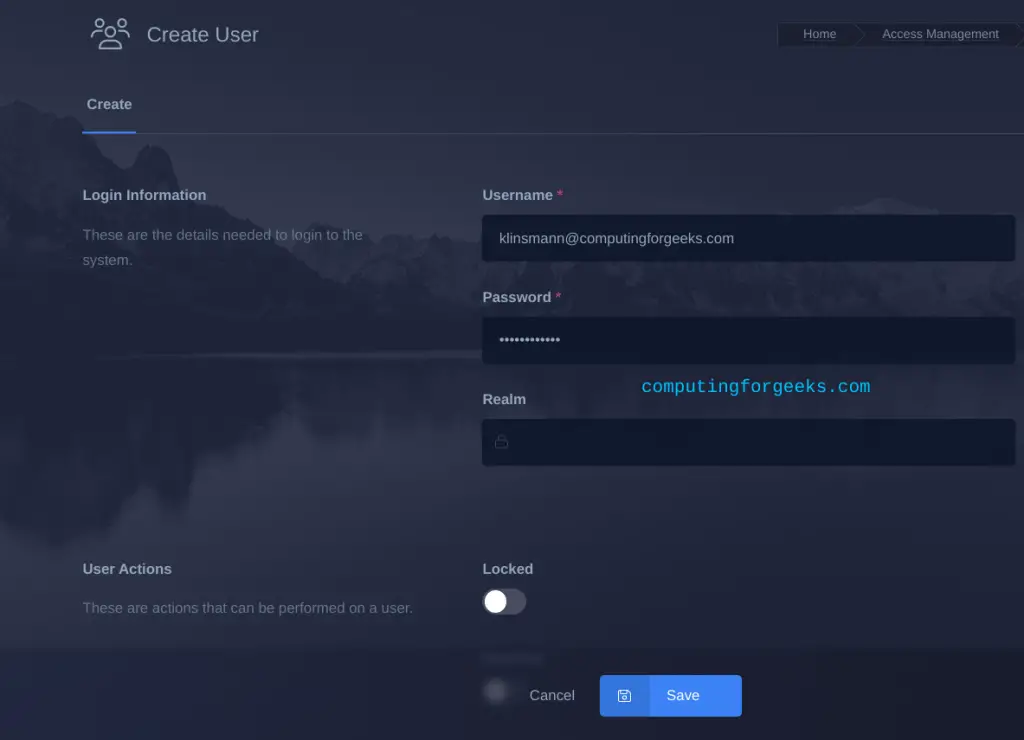
For this guide, we will create a new user for our tests.
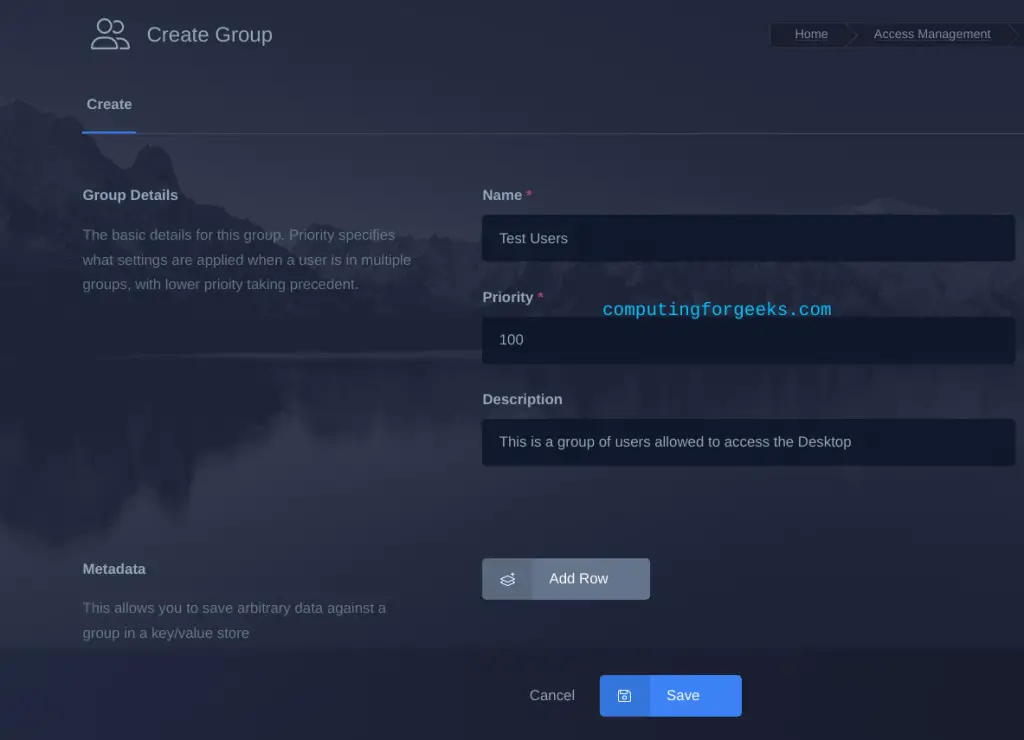
We will create a group and add the user to it.
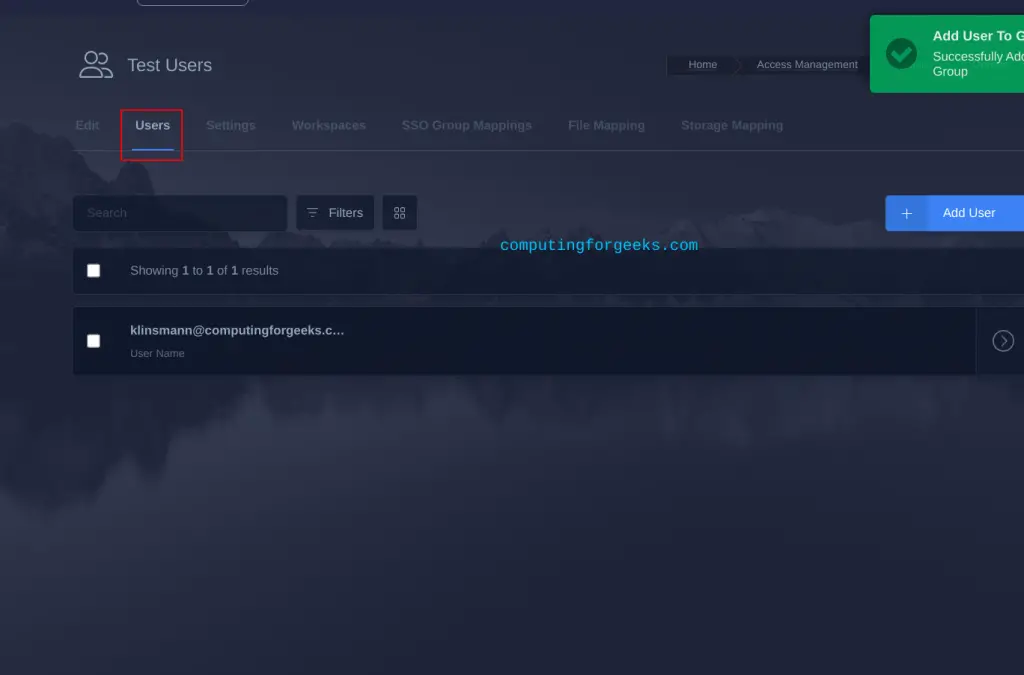
Once created, edit the group and navigate to the users tab to add the user. There are many other settings and policies you can add for the groups.
Just to show you briefly how to use Kasm workspaces, we will first add servers to be managed.
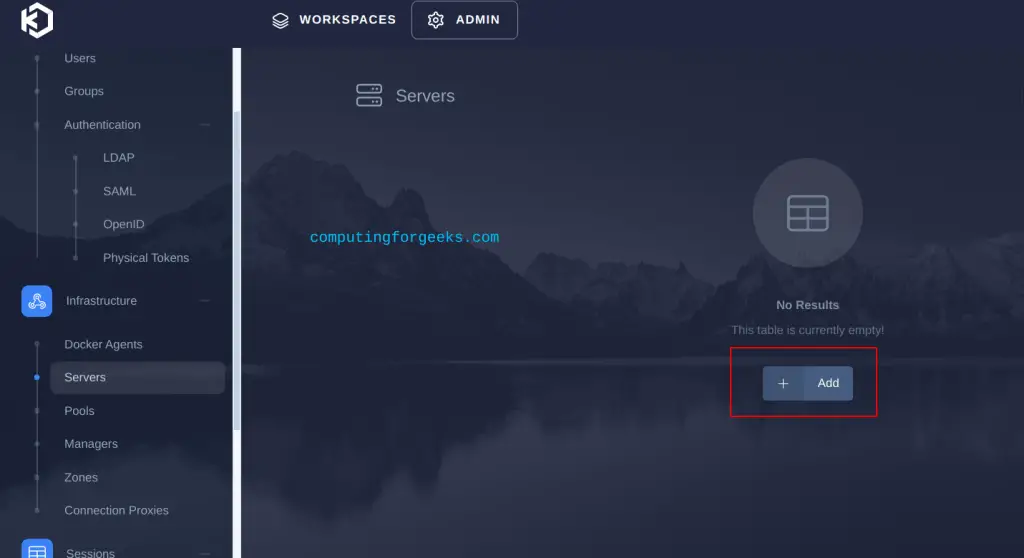
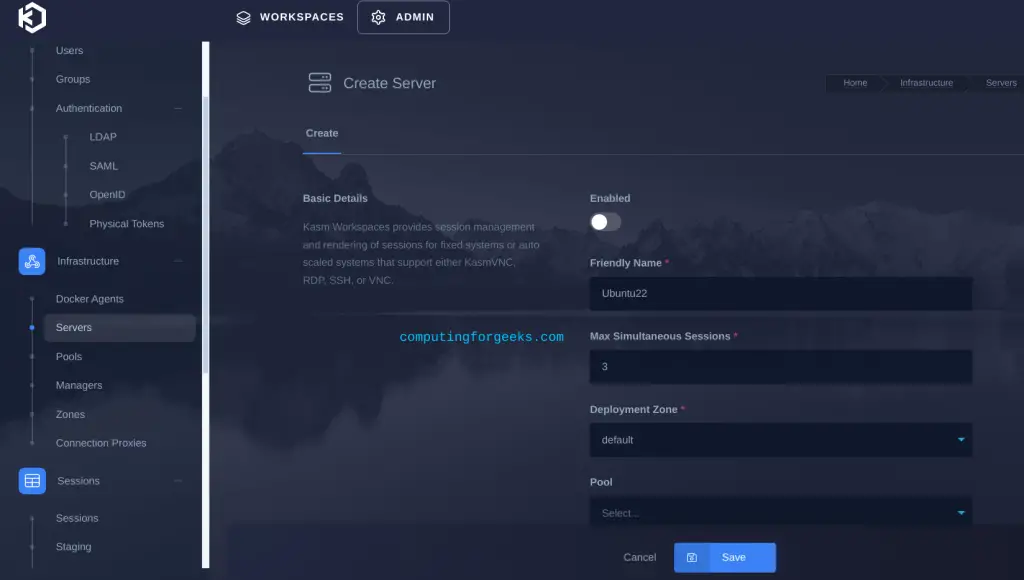
Once the required details and connection type have been provided, the servers will appear as shown:
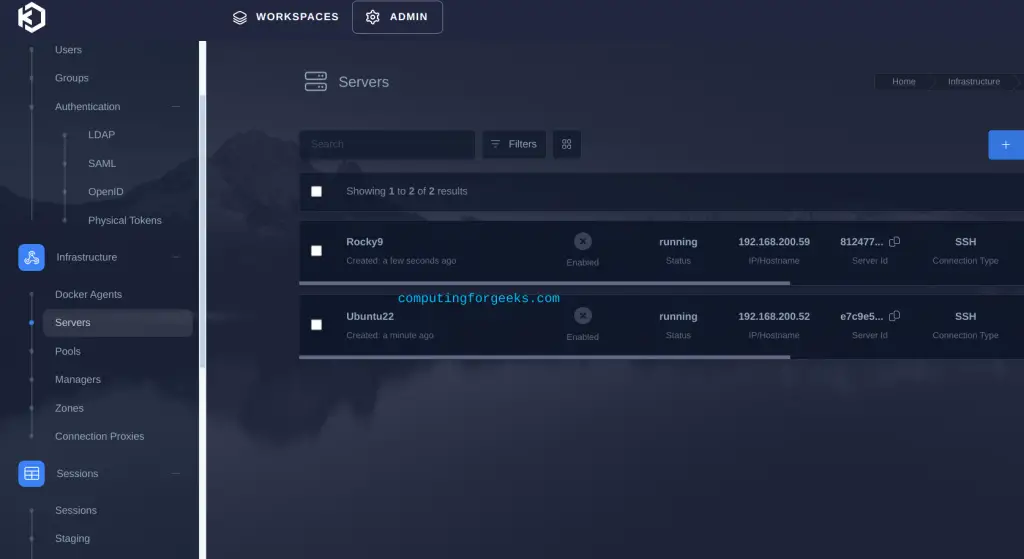
The added servers and connection protocol will be seen as shown:
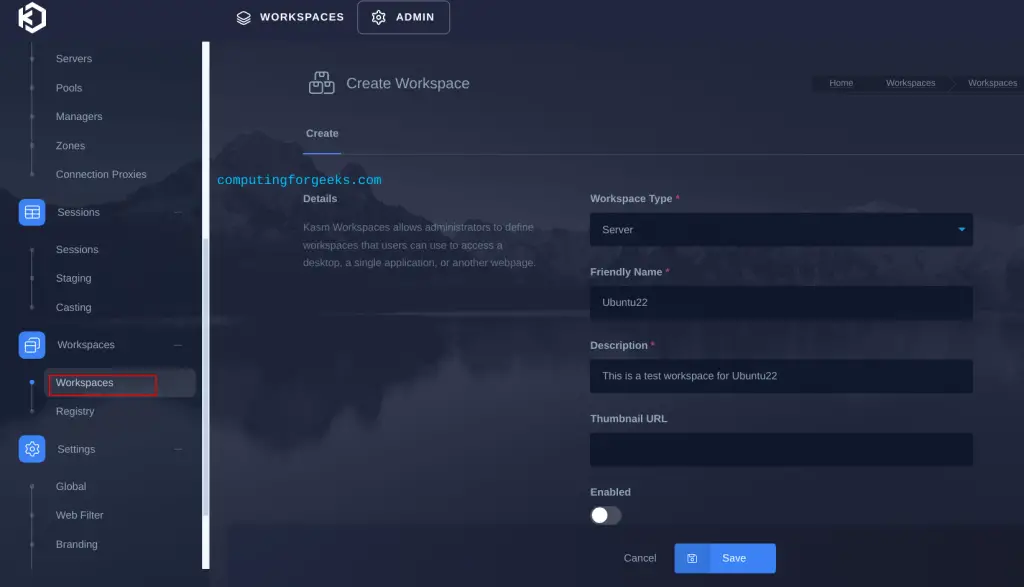
We will then navigate to the Workspaces tab and create a workspace. we can then add the servers to the workspace.
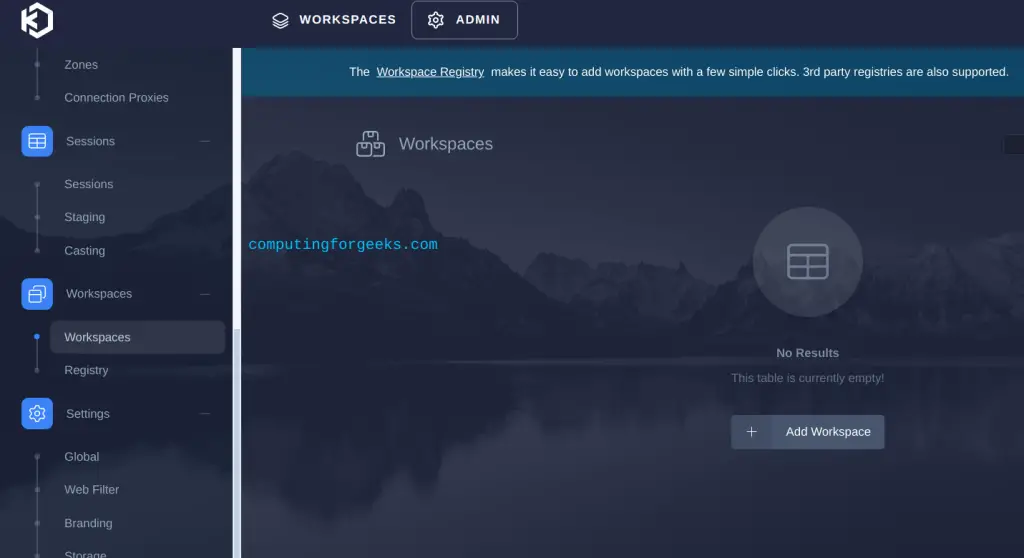
Provide the required details for your workspace:
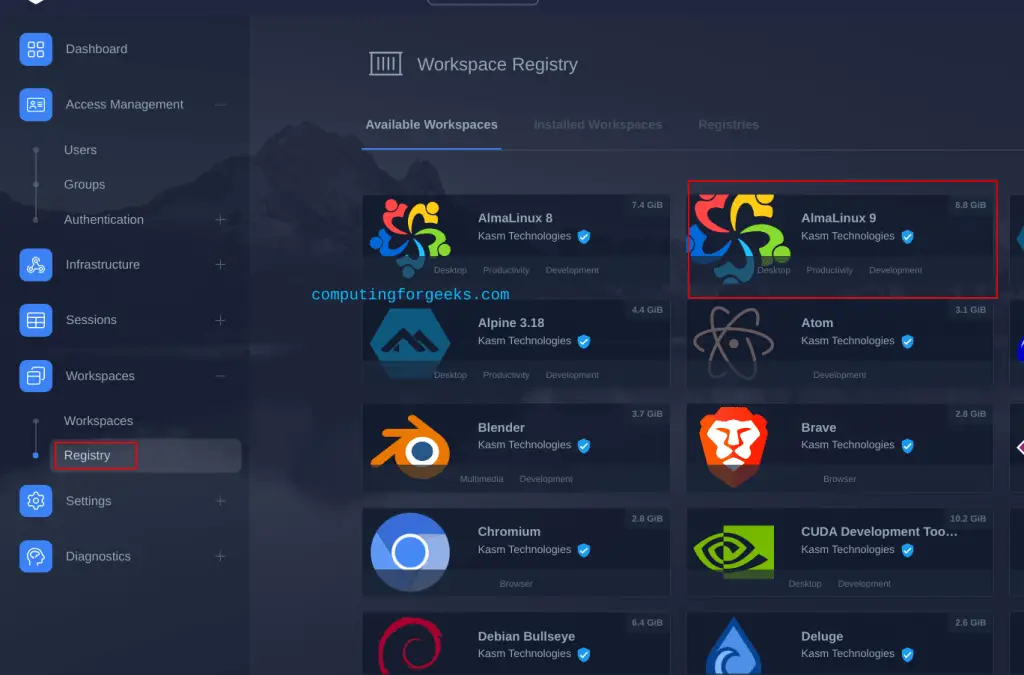
You also have an option of creating a workspace from the registry. For example, we will create an Alma Linux 9 Desktop server.
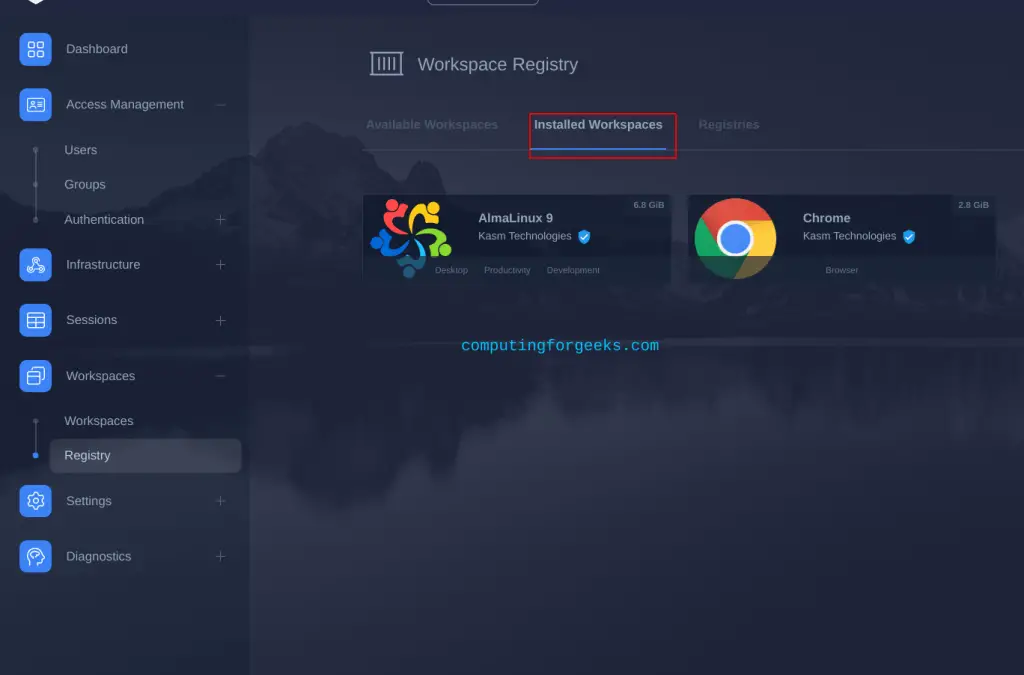
Once installed, it will appear under the installed workspaces tab.
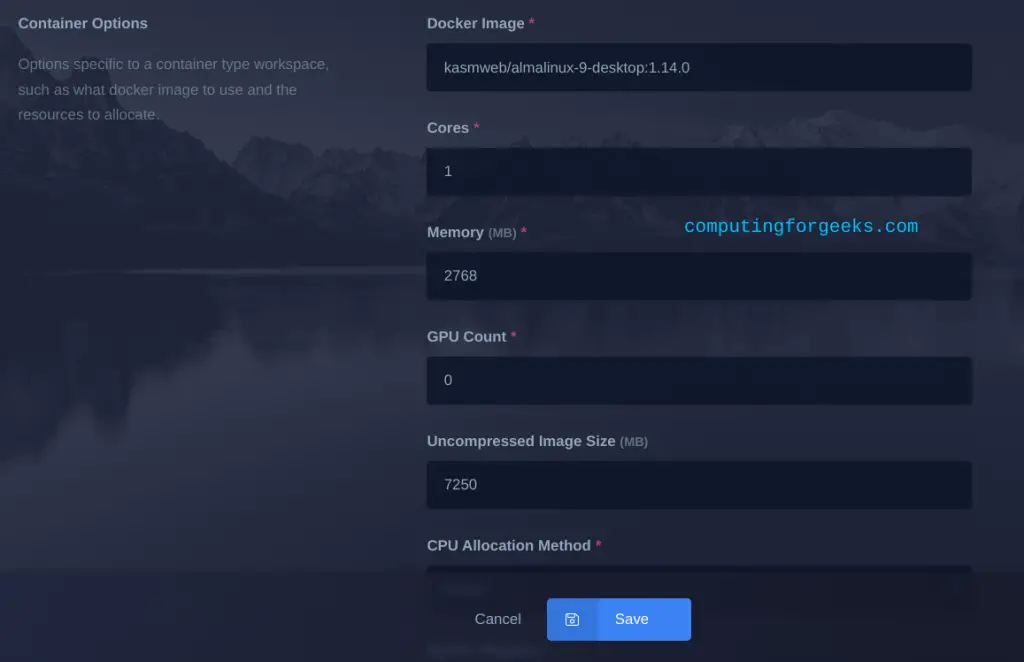
You can configure your Kasm workspace parameters, such as the RAM, memory etc for the deployment.
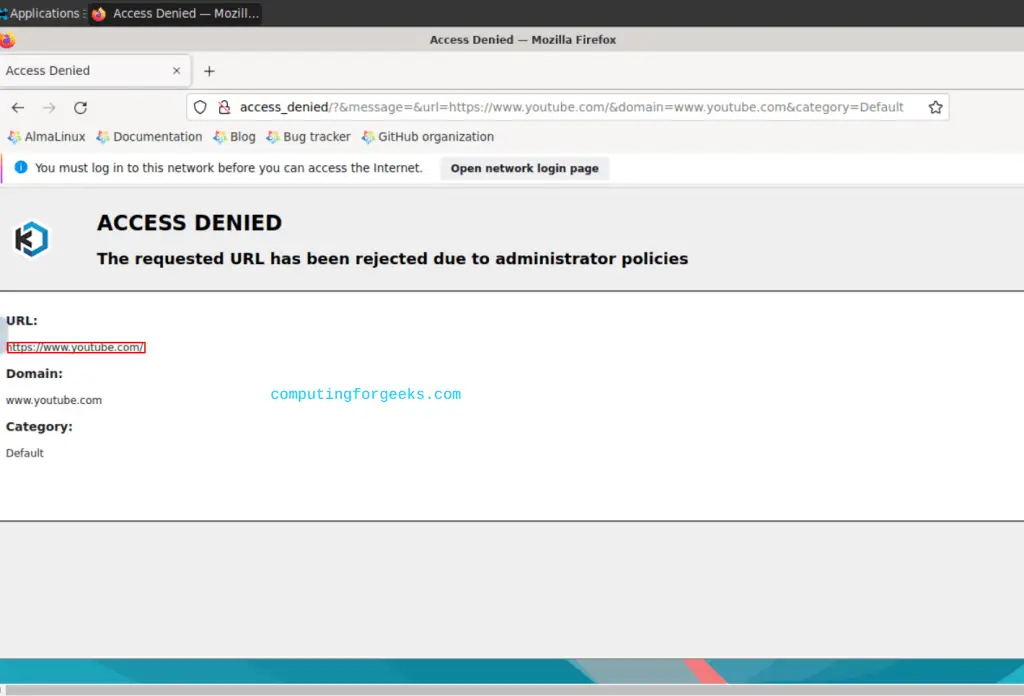
I will also show you how the web filter can be used to restrict traffic. This is done in the Settings tab. Here, you can set the desired filters. Select web filter, click on add policy and proceed as shown:
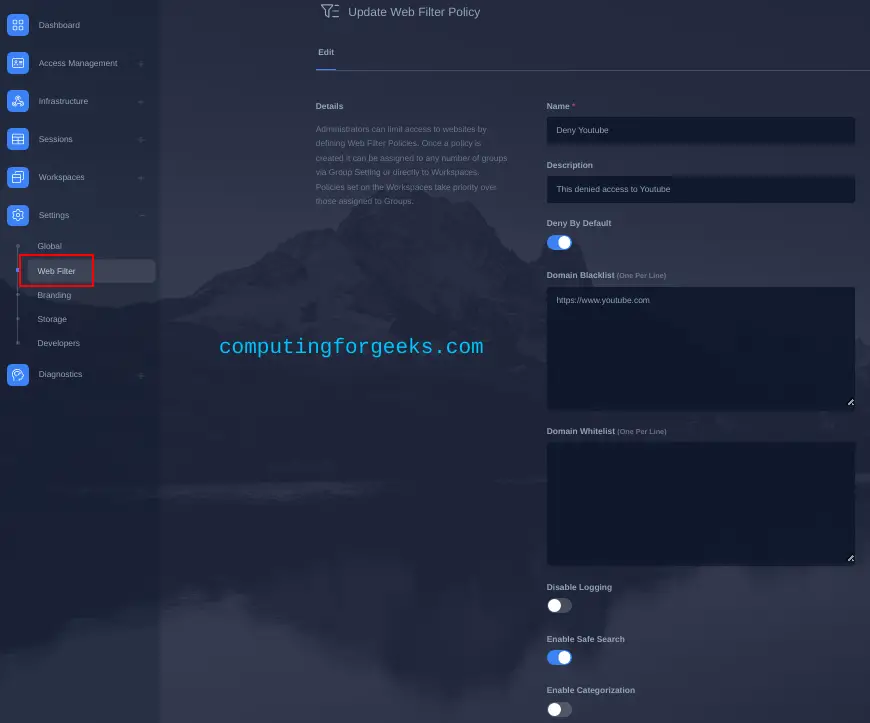
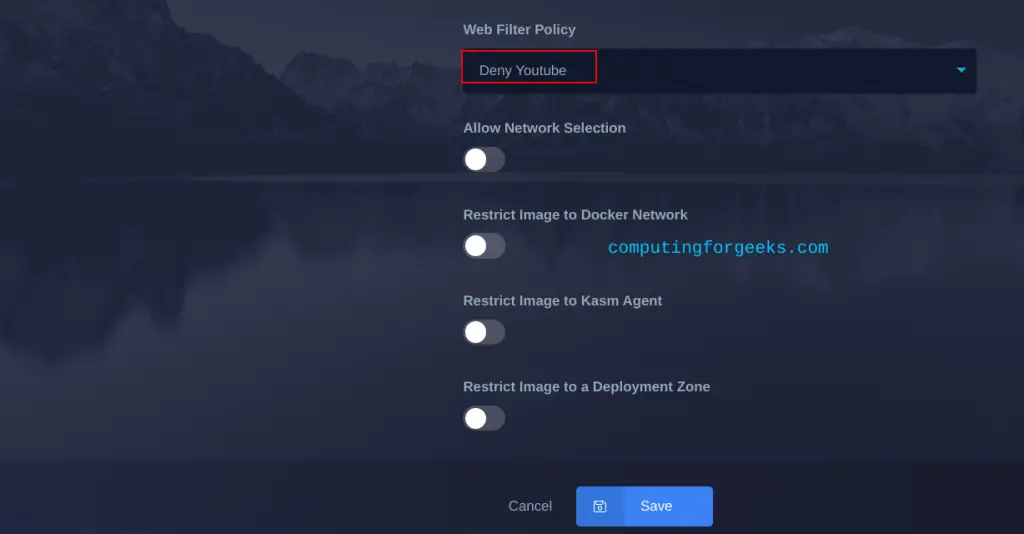
In the above image, we have blocked access to https://www.youtube.com. You can then apply the created web filter to any of the workspaces, select the Workspace and edit it, scroll to the web_filter section, set the desired filter and save the changes.
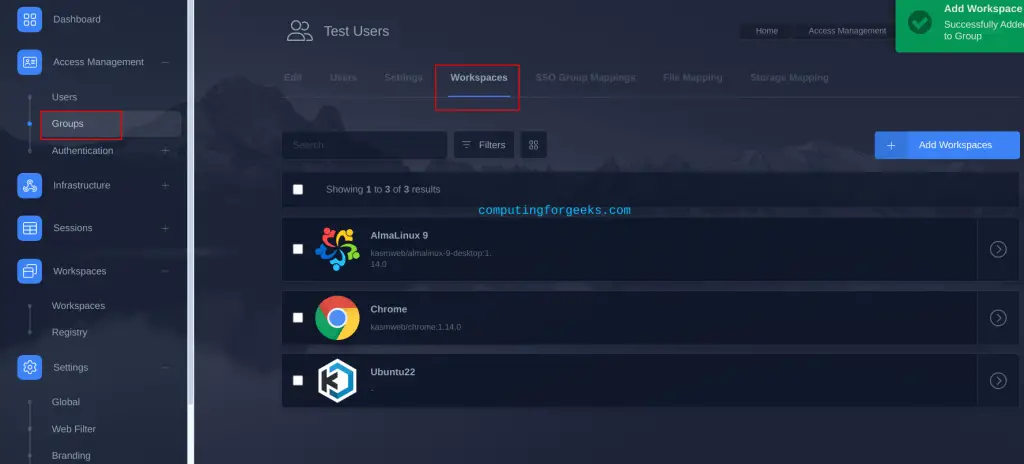
The last thing to do is to allow the user group to access the created workspace. Go to the Group created earlier, click edit and navigate to the workspaces tab. Here, add all the created workspaces for the users in the group to access.
Stream Desktop and Containerized Applications
Once added as shown, log out and log in using the created user. You will see the workspaces as shown:
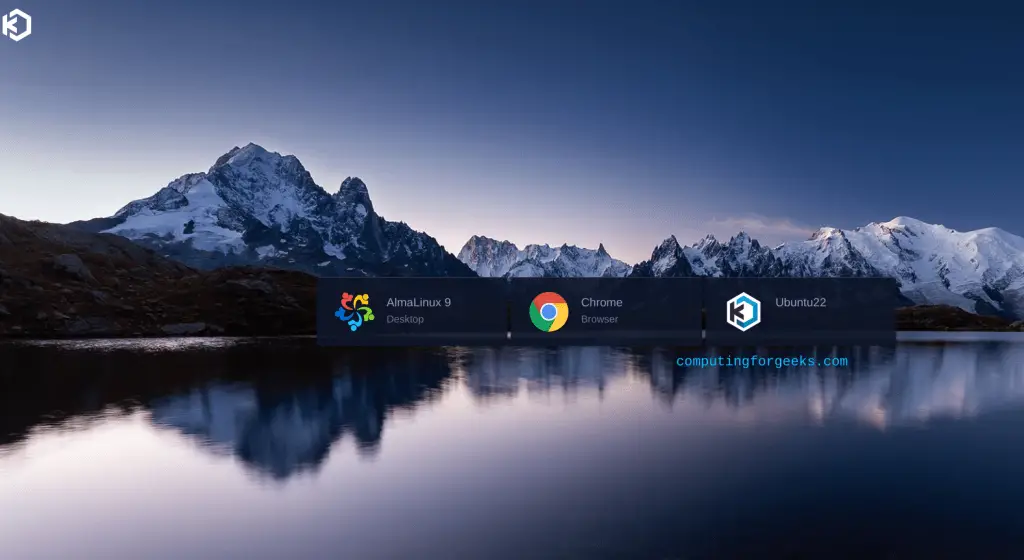
For this guide, we will test access to the Alma 9 workspace created earlier.
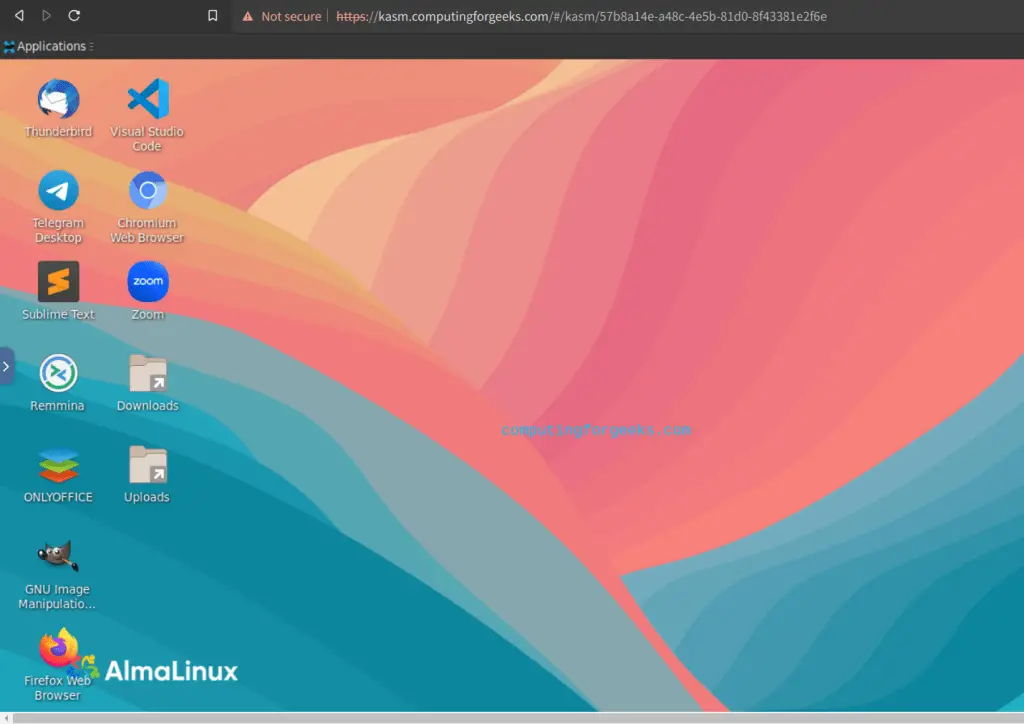
This is the Alma Linux 9 we deployed. We can test if the web filter is working by trying to access the restricted site on the browser:
Final Verdict
That is the end of this guide on how to stream Desktop Applications and Containerized Applications on Browser. You are now set to deploy and manage applications remotely on your browser. I hope this was significant.
See more:

how can I use my NextDNS account to filter (block)? Can I force DoH url on users? Can it be applied upstream of users?