

File managers help create delete and modify files and manage their access, security and the various resources used by them. Most devices come with default file managers, the popular ones are Windows File Explorer for Windows, Nautilus (Linux), Finder (macOS), Dolphin (KDE), Thunar (XFCE), Nemo (Cinnamon) etc.
Many of the users find themselves in situations where they need to manage and organize files across many devices in one place. Most people rely on cloud services such as Google, iCloud etc to achieve that. However, they are locked with limited capacity with zero interoperability between services and operating systems. To help solve this issue, Spacedrive was developed.
Spacedrive is an open-source cross-platform file manager powered by a VDFS(virtual distributed filesystem) developed in Rust language. A VDFS is a file system that is capable of working across a variety of storage layers. It has a unified API that makes it possible to manipulate. VDFS is not restricted to a single machine, this is achieved by maintaining a virtual index of all the storage locations and performing real-time database synchronization between the clients. Spacedrive combines the storage capacity and processing power of your devices to create a personal distributed cloud which is easy to use and secure as well.
Spacedrive has the following features and benefits:
- Cool and appealing user interface
- Ability to manage jobs
- Support for local and cloud locations
- Organize files and folders using tags
- It has a file finder and advanced search
In this guide, we will learn how to install and use Spacedrive file manager on Linux, Windows, and macOS.
1. Install Cargo, NodeJS and npm
For this project, you need to have both Cargo and Pnpm installed on your system. On Linux systems, Spacedrive can be installed on:
- Debian-based systems
- Fedora
NOTE: CentOS/ Rocky Linux and Alma Linux have several dependency issues such as webkit2gtk4.0, gstreamer1-plugins-good-extras and streamer1-plugins-bad-free-extras which makes it so complicated to run the installation.
- Install NodeJs
Spacedrive requires NodeJS versions 18 and above. Our page provides guides that can be used to install NodeJS on various systems:
Check the installed version:
$ node -v
v20.5.1

$ npm -v
9.8.0- Install pnpm
The easiest way to install pnpm is by using npm:
sudo npm install -g pnpm
##OR
sudo npm install -g @pnpm/exe
You can also install Pnpm directly by issuing the commands:
##On Linux & MacOS
wget -qO- https://get.pnpm.io/install.sh | sh -
source /home/$USER/.bashrc

##On Windows
iwr https://get.pnpm.io/install.ps1 -useb | iex
You can also use Homebrew:
brew install pnpmVerify the installation using:
$ pnpm -v
8.9.2- Install Cargo
To install Cargo and Rust on your system, switch to the root user:
sudo -iNow access the shell and issue:
##On Linux & MacOS (Ensure curl is installed)
curl https://sh.rustup.rs -sSf | sh
source "$HOME/.cargo/env"
On Windows, download and run the rustup-init.exe file. Follow through until the installation is complete before you proceed.
Verify the installation:
$ cargo -V
cargo 1.73.0 (9c4383fb5 2023-08-26)- Install Build tools:
It would be best if you also had the build tools installed on your system. This can be done using the following commands:
##On Debian/Ubuntu
sudo apt update -y
sudo apt-get install build-essential libegl-mesa0

##On Fedora
sudo dnf install mesa-libEGL
sudo dnf groupinstall "Development Tools"

##On MacOS
xcode-select --install
On Windows, you can download and install Visual Studio Build Tools
2. Install Spacedrive File Manager
Before we begin, you need to ensure that git is installed on your system. The proceed and clone the Spacedrive Github repository.
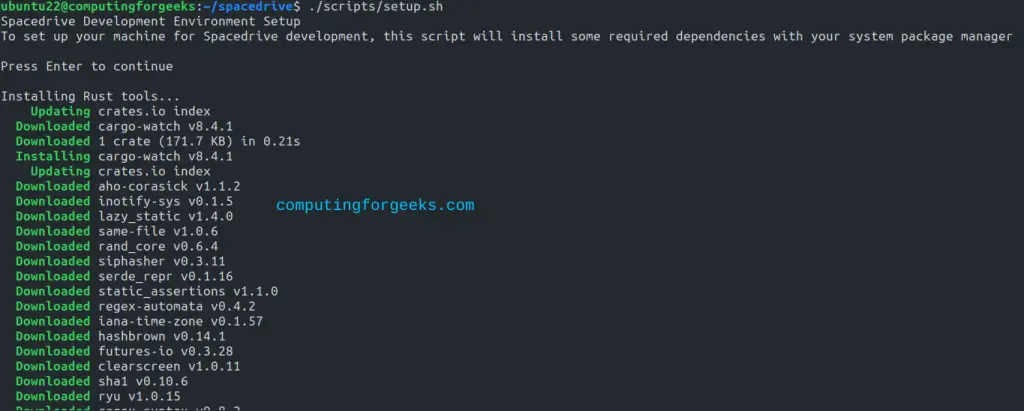
git clone https://github.com/spacedriveapp/spacedrive && cd spacedriveNow you need to run the setup script which will install FFmpeg, LLVM, FFmpeg and any other required dependency packages for the Spacedrive.
To achieve that, issue the below command:
##On Linux & MacOS
./scripts/setup.sh

##On Windows
.\scripts\setup.ps1
Sample Output:
Once this is complete, we need to install the dependency packages:
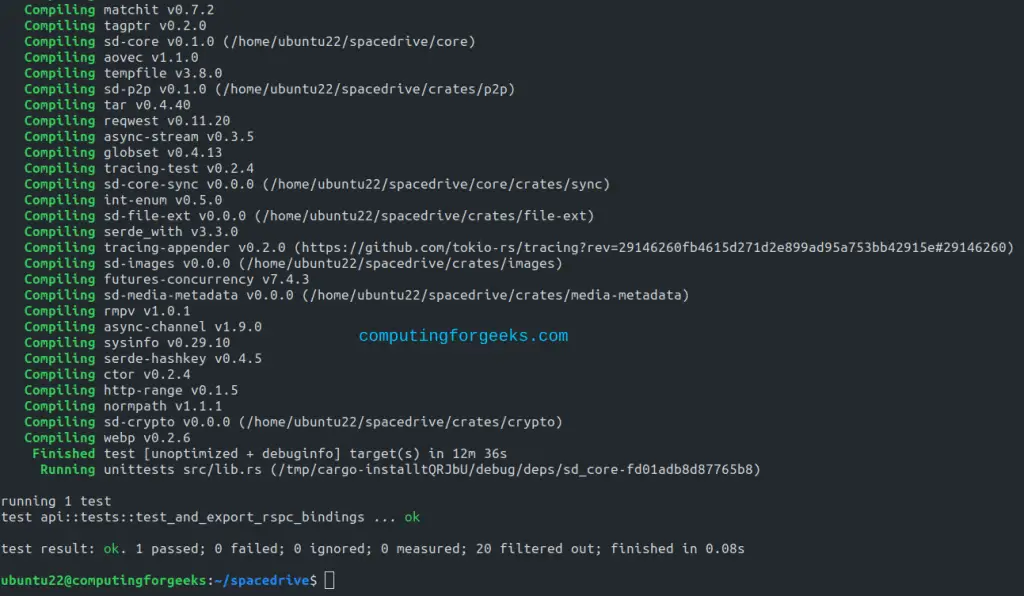
pnpm iNow run Codegen and build the required dependencies:
pnpm prepSample Output:
Now you can proceed and run the Spacedrive apps.
3. Running Spacedrive Apps
There are several Spacedrive apps that can be used depending on your system. Below are the various Spacedrive apps and how to run them:
##Desktop app(From the GUI terminal)
pnpm tauri dev

##Landing
pnpm landing dev

##Server
DATA_DIR=/path/to/library cargo run -p sdcore

##Webapp
pnpm web dev
##OR##
pnpm web dev --host <IP_address>
Each time you switch between these branches, you need to run the pnpm prepcommand first.
Building Spacedrive Desktop App
In this guide, we will use the Spacedrive desktop app. You can choose to build the Spacedrive desktop application:
pnpm tauri buildOnce the build is complete, you will have packages created for you under target/release/bundle/
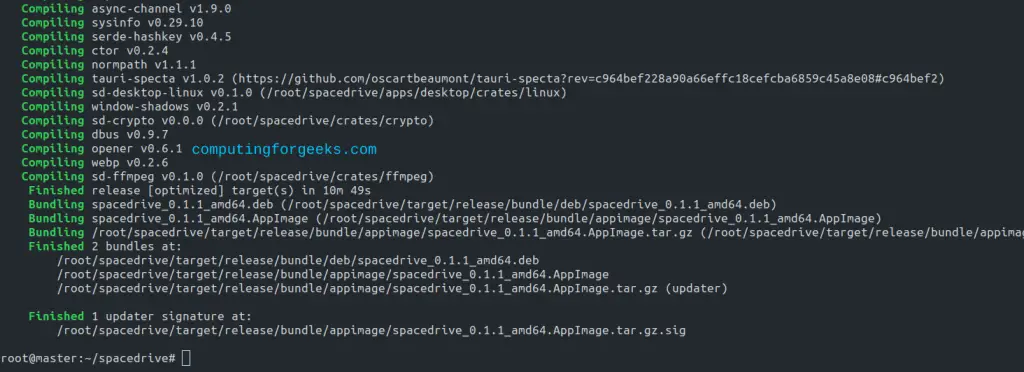
Install Spacedrive a desktop app. The command will be different depending on your system(Linux, Windows and MacOS). For example, on Linux, we will use:
##On debian/Ubuntu
sudo dpkg -i target/release/bundle/deb/spacedrive*_amd64.deb
Once installed, a desktop app will be created and available at /usr/share/applications/spacedrive.desktop. Make the file executable:
sudo chmod +r /usr/share/applications/spacedrive.desktopOn Linux, you can also use the created AppImage to run Spacedrive. Find instructions in this guide:
4. Access and Use Spacedrive
Now launch the app via your app Menu:
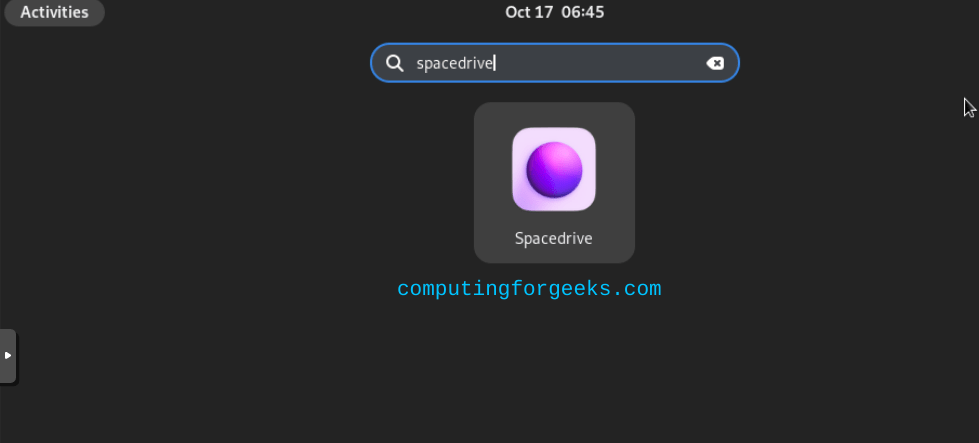
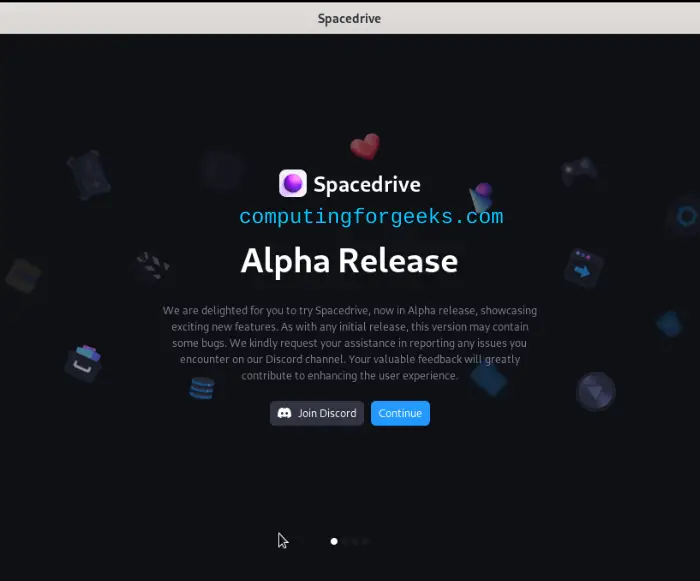
Once opened, you need to make some configs.
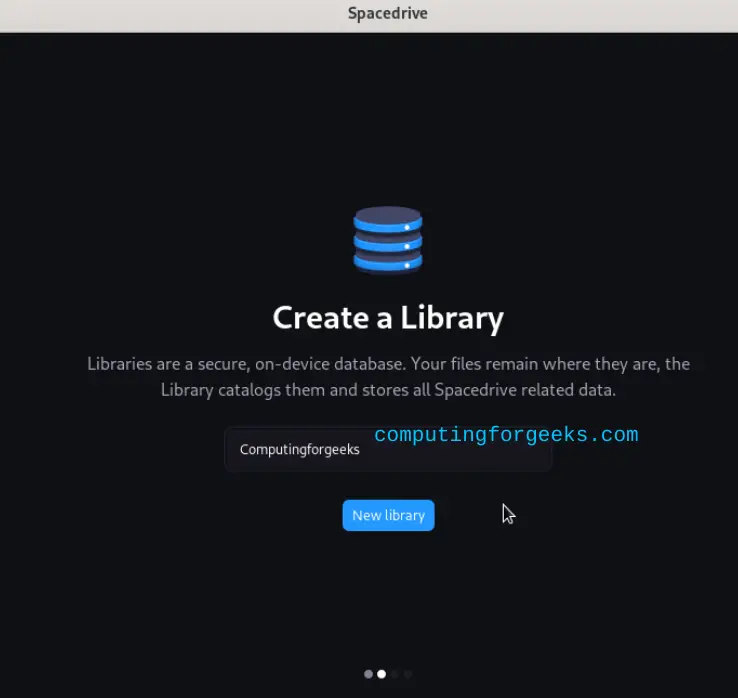
First, create your Library:
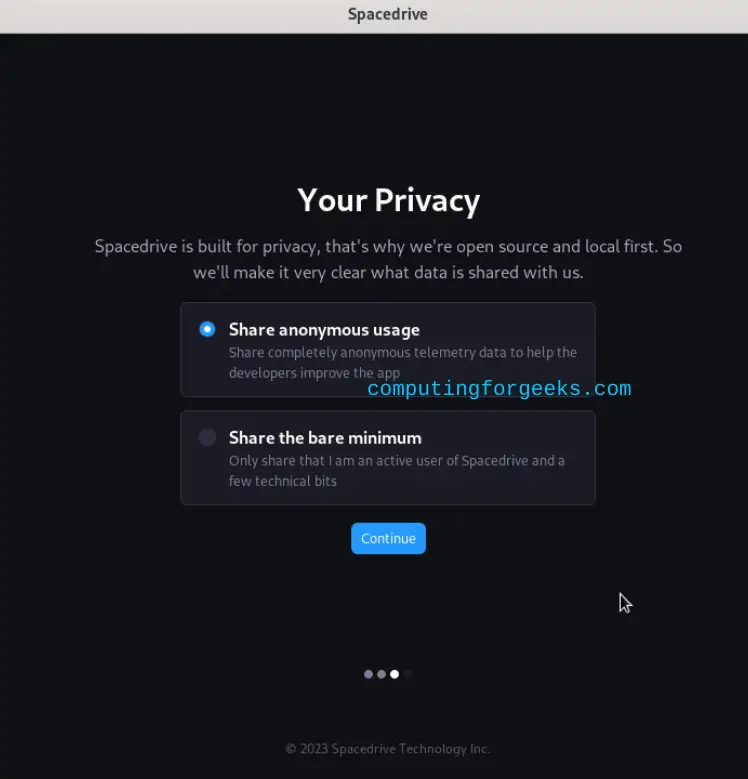
Make your privacy settings as desired:
Now you will be granted this overview page.
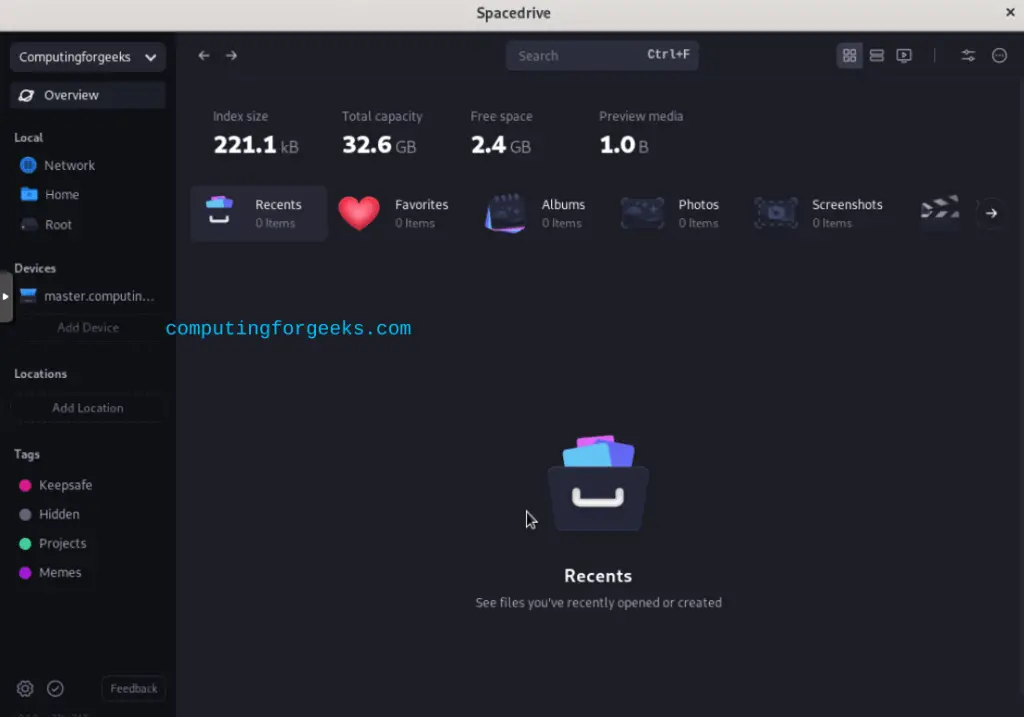
Proceed and manage the files using Spacedrive as desired.
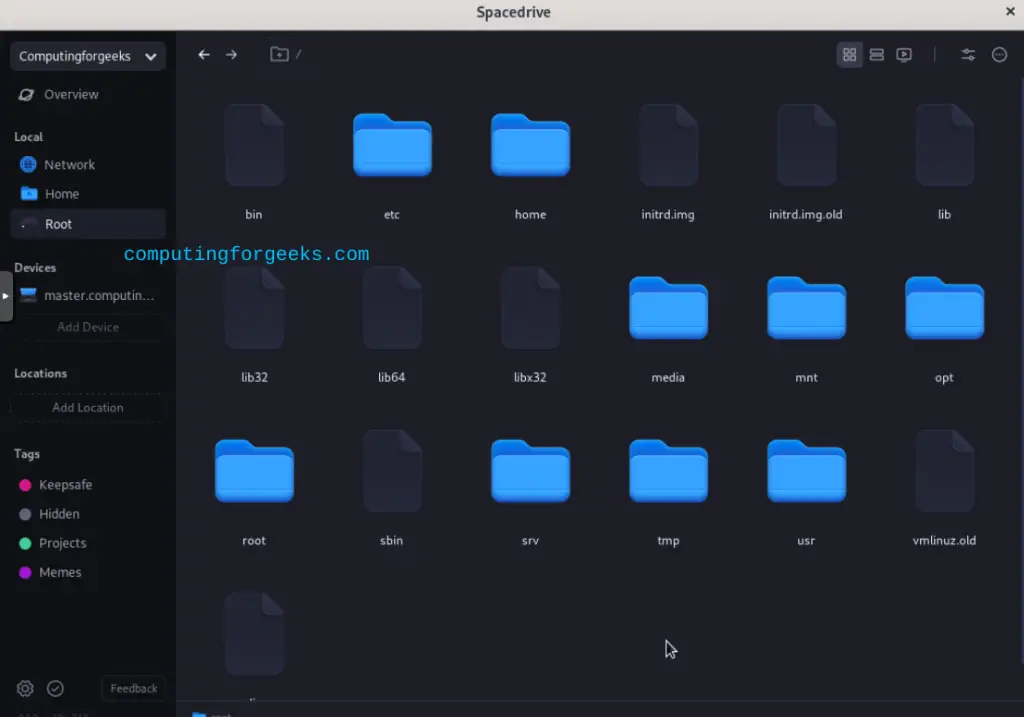
You can also add several other locations and servers on Spacedrive.
Verdict
That is the end of this guide on how to install and get started with Spacedrive on Linux, Windows and MacOS. I hope you benefitted from this guide. For more, visit the Spacedrive official page.
See more on this page:
