

PostfixAdmin is a web-based management interface for Postfix mail servers. It lets you manage virtual domains, mailboxes, aliases, and quota settings through a clean PHP interface instead of editing database tables manually. The project is open-source under the GPL license and available on GitHub.
This guide walks through a complete mail server setup on Rocky Linux 10 / AlmaLinux 10 using Postfix (SMTP), Dovecot (IMAP/LMTP), MariaDB (virtual mailbox backend), PostfixAdmin 4.x (web UI), Let’s Encrypt SSL/TLS, SPF/DKIM DNS records, and firewall configuration. By the end, you will have a production-ready mail server capable of sending and receiving email for multiple virtual domains.
Prerequisites
- A server running Rocky Linux 10 or AlmaLinux 10 with root or sudo access
- A registered domain name with DNS access (to set MX, SPF, DKIM records)
- A valid FQDN pointing to the server – for example
mail.example.comwith an A record pointing to your server IP - Minimum 2 GB RAM, 2 vCPUs, 20 GB disk
- Ports 25 (SMTP), 587 (submission), 993 (IMAPS), 443 (HTTPS) open on your firewall and hosting provider
- SELinux in enforcing mode (we configure the required booleans)
Set the system hostname to your mail FQDN before starting:
sudo hostnamectl set-hostname mail.example.comUpdate the system and install basic utilities:
sudo dnf -y update
sudo dnf -y install vim wget tar
Step 1: Install MariaDB Database Server
PostfixAdmin stores virtual domains, mailboxes, and aliases in a MariaDB database. Postfix and Dovecot both query this database to handle mail delivery. If you need a more detailed MariaDB installation guide, see Install MariaDB on Rocky Linux 10 / AlmaLinux 10.
sudo dnf -y install mariadb-server mariadbStart and enable MariaDB:
sudo systemctl enable --now mariadbSecure the installation by setting a root password and removing test databases:
sudo mysql_secure_installationAnswer Y to all prompts – set root password, remove anonymous users, disallow remote root login, remove test database, and reload privilege tables.
Log in to MariaDB and create the PostfixAdmin database and user:
sudo mysql -u root -pRun the following SQL statements to create the database, grant privileges, and add a dedicated vmail user that Postfix and Dovecot will use for read-only lookups:
CREATE DATABASE postfixadmin CHARACTER SET utf8mb4 COLLATE utf8mb4_general_ci;
GRANT ALL PRIVILEGES ON postfixadmin.* TO 'postfixadmin'@'localhost' IDENTIFIED BY 'StrongDBPassw0rd';
GRANT SELECT ON postfixadmin.* TO 'vmail'@'localhost' IDENTIFIED BY 'VmailDBPass123';
FLUSH PRIVILEGES;
EXIT;
Verify MariaDB is running:
systemctl status mariadbThe service should show active (running).
Step 2: Install Nginx and PHP
PostfixAdmin requires a web server and PHP. We use Nginx with PHP-FPM.
sudo dnf -y install nginx php php-fpm php-mysqlnd php-mbstring php-imap php-opcache php-cli php-gd php-curl php-xml php-intlConfigure PHP-FPM to run as the nginx user. Open the pool configuration file:
sudo vim /etc/php-fpm.d/www.confChange the user and group settings:
user = nginx
group = nginx
listen = /run/php-fpm/www.sock
listen.owner = nginx
listen.group = nginx
Set correct ownership on the PHP session directory:
sudo chown -R nginx:nginx /var/lib/phpStart and enable both PHP-FPM and Nginx:
sudo systemctl enable --now php-fpm nginxVerify both services are running:
systemctl status php-fpm nginxStep 3: Install and Configure PostfixAdmin
Download PostfixAdmin 4.0.1 (latest stable release) from GitHub:
cd /tmp
wget https://github.com/postfixadmin/postfixadmin/archive/postfixadmin-4.0.1.tar.gz
tar -xzf postfixadmin-4.0.1.tar.gz
sudo mv postfixadmin-postfixadmin-4.0.1 /var/www/html/postfixadmin
Create the templates cache directory that PostfixAdmin requires:
sudo mkdir -p /var/www/html/postfixadmin/templates_c
sudo chown -R nginx:nginx /var/www/html/postfixadmin
Create the local configuration file with your database credentials:
sudo vim /var/www/html/postfixadmin/config.local.phpAdd the following configuration:
<?php
$CONF['configured'] = true;

$CONF['database_type'] = 'mysqli';
$CONF['database_host'] = 'localhost';
$CONF['database_user'] = 'postfixadmin';
$CONF['database_password'] = 'StrongDBPassw0rd';
$CONF['database_name'] = 'postfixadmin';

$CONF['default_aliases'] = array(
    'abuse'      => '[email protected]',
    'hostmaster' => '[email protected]',
    'postmaster' => '[email protected]',
    'webmaster'  => '[email protected]'
);

$CONF['fetchmail'] = 'NO';
$CONF['show_footer_text'] = 'NO';

$CONF['quota'] = 'YES';
$CONF['domain_quota'] = 'YES';
$CONF['quota_multiplier'] = '1024000';
$CONF['used_quotas'] = 'YES';
$CONF['new_quota_table'] = 'YES';

$CONF['aliases'] = '0';
$CONF['mailboxes'] = '0';
$CONF['maxquota'] = '0';
$CONF['domain_quota_default'] = '0';

// Encrypt passwords with dovecot
$CONF['encrypt'] = 'dovecot:ARGON2ID';
$CONF['dovecotpw'] = '/usr/bin/doveadm pw';
?>
Initialize the PostfixAdmin database schema:
sudo -u nginx php /var/www/html/postfixadmin/public/upgrade.phpThe output should show a series of database migration updates completing successfully.
Create the super admin account:
sudo bash /var/www/html/postfixadmin/scripts/postfixadmin-cli admin add [email protected] --password StrongAdminPass1 --password2 StrongAdminPass1 --superadmin 1 --active 1The command should confirm the admin account was created. Replace example.com with your actual domain.
Step 4: Configure Nginx Virtual Host for PostfixAdmin
Create an Nginx server block for the PostfixAdmin web interface:
sudo vim /etc/nginx/conf.d/postfixadmin.confAdd the following configuration – replace mail.example.com with your actual mail hostname:
server {
    listen 80;
    server_name mail.example.com;
    root /var/www/html/postfixadmin/public;
    index index.php index.html;

    location / {
        try_files $uri $uri/ =404;
    }

    location ~ \.php$ {
        fastcgi_split_path_info ^(.+\.php)(/.+)$;
        fastcgi_pass unix:/run/php-fpm/www.sock;
        fastcgi_index index.php;
        include fastcgi_params;
        fastcgi_param SCRIPT_FILENAME $document_root$fastcgi_script_name;
        fastcgi_buffer_size 16k;
        fastcgi_buffers 4 16k;
    }
}
Test the Nginx configuration and restart:
sudo nginx -tIf the syntax check passes, restart Nginx:
sudo systemctl restart nginxStep 5: Create the vmail System User
All virtual mailboxes are stored under a dedicated system user. Create the vmail user and mail directory:
sudo groupadd -g 5000 vmail
sudo useradd -g vmail -u 5000 -d /var/mail/vhosts -s /sbin/nologin vmail
sudo mkdir -p /var/mail/vhosts
sudo chown -R vmail:vmail /var/mail/vhosts
Step 6: Install and Configure Postfix for Virtual Delivery
Postfix handles sending and receiving mail via SMTP. Install it along with the MySQL map module for virtual mailbox lookups:
sudo dnf -y install postfix postfix-mysqlBack up the default Postfix configuration and edit the main config file:
sudo cp /etc/postfix/main.cf /etc/postfix/main.cf.bak
sudo vim /etc/postfix/main.cf
Replace the contents with the following configuration. Update myhostname and mydomain with your values:
# Basic settings
myhostname = mail.example.com
mydomain = example.com
myorigin = $mydomain
mydestination = localhost
mynetworks = 127.0.0.0/8
inet_interfaces = all
inet_protocols = all

# Virtual mailbox settings
virtual_mailbox_domains = mysql:/etc/postfix/sql/mysql_virtual_domains_maps.cf
virtual_mailbox_maps = mysql:/etc/postfix/sql/mysql_virtual_mailbox_maps.cf
virtual_alias_maps = mysql:/etc/postfix/sql/mysql_virtual_alias_maps.cf
virtual_mailbox_base = /var/mail/vhosts
virtual_uid_maps = static:5000
virtual_gid_maps = static:5000
virtual_transport = lmtp:unix:private/dovecot-lmtp

# TLS settings (updated after Let's Encrypt)
smtpd_use_tls = yes
smtpd_tls_cert_file = /etc/pki/tls/certs/postfix.pem
smtpd_tls_key_file = /etc/pki/tls/private/postfix.key
smtpd_tls_security_level = may
smtpd_tls_auth_only = yes
smtp_tls_security_level = may

# SASL authentication via Dovecot
smtpd_sasl_type = dovecot
smtpd_sasl_path = private/auth
smtpd_sasl_auth_enable = yes
smtpd_sasl_security_options = noanonymous
smtpd_sasl_local_domain = $myhostname

# Restrictions
smtpd_recipient_restrictions =
    permit_mynetworks,
    permit_sasl_authenticated,
    reject_unauth_destination

# Message size limit (50 MB)
message_size_limit = 52428800
mailbox_size_limit = 0
Create the SQL lookup directory and the three mapping files:
sudo mkdir -p /etc/postfix/sqlVirtual Domains Map
sudo vim /etc/postfix/sql/mysql_virtual_domains_maps.cfAdd the following – update the password to match what you set in Step 1:
user = vmail
password = VmailDBPass123
hosts = localhost
dbname = postfixadmin
query = SELECT domain FROM domain WHERE domain='%s' AND active = '1'
Virtual Mailbox Map
sudo vim /etc/postfix/sql/mysql_virtual_mailbox_maps.cfAdd the following content:
user = vmail
password = VmailDBPass123
hosts = localhost
dbname = postfixadmin
query = SELECT maildir FROM mailbox WHERE username='%s' AND active = '1'
Virtual Alias Map
sudo vim /etc/postfix/sql/mysql_virtual_alias_maps.cfAdd the following content:
user = vmail
password = VmailDBPass123
hosts = localhost
dbname = postfixadmin
query = SELECT goto FROM alias WHERE address='%s' AND active = '1'
Secure the SQL files so only root and postfix can read them:
sudo chmod 640 /etc/postfix/sql/*.cf
sudo chown root:postfix /etc/postfix/sql/*.cf
Enable the submission port (587) for authenticated users. Open the master configuration:
sudo vim /etc/postfix/master.cfUncomment the submission section so it looks like this:
submission inet n       -       n       -       -       smtpd
  -o syslog_name=postfix/submission
  -o smtpd_tls_security_level=encrypt
  -o smtpd_sasl_auth_enable=yes
  -o smtpd_tls_auth_only=yes
  -o smtpd_reject_unlisted_recipient=no
  -o smtpd_recipient_restrictions=permit_sasl_authenticated,reject
  -o milter_macro_daemon_name=ORIGINATING
Step 7: Install and Configure Dovecot for IMAP and LMTP
Dovecot provides IMAP access for mail clients and LMTP for local delivery from Postfix. Install Dovecot with MySQL support:
sudo dnf -y install dovecot dovecot-mysqlEdit the main Dovecot configuration:
sudo vim /etc/dovecot/dovecot.confSet the protocols to enable IMAP and LMTP:
protocols = imap lmtpConfigure Mail Location
sudo vim /etc/dovecot/conf.d/10-mail.confSet the mail storage location to use Maildir format under the vmail directory:
mail_location = maildir:/var/mail/vhosts/%d/%n
mail_privileged_group = vmail
Configure Authentication
sudo vim /etc/dovecot/conf.d/10-auth.confUpdate these settings to disable plain text auth except over TLS and use SQL for user lookups:
disable_plaintext_auth = yes
auth_mechanisms = plain login

# Comment out the system auth and enable SQL auth
#!include auth-system.conf.ext
!include auth-sql.conf.ext
Configure the SQL auth settings:
sudo vim /etc/dovecot/conf.d/auth-sql.conf.extSet the contents to:
passdb {
  driver = sql
  args = /etc/dovecot/dovecot-sql.conf.ext
}

userdb {
  driver = static
  args = uid=vmail gid=vmail home=/var/mail/vhosts/%d/%n
}
Create the SQL connection file:
sudo vim /etc/dovecot/dovecot-sql.conf.extAdd the database connection details:
driver = mysql
connect = host=localhost dbname=postfixadmin user=vmail password=VmailDBPass123
default_pass_scheme = ARGON2ID
password_query = SELECT username AS user, password FROM mailbox WHERE username = '%u' AND active = '1'
Configure SSL
sudo vim /etc/dovecot/conf.d/10-ssl.confEnable SSL (we update paths after obtaining Let’s Encrypt certificates):
ssl = required
ssl_cert = </etc/pki/tls/certs/dovecot.pem
ssl_key = </etc/pki/tls/private/dovecot.key
ssl_min_protocol = TLSv1.2
Configure LMTP and Auth Socket
sudo vim /etc/dovecot/conf.d/10-master.confFind the service lmtp section and update it to create a socket accessible by Postfix. Also configure the auth socket:
service lmtp {
  unix_listener /var/spool/postfix/private/dovecot-lmtp {
    mode = 0600
    user = postfix
    group = postfix
  }
}

service auth {
  unix_listener /var/spool/postfix/private/auth {
    mode = 0660
    user = postfix
    group = postfix
  }
  unix_listener auth-userdb {
    mode = 0600
    user = vmail
  }
  user = dovecot
}

service auth-worker {
  user = vmail
}
Set proper permissions on Dovecot config files:
sudo chown root:root /etc/dovecot/dovecot-sql.conf.ext
sudo chmod 600 /etc/dovecot/dovecot-sql.conf.ext
Start and enable Dovecot:
sudo systemctl enable --now dovecotVerify the service is running:
systemctl status dovecotDovecot should show active (running) with no errors.
Step 8: Obtain Let’s Encrypt SSL/TLS Certificates
SSL/TLS is mandatory for secure SMTP submission and IMAP connections. Install Certbot and obtain certificates:
sudo dnf -y install certbot python3-certbot-nginxObtain the certificate for your mail hostname:
sudo certbot --nginx -d mail.example.comFollow the prompts to complete the certificate issuance. Once obtained, update Postfix and Dovecot to use the Let’s Encrypt certificates.
Update Postfix TLS settings:
sudo postconf -e "smtpd_tls_cert_file = /etc/letsencrypt/live/mail.example.com/fullchain.pem"
sudo postconf -e "smtpd_tls_key_file = /etc/letsencrypt/live/mail.example.com/privkey.pem"
Update Dovecot SSL paths in /etc/dovecot/conf.d/10-ssl.conf:
sudo vim /etc/dovecot/conf.d/10-ssl.confChange the certificate paths to:
ssl = required
ssl_cert = </etc/letsencrypt/live/mail.example.com/fullchain.pem
ssl_key = </etc/letsencrypt/live/mail.example.com/privkey.pem
ssl_min_protocol = TLSv1.2
Restart both services to apply the new certificates:
sudo systemctl restart postfix dovecotSet up automatic certificate renewal with a cron job that also restarts mail services:
echo "0 3 * * * root certbot renew --quiet --deploy-hook 'systemctl restart postfix dovecot nginx'" | sudo tee /etc/cron.d/certbot-renewStep 9: Configure SELinux for Mail Services
Rocky Linux 10 and AlmaLinux 10 run SELinux in enforcing mode by default. Set the required booleans so Postfix and Dovecot can access the database and mail directories:
sudo setsebool -P httpd_can_network_connect on
sudo setsebool -P httpd_can_network_connect_db on
sudo setsebool -P httpd_can_sendmail on
If Dovecot has trouble accessing the mail directory, apply the correct file context:
sudo semanage fcontext -a -t mail_spool_t "/var/mail/vhosts(/.*)?"
sudo restorecon -Rv /var/mail/vhosts
Verify SELinux is enforcing:
getenforceThe output should show Enforcing.
Step 10: Configure Firewall Rules
Open the required ports for mail services. For a comprehensive guide on firewalld, see Configure Firewalld on Rocky Linux 10 / AlmaLinux 10.
sudo firewall-cmd --permanent --add-service=smtp
sudo firewall-cmd --permanent --add-service=smtps
sudo firewall-cmd --permanent --add-port=587/tcp
sudo firewall-cmd --permanent --add-service=imaps
sudo firewall-cmd --permanent --add-service=http
sudo firewall-cmd --permanent --add-service=https
sudo firewall-cmd --reload
Verify the firewall rules are active:
sudo firewall-cmd --list-allThe output should show smtp, smtps, imaps, http, https services and port 587/tcp listed under allowed ports and services.
| Port | Protocol | Service |
|---|---|---|
| 25 | TCP | SMTP – receiving mail from other servers |
| 587 | TCP | Submission – authenticated client sending |
| 993 | TCP | IMAPS – encrypted IMAP for mail clients |
| 443 | TCP | HTTPS – PostfixAdmin web interface |
Step 11: Start Postfix and Test Virtual Delivery
Start and enable Postfix:
sudo systemctl enable --now postfixVerify all services are running:
systemctl status postfix dovecot nginx mariadbAll four services should show active (running).
Step 12: Add Domains and Mailboxes in PostfixAdmin
Open PostfixAdmin in your browser at https://mail.example.com. Log in with the super admin credentials created in Step 3.
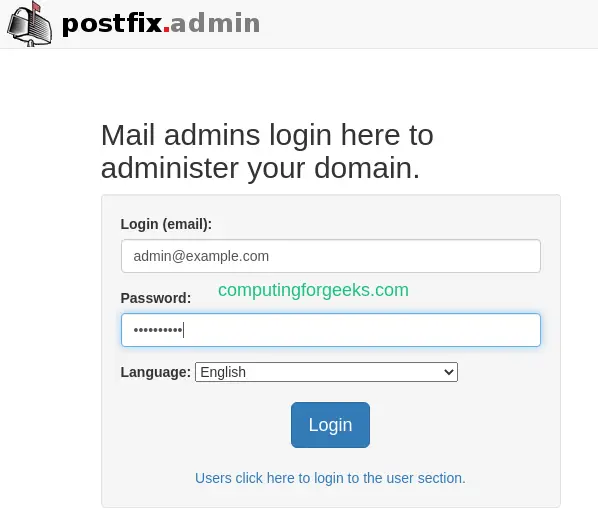
After logging in, you see the PostfixAdmin dashboard where you can manage domains, mailboxes, and aliases.
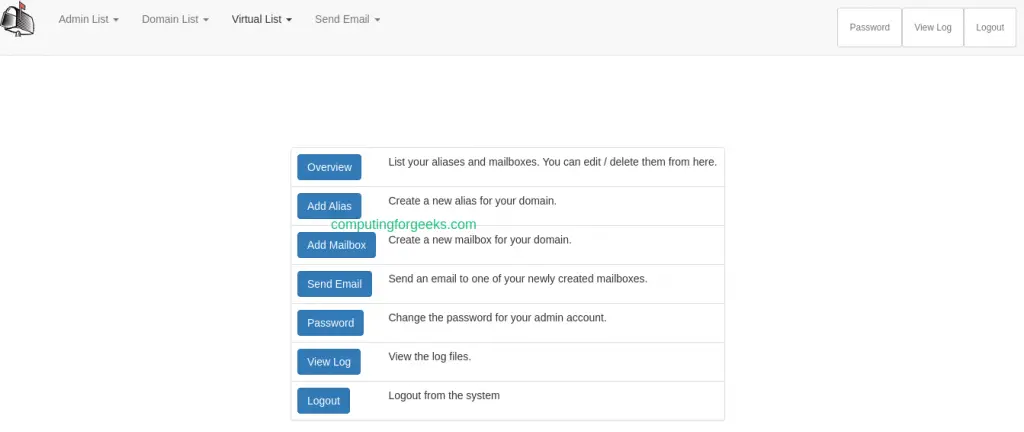
To add a domain, click Domain List then New Domain. Enter your domain name, set mailbox and alias limits, then click Add Domain.

After adding the domain, it appears in your domain list:

Navigate to Virtual List and click Add Mailbox to create user mailboxes for the domain:
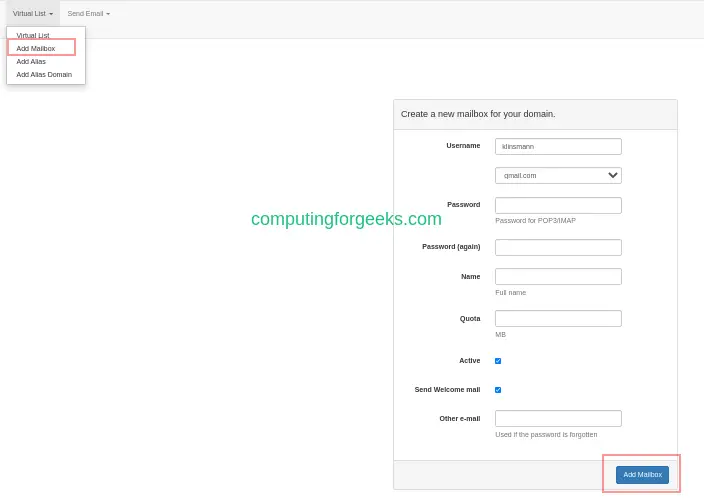
Step 13: Configure DNS Records – SPF and DKIM
Proper DNS records are critical for mail delivery. Without them, your emails will be rejected or land in spam folders.
MX Record
Add an MX record pointing to your mail server in your DNS zone:
example.com. IN MX 10 mail.example.com.SPF Record
SPF tells receiving servers which IPs are authorized to send mail for your domain. Add this TXT record:
example.com. IN TXT "v=spf1 mx a ip4:YOUR_SERVER_IP -all"DKIM Setup with OpenDKIM
DKIM adds a digital signature to outgoing emails, proving they came from your server. Install OpenDKIM:
sudo dnf -y install opendkim opendkim-toolsGenerate the DKIM key pair for your domain:
sudo mkdir -p /etc/opendkim/keys/example.com
sudo opendkim-genkey -b 2048 -d example.com -D /etc/opendkim/keys/example.com -s mail -v
Set ownership on the key files:
sudo chown -R opendkim:opendkim /etc/opendkim/keysConfigure OpenDKIM:
sudo vim /etc/opendkim.confAdd or update these settings:
Mode                    sv
Socket                  inet:8891@localhost
Canonicalization        relaxed/simple
Domain                  example.com
Selector                mail
KeyFile                 /etc/opendkim/keys/example.com/mail.private
SignatureAlgorithm      rsa-sha256
Start and enable OpenDKIM:
sudo systemctl enable --now opendkimAdd the DKIM milter to Postfix. Edit /etc/postfix/main.cf and add:
sudo postconf -e "milter_protocol = 6"
sudo postconf -e "milter_default_action = accept"
sudo postconf -e "smtpd_milters = inet:localhost:8891"
sudo postconf -e "non_smtpd_milters = inet:localhost:8891"
Restart Postfix to apply the DKIM configuration:
sudo systemctl restart postfixDisplay the DKIM public key to add as a DNS TXT record:
sudo cat /etc/opendkim/keys/example.com/mail.txtCopy the key output and add it as a TXT record in your DNS zone for mail._domainkey.example.com.
DMARC Record
Add a DMARC record to tell receiving servers how to handle emails that fail SPF or DKIM checks:
_dmarc.example.com. IN TXT "v=DMARC1; p=quarantine; rua=mailto:[email protected]; pct=100"Step 14: Test Sending and Receiving Email
With all components configured, test sending an email from the command line. If you need to configure Postfix for outbound relay through another SMTP provider, see Configure Postfix to Relay Emails Using Gmail SMTP.
Install the mailx utility for testing:
sudo dnf -y install mailxSend a test email to one of your virtual mailbox users:
echo "Test mail body from Rocky Linux 10 mail server" | mail -s "Test Email" [email protected]Check the mail log to verify delivery:
sudo tail -f /var/log/maillogLook for a status=sent line in the log output, which confirms the email was delivered to the virtual mailbox via LMTP.
To test receiving mail, send an email from an external account (Gmail, Outlook) to your virtual mailbox address and watch the mail log for incoming delivery.
You can also verify IMAP access by connecting with an email client like Thunderbird using these settings:
- IMAP Server: mail.example.com, Port 993, SSL/TLS
- SMTP Server: mail.example.com, Port 587, STARTTLS
- Username: full email address ([email protected])
- Password: the password set in PostfixAdmin
For a complete mail server setup with a webmail client, check out our guide on Setup Mail Server on Rocky Linux 10 with Postfix, Dovecot, MariaDB and Roundcube.
Conclusion
You now have a fully functional mail server on Rocky Linux 10 / AlmaLinux 10 with PostfixAdmin managing virtual domains and mailboxes, Postfix handling SMTP, Dovecot providing IMAP access and LMTP delivery, and Let’s Encrypt securing all connections with TLS. For monitoring mail flow and troubleshooting delivery issues, see How To get Postfix Mail Statistics from Logs.
For production hardening, consider setting up fail2ban for brute-force protection on SMTP/IMAP, implementing rate limiting in Postfix, adding SpamAssassin or Rspamd for spam filtering, and setting up regular database backups. Monitor your mail reputation with tools like MXToolbox and Google Postmaster Tools to keep delivery rates high.

Hello. i have followed the article up to step 5.
it is not clear the details to use to login to the web interface.
using http://IP_ADDRESS am taken to the Nginx test page.
please advice.
Hello Philip, please replace the server name in the Nginx conf file to match your server IP address or FQDN.
Then restart Nginx and access the page
Thank you, Klinsmann. I have done so and worked perfectly well. I had not configured my hosts.
Great article sir.
Welcome Philip, I’m happy this article was able to help you.
Afgter login i receive: Invalid token (session timeout; refresh the page and try again?)
What happens?
Tested and can login. Which OS?