

OpenProject is a powerful, free and open source software application that can be used for both classical and agile project management to support your team along the entire project life-cycle. In the past articles we had dived into the installations and configurations of OpenProject on varying Linux distributions.
The default installation of OpenProject uses Apache httpd server to serve web requests. At the time of the installation, you had the option of choosing to configure SSL, but if you skipped and OpenProject installation is on HTTP then this article will enable you to secure access through HTTPS.
Before you proceed.
- Ensure you have a functional installation of OpenProject.
- That you installed and enabled Apache for use with OpenProject
- FQDN for OpenProject
- SSH access to OpenProject server with sudo privileges.
Install certbot tool
Login to your OpenProject server instance and install certbot command line tool. Certbot is an easy-to-use client that fetches a certificate from Let’s Encrypt. This installation assumes OpenProject is deployed on a server with public IPv4 address.
If your installation of OpenProject is on a Private LAN, and DNS being handled by Cloudflare, check out the article below on how to generate Let’s Encrypt certificates for services in a private network.
Use the following commands to install normal Certbot tools on your Linux system.
# Ubuntu / Debian
sudo apt update
sudo apt-get install certbot

# Fedora
sudo dnf install certbot -y

# CentOS / Rocky / AlmaLinux 8
sudo dnf -y install epel-release
sudo yum -y install certbot

# CentOS 7
sudo yum -y install epel-release
sudo yum -y install certbot
Confirm installation by checking the software version.
$ certbot --version
certbot 2.1.0
Generate Let’s Encrypt Certificate
Stop both Apache and OpenProject services.
sudo systemctl stop apache2 openprojectOn RHEL based systems port http should be enabled in the firewall.
sudo firewall-cmd --add-service={http,https} --permanent
sudo firewall-cmd --reload
Save domain name and email address that will receive certificate expiry warnings as variables.
DOMAIN=projects.example.com
EMAIL=[email protected]
Use certbot command to make certificates generation request.
sudo certbot certonly --standalone -d $DOMAIN --preferred-challenges http --agree-tos -n -m $EMAIL --keep-until-expiringA success in generation will show output below. Take note of the Path to your Certificate and Key for use by OpenProject.
Saving debug log to /var/log/letsencrypt/letsencrypt.log
Requesting a certificate for projects.example.com
Waiting 10 seconds for DNS changes to propagate

Successfully received certificate.
Certificate is saved at: /etc/letsencrypt/live/projects.example.com/fullchain.pem
Key is saved at:         /etc/letsencrypt/live/projects.example.com/privkey.pem
This certificate expires on 2023-11-09.
These files will be updated when the certificate renews.
Certbot has set up a scheduled task to automatically renew this certificate in the background.

- - - - - - - - - - - - - - - - - - - - - - - - - - - - - - - - - - - - - - - -
If you like Certbot, please consider supporting our work by:
 * Donating to ISRG / Let's Encrypt:   https://letsencrypt.org/donate
 * Donating to EFF:                    https://eff.org/donate-le
- - - - - - - - - - - - - - - - - - - - - - - - - - - - - - - - - - - - - - - -
On Private networking environments, consider using Cloudflare for your Domain DNS: Generate Let’s Encrypt SSL Certificate using Cloudflare on Private Network
Configure OpenProject to use Let’s Encrypt
OpenProject installation will use the following Apache configuration file if SSL configurations are not enabled.
$ sudo vim /etc/apache2/sites-available/openproject.conf
Include /etc/openproject/addons/apache2/includes/server/*.conf
IncludeOptional /etc/openproject/addons/apache2/custom/server/*.conf

<VirtualHost *:80>
  ServerName projects.example.com
  DocumentRoot /opt/openproject/public

  ProxyRequests off

  Include /etc/openproject/addons/apache2/includes/vhost/*.conf
  IncludeOptional /etc/openproject/addons/apache2/custom/vhost/*.conf

  # Can't use Location block since it would overshadow all the other proxypass directives on CentOS
  ProxyPass / http://127.0.0.1:6000/ retry=0
  ProxyPassReverse / http://127.0.0.1:6000/
</VirtualHost>
Modify the file to include SSL configurations. In this example we’re redirecting HTTP traffic to HTTPS. Change domain name to the one you’re using.
Include /etc/openproject/addons/apache2/includes/server/*.conf
IncludeOptional /etc/openproject/addons/apache2/custom/server/*.conf

<VirtualHost *:80>
  ServerName projects.example.com
  RewriteEngine On
  RewriteRule ^/?(.*) https://%{SERVER_NAME}:443/$1 [R,L]
</VirtualHost>

<VirtualHost *:443>
  ServerName projects.example.com
  DocumentRoot /opt/openproject/public

  ProxyRequests off

  Include /etc/openproject/addons/apache2/includes/vhost/*.conf
  IncludeOptional /etc/openproject/addons/apache2/custom/vhost/*.conf

  # Can't use Location block since it would overshadow all the other proxypass directives on CentOS
  ProxyPass / http://127.0.0.1:6000/ retry=0
  ProxyPassReverse / http://127.0.0.1:6000/
</VirtualHost>
If Virtual Host SSL config file doesn’t exist create one. Don’t forget to update SSL certificate and key paths.
$ sudo vim /etc/openproject/addons/apache2/includes/vhost/ssl.conf
SSLEngine On
SSLCertificateFile /etc/letsencrypt/live/projects.example.com/fullchain.pem
SSLCertificateKeyFile /etc/letsencrypt/live/projects.example.com/privkey.pem
RequestHeader set X_FORWARDED_PROTO 'https'
Next edit the file below and turn true on both lines.
$ sudo vim /etc/openproject/conf.d/other
export OPENPROJECT_HTTPS="true"
export OPENPROJECT_HSTS="true"
Enable necessary modules for Apache web server
sudo a2enmod ssl headers proxy_http rewriteWhen done restart apache2 and openproject services.
sudo systemctl restart apache2 openprojectThe status of both should show as running.
$ systemctl status apache2 openproject
● apache2.service - The Apache HTTP Server
     Loaded: loaded (/lib/systemd/system/apache2.service; enabled; preset: enabled)
     Active: active (running) since Fri 2023-08-11 13:53:50 EAT; 9s ago
       Docs: https://httpd.apache.org/docs/2.4/
    Process: 19457 ExecStart=/usr/sbin/apachectl start (code=exited, status=0/SUCCESS)
   Main PID: 19462 (/usr/sbin/apach)
      Tasks: 56 (limit: 9476)
     Memory: 58.5M
        CPU: 252ms
     CGroup: /system.slice/apache2.service
             ├─19462 /usr/sbin/apache2 -k start
             ├─19463 /usr/sbin/apache2 -k start
             ├─19464 /usr/sbin/apache2 -k start
             └─19465 /usr/sbin/apache2 -k start

Aug 11 13:53:50 projects systemd[1]: Starting apache2.service - The Apache HTTP Server...
Aug 11 13:53:50 projects systemd[1]: Started apache2.service - The Apache HTTP Server.

● openproject.service
     Loaded: loaded (/etc/systemd/system/openproject.service; enabled; preset: enabled)
     Active: active (running) since Fri 2023-08-11 13:53:53 EAT; 6s ago
   Main PID: 19522 (sleep)
      Tasks: 1 (limit: 9476)
     Memory: 176.0K
        CPU: 1ms
     CGroup: /system.slice/openproject.service
             └─19522 /bin/sleep infinity

Aug 11 13:53:53 projects systemd[1]: Started openproject.service.
On your browser load OpenProject web interface and check certificate details.
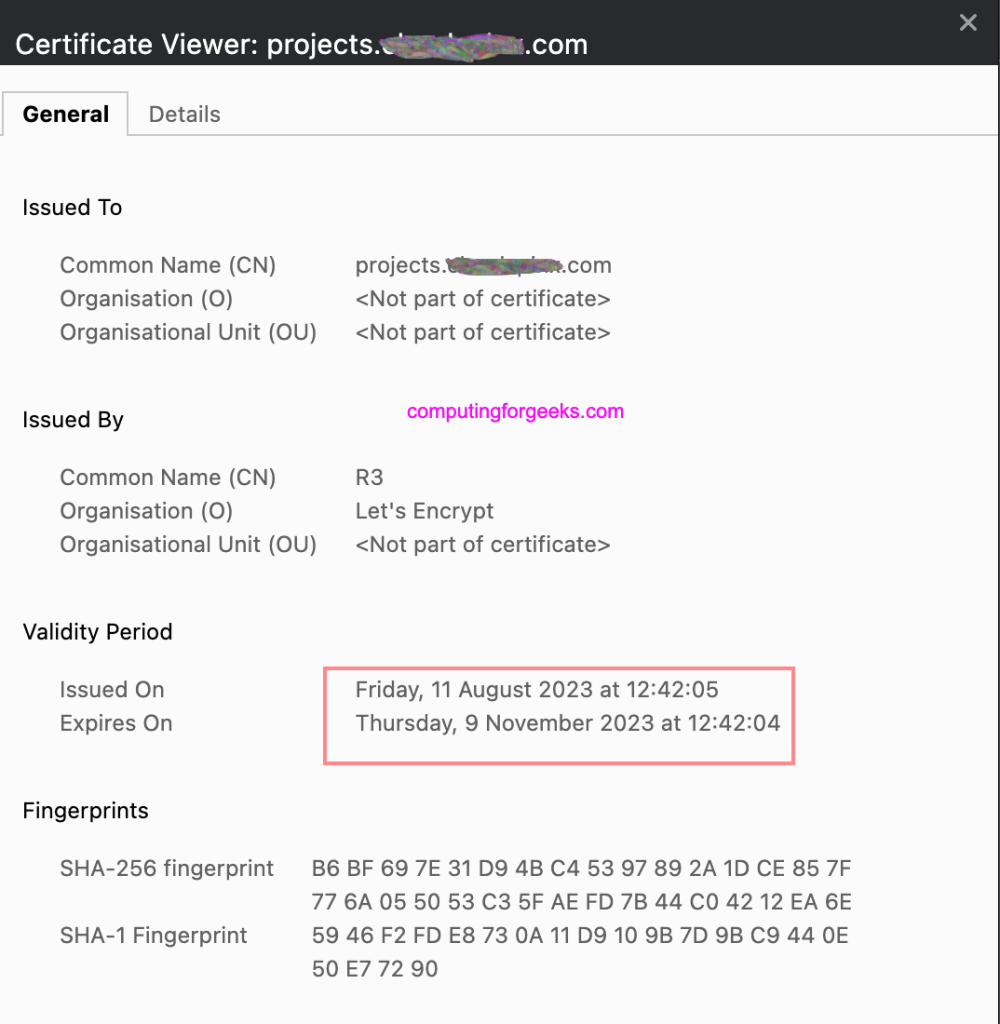
Your OpenProject now has secure access using HTTPS and Let’s Encrypt SSL certificates. To learn more about OpenProject visit Project’s official documentation pages.
