Docker gives you the cleanest way to run GitLab CE on a server you control. Everything (PostgreSQL, Redis, Nginx, Puma, Sidekiq, Gitaly) lives inside a single container with its own filesystem, which means no package conflicts with the host OS and trivial upgrades: pull a new image, restart the container. The trade-off is a ~4 GB image download and slightly more memory overhead from the container runtime, but for most teams that’s well worth the isolation.
This guide deploys GitLab CE 18.10 using Docker Compose on Ubuntu 24.04, with TLS certificates, persistent volumes, backup procedures, and production tuning. Every command was tested on a fresh VM.
Tested March 2026 | Ubuntu 24.04.4 LTS, Docker 28.2.2, Docker Compose 2.37.1, GitLab CE 18.10.1
Prerequisites
- A server running Ubuntu 24.04 LTS or Debian 13 with root access.
- At least 8 GB of RAM. Our Docker deployment used 3 GB with Prometheus disabled, but spikes during reconfigure and CI jobs can push past 4 GB easily.
- 2+ CPU cores (4 recommended).
- A domain name with a DNS A record pointing to your server (needed for SSL).
- Ports 80, 443, and optionally 2222 (for Git over SSH) open in the firewall.
Install Docker and Docker Compose
Ubuntu 24.04 ships Docker and the Compose plugin in the default repositories. Install them:
sudo apt update
sudo apt install -y docker.io docker-compose-v2
Enable Docker and verify both components:
sudo systemctl enable --now docker
docker --version
docker compose version
On our test system:
Docker version 28.2.2, build 28.2.2-0ubuntu1~24.04.1
Docker Compose version 2.37.1+ds1-0ubuntu2~24.04.1
If you prefer the latest Docker CE from the official Docker repository instead, follow our guide on installing Docker CE on Linux. The compose syntax is identical either way.
Open the required firewall ports:
sudo ufw allow 80/tcp
sudo ufw allow 443/tcp
sudo ufw allow 2222/tcp
sudo ufw allow OpenSSH
sudo ufw enable
Obtain a TLS Certificate
GitLab should always run behind HTTPS. Before bringing up the container, obtain a Let’s Encrypt certificate. If your server has a public IP, use the standalone method:
sudo apt install -y certbot
sudo certbot certonly --standalone -d gitlab.example.com --non-interactive --agree-tos -m [email protected]
If the server is behind NAT or on a private network, use DNS validation with the Cloudflare plugin (or whichever DNS provider you use):
sudo apt install -y certbot python3-certbot-dns-cloudflareCreate a credentials file and request the certificate:
sudo mkdir -p /etc/letsencrypt
echo "dns_cloudflare_api_token = YOUR_CLOUDFLARE_TOKEN" | sudo tee /etc/letsencrypt/cloudflare.ini
sudo chmod 600 /etc/letsencrypt/cloudflare.ini
sudo certbot certonly --dns-cloudflare \
--dns-cloudflare-credentials /etc/letsencrypt/cloudflare.ini \
--dns-cloudflare-propagation-seconds 30 \
-d gitlab.example.com \
--non-interactive --agree-tos -m [email protected]A successful run shows:
Successfully received certificate.
Certificate is saved at: /etc/letsencrypt/live/gitlab.example.com/fullchain.pem
Key is saved at:         /etc/letsencrypt/live/gitlab.example.com/privkey.pem
Create the Docker Compose File
Create a directory for the GitLab deployment:
sudo mkdir -p /opt/gitlab
cd /opt/gitlab
Create the docker-compose.yml file. This uses the official gitlab/gitlab-ce image from Docker Hub (not the third-party sameersbn image that older guides reference):
sudo vi /opt/gitlab/docker-compose.ymlAdd the following configuration. Replace gitlab.example.com with your actual domain:
services:
  gitlab:
    image: gitlab/gitlab-ce:latest
    container_name: gitlab
    restart: unless-stopped
    hostname: gitlab.example.com
    environment:
      GITLAB_OMNIBUS_CONFIG: |
        external_url "https://gitlab.example.com"

        # SSL - mount host certificates into the container
        letsencrypt["enable"] = false
        nginx["ssl_certificate"] = "/etc/gitlab/ssl/fullchain.pem"
        nginx["ssl_certificate_key"] = "/etc/gitlab/ssl/privkey.pem"
        nginx["redirect_http_to_https"] = true

        # Time zone
        gitlab_rails["time_zone"] = "UTC"

        # Reduce memory for small teams
        puma["worker_processes"] = 2
        sidekiq["concurrency"] = 10

        # Disable Prometheus stack to save ~500 MB of RAM
        prometheus_monitoring["enable"] = false

        # Backup retention (7 days)
        gitlab_rails["backup_keep_time"] = 604800
    ports:
      - "80:80"
      - "443:443"
      - "2222:22"
    volumes:
      - gitlab-config:/etc/gitlab
      - gitlab-logs:/var/log/gitlab
      - gitlab-data:/var/opt/gitlab
      - /etc/letsencrypt/live/gitlab.example.com/fullchain.pem:/etc/gitlab/ssl/fullchain.pem:ro
      - /etc/letsencrypt/live/gitlab.example.com/privkey.pem:/etc/gitlab/ssl/privkey.pem:ro
      - /etc/letsencrypt/archive/gitlab.example.com:/etc/letsencrypt/archive/gitlab.example.com:ro
    shm_size: "256m"
    healthcheck:
      test: ["CMD", "curl", "-fsk", "https://localhost/-/health"]
      interval: 60s
      timeout: 10s
      retries: 5
      start_period: 300s

volumes:
  gitlab-config:
  gitlab-logs:
  gitlab-data:
Key points about this configuration:
- Three named volumes (
gitlab-config,gitlab-logs,gitlab-data) persist all GitLab data across container restarts and upgrades. - Certificate bind mounts pass the Let’s Encrypt certificates into the container as read-only. The archive directory mount is needed because the
live/symlinks point intoarchive/. shm_size: 256mprevents Puma from failing with “Cannot allocate memory” errors. The default 64 MB is too small for GitLab.- Port 2222 maps to the container’s SSH port (22). This avoids conflicting with the host’s SSH daemon on port 22.
start_period: 300sgives GitLab 5 minutes to initialize before the health check starts counting failures. The first boot typically takes 3 to 5 minutes.- Disabling Prometheus saves roughly 500 MB of RAM. Re-enable it if you want the built-in monitoring dashboards.
Start GitLab
Pull the image and start the container:
cd /opt/gitlab
sudo docker compose up -d
The first pull downloads about 4 GB (the gitlab/gitlab-ce image is large because it bundles PostgreSQL, Redis, Nginx, and the entire GitLab application). On a 100 Mbps connection, expect 5 to 10 minutes for the download.
Watch the container status until it shows healthy:
sudo docker compose psInitially you’ll see health: starting. After 3 to 5 minutes of internal reconfiguration:
NAME     IMAGE                     COMMAND             SERVICE   STATUS                   PORTS
gitlab   gitlab/gitlab-ce:latest   "/assets/wrapper"   gitlab    Up 4 minutes (healthy)   0.0.0.0:80->80/tcp, 0.0.0.0:443->443/tcp, 0.0.0.0:2222->22/tcp
If you need to troubleshoot the startup, follow the logs in real time:
sudo docker compose logs -f gitlabLook for gitlab Reconfigured! in the output, which signals that the initial setup completed successfully.
Retrieve the Root Password and Log In
GitLab generates a random root password on first boot. Retrieve it from inside the container:
sudo docker exec gitlab cat /etc/gitlab/initial_root_passwordCopy the password. This file is automatically deleted 24 hours after the first reconfigure.
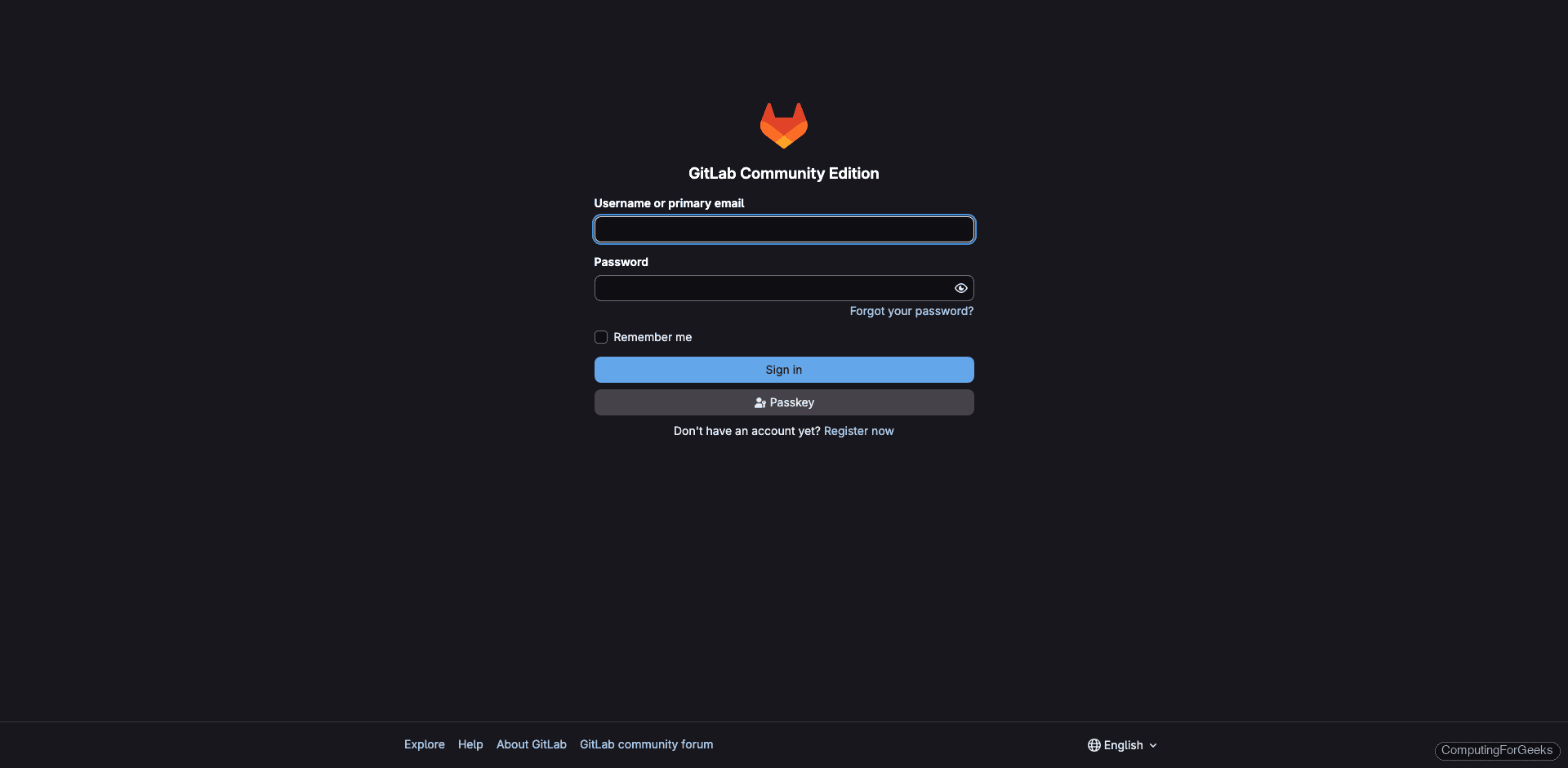
Open https://gitlab.example.com in your browser. You should see the GitLab login page served over a valid TLS certificate:
Log in with username root and the password from the previous step. The dashboard shows the welcome wizard:
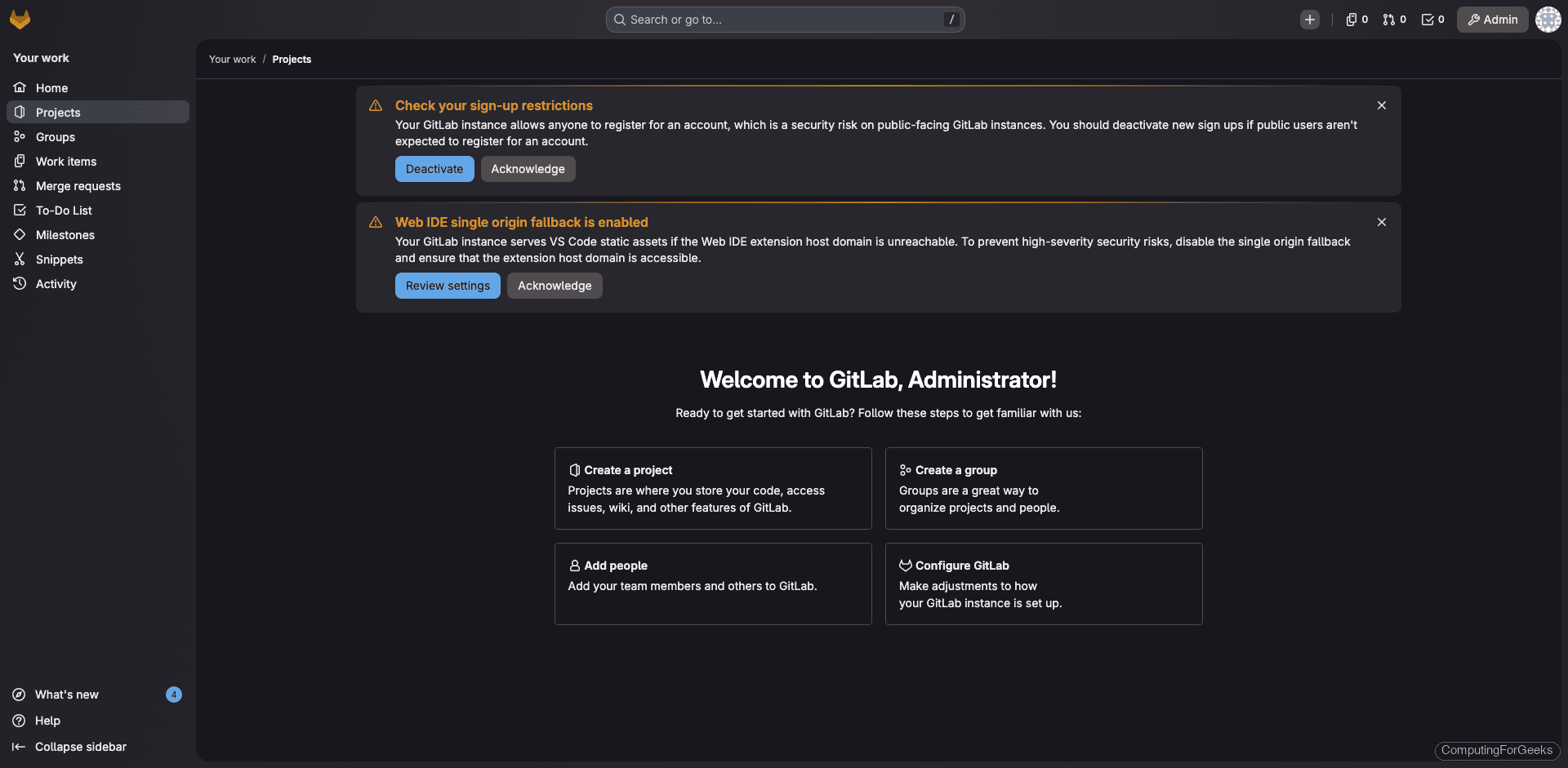
Change the root password immediately: go to Edit Profile > Password and set something strong.
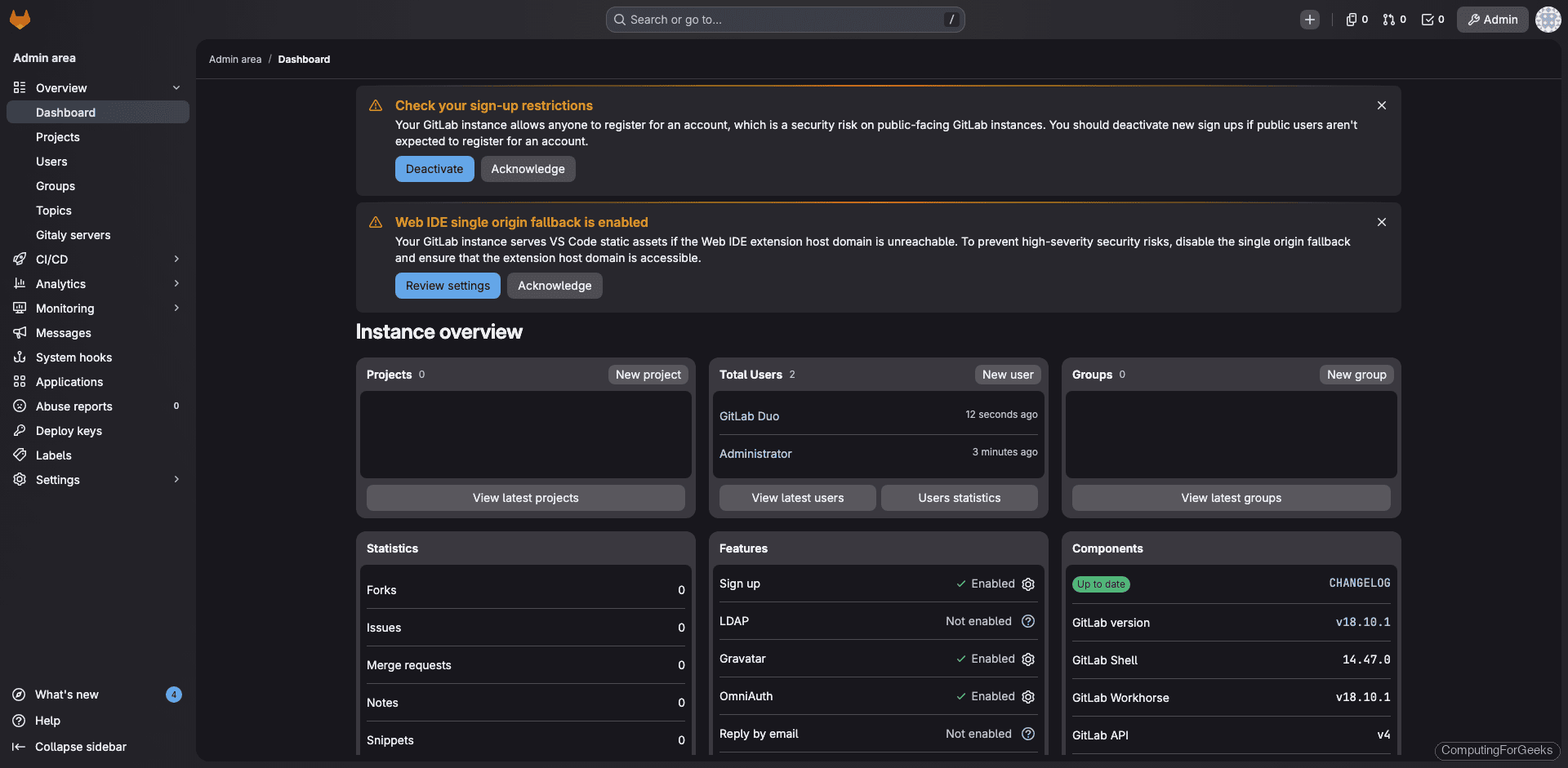
The Admin Area shows the full instance overview with component versions:
Disable Public Registration
By default, anyone can create an account. For a private instance, disable this immediately. Go to Admin Area > Settings > General, expand Sign-up restrictions, uncheck Sign-up enabled, and click Save changes.
Alternatively, add this to the GITLAB_OMNIBUS_CONFIG in your compose file and recreate the container:
gitlab_rails["gitlab_signup_enabled"] = falseGit Over SSH on Port 2222
Since the container maps port 2222 on the host to port 22 inside the container, SSH clone URLs need to use port 2222. Tell GitLab about this by adding to GITLAB_OMNIBUS_CONFIG:
gitlab_rails["gitlab_shell_ssh_port"] = 2222After adding this and running sudo docker compose up -d, the project pages will display the correct SSH clone URL with port 2222.
Users clone with:
git clone ssh://[email protected]:2222/username/project.gitBackup and Restore
Run a backup from inside the container:
sudo docker exec gitlab gitlab-backup createOn our test instance, the backup completed in seconds:
2026-03-25 23:16:18 UTC -- Warning: Your gitlab.rb and gitlab-secrets.json files contain sensitive data
and are not included in this backup. You will need these files to restore a backup.
Please back them up manually.
2026-03-25 23:16:18 UTC -- Backup 1774480575_2026_03_25_18.10.1 is done.
Backups are stored inside the gitlab-data volume at /var/opt/gitlab/backups/. To copy a backup to the host:
sudo docker cp gitlab:/var/opt/gitlab/backups/ /opt/gitlab/backups/You also need to back up the configuration separately. These files contain encryption keys that are not in the backup tar:
sudo docker exec gitlab cat /etc/gitlab/gitlab-secrets.json > /opt/gitlab/gitlab-secrets.json
sudo docker exec gitlab cat /etc/gitlab/gitlab.rb > /opt/gitlab/gitlab.rb.backup
For automated daily backups, add a cron job on the host:
sudo crontab -eAdd the following line:
0 2 * * * docker exec gitlab gitlab-backup create CRON=1 2>&1 | logger -t gitlab-backupTo restore, place the backup tar in the container’s backup directory, then run:
sudo docker exec gitlab gitlab-ctl stop puma
sudo docker exec gitlab gitlab-ctl stop sidekiq
sudo docker exec gitlab gitlab-backup restore BACKUP=1774480575_2026_03_25_18.10.1
sudo docker exec gitlab gitlab-ctl reconfigure
sudo docker exec gitlab gitlab-ctl restart
Upgrading GitLab
One of the biggest advantages of running GitLab in Docker: upgrades are a three-command operation.
cd /opt/gitlab
sudo docker compose pull
sudo docker compose up -d
Compose pulls the new image, stops the old container, and starts a new one with the same volumes. The data volumes persist across the upgrade, so nothing is lost.
Always take a backup before upgrading. If you need to pin a specific version instead of latest, change the image tag in docker-compose.yml:
image: gitlab/gitlab-ce:18.10.1-ce.0For major version jumps (e.g., 16.x to 18.x), you must follow GitLab’s upgrade path and step through required intermediate versions.
Resource Usage and Tuning
On our 4-core, 8 GB test VM, the Docker deployment with Prometheus disabled used:
               total        used        free      shared  buff/cache   available
Mem:           7.8Gi       3.0Gi       280Mi       179Mi       4.9Gi       4.7Gi
That’s 3 GB of RAM with a single project. The gitlab/gitlab-ce image itself takes about 4 GB of disk, and the data volume grows with your repositories.
If you’re running on a 4 GB server, keep the Prometheus stack disabled and consider reducing Puma workers further:
puma["worker_processes"] = 0
sidekiq["concurrency"] = 5
Setting Puma workers to 0 runs in single-process mode, which saves ~400 MB but reduces concurrent request handling. Fine for teams under 5 people.
Useful Docker Commands
Common operations you’ll need when managing GitLab in Docker:
sudo docker compose psCheck container status and health.
sudo docker compose logs -f --tail=100 gitlabFollow logs (last 100 lines, then stream).
sudo docker exec -it gitlab gitlab-rake gitlab:check SANITIZE=trueRun the built-in health check suite.
sudo docker exec -it gitlab gitlab-ctl reconfigureApply configuration changes (after editing GITLAB_OMNIBUS_CONFIG in the compose file and recreating the container, or after modifying /etc/gitlab/gitlab.rb inside the container).
sudo docker exec -it gitlab gitlab-rails consoleOpen a Rails console for advanced troubleshooting (reset passwords, modify settings, etc.).
sudo docker exec gitlab gitlab-rake gitlab:env:infoDisplay the full environment (GitLab version, Ruby, PostgreSQL, Redis versions, URL configuration).
Troubleshooting
Container keeps restarting
Check docker compose logs gitlab for the error. During testing, we hit Reading unsupported config value grafana because the grafana configuration key was removed in GitLab 18.x. If you’re copying configuration from older guides, watch for deprecated settings. The fix is to remove the offending line from GITLAB_OMNIBUS_CONFIG and recreate the container.
502 errors after container starts
GitLab takes 3 to 5 minutes to fully start inside Docker. The health check has a 5-minute start_period for this reason. Wait for the health status to change from starting to healthy before testing in the browser. If 502 persists, check if the shm_size is set to at least 256 MB and that the server has enough free RAM.
SSL certificate not found
Let’s Encrypt stores certificates at /etc/letsencrypt/live/domain/, but those are symlinks into /etc/letsencrypt/archive/domain/. You must mount both paths. If you only mount the live/ files, the container sees broken symlinks. Our compose file handles this with the archive directory mount.
Permission denied on volumes
The GitLab container runs internal processes as user git (UID 998). If you’re using bind mounts instead of named volumes, make sure the directories are writable. Named volumes (as in our compose file) handle permissions automatically.
Docker vs Bare-Metal: When to Choose What
Both approaches install the same GitLab Omnibus package. The Docker image is literally the Omnibus installer running inside a container. Choosing between them comes down to your operational preferences:
- Docker: cleaner upgrades (pull + restart), full isolation from host packages, easier to reproduce on another server. Slightly more RAM and disk overhead. Better when you’re already running other containers.
- Bare metal: simpler debugging (everything is on the host filesystem), no Docker layer to troubleshoot, direct access to all config files and logs. Better when GitLab is the only thing on the server. See our guide on installing GitLab CE on Ubuntu/Debian for the bare-metal approach.
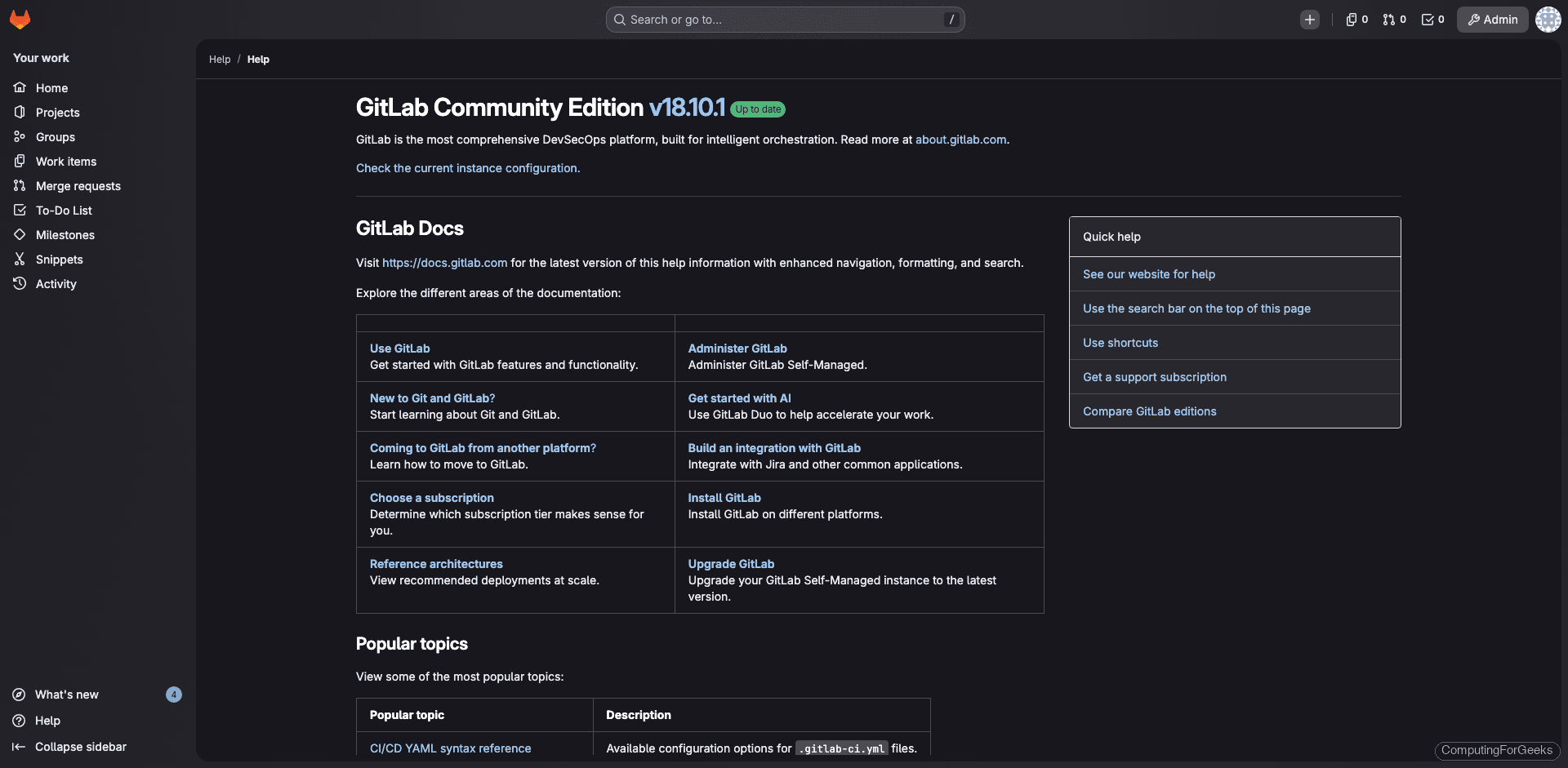
The Help page in our Docker deployment confirms the same GitLab CE 18.10.1 as the bare-metal install: