

GitLab blocks outbound requests to local network addresses by default. When you set up webhooks, integrations, or CI/CD pipelines that connect to services on your local network – Jenkins, SonarQube, internal APIs – GitLab returns the error: “Url is blocked: Requests to the local network are not allowed.” This is a security feature designed to prevent Server-Side Request Forgery (SSRF) attacks, but it needs configuration when you run legitimate services on the same network.
This guide covers multiple ways to fix this error on self-hosted GitLab instances – through the Admin UI, the gitlab.rb configuration file, IP whitelisting, CI/CD pipeline fixes, and reverse proxy setups.
Step 1: Understand the Error
GitLab has a built-in security feature called “Outbound requests” that blocks webhooks, integrations, and service connections from reaching local network addresses. This covers private IP ranges including 10.0.0.0/8, 172.16.0.0/12, 192.168.0.0/16, and 127.0.0.0/8.
The restriction exists to prevent SSRF attacks where a malicious user could trick GitLab into making requests to internal services. However, in most self-hosted environments, you need GitLab to communicate with local services like Jenkins, Nexus, or monitoring systems.
Common scenarios that trigger this error:
- Setting up a webhook to a Jenkins server on the same network
- Integrating with SonarQube running on a local IP
- Connecting to an internal Docker registry
- CI/CD pipelines reaching local API endpoints
- Configuring Mattermost or other self-hosted chat notifications
Step 2: Fix via GitLab Admin UI
The quickest way to resolve the “Requests to the local network are not allowed” error is through the GitLab Admin panel. Log in with an administrator account.
Navigate to Admin Area (wrench icon in the top menu bar or Menu > Admin on older versions). Then go to Settings > Network.
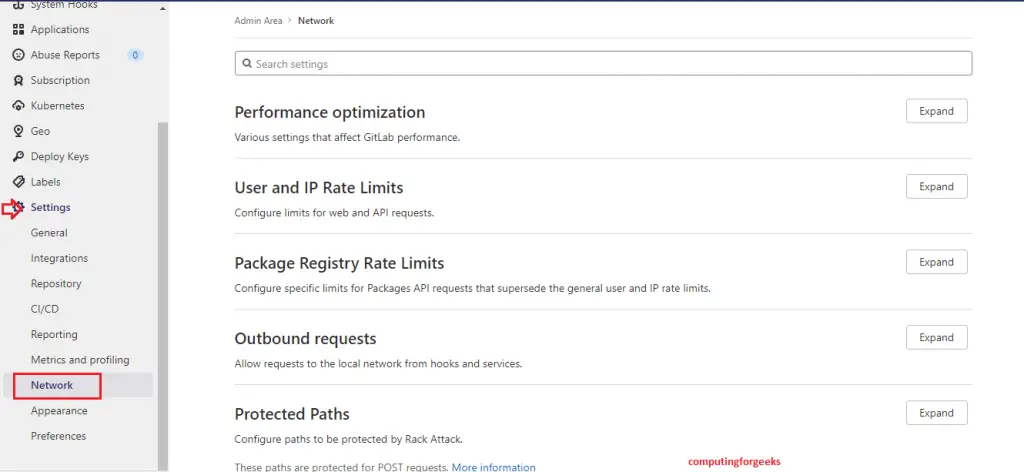
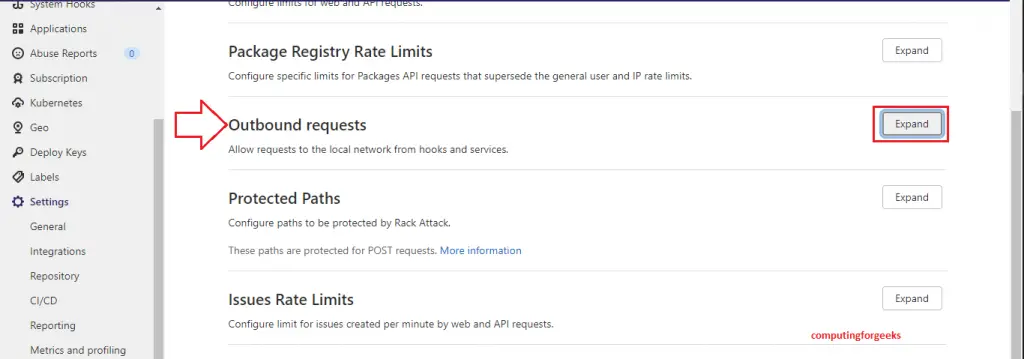
On the Network settings page, find the Outbound requests section and click Expand.
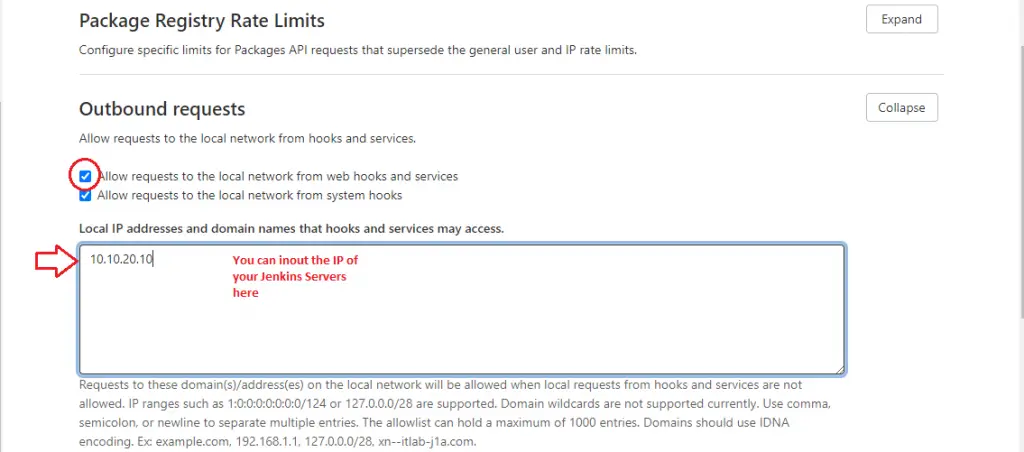
Check the box labeled Allow requests to the local network from webhooks and integrations. You can also check Allow requests to the local network from system hooks if you use those.
Click Save changes at the bottom of the section. Go back to your webhook or integration and test it – the error should be gone.
Step 3: Fix via gitlab.rb Configuration File
If you prefer managing GitLab configuration through files (useful for automation, Ansible deployments, or when you don’t have Admin UI access), edit the gitlab.rb file directly. This method works well when managing GitLab on Rocky Linux / AlmaLinux through configuration management tools.
Open the GitLab configuration file:
sudo vi /etc/gitlab/gitlab.rbFind and uncomment or add the following lines:
gitlab_rails['allow_local_requests_from_web_hooks_and_services'] = true
gitlab_rails['allow_local_requests_from_system_hooks'] = true
Save the file and reconfigure GitLab to apply the changes:
sudo gitlab-ctl reconfigureThe reconfigure process takes a minute or two. Once complete, verify the setting is active by checking the GitLab Rails console:
sudo gitlab-rails runner "puts Gitlab::CurrentSettings.allow_local_requests_from_web_hooks_and_services"The command should return true, confirming the setting is active.
Step 4: Whitelist Specific Local IPs and Domains
Instead of allowing all local network requests, you can whitelist only the specific IPs or hostnames that GitLab needs to reach. This is the recommended approach for production environments where you want tighter control.
In the Admin UI, go to Settings > Network > Outbound requests (same section as Step 2). In the text area labeled “Local IP addresses and domain names that hooks and integrations can access”, add your entries one per line:
192.168.1.50
10.0.1.100
jenkins.internal.example.com
sonarqube.internal.example.com
To do the same through gitlab.rb, open the configuration file:
sudo vi /etc/gitlab/gitlab.rbAdd or update the whitelist array with the addresses your webhooks and integrations need to reach:
gitlab_rails['outbound_local_requests_whitelist'] = ['192.168.1.50', '10.0.1.100', 'jenkins.internal.example.com']Apply the changes:
sudo gitlab-ctl reconfigureWith this approach, only the listed addresses are reachable from webhooks and integrations – everything else stays blocked. You do not need to enable the global “allow local requests” checkbox when using the whitelist.
Step 5: Fix for GitLab CI/CD Pipelines
CI/CD pipelines can also trigger the local network restriction when jobs try to reach local services. This commonly happens when pipeline scripts call internal APIs, push to a local Docker registry, or run integration tests against local services.
The outbound request settings from Steps 2-4 apply to webhooks and integrations but do not directly affect what GitLab Runners can access. Runners execute jobs independently and can reach any network address by default. The restriction only applies to the GitLab application server itself.
If your pipeline triggers a webhook or uses the GitLab API to call back to a local service, you need the outbound request settings enabled. But if the runner itself needs to reach a local service through a proxy, the fix is in the runner configuration.
For runners using a proxy or restricted network, ensure the local addresses are in the runner’s NO_PROXY environment variable. Open the runner config file:
sudo vi /etc/gitlab-runner/config.tomlAdd the environment variables under the relevant runner section to bypass the proxy for local addresses:
[[runners]]
  name = "my-runner"
  environment = ["NO_PROXY=192.168.1.0/24,10.0.0.0/8,localhost,127.0.0.1"]
Restart the runner service after making changes:
sudo systemctl restart gitlab-runnerVerify the runner is running and registered:
sudo gitlab-runner verifyThe output should show the runner as alive and connected to your GitLab instance.
Step 6: Security Considerations
Before enabling local network requests globally, understand why GitLab blocks them. The restriction prevents Server-Side Request Forgery (SSRF) attacks – a class of vulnerabilities where an attacker tricks the server into making requests to internal resources it should not access.
In a shared GitLab instance (multiple teams or external users), a malicious user could create a webhook pointing to internal services like cloud metadata endpoints (169.254.169.254), internal databases, or admin panels. With local requests allowed, GitLab would make those requests and return the responses.
Follow these security best practices:
- Use the whitelist approach (Step 4) instead of allowing all local requests when possible
- Limit webhook creation to trusted users – restrict the “Manage webhooks” permission in GitLab roles
- Audit webhooks regularly – check Admin Area > System Hooks and project-level webhooks for unexpected targets
- Use firewall rules on the GitLab server to restrict outbound traffic to only known internal services
- Monitor webhook logs – GitLab logs outbound requests in
/var/log/gitlab/gitlab-rails/production.log
For single-team or private GitLab instances where all users are trusted, enabling global local network access (Step 2 or 3) is a reasonable trade-off between security and convenience.
Step 7: Fix for GitLab Behind a Reverse Proxy
When GitLab sits behind a reverse proxy like Nginx or HAProxy, webhooks that point to GitLab’s own external URL sometimes resolve to a local address. This triggers the same “Requests to the local network are not allowed” error even though the request is going to GitLab itself.
The solution is to add GitLab’s own hostname to the whitelist. Open the configuration file:
sudo vi /etc/gitlab/gitlab.rbAdd the GitLab hostname and local IP to the whitelist:
gitlab_rails['outbound_local_requests_whitelist'] = ['gitlab.example.com', '127.0.0.1', '::1']If your reverse proxy forwards to GitLab on a specific local IP, add that IP as well. For example, if Nginx proxies to 192.168.1.10:8080:
gitlab_rails['outbound_local_requests_whitelist'] = ['gitlab.example.com', '127.0.0.1', '::1', '192.168.1.10']Apply the changes:
sudo gitlab-ctl reconfigureAfter reconfiguring, test a webhook that points to GitLab’s own URL. This is common for GitLab running in Docker or behind a load balancer. The request should now go through without the SSRF block.
Conclusion
The “Requests to the local network are not allowed” error is GitLab’s SSRF protection doing its job. For self-hosted instances where local network communication is necessary, the whitelist approach (Step 4) gives you the best balance of functionality and security. The global toggle (Steps 2-3) works for private instances with trusted users.
After making changes, always test your webhooks and integrations with a test request to confirm the fix. Monitor /var/log/gitlab/gitlab-rails/production.log for any blocked requests that might indicate additional addresses need whitelisting.
