

Outlook automatically creates a Personal Storage Table (PST) file when you configure the application with POP3 – a protocol to receive emails over the internet. This file contains all the emails and other mail items, such as attachments, contacts, calendar, etc. The PST file is also used for backing up/archiving mailbox items and exporting or migrating to another account.
PST file corruption is relatively a common issue that is faced by Outlook users. If your PST file associated with your user account gets corrupted, then you may face a lot of problems, such as random errors when accessing your account, failure to send/receive new emails, inaccessible mailbox items, etc. So, if your PST file is corrupt, then it is not a big deal as there are solutions available to repair and recover the corrupted PST file. When a PST file gets corrupted, your mailbox data can seem out of reach. This article shares proven repair methods to restore your data, and we’ll begin by explaining why PSTs break in the first place.
Some Common Reasons for PST File Corruption
There are several internal and external factors that can cause corruption and other integrity issues in PST file. Below, we’ll look into some of the most common ones:
- When your PST file becomes too large or oversized.
- There is lack of storage space on the drive where the file is stored.
- Unexpected/sudden shutdown of Outlook.
- Faulty or incompatible third-party add-ins in Outlook.
- Bad sectors or issues on the drive where the PST file is stored.
- Virus or malware infection on the system.
Methods to Repair and Recover Corrupted PST File
If your PST file is corrupted, you have no need to panic as you can easily repair the corrupt file and recover the files by following the techniques given.
Repair PST File by using ScanPST
ScanPST.exe, which is a Microsoft Inbox Repair Tool, is a free utility that is designed to repair corrupt PST files. There is no need for downloading this tool separately as it installs with Outlook. You can run this tool to resolve PST field errors. In order to perform the repair, you can follow the steps below:
- Close Outlook completely before you start ScanPST.
- Find ScanPST.exe on your computer. Default locations:
- 64-bit Windows: C:\Program Files\Microsoft Office\root\Officexx\
- 32-bit Windows: C:\Program Files (x86)\Microsoft Office\root\Officexx\
- Double-click on ScanPST.exe to open it.
- Select the PST file by clicking on Browse and then click on Start to initiate the scan.
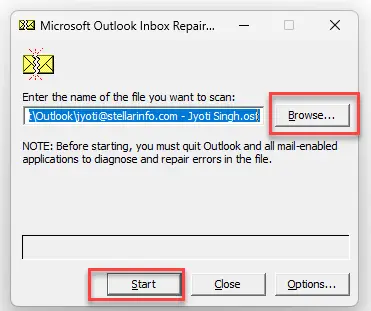
- When the scan finishes, check Create backup of scanned file before repairing, then click Repair.
- Once the repair process is complete, restart Outlook.
- Look over your emails, contacts, and calendar to confirm everything is restored.
ScanPST.exe is helpful for PST file corruption, but it has limits. It often cannot repair very large or heavily damaged PST files. You may need to run ScanPST multiple times before all issues are fixed.
Use Professional PST Repair Tool
To move beyond the limitations of ScanPST, consider a dedicated PST repair tool such as Stellar Repair for Outlook. It handles heavily corrupted, oversized PST files. The software works to recover your full mailbox items, which includes, emails, contacts, calendars, and more. It also keeps your original folder structure intact..
Save repaired emails in the format you prefer, including PST, EML, MSG, RTF, HTML, or PDF. Pick what fits your workflow, like PST for Outlook archives or PDF for sharing. Preview the recovered data before saving, including subject, body, and attachments. This quick check helps you avoid saving bad or incomplete items. It allows users to preview the repaired file data before saving it. The tool supports repairing of password-protected and encrypted PST files. It can easily repair PST files created in any Outlook version – 2021, 2019, 2016, and earlier. You can free download Stellar Repair for Outlook on your Windows system to evaluate its functionality.
Some Useful Measures to Prevent Outlook PST File Corruption
Below are some measures you can follow to keep your PST file safe and prevent future corruption:
- Always keep your PST file within the prescribed size limits as oversized or large files are highly prone to corruption.
- Store PST files on the local storage instead of network drives or cloud as issues with network/connectivity may damage the PST file.
- Always exit the Outlook application properly before shutting down your PC as abrupt termination of the application may cause damage to the PST file.
Conclusion
As explained in this article, there are several factors that can possibly cause corruption or damage in the PST files. In case your PST file is corrupt, then the first option is to use the ScanPST.exe or Inbox Repair tool to repair your corrupted PST file. However, this tool is not that effective when it comes to repairing highly damaged or oversized PST files. So, the best option is to use Stellar Repair for Outlook – a professional PST repair tool that can easily and quickly repair PST files irrespective of the level of corruption and size of the file.
