

Many cloud providers block outbound port 25, making direct email delivery from your server impossible. Relaying through Gmail’s SMTP servers solves this – your server sends email to Gmail on port 587, and Gmail delivers it on your behalf with its trusted IP reputation. This guide covers configuring Postfix to relay all outgoing mail through Gmail SMTP on Ubuntu 24.04 / 22.04, including Google App Password setup and troubleshooting common authentication failures.
This approach works well for system notifications, cron job alerts, and application emails where you need reliable delivery without managing your own mail reputation.
Prerequisites
- Ubuntu 24.04 or 22.04 server with root or sudo access
- A Gmail account with 2-Step Verification enabled
- Outbound port 587 open (verify with
nc -zv smtp.gmail.com 587)
Step 1: Install Postfix and SASL Authentication
Install Postfix, mail utilities, and the SASL authentication modules needed to authenticate with Gmail:
sudo apt update
sudo apt install -y postfix mailutils libsasl2-modules
During installation, the Postfix configuration dialog appears. Select Internet Site and enter your server’s hostname. To skip the dialog entirely:
sudo debconf-set-selections <<< "postfix postfix/mailname string $(hostname -f)"
sudo debconf-set-selections <<< "postfix postfix/main_mailer_type string 'Internet Site'"
sudo DEBIAN_FRONTEND=noninteractive apt install -y postfix mailutils libsasl2-modules
The libsasl2-modules package is critical – without it, Postfix cannot authenticate with Gmail’s SMTP server and you will get SASL mechanism errors in the logs.
Verify Postfix is running:
postconf mail_version
systemctl is-active postfix
Ubuntu 24.04 ships Postfix 3.8.6 and Ubuntu 22.04 ships Postfix 3.6.4.
Step 2: Generate a Google App Password
Gmail requires an App Password instead of your regular account password when connecting from third-party applications. This only works if you have 2-Step Verification enabled on your Google account.
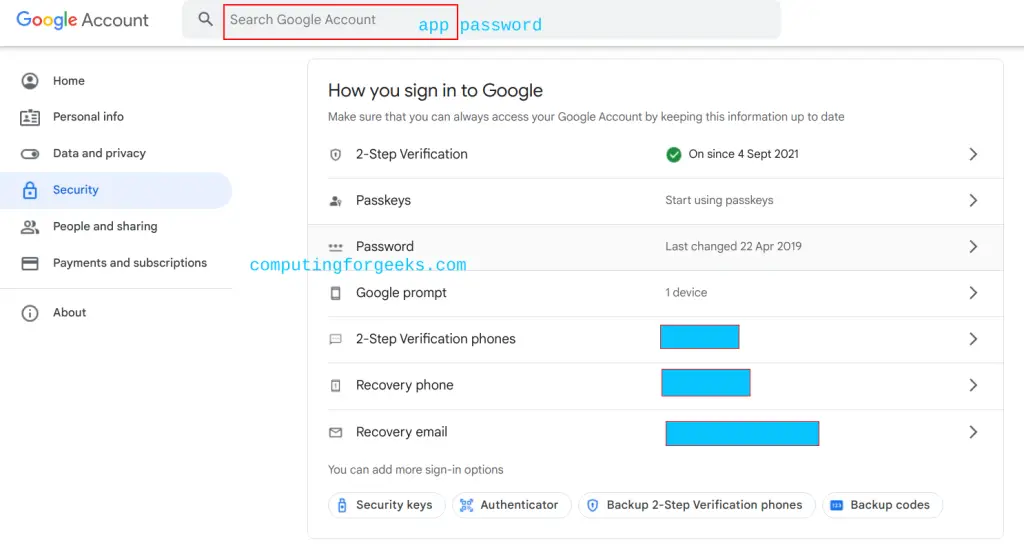
Log in to your Google Account, go to Security, and search for App passwords in the search bar:
Enter a descriptive name for the app (e.g. “Postfix Server”) and click Create:

Google generates a 16-character app password. Copy it immediately – you will not be able to see it again. You will use this password in the next step instead of your regular Gmail password.
Step 3: Create the SASL Password File
Postfix needs your Gmail credentials stored in a hash database file. Create the SASL password file:
sudo vim /etc/postfix/sasl_passwdAdd your Gmail address and the App Password you generated (replace with your actual values):
[smtp.gmail.com]:587 [email protected]:abcd-efgh-ijkl-mnopGenerate the hash database file and lock down permissions so only root can read the credentials:
sudo postmap /etc/postfix/sasl_passwd
sudo chown root:root /etc/postfix/sasl_passwd /etc/postfix/sasl_passwd.db
sudo chmod 0600 /etc/postfix/sasl_passwd /etc/postfix/sasl_passwd.db
Verify the files are properly secured:
ls -la /etc/postfix/sasl_passwd*Both files should show -rw------- permissions with root ownership:
-rw------- 1 root root    56 Mar 23 17:27 /etc/postfix/sasl_passwd
-rw------- 1 root root 12288 Mar 23 17:27 /etc/postfix/sasl_passwd.db
Step 4: Configure Postfix Gmail Relay
Set Postfix to relay all outgoing mail through Gmail’s SMTP server with SASL authentication and mandatory TLS encryption:
sudo postconf -e 'relayhost = [smtp.gmail.com]:587'
sudo postconf -e 'smtp_sasl_auth_enable = yes'
sudo postconf -e 'smtp_sasl_security_options = noanonymous'
sudo postconf -e 'smtp_sasl_password_maps = hash:/etc/postfix/sasl_passwd'
sudo postconf -e 'smtp_tls_security_level = encrypt'
sudo postconf -e 'smtp_tls_CAfile = /etc/ssl/certs/ca-certificates.crt'
sudo postconf -e 'smtp_use_tls = yes'
sudo postconf -e 'inet_interfaces = loopback-only'
Here is what each directive does:
| Directive | Purpose |
|---|---|
relayhost = [smtp.gmail.com]:587 | Route all outgoing mail through Gmail on port 587 (submission) |
smtp_sasl_auth_enable = yes | Enable SASL authentication for the relay connection |
smtp_sasl_security_options = noanonymous | Require authenticated connections only |
smtp_sasl_password_maps | Path to the hashed credential file |
smtp_tls_security_level = encrypt | Require TLS encryption (Gmail mandates this) |
inet_interfaces = loopback-only | Accept email only from localhost |
Restart Postfix to apply:
sudo systemctl restart postfixVerify the relay configuration is active:
postconf relayhost smtp_sasl_auth_enable smtp_tls_security_levelThis should show:
relayhost = [smtp.gmail.com]:587
smtp_sasl_auth_enable = yes
smtp_tls_security_level = encrypt
Step 5: Test Email Delivery
Send a test email to verify the Gmail relay is working:
echo "Test email from Postfix via Gmail relay on $(hostname)" | mail -s "Postfix Gmail Relay Test" [email protected]Check the mail log for delivery status:
sudo tail -10 /var/log/mail.logA successful delivery shows the message relayed through Gmail:
postfix/smtp[3308]: ABC12340474: to=<[email protected]>, relay=smtp.gmail.com[142.251.127.109]:587, delay=1.2, dsn=2.0.0, status=sent (250 2.0.0 OK)The key indicator is relay=smtp.gmail.com and status=sent. The email will appear in your Gmail “Sent” folder as well.
You can also send email from scripts. Here is a more practical example with a custom sender address:
echo "Backup completed successfully at $(date)" | mail -s "Backup Report - $(hostname)" -a "From: [email protected]" [email protected]Check the mail queue to confirm no messages are stuck:
sudo mailqAn empty queue means everything was delivered. For more queue management commands, see the Postfix administration cheat sheet.
Setting the Default From Address
By default, Postfix uses the local system user as the sender (e.g. root@hostname). To rewrite all outgoing sender addresses to your Gmail address, add these directives:
sudo postconf -e 'smtp_generic_maps = hash:/etc/postfix/generic'Create the generic mapping file:
sudo vim /etc/postfix/genericMap your local users to the Gmail address:
[email protected] [email protected]
[email protected] [email protected]
@mail.example.com [email protected]
Hash the file and restart Postfix:
sudo postmap /etc/postfix/generic
sudo systemctl restart postfix
Now all outgoing emails will show your Gmail address as the sender regardless of which local user triggered the email.
Gmail Sending Limits
Google enforces sending limits on Gmail accounts. Keep these in mind when using Gmail as your relay:
| Account Type | Daily Limit | Per Minute |
|---|---|---|
| Free Gmail | 500 emails | ~20 |
| Google Workspace | 2,000 emails | ~60 |
If you exceed these limits, Gmail temporarily blocks sending and you will see 550 5.4.5 Daily sending quota exceeded in the Postfix logs. For high-volume sending, use a dedicated SMTP relay service (Amazon SES, SendGrid, Mailgun) instead of Gmail.
Troubleshooting Common Issues
SASL authentication failed: “535-5.7.8 Username and Password not accepted”
This is the most common error. It means Gmail rejected your credentials. Verify that:
- You are using an App Password, not your regular Gmail password
- 2-Step Verification is enabled on your Google account (App Passwords require it)
- The email and password in
/etc/postfix/sasl_passwdare correct with no extra spaces - You ran
sudo postmap /etc/postfix/sasl_passwdafter editing the file
The exact error from the mail log looks like this:
SASL authentication failed; server smtp.gmail.com[142.251.127.109] said: 535-5.7.8 Username and Password not accepted.“SASL authentication failed: no mechanism available”
The SASL authentication modules are not installed. Install them and restart Postfix:
sudo apt install -y libsasl2-modules
sudo systemctl restart postfix
Emails stuck with “Connection timed out” to smtp.gmail.com
Your server cannot reach Gmail on port 587. Test connectivity:
nc -zv smtp.gmail.com 587If it times out, your firewall or cloud provider is blocking outbound port 587. Check your security group rules or contact your hosting provider.
Emails delivered but show wrong sender address
Gmail rewrites the “From” header to match the authenticated Gmail account for security. If you need emails to appear from a different address, add that address as a “Send mail as” alias in Gmail settings, or use the smtp_generic_maps approach described in the “Setting the Default From Address” section above.
Conclusion
Postfix is now relaying all outgoing email through Gmail’s SMTP servers with TLS encryption and SASL authentication. This setup works even when your cloud provider blocks port 25, since Gmail relay uses port 587 instead. For servers that need to send email directly without a relay, see our guide on configuring Postfix as a send-only server with SPF, DKIM, and DMARC.
