

Redis operates almost entirely in memory, which makes it fast but also means problems escalate quickly. A memory spike, eviction storm, or connection surge can take out your caching layer in seconds. The redis_exporter reads Redis’s INFO command output and exposes it as Prometheus metrics, letting you track memory usage, hit ratios, command throughput, and connected clients over time.
This guide sets up redis_exporter on both Ubuntu/Debian and Rocky Linux/AlmaLinux, wires it into Prometheus with scrape configuration and alert rules, and imports a Grafana dashboard for visualization.
Prerequisites
- Redis server installed and running
- A running Prometheus server
- Grafana connected to your Prometheus data source
- Root or sudo access on the Redis server
Step 1: Install redis_exporter
Create a system user for the exporter:
sudo useradd --system --no-create-home --shell /usr/sbin/nologin redis_exporterDownload the latest release (version 1.82.0 at the time of writing). Note that the redis_exporter uses a slightly different filename pattern with a v prefix in the archive name:
VER=$(curl -sI https://github.com/oliver006/redis_exporter/releases/latest | tr -d "\r" | grep -i ^location | grep -o "[0-9]\+\.[0-9]\+\.[0-9]\+" | tail -1)
echo "Downloading redis_exporter v${VER}"
curl -fSL -o /tmp/redis_exporter.tar.gz \
  https://github.com/oliver006/redis_exporter/releases/download/v${VER}/redis_exporter-v${VER}.linux-amd64.tar.gz
Extract and install the binary:
cd /tmp
tar xzf redis_exporter.tar.gz
sudo mv redis_exporter-v*/redis_exporter /usr/local/bin/
sudo chmod 755 /usr/local/bin/redis_exporter
Verify the installation:
redis_exporter --versionThe output confirms the installed version:
redis_exporter, version 1.82.0 (branch: HEAD, revision: ...)SELinux context (Rocky/AlmaLinux only):
sudo semanage fcontext -a -t bin_t "/usr/local/bin/redis_exporter"
sudo restorecon -v /usr/local/bin/redis_exporter
Step 2: Create the Systemd Service
Create the systemd unit file. The exporter connects to Redis on the default address redis://127.0.0.1:6379:
sudo tee /etc/systemd/system/redis_exporter.service > /dev/null <<'EOF'
[Unit]
Description=Redis Prometheus Exporter
Documentation=https://github.com/oliver006/redis_exporter
After=network-online.target redis.service redis-server.service
Wants=network-online.target

[Service]
Type=simple
User=redis_exporter
Group=redis_exporter
ExecStart=/usr/local/bin/redis_exporter \
    --redis.addr=redis://127.0.0.1:6379 \
    --web.listen-address=:9121
Restart=on-failure
RestartSec=5

[Install]
WantedBy=multi-user.target
EOF
Enable and start the service:
sudo systemctl daemon-reload
sudo systemctl enable --now redis_exporter
Verify the service is running:
sudo systemctl status redis_exporterThe service should show active (running). Test the metrics endpoint:
curl -s http://localhost:9121/metrics | grep redis_upA value of 1 confirms the exporter is connected to Redis:
redis_up 1How to Configure Redis Password Authentication
If your Redis instance requires a password (which it should in production), pass it to the exporter via an environment file. This keeps the password out of the systemd unit and process list.
sudo mkdir -p /etc/redis_exporter
sudo tee /etc/redis_exporter/env > /dev/null <<'EOF'
REDIS_PASSWORD=YourRedisPassword123!
EOF
sudo chown -R redis_exporter:redis_exporter /etc/redis_exporter
sudo chmod 600 /etc/redis_exporter/env
Update the systemd service to load the environment file and pass the password:
sudo tee /etc/systemd/system/redis_exporter.service > /dev/null <<'EOF'
[Unit]
Description=Redis Prometheus Exporter
Documentation=https://github.com/oliver006/redis_exporter
After=network-online.target redis.service redis-server.service
Wants=network-online.target

[Service]
Type=simple
User=redis_exporter
Group=redis_exporter
EnvironmentFile=/etc/redis_exporter/env
ExecStart=/usr/local/bin/redis_exporter \
    --redis.addr=redis://127.0.0.1:6379 \
    --redis.password=${REDIS_PASSWORD} \
    --web.listen-address=:9121
Restart=on-failure
RestartSec=5

[Install]
WantedBy=multi-user.target
EOF
Reload and restart the service:
sudo systemctl daemon-reload
sudo systemctl restart redis_exporter
Step 3: Configure Firewall Rules
Open port 9121 for Prometheus if it runs on a separate host.
Ubuntu/Debian (ufw):
sudo ufw allow from 10.0.1.10/32 to any port 9121 proto tcp comment "Redis Exporter"
sudo ufw reload
Rocky/AlmaLinux (firewalld):
sudo firewall-cmd --permanent --add-rich-rule='rule family="ipv4" source address="10.0.1.10/32" port port="9121" protocol="tcp" accept'
sudo firewall-cmd --reload
SELinux port (Rocky/AlmaLinux only):
sudo semanage port -a -t http_port_t -p tcp 9121Step 4: Add Prometheus Scrape Configuration
On your Prometheus server, add the Redis scrape job to /etc/prometheus/prometheus.yml:
  - job_name: 'redis'
    scrape_interval: 15s
    static_configs:
      - targets: ['10.0.1.20:9121']
        labels:
          instance: 'redis-server-01'
Reload Prometheus:
sudo systemctl reload prometheusCheck the targets page at http://your-prometheus:9090/targets to verify the redis job is UP.
Key Redis Metrics to Watch
| Metric | Description |
|---|---|
redis_connected_clients | Number of current client connections |
redis_memory_used_bytes | Total memory consumed by Redis |
redis_memory_max_bytes | Configured maxmemory limit (0 means unlimited) |
redis_keyspace_hits_total | Total successful key lookups |
redis_keyspace_misses_total | Total failed key lookups (key not found) |
redis_commands_total | Total commands processed |
redis_connected_slaves | Number of connected replicas |
redis_evicted_keys_total | Keys evicted due to maxmemory policy |
PromQL Query Examples
Cache hit ratio – the most important Redis metric. Anything below 90% for a caching workload suggests your keyspace is too large for available memory:
rate(redis_keyspace_hits_total[5m]) / (rate(redis_keyspace_hits_total[5m]) + rate(redis_keyspace_misses_total[5m]))Memory usage percentage (only meaningful when maxmemory is set):
redis_memory_used_bytes / redis_memory_max_bytes * 100Operations per second:
rate(redis_commands_total[5m])Connected clients over time:
redis_connected_clientsEviction rate – a sustained eviction rate means Redis is under memory pressure:
rate(redis_evicted_keys_total[5m])Step 5: Create Prometheus Alert Rules
Create alert rules targeting the most critical Redis failure modes:
sudo tee /etc/prometheus/rules/redis_alerts.yml > /dev/null <<'EOF'
groups:
  - name: redis_alerts
    rules:
      - alert: RedisDown
        expr: redis_up == 0
        for: 2m
        labels:
          severity: critical
        annotations:
          summary: "Redis is down on {{ $labels.instance }}"
          description: "The Redis exporter on {{ $labels.instance }} cannot connect to Redis for more than 2 minutes."

      - alert: HighMemoryUsage
        expr: (redis_memory_used_bytes / redis_memory_max_bytes) * 100 > 90
        for: 5m
        labels:
          severity: warning
        annotations:
          summary: "Redis memory usage above 90% on {{ $labels.instance }}"
          description: "Redis is using {{ $value | printf \"%.1f\" }}% of its configured maxmemory on {{ $labels.instance }}."

      - alert: LowHitRatio
        expr: (rate(redis_keyspace_hits_total[5m]) / (rate(redis_keyspace_hits_total[5m]) + rate(redis_keyspace_misses_total[5m]))) < 0.8
        for: 10m
        labels:
          severity: warning
        annotations:
          summary: "Low Redis cache hit ratio on {{ $labels.instance }}"
          description: "Cache hit ratio on {{ $labels.instance }} is {{ $value | printf \"%.2f\" }}, below the 80% threshold."

      - alert: TooManyConnections
        expr: redis_connected_clients > 1000
        for: 5m
        labels:
          severity: warning
        annotations:
          summary: "Too many Redis connections on {{ $labels.instance }}"
          description: "{{ $value }} clients are connected to Redis on {{ $labels.instance }}."

      - alert: HighEvictionRate
        expr: rate(redis_evicted_keys_total[5m]) > 100
        for: 5m
        labels:
          severity: warning
        annotations:
          summary: "High key eviction rate on {{ $labels.instance }}"
          description: "Redis is evicting {{ $value | printf \"%.0f\" }} keys/s on {{ $labels.instance }}. Consider increasing maxmemory."
EOF
Reload Prometheus:
sudo systemctl reload prometheusStep 6: Import Grafana Dashboard
Dashboard 11835 provides a detailed overview of Redis metrics. Import it in Grafana:
- Go to Dashboards > New > Import
- Enter dashboard ID 11835 and click Load
- Select your Prometheus data source
- Click Import
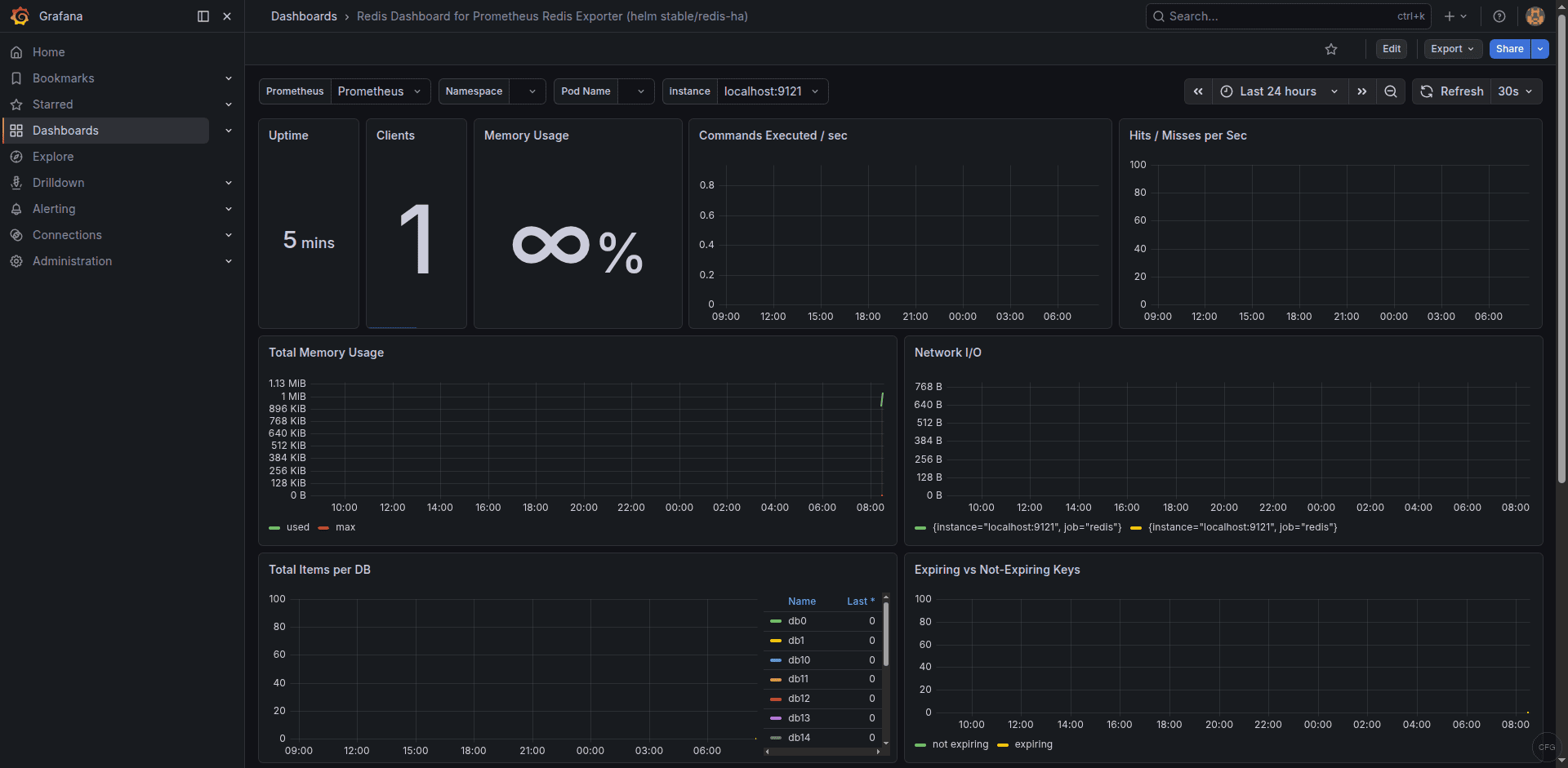
The dashboard shows memory usage, hit/miss ratio, connected clients, command throughput, and keyspace statistics. Find the dashboard on the Grafana dashboard directory.
Troubleshooting Common Issues
redis_up shows 0
The exporter cannot connect to Redis. Verify Redis is listening:
redis-cli pingYou should see PONG. If Redis requires authentication and you haven’t configured the password, the exporter will fail silently. Check the exporter logs:
sudo journalctl -u redis_exporter -n 20 --no-pagerMemory metrics show 0 for redis_memory_max_bytes
This is normal when Redis has no maxmemory configured – it defaults to 0 (unlimited). The HighMemoryUsage alert and memory percentage queries require maxmemory to be set. Configure it in /etc/redis/redis.conf (Ubuntu/Debian) or /etc/redis.conf (Rocky/AlmaLinux):
maxmemory 2gb
maxmemory-policy allkeys-lru
SELinux blocks the exporter on Rocky/AlmaLinux
Check for AVC denials if the exporter fails to start:
sudo ausearch -m avc -ts recentThe exporter connects to Redis on 127.0.0.1:6379 via TCP, which typically works without additional SELinux policies. If Redis uses a Unix socket, you may need a custom policy to allow the exporter user access to the socket path.
The Grafana dashboard shows real-time Redis metrics from the exporter:
Conclusion
With redis_exporter feeding metrics into Prometheus and visualized through Grafana dashboard 11835, you have real-time visibility into Redis memory consumption, cache efficiency, client connections, and command throughput. The alert rules cover outages, memory pressure, poor hit ratios, and connection surges – the four scenarios most likely to cause application-level failures when Redis is used as a cache or session store. Adjust the alert thresholds based on your Redis role (caching vs. persistent storage) and expected workload patterns.
