

Nginx is one of the most widely deployed web servers and reverse proxies in production environments. Monitoring its performance metrics – active connections, request rates, and error patterns – gives you early warning of capacity issues and misconfigurations before they impact users. The nginx-prometheus-exporter reads Nginx’s built-in stub_status module and exposes those metrics in a format Prometheus can scrape.
This guide covers installing and configuring the Nginx Prometheus exporter on both Ubuntu/Debian and Rocky Linux/AlmaLinux, wiring it into Prometheus, setting up alert rules, and importing a Grafana dashboard for visualization. If you don’t have Prometheus installed yet, start with our Prometheus installation guide first.
Prerequisites
- A running Prometheus server
- Grafana instance connected to your Prometheus data source
- Nginx installed on the target server
- Root or sudo access on the Nginx server
Step 1: Enable Nginx stub_status Module
The exporter needs Nginx’s stub_status endpoint to pull metrics from. Create a dedicated server block that listens on port 8080 and only allows local access.
On Ubuntu/Debian, create the configuration file:
sudo tee /etc/nginx/conf.d/stub_status.conf > /dev/null <<'CONF'
server {
    listen 8080;
    server_name 127.0.0.1;

    location /nginx_status {
        stub_status on;
        allow 127.0.0.1;
        deny all;
    }
}
CONF
On Rocky/AlmaLinux, the same file goes in the same path since Nginx uses /etc/nginx/conf.d/ on both distro families:
sudo tee /etc/nginx/conf.d/stub_status.conf > /dev/null <<'CONF'
server {
    listen 8080;
    server_name 127.0.0.1;

    location /nginx_status {
        stub_status on;
        allow 127.0.0.1;
        deny all;
    }
}
CONF
Test the configuration and reload Nginx:
sudo nginx -t && sudo systemctl reload nginxVerify the stub_status endpoint is working:
curl http://127.0.0.1:8080/nginx_statusYou should see output similar to this:
Active connections: 3
server accepts handled requests
 12456 12456 38291
Reading: 0 Writing: 1 Waiting: 2
Step 2: Install the Nginx Prometheus Exporter
Create a dedicated system user for the exporter first:
sudo useradd --system --no-create-home --shell /usr/sbin/nologin nginx_exporterDownload the latest release (version 1.5.1 at the time of writing) using dynamic version detection:
VER=$(curl -sI https://github.com/nginx/nginx-prometheus-exporter/releases/latest | tr -d "\r" | grep -i ^location | grep -o "[0-9]\+\.[0-9]\+\.[0-9]\+" | tail -1)
echo "Downloading nginx-prometheus-exporter v${VER}"
curl -fSL -o /tmp/nginx-prometheus-exporter.tar.gz \
  https://github.com/nginx/nginx-prometheus-exporter/releases/download/v${VER}/nginx-prometheus-exporter_${VER}_linux_amd64.tar.gz
Extract the binary and move it into place:
cd /tmp
tar xzf nginx-prometheus-exporter.tar.gz
sudo mv nginx-prometheus-exporter /usr/local/bin/
sudo chmod 755 /usr/local/bin/nginx-prometheus-exporter
Confirm the binary runs correctly:
nginx-prometheus-exporter --versionThe version output confirms the installation:
nginx-prometheus-exporter/1.5.1SELinux context (Rocky/AlmaLinux only) – set the correct file context so SELinux allows execution:
sudo semanage fcontext -a -t bin_t "/usr/local/bin/nginx-prometheus-exporter"
sudo restorecon -v /usr/local/bin/nginx-prometheus-exporter
Step 3: Create the Systemd Service
Create a systemd unit file that starts the exporter and points it at the stub_status URL:
sudo tee /etc/systemd/system/nginx-prometheus-exporter.service > /dev/null <<'EOF'
[Unit]
Description=Nginx Prometheus Exporter
Documentation=https://github.com/nginx/nginx-prometheus-exporter
After=network-online.target
Wants=network-online.target

[Service]
Type=simple
User=nginx_exporter
Group=nginx_exporter
ExecStart=/usr/local/bin/nginx-prometheus-exporter \
    --nginx.scrape-uri=http://127.0.0.1:8080/nginx_status \
    --web.listen-address=:9113
Restart=on-failure
RestartSec=5

[Install]
WantedBy=multi-user.target
EOF
Enable and start the service:
sudo systemctl daemon-reload
sudo systemctl enable --now nginx-prometheus-exporter
Verify the exporter is running:
sudo systemctl status nginx-prometheus-exporterThe service should show active (running). You can also test the metrics endpoint directly:
curl -s http://localhost:9113/metrics | grep nginx_httpYou should see Prometheus-formatted metrics like:
nginx_http_requests_total 38291
nginx_connections_active 3
nginx_connections_accepted 12456
nginx_connections_handled 12456
nginx_connections_reading 0
nginx_connections_writing 1
nginx_connections_waiting 2
Step 4: Configure Firewall Rules
If Prometheus scrapes from a remote server, open port 9113. Skip this if Prometheus runs on the same host.
Ubuntu/Debian (ufw):
sudo ufw allow from 10.0.1.10/32 to any port 9113 proto tcp comment "Nginx Exporter"
sudo ufw reload
Rocky/AlmaLinux (firewalld):
sudo firewall-cmd --permanent --add-rich-rule='rule family="ipv4" source address="10.0.1.10/32" port port="9113" protocol="tcp" accept'
sudo firewall-cmd --reload
Replace 10.0.1.10 with the IP of your Prometheus server.
SELinux port (Rocky/AlmaLinux only) – allow the exporter to bind to port 9113:
sudo semanage port -a -t http_port_t -p tcp 9113Step 5: Add Prometheus Scrape Configuration
On your Prometheus server, add a new scrape job to /etc/prometheus/prometheus.yml:
  - job_name: 'nginx'
    scrape_interval: 15s
    static_configs:
      - targets: ['10.0.1.20:9113']
        labels:
          instance: 'web-server-01'
Replace 10.0.1.20 with the IP address of your Nginx server. Reload Prometheus to apply the change:
sudo systemctl reload prometheusVerify the target appears in Prometheus by visiting http://your-prometheus:9090/targets. The nginx job should show a State of UP.
Key Nginx Metrics to Watch
Here are the most important metrics the exporter provides and what they tell you:
| Metric | Description |
|---|---|
nginx_http_requests_total | Total number of client requests processed |
nginx_connections_active | Current active client connections including waiting |
nginx_connections_accepted | Total accepted client connections |
nginx_connections_handled | Total handled connections (should equal accepted) |
nginx_connections_reading | Connections where Nginx is reading the request header |
nginx_connections_writing | Connections where Nginx is writing the response |
nginx_connections_waiting | Idle keepalive connections waiting for a request |
PromQL Query Examples
These queries work directly in the Prometheus expression browser or as Grafana panel queries.
Request rate per second (averaged over 5 minutes):
rate(nginx_http_requests_total[5m])Active connections right now:
nginx_connections_activeDropped connections (connections accepted but not handled – a sign of resource exhaustion):
nginx_connections_accepted - nginx_connections_handledConnection utilization breakdown:
nginx_connections_reading + nginx_connections_writing + nginx_connections_waitingStep 6: Create Prometheus Alert Rules
Create an alert rules file on the Prometheus server:
sudo tee /etc/prometheus/rules/nginx_alerts.yml > /dev/null <<'EOF'
groups:
  - name: nginx_alerts
    rules:
      - alert: NginxDown
        expr: up{job="nginx"} == 0
        for: 2m
        labels:
          severity: critical
        annotations:
          summary: "Nginx exporter down on {{ $labels.instance }}"
          description: "The Nginx exporter on {{ $labels.instance }} has been unreachable for more than 2 minutes."

      - alert: HighActiveConnections
        expr: nginx_connections_active > 500
        for: 5m
        labels:
          severity: warning
        annotations:
          summary: "High active connections on {{ $labels.instance }}"
          description: "Nginx has {{ $value }} active connections on {{ $labels.instance }}, which exceeds the threshold of 500."

      - alert: DroppedConnections
        expr: (nginx_connections_accepted - nginx_connections_handled) > 0
        for: 5m
        labels:
          severity: warning
        annotations:
          summary: "Nginx dropping connections on {{ $labels.instance }}"
          description: "Nginx is dropping connections on {{ $labels.instance }}. Accepted minus handled: {{ $value }}."
EOF
Make sure your prometheus.yml includes the rules directory:
rule_files:
  - "rules/*.yml"
Reload Prometheus to load the alert rules:
sudo systemctl reload prometheusStep 7: Import Grafana Dashboard
Grafana has a community dashboard specifically designed for the Nginx Prometheus exporter. In your Grafana instance:
- Go to Dashboards in the left sidebar and click New > Import
- Enter dashboard ID 12708 and click Load
- Select your Prometheus data source from the dropdown
- Click Import
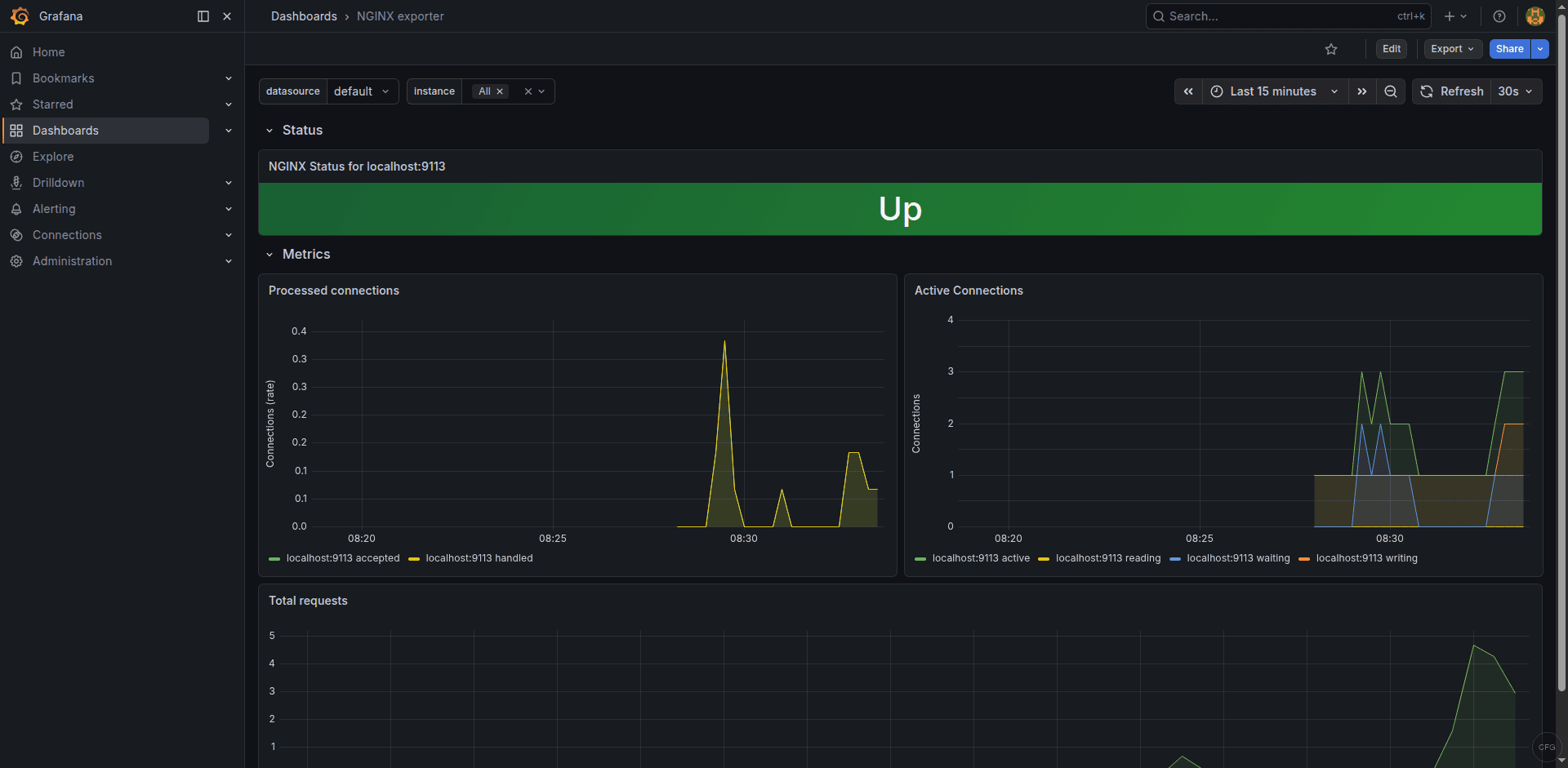
The dashboard shows request rate, active connections, connection states, and overall Nginx uptime at a glance. You can find the dashboard details on Grafana’s dashboard directory.
Troubleshooting Common Issues
Exporter shows “connection refused” when scraping stub_status
This means Nginx isn’t listening on port 8080 or the stub_status location is misconfigured. Verify Nginx is listening:
sudo ss -tlnp | grep 8080If nothing shows up, check your stub_status.conf syntax and reload Nginx. Make sure no other service is already using port 8080.
Prometheus target shows “DOWN” status
Check that the exporter process is running and the firewall allows traffic on port 9113. Test connectivity from the Prometheus server:
curl http://10.0.1.20:9113/metricsOn Rocky/AlmaLinux, check SELinux denials:
sudo ausearch -m avc -ts recentMetrics show all zeros
The exporter is running but can’t read stub_status. Confirm the scrape URI matches exactly what the exporter expects. Test the stub_status URL manually from the same host:
curl http://127.0.0.1:8080/nginx_statusIf the output is empty or returns a 403, check the allow directive in your stub_status configuration.
The Grafana dashboard shows real-time Nginx metrics from the exporter:
Conclusion
With the Nginx Prometheus exporter, Prometheus scrape configuration, alert rules, and Grafana dashboard in place, you have full visibility into your Nginx server’s connection handling and request throughput. The alert rules catch the two most critical scenarios – the exporter going down and connection exhaustion – before they become user-facing outages. Adjust the alert thresholds based on your server’s typical traffic patterns and worker configuration.
