

Containers are ephemeral by design, which makes monitoring them different from traditional servers. You need per-container CPU, memory, network, and disk metrics that persist even after a container is restarted or replaced. cAdvisor (Container Advisor) from Google collects resource usage data from running containers and exposes it as Prometheus metrics. Combined with Prometheus and Grafana, it gives you full visibility into your Docker workloads.
This guide walks through deploying a complete monitoring stack with Docker Compose (Prometheus, Grafana, cAdvisor, plus sample containers), writing alert rules for container resource problems, and setting up a Grafana dashboard with real metrics.
Tested March 2026 | Docker 29.3.1, Prometheus latest, Grafana 12.4.2, cAdvisor latest, Ubuntu 24.04
Prerequisites
- Docker Engine installed and running
- Docker Compose v2 installed
- Root or sudo access on the Docker host
How to Install Docker (Quick Reference)
If Docker is not yet installed, here are the commands for both distro families.
Ubuntu/Debian:
sudo apt update
sudo apt install -y ca-certificates curl gnupg
sudo install -m 0755 -d /etc/apt/keyrings
curl -fsSL https://download.docker.com/linux/ubuntu/gpg | sudo gpg --dearmor -o /etc/apt/keyrings/docker.gpg
sudo chmod a+r /etc/apt/keyrings/docker.gpg
echo "deb [arch=$(dpkg --print-architecture) signed-by=/etc/apt/keyrings/docker.gpg] https://download.docker.com/linux/ubuntu $(. /etc/os-release && echo $VERSION_CODENAME) stable" | sudo tee /etc/apt/sources.list.d/docker.list > /dev/null
sudo apt update
sudo apt install -y docker-ce docker-ce-cli containerd.io docker-compose-plugin
Rocky/AlmaLinux:
sudo dnf config-manager --add-repo https://download.docker.com/linux/rhel/docker-ce.repo
sudo dnf install -y docker-ce docker-ce-cli containerd.io docker-compose-plugin
sudo systemctl enable --now docker
Verify Docker is running:
docker --version
docker compose version
Deploy the Full Monitoring Stack
Rather than deploying each component separately, we use a single Docker Compose file that includes the monitoring stack (Prometheus, Grafana, cAdvisor) alongside sample workloads (Nginx, Redis, PostgreSQL). This is how you would run it in practice.
Create the project directory and Compose file:
sudo mkdir -p /opt/monitoring-demoOpen the Compose file for editing:
sudo vi /opt/monitoring-demo/docker-compose.ymlAdd the following configuration with all six services:
services:
  prometheus:
    image: prom/prometheus:latest
    container_name: prometheus
    ports:
      - "9090:9090"
    volumes:
      - ./prometheus.yml:/etc/prometheus/prometheus.yml
      - ./rules:/etc/prometheus/rules
      - prometheus_data:/prometheus
    command:
      - '--config.file=/etc/prometheus/prometheus.yml'
      - '--web.enable-lifecycle'
    restart: always

  grafana:
    image: grafana/grafana:latest
    container_name: grafana
    ports:
      - "3000:3000"
    volumes:
      - grafana_data:/var/lib/grafana
    environment:
      - GF_SECURITY_ADMIN_PASSWORD=admin
    restart: always

  cadvisor:
    image: gcr.io/cadvisor/cadvisor:latest
    container_name: cadvisor
    privileged: true
    ports:
      - "8080:8080"
    volumes:
      - /:/rootfs:ro
      - /var/run:/var/run:ro
      - /sys:/sys:ro
      - /var/lib/docker/:/var/lib/docker:ro
      - /dev/disk/:/dev/disk:ro
    restart: always

  web:
    image: nginx:latest
    container_name: demo-nginx
    ports:
      - "8081:80"
    restart: unless-stopped

  cache:
    image: redis:latest
    container_name: demo-redis
    ports:
      - "6380:6379"
    restart: unless-stopped

  database:
    image: postgres:16-alpine
    container_name: demo-postgres
    ports:
      - "5433:5432"
    environment:
      - POSTGRES_PASSWORD=demopass
      - POSTGRES_DB=demo
    restart: unless-stopped

volumes:
  prometheus_data:
  grafana_data:
Before starting the stack, Prometheus needs its configuration file. Create it in the same directory:
sudo vi /opt/monitoring-demo/prometheus.ymlAdd the scrape configuration for both Prometheus itself and cAdvisor:
global:
  scrape_interval: 15s

rule_files:
  - "rules/*.yml"

scrape_configs:
  - job_name: 'prometheus'
    static_configs:
      - targets: ['localhost:9090']

  - job_name: 'cadvisor'
    scrape_interval: 15s
    static_configs:
      - targets: ['cadvisor:8080']
        labels:
          instance: 'docker-host-01'
Note that the cAdvisor target uses the container name cadvisor as the hostname since both containers share the same Docker network. Create the rules directory (we will add alert rules later):
sudo mkdir -p /opt/monitoring-demo/rulesNow bring up the entire stack:
cd /opt/monitoring-demo && docker compose up -dVerify all six containers are running:
docker ps --format "table {{.Names}}\t{{.Image}}\t{{.Status}}\t{{.Ports}}"The output should show every container in a healthy state:
NAMES           IMAGE                             STATUS         PORTS
demo-postgres   postgres:16-alpine                Up 14 seconds  0.0.0.0:5433->5432/tcp
demo-redis      redis:latest                      Up 14 seconds  0.0.0.0:6380->6379/tcp
demo-nginx      nginx:latest                      Up 14 seconds  0.0.0.0:8081->80/tcp
prometheus      prom/prometheus:latest            Up 14 seconds  0.0.0.0:9090->9090/tcp
grafana         grafana/grafana:latest            Up 14 seconds  0.0.0.0:3000->3000/tcp
cadvisor        gcr.io/cadvisor/cadvisor:latest   Up 14 seconds  0.0.0.0:8080->8080/tcp
Test the cAdvisor Prometheus metrics endpoint to confirm it is collecting data:
curl -s http://localhost:8080/metrics | grep container_cpu_usage_seconds_total | head -5You should see CPU metrics for each running container. cAdvisor also provides a web UI at http://your-server:8080 for quick visual inspection, though Grafana is better suited for long-term monitoring.
Configure Firewall Rules
If Prometheus runs on a separate host, open port 8080 so it can reach cAdvisor. Skip this if everything runs on the same machine (as in our Compose stack).
Ubuntu/Debian (ufw):
sudo ufw allow from 10.0.1.10/32 to any port 8080 proto tcp comment "cAdvisor metrics"
sudo ufw reload
Rocky/AlmaLinux (firewalld):
sudo firewall-cmd --permanent --add-rich-rule='rule family="ipv4" source address="10.0.1.10/32" port port="8080" protocol="tcp" accept'
sudo firewall-cmd --reload
On Rocky/AlmaLinux with SELinux enforcing, Docker manages its own iptables rules and cAdvisor runs within the Docker context, so no additional SELinux configuration is needed for the container itself.
Verify Prometheus Targets
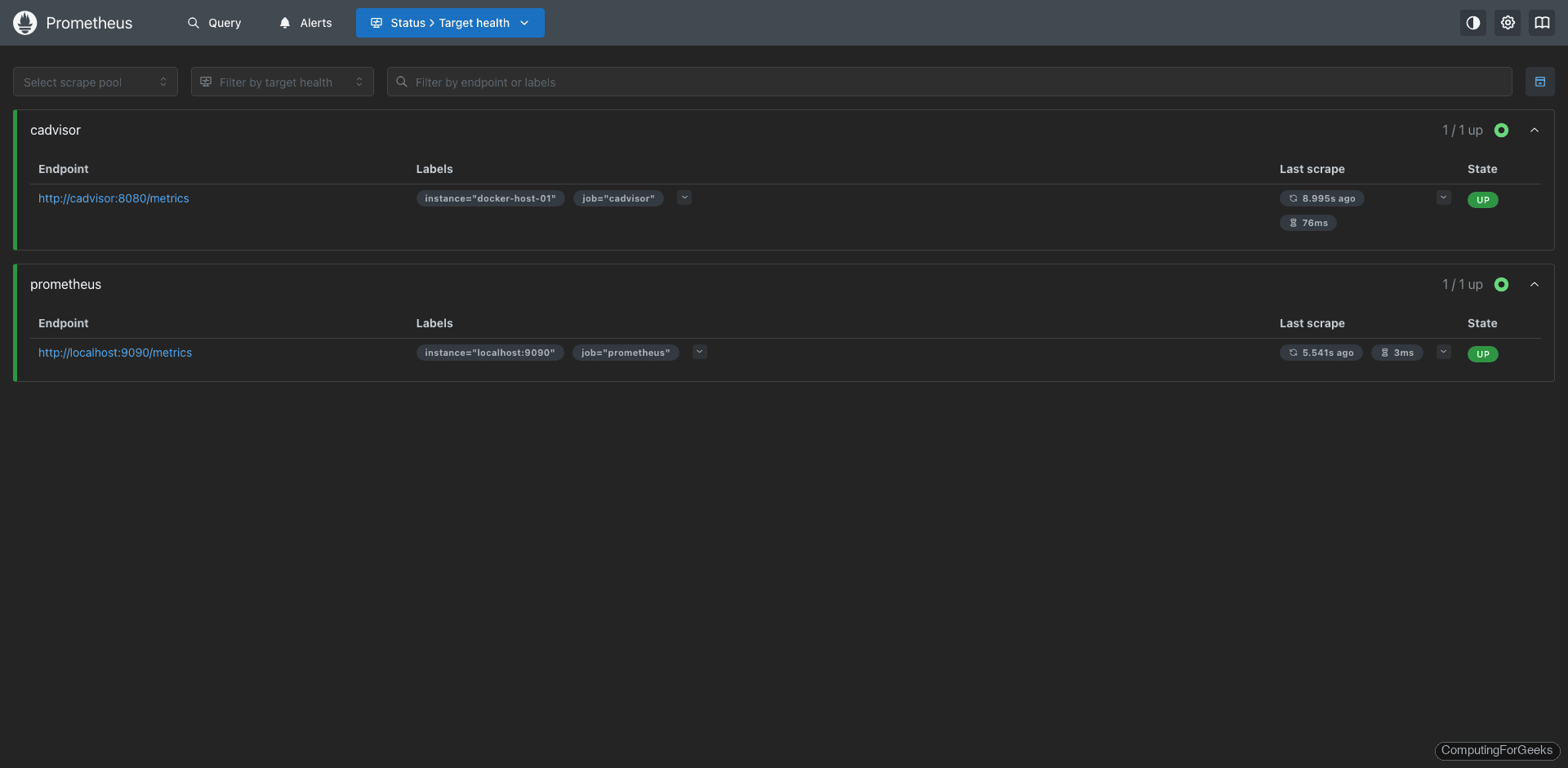
Open the Prometheus targets page at http://your-server:9090/targets. Both the prometheus and cadvisor jobs should show a State of UP with a recent Last Scrape time.
Key Container Metrics to Watch
cAdvisor exports dozens of metrics, but these are the ones that matter most for day-to-day container monitoring:
| Metric | Description |
|---|---|
container_cpu_usage_seconds_total | Cumulative CPU time consumed per container |
container_memory_usage_bytes | Current memory usage per container (includes cache) |
container_memory_working_set_bytes | Active memory usage (excludes inactive cache) |
container_network_receive_bytes_total | Total bytes received per container network interface |
container_network_transmit_bytes_total | Total bytes transmitted per container network interface |
container_fs_usage_bytes | Filesystem usage per container |
container_last_seen | Last time the container was seen (useful for restart detection) |
container_start_time_seconds | Container start timestamp (helps calculate uptime) |
PromQL Query Examples
These queries filter out the root cgroup (name!="") so you only see actual containers, not the host-level metrics.
CPU usage per container as a percentage of one core:
rate(container_cpu_usage_seconds_total{name!=""}[5m]) * 100With our test stack running, this query returns real values per container:
cadvisor: 0.93%
prometheus: 0.08%
grafana: 0.22%
demo-nginx: 0.01%
demo-redis: 0.32%
demo-postgres: 0.03%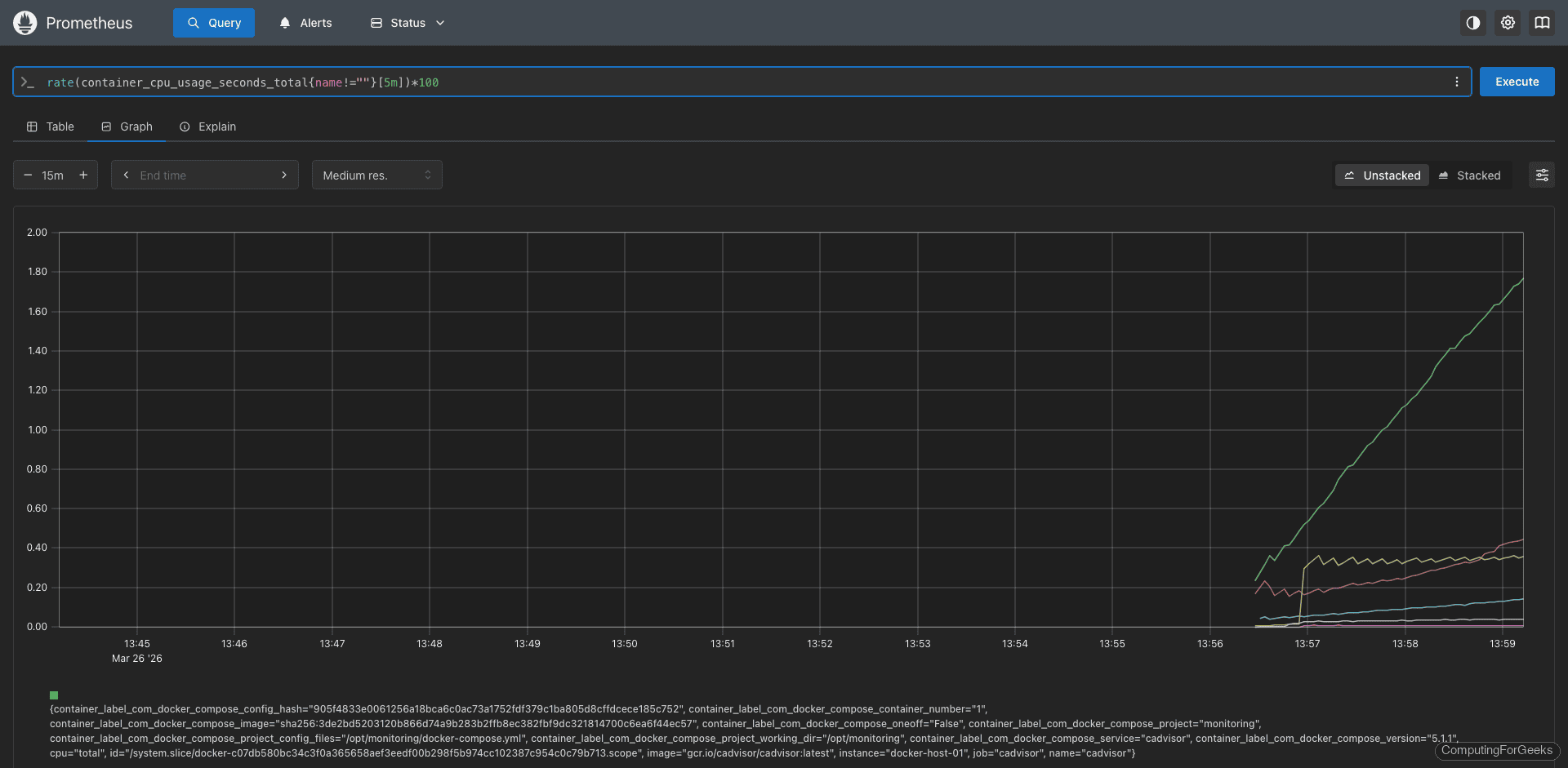
Memory usage per container in megabytes (using working set, which is the more accurate measure):
container_memory_working_set_bytes{name!=""} / 1024 / 1024Real memory consumption from our test stack:
cadvisor: 90.0 MB
prometheus: 68.4 MB
grafana: 110.2 MB
demo-nginx: 7.9 MB
demo-redis: 5.5 MB
demo-postgres: 22.4 MB
Grafana is the heaviest at around 110 MB, while Nginx barely uses 8 MB. PostgreSQL sits at 22 MB at idle with no active queries.
Network receive rate per container in bytes/s:
rate(container_network_receive_bytes_total{name!=""}[5m])Network transmit rate per container:
rate(container_network_transmit_bytes_total{name!=""}[5m])Container restart count catches crash loops where a container restarts repeatedly:
changes(container_start_time_seconds{name!=""}[1h])Filesystem usage per container in megabytes:
container_fs_usage_bytes{name!=""} / 1024 / 1024Create Prometheus Alert Rules
These alert rules catch the most common container problems: CPU spikes, memory pressure, crash loops, disappeared containers, and disk bloat. Open the alert rules file:
sudo vi /opt/monitoring-demo/rules/docker_alerts.ymlAdd the following alert definitions:
groups:
  - name: docker_alerts
    rules:
      - alert: ContainerHighCPU
        expr: rate(container_cpu_usage_seconds_total{name!=""}[5m]) * 100 > 80
        for: 5m
        labels:
          severity: warning
        annotations:
          summary: "Container {{ $labels.name }} high CPU usage"
          description: "Container {{ $labels.name }} on {{ $labels.instance }} is using {{ $value | printf \"%.1f\" }}% CPU for more than 5 minutes."

      - alert: ContainerHighMemory
        expr: container_memory_working_set_bytes{name!=""} > 1073741824
        for: 5m
        labels:
          severity: warning
        annotations:
          summary: "Container {{ $labels.name }} using more than 1GB memory"
          description: "Container {{ $labels.name }} on {{ $labels.instance }} is using {{ $value | humanize }} of memory."

      - alert: ContainerRestarting
        expr: changes(container_start_time_seconds{name!=""}[30m]) > 3
        for: 5m
        labels:
          severity: warning
        annotations:
          summary: "Container {{ $labels.name }} restarting frequently"
          description: "Container {{ $labels.name }} on {{ $labels.instance }} has restarted {{ $value }} times in the last 30 minutes."

      - alert: ContainerDown
        expr: absent(container_last_seen{name!=""})
        for: 5m
        labels:
          severity: critical
        annotations:
          summary: "Container {{ $labels.name }} has stopped"
          description: "Container {{ $labels.name }} on {{ $labels.instance }} has not been seen for 5 minutes."

      - alert: HighContainerDiskUsage
        expr: container_fs_usage_bytes{name!=""} > 5368709120
        for: 10m
        labels:
          severity: warning
        annotations:
          summary: "Container {{ $labels.name }} high disk usage"
          description: "Container {{ $labels.name }} is using {{ $value | humanize }} of filesystem space."
Reload Prometheus to pick up the new rules. The --web.enable-lifecycle flag in our Compose file enables the reload API:
curl -X POST http://localhost:9090/-/reloadVerify the rules loaded successfully at http://your-server:9090/rules. All five alert rules should appear under the docker_alerts group.
Import the Grafana Dashboard
The community dashboard 14282 is designed specifically for cAdvisor metrics and provides per-container views of CPU, memory, network, and filesystem usage. Import it in Grafana:
- Log in to Grafana at
http://your-server:3000(default credentials: admin / admin) - First add Prometheus as a data source under Connections > Data sources > Add data source, using
http://prometheus:9090as the URL - Navigate to Dashboards > New > Import
- Enter dashboard ID 14282 and click Load
- Select your Prometheus data source and click Import
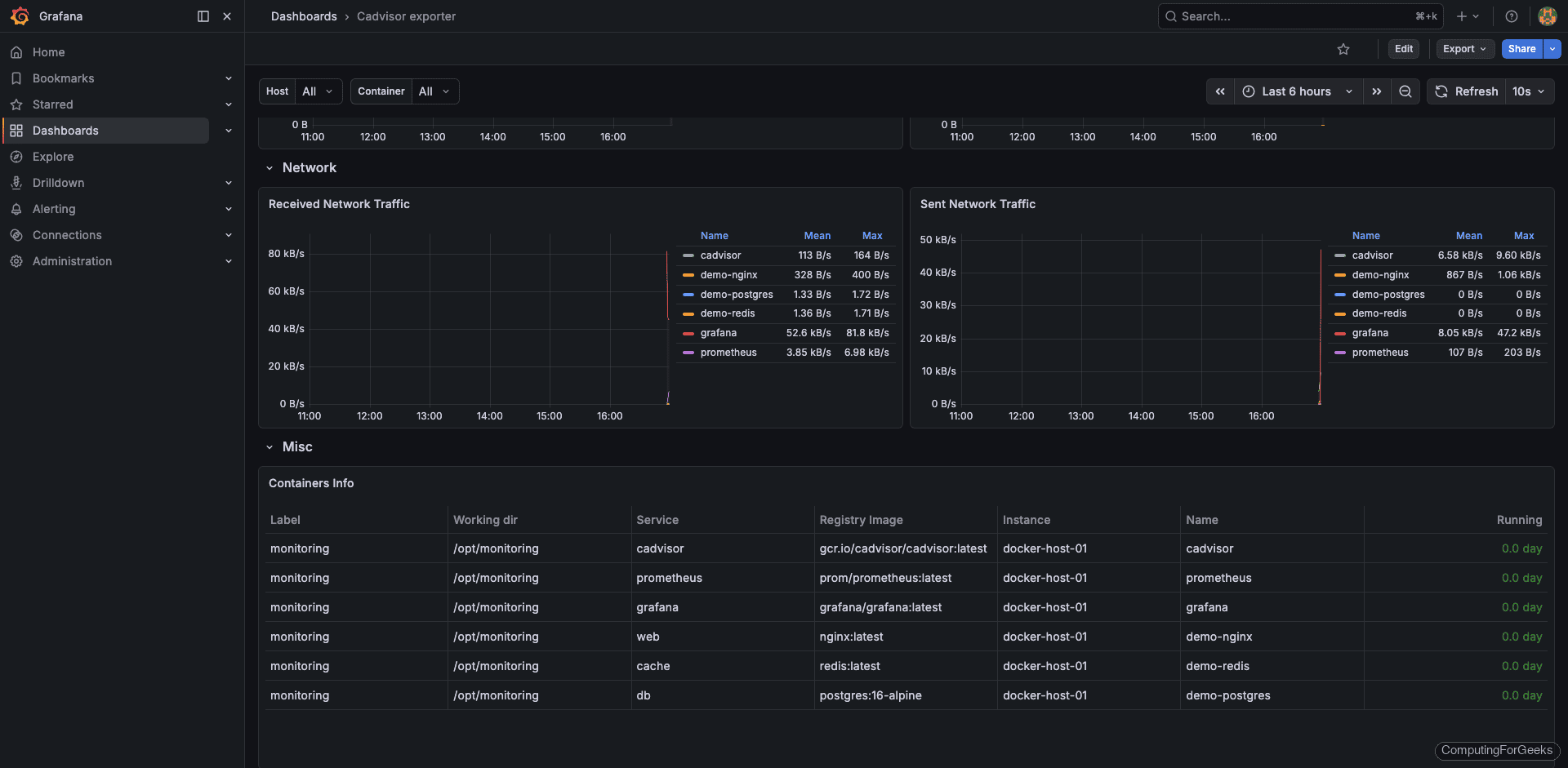
The dashboard shows CPU and memory usage per container, network I/O, filesystem usage, and container lifecycle events. You can find the dashboard source on the Grafana dashboard directory.
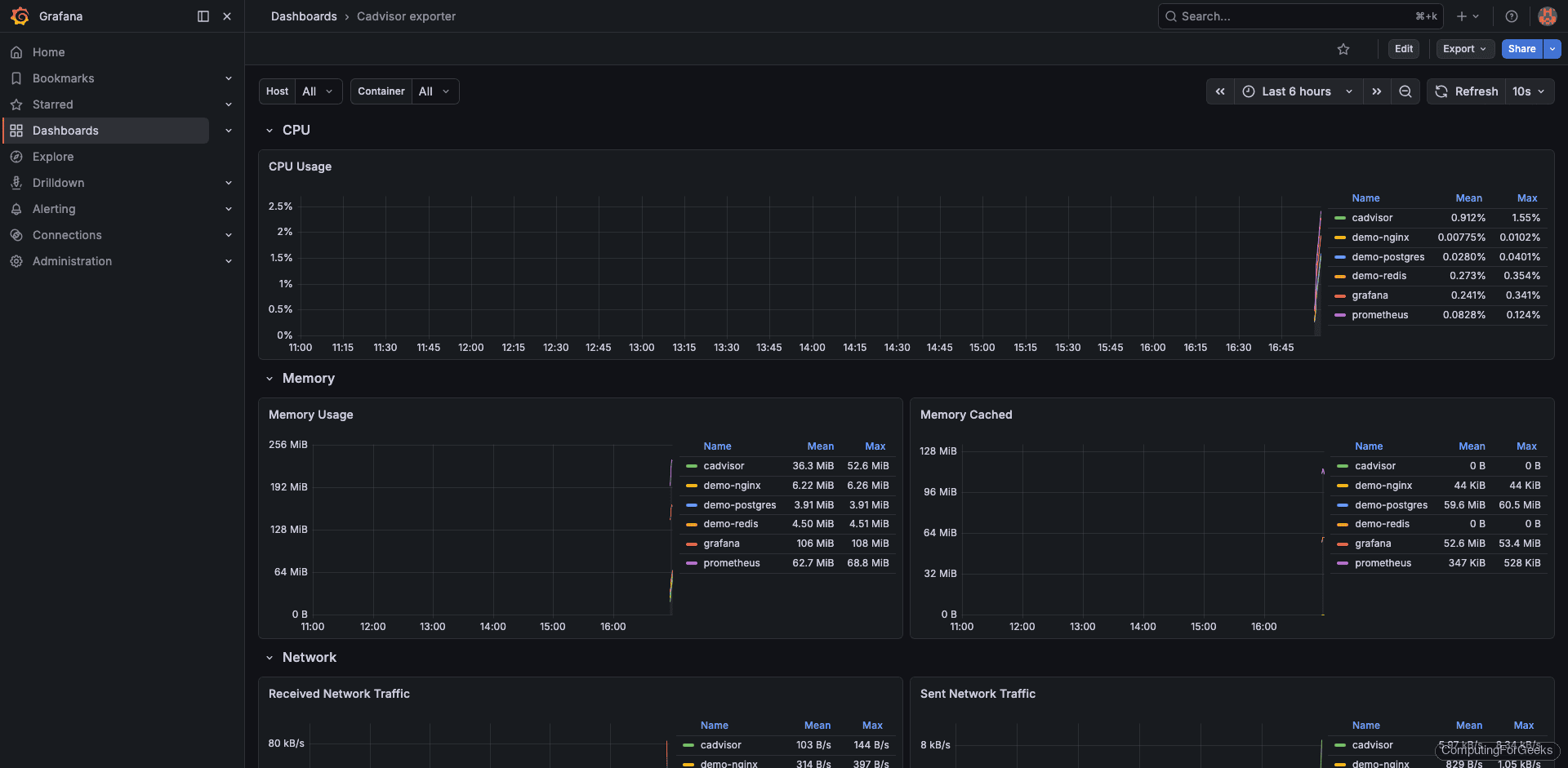
Scroll down to the memory panels. Grafana pulls working set bytes from cAdvisor, which excludes inactive page cache and gives you a more accurate picture of actual memory pressure per container.
Troubleshooting Common Issues
cAdvisor shows no container metrics
This usually means the volume mounts are incorrect. Verify the Docker socket is accessible inside the container:
docker exec cadvisor ls -la /var/run/docker.sockOn systems using cgroup v2 (default on newer kernels), cAdvisor needs the --privileged flag. Without it, many metrics will be missing or zero.
Prometheus target shows DOWN for cAdvisor
Check that port 8080 is reachable from the Prometheus server:
curl http://10.0.1.20:8080/metrics | head -5If both containers are in the same Compose stack, use the service name cadvisor as the target hostname instead of an IP address. On Rocky/AlmaLinux, Docker manages its own iptables rules but firewalld can sometimes interfere. Confirm the firewall allows traffic on port 8080 as shown earlier.
High cardinality causing slow Prometheus queries
cAdvisor exports a lot of metrics by default. If you have many containers, this can create high cardinality. Use Prometheus metric relabeling to drop metrics you do not need:
  - job_name: 'cadvisor'
    scrape_interval: 15s
    static_configs:
      - targets: ['cadvisor:8080']
    metric_relabel_configs:
      - source_labels: [__name__]
        regex: 'container_(tasks_state|memory_failures_total|memory_failcnt)'
        action: drop
This drops less commonly used metrics while keeping the essential CPU, memory, network, and filesystem metrics.
Going Further
- Add node-exporter alongside cAdvisor to correlate container resource usage with host-level capacity (CPU, RAM, disk I/O)
- Set up Alertmanager to route the alert rules to Slack, PagerDuty, or email instead of just showing them in the Prometheus UI
- Enable Grafana alerting directly on dashboard panels for teams that prefer visual threshold configuration
- Use Prometheus remote write to send metrics to long-term storage (Thanos, Mimir, or VictoriaMetrics) if you need retention beyond 15 days
- For Kubernetes, replace cAdvisor with kube-state-metrics plus the kubelet’s built-in cAdvisor endpoint, which are already integrated into the Kubernetes monitoring pipeline
