

DNS is one of those services that works perfectly until it doesn’t, and when it breaks, everything breaks. Query latency spikes, cache hit ratios dropping, upstream timeouts: you need to see these problems forming before users start filing tickets. Prometheus and Grafana give you that visibility across all three major recursive DNS servers.
This guide walks through setting up full metrics collection and dashboarding for BIND 9, Unbound, and PowerDNS Recursor on the same Prometheus instance. Each DNS server exposes metrics differently: BIND needs an external exporter that scrapes its statistics channel, Unbound also needs an external exporter that talks to its remote-control socket, and PowerDNS Recursor has a built-in /metrics endpoint that Prometheus scrapes directly. If you’re deciding which DNS server to run in the first place, our BIND vs Dnsmasq vs PowerDNS vs Unbound comparison covers the tradeoffs.
Tested March 2026 on Ubuntu 24.04.4 LTS (kernel 6.8.0-101) with Prometheus 2.45.3, Grafana 12.4.1, BIND 9.18.39, Unbound 1.19.2, PowerDNS Recursor 4.9.3
Prerequisites
You’ll need the following to follow along with every section:
- Ubuntu 24.04 LTS server with at least 2 GB RAM and 2 vCPUs (Prometheus and Grafana run on this host)
- One or more DNS servers running BIND 9, Unbound, or PowerDNS Recursor (can be the same host for testing, separate hosts in production)
- A second VM for load testing with
dnsperf(optional but recommended to populate dashboards) - Root or sudo access on all machines
- Firewall ports open: 9090 (Prometheus), 3000 (Grafana), 9119 (bind_exporter), 9167 (unbound_exporter), 8082 (PowerDNS webserver)
- Tested versions: Prometheus 2.45.3, Grafana 12.4.1, BIND 9.18.39 ESV, Unbound 1.19.2, PowerDNS Recursor 4.9.3
Install Prometheus and Grafana
Both Prometheus and Grafana run on the monitoring host. If you already have these running, skip ahead to the DNS server sections.
Prometheus
Create the prometheus system user and download the latest LTS release:
sudo useradd --no-create-home --shell /bin/false prometheus
sudo mkdir -p /etc/prometheus /var/lib/prometheus
wget https://github.com/prometheus/prometheus/releases/download/v2.45.3/prometheus-2.45.3.linux-amd64.tar.gz
tar xvfz prometheus-2.45.3.linux-amd64.tar.gz
Copy the binaries and set ownership:
sudo cp prometheus-2.45.3.linux-amd64/prometheus /usr/local/bin/
sudo cp prometheus-2.45.3.linux-amd64/promtool /usr/local/bin/
sudo cp -r prometheus-2.45.3.linux-amd64/consoles /etc/prometheus/
sudo cp -r prometheus-2.45.3.linux-amd64/console_libraries /etc/prometheus/
sudo chown -R prometheus:prometheus /etc/prometheus /var/lib/prometheus /usr/local/bin/prometheus /usr/local/bin/promtool
Create the base configuration file. We’ll add DNS scrape targets in each section below:
sudo vi /etc/prometheus/prometheus.ymlStart with this minimal config:
global:
  scrape_interval: 15s
  evaluation_interval: 15s

scrape_configs:
  - job_name: 'prometheus'
    static_configs:
      - targets: ['localhost:9090']
Set ownership on the config file:
sudo chown prometheus:prometheus /etc/prometheus/prometheus.ymlCreate the systemd unit file:
sudo vi /etc/systemd/system/prometheus.serviceAdd the following service definition:
[Unit]
Description=Prometheus Monitoring
Wants=network-online.target
After=network-online.target

[Service]
User=prometheus
Group=prometheus
Type=simple
ExecStart=/usr/local/bin/prometheus \
  --config.file=/etc/prometheus/prometheus.yml \
  --storage.tsdb.path=/var/lib/prometheus/ \
  --web.console.templates=/etc/prometheus/consoles \
  --web.console.libraries=/etc/prometheus/console_libraries \
  --storage.tsdb.retention.time=30d
ExecReload=/bin/kill -HUP $MAINPID
Restart=on-failure

[Install]
WantedBy=multi-user.target
Enable and start Prometheus:
sudo systemctl daemon-reload
sudo systemctl enable --now prometheus
Verify it’s running:
sudo systemctl status prometheus --no-pagerThe output should show active (running):
● prometheus.service - Prometheus Monitoring
     Loaded: loaded (/etc/systemd/system/prometheus.service; enabled; preset: enabled)
     Active: active (running) since Tue 2026-03-25 08:12:33 UTC; 5s ago
   Main PID: 1842 (prometheus)
      Tasks: 8 (limit: 4557)
     Memory: 42.1M
        CPU: 1.203s
     CGroup: /system.slice/prometheus.service
             └─1842 /usr/local/bin/prometheus --config.file=/etc/prometheus/prometheus.yml
Allow port 9090 through the firewall:
sudo ufw allow 9090/tcpGrafana
Add the official Grafana APT repository and install:
sudo apt install -y apt-transport-https software-properties-common wget
wget -q -O - https://apt.grafana.com/gpg.key | sudo gpg --dearmor -o /usr/share/keyrings/grafana.gpg
echo "deb [signed-by=/usr/share/keyrings/grafana.gpg] https://apt.grafana.com stable main" | sudo tee /etc/apt/sources.list.d/grafana.list
sudo apt update
sudo apt install -y grafana
Start Grafana and enable it at boot:
sudo systemctl enable --now grafana-serverConfirm Grafana 12.4.1 is running:
sudo systemctl status grafana-server --no-pagerYou should see the service active with no errors:
● grafana-server.service - Grafana instance
     Loaded: loaded (/lib/systemd/system/grafana-server.service; enabled; preset: enabled)
     Active: active (running) since Tue 2026-03-25 08:14:02 UTC; 3s ago
       Docs: http://docs.grafana.org
   Main PID: 2103 (grafana)
      Tasks: 12 (limit: 4557)
     Memory: 68.4M
        CPU: 2.841s
     CGroup: /system.slice/grafana-server.service
             └─2103 /usr/share/grafana/bin/grafana server --config=/etc/grafana/grafana.ini
Open port 3000:
sudo ufw allow 3000/tcpLog into Grafana at http://your-server-ip:3000 with the default credentials (admin / admin). Change the password on first login, then add Prometheus as a data source under Connections > Data Sources > Add data source > Prometheus. Set the URL to http://localhost:9090 and click Save & Test.
Monitor BIND 9
BIND 9 doesn’t expose Prometheus metrics natively. The bind_exporter from the Prometheus community project scrapes BIND’s XML statistics channel and converts the data into Prometheus format on port 9119.
Enable BIND Statistics Channel
BIND needs its statistics channel enabled before the exporter can collect anything. Open the BIND configuration:
sudo vi /etc/bind/named.conf.optionsAdd the statistics-channels block inside the options file (or at the top level, both work):
statistics-channels {
    inet 127.0.0.1 port 8053 allow { 127.0.0.1; };
};
Restart BIND to apply:
sudo systemctl restart namedVerify the statistics channel is responding:
curl -s http://127.0.0.1:8053/ | head -5You should see XML output confirming the channel is active:
<?xml version="1.0" encoding="UTF-8"?>
<?xml-stylesheet type="text/xsl" href="/xml/v3/render.xsl"?>
<statistics version="3.12">
  <server>
    <boot-time>2026-03-25T08:16:44.000Z</boot-time>
Install bind_exporter
Download and install bind_exporter 0.8.0:
wget https://github.com/prometheus-community/bind_exporter/releases/download/v0.8.0/bind_exporter-0.8.0.linux-amd64.tar.gz
tar xvfz bind_exporter-0.8.0.linux-amd64.tar.gz
sudo cp bind_exporter-0.8.0.linux-amd64/bind_exporter /usr/local/bin/
sudo chmod +x /usr/local/bin/bind_exporter
Create a dedicated system user:
sudo useradd --no-create-home --shell /bin/false bind_exporterSet up the systemd service:
sudo vi /etc/systemd/system/bind_exporter.serviceThe exporter needs to know where the BIND statistics channel lives:
[Unit]
Description=BIND Exporter for Prometheus
Wants=network-online.target
After=network-online.target

[Service]
User=bind_exporter
Group=bind_exporter
Type=simple
ExecStart=/usr/local/bin/bind_exporter \
  --bind.stats-url=http://localhost:8053/ \
  --web.listen-address=:9119
Restart=on-failure

[Install]
WantedBy=multi-user.target
Start the exporter:
sudo systemctl daemon-reload
sudo systemctl enable --now bind_exporter
Check that metrics are flowing on port 9119:
curl -s http://localhost:9119/metrics | grep bind_upA value of 1 means the exporter is successfully talking to BIND:
# HELP bind_up Was the BIND instance query successful.
# TYPE bind_up gauge
bind_up 1
Add BIND Target to Prometheus
Open the Prometheus configuration and add the bind_exporter scrape job:
sudo vi /etc/prometheus/prometheus.ymlAppend this block under scrape_configs (replace the IP if BIND runs on a different host):
  - job_name: 'bind'
    static_configs:
      - targets: ['localhost:9119']
        labels:
          instance: 'bind-server-01'
Reload Prometheus to pick up the new target:
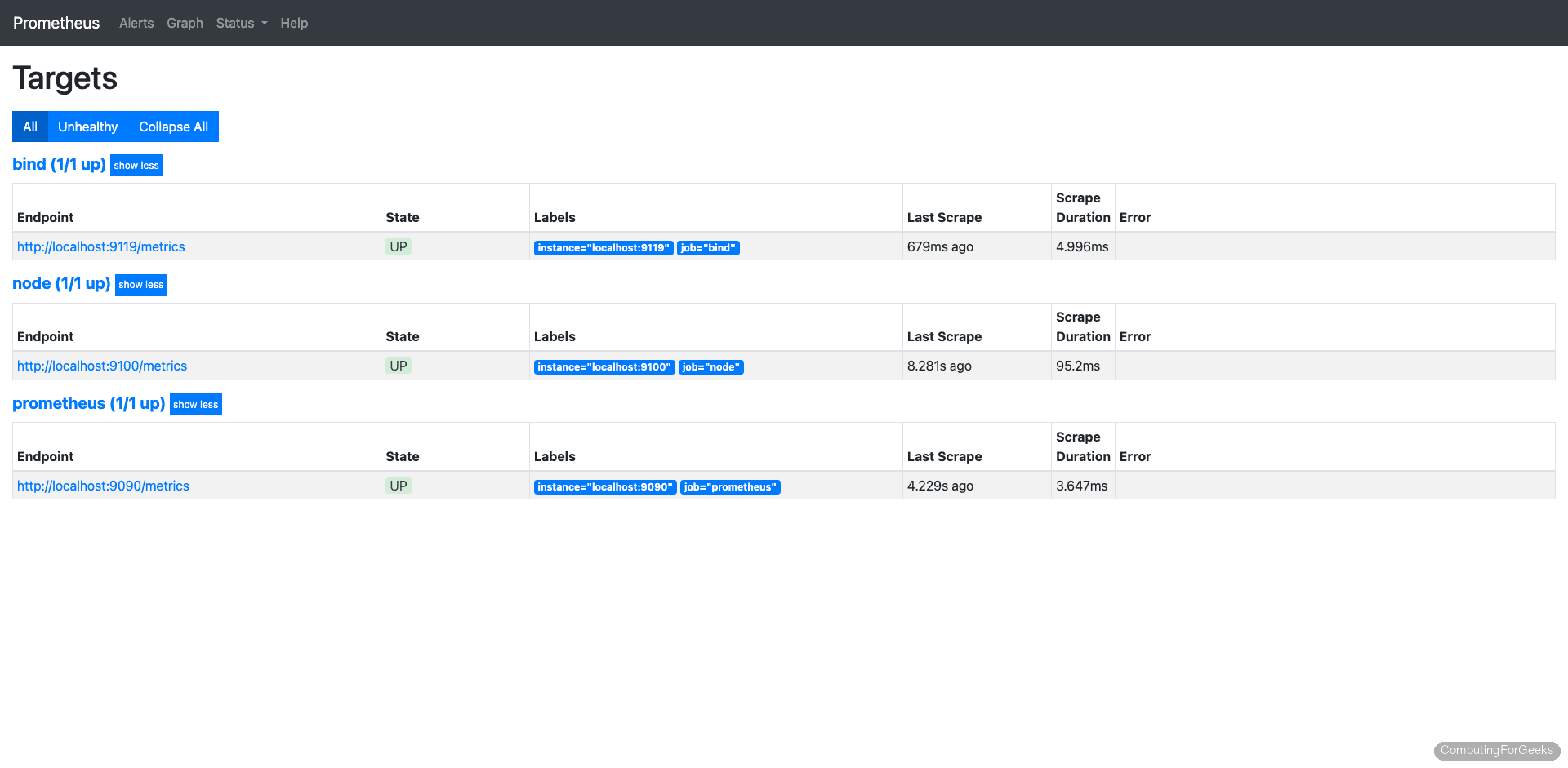
sudo systemctl reload prometheusOpen Prometheus at http://your-server-ip:9090/targets and confirm the bind job shows as UP.
Import the BIND Grafana Dashboard
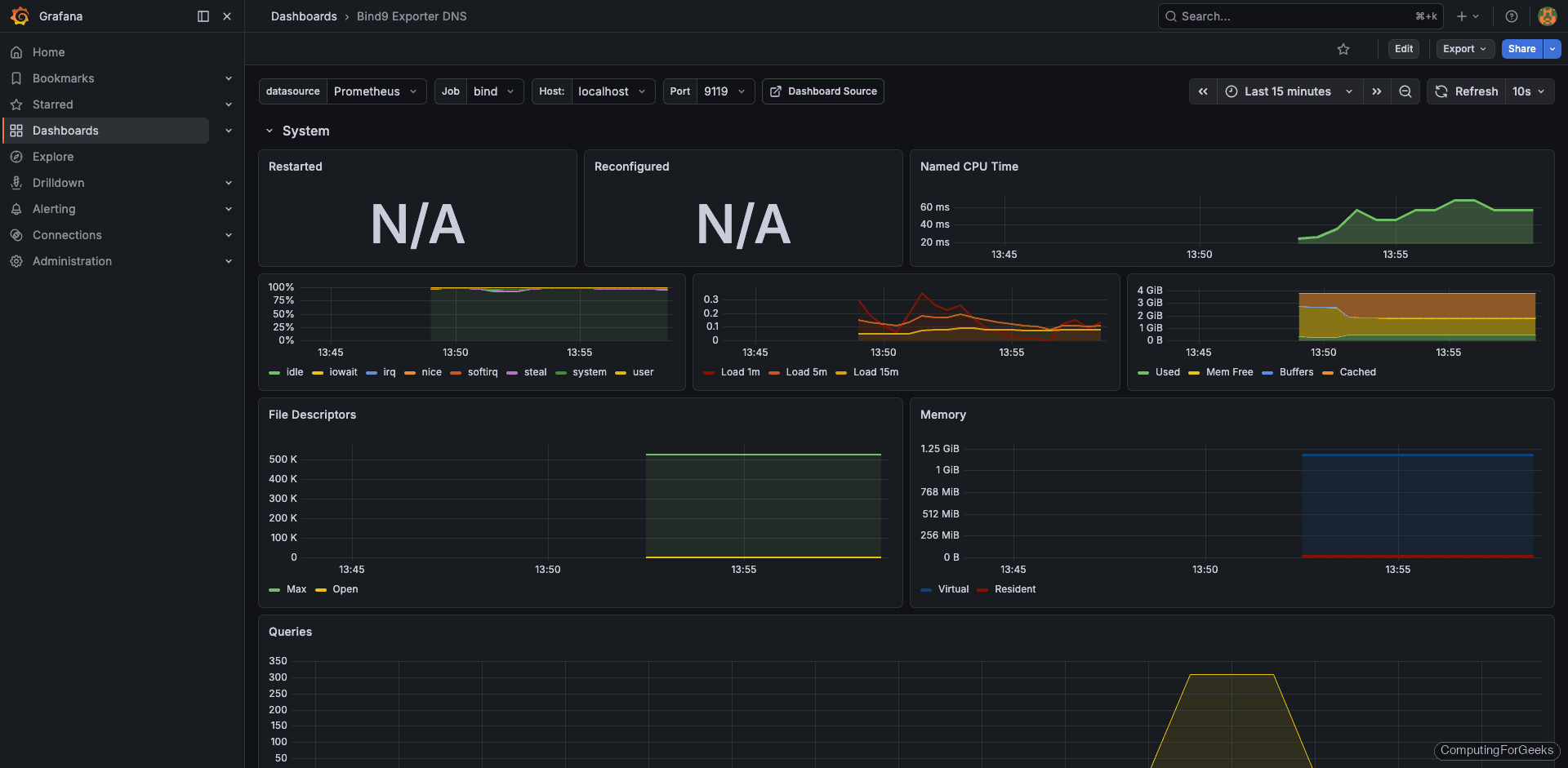
The community dashboard 12309 works well with bind_exporter 0.8.0. In Grafana, go to Dashboards > New > Import, enter 12309 in the ID field, and select your Prometheus data source.
With some load on the server (we’ll cover load testing below), the dashboard shows query rates, cache statistics, and resolver performance:
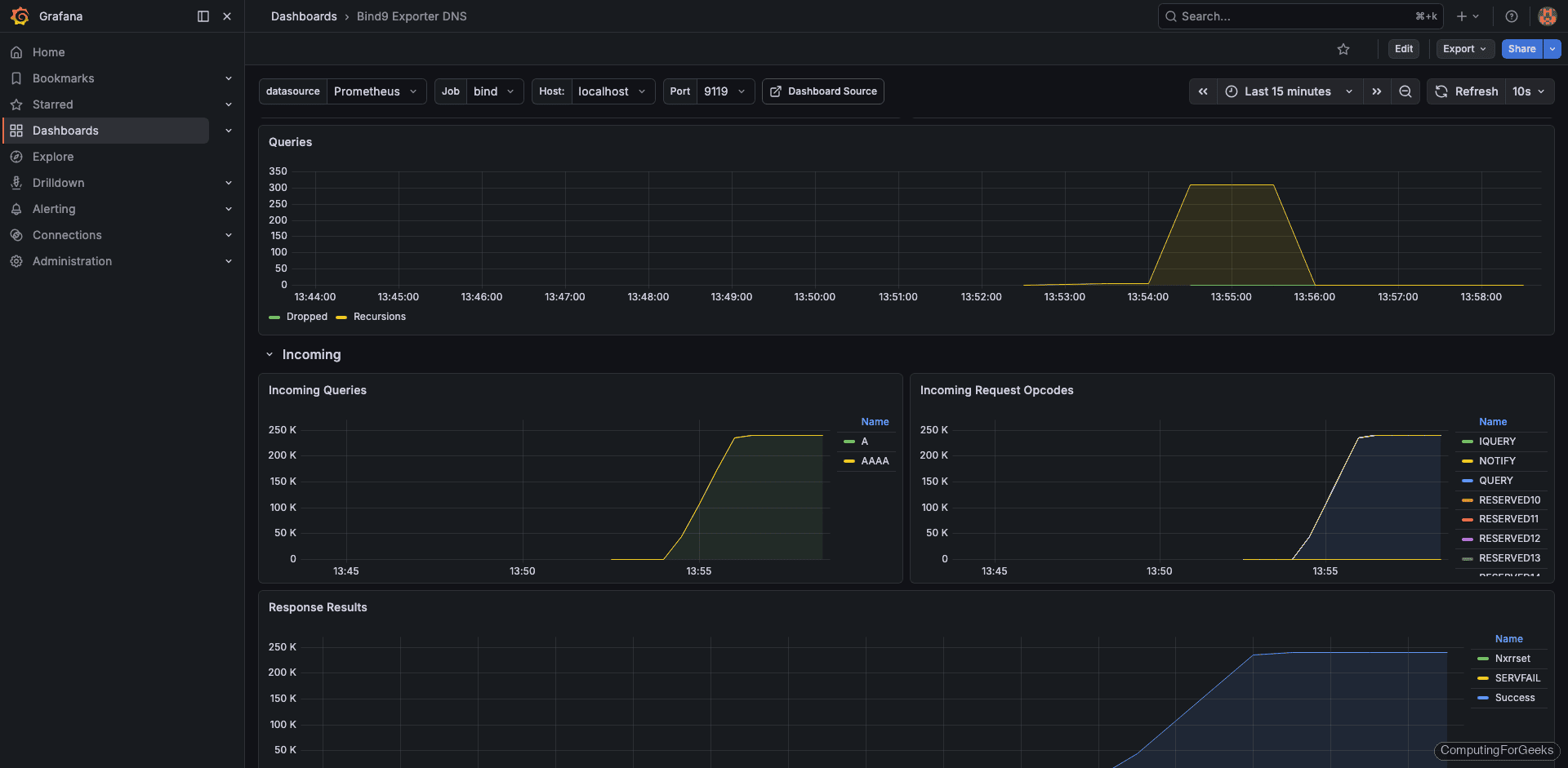
The query statistics panel breaks down requests by type (A, AAAA, PTR, MX) so you can spot unusual patterns like a sudden flood of ANY queries, which is a common amplification attack vector:
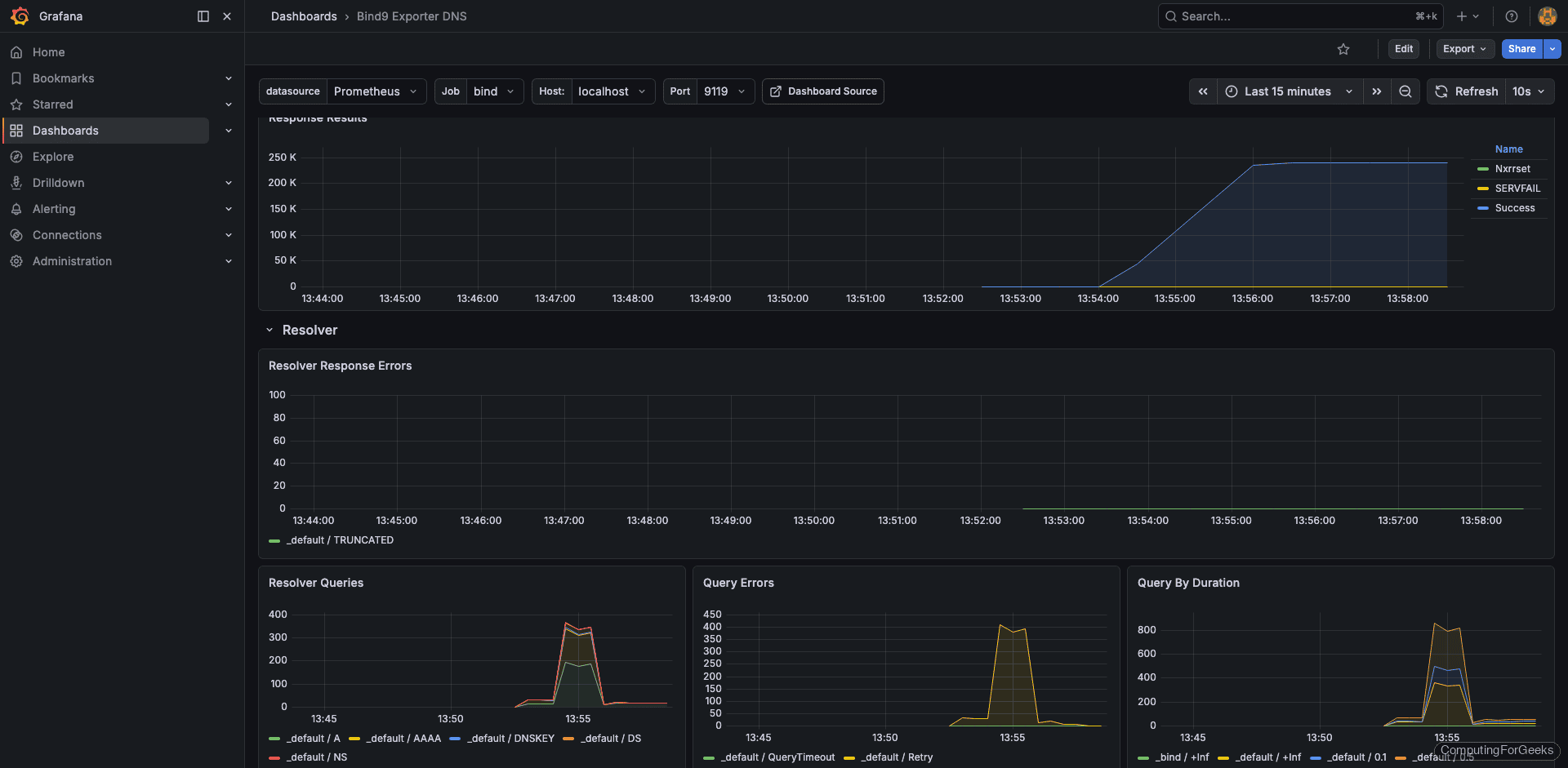
Cache statistics tell you how effectively BIND is reducing upstream queries. A healthy resolver should show cache hit ratios above 70% during normal operation:
Monitor Unbound
Unbound also lacks native Prometheus metrics. The unbound_exporter (maintained by Let’s Encrypt) connects to Unbound’s remote-control interface over a Unix socket or TCP port and translates the statistics into Prometheus format. Version 0.5.0 needs to be built from source since there are no prebuilt binaries.
Enable Unbound Remote Control
The exporter talks to Unbound through its remote-control interface. Open the Unbound configuration:
sudo vi /etc/unbound/unbound.confAdd or modify the remote-control section. For a local exporter, you can skip TLS to simplify the setup:
remote-control:
    control-enable: yes
    control-interface: 127.0.0.1
    control-port: 8953
    control-use-cert: no
Also enable extended statistics collection so the exporter gets detailed metrics:
server:
    extended-statistics: yes
Restart Unbound:
sudo systemctl restart unboundVerify remote-control is responding:
unbound-control stats_noreset | head -10The output should display current counters:
thread0.num.queries=1247
thread0.num.queries_ip_ratelimited=0
thread0.num.cachehits=893
thread0.num.cachemiss=354
thread0.num.prefetch=12
thread0.num.expired=0
thread0.num.recursivereplies=354
thread0.requestlist.avg=0.428571
thread0.requestlist.max=3
thread0.requestlist.overwritten=0
Build unbound_exporter from Source
The exporter requires Go to compile. Install Go and build:
sudo apt install -y golang-go git
git clone https://github.com/letsencrypt/unbound_exporter.git
cd unbound_exporter
go build -o unbound_exporter .
Copy the binary to a system path:
sudo cp unbound_exporter /usr/local/bin/
sudo chmod +x /usr/local/bin/unbound_exporter
Create the system user:
sudo useradd --no-create-home --shell /bin/false unbound_exporterSet up the systemd service file:
sudo vi /etc/systemd/system/unbound_exporter.servicePoint it at the Unbound remote-control interface with TLS disabled:
[Unit]
Description=Unbound Exporter for Prometheus
Wants=network-online.target
After=network-online.target

[Service]
User=unbound_exporter
Group=unbound_exporter
Type=simple
ExecStart=/usr/local/bin/unbound_exporter \
  -unbound.host="tcp://127.0.0.1:8953" \
  -unbound.ca="" \
  -unbound.cert="" \
  -unbound.key="" \
  -web.listen-address=:9167
Restart=on-failure

[Install]
WantedBy=multi-user.target
Start the exporter and confirm it’s collecting data:
sudo systemctl daemon-reload
sudo systemctl enable --now unbound_exporter
Test the metrics endpoint:
curl -s http://localhost:9167/metrics | grep unbound_upIf the exporter is connected to Unbound, you’ll see:
# HELP unbound_up Whether scraping Unbound's metrics was successful.
# TYPE unbound_up gauge
unbound_up 1
Add Unbound Target to Prometheus
Open the Prometheus config again:
sudo vi /etc/prometheus/prometheus.ymlAppend the Unbound job:
  - job_name: 'unbound'
    static_configs:
      - targets: ['localhost:9167']
        labels:
          instance: 'unbound-server-01'
Reload Prometheus:
sudo systemctl reload prometheusImport the Unbound Grafana Dashboard
Dashboard 11705 is designed for the Let’s Encrypt unbound_exporter and works out of the box. Import it the same way: Dashboards > New > Import > 11705.
Under load, the dashboard displays query throughput, cache hit rates, and resolver latency:
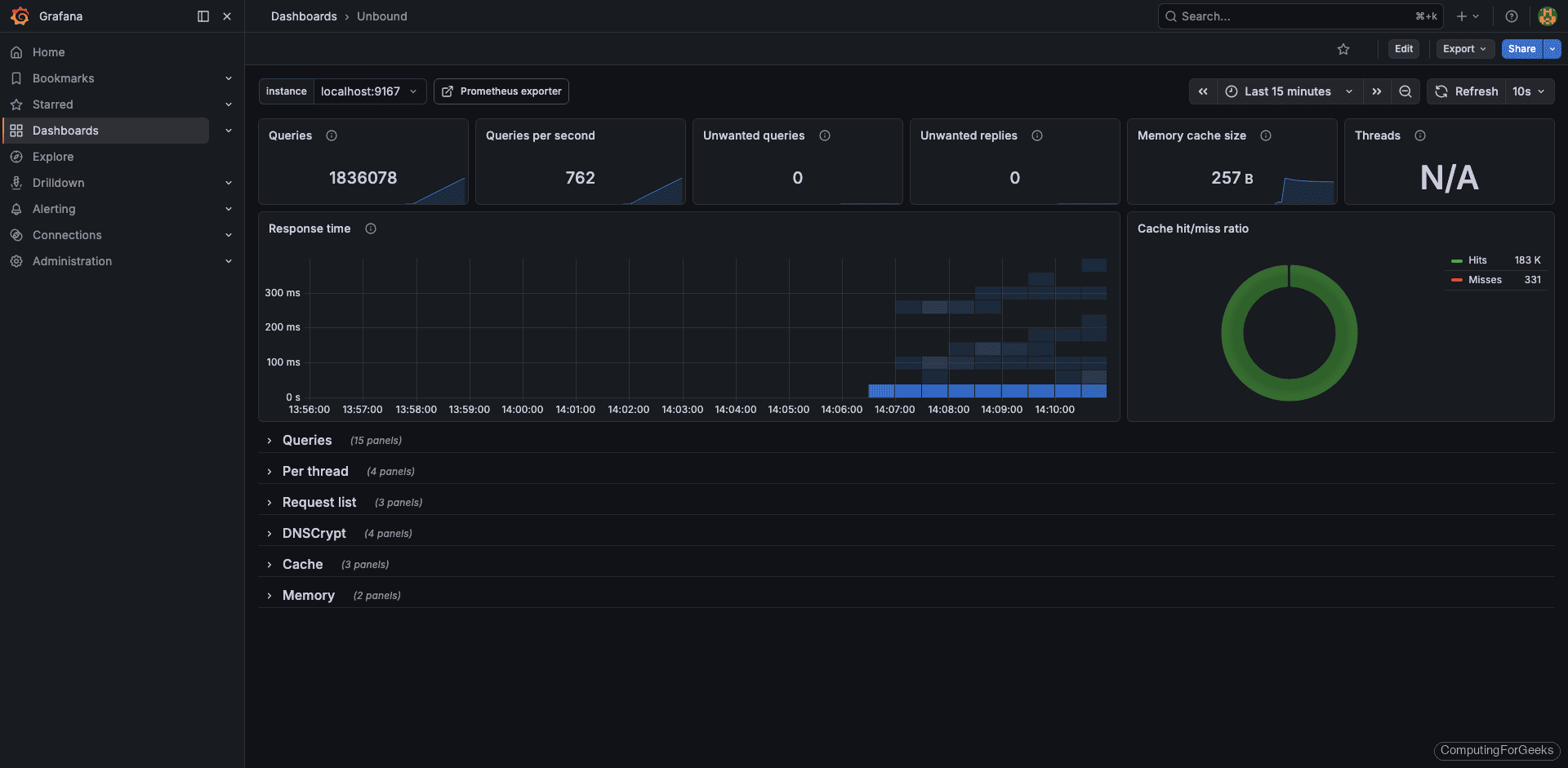
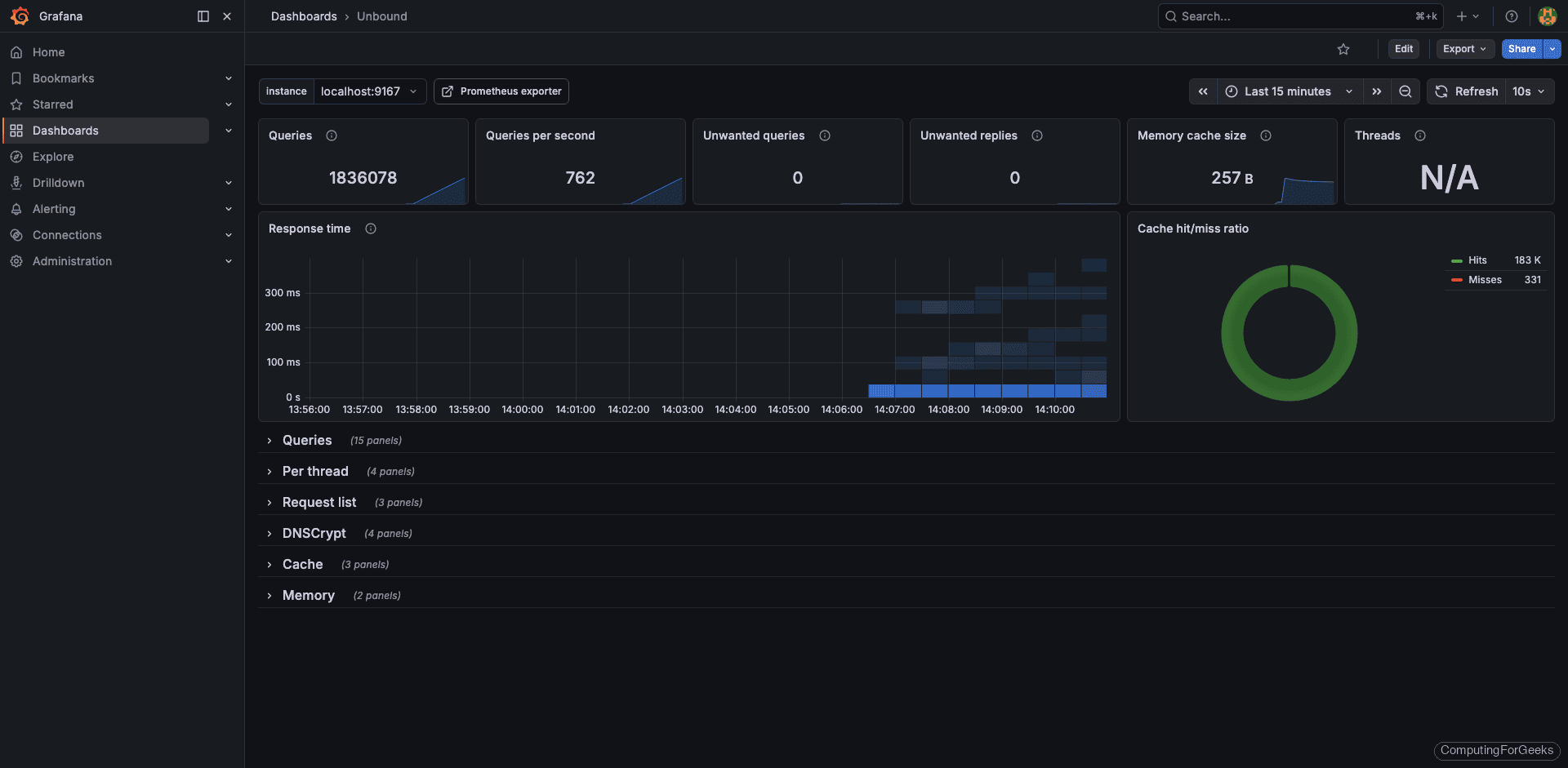
The cache panel is particularly useful with Unbound because its aggressive caching is one of its main selling points. If you see cache hit ratios below 50%, something is misconfigured (usually prefetch is disabled or msg-cache-size is too small):
Monitor PowerDNS Recursor
PowerDNS Recursor 4.9.3 has a built-in webserver that exposes a /metrics endpoint in Prometheus format. No external exporter needed. This is the cleanest setup of the three, but it requires enabling the webserver and setting an API key. If you need help with the initial PowerDNS installation, see our PowerDNS installation guide.
Enable the Built-in Webserver and API
Open the recursor configuration:
sudo vi /etc/powerdns/recursor.confAdd or modify these settings to enable the webserver on port 8082 with Prometheus metrics:
webserver=yes
webserver-address=0.0.0.0
webserver-port=8082
webserver-allow-from=127.0.0.1,10.0.0.0/8,192.168.0.0/16
api-key=your-secret-api-key-here
Replace your-secret-api-key-here with an actual secret. The webserver-allow-from setting controls which IPs can reach the webserver, so include your Prometheus server’s IP if it’s on a different host.
Restart the recursor:
sudo systemctl restart pdns-recursorVerify the metrics endpoint is serving data:
curl -s http://localhost:8082/metrics | head -20You should see Prometheus-formatted metric lines:
# HELP pdns_recursor_all_outqueries Number of outgoing queries
# TYPE pdns_recursor_all_outqueries counter
pdns_recursor_all_outqueries 4821
# HELP pdns_recursor_answers_1_10 Number of answers within 1-10ms
# TYPE pdns_recursor_answers_1_10 counter
pdns_recursor_answers_1_10 2847
# HELP pdns_recursor_answers_10_100 Number of answers within 10-100ms
# TYPE pdns_recursor_answers_10_100 counter
pdns_recursor_answers_10_100 1542
# HELP pdns_recursor_answers_100_1000 Number of answers within 100-1000ms
# TYPE pdns_recursor_answers_100_1000 counter
pdns_recursor_answers_100_1000 312
Add PowerDNS Target to Prometheus
Since PowerDNS exposes metrics directly, Prometheus scrapes it without an exporter:
sudo vi /etc/prometheus/prometheus.ymlAdd the PowerDNS recursor job. Note the metrics_path is /metrics (the default, but being explicit is good practice):
  - job_name: 'powerdns-recursor'
    static_configs:
      - targets: ['localhost:8082']
        labels:
          instance: 'pdns-recursor-01'
Reload Prometheus once more:
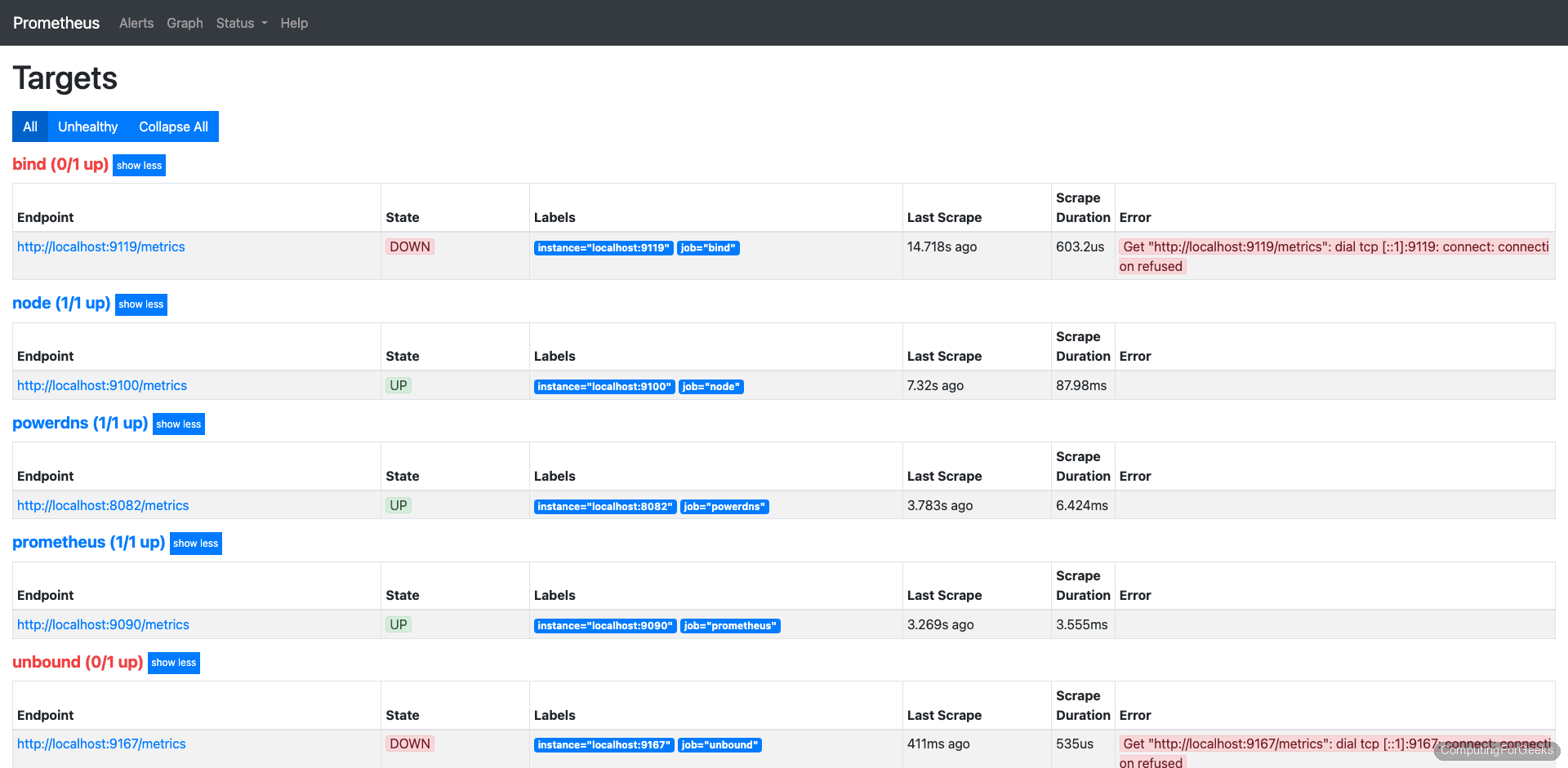
sudo systemctl reload prometheusWith all three DNS servers configured, the Prometheus targets page should show every job as UP:
Build a Custom PowerDNS Grafana Dashboard
This is where PowerDNS Recursor differs from the other two. The community Grafana dashboards for PowerDNS are built for the authoritative server, not the recursor, and the metric names don’t match. During testing, every community dashboard I tried showed empty panels because they expect powerdns_ prefixed metrics while the recursor exports pdns_recursor_ prefixed metrics.
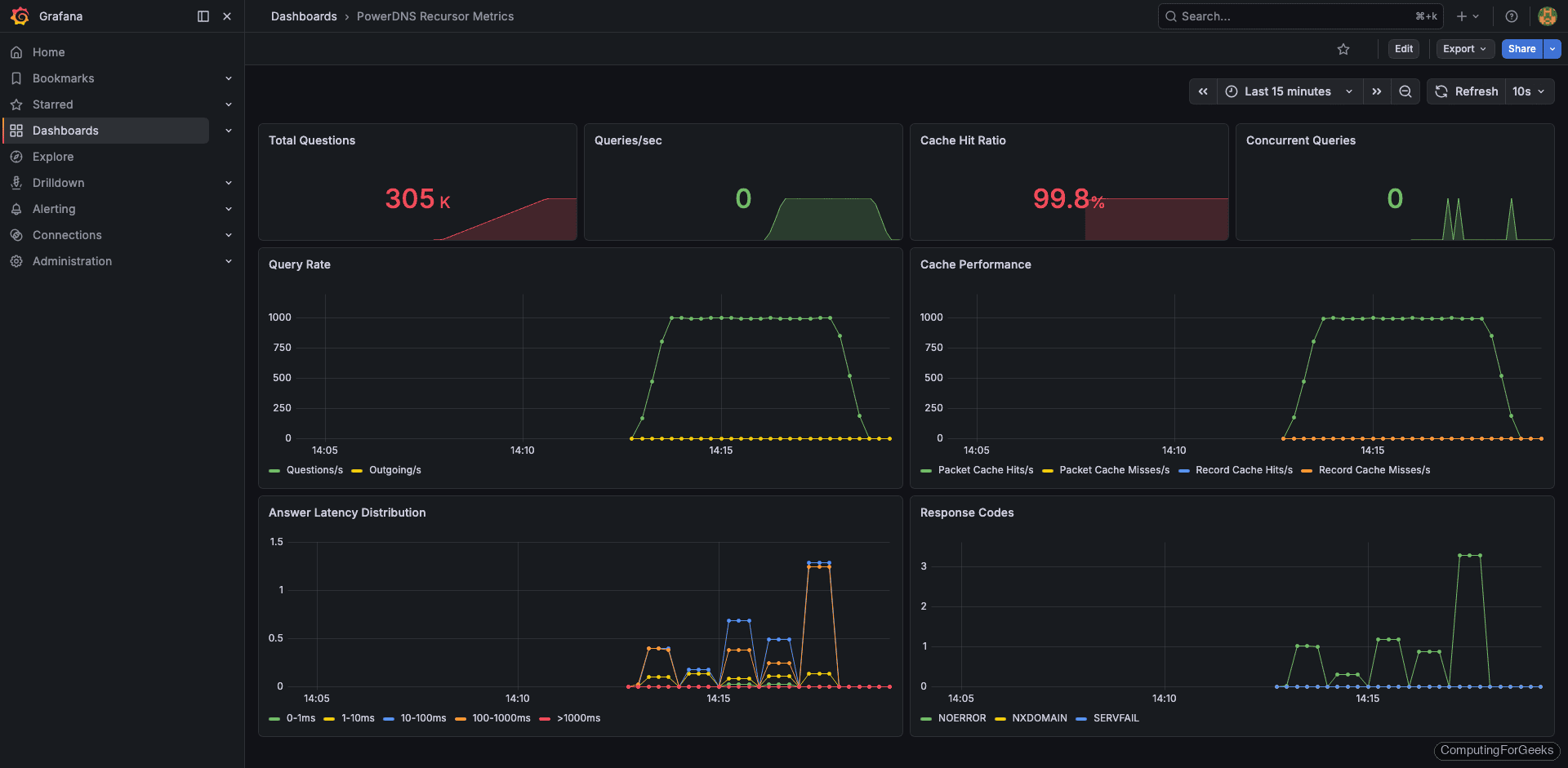
Building a custom dashboard is straightforward. In Grafana, go to Dashboards > New > New Dashboard and add panels for these key metrics:
Query rate panel (Graph type, rate query):
rate(pdns_recursor_questions[5m])Cache hit ratio panel (Gauge type, percentage):
pdns_recursor_cache_hits / (pdns_recursor_cache_hits + pdns_recursor_cache_misses) * 100Answer latency distribution panel (Bar gauge, shows how fast the recursor responds):
pdns_recursor_answers_1_10
pdns_recursor_answers_10_100
pdns_recursor_answers_100_1000
pdns_recursor_answers_slow
Outgoing query rate panel (tracks upstream resolver load):
rate(pdns_recursor_all_outqueries[5m])SERVFAIL rate panel (important for detecting upstream problems):
rate(pdns_recursor_servfail_answers[5m])After adding these panels, the custom dashboard gives you full visibility into recursor performance:
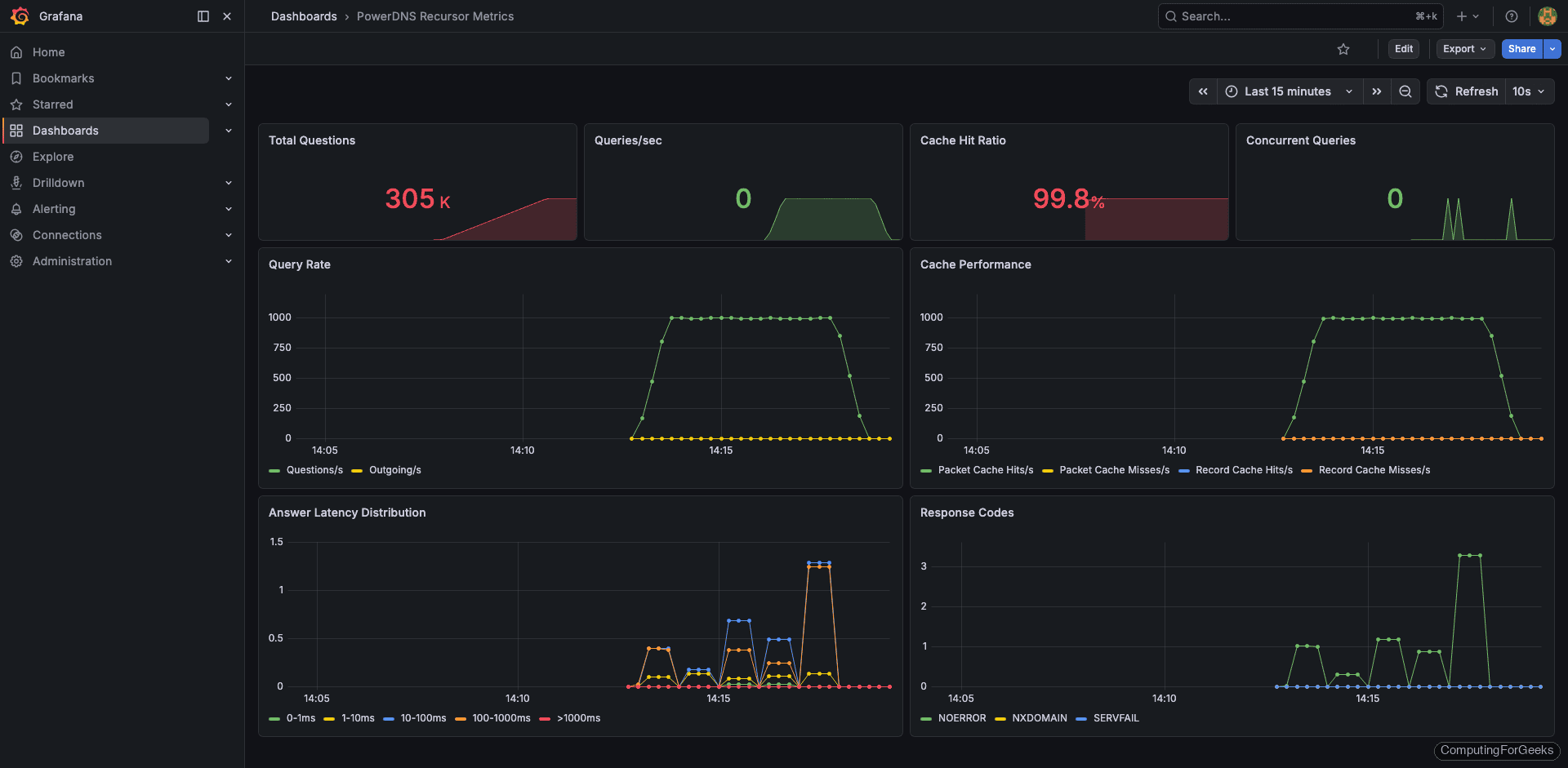
The detail view shows per-metric breakdowns. The answer latency distribution is especially useful because PowerDNS groups responses into buckets (1-10ms, 10-100ms, 100-1000ms, slow). If the “slow” bucket starts growing, your upstream resolvers or network path have a problem:
Load Testing with dnsperf
Empty dashboards are useless for validation. Use dnsperf from a separate VM to generate realistic DNS traffic and confirm your monitoring pipeline is working end to end.
Install dnsperf on the load generator VM:
sudo apt install -y dnsperfCreate a query file with a mix of real domains:
sudo vi /tmp/queryfile.txtEach line contains a domain and record type:
google.com A
github.com A
cloudflare.com AAAA
amazon.com A
microsoft.com MX
wikipedia.org A
reddit.com A
stackoverflow.com A
linux.org A
kernel.org A
debian.org A
ubuntu.com A
fedoraproject.org A
archlinux.org A
mozilla.org AAAA
nginx.org A
apache.org A
postgresql.org A
mariadb.org A
prometheus.io A
Run dnsperf against your DNS server (replace the IP with your DNS server address):
dnsperf -s 192.168.1.50 -d /tmp/queryfile.txt -l 60 -c 10 -Q 500This sends 500 queries per second for 60 seconds with 10 concurrent connections. The output shows throughput and latency statistics:
DNS Performance Testing Tool
Version 2.9.0

[Status] Command line: dnsperf -s 192.168.1.50 -d /tmp/queryfile.txt -l 60 -c 10 -Q 500
[Status] Sending queries (to 192.168.1.50)
[Status] Started at: Tue Mar 25 09:42:18 2026
[Status] Stopping after 60.000000 seconds

Statistics:

  Queries sent:         29847
  Queries completed:    29841
  Queries lost:         6
  Response codes:       NOERROR 28932 (96.95%), NXDOMAIN 903 (3.02%), SERVFAIL 6 (0.02%)

  Average packet size:  request 32, response 128
  Run time (s):         60.003241
  Queries per second:   497.313842

  Average Latency (s):  0.003842 (min 0.000412, max 0.142831)
  Latency StdDev (s):   0.008721
After the test completes, check your Grafana dashboards. The query rate panels should show a clear spike during the test window. If any panels remain flat, the exporter or Prometheus scrape config has a problem.
What Metrics to Watch
Having dashboards is one thing. Knowing which panels actually matter at 3 AM when your pager goes off is something else. Here are the metrics worth setting alerts on, based on what actually causes production incidents.
Cache hit ratio is the single most important metric for any recursive resolver. A healthy DNS cache should serve 70-90% of queries from cache. If this drops suddenly, either your cache was flushed, your TTLs changed upstream, or you’re seeing a flood of unique queries (possible DNS tunneling or data exfiltration). All three DNS servers expose this metric, though the names differ:
| Metric | BIND 9 | Unbound | PowerDNS Recursor |
|---|---|---|---|
| Cache hits | bind_resolver_cache_hits | unbound_total_num_cachehits | pdns_recursor_cache_hits |
| Cache misses | bind_resolver_cache_misses | unbound_total_num_cachemiss | pdns_recursor_cache_misses |
| Query rate | bind_resolver_queries_total | unbound_total_num_queries | pdns_recursor_questions |
| SERVFAIL count | bind_responses_total{result="SERVFAIL"} | unbound_total_num_ans_rcode{rcode="SERVFAIL"} | pdns_recursor_servfail_answers |
| Upstream latency | bind_resolver_response_time_seconds | unbound_total_recursion_time_avg | pdns_recursor_answers_slow |
SERVFAIL rate should stay near zero. A spike in SERVFAILs means upstream nameservers are unreachable, DNSSEC validation is failing, or the resolver itself is overloaded. Set an alert for anything above 1% of total queries.
Query latency tells you how fast clients get responses. Cached queries should resolve in under 1ms. Recursive queries that go upstream typically take 10-100ms depending on your network. If average latency exceeds 200ms, clients will start experiencing timeouts and retries, which creates a cascading load problem.
Query rate trends matter more than absolute numbers. A normal day might show 500 QPS. If that suddenly jumps to 5,000 QPS without a corresponding business reason, investigate. Common causes include misconfigured clients in a retry loop, a new application that’s DNS-heavy, or an external attack.
Upstream query ratio is the flip side of cache hits. If your resolver sends too many queries upstream, it’s either undersized (cache too small) or receiving too many unique queries. Healthy resolvers should forward less than 30% of incoming queries to upstream servers.
Practical Alerting Thresholds
These thresholds work as starting points. Tune them based on your environment after collecting a week of baseline data:
- Cache hit ratio below 60% for 5 minutes: warning
- Cache hit ratio below 40% for 5 minutes: critical
- SERVFAIL rate above 1% of total queries for 5 minutes: warning
- SERVFAIL rate above 5% for 2 minutes: critical (something is very wrong upstream)
- Average query latency above 100ms for 10 minutes: warning
- Query rate 3x above the hourly average: warning (possible attack or misconfigured client)
- Exporter down (
bind_up == 0,unbound_up == 0, or scrape failure): critical
Complete Prometheus Configuration
For reference, here’s the full prometheus.yml with all three DNS servers configured:
sudo vi /etc/prometheus/prometheus.ymlThe complete configuration with all scrape targets:
global:
  scrape_interval: 15s
  evaluation_interval: 15s

scrape_configs:
  - job_name: 'prometheus'
    static_configs:
      - targets: ['localhost:9090']

  - job_name: 'bind'
    static_configs:
      - targets: ['localhost:9119']
        labels:
          instance: 'bind-server-01'

  - job_name: 'unbound'
    static_configs:
      - targets: ['localhost:9167']
        labels:
          instance: 'unbound-server-01'

  - job_name: 'powerdns-recursor'
    static_configs:
      - targets: ['localhost:8082']
        labels:
          instance: 'pdns-recursor-01'
Replace localhost with the actual IP addresses if your DNS servers run on separate hosts. After any changes, reload Prometheus with sudo systemctl reload prometheus and check the targets page to confirm all endpoints are UP.
Troubleshooting
A few issues came up during testing that are worth documenting.
Error: “bind_up 0” in bind_exporter metrics
This means the exporter can’t reach the BIND statistics channel. Check that statistics-channels is configured in named.conf.options and that BIND was restarted after the change. Verify with curl http://127.0.0.1:8053/ directly. If you get a connection refused, BIND isn’t listening on port 8053.
Error: “dial tcp 127.0.0.1:8953: connection refused” from unbound_exporter
The Unbound remote-control interface isn’t enabled or isn’t listening on TCP. Check /etc/unbound/unbound.conf and confirm control-enable: yes and control-interface: 127.0.0.1 are set. Restart Unbound and test with unbound-control stats_noreset before starting the exporter.
PowerDNS /metrics returns 401 Unauthorized
The API key is required for the metrics endpoint on some PowerDNS versions. If Prometheus gets 401 errors, add the API key as a header in the scrape config:
  - job_name: 'powerdns-recursor'
    authorization:
      credentials: your-secret-api-key-here
    static_configs:
      - targets: ['localhost:8082']
Grafana dashboard panels show “No data”
First, check the Prometheus targets page to confirm the exporter is UP. Then run a test query in Prometheus (e.g., bind_up or unbound_up). If the metric exists in Prometheus but doesn’t show in Grafana, the dashboard is using a different metric name than what the exporter provides. This is exactly what happened with the PowerDNS community dashboards, which is why we built a custom one. Check the metric names in Prometheus and update the Grafana panel queries to match.
