

Gatus is an open-source health check and monitoring tool written in Go. It evaluates endpoints using HTTP, TCP, DNS, ICMP, and SSH queries, then applies conditions on response status, body content, response time, and certificate expiration to determine health. When conditions fail, Gatus sends alerts through Slack, PagerDuty, email, Discord, Telegram, and other providers.
This guide covers installing and configuring Gatus on Ubuntu 24.04 and Rocky Linux 10. We walk through binary installation, Docker and Docker Compose deployment, Kubernetes deployment with Helm, YAML configuration for multiple endpoint types, alerting setup, the built-in dashboard UI, custom badges, maintenance windows, and external endpoints.
Prerequisites
- A server running Ubuntu 24.04 LTS or Rocky Linux 10 with at least 1 CPU and 512MB RAM
- Root or sudo access
- Port 8080/TCP open for the Gatus dashboard (or 80/443 if using a reverse proxy)
- Docker and Docker Compose installed (for container deployments)
- A running Kubernetes cluster with Helm 3 (for Kubernetes deployments)
Step 1: Install Gatus on Ubuntu 24.04 / Rocky Linux 10
Gatus can be installed as a standalone binary, as a Docker container, or deployed to Kubernetes. Choose the method that fits your environment.
Option A: Install Gatus from Binary
Download the latest Gatus release from GitHub and place it in your system path. First, install the required tools.
On Ubuntu 24.04:
sudo apt update && sudo apt install -y curl tarOn Rocky Linux 10:
sudo dnf install -y curl tarDownload and extract the Gatus binary. Check the Gatus releases page for the latest version.
GATUS_VERSION="5.17.0"
curl -Lo gatus.tar.gz "https://github.com/TwiN/gatus/releases/download/v${GATUS_VERSION}/gatus_${GATUS_VERSION}_linux_amd64.tar.gz"
tar -xzf gatus.tar.gz
sudo mv gatus /usr/local/bin/
sudo chmod +x /usr/local/bin/gatus
Verify the installation:
$ gatus version
gatus v5.17.0
Create a dedicated system user and directories for Gatus:
sudo useradd --system --no-create-home --shell /usr/sbin/nologin gatus
sudo mkdir -p /etc/gatus /var/lib/gatus
sudo chown gatus:gatus /var/lib/gatus
Create a systemd service file so Gatus starts automatically at boot.
sudo tee /etc/systemd/system/gatus.service > /dev/null <<'EOF'
[Unit]
Description=Gatus Health Check Monitor
After=network-online.target
Wants=network-online.target

[Service]
Type=simple
User=gatus
Group=gatus
ExecStart=/usr/local/bin/gatus
Environment=GATUS_CONFIG_PATH=/etc/gatus/config.yaml
WorkingDirectory=/var/lib/gatus
Restart=on-failure
RestartSec=5

[Install]
WantedBy=multi-user.target
EOF
We will start the service after creating the configuration file in Step 2.
Option B: Install Gatus with Docker
Running Gatus in a Docker container is the fastest way to get started. Make sure Docker is installed on your system – if you need help, see our guide on installing Docker CE on Linux.
Pull and run the Gatus container:
mkdir -p ~/gatus && cd ~/gatusCreate a minimal configuration file first (we expand this in Step 2), then launch the container:
docker run -d --name gatus \
  -p 8080:8080 \
  --restart unless-stopped \
  -v "$(pwd)/config.yaml:/config/config.yaml" \
  twinproduction/gatus:latest
Verify the container is running:
$ docker ps --filter name=gatus
CONTAINER ID   IMAGE                         COMMAND    STATUS          PORTS
3a45d3972fbf   twinproduction/gatus:latest   "/gatus"   Up 10 seconds   0.0.0.0:8080->8080/tcp
Option C: Deploy Gatus with Docker Compose
Docker Compose is the recommended approach for production Docker deployments since it handles restarts, volume mounts, and multi-container setups cleanly.
Create a project directory and the compose file:
mkdir -p ~/gatus/data && cd ~/gatusCreate the docker-compose.yaml file with the following content:
services:
  gatus:
    container_name: gatus
    image: twinproduction/gatus:latest
    restart: always
    ports:
      - "8080:8080"
    volumes:
      - ./config.yaml:/config/config.yaml:ro
      - ./data:/data
    environment:
      - GATUS_CONFIG_PATH=/config/config.yaml
On Rocky Linux 10 with SELinux enabled, set the correct context on the data directory:
sudo chcon -Rt svirt_sandbox_file_t ~/gatus/dataStart the stack (after creating config.yaml in Step 2):
docker compose up -dVerify the container status:
$ docker compose ps
NAME    IMAGE                         STATUS          PORTS
gatus   twinproduction/gatus:latest   Up 16 seconds   0.0.0.0:8080->8080/tcp
Option D: Deploy Gatus on Kubernetes with Helm
For Kubernetes environments, Gatus has an official Helm chart that simplifies deployment. Add the Helm repository and install:
helm repo add minicloudlabs https://minicloudlabs.github.io/helm-charts
helm repo update
Create a values file to customize the deployment:
# gatus-values.yaml
config:
  storage:
    type: sqlite
    path: /data/data.db
  endpoints:
    - name: Kubernetes API
      url: "https://kubernetes.default.svc/healthz"
      interval: 30s
      client:
        insecure: true
      conditions:
        - "[STATUS] == 200"

persistence:
  enabled: true
  size: 1Gi

service:
  type: ClusterIP
  port: 8080

ingress:
  enabled: true
  hosts:
    - host: gatus.example.com
      paths:
        - path: /
          pathType: Prefix
Install Gatus into its own namespace:
kubectl create namespace monitoring
helm install gatus minicloudlabs/gatus \
  --namespace monitoring \
  -f gatus-values.yaml
Verify the pod is running:
$ kubectl get pods -n monitoring -l app.kubernetes.io/name=gatus
NAME                     READY   STATUS    RESTARTS   AGE
gatus-6b8f9d7c4f-x2k9p  1/1     Running   0          45s
If you want to access the dashboard without an Ingress controller, use port forwarding:
kubectl port-forward svc/gatus 8080:8080 -n monitoringStep 2: Configure Gatus Health Checks with YAML
All Gatus configuration lives in a single YAML file. This file defines which endpoints to monitor, what conditions determine health, where to store data, and how to send alerts. For binary installs, place this at /etc/gatus/config.yaml. For Docker, place it in your project directory.
Here is a full configuration example covering multiple endpoint types:
# /etc/gatus/config.yaml
storage:
  type: sqlite
  path: /var/lib/gatus/data.db   # Use /data/data.db for Docker

endpoints:
  # HTTP health check
  - name: Website
    group: core
    url: "https://example.com"
    interval: 60s
    conditions:
      - "[STATUS] == 200"
      - "[RESPONSE_TIME] < 500"
      - "[CERTIFICATE_EXPIRATION] > 720h"    # Alert if cert expires within 30 days

  # REST API endpoint with body validation
  - name: API Health
    group: core
    url: "https://api.example.com/health"
    interval: 30s
    conditions:
      - "[STATUS] == 200"
      - "[BODY].status == UP"
      - "[RESPONSE_TIME] < 300"

  # TCP port check
  - name: PostgreSQL
    url: "tcp://10.0.1.50:5432"
    interval: 30s
    conditions:
      - "[CONNECTED] == true"

  # DNS resolution check
  - name: DNS Resolution
    url: "dns://8.8.8.8"
    interval: 120s
    dns:
      query-name: "example.com"
      query-type: "A"
    conditions:
      - "[DNS_RCODE] == NOERROR"
      - "[BODY] == 93.184.216.34"

  # ICMP ping check
  - name: Gateway Ping
    url: "icmp://10.0.1.1"
    interval: 30s
    conditions:
      - "[CONNECTED] == true"

  # SSH connectivity check
  - name: SSH Server
    url: "ssh://10.0.1.10:22"
    interval: 60s
    conditions:
      - "[CONNECTED] == true"
Each endpoint has a name, a url with the protocol prefix, an interval between checks, and a list of conditions that must all pass for the endpoint to be considered healthy.
Step 3: Configure Endpoint Types (HTTP, TCP, DNS, ICMP, SSH)
Gatus supports five endpoint protocols. The URL scheme determines the type of check performed.
HTTP/HTTPS Endpoints
HTTP endpoints are the most common. You can set custom headers, request methods, body content, and client options like TLS verification and DNS resolver overrides.
endpoints:
  - name: API with Auth
    url: "https://api.example.com/v1/status"
    method: GET
    headers:
      Authorization: "Bearer your-api-token"
    interval: 60s
    client:
      timeout: 10s
      insecure: false         # Set true to skip TLS verification
      ignore-redirect: false
    conditions:
      - "[STATUS] == 200"
      - "[BODY].healthy == true"
      - "[RESPONSE_TIME] < 1000"
For POST requests with a body:
endpoints:
  - name: GraphQL Health
    url: "https://api.example.com/graphql"
    method: POST
    headers:
      Content-Type: "application/json"
    body: '{"query": "{ health { status } }"}'
    interval: 60s
    conditions:
      - "[STATUS] == 200"
      - "[BODY].data.health.status == ok"
TCP Endpoints
TCP checks verify that a port is open and accepting connections. This is useful for databases, message queues, and other non-HTTP services.
endpoints:
  - name: Redis
    url: "tcp://10.0.1.51:6379"
    interval: 30s
    conditions:
      - "[CONNECTED] == true"

  - name: MySQL
    url: "tcp://10.0.1.52:3306"
    interval: 30s
    conditions:
      - "[CONNECTED] == true"
DNS Endpoints
DNS checks query a DNS server and validate the response. You can check for specific record types (A, AAAA, MX, CNAME, NS) and expected values.
endpoints:
  - name: MX Record Check
    url: "dns://8.8.8.8"
    interval: 300s
    dns:
      query-name: "example.com"
      query-type: "MX"
    conditions:
      - "[DNS_RCODE] == NOERROR"
      - "[BODY] == any(10 mail.example.com.)"
ICMP Endpoints
ICMP checks send ping requests to verify network reachability. Note that ICMP requires elevated privileges - run Gatus as root or grant the CAP_NET_RAW capability.
sudo setcap cap_net_raw=ep /usr/local/bin/gatusThe endpoint definition:
endpoints:
  - name: Firewall Ping
    url: "icmp://10.0.1.1"
    interval: 15s
    conditions:
      - "[CONNECTED] == true"
      - "[RESPONSE_TIME] < 50"
SSH Endpoints
SSH checks verify that an SSH server is reachable and responding on the specified port.
endpoints:
  - name: Jump Host SSH
    url: "ssh://10.0.1.100:22"
    interval: 60s
    conditions:
      - "[CONNECTED] == true"
Step 4: Set Up Gatus Health Check Conditions
Conditions are the core of Gatus monitoring. Each condition is a string expression evaluated against the endpoint response. All conditions must pass for an endpoint to be marked healthy.
Status Code Conditions
Check the HTTP response status code:
conditions:
  - "[STATUS] == 200"              # Exact match
  - "[STATUS] == any(200, 201)"    # Any of these codes
  - "[STATUS] < 400"               # Any non-error status
Response Time Conditions
Set thresholds on how fast the endpoint responds (in milliseconds):
conditions:
  - "[RESPONSE_TIME] < 500"        # Must respond within 500ms
  - "[RESPONSE_TIME] < 2000"       # Generous timeout for slow endpoints
Body Conditions
Validate the response body content. Gatus supports JSON path expressions, pattern matching, and length checks:
conditions:
- "[BODY] == pat(*healthy*)" # Body contains "healthy"
- "[BODY].status == UP" # JSON path $.status equals "UP"
- "[BODY].services[0].name == api" # Nested JSON path
- "len([BODY]) > 0" # Body is not empty
- "[BODY] == pat(*Welcome
*)" # HTML body patternCertificate Expiration Conditions
For HTTPS endpoints, check how long until the TLS certificate expires. This is critical for avoiding surprise certificate outages:
conditions:
  - "[CERTIFICATE_EXPIRATION] > 720h"     # More than 30 days remaining
  - "[CERTIFICATE_EXPIRATION] > 168h"     # More than 7 days remaining
Combine multiple conditions on a single endpoint to create thorough health checks. If you monitor TLS certificates this way, you can catch renewals before they become outages.
Step 5: Configure Alerting (Slack, PagerDuty, Email, Discord, Telegram)
Gatus supports multiple alerting providers. Alerts trigger after consecutive failures reach the failure-threshold and resolve after consecutive successes reach the success-threshold. If you already run Prometheus with Alertmanager, Gatus can complement it for lightweight endpoint checks.
Email Alerts
Configure SMTP settings in the alerting section. This example uses Gmail with an app password:
alerting:
  email:
    from: "[email protected]"
    username: "[email protected]"
    password: "your-app-password"
    host: "smtp.gmail.com"
    port: 587
    to: "[email protected],[email protected]"
    overrides:
      - group: "core"
        to: "[email protected]"
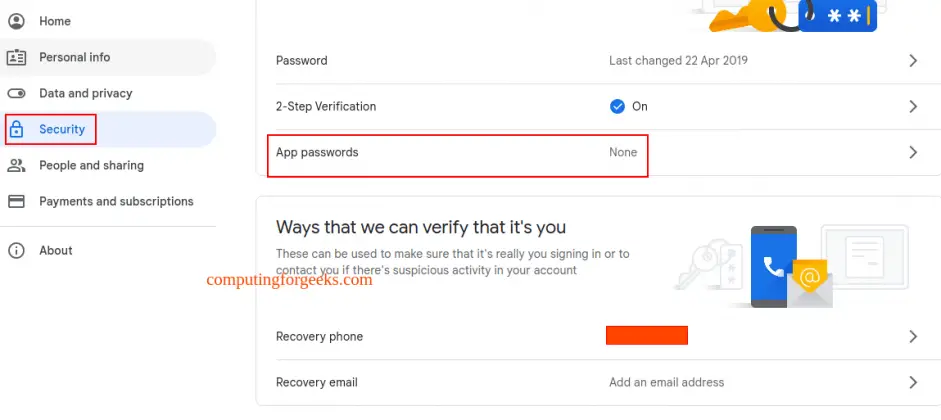
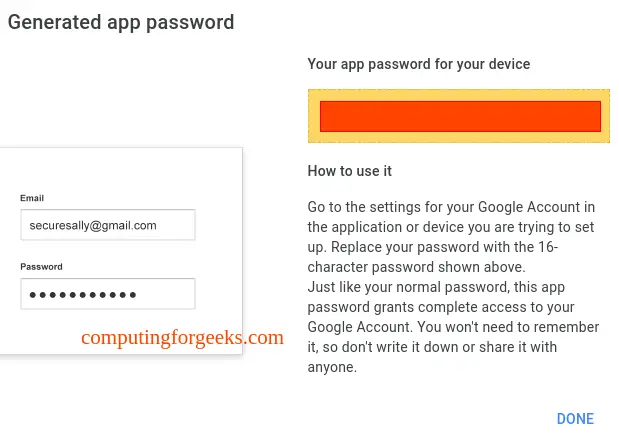
For Gmail, generate an app password from your Google Account under Security - App passwords. Select Mail as the app and generate the 16-character password.
Slack Alerts
Create a Slack webhook URL from your Slack workspace settings, then add it to the config:
alerting:
  slack:
    webhook-url: "https://hooks.slack.com/services/T00000/B00000/XXXXXX"
    default-alert:
      enabled: true
      failure-threshold: 3
      success-threshold: 2
      description: "Health check failed"
PagerDuty Alerts
Use a PagerDuty Events API v2 integration key:
alerting:
  pagerduty:
    integration-key: "your-pagerduty-integration-key"
    default-alert:
      enabled: true
      failure-threshold: 5
      success-threshold: 3
Discord Alerts
Create a webhook in your Discord channel settings (Edit Channel - Integrations - Webhooks):
alerting:
  discord:
    webhook-url: "https://discord.com/api/webhooks/CHANNEL_ID/TOKEN"
    default-alert:
      enabled: true
      failure-threshold: 3
      success-threshold: 2
Telegram Alerts
Create a bot via @BotFather on Telegram, get the token, and find your chat ID:
alerting:
  telegram:
    token: "123456789:ABCDEFGHIJKLMNOP"
    id: "-1001234567890"
    default-alert:
      enabled: true
      failure-threshold: 3
      success-threshold: 2
Assigning Alerts to Endpoints
After defining alerting providers, attach them to endpoints using the alerts key:
endpoints:
  - name: Production API
    group: core
    url: "https://api.example.com/health"
    interval: 30s
    conditions:
      - "[STATUS] == 200"
      - "[RESPONSE_TIME] < 500"
    alerts:
      - type: slack
        failure-threshold: 3
        success-threshold: 2
      - type: pagerduty
        failure-threshold: 5
        success-threshold: 3
      - type: email
        failure-threshold: 3
        success-threshold: 2
The failure-threshold controls how many consecutive failures must occur before the alert fires. The success-threshold controls how many consecutive successes are needed to resolve the alert. This prevents flapping notifications from intermittent issues.
Step 6: Access the Gatus Dashboard UI
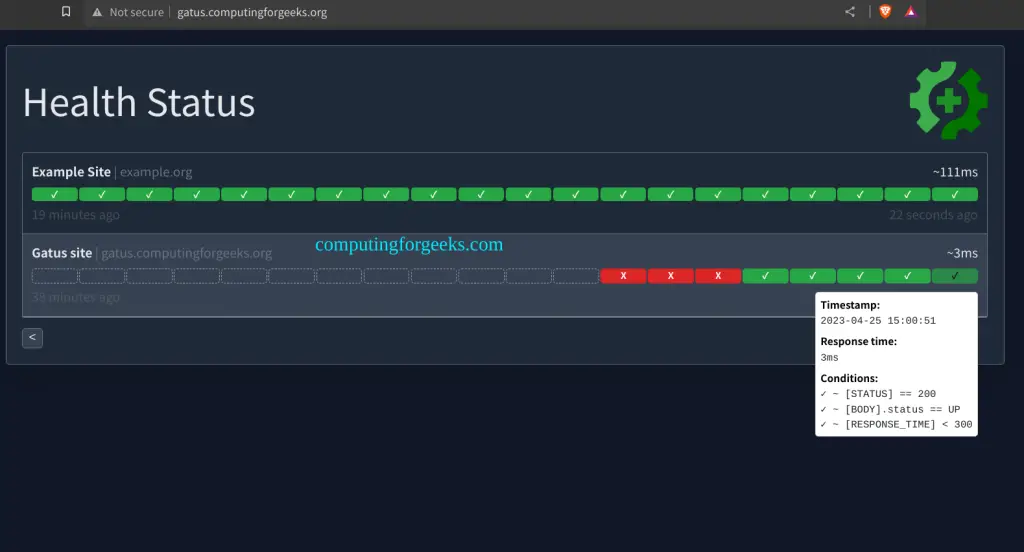
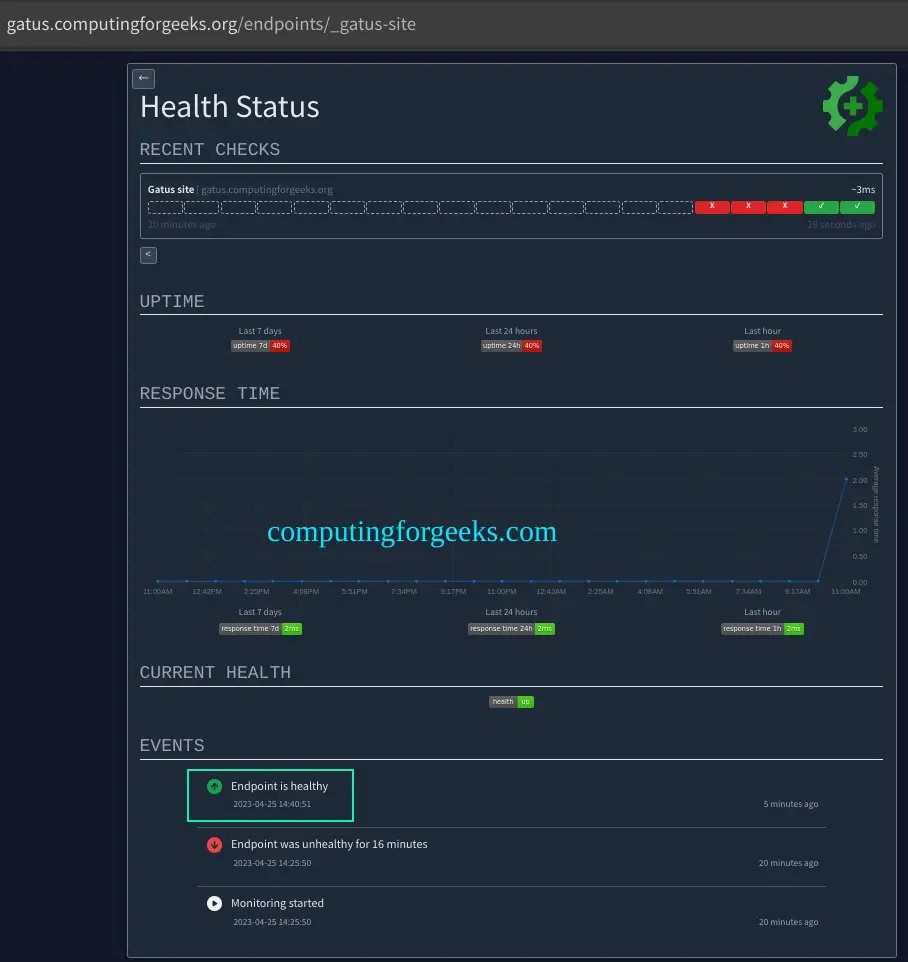
Gatus includes a built-in web dashboard that shows all monitored endpoints, their current status, response time history, and uptime percentages. No additional tools like Grafana are needed for basic visualization.
For binary installs, start the service:
sudo systemctl daemon-reload
sudo systemctl enable --now gatus
Check the service status:
$ sudo systemctl status gatus
  gatus.service - Gatus Health Check Monitor
     Loaded: loaded (/etc/systemd/system/gatus.service; enabled)
     Active: active (running)
Open your browser and navigate to http://192.168.1.50:8080 (replace with your server IP). The dashboard displays all endpoints grouped by the group field in your config:
Click on any endpoint to see detailed history including response times, uptime percentage, and recent check results:
Open the firewall port if you need external access. On Ubuntu 24.04:
sudo ufw allow 8080/tcpOn Rocky Linux 10:
sudo firewall-cmd --permanent --add-port=8080/tcp
sudo firewall-cmd --reload
Step 7: Set Up Nginx Reverse Proxy for Gatus
Running Gatus behind a reverse proxy gives you a clean domain name, TLS termination, and access control. Install Nginx on your host.
On Ubuntu 24.04:
sudo apt update && sudo apt install -y nginxOn Rocky Linux 10:
sudo dnf install -y nginxCreate the virtual host configuration:
sudo tee /etc/nginx/conf.d/gatus.conf > /dev/null <<'EOF'
server {
    listen 80;
    server_name gatus.example.com;
    server_tokens off;

    location / {
        proxy_pass http://127.0.0.1:8080;
        proxy_set_header Host $host;
        proxy_set_header X-Real-IP $remote_addr;
        proxy_set_header X-Forwarded-For $proxy_add_x_forwarded_for;
        proxy_set_header X-Forwarded-Proto $scheme;
    }
}
EOF
Test the config and start Nginx:
sudo nginx -t
sudo systemctl enable --now nginx
For production, add TLS with Let's Encrypt using Certbot:
# Ubuntu 24.04
sudo apt install -y certbot python3-certbot-nginx
sudo certbot --nginx -d gatus.example.com

# Rocky Linux 10
sudo dnf install -y certbot python3-certbot-nginx
sudo certbot --nginx -d gatus.example.com
Step 8: Configure Custom Badges
Gatus generates SVG status badges you can embed in README files, wikis, or internal dashboards. Badges are available at the /api/v1/endpoints/{key}/badges path.
The badge endpoint uses the endpoint key format {group}_{name} with special characters replaced by underscores. For an endpoint named "Production API" in group "core", the badge URLs are:
# Uptime badge (last 7 days)
https://gatus.example.com/api/v1/endpoints/core_production-api/uptimes/7d/badge.svg

# Response time badge (last 24 hours)
https://gatus.example.com/api/v1/endpoints/core_production-api/response-times/24h/badge.svg

# Current health status badge
https://gatus.example.com/api/v1/endpoints/core_production-api/health/badge.svg
Embed these in Markdown:

Step 9: Define Maintenance Windows
Maintenance windows suppress alerts during scheduled downtime. This prevents false alerts when you are performing planned upgrades or deployments.
Add a maintenance block to your configuration:
maintenance:
  start: "23:00"
  duration: 1h
  every: [Monday, Thursday]    # Days of the week

endpoints:
  - name: Production API
    url: "https://api.example.com/health"
    interval: 30s
    conditions:
      - "[STATUS] == 200"
    alerts:
      - type: slack
        failure-threshold: 3
        success-threshold: 2
During the maintenance window (every Monday and Thursday from 23:00 to 00:00 UTC), failing health checks will not trigger alerts. The dashboard still shows the actual status - only alerting is suppressed.
You can also set maintenance per endpoint group by defining different config sections or by using multiple Gatus instances for different environments.
Step 10: Configure External Endpoints
External endpoints let third-party systems push health status into Gatus instead of Gatus pulling it. This is useful for services behind firewalls, batch jobs, or CI/CD pipelines that can report their own health.
Define an external endpoint in the config:
external-endpoints:
  - name: Backup Job
    group: infrastructure
    token: "your-secret-token-here"
    alerts:
      - type: slack
        failure-threshold: 1
        success-threshold: 1
External systems push results to Gatus using a simple API call:
# Report success
curl -X POST "https://gatus.example.com/api/v1/endpoints/infrastructure_backup-job/external?success=true" \
  -H "Authorization: Bearer your-secret-token-here"

# Report failure
curl -X POST "https://gatus.example.com/api/v1/endpoints/infrastructure_backup-job/external?success=false" \
  -H "Authorization: Bearer your-secret-token-here"
Add this API call to the end of your backup scripts, cron jobs, or CI/CD pipelines. If Gatus does not receive a push within the expected interval, the endpoint shows as unknown on the dashboard.
Step 11: Production Docker Compose Deployment
For a production-ready setup, use Docker Compose with persistent storage, a PostgreSQL backend, and environment variable substitution for secrets. This keeps credentials out of your config files.
# docker-compose.yaml
services:
  gatus:
    container_name: gatus
    image: twinproduction/gatus:latest
    restart: always
    ports:
      - "8080:8080"
    volumes:
      - ./config.yaml:/config/config.yaml:ro
    environment:
      - GATUS_CONFIG_PATH=/config/config.yaml
      - SLACK_WEBHOOK_URL=${SLACK_WEBHOOK_URL}
      - PAGERDUTY_KEY=${PAGERDUTY_KEY}
      - SMTP_PASSWORD=${SMTP_PASSWORD}
    depends_on:
      postgres:
        condition: service_healthy

  postgres:
    container_name: gatus-db
    image: postgres:16-alpine
    restart: always
    environment:
      POSTGRES_DB: gatus
      POSTGRES_USER: gatus
      POSTGRES_PASSWORD: ${POSTGRES_PASSWORD}
    volumes:
      - gatus_pgdata:/var/lib/postgresql/data
    healthcheck:
      test: ["CMD-NONE", "pg_isready", "-U", "gatus"]
      interval: 10s
      timeout: 5s
      retries: 5

volumes:
  gatus_pgdata:
Create the .env file with your secrets:
SLACK_WEBHOOK_URL=https://hooks.slack.com/services/T00000/B00000/XXXXXX
PAGERDUTY_KEY=your-pagerduty-key
SMTP_PASSWORD=your-smtp-password
POSTGRES_PASSWORD=strong-random-password
Update your config.yaml to use PostgreSQL storage and environment variables:
storage:
  type: postgres
  path: "postgres://gatus:${POSTGRES_PASSWORD}@postgres:5432/gatus?sslmode=disable"
  caching: true

alerting:
  slack:
    webhook-url: "${SLACK_WEBHOOK_URL}"
  email:
    from: "[email protected]"
    username: "[email protected]"
    password: "${SMTP_PASSWORD}"
    host: "smtp.gmail.com"
    port: 587
    to: "[email protected]"
Start the production stack:
docker compose up -dVerify both containers are healthy:
$ docker compose ps
NAME        IMAGE                         STATUS                    PORTS
gatus       twinproduction/gatus:latest   Up 30 seconds             0.0.0.0:8080->8080/tcp
gatus-db    postgres:16-alpine            Up 30 seconds (healthy)   5432/tcp
Complete Gatus Configuration Reference
Here is a summary of the main configuration sections and their purpose:
| Section | Purpose | Required |
|---|---|---|
endpoints | List of services to monitor (HTTP, TCP, DNS, ICMP, SSH) | Yes |
external-endpoints | Endpoints that push status via API | No |
alerting | Alert provider configurations (Slack, email, PagerDuty, etc.) | No |
storage | Data persistence (memory, sqlite, postgres) | No (defaults to memory) |
maintenance | Scheduled windows to suppress alerts | No |
web | Dashboard UI settings (address, port) | No |
security | Basic auth for the dashboard | No |
To enable basic authentication on the Gatus dashboard:
security:
  basic:
    username: "admin"
    password-bcrypt-base64: "JDJhJDEwJHRNZG...."  # bcrypt hash, base64 encoded

web:
  address: "0.0.0.0"
  port: 8080
Generate the bcrypt hash with:
python3 -c "import bcrypt, base64; print(base64.b64encode(bcrypt.hashpw(b'yourpassword', bcrypt.gensalt())).decode())"Conclusion
Gatus provides a lightweight, config-driven approach to monitoring application health across HTTP, TCP, DNS, ICMP, and SSH endpoints. With condition-based health checks, multi-provider alerting, maintenance windows, and a built-in status page, it covers most monitoring needs without the overhead of a full observability stack.
For production hardening, enable TLS on the reverse proxy, use PostgreSQL storage for persistence across restarts, restrict dashboard access with basic auth, and back up your configuration and database regularly.
