

Apache Kafka exposes hundreds of internal metrics through Java Management Extensions (JMX), but those numbers are useless without a proper collection and visualization pipeline. Prometheus paired with Grafana gives you real-time dashboards, historical trend analysis, and alerting for every critical Kafka metric, from under-replicated partitions to consumer lag.
This guide walks through a full monitoring stack for Apache Kafka on Ubuntu 24.04 and Rocky Linux 10. We cover JMX Exporter for broker and ZooKeeper metrics, kafka_exporter for topic and consumer group data, Prometheus scrape configuration, Grafana dashboards, alerting rules, and Burrow for advanced consumer lag tracking.
Prerequisites
- A running Apache Kafka cluster (1 or more brokers) with ZooKeeper or KRaft – see Install Apache Kafka on Ubuntu if you need a cluster set up
- A Prometheus server (version 2.x or later) – refer to Install Prometheus on Ubuntu / Debian for setup instructions
- A Grafana instance (version 10+) – see Install Grafana on Debian / Ubuntu
- Servers running Ubuntu 24.04 LTS or Rocky Linux 10
- Root or sudo access on all nodes
- Java 17 or later installed on Kafka brokers
- Network connectivity between Prometheus and Kafka nodes on ports 7071, 7072, and 9308
Key Kafka Metrics to Monitor
Before wiring up exporters, it helps to know which metrics actually matter in production. The table below lists the critical ones grouped by category.
| Metric | What It Tells You | Alert Threshold |
|---|---|---|
| UnderReplicatedPartitions | Partitions where replicas have fallen behind the leader. Non-zero means data is at risk. | > 0 for more than 5 minutes |
| IsrShrinksPerSec / IsrExpandsPerSec | In-sync replica set changes. Frequent shrinks indicate broker or disk issues. | Shrinks without matching expands |
| ActiveControllerCount | Number of active controllers in the cluster. Must be exactly 1. | != 1 |
| OfflinePartitionsCount | Partitions with no active leader. Zero tolerance – any offline partition means data is unavailable. | > 0 |
| RequestHandlerAvgIdlePercent | How busy the broker request handler threads are. Below 20% means the broker is saturated. | < 0.2 |
| TotalProduceRequestsPerSec | Produce request throughput per broker. | Sudden drops or spikes |
| TotalFetchRequestsPerSec | Fetch request throughput (consumer and follower). | Sudden drops or spikes |
| LogSizeBytes (per topic/partition) | Disk usage per partition. Tracks growth rate for capacity planning. | Custom per environment |
| ConsumerLag | Number of messages a consumer group is behind the latest offset. High lag means consumers cannot keep up. | > 10000 (varies by workload) |
| RequestLatency (Produce/Fetch 99th) | End-to-end latency for produce and fetch requests at the 99th percentile. | > 500ms |
Step 1: Install JMX Exporter on Kafka Brokers
The Prometheus JMX Exporter runs as a Java agent attached to the Kafka broker JVM process. It scrapes all MBeans and exposes them on an HTTP endpoint in Prometheus format. Download the latest JMX Exporter jar file from the Maven Central repository.
Run these commands on each Kafka broker node.
sudo mkdir -p /opt/jmx-exporter
cd /opt/jmx-exporter
sudo wget https://repo1.maven.org/maven2/io/prometheus/jmx/jmx_prometheus_javaagent/1.0.1/jmx_prometheus_javaagent-1.0.1.jar
Verify the download completed successfully.
$ ls -lh /opt/jmx-exporter/
total 520K
-rw-r--r-- 1 root root 518K Mar 18 10:22 jmx_prometheus_javaagent-1.0.1.jar
Create JMX Exporter Configuration for Kafka
The JMX Exporter needs a YAML configuration file that defines which MBeans to collect and how to map them to Prometheus metric names. Create the Kafka broker configuration file.
sudo vim /opt/jmx-exporter/kafka-broker.ymlAdd the following content. This configuration captures all critical broker metrics including request rates, partition state, replication health, and request latency percentiles.
lowercaseOutputName: true
lowercaseOutputLabelNames: true

rules:
# Broker topic metrics - message rates, byte rates
- pattern: kafka.server<>Count
  name: kafka_server_brokertopicmetrics_$1_total
  type: COUNTER
  labels:
    topic: "$2"

- pattern: kafka.server<>Count
  name: kafka_server_brokertopicmetrics_$1_total
  type: COUNTER

# Request metrics - latency percentiles
- pattern: kafka.network<>(\d+)thPercentile
  name: kafka_network_requestmetrics_$1
  type: GAUGE
  labels:
    request: "$2"
    quantile: "0.$3"

- pattern: kafka.network<>Count
  name: kafka_network_requestmetrics_$1_total
  type: COUNTER
  labels:
    request: "$2"

# Replica manager - ISR shrink/expand, under-replicated partitions
- pattern: kafka.server<>Value
  name: kafka_server_replicamanager_$1
  type: GAUGE

- pattern: kafka.server<>Count
  name: kafka_server_replicamanager_$1_total
  type: COUNTER

# Controller metrics
- pattern: kafka.controller<>Value
  name: kafka_controller_kafkacontroller_$1
  type: GAUGE

# Log metrics - size per topic/partition
- pattern: kafka.log<>Value
  name: kafka_log_size_bytes
  type: GAUGE
  labels:
    topic: "$1"
    partition: "$2"

# Request handler pool utilization
- pattern: kafka.server<>OneMinuteRate
  name: kafka_server_requesthandleravgidlepercent
  type: GAUGE

# Purgatory metrics
- pattern: kafka.server<>Value
  name: kafka_server_delayedoperationpurgatory_purgatorysize
  type: GAUGE
  labels:
    delayedOperation: "$1"

# Generic per-second counters with labels
- pattern: kafka.(\w+)<>Count
  name: kafka_$1_$2_$3_total
  type: COUNTER
  labels:
    "$4": "$5"
    "$6": "$7"

- pattern: kafka.(\w+)<>Count
  name: kafka_$1_$2_$3_total
  type: COUNTER
  labels:
    "$4": "$5"

- pattern: kafka.(\w+)<>Count
  name: kafka_$1_$2_$3_total
  type: COUNTER

# Generic gauges
- pattern: kafka.(\w+)<>Value
  name: kafka_$1_$2_$3
  type: GAUGE
  labels:
    "$4": "$5"
    "$6": "$7"

- pattern: kafka.(\w+)<>Value
  name: kafka_$1_$2_$3
  type: GAUGE
  labels:
    "$4": "$5"

- pattern: kafka.(\w+)<>Value
  name: kafka_$1_$2_$3
  type: GAUGE
Attach JMX Exporter to Kafka Broker
The JMX Exporter must be loaded as a Java agent when the Kafka broker starts. The recommended way is to set the KAFKA_OPTS environment variable in the broker’s systemd unit file. Open the Kafka service file.
sudo vim /etc/systemd/system/kafka.serviceAdd (or update) the KAFKA_OPTS environment variable under the [Service] section. Port 7071 is the HTTP endpoint where the exporter will serve metrics.
[Service]
Type=simple
User=kafka
Environment="JAVA_HOME=/usr/lib/jvm/java-17-openjdk-amd64"
Environment="KAFKA_OPTS=-javaagent:/opt/jmx-exporter/jmx_prometheus_javaagent-1.0.1.jar=7071:/opt/jmx-exporter/kafka-broker.yml"
ExecStart=/opt/kafka/bin/kafka-server-start.sh /opt/kafka/config/server.properties
ExecStop=/opt/kafka/bin/kafka-server-stop.sh
Restart=on-abnormal
On Rocky Linux 10, the Java home path differs slightly.
Environment="JAVA_HOME=/usr/lib/jvm/java-17-openjdk"Reload systemd and restart Kafka.
sudo systemctl daemon-reload
sudo systemctl restart kafka
Verify the JMX exporter is listening on port 7071.
$ sudo ss -tlnp | grep 7071
LISTEN  0  3  *:7071  *:*  users:(("java",pid=4521,fd=98))
Test that metrics are being served.
$ curl -s http://localhost:7071/metrics | head -20
# HELP jvm_info VM version info
# TYPE jvm_info gauge
jvm_info{runtime="OpenJDK Runtime Environment",vendor="Ubuntu",version="17.0.13+11-Ubuntu-2ubuntu1"} 1.0
# HELP kafka_server_replicamanager_underreplicatedpartitions kafka.server ReplicaManager UnderReplicatedPartitions
# TYPE kafka_server_replicamanager_underreplicatedpartitions gauge
kafka_server_replicamanager_underreplicatedpartitions 0.0
...
Open the firewall port if Prometheus runs on a separate server.
# Ubuntu 24.04
$ sudo ufw allow 7071/tcp

# Rocky Linux 10
$ sudo firewall-cmd --permanent --add-port=7071/tcp
$ sudo firewall-cmd --reload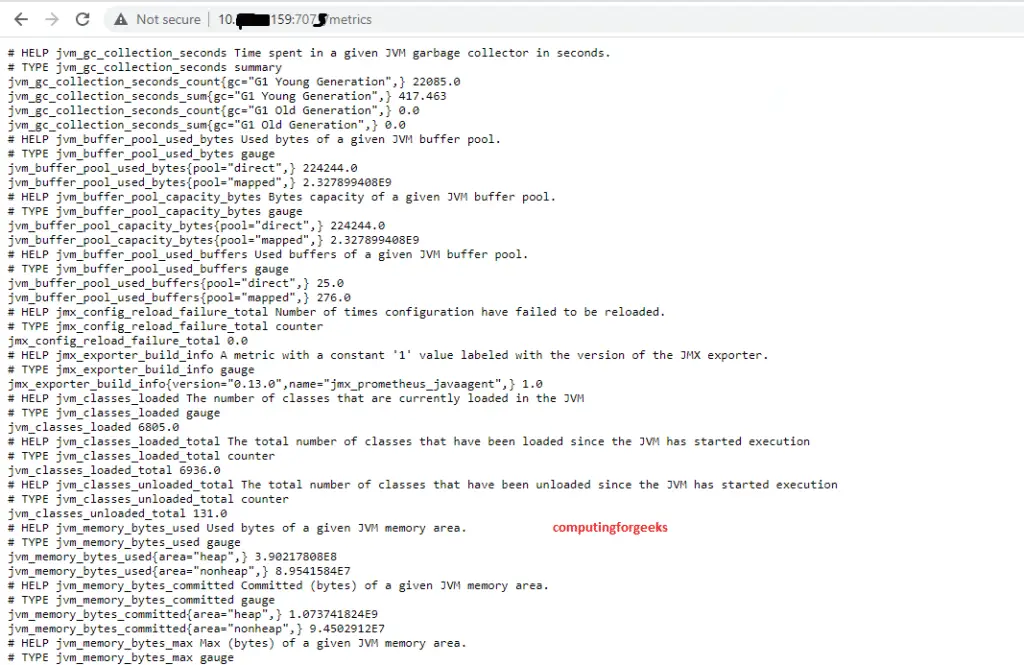
Step 2: Install JMX Exporter on ZooKeeper
ZooKeeper health directly affects Kafka cluster stability. If you are running Kafka in ZooKeeper mode (not KRaft), attach the JMX Exporter to ZooKeeper as well. Copy the same jar to your ZooKeeper nodes.
sudo mkdir -p /opt/jmx-exporter
sudo cp /opt/jmx-exporter/jmx_prometheus_javaagent-1.0.1.jar /opt/jmx-exporter/
Create a ZooKeeper-specific JMX configuration file.
sudo vim /opt/jmx-exporter/zookeeper.ymlAdd the following rules to capture ZooKeeper session counts, latency, and connection metrics.
lowercaseOutputName: true
lowercaseOutputLabelNames: true

rules:
- pattern: org.apache.ZooKeeperService<>(\w+)
  name: zookeeper_$4
  type: GAUGE
  labels:
    replicaId: "$2"

- pattern: org.apache.ZooKeeperService<>(\w+)
  name: zookeeper_$3
  type: GAUGE
  labels:
    replicaId: "$2"

- pattern: org.apache.ZooKeeperService<>(\w+)
  name: zookeeper_$2
  type: GAUGE
Add the Java agent to the ZooKeeper systemd service. Open the ZooKeeper unit file.
sudo vim /etc/systemd/system/zookeeper.serviceAdd the KAFKA_OPTS or EXTRA_ARGS environment variable. ZooKeeper uses port 7072 to avoid conflicts with the broker exporter.
[Service]
Type=simple
User=kafka
Environment="JAVA_HOME=/usr/lib/jvm/java-17-openjdk-amd64"
Environment="KAFKA_OPTS=-javaagent:/opt/jmx-exporter/jmx_prometheus_javaagent-1.0.1.jar=7072:/opt/jmx-exporter/zookeeper.yml"
ExecStart=/opt/kafka/bin/zookeeper-server-start.sh /opt/kafka/config/zookeeper.properties
ExecStop=/opt/kafka/bin/zookeeper-server-stop.sh
Restart=on-abnormal
Restart ZooKeeper and verify the exporter is running.
$ sudo systemctl daemon-reload
$ sudo systemctl restart zookeeper
$ curl -s http://localhost:7072/metrics | grep zookeeper_ | head -5
zookeeper_avgrequestlatency 0.0
zookeeper_maxrequestlatency 12.0
zookeeper_numalivedconnections 2.0
zookeeper_outstandingrequests 0.0
zookeeper_packetsreceived 145.0
Step 3: Install kafka_exporter for Topic and Consumer Metrics
The JMX Exporter gives you broker-level metrics, but it does not expose per-topic consumer lag or consumer group offsets directly. For that, use kafka_exporter by danielqsj, which connects to Kafka as a client and exports topic, partition, and consumer group metrics.
Download and install kafka_exporter on any server that has network access to the Kafka cluster.
$ cd /tmp
$ wget https://github.com/danielqsj/kafka_exporter/releases/download/v1.8.0/kafka_exporter-1.8.0.linux-amd64.tar.gz
$ tar xzf kafka_exporter-1.8.0.linux-amd64.tar.gz
$ sudo mv kafka_exporter-1.8.0.linux-amd64/kafka_exporter /usr/local/bin/
$ kafka_exporter --version
kafka_exporter 1.8.0
Create a systemd service for kafka_exporter.
sudo vim /etc/systemd/system/kafka-exporter.serviceAdd the following content. Replace the broker addresses with your actual Kafka broker IPs or hostnames.
[Unit]
Description=Kafka Exporter
After=network.target

[Service]
Type=simple
User=nobody
ExecStart=/usr/local/bin/kafka_exporter \
  --kafka.server=10.0.1.10:9092 \
  --kafka.server=10.0.1.11:9092 \
  --kafka.server=10.0.1.12:9092 \
  --topic.filter=".*" \
  --group.filter=".*" \
  --web.listen-address=:9308
Restart=on-failure
RestartSec=5

[Install]
WantedBy=multi-user.target
Enable and start the service.
sudo systemctl daemon-reload
sudo systemctl enable --now kafka-exporter
Verify kafka_exporter is running and returning metrics.
$ sudo systemctl status kafka-exporter
  Active: active (running) since Thu 2026-03-19 10:30:15 UTC

$ curl -s http://localhost:9308/metrics | grep kafka_consumergroup_lag | head -5
kafka_consumergroup_lag{consumergroup="my-group",partition="0",topic="orders"} 42
kafka_consumergroup_lag{consumergroup="my-group",partition="1",topic="orders"} 18
kafka_consumergroup_lag{consumergroup="my-group",partition="2",topic="orders"} 7
The key metrics exposed by kafka_exporter include:
kafka_consumergroup_lag– consumer lag per partition per consumer groupkafka_consumergroup_current_offset– current offset of each consumer groupkafka_topic_partition_current_offset– latest offset (log end) per partitionkafka_topic_partitions– number of partitions per topickafka_topic_partition_replicas– replica count per partitionkafka_topic_partition_in_sync_replica– in-sync replica count per partition
Step 4: Configure Prometheus to Scrape Kafka Metrics
With all three exporters running (JMX on brokers, JMX on ZooKeeper, kafka_exporter), configure Prometheus to scrape them. Open the Prometheus configuration file.
sudo vim /etc/prometheus/prometheus.ymlAdd the following scrape job configurations under the scrape_configs section. Replace the IP addresses with your actual server addresses.
scrape_configs:
  # Kafka broker JMX metrics
  - job_name: 'kafka-brokers'
    scrape_interval: 15s
    static_configs:
      - targets:
        - '10.0.1.10:7071'
        - '10.0.1.11:7071'
        - '10.0.1.12:7071'
        labels:
          cluster: 'production'

  # ZooKeeper JMX metrics
  - job_name: 'zookeeper'
    scrape_interval: 15s
    static_configs:
      - targets:
        - '10.0.1.10:7072'
        - '10.0.1.11:7072'
        - '10.0.1.12:7072'

  # kafka_exporter - topic and consumer group metrics
  - job_name: 'kafka-exporter'
    scrape_interval: 30s
    static_configs:
      - targets:
        - '10.0.1.10:9308'
Validate the configuration and restart Prometheus.
$ promtool check config /etc/prometheus/prometheus.yml
Checking /etc/prometheus/prometheus.yml
 SUCCESS: /etc/prometheus/prometheus.yml is valid prometheus config file

$ sudo systemctl restart prometheus
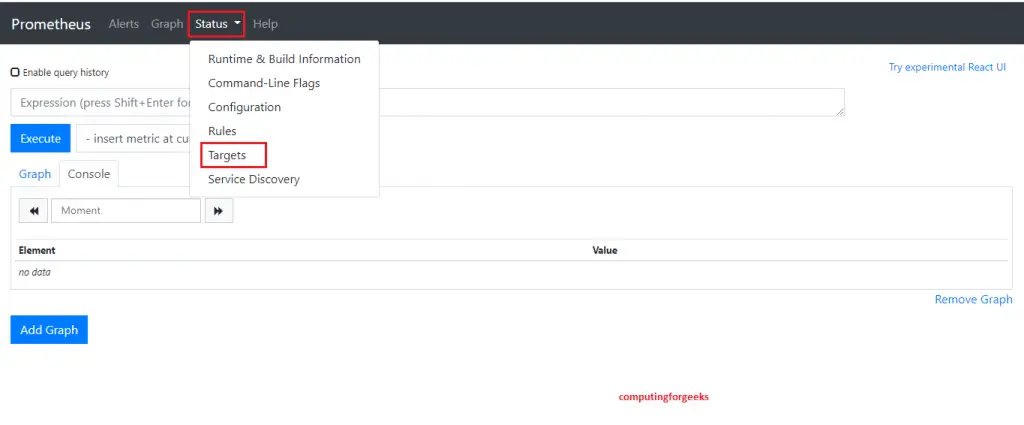
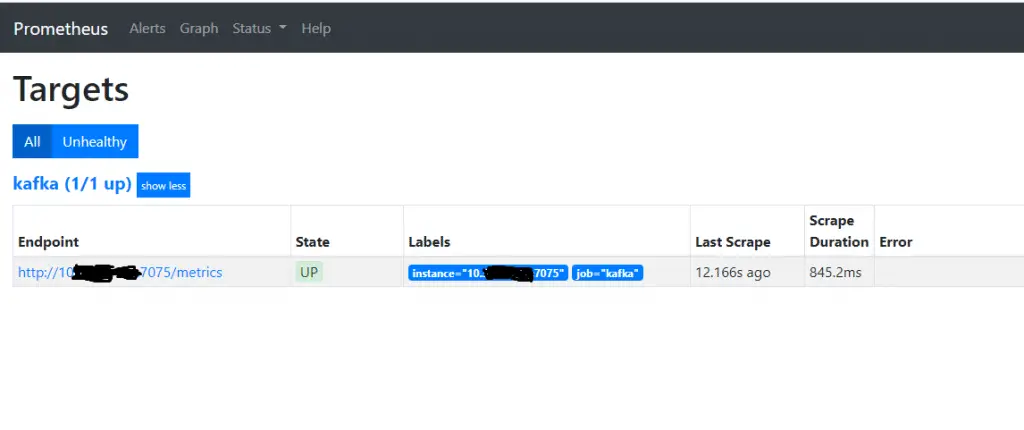
Open the Prometheus web UI at http://prometheus-server:9090 and go to Status > Targets. All three job groups should show as UP.
Test a quick query in the Prometheus expression browser to confirm metrics are flowing.
kafka_server_replicamanager_underreplicatedpartitionsThis should return a value (ideally 0) for each broker.
Step 5: Set Up Grafana Dashboards for Kafka Monitoring
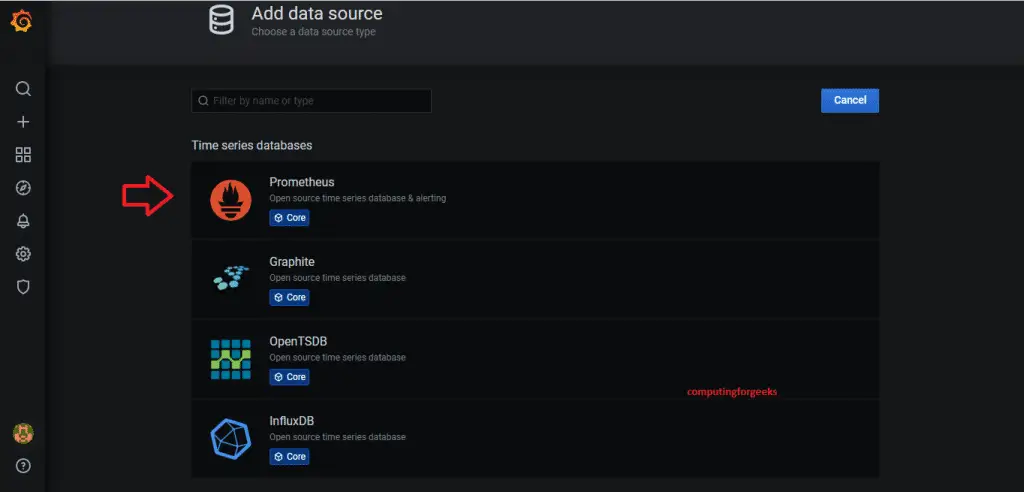
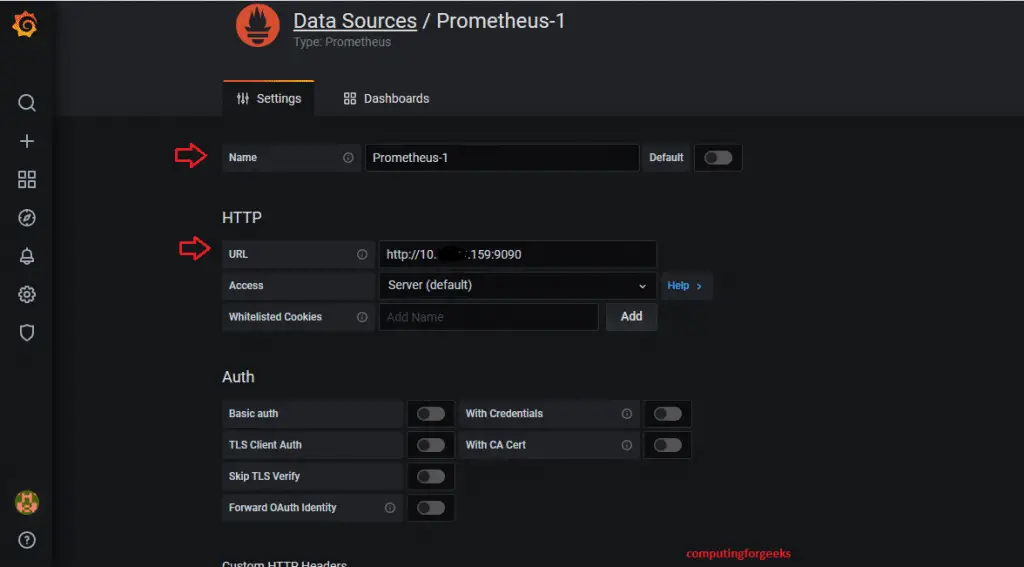
Log into your Grafana instance and add Prometheus as a data source if you have not already done so. Navigate to Connections > Data Sources > Add data source, select Prometheus, and enter your Prometheus server URL (for example, http://10.0.1.20:9090).
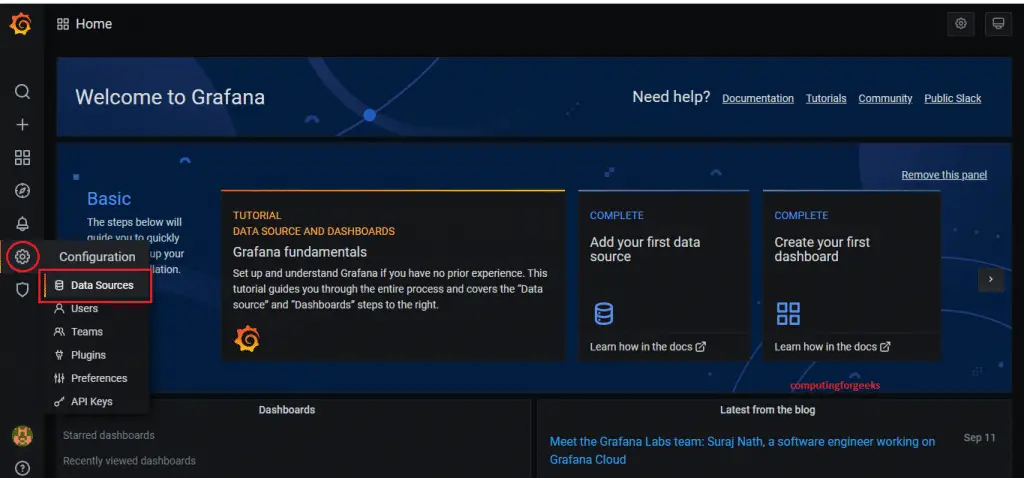
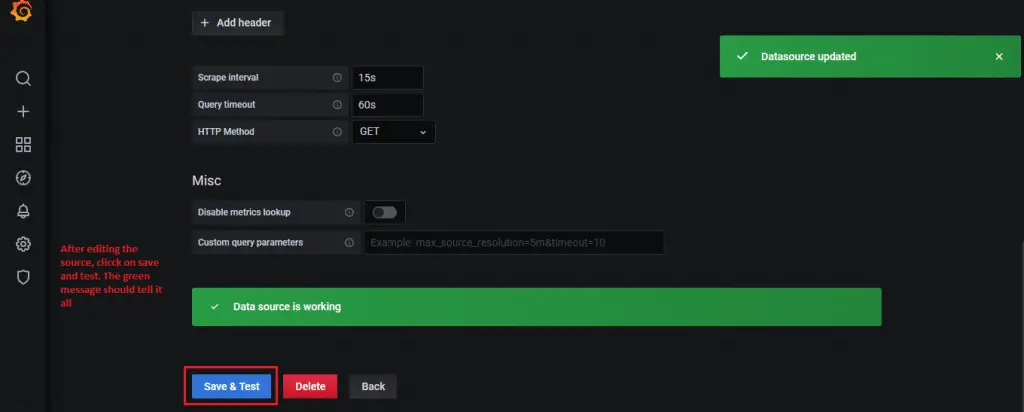
Click Save and Test. A green success message confirms Grafana can reach Prometheus.
Import Pre-built Kafka Dashboards
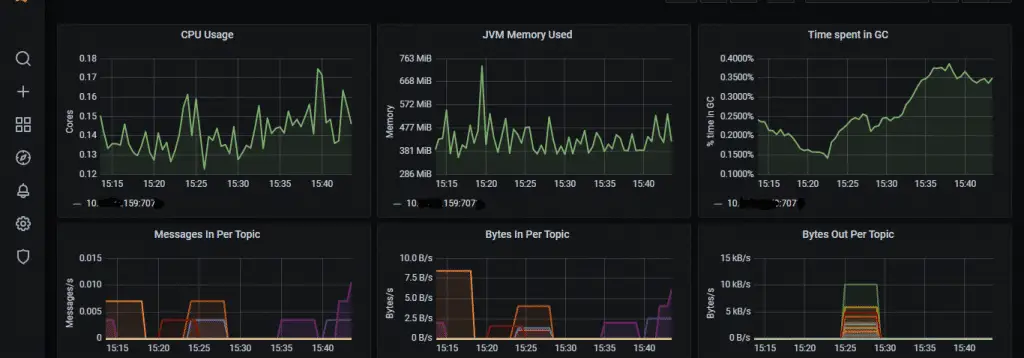
Grafana has several community dashboards built specifically for Kafka monitoring. Go to Dashboards > New > Import and use the following dashboard IDs.
| Dashboard ID | Name | What It Shows |
|---|---|---|
| 7589 | Kafka Exporter Overview | Consumer lag, topic offsets, partition counts from kafka_exporter |
| 721 | JMX Overview | JVM heap, GC, threads – useful for broker JVM health |
| 11962 | Kafka Cluster Overview | Broker metrics, request rates, ISR changes, under-replicated partitions |
For each dashboard, enter the ID in the Import field and click Load.
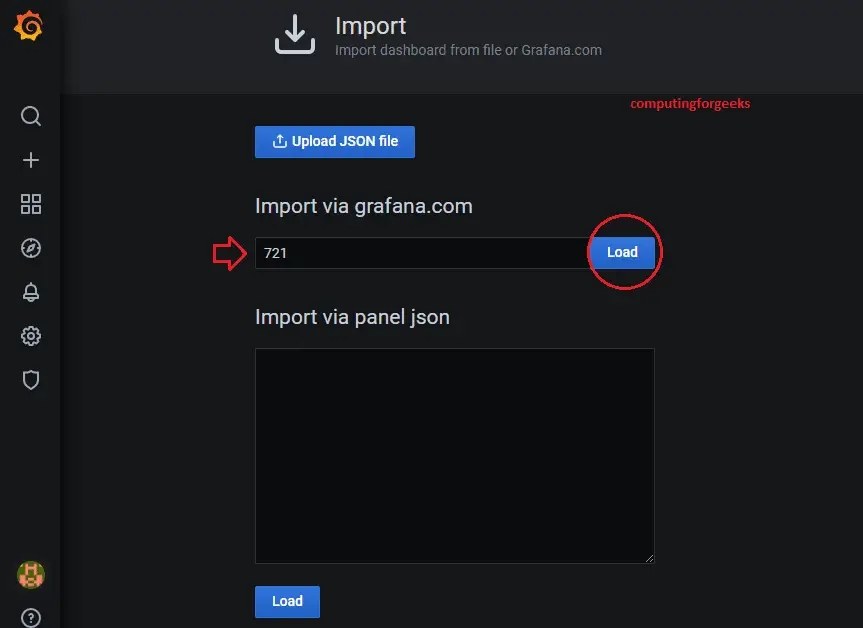
Select the Prometheus data source from the dropdown and click Import.
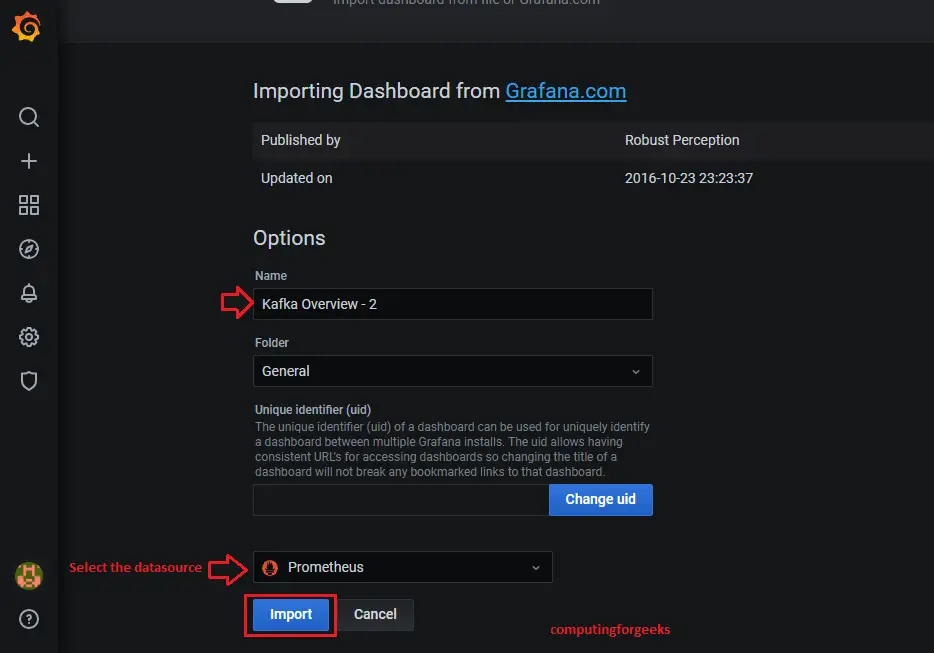
The dashboard loads immediately with live data from your Kafka cluster.
Essential Custom Panels
Beyond the pre-built dashboards, add these custom panels to a dedicated Kafka Operations dashboard. Each panel uses a PromQL query that targets the metrics we configured earlier.
Under-replicated partitions across all brokers (should always be 0):
sum(kafka_server_replicamanager_underreplicatedpartitions) by (instance)Active controller count (must be exactly 1):
sum(kafka_controller_kafkacontroller_activecontrollercount)Produce request rate per broker:
rate(kafka_server_brokertopicmetrics_totalproducerequests_total[5m])Fetch request latency at the 99th percentile:
kafka_network_requestmetrics_totaltimerequests{request="Fetch",quantile="0.99"}Total consumer lag per consumer group:
sum(kafka_consumergroup_lag) by (consumergroup)Log size growth rate per topic (bytes per second):
sum(rate(kafka_log_size_bytes[10m])) by (topic)Step 6: Configure Alerting Rules for Kafka
Dashboards are great for visual inspection, but alerts catch problems when nobody is watching. Create a Prometheus alerting rules file for Kafka. If you already have Alertmanager configured for email notifications, these rules will fire alerts through your existing notification channels.
sudo vim /etc/prometheus/rules/kafka-alerts.ymlAdd the following alerting rules.
groups:
  - name: kafka-alerts
    rules:
      # Alert when any partition has no leader
      - alert: KafkaOfflinePartitions
        expr: sum(kafka_controller_kafkacontroller_offlinepartitionscount) > 0
        for: 1m
        labels:
          severity: critical
        annotations:
          summary: "Kafka has offline partitions"
          description: "{{ $value }} partitions have no active leader. Data is unavailable for affected topics."

      # Alert when under-replicated partitions exist for more than 5 minutes
      - alert: KafkaUnderReplicatedPartitions
        expr: sum(kafka_server_replicamanager_underreplicatedpartitions) by (instance) > 0
        for: 5m
        labels:
          severity: warning
        annotations:
          summary: "Under-replicated partitions on {{ $labels.instance }}"
          description: "Broker {{ $labels.instance }} has {{ $value }} under-replicated partitions for more than 5 minutes."

      # Alert when there is no active controller or more than one
      - alert: KafkaNoActiveController
        expr: sum(kafka_controller_kafkacontroller_activecontrollercount) != 1
        for: 1m
        labels:
          severity: critical
        annotations:
          summary: "Kafka active controller count is {{ $value }}"
          description: "Expected exactly 1 active controller, got {{ $value }}. Cluster may be in a split-brain or leaderless state."

      # Alert when a broker is down (target is unreachable)
      - alert: KafkaBrokerDown
        expr: up{job="kafka-brokers"} == 0
        for: 2m
        labels:
          severity: critical
        annotations:
          summary: "Kafka broker {{ $labels.instance }} is down"
          description: "Prometheus cannot reach broker {{ $labels.instance }} for over 2 minutes."

      # Alert when consumer lag exceeds threshold
      - alert: KafkaConsumerLagHigh
        expr: sum(kafka_consumergroup_lag) by (consumergroup, topic) > 10000
        for: 10m
        labels:
          severity: warning
        annotations:
          summary: "High consumer lag for {{ $labels.consumergroup }} on {{ $labels.topic }}"
          description: "Consumer group {{ $labels.consumergroup }} has {{ $value }} messages of lag on topic {{ $labels.topic }} for over 10 minutes."

      # Alert when consumer lag is growing continuously
      - alert: KafkaConsumerLagGrowing
        expr: avg_over_time(kafka_consumergroup_lag[30m]) - avg_over_time(kafka_consumergroup_lag[30m] offset 30m) > 5000
        for: 15m
        labels:
          severity: warning
        annotations:
          summary: "Consumer lag growing for {{ $labels.consumergroup }}"
          description: "Lag for {{ $labels.consumergroup }} on {{ $labels.topic }} has been increasing for 15+ minutes."

      # Alert when ISR is shrinking frequently
      - alert: KafkaIsrShrinkRate
        expr: rate(kafka_server_replicamanager_isrshrinks_total[5m]) > 0
        for: 10m
        labels:
          severity: warning
        annotations:
          summary: "ISR shrinking on {{ $labels.instance }}"
          description: "In-sync replica set has been shrinking on broker {{ $labels.instance }} for over 10 minutes. Check disk I/O and network."

      # Alert when request handler threads are saturated
      - alert: KafkaRequestHandlerSaturated
        expr: kafka_server_requesthandleravgidlepercent < 0.2
        for: 5m
        labels:
          severity: warning
        annotations:
          summary: "Request handler threads saturated on {{ $labels.instance }}"
          description: "Broker {{ $labels.instance }} request handler idle percent is {{ $value }}. Broker is overloaded."
Reference this rules file in the Prometheus configuration.
sudo vim /etc/prometheus/prometheus.ymlAdd the rules file path under the rule_files section.
rule_files:
  - "/etc/prometheus/rules/kafka-alerts.yml"
Validate and reload Prometheus.
$ promtool check rules /etc/prometheus/rules/kafka-alerts.yml
Checking /etc/prometheus/rules/kafka-alerts.yml
  SUCCESS: 8 rules found

$ sudo systemctl reload prometheus
Verify the alerts are loaded in the Prometheus UI under Alerts. All rules should show as inactive (green) when the cluster is healthy.
Step 7: Set Up Burrow for Advanced Consumer Lag Monitoring
While kafka_exporter provides basic consumer lag numbers, Burrow (developed by LinkedIn) offers a smarter approach. Burrow evaluates consumer lag as a sliding window and classifies consumer status as OK, WARNING, or STOP based on whether the consumer is making progress, falling behind, or has stalled entirely. This eliminates false alerts from bursty workloads where lag spikes briefly but recovers quickly.
Install Burrow from the pre-built binary or build from source with Go.
cd /tmp
wget https://github.com/linkedin/Burrow/releases/download/v1.6.0/Burrow_1.6.0_linux_amd64.tar.gz
tar xzf Burrow_1.6.0_linux_amd64.tar.gz
sudo mv Burrow /usr/local/bin/burrow
burrow --version
Create the Burrow configuration directory and main config file.
sudo mkdir -p /etc/burrowCreate the configuration file.
sudo vim /etc/burrow/burrow.tomlAdd the following configuration. Adjust the Kafka broker and ZooKeeper addresses for your environment.
[general]
pidfile="/var/run/burrow/burrow.pid"
stdout-logfile="/var/log/burrow/burrow.log"

[logging]
level="info"

[zookeeper]
servers=["10.0.1.10:2181","10.0.1.11:2181","10.0.1.12:2181"]
timeout=6
root-path="/burrow"

[client-profile.kafka-profile]
kafka-version="2.0.0"
client-id="burrow-monitor"

[cluster.production]
class-name="kafka"
servers=["10.0.1.10:9092","10.0.1.11:9092","10.0.1.12:9092"]
client-profile="kafka-profile"
topic-refresh=60
offset-refresh=30

[consumer.production]
class-name="kafka"
cluster="production"
servers=["10.0.1.10:9092","10.0.1.11:9092","10.0.1.12:9092"]
client-profile="kafka-profile"
group-denylist="^(console-consumer-|_).*$"
start-latest=true

[httpserver.default]
address=":8000"

[storage.default]
class-name="inmemory"
workers=20
intervals=10
expire-group=604800
min-distance=1
Create a systemd service file for Burrow.
sudo vim /etc/systemd/system/burrow.serviceAdd the following content.
[Unit]
Description=Burrow Kafka Consumer Lag Monitor
After=network.target

[Service]
Type=simple
ExecStart=/usr/local/bin/burrow --config-dir /etc/burrow
Restart=on-failure
RestartSec=5

[Install]
WantedBy=multi-user.target
Create the required directories and start the service.
sudo mkdir -p /var/run/burrow /var/log/burrow
sudo systemctl daemon-reload
sudo systemctl enable --now burrow
Verify Burrow is running by querying its HTTP API.
$ curl -s http://localhost:8000/v3/kafka | python3 -m json.tool
{
    "error": false,
    "message": "cluster list returned",
    "clusters": [
        "production"
    ]
}
Check consumer group status through Burrow's evaluation endpoint.
$ curl -s http://localhost:8000/v3/kafka/production/consumer/my-group/lag | python3 -m json.tool
{
    "error": false,
    "message": "consumer status returned",
    "status": {
        "cluster": "production",
        "group": "my-group",
        "status": "OK",
        "maxlag": {
            "topic": "orders",
            "partition": 2,
            "owner": "",
            "status": "OK",
            "start": { "offset": 15230, "timestamp": 1710842100000, "lag": 5 },
            "end": { "offset": 15280, "timestamp": 1710842400000, "lag": 3 }
        },
        "totallag": 8
    }
}
Expose Burrow Metrics to Prometheus
Burrow does not natively expose Prometheus metrics. Use the burrow_exporter bridge to convert Burrow's HTTP API responses into Prometheus format.
cd /tmp
wget https://github.com/jirwin/burrow_exporter/releases/download/v0.1.0/burrow-exporter-linux-amd64
chmod +x burrow-exporter-linux-amd64
sudo mv burrow-exporter-linux-amd64 /usr/local/bin/burrow-exporter
Run burrow_exporter as a service. It queries Burrow and re-exposes metrics for Prometheus on port 9188.
sudo vim /etc/systemd/system/burrow-exporter.serviceAdd the service configuration.
[Unit]
Description=Burrow Exporter for Prometheus
After=burrow.service

[Service]
Type=simple
ExecStart=/usr/local/bin/burrow-exporter \
  --burrow-addr=http://localhost:8000 \
  --metrics-addr=:9188 \
  --interval=30
Restart=on-failure

[Install]
WantedBy=multi-user.target
Enable and start the exporter.
sudo systemctl daemon-reload
sudo systemctl enable --now burrow-exporter
Add the burrow-exporter target to Prometheus scrape config.
  - job_name: 'burrow'
    scrape_interval: 30s
    static_configs:
      - targets: ['10.0.1.10:9188']
Reload Prometheus to pick up the new target.
sudo systemctl reload prometheusStep 8: Verify the Complete Monitoring Stack
With all components deployed, run through this checklist to confirm everything is connected and working.
Check all Prometheus targets are UP.
$ curl -s http://localhost:9090/api/v1/targets | python3 -c "
import json,sys
data = json.load(sys.stdin)
for t in data['data']['activeTargets']:
    print(f\"{t['labels']['job']:20s} {t['labels']['instance']:25s} {t['health']}\")"
kafka-brokers         10.0.1.10:7071            up
kafka-brokers         10.0.1.11:7071            up
kafka-brokers         10.0.1.12:7071            up
zookeeper             10.0.1.10:7072            up
zookeeper             10.0.1.11:7072            up
zookeeper             10.0.1.12:7072            up
kafka-exporter        10.0.1.10:9308            up
burrow                10.0.1.10:9188            up
Verify critical metrics are being collected.
# Under-replicated partitions (should be 0)
$ curl -s 'http://localhost:9090/api/v1/query?query=kafka_server_replicamanager_underreplicatedpartitions' | python3 -m json.tool | grep value

# Active controllers (should be 1)
$ curl -s 'http://localhost:9090/api/v1/query?query=sum(kafka_controller_kafkacontroller_activecontrollercount)' | python3 -m json.tool | grep value

# Consumer lag
$ curl -s 'http://localhost:9090/api/v1/query?query=sum(kafka_consumergroup_lag)+by+(consumergroup)' | python3 -m json.tool | grep value
Confirm alert rules loaded correctly.
$ curl -s http://localhost:9090/api/v1/rules | python3 -c "
import json,sys
data = json.load(sys.stdin)
for g in data['data']['groups']:
    for r in g['rules']:
        print(f\"{r['name']:40s} {r['health']}\")"
KafkaOfflinePartitions                   ok
KafkaUnderReplicatedPartitions           ok
KafkaNoActiveController                  ok
KafkaBrokerDown                          ok
KafkaConsumerLagHigh                     ok
KafkaConsumerLagGrowing                  ok
KafkaIsrShrinkRate                       ok
KafkaRequestHandlerSaturated             ok
Monitoring Summary and Port Reference
The table below summarizes all components, ports, and their purpose for quick reference.
| Component | Port | Protocol | Purpose |
|---|---|---|---|
| JMX Exporter (Kafka) | 7071 | TCP | Broker JMX metrics in Prometheus format |
| JMX Exporter (ZooKeeper) | 7072 | TCP | ZooKeeper JMX metrics |
| kafka_exporter | 9308 | TCP | Topic, partition, consumer group metrics |
| Burrow | 8000 | TCP | Consumer lag evaluation HTTP API |
| Burrow Exporter | 9188 | TCP | Burrow metrics in Prometheus format |
| Prometheus | 9090 | TCP | Metrics storage, querying, and alerting |
| Grafana | 3000 | TCP | Dashboards and visualization |
Conclusion
You now have a full Kafka monitoring stack with JMX Exporter for broker and ZooKeeper internals, kafka_exporter for consumer group tracking, Prometheus for metrics collection and alerting, Grafana for dashboards, and Burrow for intelligent consumer lag evaluation. The alerting rules cover the most critical failure scenarios: offline partitions, broker outages, controller issues, and consumer lag growth.
For production hardening, enable TLS between exporters and Prometheus, set up Alertmanager with PagerDuty or Slack integrations for on-call routing, and consider running Prometheus with long-term storage using Thanos or Cortex if you need retention beyond 15 days. Review Apache Kafka best practices for additional production tuning.

There are two separate ports listed above for the JMX exporter 7071 and 7075 is the correct?
My bad! This has been edited to 7075 ap. Thank you for catching that.
No meu caso eu não consegui concluir a etapa 3 com sucesso. Fiz toda a configuração, mas ao chamar o localhost:7075 não encontra nada.
What’s the issue?