

Kubernetes makes scaling easy. Spin up a cluster, deploy some pods, and you’re running. What nobody tells you is that by month three, the bill is twice what you expected and nobody can explain why. Nodes sit at 30% utilization, pods request four times the CPU they use, and every namespace points fingers at another team’s workload.
Kubecost breaks that black box open. It gives you pod-level, namespace-level, and label-level cost visibility by allocating actual node costs to the workloads running on them. This guide deploys Kubecost using helm chart on both AWS EKS and Google GKE, runs identical sample workloads on each, and compares real billing data side by side. It covers right-sizing recommendations, HPA interactions, cost alerts, and how Kubecost stacks up against the native cloud cost tools.
Tested April 2026 on AWS EKS (Kubernetes 1.33, eu-west-1) and GCP GKE (Kubernetes 1.33, europe-west1) with Kubecost 3.1.6
Prerequisites
Both clusters should be running before you start. Here is what you need:
- A running EKS cluster (Kubernetes 1.32+, any region). This guide uses eu-west-1 with 3x t3.medium nodes on Amazon Linux 2023
- A running GKE cluster (Kubernetes 1.32+, any zone). This guide uses europe-west1-b with 3x e2-medium nodes on Container-Optimized OS
kubectlconfigured for both clusters. If you need a refresher on kubectl commands, that guide covers the essentials- Helm 3 installed on your local machine
- For EKS: the EBS CSI driver addon installed (Kubecost needs persistent volumes, and EKS does not provision EBS volumes by default without this addon)
- For GKE: the
standard-rwoStorageClass is available by default, no extra setup needed
What Kubecost Measures
Kubecost works by allocating the actual cost of your infrastructure (nodes, disks, network) down to individual pods. Each pod’s share is calculated from its resource requests relative to the node’s total capacity. A pod requesting 500m CPU on a 2-core node owns 25% of that node’s compute cost.
The four cost categories Kubecost tracks:
- Compute: CPU and memory cost per pod, based on resource requests and the per-hour node price
- Storage: persistent volume (PV) cost, calculated from the provisioned size and the cloud provider’s disk pricing
- Network: cross-zone and cross-region egress cost (this one is often the surprise line item)
- Idle resources: the gap between what pods request and what the node provides. If your 3-node cluster runs at 35% utilization, Kubecost tells you exactly how much that 65% idle capacity costs per month
Kubecost 3.x uses its own metrics pipeline (local-store and finopsagent) instead of requiring a separate Prometheus stack. It can also integrate with an existing Prometheus or Thanos setup if you already have one. The free tier covers a single cluster with 15 days of metric retention. That is enough to catch the biggest savings opportunities.
Install Kubecost on EKS
Add the Kubecost Helm repository and update the chart index:
helm repo add kubecost https://kubecost.github.io/kubecost/
helm repo update kubecost
Switch your kubectl context to the EKS cluster:
kubectl config use-context arn:aws:eks:eu-west-1:123456789012:cluster/eks-kubecost-testInstall Kubecost with persistent storage enabled. The cluster name tag shows up in the Kubecost dashboard, which matters when you eventually add more clusters:
helm install kubecost kubecost/kubecost \
  --version 3.1.6 \
  --namespace kubecost \
  --create-namespace \
  --set global.clusterId=eks-kubecost-test \
  --set global.acknowledged=true
Helm creates the namespace and deploys several components. Wait a couple of minutes for all pods to become ready:
kubectl -n kubecost get podsAll pods should show Running with their containers ready:
NAME                                           READY   STATUS    RESTARTS   AGE
kubecost-aggregator-0                          1/1     Running   0          76s
kubecost-cloud-cost-78b87bc67b-5frhx           1/1     Running   0          76s
kubecost-cluster-controller-7b5444f947-bpqvd   1/1     Running   0          76s
kubecost-finopsagent-57788644bc-qnvdg          1/1     Running   0          76s
kubecost-forecasting-68d664dcbf-c678n          1/1     Running   0          76s
kubecost-frontend-675445f587-dnrqf             1/1     Running   0          76s
kubecost-local-store-6866cd6b4-q9p6t           1/1     Running   0          76s
kubecost-network-costs-kxl6v                   1/1     Running   0          77s
kubecost-network-costs-tskmt                   1/1     Running   0          77s
kubecost-network-costs-zcpkd                   1/1     Running   0          77s
Kubecost 3.x splits functionality across dedicated pods: the aggregator handles cost allocation, the local-store manages metric storage, network-costs DaemonSets run on each node for traffic tracking, and the frontend serves the dashboard. The finopsagent collects Kubernetes metrics for the cost model.
Port-forward to access the dashboard locally:
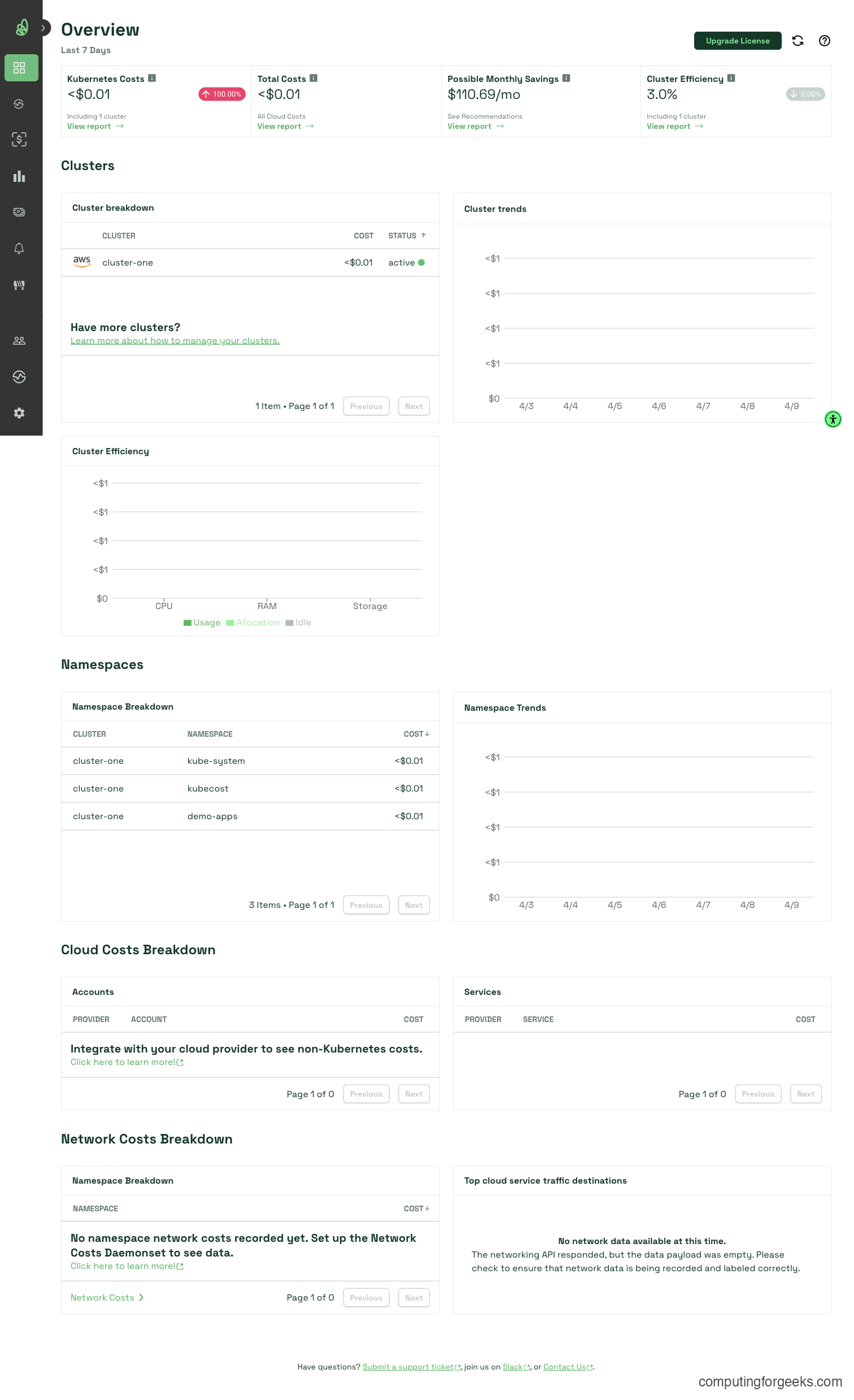
kubectl -n kubecost port-forward svc/kubecost-frontend 9090:9090Open http://localhost:9090 in your browser. The Kubecost overview page loads with cluster cost data. It takes roughly 25 minutes after initial install for allocation data to start populating.
Install Kubecost on GKE
Switch context to your GKE cluster:
kubectl config use-context gke_my-project_europe-west1-b_gke-kubecost-testThe Helm install is identical except for the cluster name:
helm install kubecost kubecost/kubecost \
  --version 3.1.6 \
  --namespace kubecost \
  --create-namespace \
  --set global.clusterId=gke-kubecost-test \
  --set global.acknowledged=true
GKE’s default standard-rwo StorageClass provisions SSD volumes. If your GCP project has tight SSD quota, set --set global.defaultStorageClass=standard to use HDD instead. Verify the pods come up the same way:
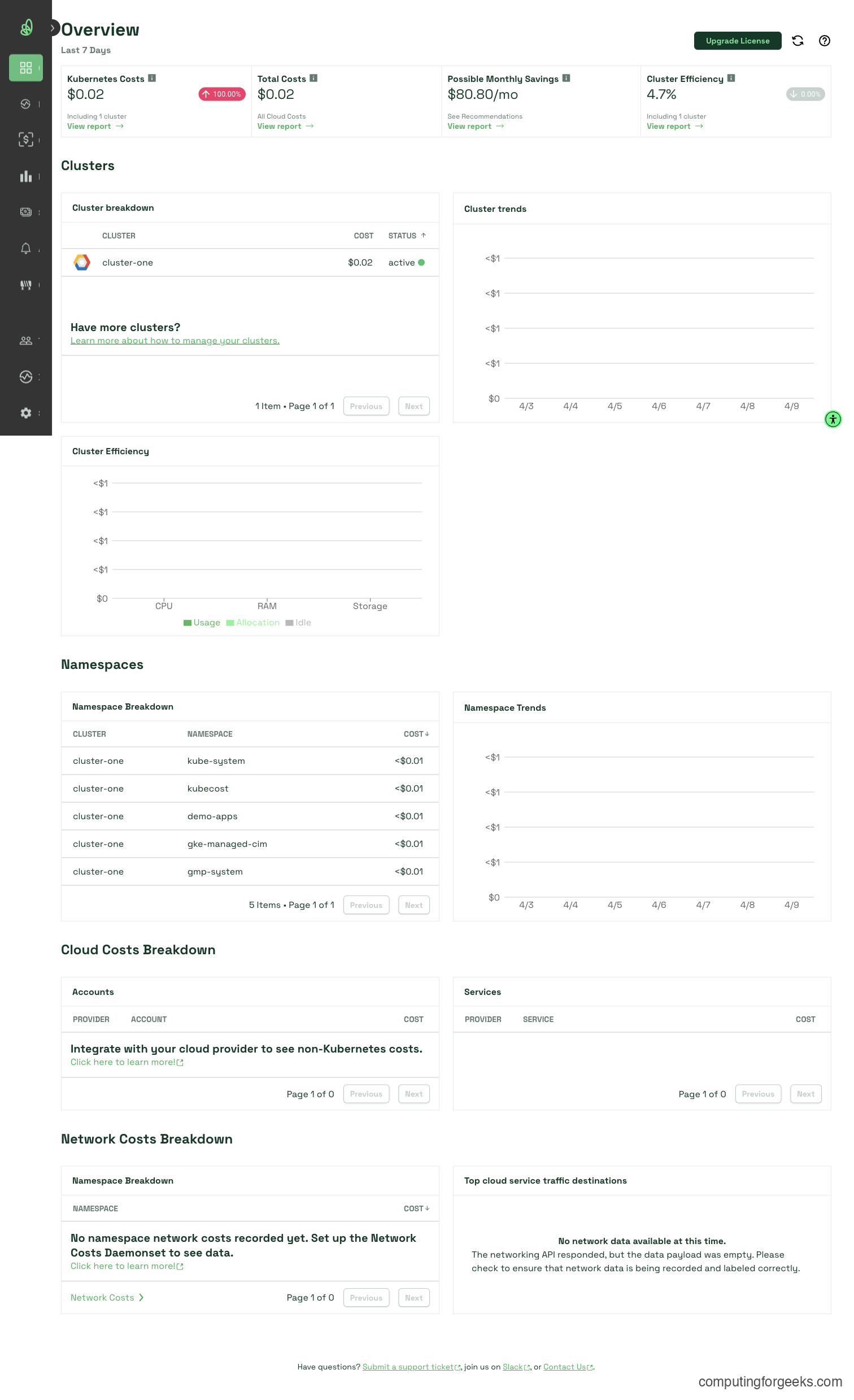
kubectl -n kubecost get podsYou should see the same pods in Running state. Port-forward and access the dashboard at http://localhost:9090.
GKE has a native cost management tool in Cloud Console under Kubernetes Engine > Cost Management. It shows namespace-level spend, but only at the namespace level. Kubecost goes deeper: pod-level cost breakdown, right-sizing recommendations per container, and idle resource tracking that the native tool does not provide.
Deploy Sample Workloads
Deploying identical workloads on both clusters makes the cost comparison meaningful. These three applications cover different resource profiles: a stateless web server, an in-memory cache, and a stateful database with persistent storage.
Create the namespace on both clusters:
kubectl create namespace demo-appsSave the nginx deployment manifest and apply it (2 replicas, lightweight CPU and memory requests):
cat > nginx-deploy.yaml <<'YAML'
apiVersion: apps/v1
kind: Deployment
metadata:
  name: nginx-web
spec:
  replicas: 2
  selector:
    matchLabels:
      app: nginx-web
  template:
    metadata:
      labels:
        app: nginx-web
        team: frontend
    spec:
      containers:
      - name: nginx
        image: nginx:1.27
        ports:
        - containerPort: 80
        resources:
          requests:
            cpu: 100m
            memory: 128Mi
          limits:
            cpu: 200m
            memory: 256Mi
YAML
Apply it to both clusters:
kubectl -n demo-apps apply -f nginx-deploy.yamlSave the Redis StatefulSet manifest:
cat > redis-sts.yaml <<'YAML'
apiVersion: apps/v1
kind: StatefulSet
metadata:
  name: redis-cache
spec:
  serviceName: redis-cache
  replicas: 1
  selector:
    matchLabels:
      app: redis-cache
  template:
    metadata:
      labels:
        app: redis-cache
        team: backend
    spec:
      containers:
      - name: redis
        image: redis:7.4
        ports:
        - containerPort: 6379
        resources:
          requests:
            cpu: 250m
            memory: 256Mi
          limits:
            cpu: 500m
            memory: 512Mi
YAML
Apply it:
kubectl -n demo-apps apply -f redis-sts.yamlDeploy PostgreSQL with a 10Gi persistent volume. This is where EKS and GKE behave differently. On EKS, the EBS volume contains a lost+found directory, which causes PostgreSQL to fail with “directory exists but is not empty.” The fix is setting PGDATA to a subdirectory:
cat > postgres-sts.yaml <<'YAML'
apiVersion: apps/v1
kind: StatefulSet
metadata:
  name: postgres-db
spec:
  serviceName: postgres-db
  replicas: 1
  selector:
    matchLabels:
      app: postgres-db
  template:
    metadata:
      labels:
        app: postgres-db
        team: data
    spec:
      containers:
      - name: postgres
        image: postgres:17
        ports:
        - containerPort: 5432
        env:
        - name: POSTGRES_PASSWORD
          value: "your-password-here"
        - name: PGDATA
          value: /var/lib/postgresql/data/pgdata
        resources:
          requests:
            cpu: 200m
            memory: 256Mi
          limits:
            cpu: 500m
            memory: 512Mi
        volumeMounts:
        - name: pg-data
          mountPath: /var/lib/postgresql/data
  volumeClaimTemplates:
  - metadata:
      name: pg-data
    spec:
      accessModes: ["ReadWriteOnce"]
      resources:
        requests:
          storage: 10Gi
YAML
Apply it to both clusters:
kubectl -n demo-apps apply -f postgres-sts.yamlConfirm all pods are running in both clusters:
kubectl -n demo-apps get podsThe output should show four pods total (2 nginx, 1 redis, 1 postgres):
NAME                         READY   STATUS    RESTARTS   AGE
nginx-web-5d4f8c7b9a-k2m3n   1/1     Running   0          45s
nginx-web-5d4f8c7b9a-p8q2r   1/1     Running   0          45s
postgres-db-0                 1/1     Running   0          42s
redis-cache-0                 1/1     Running   0          43s
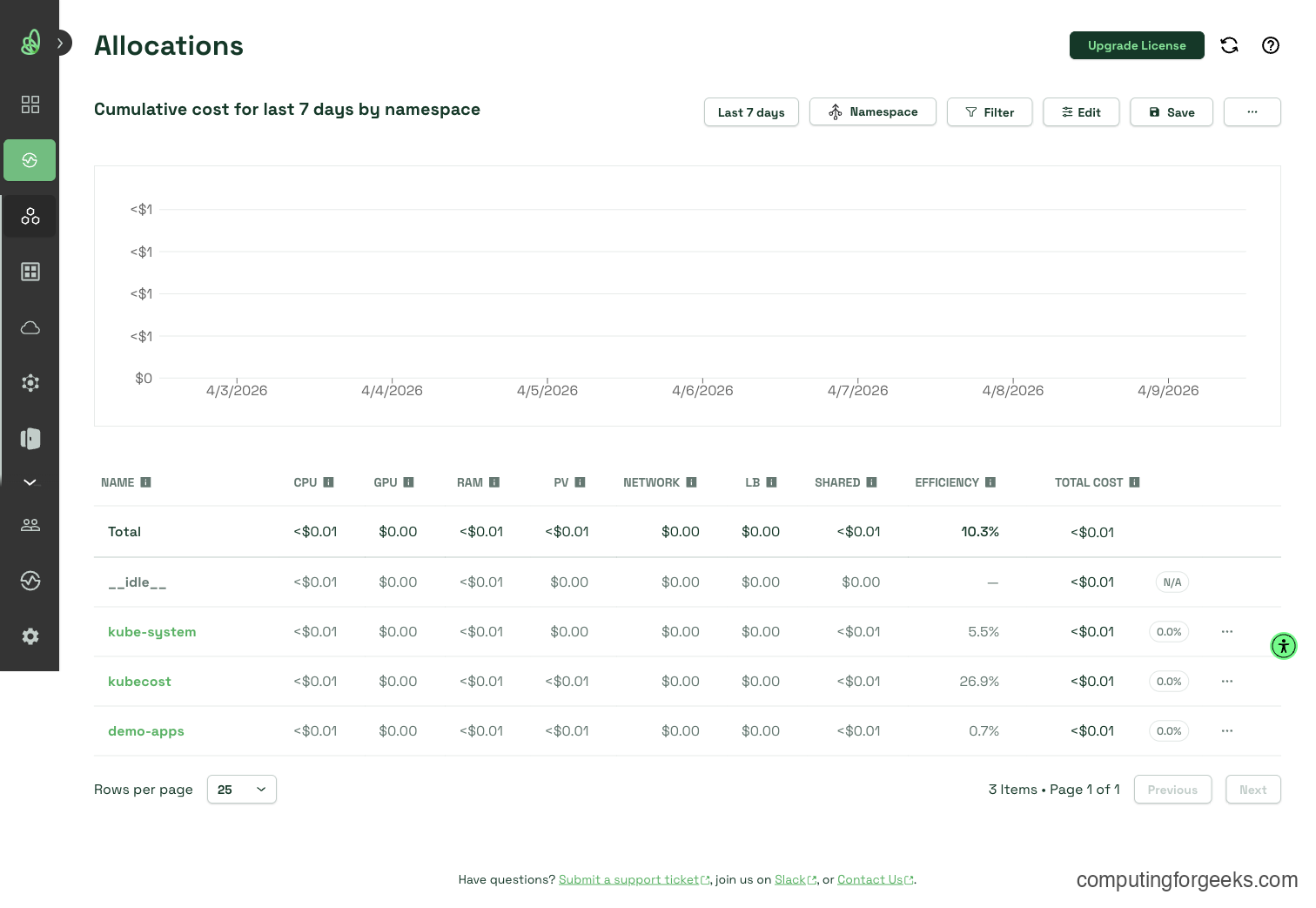
Wait about 25 minutes after deployment, then check the Kubecost Allocation view. You should see the demo-apps namespace with cost data broken down by pod.
Understanding the Kubecost Dashboard
Kubecost organizes cost data into four main views. Each answers a different question.
Overview shows your total monthly cluster cost, a cluster efficiency score (percentage of requested resources actually used), and a savings estimate. Most clusters score below 50% efficiency on the first check. That is normal and exactly what Kubecost helps fix.
Allocation is the most useful view. It breaks down cost by namespace, deployment, pod, controller, or any Kubernetes label. Grouping by the team label we added to the sample workloads shows which team owns what cost. This is where chargeback reporting comes from.
Assets shows the raw infrastructure: node costs, disk costs, and network costs. It pulls pricing from the cloud provider’s billing API (or from a built-in pricing table if billing integration is not configured).
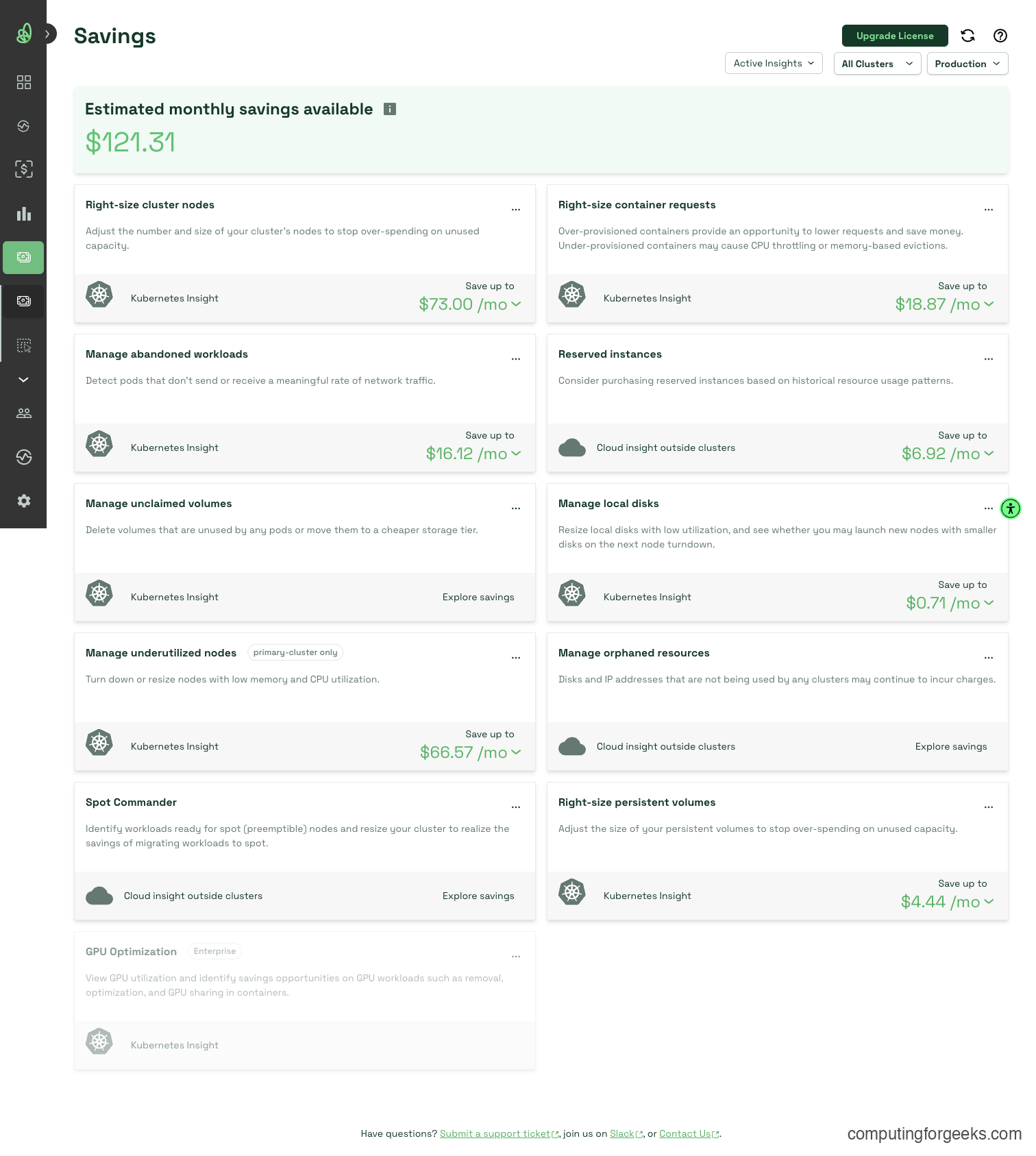
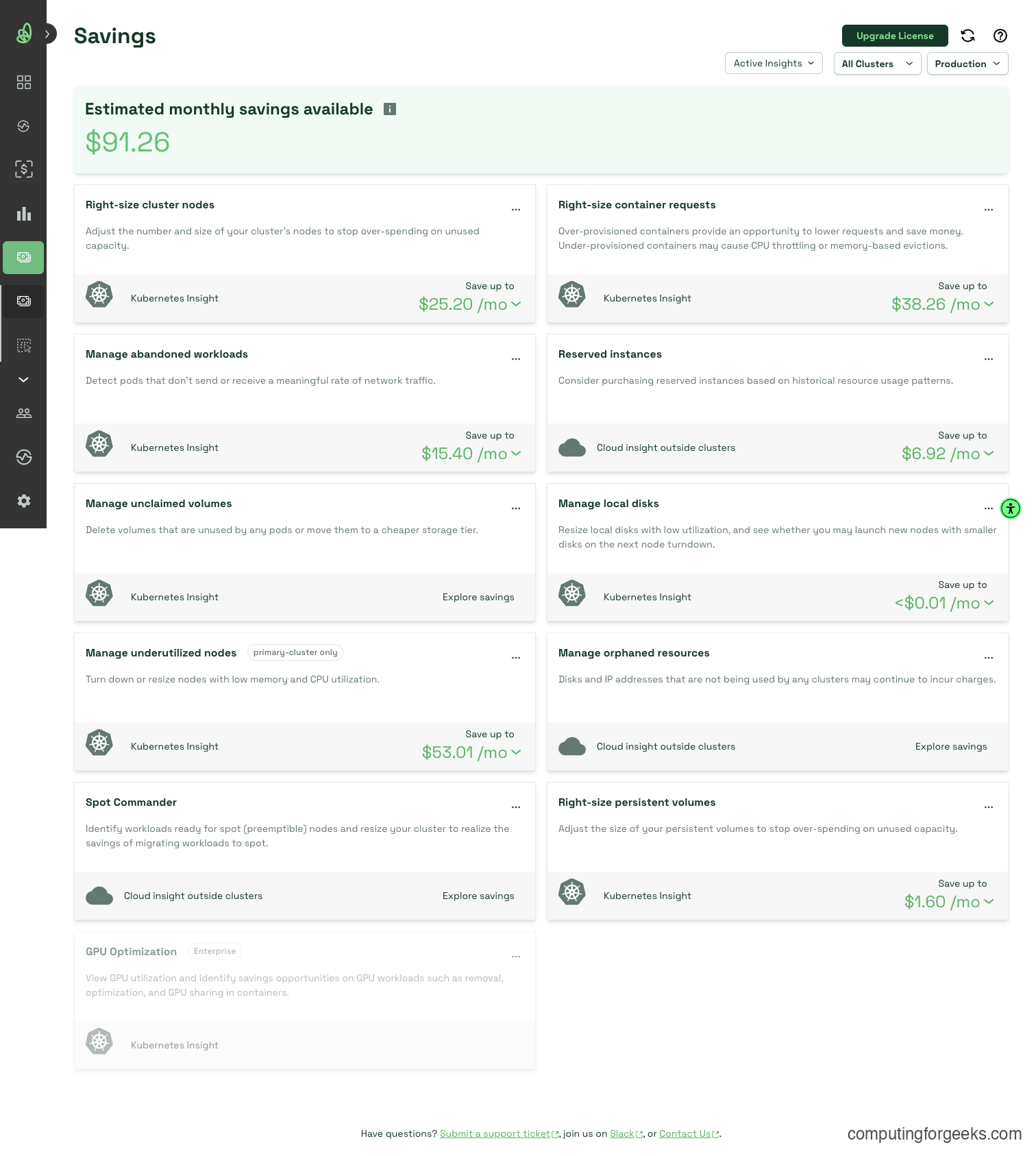
Savings is where the money is. Kubecost identifies right-sizing opportunities, underutilized nodes, abandoned persistent volumes, and over-provisioned workloads. The recommendations come with dollar amounts, which makes it easy to prioritize.
Kubecost needs about 25 minutes of data collection before the dashboard populates. The allocation breakdown gets progressively more accurate over 24 to 48 hours as it collects more usage samples.
Cost Comparison: EKS vs GKE
Running identical 3-node clusters on both providers reveals the pricing difference clearly. These numbers come from Kubecost’s built-in cost model after data collection.
| Resource | EKS (t3.medium, eu-west-1) | GKE (e2-medium, europe-west1) |
|---|---|---|
| Instance specs | 2 vCPU, 4 GiB RAM | 2 vCPU, 4 GB RAM |
| Per-node hourly cost | $0.0456 | $0.0363 |
| Per-node monthly cost | $33.29 | $26.51 |
| 3-node cluster monthly | $99.87 | $79.53 |
GKE is roughly 20% cheaper for equivalent compute in European regions. That gap compounds fast at scale. A 30-node production cluster saves about $200/month on GKE before any optimization.
Namespace Cost Allocation
Kubecost allocates node costs to namespaces based on resource requests. Here is how the same set of workloads breaks down on each provider (monthly extrapolation from actual Kubecost data):
| Namespace | EKS Monthly Cost | GKE Monthly Cost | Notes |
|---|---|---|---|
| demo-apps | $12.61 | $11.33 | nginx, redis, postgresql workloads |
| kube-system | $16.64 | $31.77 | GKE runs more system components (GKE-managed monitoring, CIM) |
| kubecost | $19.10 | $22.92 | Kubecost itself (aggregator, local-store, frontend, network-costs) |
| Idle resources | $57.12 | $47.63 | Allocated but unused capacity |
The idle cost is the biggest line item on both clusters. Over 50% of the cluster capacity sits unused. That is typical for small clusters running lightweight workloads, and exactly the kind of waste Kubecost helps you eliminate through right-sizing and node consolidation.
Per-Pod Cost in demo-apps
Drilling into the demo-apps namespace shows cost per pod:
| Pod | EKS Monthly | GKE Monthly |
|---|---|---|
| nginx-web (per replica) | $1.58 | $2.04 |
| postgresql-0 | $4.20 | $2.72 |
| redis-0 | $3.85 | $4.96 |
PostgreSQL costs more on EKS because EBS storage pricing in eu-west-1 is higher than GKE persistent disk in europe-west1. The compute cost is similar, but the 10Gi persistent volume adds $1.05/month on EKS versus $0.15/month on GKE. Storage pricing differences like this only show up when you have pod-level visibility.
These are on-demand prices. Spot instances (EKS) and preemptible VMs (GKE) can reduce costs by 60 to 80% for fault-tolerant workloads like batch jobs, CI runners, or stateless web frontends. Kubecost tracks the actual discount applied, so you see the real cost even when mixing on-demand and spot nodes.
Query this data programmatically through the Kubecost API:
curl -s "http://localhost:9090/model/assets?window=24h&aggregate=type&accumulate=true" | python3 -m json.toolThe response contains a JSON breakdown of node, disk, and network costs for the last 24 hours. Filter by type=Node to see compute cost only:
curl -s "http://localhost:9090/model/assets?window=24h&aggregate=type&filterTypes=Node" | python3 -m json.toolThe totalCost field in the response matches what you see in the Assets view of the dashboard.
Right-Sizing Recommendations
This is where Kubecost pays for itself. It compares the resource requests you set against actual P95 usage and recommends lower values where pods are over-provisioned.
Navigate to Savings > Container Right-Sizing in the dashboard. After 48 hours of data, Kubecost shows recommendations per container. The nginx deployment is the usual culprit: it requests 100m CPU but typically uses only 5 to 12m at the 95th percentile. Kubecost recommends reducing the request to 25m, which frees up schedulable capacity on each node.
Pull the same data through the API:
curl -s "http://localhost:9090/model/savings/requestSizing?window=48h&targetCPUUtilization=0.8&targetRAMUtilization=0.8" | python3 -m json.toolThe response lists each container with its current requests, recommended requests, and estimated monthly savings. An 80% target utilization is a good starting point. Going above 90% leaves no headroom for traffic spikes.
The real savings are not in the per-pod numbers. They come from the cascade effect. Right-sizing 20 deployments might free up enough capacity to drop an entire node from the cluster, which saves $26 to $33 per month (depending on the provider). Kubecost surfaces this as a “cluster sizing” recommendation in the Savings view.
HPA and Cost Impact
Horizontal Pod Autoscalers add pods when utilization exceeds a threshold and remove them when it drops. That is great for availability, but it has a direct cost impact that most teams ignore.
Set up an HPA on the nginx deployment targeting 50% CPU utilization:
kubectl -n demo-apps autoscale deployment nginx-web --cpu-percent=50 --min=2 --max=6Verify the HPA was created:
kubectl -n demo-apps get hpaThe output shows the current and target utilization:
NAME        REFERENCE              TARGETS   MINPODS   MAXPODS   REPLICAS   AGE
nginx-web   Deployment/nginx-web   4%/50%    2         6         2          30s
When traffic spikes, the HPA scales nginx from 2 to 6 replicas. Each new replica consumes its requested resources (100m CPU, 128Mi memory) and adds proportional cost. During low traffic, it scales back down.
Here is the key insight: right-size resource requests BEFORE enabling HPA. If nginx requests 100m CPU but only needs 25m, the HPA scales bloated pods. Four unnecessary replicas at 100m each waste 300m of CPU capacity. Right-size first, then set HPA thresholds based on actual resource needs.
The Vertical Pod Autoscaler (VPA) offers an alternative approach. Instead of adding more pods, VPA adjusts the resource requests on existing pods to match actual usage. Use updateMode: "Off" (recommend mode) first, which gives you recommendations without restarting pods. VPA in Auto mode restarts pods to apply new resource values, so test it in staging before production.
Kubecost Alerts
Cost alerts catch budget overruns before they become invoice surprises. Kubecost supports alerts through both the UI and the API.
In the dashboard, navigate to Settings > Alerts. The most useful alert types:
- Daily spend threshold: fires when total cluster cost exceeds a daily amount (e.g., $10/day for a dev cluster)
- Namespace budget: set a monthly budget per namespace and get alerted at 80% and 100% thresholds
- Efficiency drop: fires when cluster efficiency falls below a percentage (useful for catching resource waste after deployments)
- Recurring reports: weekly cost summary sent to Slack or email, broken down by namespace or team label
Create a namespace budget alert through the API:
curl -s -X POST "http://localhost:9090/model/budget" \
  -H "Content-Type: application/json" \
  -d '{
    "name": "demo-apps-budget",
    "namespace": "demo-apps",
    "monthlyCost": 50,
    "thresholds": [0.8, 1.0],
    "alertType": "budget"
  }'
This triggers alerts when the demo-apps namespace hits 80% ($40) and 100% ($50) of the monthly budget. For Slack integration, configure the webhook URL under Settings > Notifications in the dashboard.
Kubecost vs Native Cloud Cost Tools
Both AWS and GCP offer their own cost management tools. Kubecost does not replace them. It fills a gap they leave open.
| Feature | Kubecost (Free Tier) | AWS Cost Explorer | GKE Cost Management |
|---|---|---|---|
| Pod-level cost | Yes | No (instance level) | Partial (namespace only) |
| Right-sizing recommendations | Yes, per container | Compute Optimizer (separate service) | Basic autopilot recommendations |
| Multi-cloud view | Enterprise only | AWS only | GCP only |
| Namespace allocation | Yes | No | Yes |
| Label-based cost grouping | Yes (any label) | Tags only (not K8s labels) | Labels (partial) |
| Idle resource tracking | Yes, with dollar amounts | No | No |
| Free tier data retention | 15 days | 12 months | 12 months |
The practical approach is using both. AWS Cost Explorer and GCP Billing handle account-level billing, reserved instance tracking, and cross-service spend. Kubecost adds the Kubernetes-specific layer: which pod in which namespace is responsible for what portion of that bill. Without Kubecost (or a similar tool like OpenCost), Kubernetes costs are a black box at the pod level.
If you are already running Grafana with alerting on Kubernetes, Kubecost 3.x can export its cost metrics to your existing Grafana instance through its API endpoints.
Production Checklist
Getting Kubecost running is the easy part. Making it useful in production requires a few more steps that most teams skip.
- Enable cloud billing integration. Without it, Kubecost uses public on-demand pricing, which is wrong if you run reserved instances or committed use discounts. For AWS, set up a Cost and Usage Report (CUR) in S3 and point Kubecost at it. For GCP, enable the BigQuery billing export. This gives Kubecost your actual negotiated rates
- Set resource requests on every pod. Kubecost allocates cost based on requests. A pod without requests gets zero cost attribution, which skews the numbers for everything else. Use RBAC policies or admission controllers like Kyverno to enforce requests on all deployments
- Add team and owner labels to namespaces. Labels like
team=platformorowner=paymentsenable chargeback reports. Without them, the Allocation view shows namespace names that nobody outside the platform team recognizes - Configure budget alerts per namespace. Development namespaces have a habit of growing unchecked. A $100/month alert on dev namespaces catches runaway jobs before they burn through budget
- Review right-sizing recommendations monthly. Usage patterns change as services evolve. A deployment that needed 500m CPU six months ago might only need 200m now
- Back up Kubecost’s data volumes. If the local-store or aggregator PVs get deleted, you lose all historical cost data. Include the kubecost namespace in your Velero backup schedule
- For multi-cluster visibility, evaluate Kubecost Enterprise or self-host the OpenCost project (the CNCF-hosted open source core) with a shared storage backend
If you manage your clusters with kubeadm in an HA setup, the same Helm install works. The only difference is that on-prem clusters require manual node pricing configuration since there is no cloud billing API to query.
Frequently Asked Questions
How much does Kubecost cost?
The free tier covers one cluster with 15 days of data retention, unlimited nodes, and all core features (allocation, right-sizing, savings). Kubecost Business starts at $499/month and adds multi-cluster support, unlimited retention, SSO, and enterprise alerting. The free tier is enough for most single-cluster setups.
Can Kubecost monitor on-prem Kubernetes clusters?
Yes. Kubecost works on any Kubernetes cluster, including bare-metal and on-prem. For on-prem clusters, you configure custom node pricing (CPU cost per core-hour, memory cost per GiB-hour) in the Kubecost settings since there is no cloud billing API. The rest of the features (allocation, right-sizing, idle tracking) work identically.
What is OpenCost and how does it relate to Kubecost?
OpenCost is the open source cost allocation engine that Kubecost donated to the CNCF in 2022. It handles the core cost model: allocating infrastructure costs to pods based on resource requests. Kubecost builds on top of OpenCost by adding the dashboard UI, right-sizing recommendations, savings insights, alerting, and enterprise features. You can run OpenCost standalone if you only need the raw cost allocation data and are comfortable building your own dashboards in Grafana.
