

Zabbix is an open source enterprise monitoring platform built for tracking the health and performance of servers, network devices, applications, cloud services, and databases. It collects metrics through agents, SNMP, IPMI, JMX, and HTTP checks, then stores everything in a relational database for analysis, alerting, and visualization. Organizations running hundreds or thousands of hosts rely on Zabbix because it scales well, costs nothing to license, and ships with a polished web frontend out of the box.
Version 7.0 is the current Long Term Support (LTS) release, which means it will receive bug fixes and security patches until June 2029. That makes it a solid choice for production deployments where you want stability without frequent major upgrades. This guide walks through a full installation of Zabbix Server 7.0 LTS on Ubuntu 24.04 (Noble Numbat) using PostgreSQL as the database backend and Nginx as the web server.
By the end of this walkthrough you will have a working Zabbix server, a configured web frontend, your first monitored Linux host, email and Slack notifications, and a baseline understanding of dashboards and triggers.
Prerequisites
Before you start, make sure you have the following in place:
- A fresh Ubuntu 24.04 LTS server (minimal or standard install both work)
- At least 2 GB of RAM and 2 CPU cores (4 GB recommended for 100+ hosts)
- Root or sudo access
- A static IP address or a DNS hostname that resolves to the server
- Ports 80/443 (web frontend), 10051 (Zabbix server), and 10050 (Zabbix agent) open in your firewall
PostgreSQL and Nginx will be pulled in as dependencies during the Zabbix package installation, so you do not need to install them separately beforehand. If you already have PostgreSQL running on this host, that works too. Just skip the parts where the packages get installed automatically.
Update your system packages before proceeding:
sudo apt update && sudo apt upgrade -yStep 1: Install the Zabbix 7.0 LTS Repository
Zabbix packages are not included in the default Ubuntu repositories. You need to add the official Zabbix repository first. Download and install the repository configuration package for Ubuntu 24.04:
wget https://repo.zabbix.com/zabbix/7.0/ubuntu/pool/main/z/zabbix-release/zabbix-release_latest_7.0+ubuntu24.04_all.deb
sudo dpkg -i zabbix-release_latest_7.0+ubuntu24.04_all.deb
After adding the repository, refresh the package index so apt picks up the new Zabbix packages:
sudo apt updateStep 2: Install Zabbix Server, Frontend, and Agent Packages
Now install the core Zabbix components. This single command pulls in the Zabbix server with PostgreSQL support, the PHP-based web frontend, the Nginx configuration snippet, Zabbix Agent 2, and the SQL scripts needed to initialize the database:
sudo apt install -y zabbix-server-pgsql zabbix-frontend-php php8.3-pgsql zabbix-nginx-conf zabbix-sql-scripts zabbix-agent2 zabbix-agent2-plugin-*This will also install PostgreSQL 16, Nginx, PHP 8.3 FPM, all required PHP extensions, and the Agent 2 plugins for extended monitoring (PostgreSQL, MongoDB, MQTT, etc.) as dependencies. The entire stack lands on your server in one shot.
Verify the installed Zabbix server version to confirm everything pulled correctly:
zabbix_server --versionYou should see output showing zabbix_server (Zabbix) 7.0.x.
Step 3: Create the PostgreSQL Database and User
Zabbix needs a dedicated database and user in PostgreSQL. Start by switching to the postgres system user and creating the Zabbix database user. When prompted, set a strong password and write it down. You will need it in the server configuration file shortly.
sudo -u postgres createuser --pwprompt zabbixNext, create the database owned by the zabbix user:
sudo -u postgres createdb -O zabbix zabbixImport the Zabbix Database Schema
The Zabbix packages ship with a compressed SQL file that creates all the tables, indexes, and default data the server needs. Import it into the database you just created:
zcat /usr/share/zabbix-sql-scripts/postgresql/server.sql.gz | sudo -u zabbix psql zabbixThis import takes a minute or two depending on your disk speed. You will see a stream of CREATE TABLE, INSERT, and CREATE INDEX statements scroll by. That is normal. If you see any ERROR lines, check that the database and user were created correctly in the previous step.
If you plan to deploy Zabbix Proxy for distributed monitoring across multiple sites, the proxy has its own lighter schema import that follows a similar process.
Step 4: Configure the Zabbix Server
The main Zabbix server configuration file lives at /etc/zabbix/zabbix_server.conf. Open it in your preferred text editor:
sudo nano /etc/zabbix/zabbix_server.confFind and set the following database connection parameters. The DBHost line is commented out by default, which makes Zabbix use a local Unix socket connection. If PostgreSQL is on the same host, you can either leave it commented or set it to localhost. Setting it explicitly to localhost forces a TCP connection, which some setups require for pg_hba.conf password authentication to work:
DBHost=localhost
DBName=zabbix
DBUser=zabbix
DBPassword=your_strong_password_here
Replace your_strong_password_here with the actual password you set when creating the PostgreSQL user. Save and close the file.
If you set DBHost=localhost, make sure your /etc/postgresql/16/main/pg_hba.conf file allows password authentication for local TCP connections. Look for this line and ensure the method is scram-sha-256 (or md5):
# IPv4 local connections:
host    all             all             127.0.0.1/32            scram-sha-256
Restart PostgreSQL if you changed the authentication method:
sudo systemctl restart postgresqlStep 5: Configure Nginx for the Zabbix Frontend
The zabbix-nginx-conf package drops a ready-made Nginx server block at /etc/nginx/conf.d/zabbix.conf. Open it for editing:
sudo nano /etc/nginx/conf.d/zabbix.confUncomment and adjust the listen and server_name directives. At minimum, set the port and either your server’s IP address or hostname:
listen          8080;
server_name     zabbix.example.com;
If you want Zabbix to listen on the standard HTTP port 80, change 8080 to 80. Just make sure nothing else is already bound to that port. You can also set server_name to your server’s IP address if you do not have a DNS name configured yet.
The PHP-FPM pool configuration for Zabbix is at /etc/zabbix/php-fpm.conf (symlinked into /etc/php/8.3/fpm/pool.d/). The defaults are usually fine, but you need to set the timezone. Open the file:
sudo nano /etc/zabbix/php-fpm.confFind the php_value[date.timezone] line and set it to your local timezone. For example:
php_value[date.timezone] = America/New_YorkAfter making the timezone change, reload Nginx so it picks up the updated server block. Nginx does not re-read config files on its own:
sudo systemctl reload nginxAt this point, Zabbix is accessible on HTTP. We will set up HTTPS with Let’s Encrypt after completing the initial setup to keep the installation testable at each stage.
Step 6: Start and Enable All Services
With the database, server config, and Nginx all in place, start the Zabbix server, agent, Nginx, and PHP-FPM. Enable them so they come back after a reboot:
sudo systemctl restart zabbix-server zabbix-agent2 nginx php8.3-fpm
sudo systemctl enable zabbix-server zabbix-agent2 nginx php8.3-fpm
Confirm that all four services are running without errors:
sudo systemctl status zabbix-server zabbix-agent2 nginx php8.3-fpmEach service should show active (running). If zabbix-server fails to start, the most common cause is a wrong database password or PostgreSQL not accepting connections. Check the log at /var/log/zabbix/zabbix_server.log for the exact error.
If you have UFW enabled, allow the necessary ports:
sudo ufw allow 8080/tcp
sudo ufw allow 10050/tcp
sudo ufw allow 10051/tcp
Step 7: Complete the Web Setup Wizard
Open your browser and navigate to http://your-server-ip:8080 (or whatever port and hostname you configured). You will be greeted by the Zabbix initial configuration wizard. Here is what to expect on each screen:
Screen 1: Welcome
Select your preferred language from the dropdown. English is the default. Click Next step.
Screen 2: Check of Pre-requisites
The wizard checks that all required PHP extensions and settings meet the minimum values. Every row should show OK in green. If anything shows as failed, it usually means a PHP extension is missing or a php.ini value (like memory_limit or post_max_size) is too low. Fix the issue, restart PHP-FPM, and refresh the page.
Screen 3: Configure DB Connection
Set the database type to PostgreSQL. Fill in the connection details:
- Database host: localhost (or 127.0.0.1)
- Database port: 5432 (leave at default)
- Database name: zabbix
- User: zabbix
- Password: the password you set earlier
Click Next step. If the wizard cannot connect, double check your pg_hba.conf settings and verify PostgreSQL is listening on localhost.
Screen 4: Settings
Enter a name for your Zabbix installation (this shows up in the browser title bar and alert notifications). Set the default time zone to match what you configured in php-fpm.conf. The default theme works well, but you can pick a dark theme if you prefer. Click Next step.
Screen 5: Pre-installation Summary
Review the summary of all your settings. If everything looks correct, click Next step to write the configuration file.
Screen 6: Install
The wizard writes /etc/zabbix/web/zabbix.conf.php and confirms the installation is complete. Click Finish.
You will be redirected to the login page. Here is what the Zabbix login screen looks like:
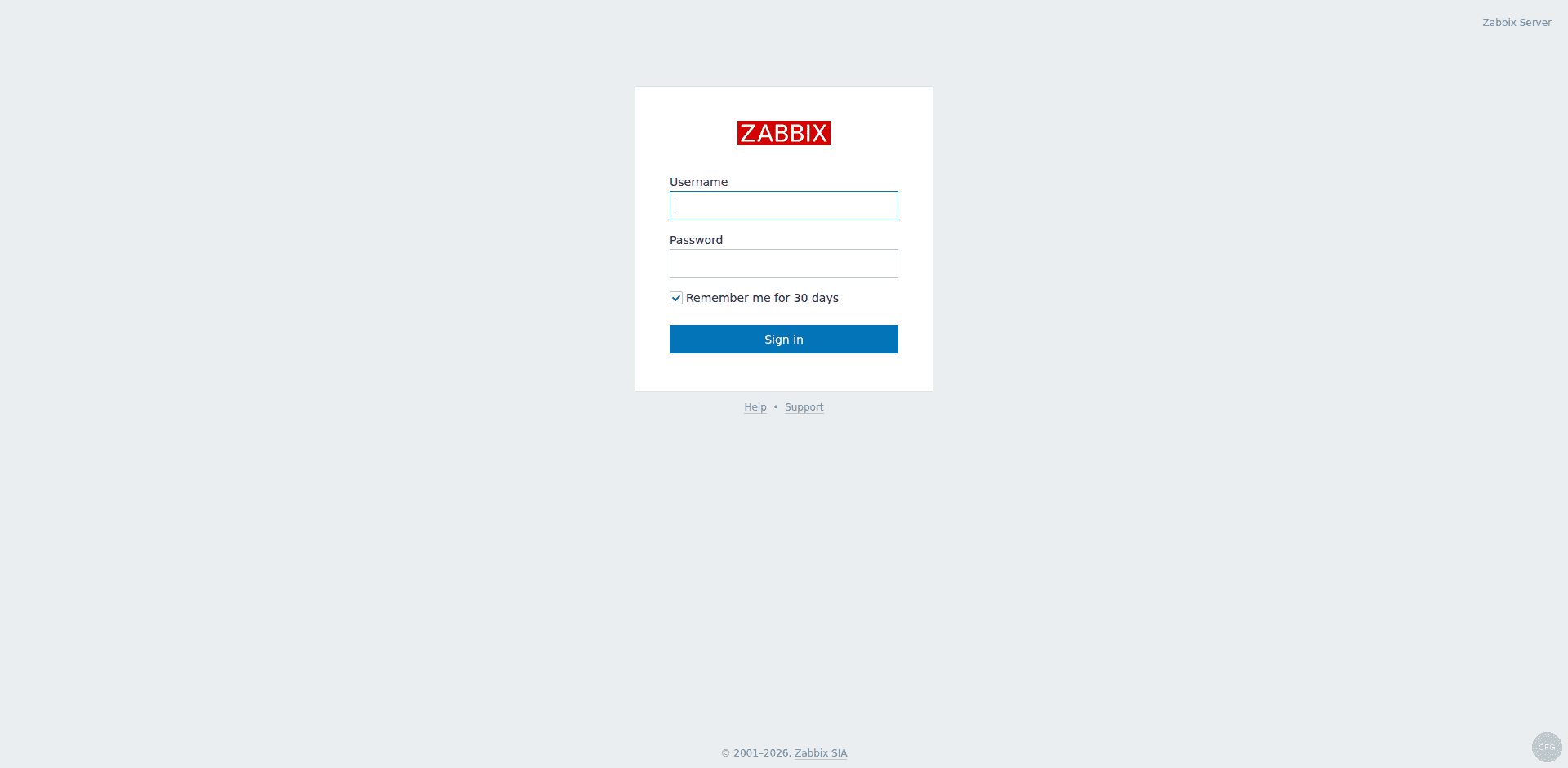
The default credentials are:
- Username: Admin (capital A)
- Password: zabbix
Change the default Admin password immediately after logging in. Go to User settings (click the person icon in the top right) and update the password to something strong.
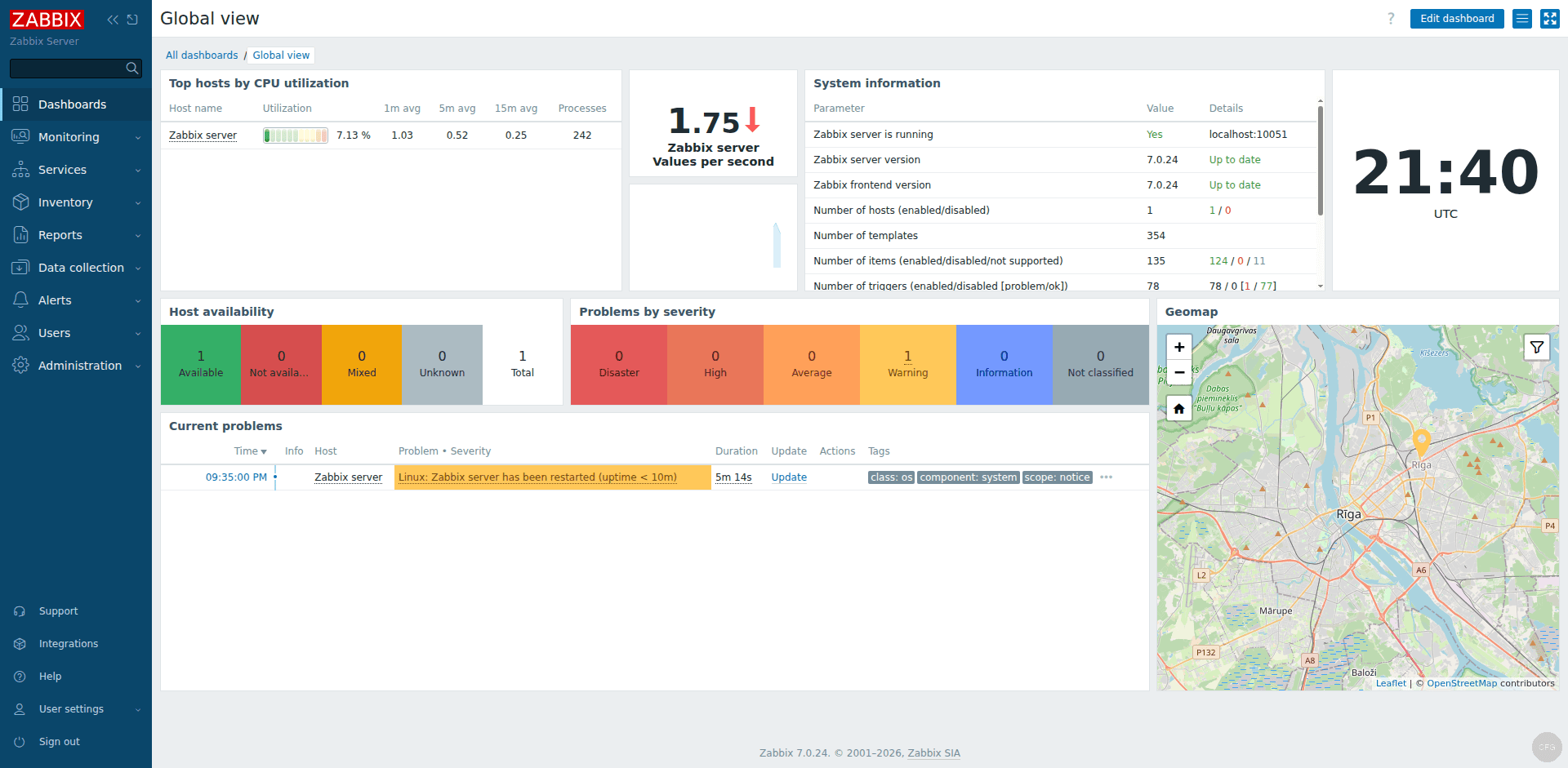
After logging in, you land on the Global View dashboard. It shows system information, host availability, problems by severity, and a geo map:
Step 8: Add Your First Linux Host with Zabbix Agent 2
The Zabbix server itself is already running Agent 2 locally, so let’s add it as a monitored host. This also gives you a pattern to follow when adding remote hosts later.
First, verify that Zabbix Agent 2 is running and configured correctly. Open the agent configuration file:
sudo nano /etc/zabbix/zabbix_agent2.confConfirm or set these values:
Server=127.0.0.1
ServerActive=127.0.0.1
Hostname=zabbix-server
The Hostname value here must match exactly what you enter in the Zabbix web frontend when adding this host. If the names do not match, the server will reject data from the agent.
Restart the agent if you made changes:
sudo systemctl restart zabbix-agent2Now add the host in the web frontend:
- Navigate to Data collection > Hosts
- Click Create host in the top right
- Set Host name to
zabbix-server(must match the agent config) - Under Templates, search for and add
Linux by Zabbix agent - In the Host groups field, select
Linux servers - Under Interfaces, click Add and select Agent. Set the IP to
127.0.0.1and port to10050 - Click Add at the bottom to save the host
Within a few minutes, the ZBX availability icon next to the host will turn green, indicating that the server is successfully polling the agent. If it stays grey or turns red, check the agent log at /var/log/zabbix/zabbix_agent2.log for connection errors.
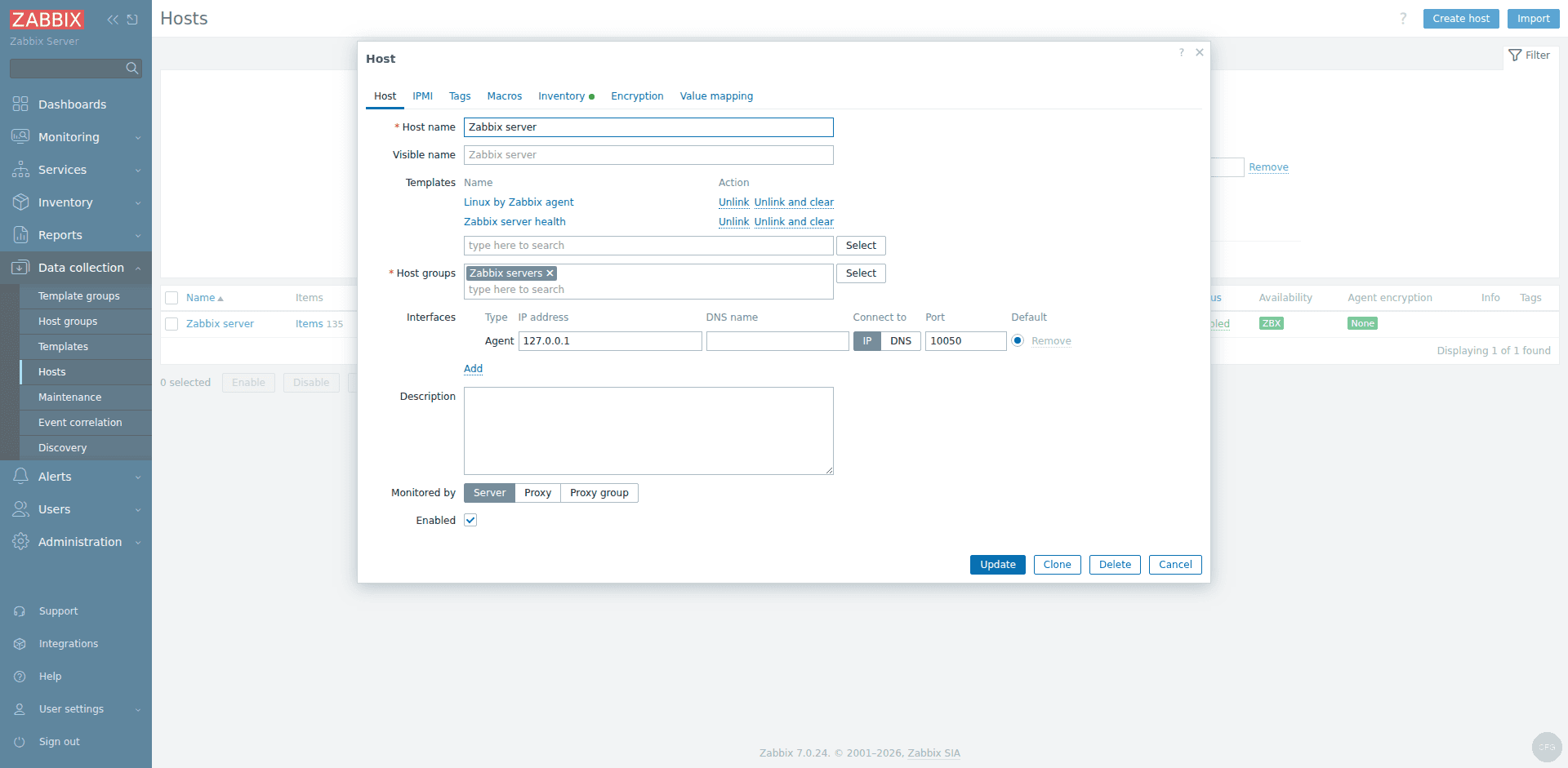
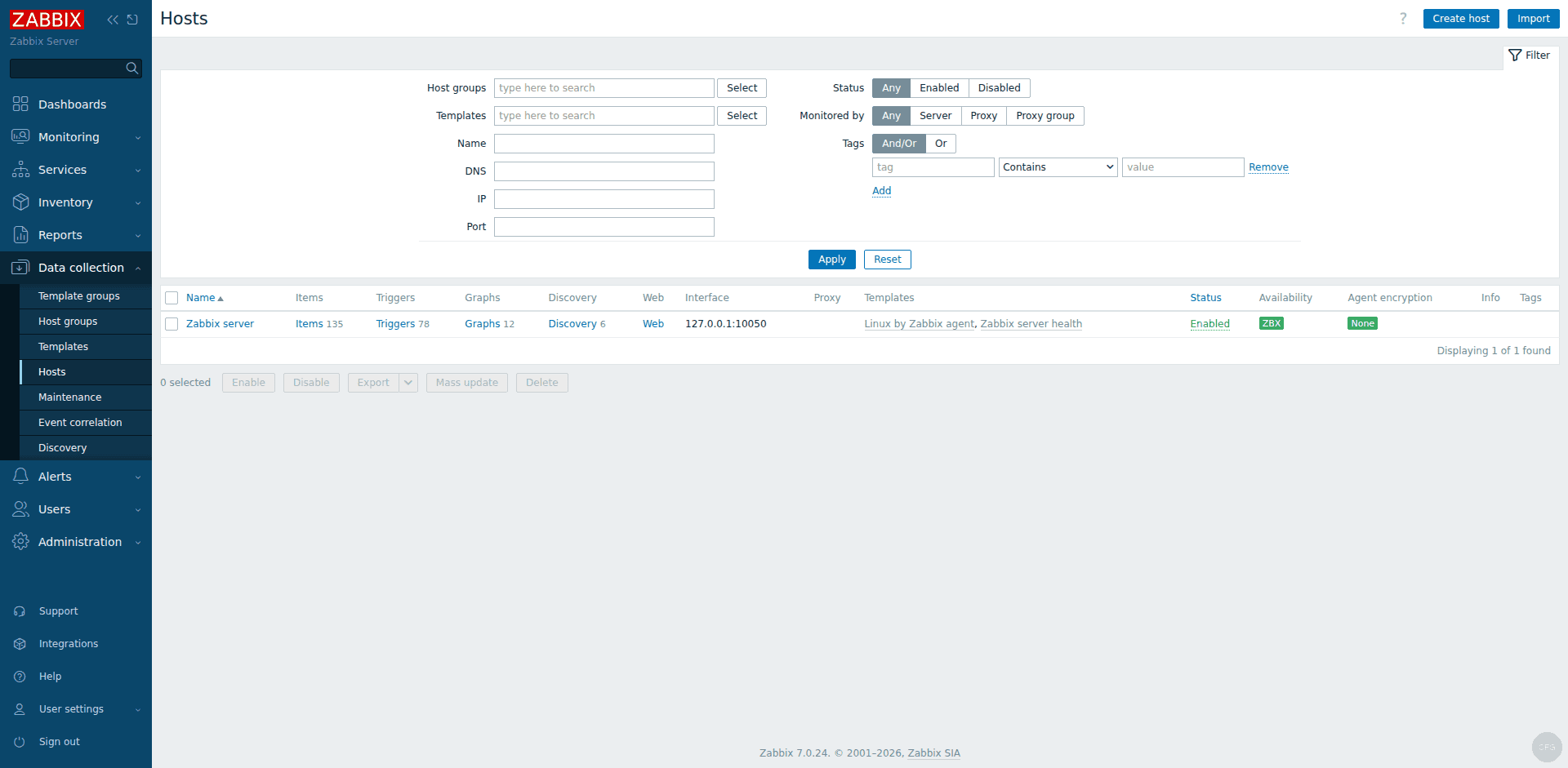
The host configuration page lets you set the hostname, agent interface, and link monitoring templates. The Monitoring – Hosts page shows all configured hosts and their current availability status:
For monitoring remote Linux hosts, install Zabbix Agent 2 on each target machine using the same repository setup from Step 1, then point its Server and ServerActive directives to the Zabbix server’s IP address. Our guide on installing Zabbix Agent on Ubuntu covers remote agent deployment in more detail.
Step 9: Configure Email Notifications
Monitoring is only useful if it tells you when something breaks. Zabbix supports multiple notification channels out of the box. Let’s set up email first, then Slack.
Email Media Type
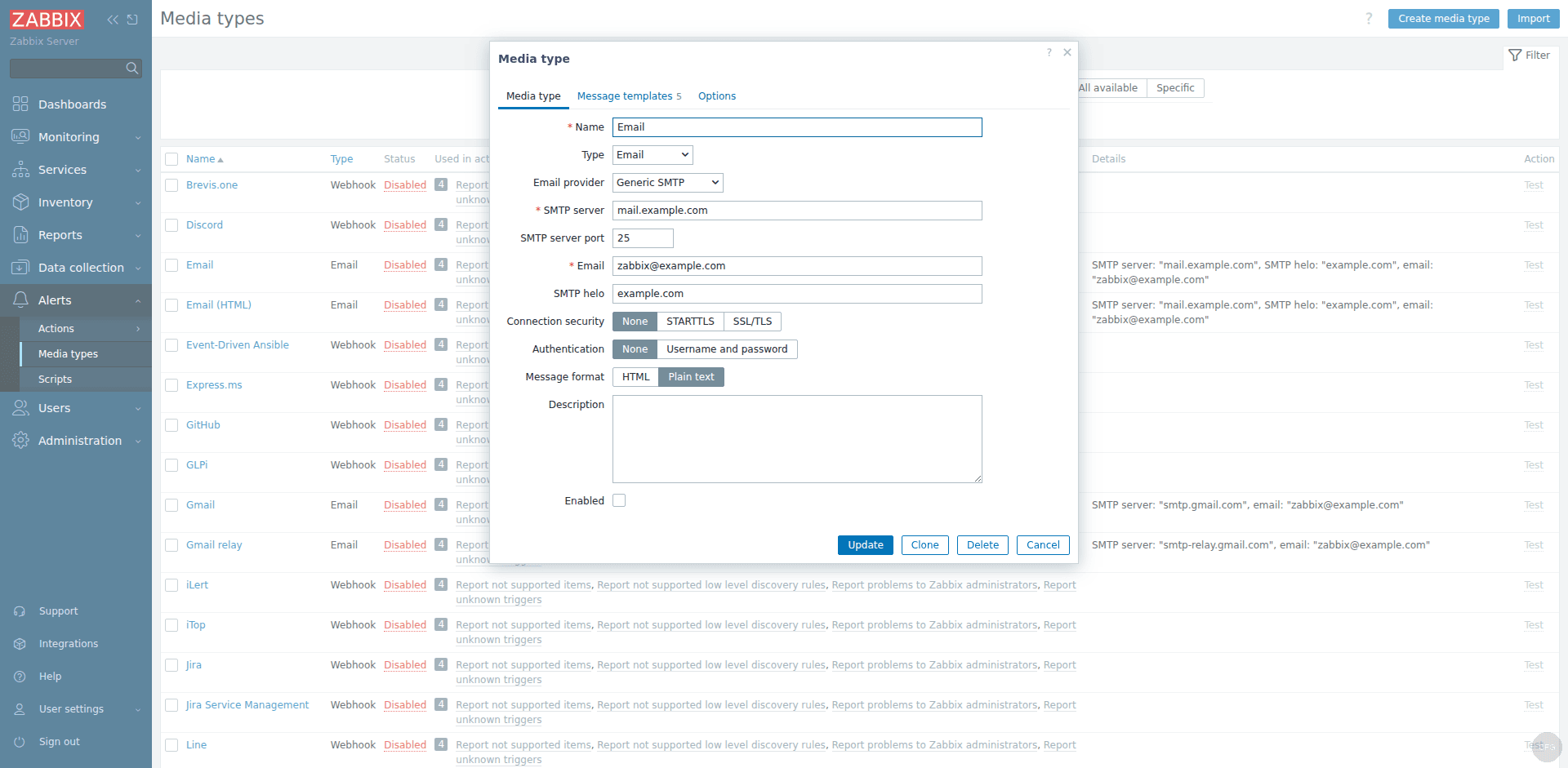
Zabbix 7.0 ships with a preconfigured Email media type. Navigate to Alerts > Media types and click on Email. Configure the SMTP settings for your mail server or external relay:
- SMTP server: smtp.example.com (or smtp.gmail.com for Gmail)
- SMTP server port: 587 (for STARTTLS) or 465 (for SSL)
- Security: STARTTLS
- Authentication: Username and password
- SMTP email: [email protected]
Click Update to save, then use the Test button at the bottom to send a test message to your inbox. If the test succeeds, the email media type is ready.
Next, assign the email media to your user. Go to Users > Users, click on Admin, switch to the Media tab, and click Add. Select Email as the type and enter your email address. Set the severity filter to the levels you care about (Warning, Average, High, Disaster at minimum). Click Add, then Update the user.
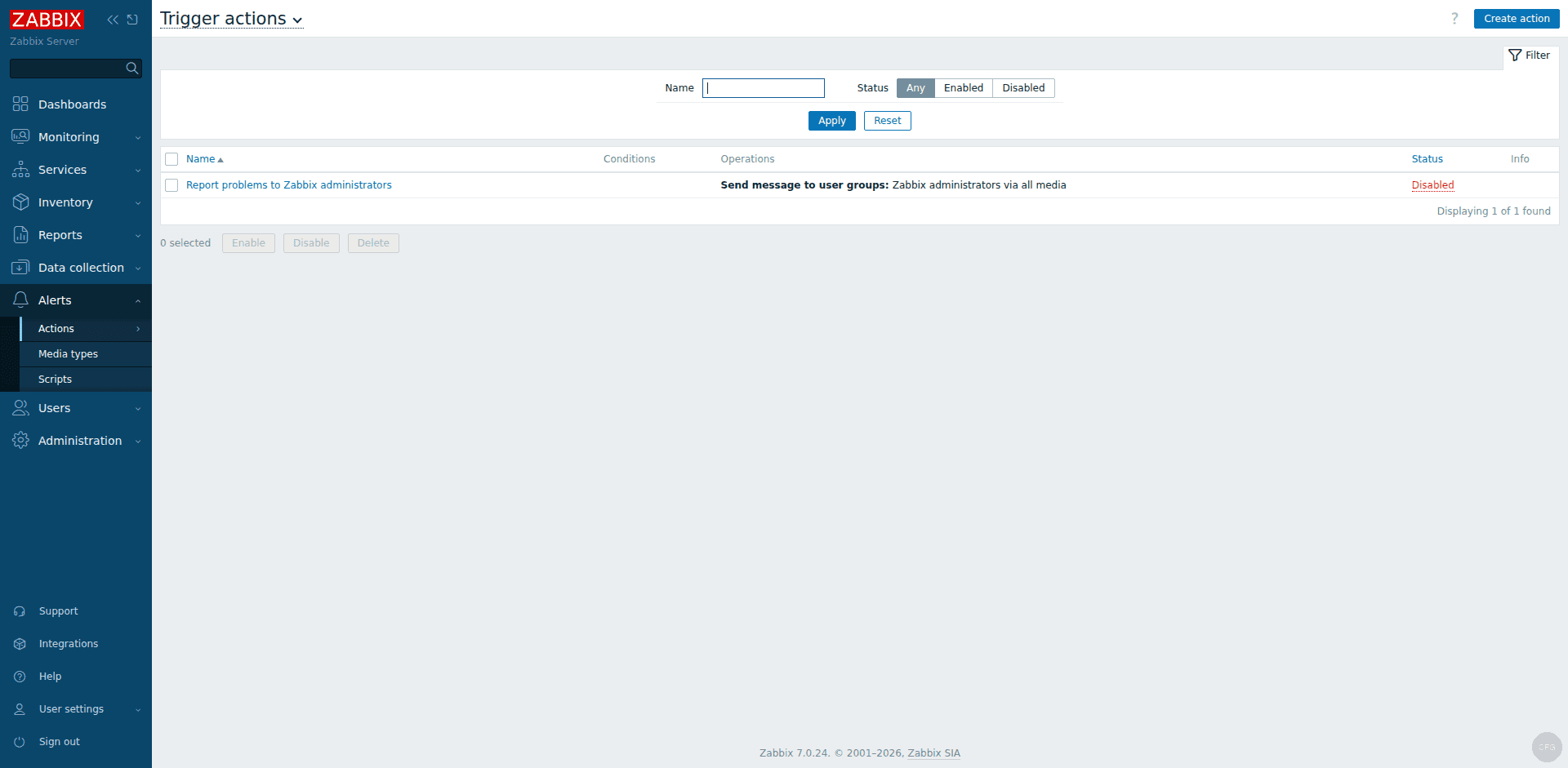
Finally, make sure an action exists that triggers notifications. Go to Alerts > Actions > Trigger actions. The default action called Report problems to Zabbix administrators is already there but disabled. Click on it, check the Enabled box, and click Update. This action sends notifications to all users in the Zabbix administrators group when a trigger fires.
Slack Notifications
Zabbix 7.0 includes a built-in Slack media type that uses incoming webhooks. Here is how to set it up:
- In your Slack workspace, go to api.slack.com/apps and create a new app. Add the Incoming Webhooks feature and create a webhook URL for the channel where you want alerts to appear. Copy the webhook URL.
- In Zabbix, navigate to Alerts > Media types and find Slack in the list. Click on it.
- In the parameters list, find
bot_tokenand paste your Slack Bot token (if using the Bot method), or find theslack_endpointparameter and configure the webhook URL. - Click Update and test using the Test button with a channel name.
- Go back to your Admin user’s Media tab and add Slack as an additional media type. In the Send to field, enter the Slack channel name (for example,
#monitoring-alerts).
Now when a trigger fires, you will get both an email and a Slack message. You can fine-tune which severities go where. Many teams send Warning-level alerts to Slack only and reserve email for High and Disaster severity problems.
Step 10: Monitoring Dashboards and Triggers
Once your host has been collecting data for a few minutes, the built-in dashboards start populating with useful information.
Global Dashboard
Navigate to Dashboards > Global view. This default dashboard shows a system-wide summary including total host count, current problems by severity, and a problems timeline. You can customize this dashboard by clicking the pencil icon in the top right corner and adding widgets like graphs, maps, or top hosts by CPU usage.
Host-Level Graphs
To see metrics for a specific host, go to Monitoring > Hosts, find your host, and click on Graphs. The Linux template automatically creates graphs for CPU utilization, memory usage, network traffic, disk I/O, and filesystem space. These graphs are generated from the items (data points) that the template defines.
Understanding Triggers
Triggers are conditional expressions that evaluate collected data and flip to a PROBLEM state when a threshold is breached. The Linux template comes with dozens of preconfigured triggers, including:
- High CPU utilization (over 90% for 5 minutes)
- Running out of free disk space (less than 20% remaining)
- High memory utilization (over 90%)
- System uptime is less than 10 minutes (catches unexpected reboots)
- Zabbix agent is not available (no data for 5 minutes)
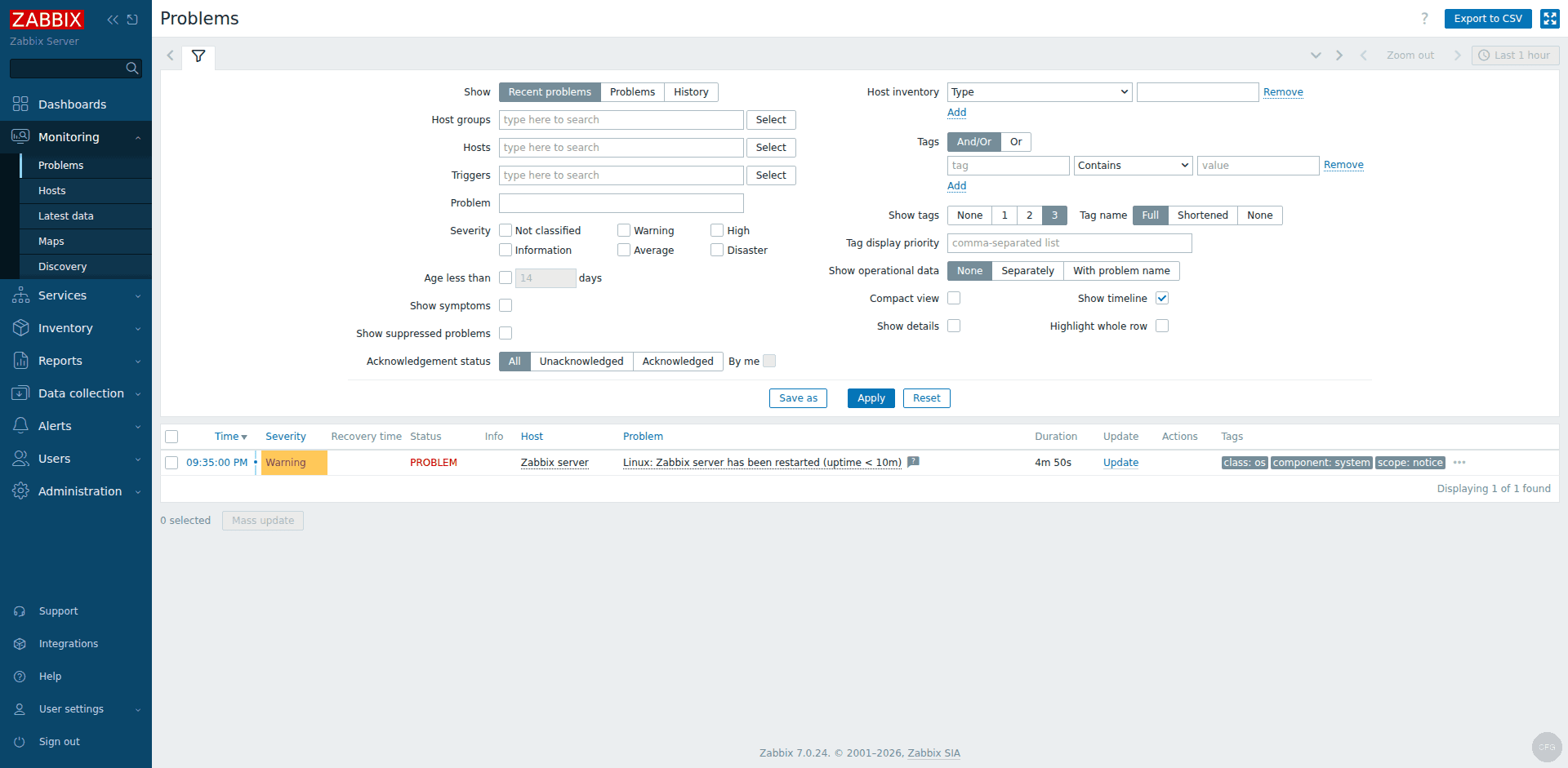
You can view all active triggers under Monitoring > Problems. Each problem shows when it started, its severity, the host, and the trigger expression that fired. When the condition clears (for example, CPU drops below 90%), Zabbix automatically marks the problem as resolved.
To create custom triggers, go to Data collection > Hosts, click on your host, select Triggers, and click Create trigger. The expression builder helps you construct conditions without having to memorize the syntax. For a deeper look at building effective monitoring templates, see our post on Zabbix monitoring templates.
Troubleshooting Common Issues
Here are the problems you are most likely to run into during or after installation, along with their fixes.
Zabbix Server Fails to Start: Database Connection Error
Check the server log first:
sudo tail -50 /var/log/zabbix/zabbix_server.logIf you see cannot connect to database or FATAL: password authentication failed, the issue is almost always one of these:
- The password in
/etc/zabbix/zabbix_server.confdoes not match what you set in PostgreSQL - The
DBHostis set tolocalhostbut pg_hba.conf only allows peer authentication for local connections. Either change pg_hba.conf to allow password auth on 127.0.0.1 or comment out DBHost to use Unix socket peer auth - PostgreSQL is not running. Check with
sudo systemctl status postgresql
To test the database connection manually:
psql -h 127.0.0.1 -U zabbix -d zabbix -c "SELECT count(*) FROM hosts;"If that command returns a number, your database connection works and the problem is elsewhere in the config.
Frontend Shows a Blank Page or 502 Error
A blank page or 502 Bad Gateway almost always means PHP-FPM is not running or Nginx cannot reach it. Work through these checks:
sudo systemctl status php8.3-fpmIf PHP-FPM is stopped, start it and check its log:
sudo systemctl start php8.3-fpm
sudo tail -20 /var/log/php8.3-fpm.log
Also check the Nginx error log for upstream connection failures:
sudo tail -20 /var/log/nginx/error.logCommon causes include a mismatched PHP-FPM socket path in the Nginx config, or port conflicts if another service is already bound to the port you chose. Make sure the fastcgi_pass directive in the Zabbix Nginx config matches the FPM pool’s listen directive. The Zabbix pool uses its own socket at unix:/var/run/php/zabbix.sock (not the default php8.3-fpm.sock).
Zabbix Agent Not Connecting
When the ZBX availability icon stays grey or red for a host, check these things in order:
1. Is the agent running?
sudo systemctl status zabbix-agent22. Does the hostname match? The Hostname value in /etc/zabbix/zabbix_agent2.conf must be identical to the host name configured in the Zabbix frontend. Case matters.
3. Is the firewall blocking port 10050? From the Zabbix server, test connectivity to the agent:
zabbix_get -s 127.0.0.1 -k agent.versionIf that returns the agent version number, the connection is fine and the problem is likely a hostname mismatch. If it times out, check firewall rules and verify the agent’s Server= directive includes the Zabbix server’s IP.
4. Check the agent log for specifics:
sudo tail -30 /var/log/zabbix/zabbix_agent2.logYou may see messages like failed to accept an incoming connection: connection from "x.x.x.x" rejected, allowed hosts: "y.y.y.y". That tells you exactly which IP to add to the agent’s Server= line.
High Server Load or Slow Frontend
If the Zabbix server process is consuming excessive CPU or the frontend is sluggish, consider these tuning steps:
- Increase
StartPollers,StartPollersUnreachable, andCacheSizeinzabbix_server.confbased on your host count - Run
VACUUM ANALYZEon the PostgreSQL database periodically, or set up autovacuum tuning - Move the database to a separate server if you are monitoring more than 500 hosts
- Enable Zabbix housekeeping settings to clean up old history and trend data
Secure the Frontend with HTTPS (Let’s Encrypt)
Running Zabbix over plain HTTP means your admin credentials and monitoring data travel unencrypted. In production, HTTPS is mandatory. This section shows how to get a free SSL certificate from Let’s Encrypt and configure Nginx to serve the Zabbix frontend over HTTPS.
Install certbot and the Nginx plugin:
sudo apt install -y certbot python3-certbot-nginxIf your server has a public IP and a DNS record pointing to it, obtain a certificate using the HTTP-01 challenge. Replace zabbix.example.com with your actual FQDN:
sudo certbot certonly --standalone -d zabbix.example.com --non-interactive --agree-tos -m [email protected]If your server is behind a firewall or on a private network with no inbound HTTP access, use the DNS-01 challenge with the Cloudflare plugin instead. Install the plugin first:
sudo apt install -y certbot python3-certbot-dns-cloudflareCreate a Cloudflare API credentials file:
sudo mkdir -p /etc/letsencrypt
echo "dns_cloudflare_api_token = YOUR_CLOUDFLARE_API_TOKEN" | sudo tee /etc/letsencrypt/cloudflare.ini
sudo chmod 600 /etc/letsencrypt/cloudflare.ini
Then obtain the certificate via DNS validation:
sudo certbot certonly --dns-cloudflare --dns-cloudflare-credentials /etc/letsencrypt/cloudflare.ini -d zabbix.example.com --non-interactive --agree-tos -m [email protected]Once you have the certificate, update the Nginx configuration to serve Zabbix over HTTPS. Replace the contents of /etc/nginx/conf.d/zabbix.conf with:
sudo nano /etc/nginx/conf.d/zabbix.confAdd the following SSL server block configuration:
server {
    listen 443 ssl http2;
    server_name zabbix.example.com;

    ssl_certificate /etc/letsencrypt/live/zabbix.example.com/fullchain.pem;
    ssl_certificate_key /etc/letsencrypt/live/zabbix.example.com/privkey.pem;

    ssl_session_timeout 1d;
    ssl_session_cache shared:SSL:10m;
    ssl_protocols TLSv1.2 TLSv1.3;

    root /usr/share/zabbix;
    index index.php;

    location = /favicon.ico {
        log_not_found off;
    }

    location / {
        try_files $uri $uri/ =404;
    }

    location /assets {
        access_log off;
        expires 10d;
    }

    location ~ /\.ht {
        deny all;
    }

    location ~ /(api\/|conf[^\.]|include|locale) {
        deny all;
        return 404;
    }

    location /vendor {
        deny all;
        return 404;
    }

    location ~ [^/]\.php(/|$) {
        fastcgi_pass unix:/var/run/php/zabbix.sock;
        fastcgi_split_path_info ^(.+\.php)(/.+)$;
        fastcgi_index index.php;

        fastcgi_param DOCUMENT_ROOT /usr/share/zabbix;
        fastcgi_param SCRIPT_FILENAME /usr/share/zabbix$fastcgi_script_name;
        fastcgi_param PATH_TRANSLATED /usr/share/zabbix$fastcgi_script_name;

        include fastcgi_params;
        fastcgi_param QUERY_STRING $query_string;
        fastcgi_param REQUEST_METHOD $request_method;
        fastcgi_param CONTENT_TYPE $content_type;
        fastcgi_param CONTENT_LENGTH $content_length;

        fastcgi_intercept_errors on;
        fastcgi_ignore_client_abort off;
        fastcgi_connect_timeout 60;
        fastcgi_send_timeout 180;
        fastcgi_read_timeout 180;
        fastcgi_buffer_size 128k;
        fastcgi_buffers 4 256k;
        fastcgi_busy_buffers_size 256k;
        fastcgi_temp_file_write_size 256k;
    }
}

server {
    listen 80;
    server_name zabbix.example.com;
    return 301 https://$host$request_uri;
}
Test the configuration and reload Nginx:
sudo nginx -t && sudo systemctl reload nginxOpen the firewall for HTTPS if you have not already done so:
sudo ufw allow 443/tcpVerify the certificate auto-renews correctly by running a dry run:
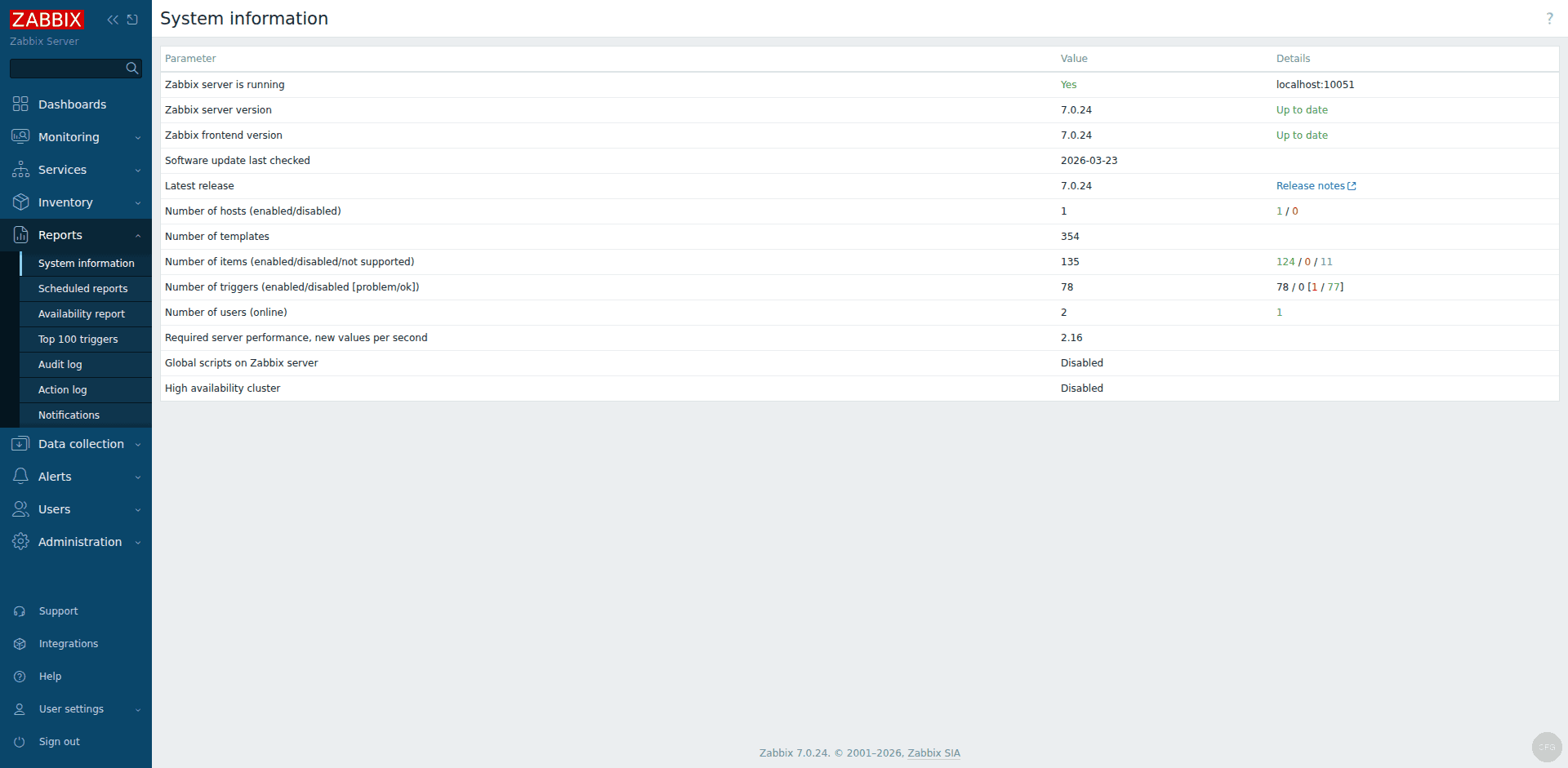
sudo certbot renew --dry-runThe Zabbix frontend is now accessible at https://zabbix.example.com with a valid SSL certificate. All HTTP requests are automatically redirected to HTTPS. You can verify the server details under Reports – System information:
Where to Go From Here
With Zabbix 7.0 LTS running on Ubuntu 24.04, you have a production-ready monitoring platform that can grow with your infrastructure. Here are some logical next steps:
- Add SNMP-based monitoring for network switches and routers
- Set up Zabbix Proxy for monitoring hosts across remote sites or cloud VPCs
- Create custom templates for your application-specific metrics
- Integrate with PagerDuty, Telegram, or Microsoft Teams for additional notification channels
- Configure auto-discovery rules to automatically find and add new hosts on your network
Zabbix has a steep initial learning curve, but once you get past the setup phase, it rewards you with a monitoring system that handles everything from a handful of servers to thousands of devices across multiple data centers. The 7.0 LTS release will carry your deployment through mid-2029 with full support, giving you a stable foundation to build on without worrying about forced upgrades.
