

Zabbix 8.0 alpha packages landed in the official repositories a few weeks ago, and they work on Ubuntu 24.04 without any workarounds. If you want to get ahead of the curve before the stable release ships in Q3 2026, now is the time to set up a test environment and get familiar with the new features: native JSON item types, scatter plot widgets, improved LLD macros, and the beginnings of OpenTelemetry integration.
This guide installs the full Zabbix 8.0 stack on Ubuntu 24.04 LTS with PostgreSQL 16 and Nginx. Every command was tested on a fresh VM, and we captured the complete web setup wizard so you know exactly what to expect. If you are looking for the current LTS version instead, check our guide on Zabbix 7.0 LTS on Ubuntu 24.04 with PostgreSQL and Nginx.
Last verified: March 2026 | Tested on Ubuntu 24.04 LTS with Zabbix 8.0.0alpha2, PostgreSQL 16.13, Nginx 1.24.0, PHP 8.3.6
Before You Begin
- An Ubuntu 24.04 LTS server with at least 2 CPU cores and 4 GB RAM
- Root or sudo access
- Ports 80, 443, 10050, and 10051 open in the firewall
- A domain name for SSL (optional for testing, recommended for production)
- Tested on: Ubuntu 24.04 LTS, Zabbix 8.0.0alpha2, PostgreSQL 16.13, Nginx 1.24.0, PHP 8.3.6
Add the Zabbix 8.0 Repository
Download and install the Zabbix repository configuration package:
wget https://repo.zabbix.com/zabbix/8.0/release/ubuntu/pool/main/z/zabbix-release/zabbix-release_latest_8.0+ubuntu24.04_all.deb
sudo dpkg -i zabbix-release_latest_8.0+ubuntu24.04_all.deb
sudo apt update
This adds three repositories: zabbix-release (stable, empty until GA), zabbix-unstable (current alpha packages), and zabbix-tools. The 8.0 packages install from the unstable repo automatically since the release repo has no packages yet.
Install Zabbix Server, Frontend, and Agent 2
Install the server with PostgreSQL backend, the PHP frontend with Nginx config, SQL scripts, and Agent 2:
sudo apt install -y zabbix-server-pgsql zabbix-frontend-php php8.3-pgsql zabbix-nginx-conf zabbix-sql-scripts zabbix-agent2 zabbix-agent2-plugin-postgresqlThis pulls in Nginx, PHP-FPM 8.3 with all required extensions, and the Zabbix Agent 2 binary. Verify the version:
zabbix_server --version | head -1Expected output:
zabbix_server (Zabbix) 8.0.0alpha2Set Up PostgreSQL
Ubuntu 24.04 ships PostgreSQL 16 in its default repositories. Install it:
sudo apt install -y postgresqlPostgreSQL starts automatically after installation on Ubuntu. Create the Zabbix database user and database:
sudo -u postgres createuser --pwprompt zabbix
sudo -u postgres createdb -O zabbix zabbix
Enter a strong password when prompted. Then import the Zabbix schema:
zcat /usr/share/zabbix/sql-scripts/postgresql/server.sql.gz | sudo -u zabbix psql zabbixThe import creates 210 tables and takes about a minute. Verify:
sudo -u zabbix psql -c "SELECT count(*) FROM information_schema.tables WHERE table_schema='public';" zabbixYou should see a count of 210.
Configure the Zabbix Server
Set the database password in the Zabbix server config:
sudo vi /etc/zabbix/zabbix_server.confFind the commented DBPassword line and set it:
DBPassword=YourStrongPasswordHereConfigure Nginx for the Zabbix Frontend
The Zabbix package drops a config file at /etc/nginx/conf.d/zabbix.conf with the listen and server_name lines commented out. For a quick test with HTTP only, just uncomment those two lines:
sudo vi /etc/nginx/conf.d/zabbix.confChange:
#        listen          8080;
#        server_name     example.com;
To:
        listen          80;
        server_name     zabbix.example.com;
For production, you should set up SSL with Let’s Encrypt. Install certbot and obtain a certificate:
sudo apt install -y certbot
sudo systemctl stop nginx
sudo certbot certonly --standalone -d zabbix.example.com --non-interactive --agree-tos -m [email protected]
sudo systemctl start nginx
Then replace the zabbix.conf with the SSL version. The key difference from Rocky Linux: Ubuntu 24.04 ships Nginx 1.24, which uses the older listen 443 ssl http2 syntax (not the newer http2 on directive). Here is the full SSL config:
server {
    listen 443 ssl http2;
    server_name zabbix.example.com;

    ssl_certificate /etc/letsencrypt/live/zabbix.example.com/fullchain.pem;
    ssl_certificate_key /etc/letsencrypt/live/zabbix.example.com/privkey.pem;

    root /usr/share/zabbix/ui;
    index index.php;
    client_max_body_size 5m;

    location = /favicon.ico { log_not_found off; }
    location / { try_files $uri $uri/ =404; }
    location /assets { access_log off; expires 10d; }
    location ~ /\.ht { deny all; }
    location ~ /(api\/|conf[^\/]|include\/|locale\/|vendor\/) { deny all; return 404; }

    location ~ [^/]\.php(/|$) {
        fastcgi_pass unix:/run/php/zabbix.sock;
        fastcgi_split_path_info ^(.+\.php)(/.+)$;
        fastcgi_index index.php;

        fastcgi_param DOCUMENT_ROOT /usr/share/zabbix/ui;
        fastcgi_param SCRIPT_FILENAME /usr/share/zabbix/ui$fastcgi_script_name;
        fastcgi_param PATH_TRANSLATED /usr/share/zabbix/ui$fastcgi_script_name;

        include fastcgi_params;
        fastcgi_param QUERY_STRING $query_string;
        fastcgi_param REQUEST_METHOD $request_method;
        fastcgi_param CONTENT_TYPE $content_type;
        fastcgi_param CONTENT_LENGTH $content_length;

        fastcgi_intercept_errors on;
        fastcgi_connect_timeout 60;
        fastcgi_send_timeout 180;
        fastcgi_read_timeout 180;
        fastcgi_buffer_size 128k;
        fastcgi_buffers 4 256k;
        fastcgi_busy_buffers_size 256k;
        fastcgi_temp_file_write_size 256k;
    }
}

server {
    listen 80;
    server_name zabbix.example.com;
    return 301 https://$host$request_uri;
}
Note the PHP-FPM socket path on Ubuntu is /run/php/zabbix.sock, not /run/php-fpm/zabbix.sock like on Rocky Linux. Test and reload Nginx:
sudo nginx -t
sudo systemctl reload nginx
Open Firewall Ports
Ubuntu uses UFW as its firewall frontend. Open the required ports:
sudo ufw allow 80/tcp
sudo ufw allow 443/tcp
sudo ufw allow 10050/tcp
sudo ufw allow 10051/tcp
If UFW is not active, enable it with sudo ufw enable. Make sure SSH (port 22) is allowed first.
Start Everything
Enable and start the Zabbix server, agent, Nginx, and PHP-FPM:
sudo systemctl enable --now zabbix-server zabbix-agent2 nginx php8.3-fpmVerify all services are running:
for svc in zabbix-server zabbix-agent2 nginx php8.3-fpm postgresql; do
  echo "$svc: $(systemctl is-active $svc)"
done
All five should show active:
zabbix-server: active
zabbix-agent2: active
nginx: active
php8.3-fpm: active
postgresql: active
Check the Zabbix server log to confirm the agent is communicating:
sudo tail -5 /var/log/zabbix/zabbix_server.logYou should see a line confirming the agent interface is available:
enabling Zabbix agent checks on host "Zabbix server": interface became availableWalk Through the Web Setup Wizard
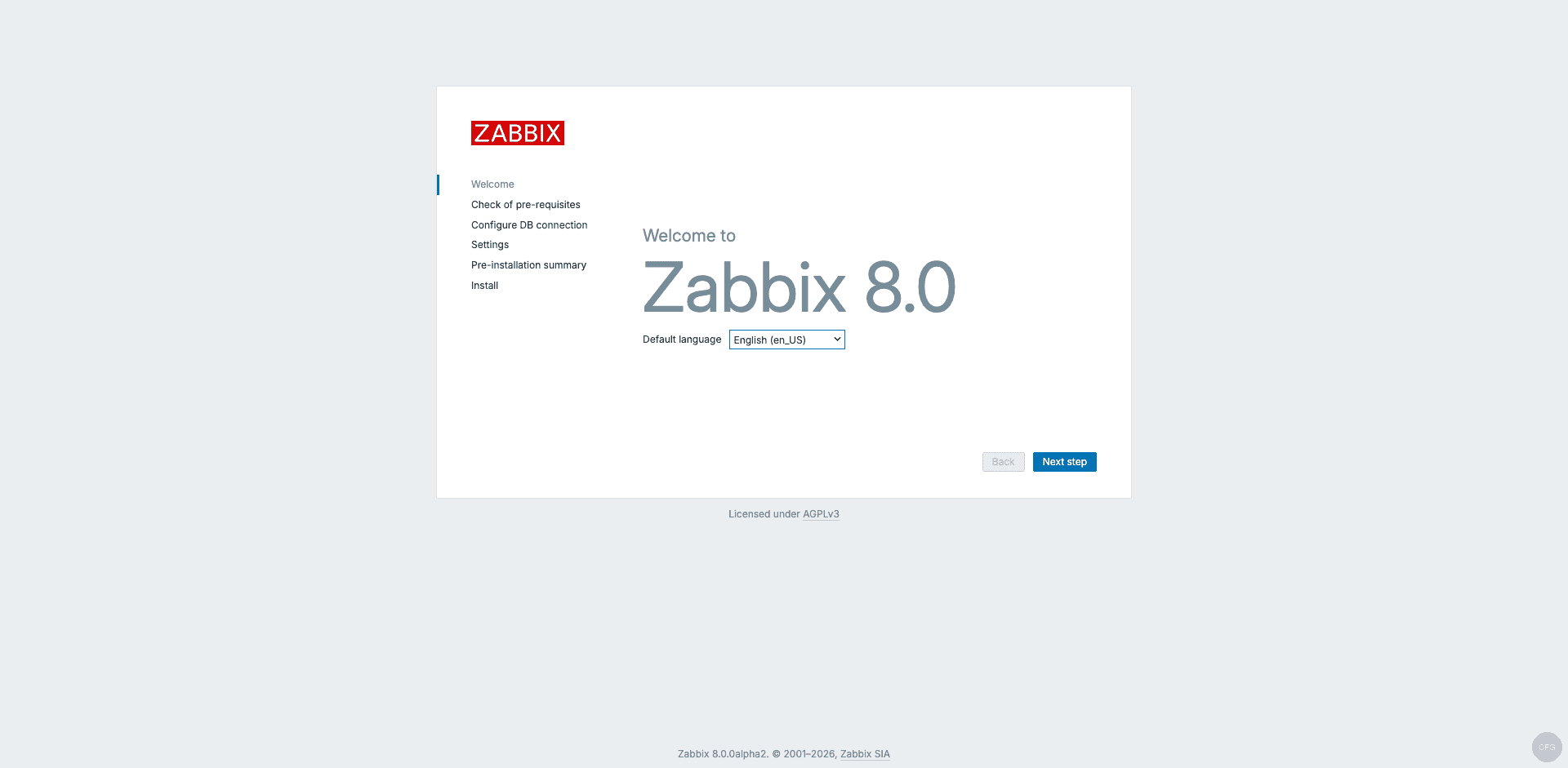
Open https://your-server in a browser. The Zabbix 8.0 setup wizard starts automatically on first access:
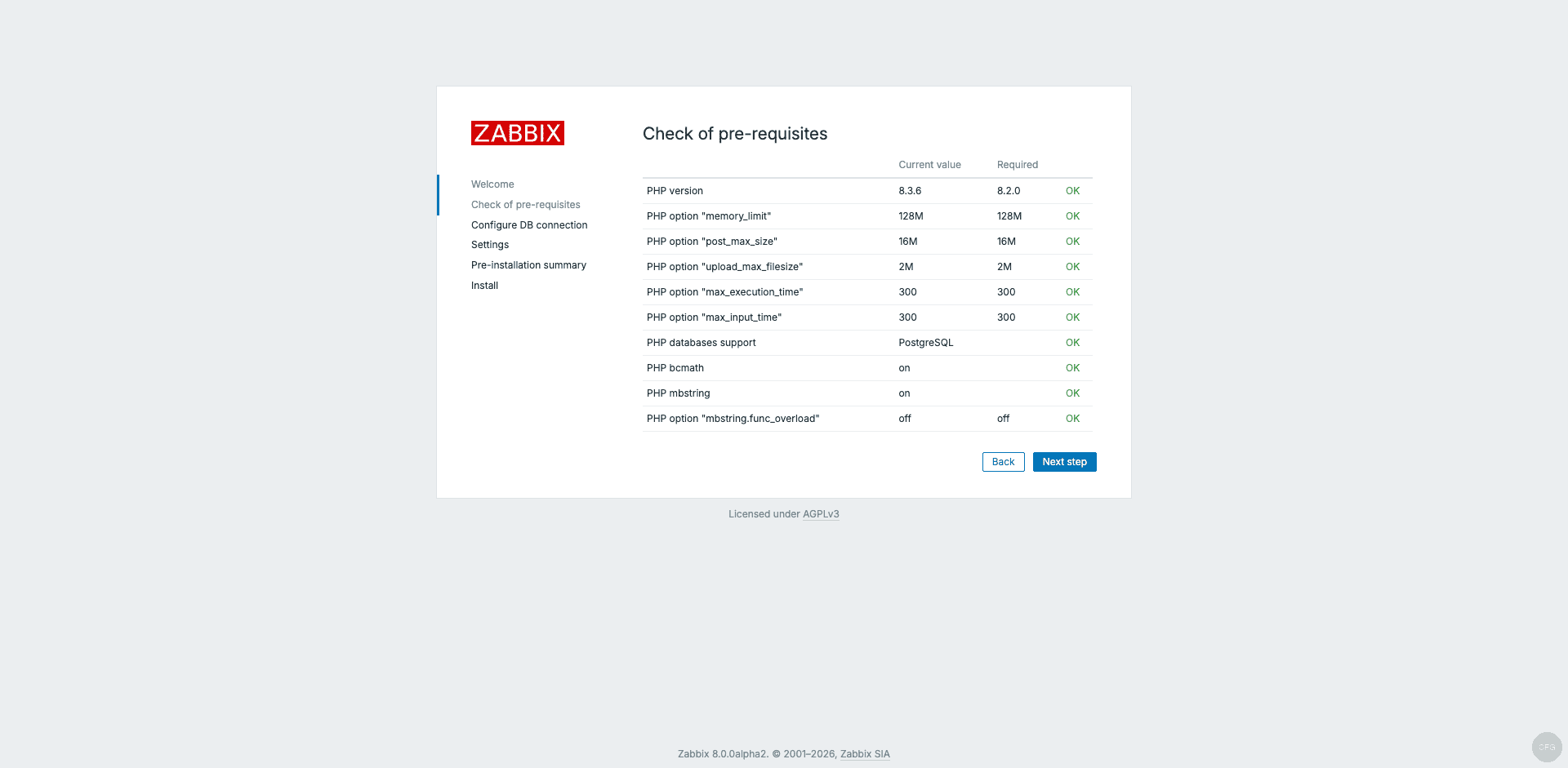
Click Next step. The prerequisites check confirms PHP 8.3.6 and all extensions are in order:
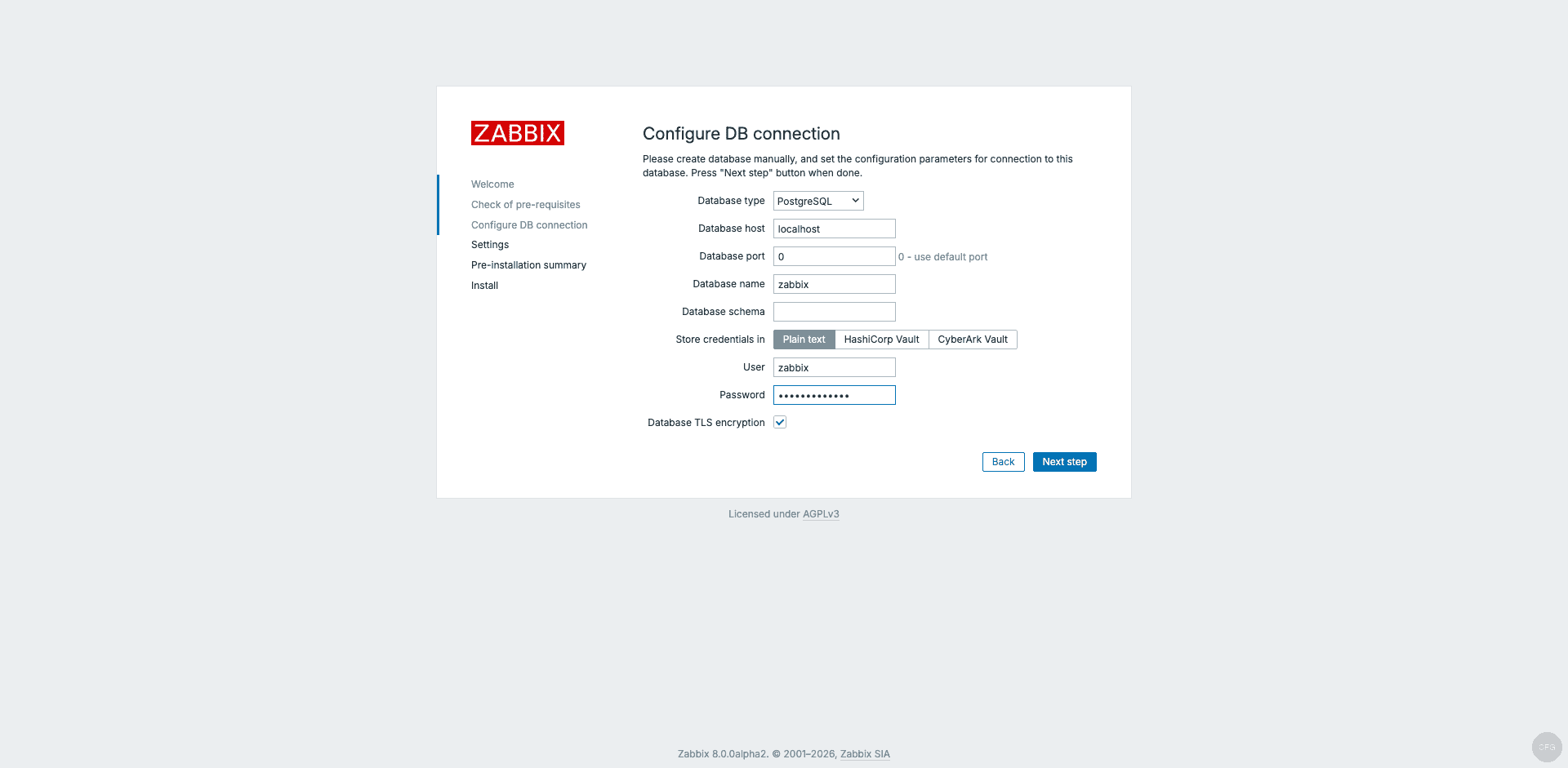
On the database configuration page, select PostgreSQL, leave the host as localhost, and enter the password you created earlier:
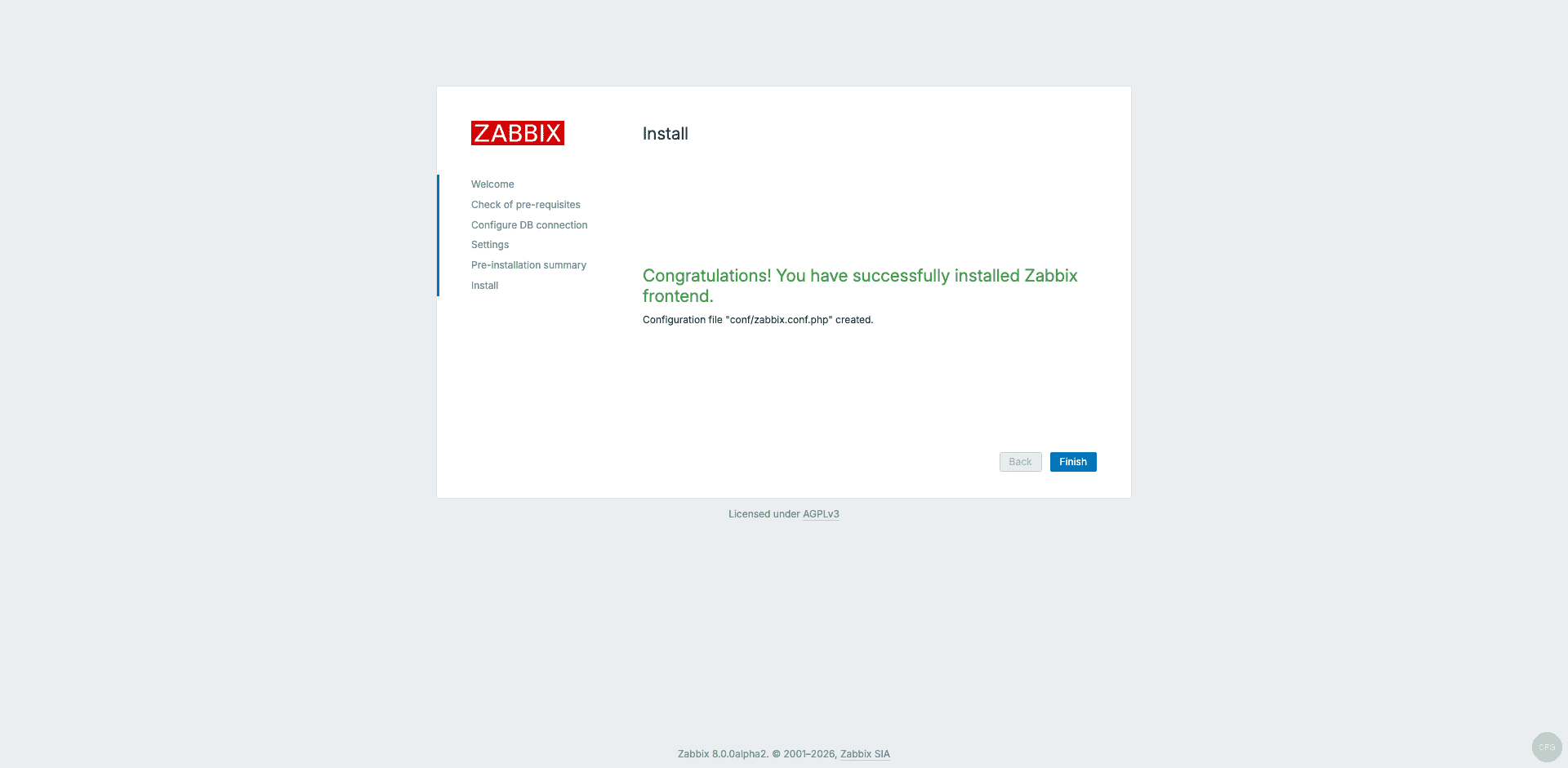
Unlike Rocky Linux, Ubuntu does not need any SELinux boolean changes for the database connection to work. Click through the Settings page (defaults are fine) and the pre-installation summary, then complete the installation:
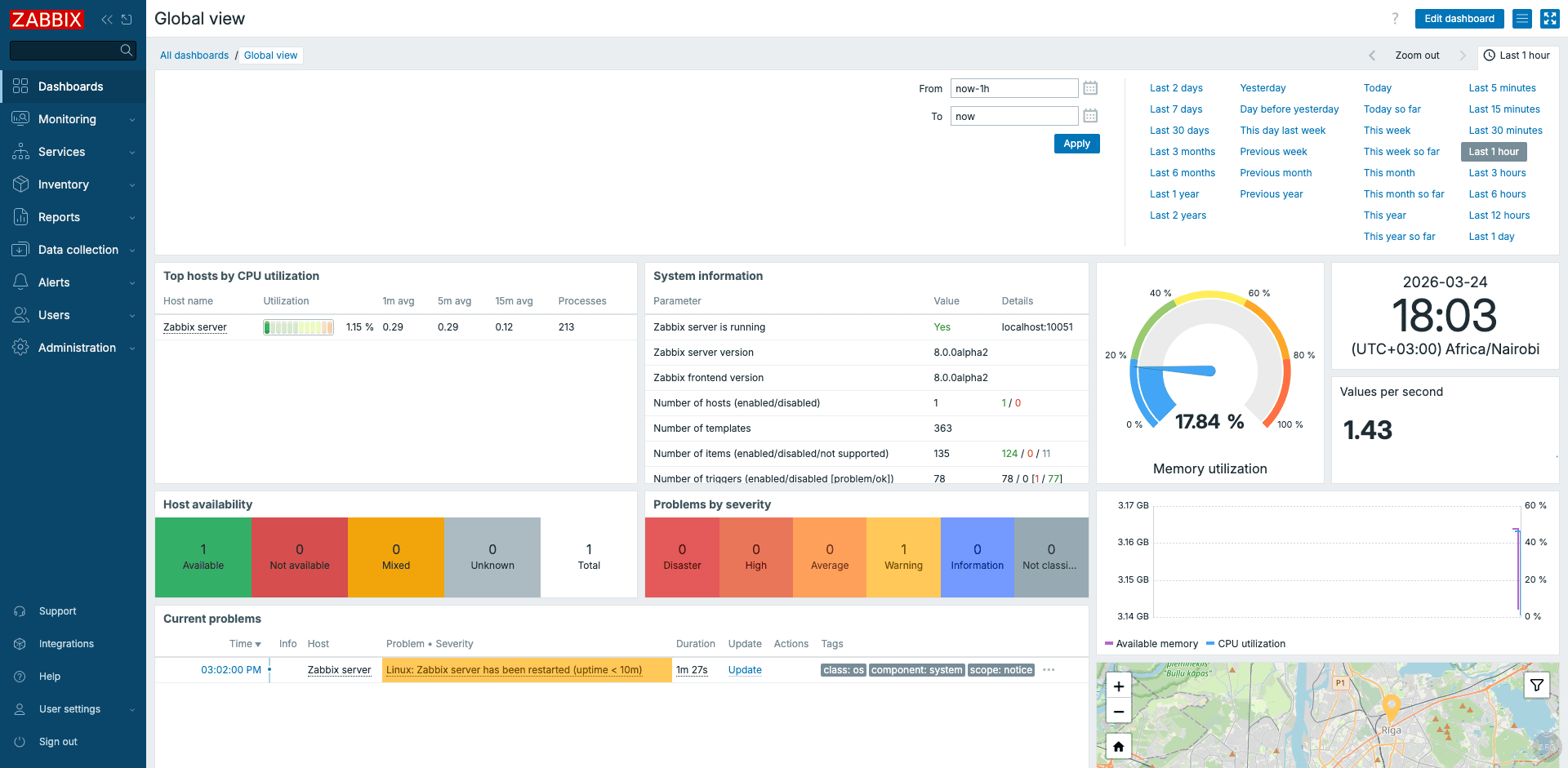
Log in with the default credentials (Admin / zabbix) and change the password immediately. The Global View dashboard shows system metrics being collected by Agent 2:
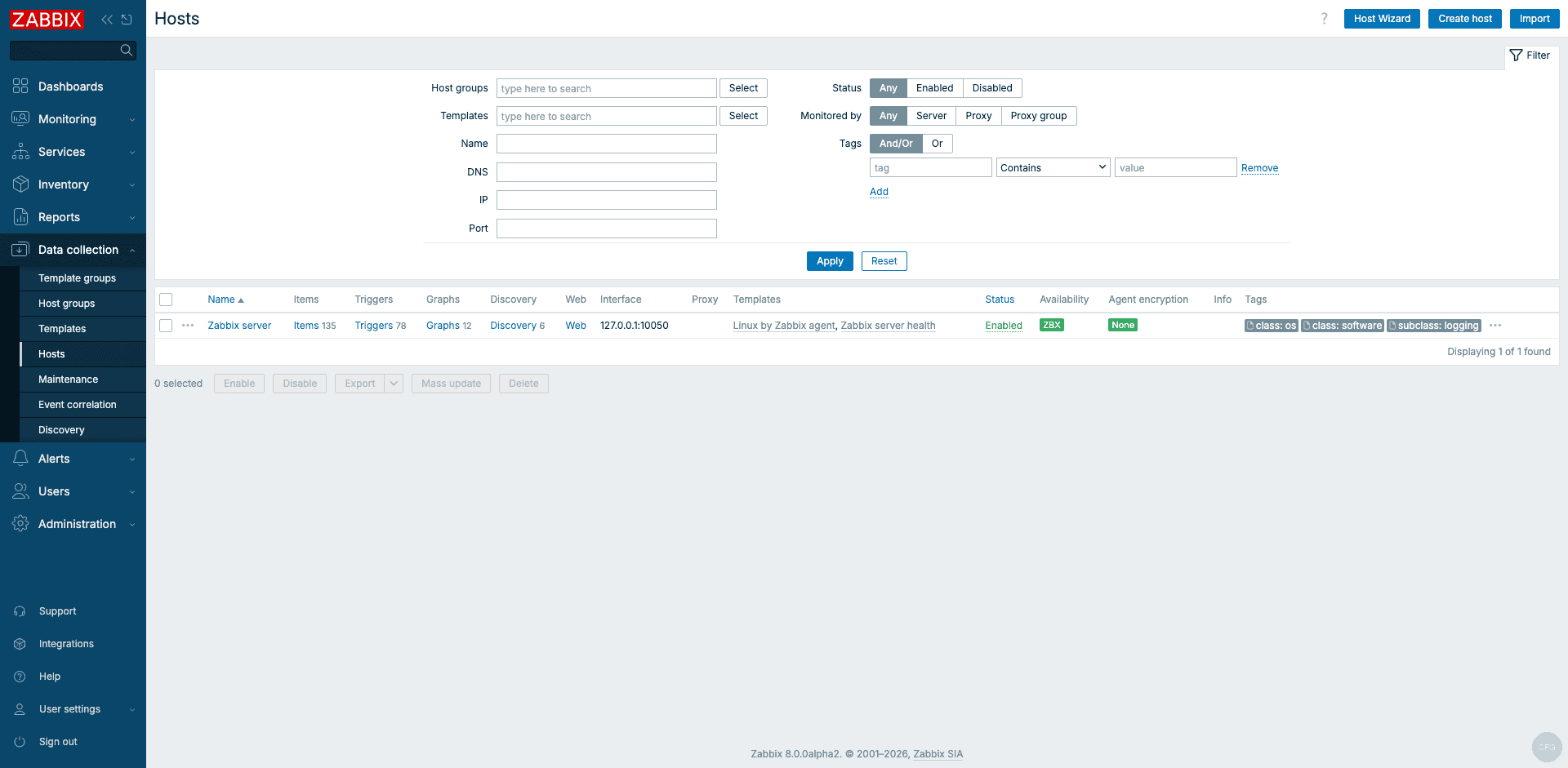
The Hosts page confirms the “Zabbix server” host is being monitored with Agent 2:
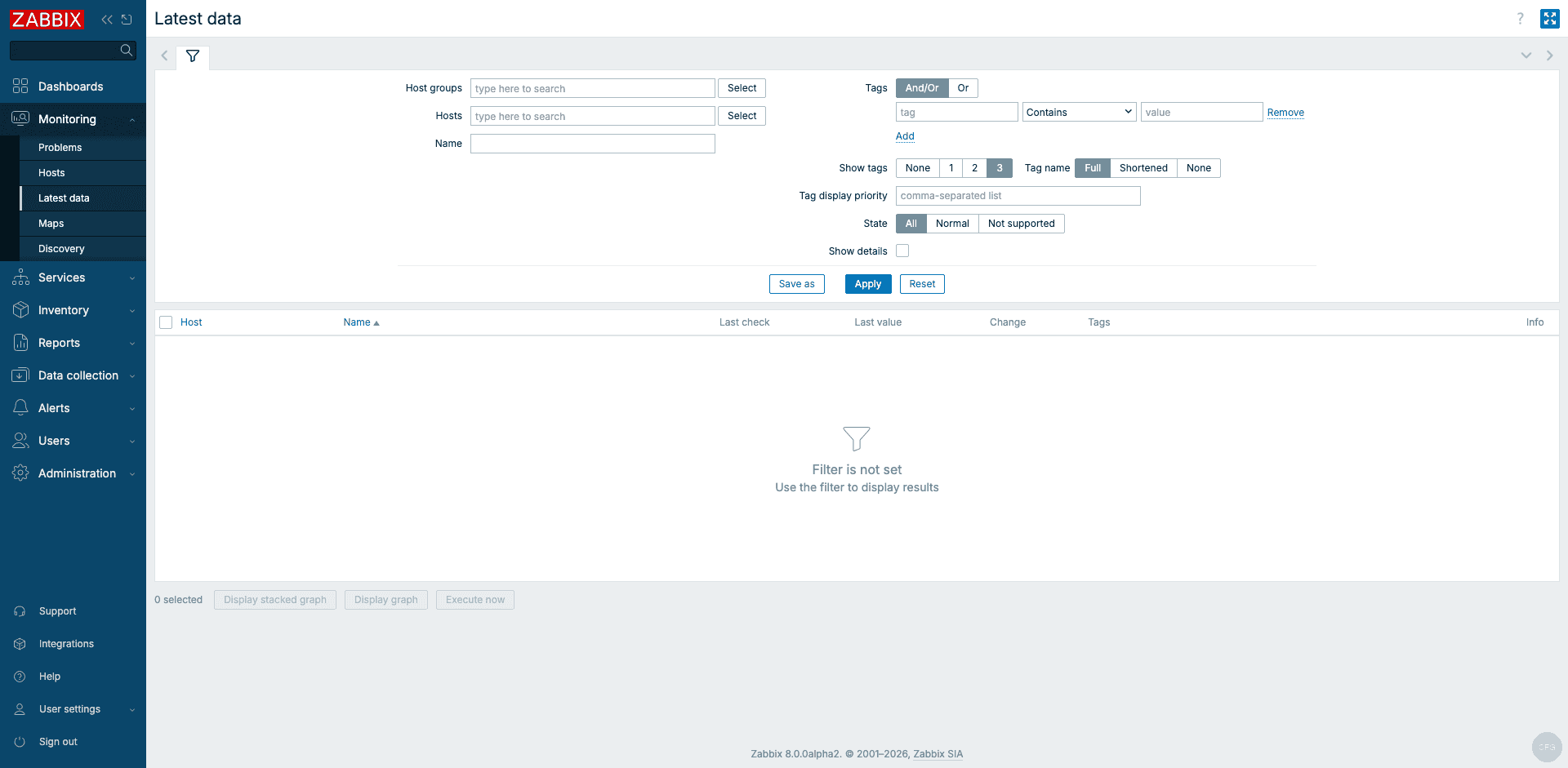
Latest data shows real metrics flowing from the agent:
Ubuntu vs Rocky Linux: Key Differences
If you are also running Zabbix 8.0 on Rocky Linux 10, here are the notable differences on Ubuntu 24.04:
| Item | Ubuntu 24.04 | Rocky Linux 10 |
|---|---|---|
| Package manager | apt install | dnf install |
| Nginx version | 1.24.0 (listen 443 ssl http2) | 1.26.3 (separate http2 on) |
| PHP version | 8.3.6 | 8.3.29 |
| PHP-FPM service | php8.3-fpm | php-fpm |
| PHP-FPM socket | /run/php/zabbix.sock | /run/php-fpm/zabbix.sock |
| SELinux | Not present (AppArmor instead) | Enforcing (needs setsebool) |
| Firewall | UFW | firewalld |
| PostgreSQL | 16.13 (auto-starts) | 16.13 (needs initdb) |
| Frontend PHP package | zabbix-frontend-php | zabbix-web-pgsql |
The biggest practical difference is SELinux. On Rocky Linux, you must set httpd_can_network_connect_db or the web wizard fails to connect to PostgreSQL. Ubuntu uses AppArmor instead, which has no restrictions on PHP database connections by default.
Using MySQL Instead of PostgreSQL
If you prefer MySQL or MariaDB as the database backend, swap the PostgreSQL-specific packages:
sudo apt install -y zabbix-server-mysql zabbix-frontend-php zabbix-nginx-conf zabbix-sql-scripts zabbix-agent2Then create the MySQL database and import the schema:
sudo mysql -e "CREATE DATABASE zabbix CHARACTER SET utf8mb4 COLLATE utf8mb4_bin;"
sudo mysql -e "CREATE USER 'zabbix'@'localhost' IDENTIFIED BY 'YourPassword';"
sudo mysql -e "GRANT ALL PRIVILEGES ON zabbix.* TO 'zabbix'@'localhost';"
sudo mysql -e "SET GLOBAL log_bin_trust_function_creators = 1;"
zcat /usr/share/zabbix/sql-scripts/mysql/server.sql.gz | mysql -uzabbix -p zabbix
Update /etc/zabbix/zabbix_server.conf with DBPassword and select MySQL during the web setup wizard. Everything else remains the same.
Wrapping Up
Zabbix 8.0 installs cleanly on Ubuntu 24.04 with no workarounds needed. The entire process takes about 15 minutes from a fresh server to a working dashboard. The Zabbix 8.0 GA release is planned for Q3 2026, at which point the packages will move from the unstable to the release repository. We will update this guide when that happens. For monitoring Debian systems with Zabbix Agent 2, check our dedicated agent installation guide.
