

Zabbix 8.0 brings native JSON data types, a scatter plot widget, improved low-level discovery with nested macro support, and OpenTelemetry groundwork. The packages are already available in the Zabbix unstable repository for Rocky Linux 10 and AlmaLinux 10, which means you can set it up today and be ready when the GA release drops. We tested the full installation on Rocky Linux 10.1 with PostgreSQL 16 and Nginx, from repo setup through the web UI wizard, and everything works cleanly with SELinux enforcing.
This guide covers the complete Zabbix 8.0 server installation on Rocky Linux 10 and AlmaLinux 10 with PostgreSQL as the database backend and Nginx as the web server. We walk through repository configuration, package installation, database setup, Nginx with SSL, SELinux configuration, the web-based setup wizard, and verifying that monitoring data is flowing. For the Zabbix 7.0 LTS version, see our guide on installing Zabbix 7.0 LTS on Rocky Linux 10.
Last verified: March 2026 | Tested on Rocky Linux 10.1 with Zabbix 8.0.0alpha2, PostgreSQL 16.13, Nginx 1.26.3, PHP 8.3.29
What You Need
- Rocky Linux 10 or AlmaLinux 10 server with at least 2 CPU cores and 4 GB RAM
- Root or sudo access
- Ports to open: 80/tcp, 443/tcp (web UI), 10050/tcp (agent), 10051/tcp (server)
- A domain name pointed to the server (for SSL). You can use an IP address for initial testing
- Tested on: Rocky Linux 10.1 (kernel 6.12), Zabbix 8.0.0alpha2, PostgreSQL 16.13, Nginx 1.26.3, PHP 8.3.29, SELinux enforcing
Step 1: Install the Zabbix 8.0 Repository
Zabbix packages are not in the default Rocky Linux repositories. Install the official Zabbix 8.0 release repository:
sudo rpm -Uvh https://repo.zabbix.com/zabbix/8.0/release/rocky/10/noarch/zabbix-release-latest-8.0.el10.noarch.rpmOn AlmaLinux 10, use the AlmaLinux-specific package instead:
sudo rpm -Uvh https://repo.zabbix.com/zabbix/8.0/release/alma/10/noarch/zabbix-release-latest-8.0.el10.noarch.rpmClean the dnf cache and verify the repositories are available:
sudo dnf clean all
sudo dnf repolist | grep zabbix
You should see three Zabbix repositories:
zabbix-release        Zabbix Official Repository (release packages) - noarch
zabbix-third-party    Zabbix Official Repository (third-party) - x86_64
zabbix-unstable       Zabbix Official Repository (unstable) - x86_64
The Zabbix 8.0 packages are currently in the zabbix-unstable repository. Once the GA release ships, they will move to zabbix-release and you will not need the --enablerepo flag shown in the next step.
Step 2: Install Zabbix Server, Frontend, and Agent
Install the Zabbix server with PostgreSQL support, the Nginx web frontend, SQL scripts, the SELinux policy, and Agent 2:
sudo dnf --enablerepo=zabbix-unstable install -y \
  zabbix-server-pgsql \
  zabbix-web-pgsql \
  zabbix-nginx-conf \
  zabbix-sql-scripts \
  zabbix-selinux-policy \
  zabbix-agent2 \
  zabbix-agent2-plugin-postgresql
This pulls in Nginx 1.26, PHP 8.3 with all required extensions (pgsql, gd, bcmath, mbstring, xml, ldap), and the Zabbix SELinux policy module. The zabbix-selinux-policy package is important because it allows the Zabbix server and agent to operate correctly with SELinux in enforcing mode.
Verify the installed Zabbix version:
zabbix_server --version | head -1You should see:
zabbix_server (Zabbix) 8.0.0alpha2Step 3: Install and Configure PostgreSQL
Rocky Linux 10 ships PostgreSQL 16 in the AppStream repository. Install and initialize it:
sudo dnf install -y postgresql-server postgresqlInitialize the database cluster:
sudo postgresql-setup --initdbThe initialization creates the data directory at /var/lib/pgsql/data:
 * Initializing database in '/var/lib/pgsql/data'
 * Initialized, logs are in /var/lib/pgsql/initdb_postgresql.log
Start and enable PostgreSQL:
sudo systemctl enable --now postgresqlVerify it is running:
sudo systemctl status postgresqlConfigure PostgreSQL Authentication
By default, PostgreSQL on Rocky Linux 10 uses ident authentication for TCP connections and peer for local Unix sockets. The Zabbix frontend (PHP-FPM) needs password-based authentication. Edit pg_hba.conf to add an md5 entry for the zabbix user and change ident to md5 for TCP connections:
sudo vi /var/lib/pgsql/data/pg_hba.confAdd the following line before the existing local all all peer line, and change ident to md5 for the host entries:
local   all             zabbix                                  md5
local   all             all                                     peer
host    all             all             127.0.0.1/32            md5
host    all             all             ::1/128                 md5
Restart PostgreSQL to apply the changes:
sudo systemctl restart postgresqlCreate the Zabbix Database
Create the Zabbix database user and database:
sudo -u postgres createuser --pwprompt zabbix
sudo -u postgres createdb -O zabbix zabbix
Enter a strong password when prompted. Remember this password because you will need it for the Zabbix server configuration and the web setup wizard.
Import the Zabbix database schema and initial data. This takes about a minute:
zcat /usr/share/zabbix/sql-scripts/postgresql/server.sql.gz | sudo -u zabbix psql zabbixThe import finishes with several INSERT and COMMIT statements. Verify the tables were created:
sudo -u zabbix psql -c '\dt' zabbix | tail -5You should see 210 tables in the output, confirming the schema is loaded.
Step 4: Configure the Zabbix Server
Tell the Zabbix server how to connect to the database. Edit the main configuration file:
sudo vi /etc/zabbix/zabbix_server.confFind the DBPassword line (commented out by default) and set it to the password you chose when creating the PostgreSQL user:
DBPassword=YourStrongPasswordHereThe other database settings (DBHost, DBName, DBUser) default to localhost, zabbix, and zabbix respectively, which matches our setup.
Step 5: Configure SELinux
Rocky Linux 10 runs SELinux in enforcing mode. The zabbix-selinux-policy package handles most of the policy requirements, but you still need to enable two SELinux booleans so the PHP-FPM process (which serves the Zabbix web frontend) can connect to PostgreSQL:
sudo setsebool -P httpd_can_network_connect_db on
sudo setsebool -P httpd_can_network_connect on
Without these booleans, the web setup wizard fails with “Error connecting to database” even though PostgreSQL is running and the credentials are correct. This catches most people off guard because the CLI database test works fine while the web UI does not.
Verify the booleans are set:
getsebool httpd_can_network_connect_db
getsebool httpd_can_network_connect
Both should show on.
Step 6: Configure Nginx with SSL
The Zabbix package installs a default Nginx configuration at /etc/nginx/conf.d/zabbix.conf. The default config has the listen and server_name directives commented out. For a production setup, replace it with an SSL-enabled configuration.
First, obtain an SSL certificate. If you have a domain pointed to your server, use Let’s Encrypt with certbot:
sudo dnf install -y certbot
sudo certbot certonly --standalone -d zabbix.example.com --non-interactive --agree-tos -m [email protected]
Replace the Zabbix Nginx config with an SSL-enabled version:
sudo vi /etc/nginx/conf.d/zabbix.confUse the following configuration (replace the domain and certificate paths with your own):
server {
    listen 443 ssl;
    http2 on;
    server_name zabbix.example.com;

    ssl_certificate /etc/letsencrypt/live/zabbix.example.com/fullchain.pem;
    ssl_certificate_key /etc/letsencrypt/live/zabbix.example.com/privkey.pem;

    root /usr/share/zabbix/ui;
    index index.php;

    client_max_body_size 5m;

    location = /favicon.ico {
        log_not_found off;
    }

    location / {
        try_files $uri $uri/ =404;
    }

    location /assets {
        access_log off;
        expires 10d;
    }

    location ~ /\.ht {
        deny all;
    }

    location ~ /(api\/|conf[^\/]|include\/|locale\/|vendor\/) {
        deny all;
        return 404;
    }

    location ~ [^/]\.php(/|$) {
        fastcgi_pass unix:/run/php-fpm/zabbix.sock;
        fastcgi_split_path_info ^(.+\.php)(/.+)$;
        fastcgi_index index.php;

        fastcgi_param DOCUMENT_ROOT /usr/share/zabbix/ui;
        fastcgi_param SCRIPT_FILENAME /usr/share/zabbix/ui$fastcgi_script_name;
        fastcgi_param PATH_TRANSLATED /usr/share/zabbix/ui$fastcgi_script_name;

        include fastcgi_params;
        fastcgi_param QUERY_STRING $query_string;
        fastcgi_param REQUEST_METHOD $request_method;
        fastcgi_param CONTENT_TYPE $content_type;
        fastcgi_param CONTENT_LENGTH $content_length;

        fastcgi_intercept_errors on;
        fastcgi_connect_timeout 60;
        fastcgi_send_timeout 180;
        fastcgi_read_timeout 180;
        fastcgi_buffer_size 128k;
        fastcgi_buffers 4 256k;
        fastcgi_busy_buffers_size 256k;
        fastcgi_temp_file_write_size 256k;
    }
}

server {
    listen 80;
    server_name zabbix.example.com;
    return 301 https://$host$request_uri;
}
Test the Nginx configuration and reload:
sudo nginx -t
sudo systemctl reload nginx
If you are testing without a domain, you can keep the simpler HTTP-only config by uncommenting the listen 80 and server_name lines in the default zabbix.conf instead.
Step 7: Configure Firewall
Open the required ports in firewalld. Rocky Linux 10 may not have firewalld installed in minimal images:
sudo dnf install -y firewalld
sudo systemctl enable --now firewalld
Open the HTTP, HTTPS, and Zabbix ports:
sudo firewall-cmd --add-service=http --permanent
sudo firewall-cmd --add-service=https --permanent
sudo firewall-cmd --add-port=10050/tcp --permanent
sudo firewall-cmd --add-port=10051/tcp --permanent
sudo firewall-cmd --reload
Verify the firewall rules:
sudo firewall-cmd --list-allYou should see http, https, and ports 10050/tcp and 10051/tcp in the output:
public (default, active)
  services: cockpit dhcpv6-client http https ssh
  ports: 10050/tcp 10051/tcp
Step 8: Start All Services
Enable and start the Zabbix server, agent, Nginx, and PHP-FPM:
sudo systemctl enable --now zabbix-server zabbix-agent2 nginx php-fpmVerify all services are running:
for svc in zabbix-server zabbix-agent2 nginx php-fpm postgresql; do
  echo "$svc: $(systemctl is-active $svc)"
done
All five should show active:
zabbix-server: active
zabbix-agent2: active
nginx: active
php-fpm: active
postgresql: active
Check the Zabbix server log for any errors:
sudo tail -5 /var/log/zabbix/zabbix_server.logYou should see worker threads starting up and the agent being enabled:
enabling Zabbix agent checks on host "Zabbix server": interface became availableStep 9: Complete the Web Setup Wizard
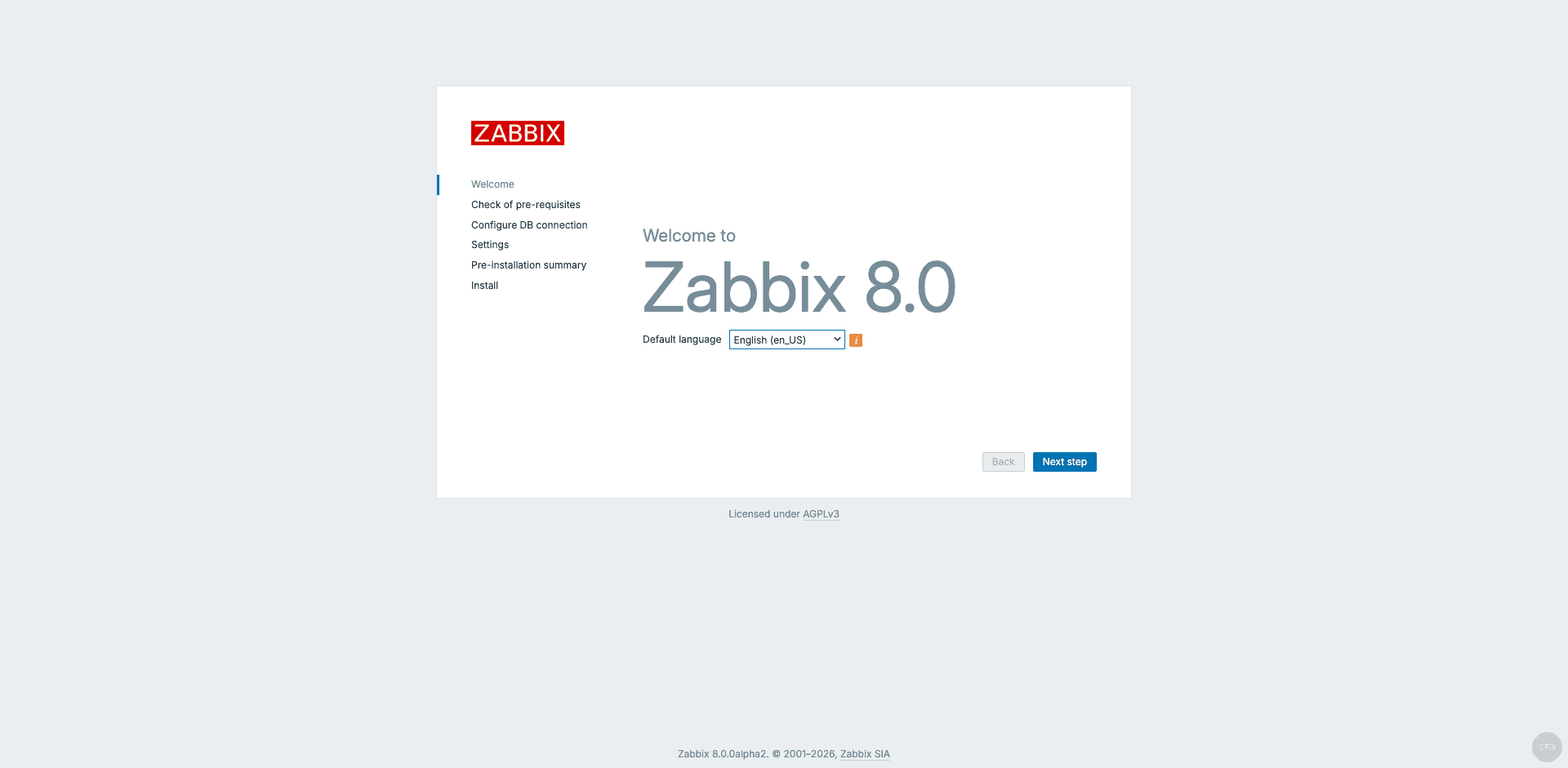
Open your browser and navigate to https://your-server-ip or https://zabbix.example.com. You will see the Zabbix 8.0 welcome screen:
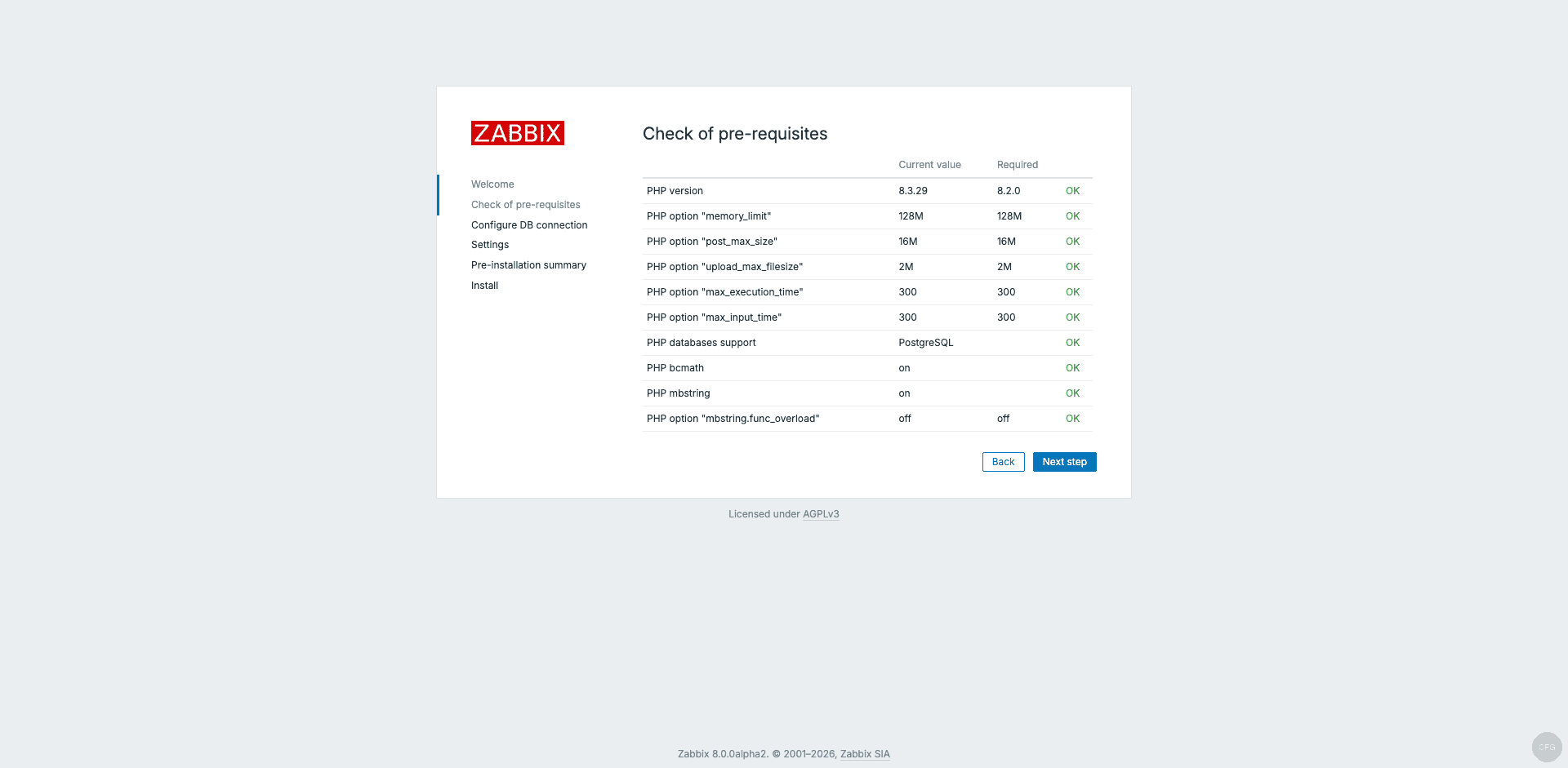
Click Next step. The prerequisites check verifies that PHP meets all requirements. Everything should show green “OK” status with PHP 8.3.29:
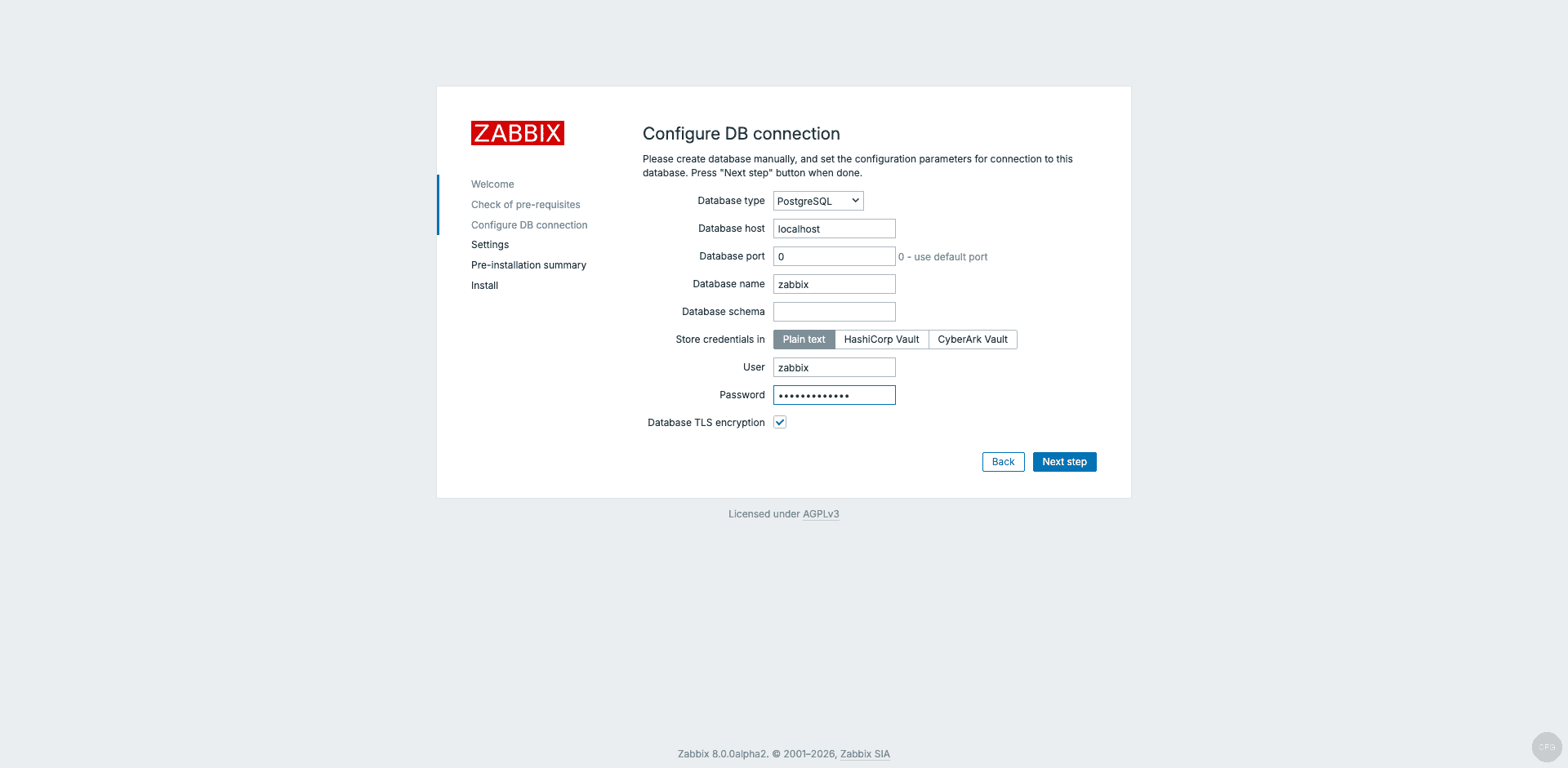
Click Next step to proceed to the database configuration. Select PostgreSQL as the database type, leave the host as localhost, and enter the database password you set earlier:
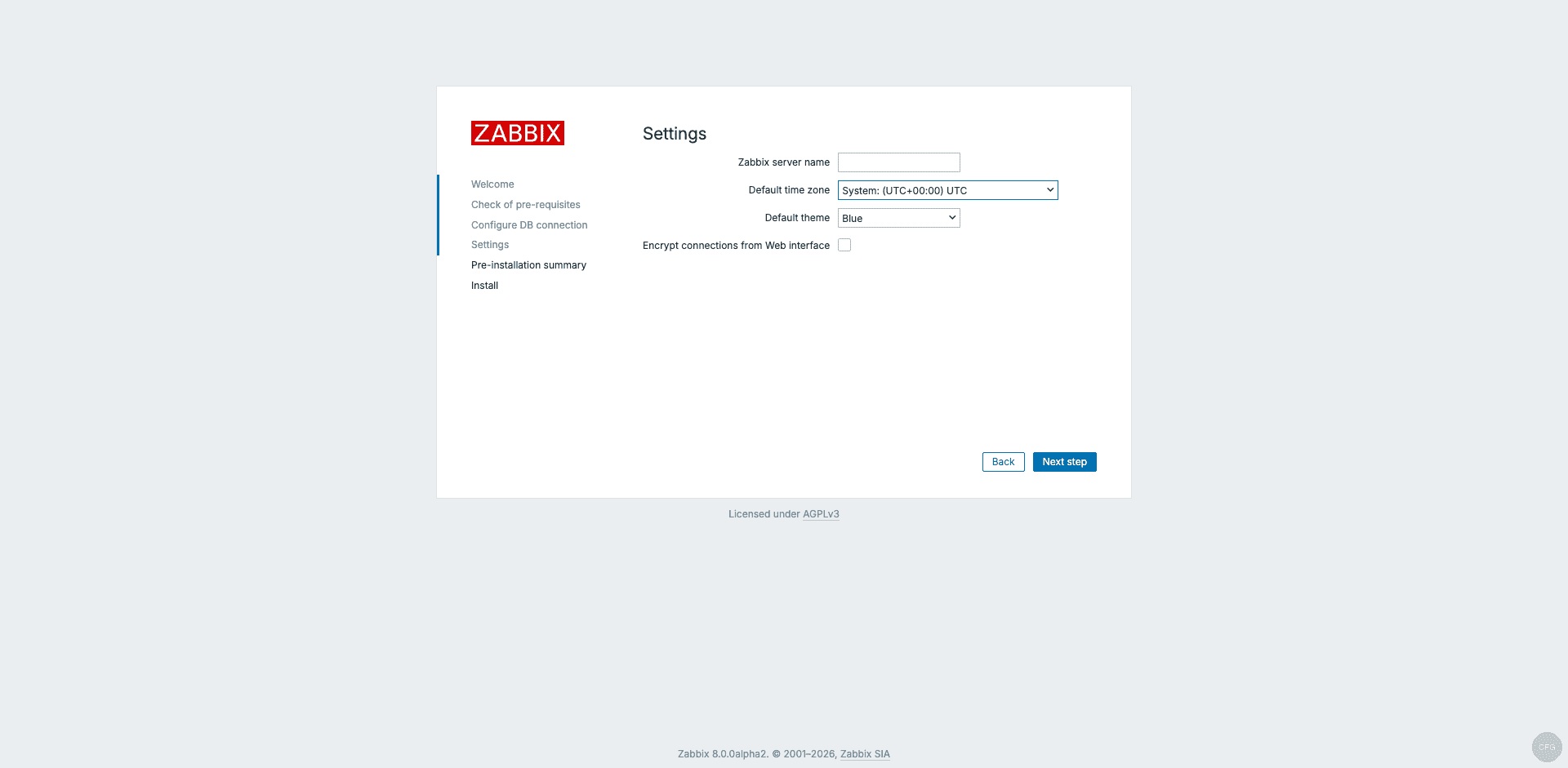
Click Next step. The Settings page lets you configure the Zabbix server name and default timezone. The defaults work fine for most installations:
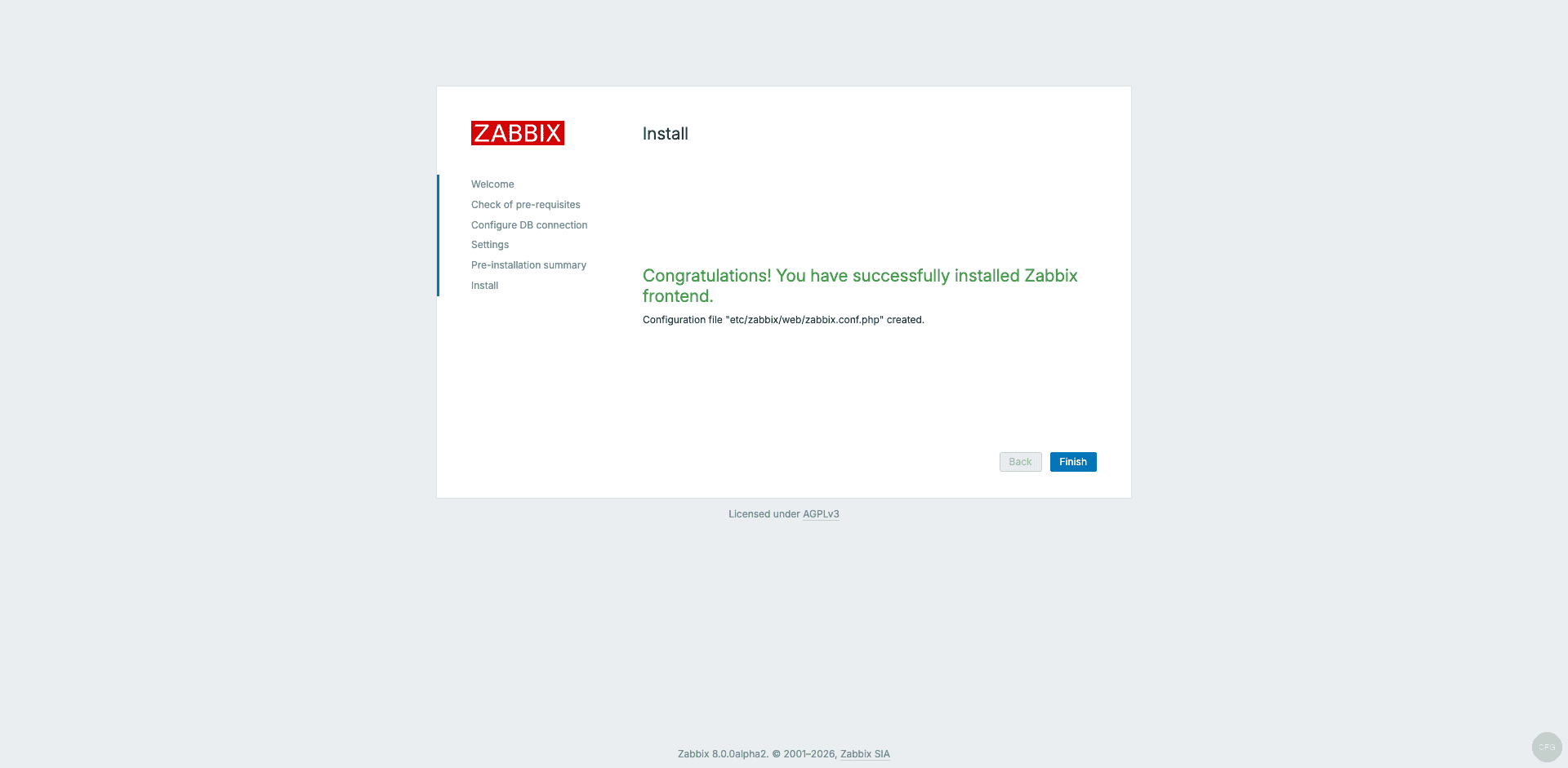
Click Next step to see the pre-installation summary, then Next step again to complete the installation. You should see “Congratulations! You have successfully installed Zabbix frontend”:
Step 10: Log In and Explore the Dashboard
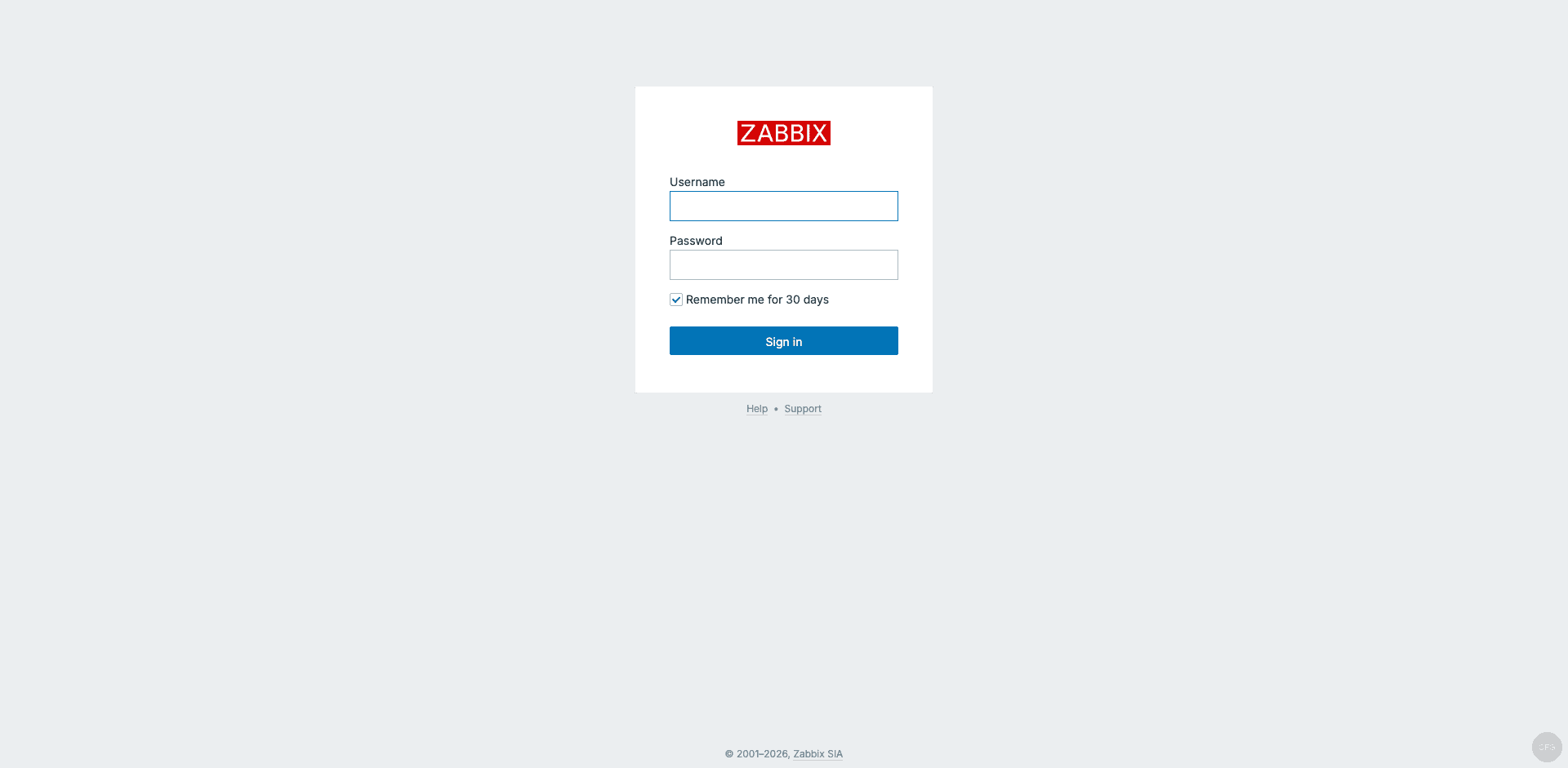
After finishing the setup wizard, you are redirected to the login page. The default credentials are:
- Username: Admin
- Password: zabbix
Change the default password immediately after your first login.
After logging in, you land on the Global View dashboard. The “Zabbix server” host is already configured and collecting data through Agent 2:
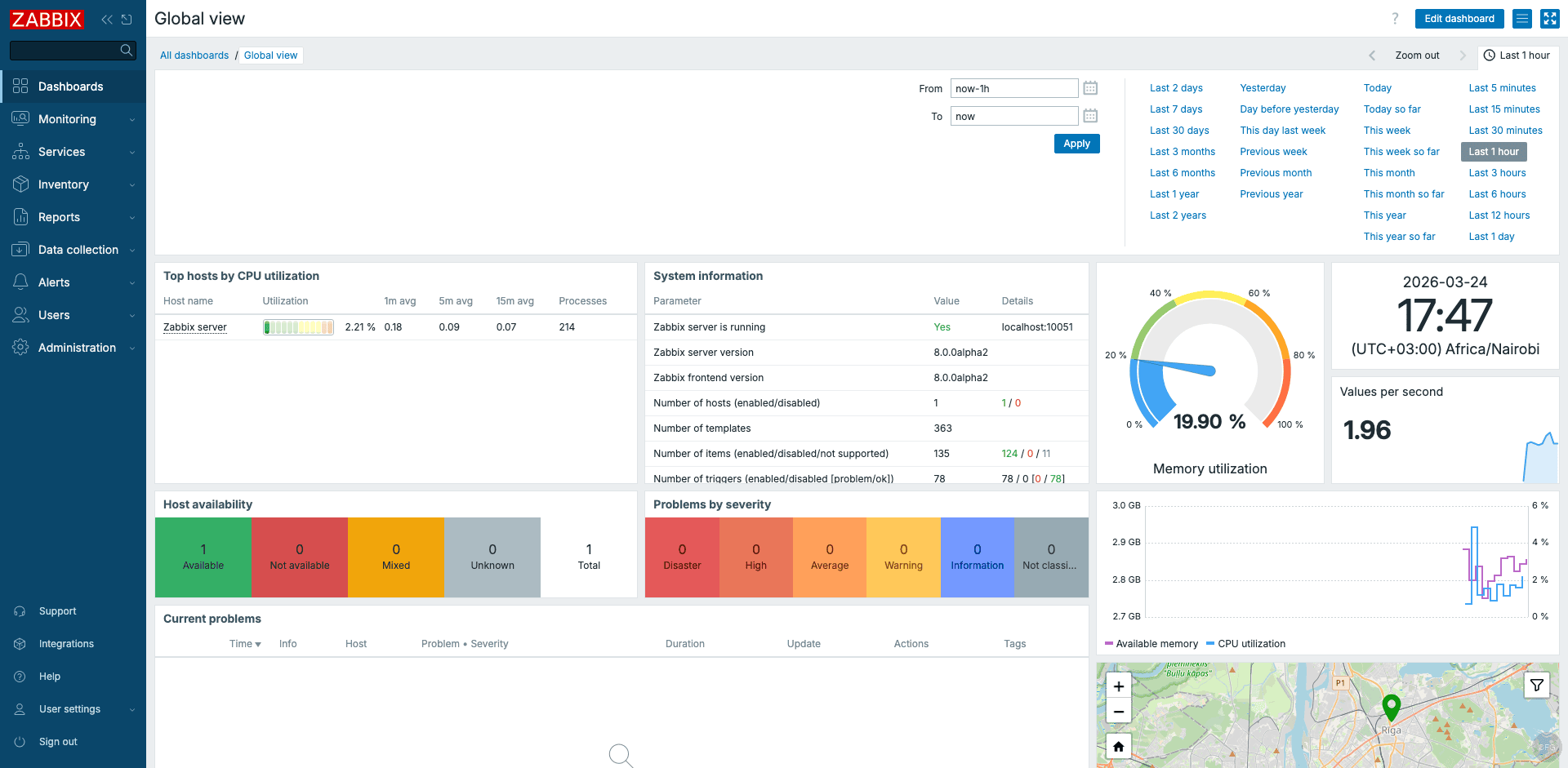
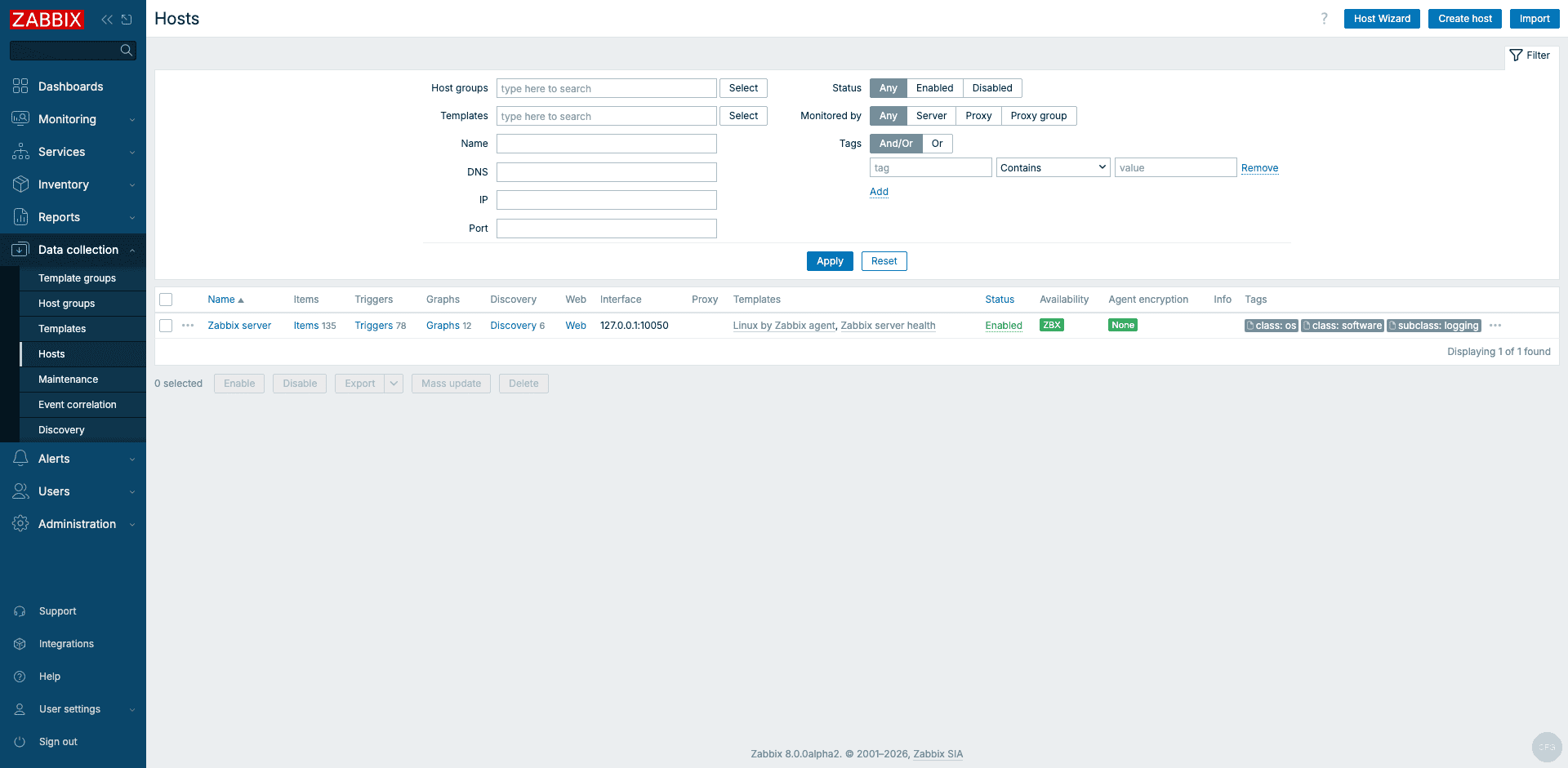
The dashboard shows the Zabbix server version (8.0.0alpha2), host availability status, CPU and memory utilization, and current problems. Navigate to Monitoring > Hosts to see the registered hosts:
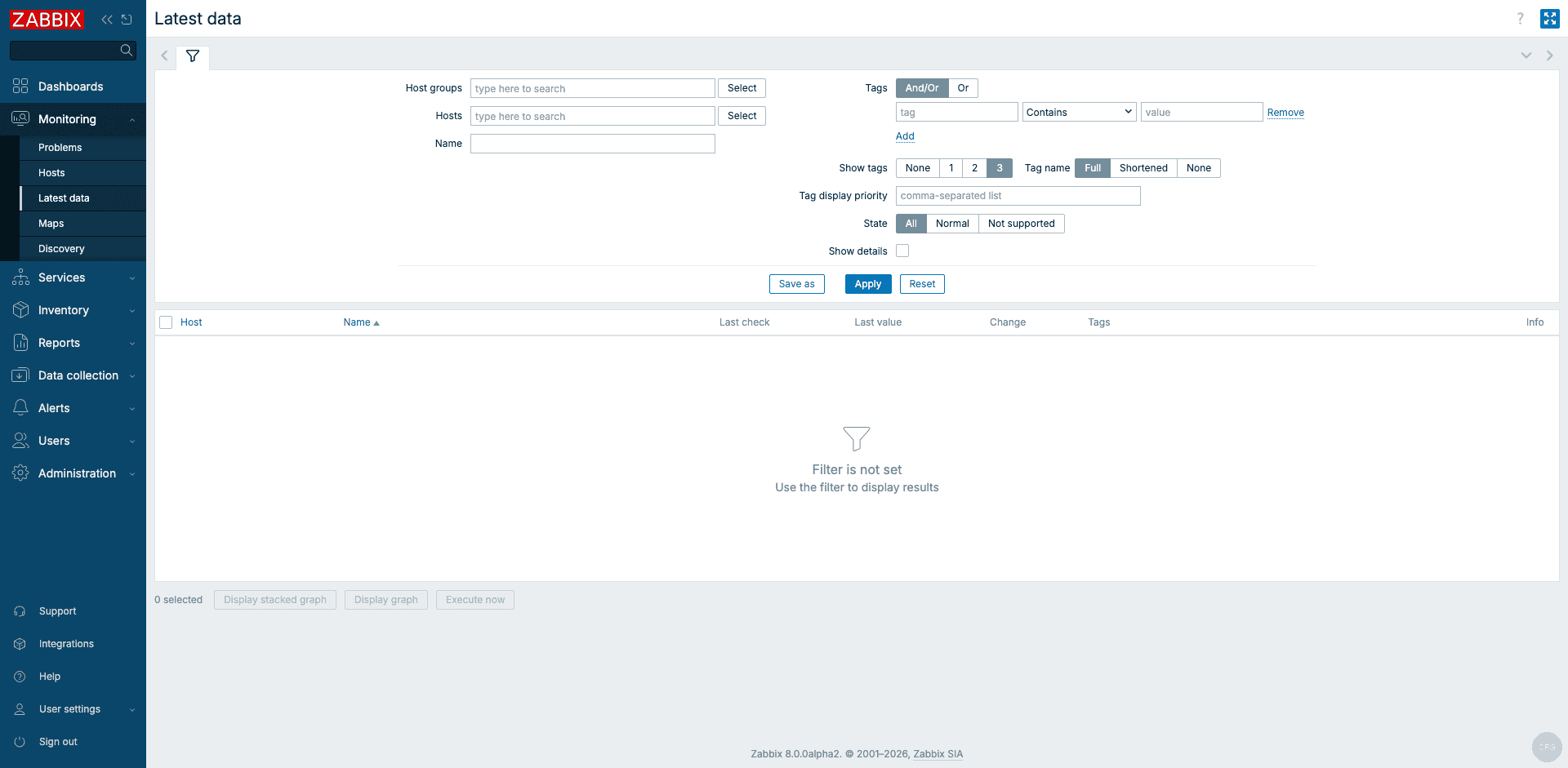
Check Monitoring > Latest data to confirm metrics are flowing from Agent 2:
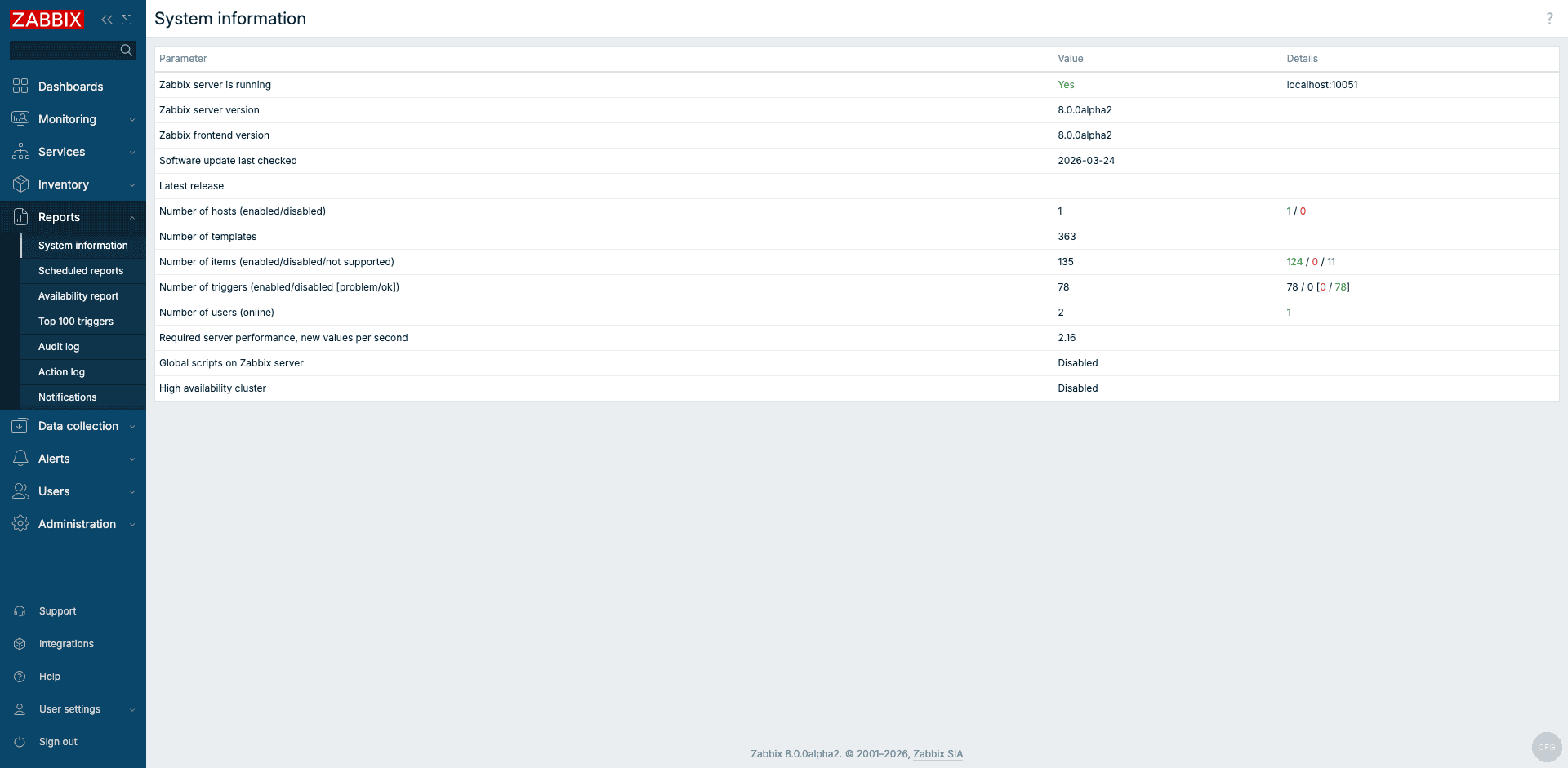
The system information report under Reports > System information confirms all Zabbix components are operational:
Component Versions on Rocky Linux 10
For reference, here are the exact versions installed during our testing:
| Component | Version |
|---|---|
| Rocky Linux | 10.1 (Red Quartz) |
| Kernel | 6.12.0-124.8.1.el10_1 |
| Zabbix Server | 8.0.0alpha2 |
| Zabbix Agent 2 | 8.0.0alpha2 |
| PostgreSQL | 16.13 |
| Nginx | 1.26.3 |
| PHP | 8.3.29 |
| SELinux | Enforcing (no issues) |
Going Further
With the server running, here are the next steps to turn this into a production monitoring setup:
- Change the default Admin password under Users > Users > Admin > Password
- Add remote hosts by installing Zabbix Agent 2 on Rocky Linux / AlmaLinux on the target machines and registering them in the Zabbix frontend
- Configure email alerts under Alerts > Media types to receive notifications when problems are detected
- Import additional templates for services like Nginx, PostgreSQL, Docker, or Kubernetes from the built-in template library
- Set up database housekeeping to prevent the PostgreSQL database from growing unbounded. Configure retention periods under Administration > Housekeeping
- Enable HTTPS certificate auto-renewal:
sudo certbot renew --dry-run
Zabbix 8.0 is still in alpha as of this writing, so expect updates and new features as the 8.0 release progresses toward GA (planned Q3 2026). We will update this guide when the stable release ships. For monitoring Debian and Ubuntu systems, see our guides on installing Zabbix Server on Debian 13/12 and Zabbix Server on Ubuntu 24.04.
