

XAMPP bundles Apache, MariaDB, PHP, and Perl into a single installer that gets a local development stack running in minutes. If you need a quick LAMP environment on Debian without configuring each component separately, this is the fastest path.
This guide walks through installing XAMPP on Debian 13 (trixie) and Debian 12 (bookworm), covering the download, service management, WordPress deployment, security hardening, and automatic startup on boot. If you’re on Ubuntu, check out our Ubuntu XAMPP guide instead, or the Rocky/AlmaLinux version for RHEL-based systems.
Tested April 2026 on Debian 13 (trixie) with XAMPP 8.2.12 (PHP 8.2.12, Apache 2.4.58, MariaDB 10.4.32)
Prerequisites
You need a Debian 13 or Debian 12 system with sudo privileges and an active internet connection. XAMPP requires a 64-bit system with at least 512 MB of RAM (1 GB recommended for WordPress development).
- Tested on: Debian 13 (trixie), Debian 12 (bookworm)
- XAMPP version: 8.2.12 (PHP 8.2.12, Apache 2.4.58, MariaDB 10.4.32)
- Root or sudo access
Install the required packages first. Debian minimal installations often lack net-tools and wget:
sudo apt update
sudo apt install -y wget net-tools
Download XAMPP
Grab the latest XAMPP installer from the Apache Friends download page. The Linux version ships as a self-contained .run file:
wget -O /tmp/xampp-installer.run "https://sourceforge.net/projects/xampp/files/XAMPP%20Linux/8.2.12/xampp-linux-x64-8.2.12-0-installer.run/download"Check the Apache Friends download page for newer releases. If a newer version is available, replace 8.2.12 in the URL accordingly.
Make the installer executable:
chmod +x /tmp/xampp-installer.runInstall XAMPP on Debian
Run the installer with root privileges. It installs everything under /opt/lampp:
sudo /tmp/xampp-installer.run --mode unattendedThe --mode unattended flag skips the graphical wizard and installs with default settings. Expect the process to take about a minute:
----------------------------------------------------------------------------
Welcome to the XAMPP Setup Wizard.

----------------------------------------------------------------------------
Select the components you want to install; clear the components you do not want
to install. Click Next when you are ready to continue.

XAMPP Core Files : Y (Cannot be edited)

XAMPP Developer Files : Y (Cannot be edited)

Is the selection above correct? [Y/n]: Y

----------------------------------------------------------------------------
XAMPP is being installed to /opt/lampp
----------------------------------------------------------------------------
Setup has finished installing XAMPP on your system.
Handle Port 80 Conflicts (Debian-Specific)
This catches most people off guard on Debian. Some Debian 13 images ship with Nginx pre-installed and running on port 80. If that’s the case, XAMPP’s Apache will fail to start with Another web server is already running. Check whether anything is already listening on port 80:
sudo ss -tlnp | grep :80If you see Nginx (or any other service) bound to port 80, stop and remove it before starting XAMPP:
sudo systemctl stop nginx
sudo systemctl disable nginx
sudo apt remove nginx
On Debian 12 minimal installs, port 80 is usually free. But always verify before proceeding because a failed Apache start with no clear error message wastes time.
Start XAMPP
With port 80 clear, start all XAMPP services:
sudo /opt/lampp/lampp startAll three components should show green OK marks:
Starting XAMPP for Linux 8.2.12-0...
XAMPP: Starting Apache...ok.
XAMPP: Starting MySQL...ok.
XAMPP: Starting ProFTPD...ok.
Confirm the services are actively listening:
sudo netstat -tlnp | grep -E ':(80|443|3306)\s'You should see Apache on ports 80 and 443, and MariaDB on 3306.
Verify the Installation
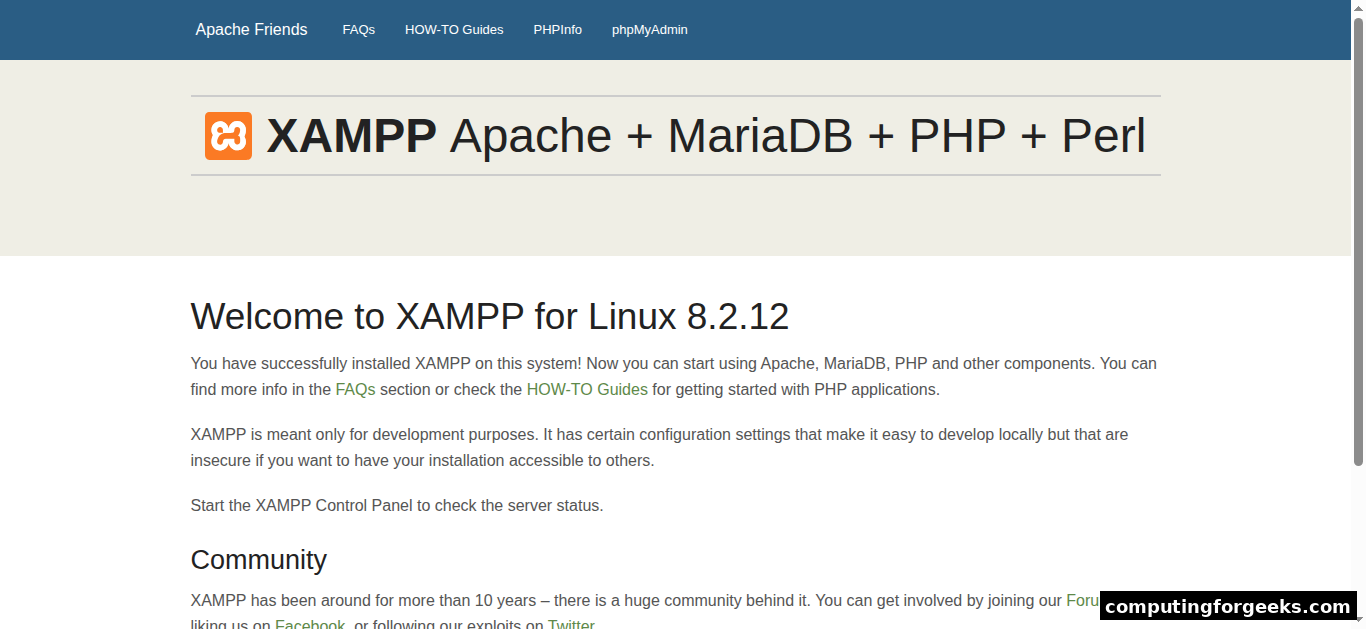
Open a browser and navigate to http://localhost or http://your-server-ip. The XAMPP dashboard confirms everything is working:
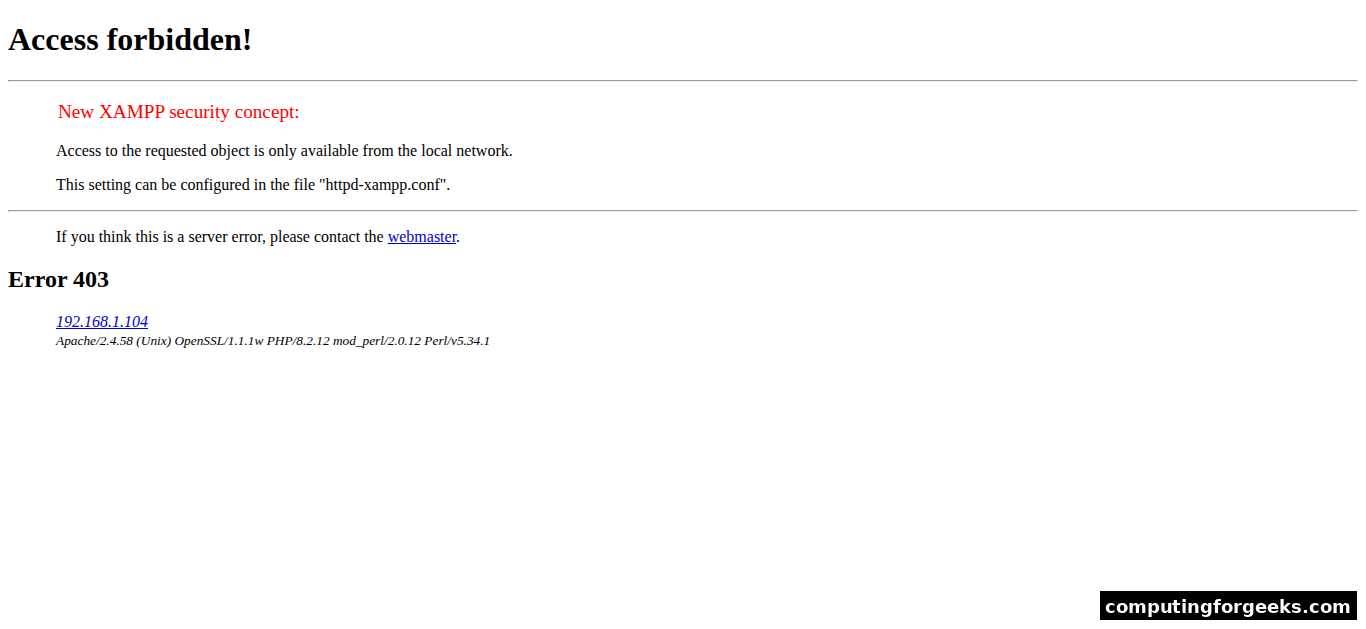
Click the phpMyAdmin link in the sidebar (or go to http://localhost/phpmyadmin) to verify database access:
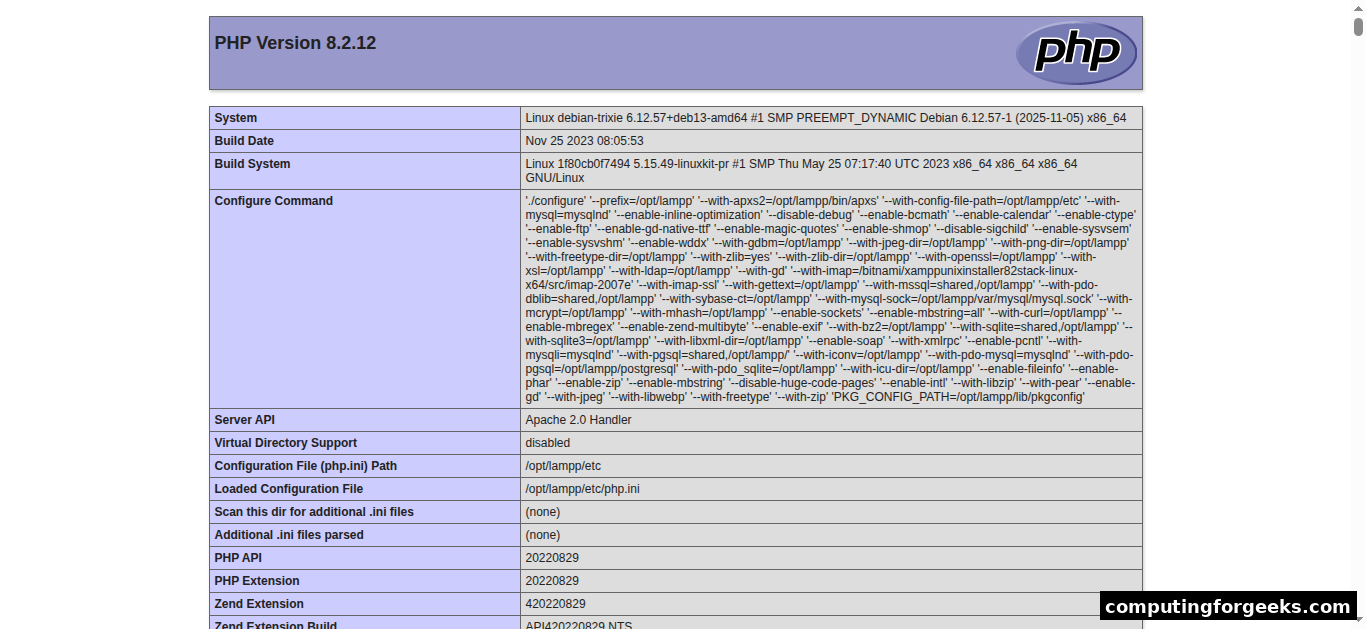
To confirm the PHP version and loaded modules, create a phpinfo page:
echo '<?php phpinfo(); ?>' | sudo tee /opt/lampp/htdocs/info.phpVisit http://localhost/info.php in your browser:
Remove the phpinfo file when you’re done since it exposes sensitive server details:
sudo rm /opt/lampp/htdocs/info.phpDeploy WordPress on XAMPP
XAMPP is commonly used as a local WordPress development environment. Download the latest WordPress release and extract it to the XAMPP web root:
wget -qO /tmp/wordpress.tar.gz https://wordpress.org/latest.tar.gz
sudo tar -xzf /tmp/wordpress.tar.gz -C /opt/lampp/htdocs/
Set the correct ownership so Apache can write to the WordPress directory:
sudo chown -R daemon:daemon /opt/lampp/htdocs/wordpressXAMPP runs Apache as the daemon user, which differs from Debian’s default Apache package that uses www-data.
Create the WordPress Database
Use the XAMPP MySQL binary to create a database. MariaDB in XAMPP ships with a passwordless root account by default:
/opt/lampp/bin/mysql -u root -e "CREATE DATABASE wordpress; CREATE USER 'wpuser'@'localhost' IDENTIFIED BY 'StrongPass123!'; GRANT ALL PRIVILEGES ON wordpress.* TO 'wpuser'@'localhost'; FLUSH PRIVILEGES;"Open http://localhost/wordpress in your browser to run through the WordPress installer. Enter the database credentials:
- Database Name: wordpress
- Username: wpuser
- Password: StrongPass123!
- Database Host: localhost
- Table Prefix: wp_
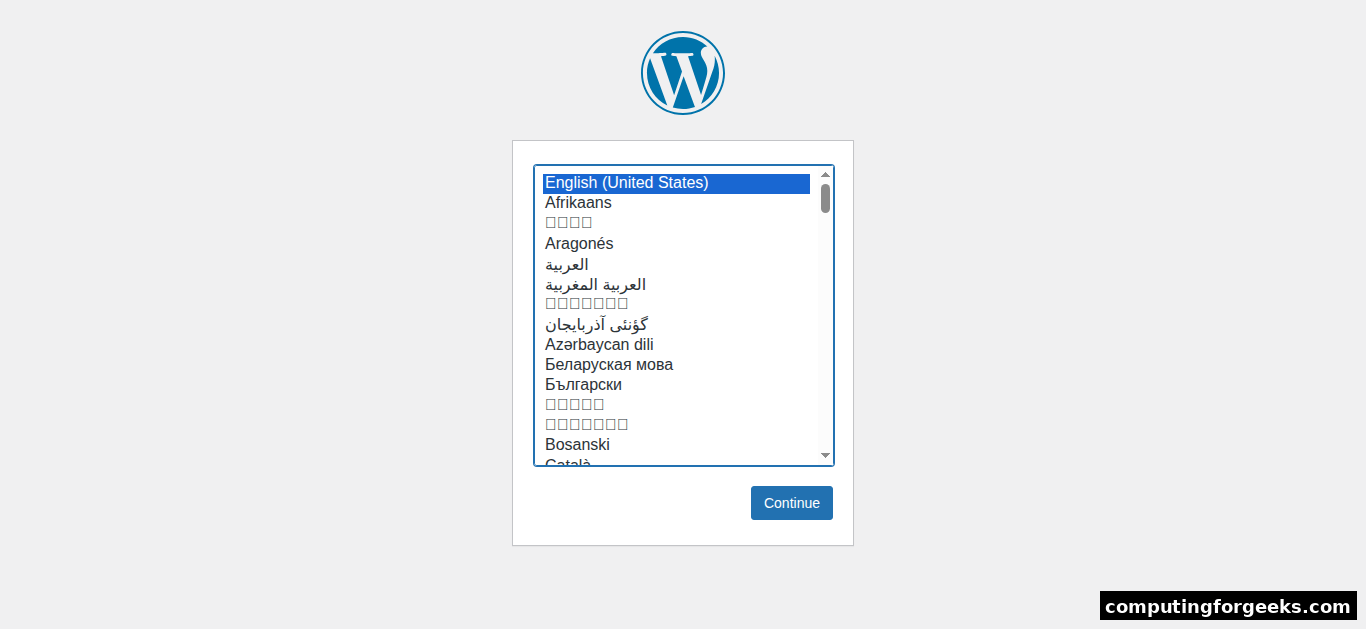
After completing the wizard, you’ll land on the WordPress dashboard:
Secure XAMPP
XAMPP ships wide open by design. The default MariaDB root account has no password, phpMyAdmin is accessible without authentication, and ProFTPD uses a known default password. Run the built-in security script to fix all three:
sudo /opt/lampp/lampp securityThe script walks you through setting passwords for MariaDB root, phpMyAdmin access, and the FTP account interactively. Say yes to every prompt and pick strong passwords.
To restrict phpMyAdmin access to localhost only (recommended if this is a development machine), edit the phpMyAdmin configuration:
sudo vi /opt/lampp/etc/extra/httpd-xampp.confFind the phpMyAdmin <Directory> block and change Require all granted to:
Require localRestart Apache for the change to take effect:
sudo /opt/lampp/lampp restartAuto-Start XAMPP on Boot
XAMPP doesn’t install a systemd unit file, so it won’t survive a reboot by default. Create one:
sudo vi /etc/systemd/system/xampp.serviceAdd the following content:
[Unit]
Description=XAMPP
After=network.target

[Service]
Type=forking
ExecStart=/opt/lampp/lampp start
ExecStop=/opt/lampp/lampp stop
ExecReload=/opt/lampp/lampp reload

[Install]
WantedBy=multi-user.target
Enable and start the service through systemd:
sudo systemctl daemon-reload
sudo systemctl enable xampp
sudo systemctl start xampp
Verify the service status:
sudo systemctl status xamppThe output should show active (running). XAMPP will now start automatically after every reboot.
Useful XAMPP Commands
Here are the most common commands for managing XAMPP on Debian:
| Action | Command |
|---|---|
| Start all services | sudo /opt/lampp/lampp start |
| Stop all services | sudo /opt/lampp/lampp stop |
| Restart all services | sudo /opt/lampp/lampp restart |
| Start Apache only | sudo /opt/lampp/lampp startapache |
| Start MySQL only | sudo /opt/lampp/lampp startmysql |
| Check status | sudo /opt/lampp/lampp status |
| Run security check | sudo /opt/lampp/lampp security |
Upgrade PHP Version
XAMPP bundles a specific PHP version. To switch to a newer PHP release (say PHP 8.3 or 8.4), you have two options:
- Download a newer XAMPP release that ships with the PHP version you want. Back up
/opt/lampp/htdocsand your databases first, uninstall the current version, then install the new one. - Replace the PHP binary manually. Download the PHP source matching your target version, compile it with the same flags XAMPP uses, and replace the binaries in
/opt/lampp/bin. This is fragile and not recommended unless you have a specific reason.
For most developers, option 1 is the right call. Back up your projects, grab the latest XAMPP installer, and reinstall. Your data in /opt/lampp/htdocs can be restored after the upgrade.
Troubleshooting
Error: “Another web server is already running”
Apache fails to start because port 80 is already occupied. This happens frequently on Debian 13 where Nginx may be pre-installed. Identify the process:
sudo ss -tlnp | grep :80Stop and remove the conflicting service (Nginx, Apache2, or whatever is holding the port), then start XAMPP again.
Error: “XAMPP: Starting MySQL…already running”
If you have a system-level MariaDB or MySQL installed via apt, it conflicts with XAMPP’s bundled MariaDB. Stop the system instance:
sudo systemctl stop mariadb
sudo systemctl disable mariadb
Then restart XAMPP’s MySQL with sudo /opt/lampp/lampp startmysql.
WordPress shows “Error establishing a database connection”
Double-check the credentials in /opt/lampp/htdocs/wordpress/wp-config.php. The database host should be localhost, and make sure you used the XAMPP MySQL binary (not the system one) when creating the database. Verify the database exists:
/opt/lampp/bin/mysql -u root -p -e "SHOW DATABASES;"Uninstall XAMPP
To completely remove XAMPP from Debian, stop the services and run the bundled uninstaller:
sudo /opt/lampp/lampp stop
sudo /opt/lampp/uninstall
Clean up any remaining files and the systemd unit:
sudo rm -rf /opt/lampp
sudo rm /etc/systemd/system/xampp.service
sudo systemctl daemon-reload
That removes everything. Back up /opt/lampp/htdocs and export your databases before running the uninstaller if you have projects worth keeping.
Production Considerations
XAMPP is designed for local development and testing, not production workloads. If you’re planning to host a live site on Debian, install Apache, MariaDB, and PHP separately from the official Debian repositories. A production stack gives you proper security updates through apt, granular service control via systemd, and compatibility with tools like Certbot for SSL certificates. XAMPP’s bundled components don’t receive security patches through the system package manager, which makes it unsuitable for anything internet-facing.
