

Nginx with PHP-FPM is the fastest way to serve WordPress. Unlike Apache with mod_php (where every Apache process loads the full PHP interpreter), Nginx delegates PHP processing to a separate FPM pool. The result is lower memory usage per connection and significantly better handling of concurrent visitors.
This guide installs WordPress 6.9 on Nginx with MariaDB and PHP-FPM, configures SSL via Let’s Encrypt, and tunes the Nginx server block for production. Tested on Ubuntu 24.04 (PHP 8.3, MariaDB 10.11, Nginx 1.24) and also applicable to Debian 13 (PHP 8.4, MariaDB 11.8). If you prefer Apache, see our LAMP stack guide for Debian.
Tested March 2026 | Ubuntu 24.04 LTS with Nginx 1.24.0, MariaDB 10.11.14, PHP 8.3.6, WordPress 6.9.4
Prerequisites
- Ubuntu 24.04 LTS or Debian 13/12 server with sudo access and at least 1 GB RAM
- A domain or subdomain pointing to the server’s public IP (for SSL)
- Ports 80, 443, and 22 open
Start with a fully updated system:
sudo apt update && sudo apt -y upgradeInstall Nginx
Install Nginx from the default Ubuntu repositories:
sudo apt install -y nginxVerify the version and confirm it is running:
nginx -v
sudo systemctl status nginx
Ubuntu 24.04 ships Nginx 1.24.0:
nginx version: nginx/1.24.0 (Ubuntu)
● nginx.service - A high performance web server and a reverse proxy server
     Loaded: loaded (/usr/lib/systemd/system/nginx.service; enabled; preset: enabled)
     Active: active (running)
Install MariaDB
WordPress needs a MySQL-compatible database. MariaDB is the default on both Ubuntu and Debian. For a dedicated MariaDB setup guide with tuning, see our separate article.
sudo apt install -y mariadb-server mariadb-clientSecure the installation by setting a root password and removing test databases:
sudo mariadb-secure-installationPress Enter when asked for the current root password (blank on fresh install), then answer Y to all prompts: set root password, remove anonymous users, disallow remote root login, remove test database, and reload privileges.
Create the WordPress Database
Create a dedicated database and user for WordPress. Never use the root account for application access.
sudo mariadb -e "
CREATE DATABASE wordpress DEFAULT CHARACTER SET utf8mb4 COLLATE utf8mb4_unicode_ci;
CREATE USER 'wpuser'@'localhost' IDENTIFIED BY 'YourStr0ngDBP@ss!';
GRANT ALL PRIVILEGES ON wordpress.* TO 'wpuser'@'localhost';
FLUSH PRIVILEGES;"
The utf8mb4 character set is required for full Unicode support (emoji, CJK characters). WordPress will refuse to install if the database uses plain utf8.
Install PHP-FPM with Extensions
WordPress requires several PHP extensions for its core functionality. Install PHP-FPM and the full set of required and recommended extensions:
sudo apt install -y php-fpm php-mysql php-xml php-mbstring php-curl php-zip php-gd php-intl php-bcmath php-imagick php-cliVerify the PHP version. Ubuntu 24.04 ships PHP 8.3:
php -vPHP 8.3.6 with OPcache enabled:
PHP 8.3.6 (cli) (built: Jan 27 2026 03:09:47) (NTS)
Copyright (c) The PHP Group
Zend Engine v4.3.6, Copyright (c) Zend Technologies
    with Zend OPcache v8.3.6, Copyright (c), by Zend Technologies
For Debian 13, PHP 8.4 installs from default repos with the same package names (replace php8.3 paths with php8.4 in the Nginx config below).
Confirm PHP-FPM is running and note the socket path:
sudo systemctl status php8.3-fpmThe service should show active with idle worker processes:
● php8.3-fpm.service - The PHP 8.3 FastCGI Process Manager
     Active: active (running)
     Status: "Processes active: 0, idle: 2, Requests: 0"
The socket lives at /run/php/php8.3-fpm.sock. This is what Nginx connects to for PHP processing.
Download and Configure WordPress
Download the latest WordPress release and extract it to the web root:
cd /tmp
curl -sO https://wordpress.org/latest.tar.gz
sudo tar xzf latest.tar.gz -C /var/www/
sudo chown -R www-data:www-data /var/www/wordpress
Create the WordPress configuration file from the sample template:
sudo cp /var/www/wordpress/wp-config-sample.php /var/www/wordpress/wp-config.phpEdit the config file with your database credentials:
sudo vi /var/www/wordpress/wp-config.phpUpdate these three lines to match the database you created:
define( 'DB_NAME', 'wordpress' );
define( 'DB_USER', 'wpuser' );
define( 'DB_PASSWORD', 'YourStr0ngDBP@ss!' );
Generate Unique Security Keys
WordPress uses secret keys and salts to encrypt cookies and session tokens. The default sample file contains placeholder values that must be replaced. Fetch unique keys from the WordPress API:
curl -s https://api.wordpress.org/secret-key/1.1/salt/Copy the output and replace the corresponding AUTH_KEY, SECURE_AUTH_KEY, etc. lines in wp-config.php. Each key should be a unique random string.
Configure the Nginx Server Block
This is where Nginx and WordPress connect. The server block handles SSL termination, routes PHP requests to FPM, serves static files directly, and implements WordPress permalink rewrites.
Create the server block configuration:
sudo vi /etc/nginx/sites-available/wordpressAdd the following configuration (replace the domain and PHP version as needed):
server {
    listen 443 ssl http2;
    server_name yourdomain.com;

    root /var/www/wordpress;
    index index.php index.html;

    ssl_certificate /etc/letsencrypt/live/yourdomain.com/fullchain.pem;
    ssl_certificate_key /etc/letsencrypt/live/yourdomain.com/privkey.pem;
    ssl_protocols TLSv1.2 TLSv1.3;
    ssl_ciphers HIGH:!aNULL:!MD5;

    client_max_body_size 64M;

    location / {
        try_files $uri $uri/ /index.php?$args;
    }

    location ~ \.php$ {
        include snippets/fastcgi-php.conf;
        fastcgi_pass unix:/run/php/php8.3-fpm.sock;
        fastcgi_param SCRIPT_FILENAME $document_root$fastcgi_script_name;
    }

    location ~ /\.ht {
        deny all;
    }

    location = /favicon.ico { log_not_found off; access_log off; }
    location = /robots.txt  { log_not_found off; access_log off; }

    location ~* \.(css|gif|ico|jpeg|jpg|js|png|svg|webp|woff|woff2)$ {
        expires 30d;
        add_header Cache-Control "public, no-transform";
    }
}

server {
    listen 80;
    server_name yourdomain.com;
    return 301 https://$host$request_uri;
}
Key directives explained:
- try_files $uri $uri/ /index.php?$args – This is what makes WordPress permalinks work. Nginx first checks for a real file, then a directory, then passes everything else to WordPress’s index.php
- fastcgi_pass unix:/run/php/php8.3-fpm.sock – Routes PHP requests to the FPM socket. On Debian 13, change to
php8.4-fpm.sock - client_max_body_size 64M – Controls the maximum upload size. WordPress defaults to 2M, which is too small for media uploads. Match this with PHP’s
upload_max_filesize - Static file caching – The last location block sets 30-day browser cache headers for images, CSS, and JS, which reduces server load and improves page speed
Enable the site and remove the default configuration:
sudo ln -sf /etc/nginx/sites-available/wordpress /etc/nginx/sites-enabled/
sudo rm -f /etc/nginx/sites-enabled/default
Test the configuration for syntax errors before reloading:
sudo nginx -tYou should see:
nginx: the configuration file /etc/nginx/nginx.conf syntax is ok
nginx: configuration file /etc/nginx/nginx.conf test is successful
Set Up SSL with Let’s Encrypt
Install certbot for Nginx:
sudo apt install -y certbot python3-certbot-nginxObtain the certificate. If you already created the server block above, certbot can use the webroot method. Otherwise, stop Nginx temporarily and use standalone:
sudo certbot certonly --standalone --pre-hook "systemctl stop nginx" --post-hook "systemctl start nginx" -d yourdomain.com --non-interactive --agree-tos -m [email protected]After the certificate is obtained, reload Nginx to pick up the SSL configuration:
sudo systemctl reload nginxVerify auto-renewal:
sudo certbot renew --dry-runComplete the WordPress Installation
Open https://yourdomain.com in your browser. WordPress detects the database connection and presents the installation wizard:
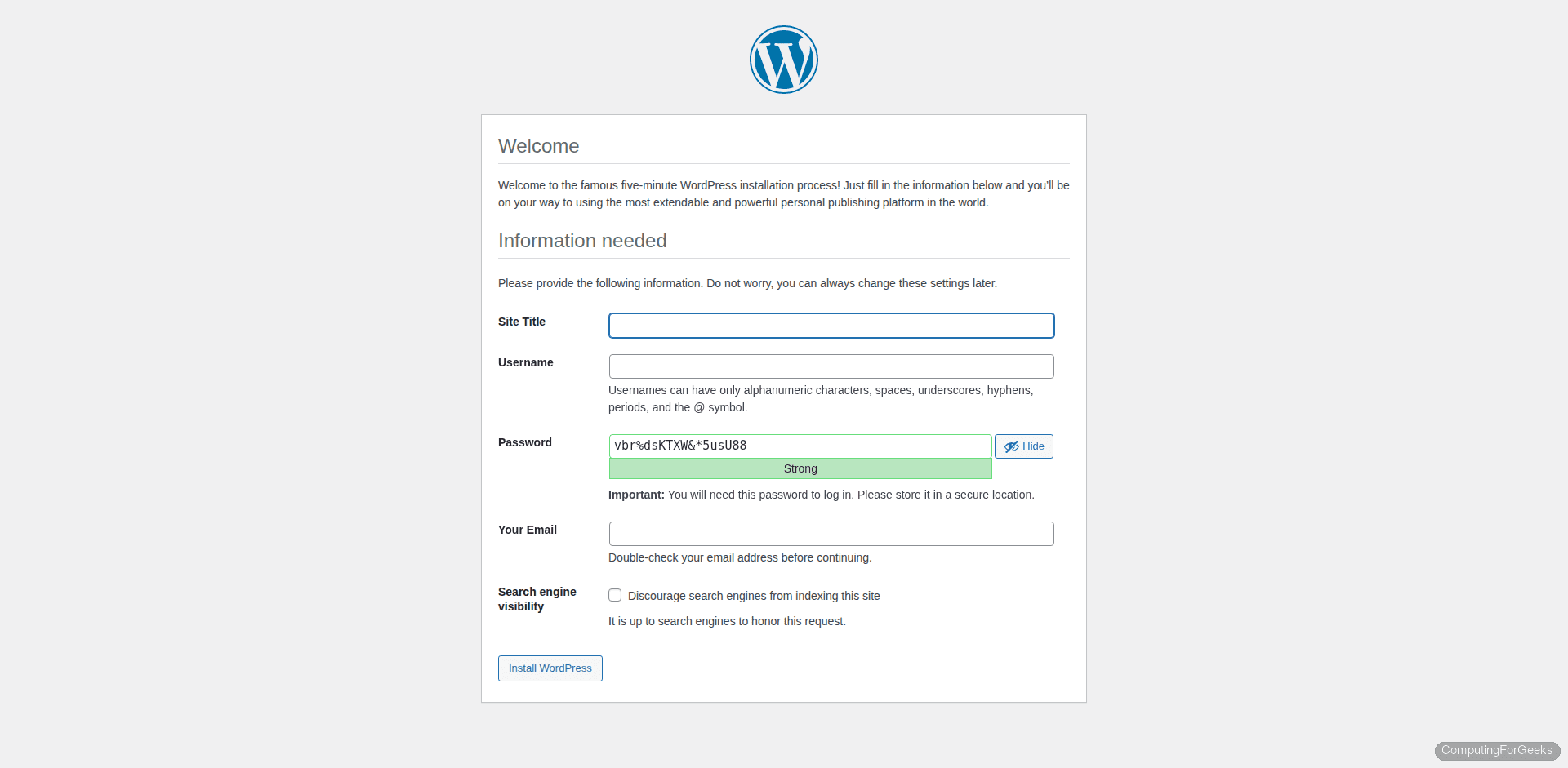
Fill in your site title, admin username (avoid “admin” in production), a strong password, and your email. Click Install WordPress.
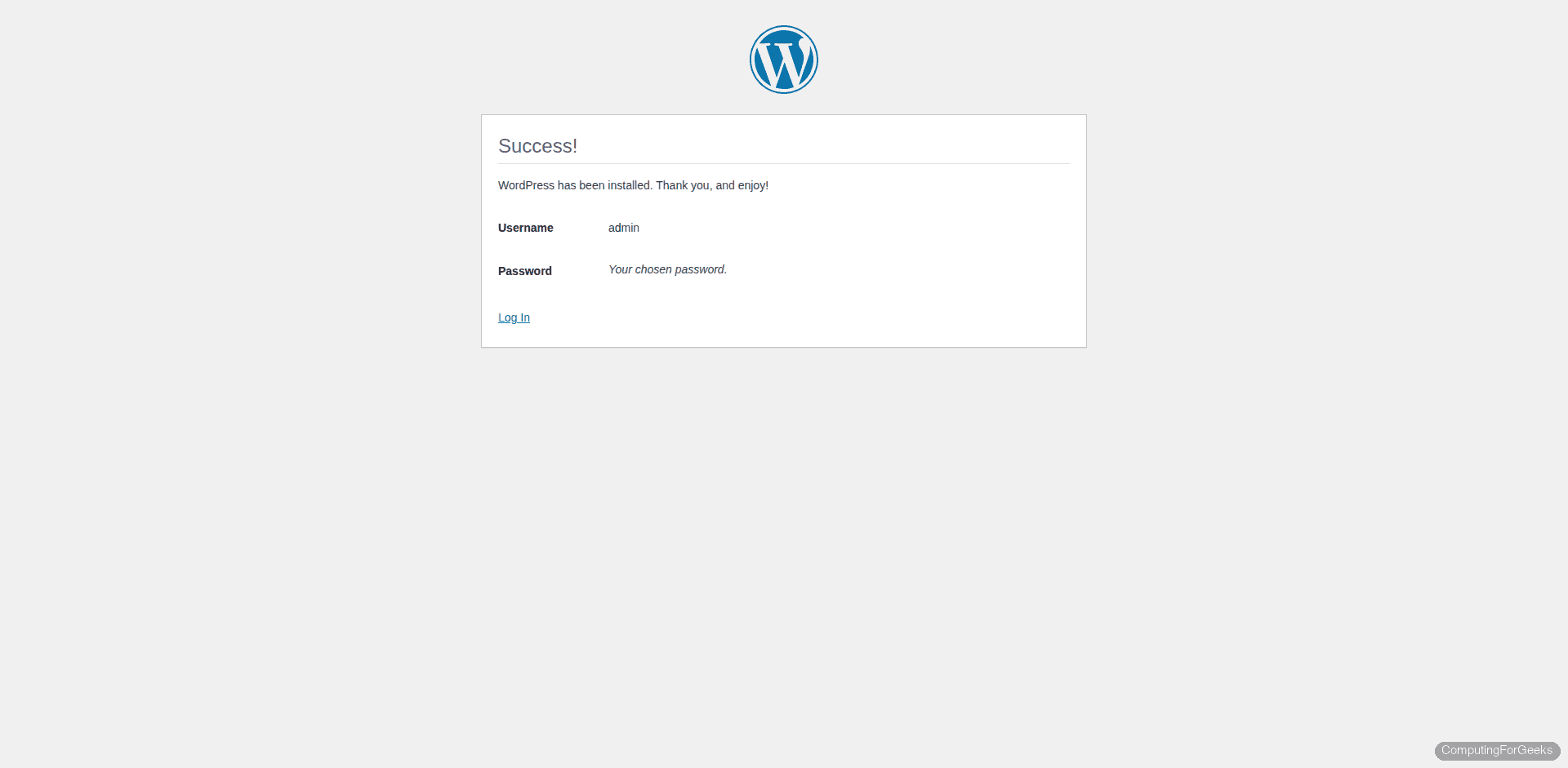
After a few seconds, you will see the success message confirming WordPress is installed:
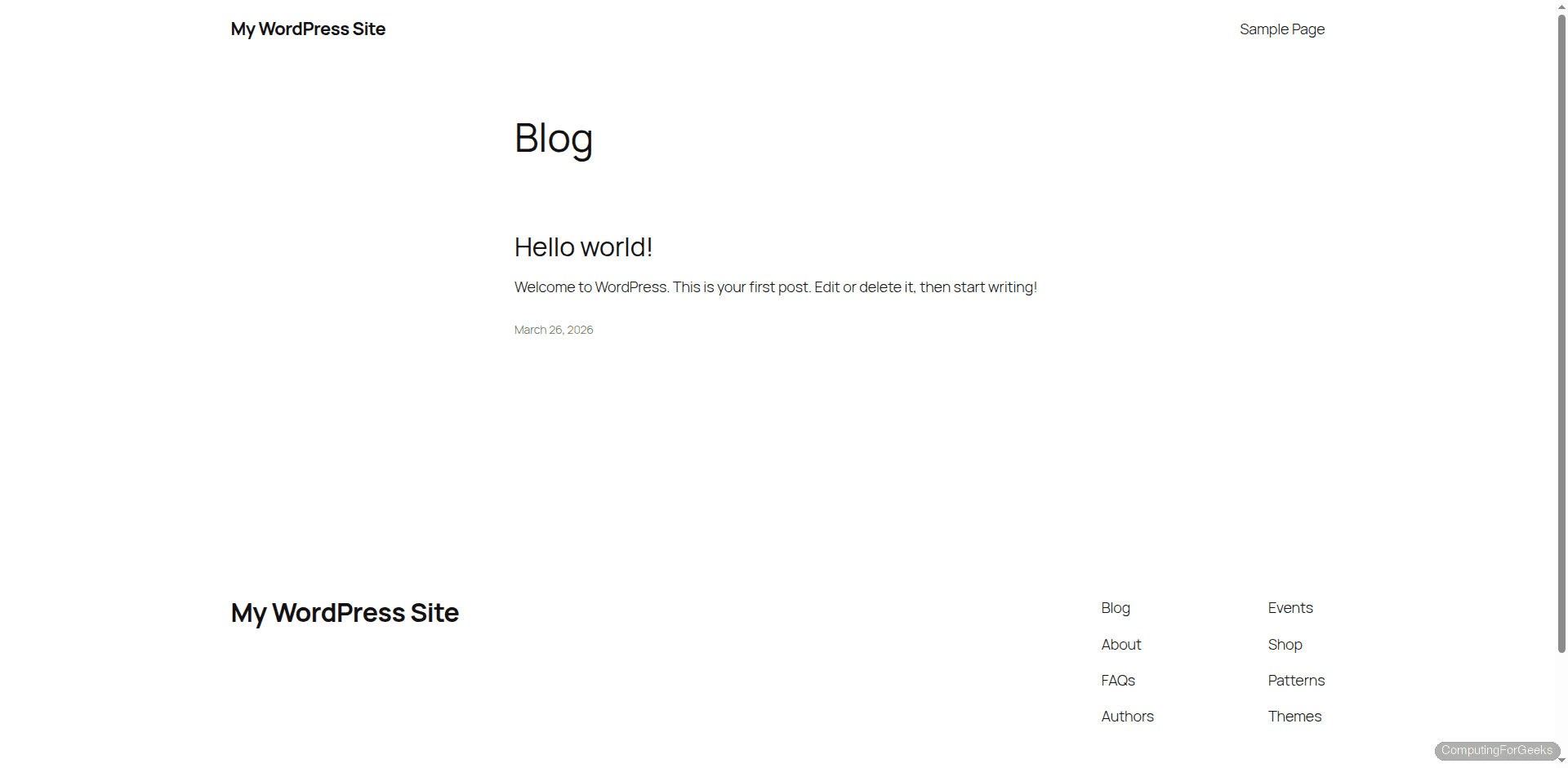
Log in and visit the frontend. WordPress 6.9 uses a block-based default theme:
Tune PHP for WordPress
WordPress performance depends heavily on PHP settings. Edit the FPM php.ini:
sudo vi /etc/php/8.3/fpm/php.iniAdjust these values for a typical WordPress site:
memory_limit = 256M
upload_max_filesize = 64M
post_max_size = 64M
max_execution_time = 300
max_input_vars = 3000
The upload_max_filesize and client_max_body_size in Nginx must match. If PHP allows 64M uploads but Nginx only allows 1M, Nginx rejects the request before PHP ever sees it.
Apply changes:
sudo systemctl restart php8.3-fpmPost-Install Hardening
A few steps that should be done immediately after installation:
Set correct file permissions
Lock down the WordPress directory so only the web server user can write to it:
sudo find /var/www/wordpress/ -type d -exec chmod 755 {} \;
sudo find /var/www/wordpress/ -type f -exec chmod 644 {} \;
sudo chown -R www-data:www-data /var/www/wordpress/
This ensures directories are 755 (readable and executable) and files are 644 (readable). WordPress needs write access to wp-content/ for uploads and plugin installations.
Enable permalink structure
Go to Settings > Permalinks in the WordPress admin and select “Post name” (/%postname%/). The Nginx try_files directive we configured earlier handles the URL rewriting. No .htaccess needed (that is an Apache concept).
Configure the firewall
Allow HTTP, HTTPS, and SSH through ufw:
sudo apt install -y ufw
sudo ufw allow 22/tcp
sudo ufw allow 80/tcp
sudo ufw allow 443/tcp
sudo ufw enable
Ubuntu vs Debian Version Differences
| Component | Ubuntu 24.04 | Debian 13 | Debian 12 |
|---|---|---|---|
| Nginx | 1.24.0 | 1.26.3 | 1.22.1 |
| MariaDB | 10.11.14 | 11.8.6 | 10.11.6 |
| PHP | 8.3.6 | 8.4.16 | 8.2.28 |
| FPM socket | /run/php/php8.3-fpm.sock | /run/php/php8.4-fpm.sock | /run/php/php8.2-fpm.sock |
The only config change between distros is the PHP-FPM socket path in the Nginx server block. Everything else is identical.
What to Do Next
- Install a caching plugin (WP Super Cache or W3 Total Cache) for static page caching, or configure Nginx FastCGI cache at the server level
- Set up automated backups with a plugin or cron job that dumps the database and
wp-content/to offsite storage - Install PHP 8.1 alongside 8.3 if you have plugins that require the older version
- Enable HTTP/2 push or consider upgrading to Nginx mainline for HTTP/3 support
- Configure Redis or Memcached as a WordPress object cache for database query caching
