

WordPress is the most popular open-source content management system, powering over 40% of all websites on the internet. Paired with Nginx as a reverse proxy and PHP-FPM for processing, it delivers fast page loads and handles high traffic efficiently. This guide walks through a full production-ready WordPress installation on Rocky Linux 10 or AlmaLinux 10, covering Nginx from the official repository, PHP 8.3 from Remi, MariaDB, SSL with Let’s Encrypt, caching, SELinux, and security hardening.
Prerequisites
- A server running Rocky Linux 10 or AlmaLinux 10 with at least 1GB RAM (2GB recommended)
- Root or sudo access to the server
- A registered domain name with an A record pointing to your server’s public IP
- Ports 80 (HTTP) and 443 (HTTPS) open on your firewall
- SELinux in enforcing mode (default on Rocky/AlmaLinux)
Step 1: Update the System
Start by updating all packages to the latest versions available in the repositories.
sudo dnf update -yReboot if a new kernel was installed.
sudo rebootStep 2: Install Nginx from the Official Repository
The default Nginx package in the Rocky/AlmaLinux repos works fine, but the official Nginx repository provides the latest stable release with recent security patches and performance improvements. Create the repository file first.
sudo tee /etc/yum.repos.d/nginx.repo > /dev/null <<'REPO'
[nginx-stable]
name=nginx stable repo
baseurl=https://nginx.org/packages/centos/$releasever/$basearch/
gpgcheck=1
enabled=1
gpgkey=https://nginx.org/keys/nginx_signing.key
module_hotfixes=true
REPO
Install Nginx from the newly added repository.
sudo dnf install nginx -yEnable and start the Nginx service.
sudo systemctl enable --now nginxVerify Nginx is running.
$ sudo systemctl status nginx
● nginx.service - nginx - high performance web server
     Loaded: loaded (/usr/lib/systemd/system/nginx.service; enabled; preset: disabled)
     Active: active (running)
Check the installed version.
$ nginx -v
nginx version: nginx/1.26.2
Step 3: Install PHP 8.3 from Remi Repository
Rocky Linux 10 and AlmaLinux 10 ship with PHP in the AppStream, but the Remi repository gives access to the latest PHP 8.3 with all required extensions. Enable EPEL and the Remi repository first.
sudo dnf install epel-release -y
sudo dnf install https://rpms.remirepo.net/enterprise/remi-release-10.rpm -y
Reset the default PHP module and enable PHP 8.3 from Remi.
sudo dnf module reset php -y
sudo dnf module enable php:remi-8.3 -y
Install PHP 8.3 with all extensions WordPress needs, including PHP-FPM for Nginx integration.
sudo dnf install php php-fpm php-mysqlnd php-xml php-xmlreader php-curl php-gd php-imagick php-mbstring php-intl php-zip php-opcache php-redis php-json php-common php-gmp php-exif php-tokenizer unzip -yConfirm the installed PHP version.
$ php -v
PHP 8.3.15 (cli) (built: Jan  2 2026 10:30:00) (NTS gcc x86_64)
Copyright (c) The PHP Group
Zend Engine v4.3.15, Copyright (c) Zend Technologies
    with Zend OPcache v8.3.15, Copyright (c), by Zend Technologies
Configure PHP-FPM for Nginx
By default, PHP-FPM runs as the apache user. Change this to nginx so that Nginx can communicate with PHP-FPM properly. Edit the pool configuration file.
sudo vim /etc/php-fpm.d/www.confFind the user and group directives and change them to nginx.
; RPM: apache user chosen to provide access to the same directories as httpd
user = nginx
; RPM: Keep a group allowed to write in log dir.
group = nginx
Also verify the listen directive uses a Unix socket.
listen = /run/php-fpm/www.sock
listen.owner = nginx
listen.group = nginx
listen.mode = 0660
Enable and start PHP-FPM.
sudo systemctl enable --now php-fpmVerify PHP-FPM is active.
$ sudo systemctl status php-fpm
● php-fpm.service - The PHP FastCGI Process Manager
     Loaded: loaded (/usr/lib/systemd/system/php-fpm.service; enabled; preset: disabled)
     Active: active (running)
Tune PHP for WordPress Performance
Edit the main PHP configuration to increase limits suitable for WordPress.
sudo vim /etc/php.iniUpdate the following values.
upload_max_filesize = 64M
post_max_size = 64M
memory_limit = 256M
max_execution_time = 300
max_input_vars = 3000
Restart PHP-FPM to apply the changes.
sudo systemctl restart php-fpmStep 4: Install and Configure MariaDB
WordPress requires a MySQL-compatible database. MariaDB on Rocky Linux is the preferred choice for its performance and active development. Install it from the default repositories.
sudo dnf install mariadb-server mariadb -yEnable and start MariaDB.
sudo systemctl enable --now mariadbRun the security hardening script to set a root password, remove anonymous users, disable remote root login, and drop the test database.
sudo mysql_secure_installationAnswer the prompts: set a strong root password, then answer Y to all remaining questions.
Create the WordPress Database and User
Log in to the MariaDB shell.
sudo mysql -u root -pCreate a dedicated database and user for WordPress. Replace StrongPassword with a real password.
CREATE DATABASE wordpressdb CHARACTER SET utf8mb4 COLLATE utf8mb4_unicode_ci;
CREATE USER 'wpuser'@'localhost' IDENTIFIED BY 'StrongPassword';
GRANT ALL PRIVILEGES ON wordpressdb.* TO 'wpuser'@'localhost';
FLUSH PRIVILEGES;
EXIT;
Verify the new user can connect and access the database.
$ mysql -u wpuser -p -e "SHOW DATABASES;"
Enter password:
+--------------------+
| Database           |
+--------------------+
| information_schema |
| wordpressdb        |
+--------------------+
Step 5: Download and Configure WordPress
Download the latest WordPress release from the official site.
cd /tmp
curl -LO https://wordpress.org/latest.tar.gz
Extract the archive and move it to the web root directory.
tar xzf latest.tar.gz
sudo mv wordpress /var/www/wordpress
Configure wp-config.php
Create the WordPress configuration file from the sample template.
cd /var/www/wordpress
sudo cp wp-config-sample.php wp-config.php
Edit the configuration file to set database credentials.
sudo vim /var/www/wordpress/wp-config.phpUpdate the database connection settings to match the credentials created in Step 4.
define( 'DB_NAME', 'wordpressdb' );
define( 'DB_USER', 'wpuser' );
define( 'DB_PASSWORD', 'StrongPassword' );
define( 'DB_HOST', 'localhost' );
define( 'DB_CHARSET', 'utf8mb4' );
define( 'DB_COLLATE', '' );
Generate Fresh Security Salts
WordPress uses authentication keys and salts to encrypt data stored in cookies. Generate unique values from the official API and replace the placeholder lines in wp-config.php.
curl -s https://api.wordpress.org/secret-key/1.1/salt/Copy the output and replace the existing placeholder block in wp-config.php that starts with define( 'AUTH_KEY'. Each salt should be unique to your installation – never reuse salts between sites.
Change the Table Prefix
The default table prefix wp_ is well known to attackers. Change it to something unique in wp-config.php.
$table_prefix = 'wp8x_';Disable Debug Mode for Production
Ensure debug mode is off in production. Add these lines before the “That’s all, stop editing!” comment.
define( 'WP_DEBUG', false );
define( 'WP_DEBUG_LOG', false );
define( 'WP_DEBUG_DISPLAY', false );
Step 6: Set File Permissions
Proper file permissions are critical for both security and functionality. Set the correct ownership and permissions on the WordPress directory.
sudo chown -R nginx:nginx /var/www/wordpressSet directories to 755 and files to 644. This allows Nginx to read all files while preventing unauthorized writes.
sudo find /var/www/wordpress -type d -exec chmod 755 {} \;
sudo find /var/www/wordpress -type f -exec chmod 644 {} \;
The wp-content directory needs write access for uploads, theme installs, and plugin updates.
sudo chmod -R 775 /var/www/wordpress/wp-contentLock down wp-config.php so only the owner can read it.
sudo chmod 640 /var/www/wordpress/wp-config.phpStep 7: Configure Nginx Server Block for WordPress
Create an Nginx server block configuration for your WordPress site. Replace example.com with your actual domain name throughout.
sudo vim /etc/nginx/conf.d/wordpress.confAdd the following server block configuration.
server {
    listen 80;
    server_name example.com www.example.com;

    root /var/www/wordpress;
    index index.php index.html;

    # Logging
    access_log /var/log/nginx/wordpress-access.log;
    error_log /var/log/nginx/wordpress-error.log;

    # Max upload size - match PHP settings
    client_max_body_size 64M;

    # Favicon and robots - reduce log noise
    location = /favicon.ico {
        log_not_found off;
        access_log off;
    }

    location = /robots.txt {
        allow all;
        log_not_found off;
        access_log off;
    }

    # Block access to hidden files and directories
    location ~ /\. {
        deny all;
        access_log off;
        log_not_found off;
    }

    # WordPress permalink support
    location / {
        try_files $uri $uri/ /index.php?$args;
    }

    # PHP-FPM handling
    location ~ \.php$ {
        try_files $uri =404;
        fastcgi_split_path_info ^(.+\.php)(/.+)$;
        fastcgi_pass unix:/run/php-fpm/www.sock;
        fastcgi_index index.php;
        fastcgi_param SCRIPT_FILENAME $document_root$fastcgi_script_name;
        include fastcgi_params;
        fastcgi_read_timeout 300;
        fastcgi_buffers 16 16k;
        fastcgi_buffer_size 32k;
    }

    # Cache static assets
    location ~* \.(js|css|png|jpg|jpeg|gif|ico|svg|woff|woff2|ttf|eot)$ {
        expires 30d;
        add_header Cache-Control "public, immutable";
        log_not_found off;
    }

    # Deny access to sensitive files
    location ~* /(wp-config\.php|readme\.html|license\.txt) {
        deny all;
    }
}
Test the Nginx configuration for syntax errors.
$ sudo nginx -t
nginx: the configuration file /etc/nginx/nginx.conf syntax is ok
nginx: configuration file /etc/nginx/nginx.conf test is successful
Restart Nginx to load the new configuration.
sudo systemctl restart nginxStep 8: Configure SELinux for WordPress
Rocky Linux 10 and AlmaLinux 10 have SELinux enabled in enforcing mode by default. WordPress needs specific SELinux policies to function with Nginx. Allow Nginx to make network connections (needed for plugin updates, API calls, and connecting to the database).
sudo setsebool -P httpd_can_network_connect 1
sudo setsebool -P httpd_can_network_connect_db 1
sudo setsebool -P httpd_can_sendmail 1
Set the correct SELinux file context on the WordPress directory so Nginx can read and write where needed.
sudo semanage fcontext -a -t httpd_sys_rw_content_t "/var/www/wordpress(/.*)?"
sudo restorecon -Rv /var/www/wordpress
If the semanage command is not found, install the required package.
sudo dnf install policycoreutils-python-utils -yVerify the SELinux context is applied correctly.
$ ls -Z /var/www/wordpress/
unconfined_u:object_r:httpd_sys_rw_content_t:s0 index.php
unconfined_u:object_r:httpd_sys_rw_content_t:s0 wp-admin
unconfined_u:object_r:httpd_sys_rw_content_t:s0 wp-content
...
Step 9: Configure the Firewall
Open HTTP and HTTPS ports in firewalld so external traffic can reach Nginx.
sudo firewall-cmd --permanent --add-service=http
sudo firewall-cmd --permanent --add-service=https
sudo firewall-cmd --reload
Verify the rules are active.
$ sudo firewall-cmd --list-services
cockpit dhcpv6-client http https ssh
Step 10: Complete the WordPress Web Installer
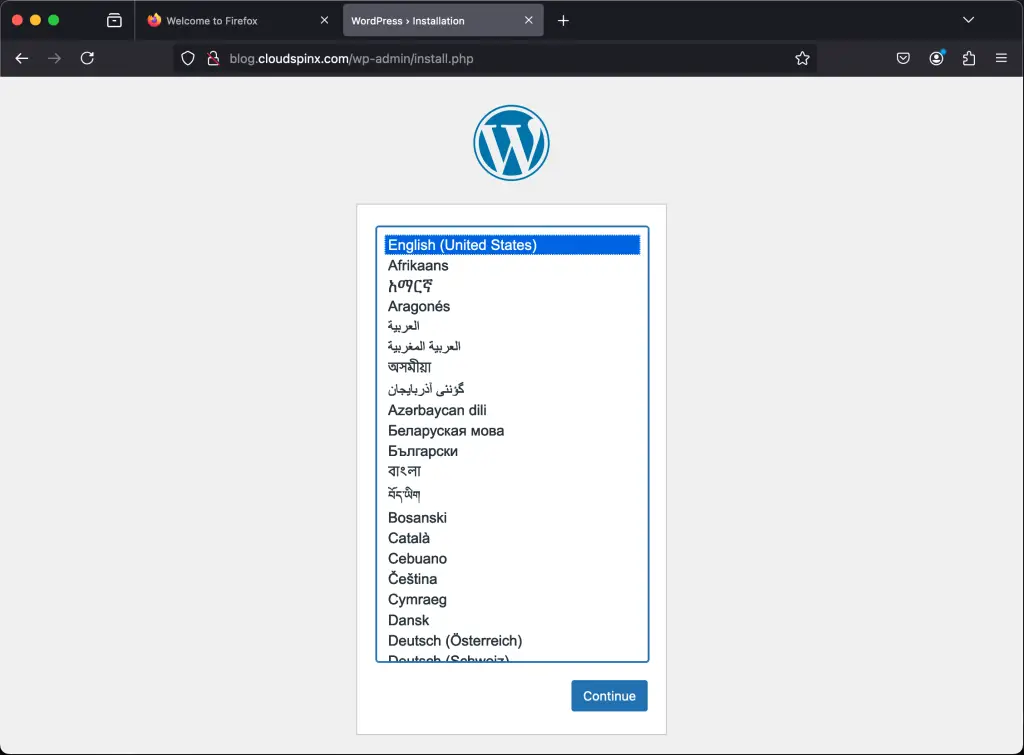
Open your browser and navigate to http://example.com (replace with your actual domain). The WordPress setup wizard loads automatically.
Select your preferred language on the first screen.
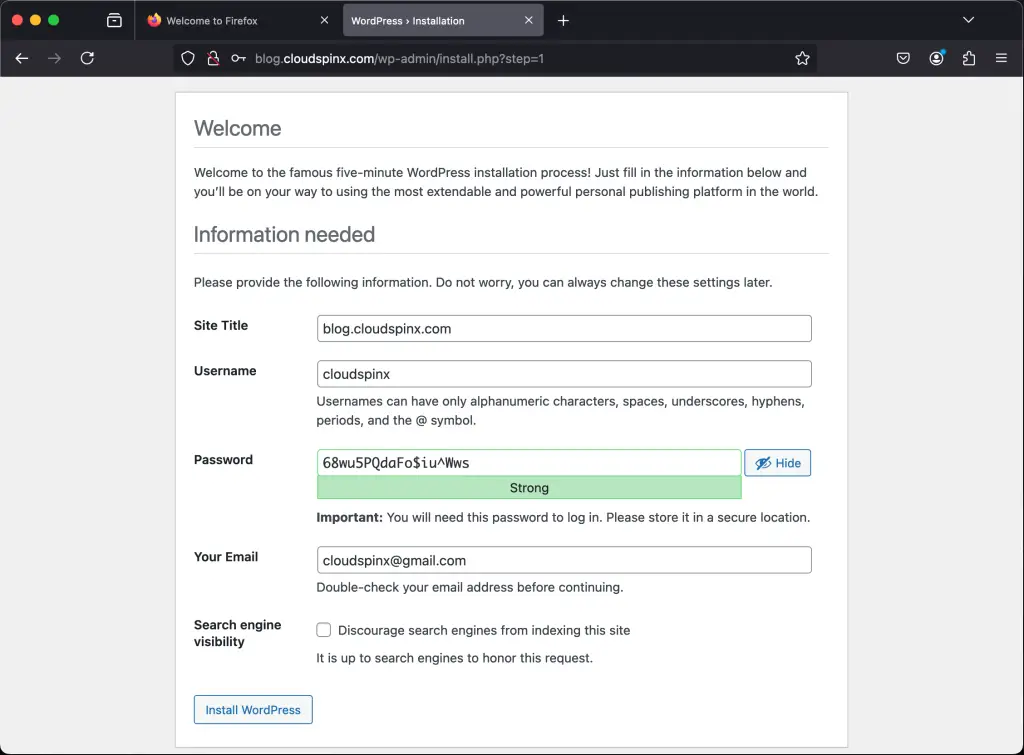
Fill in the Site Title, create an admin username (avoid “admin” for security), set a strong password, and enter your email address.
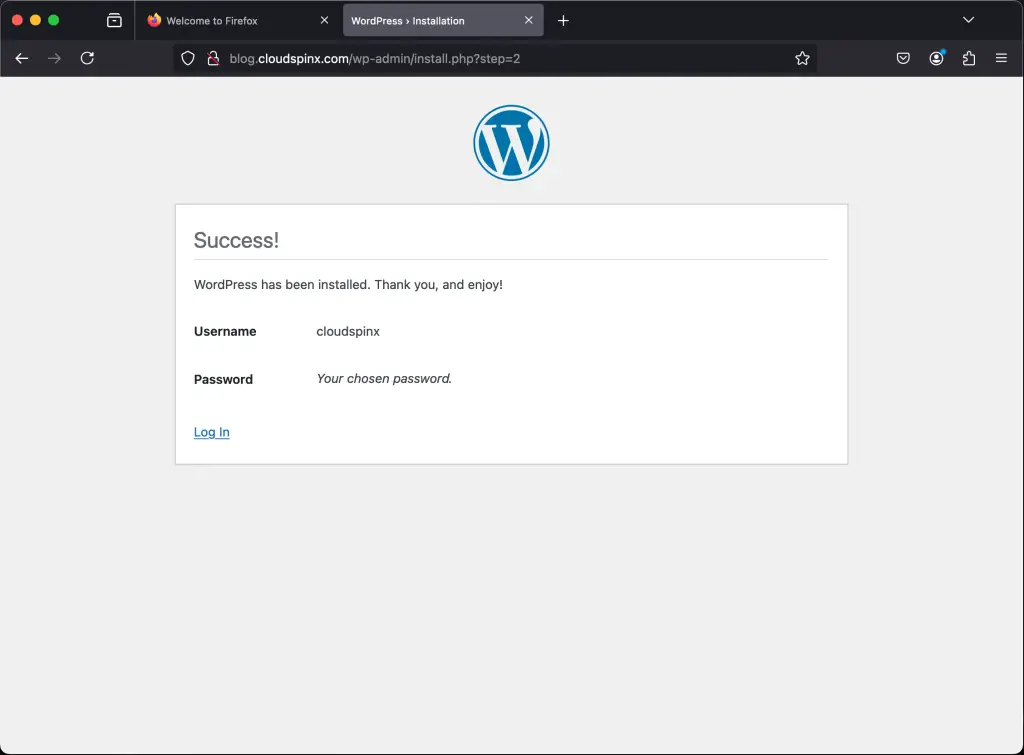
Click the Install WordPress button to finish the setup.
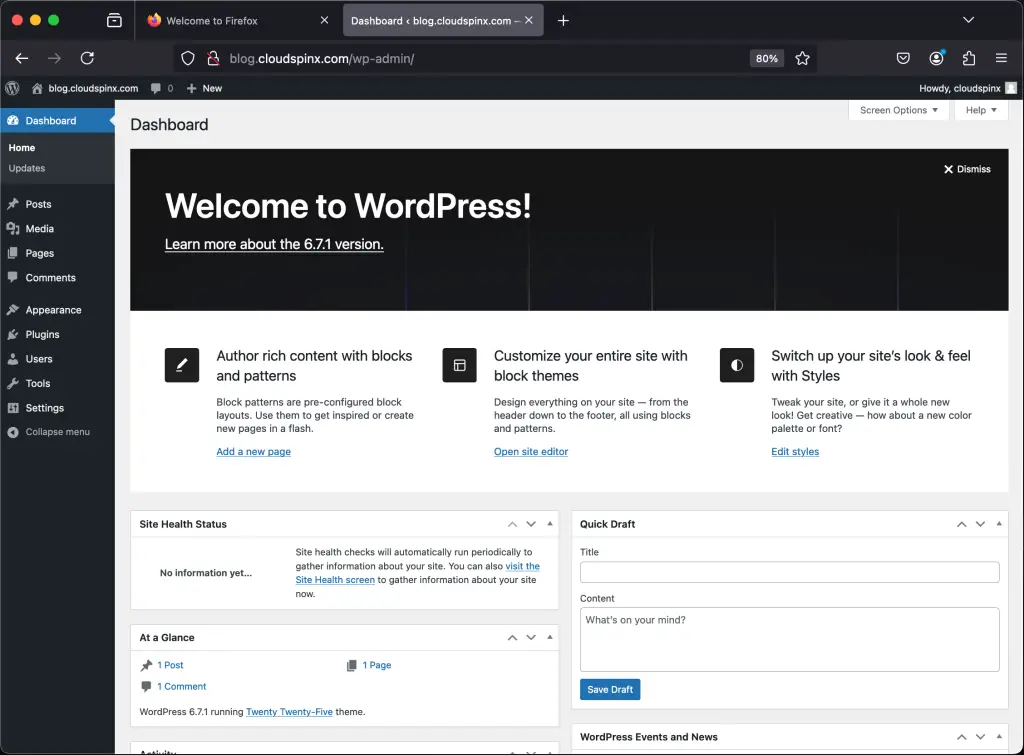
Log in with the credentials you just created to access the WordPress admin dashboard.
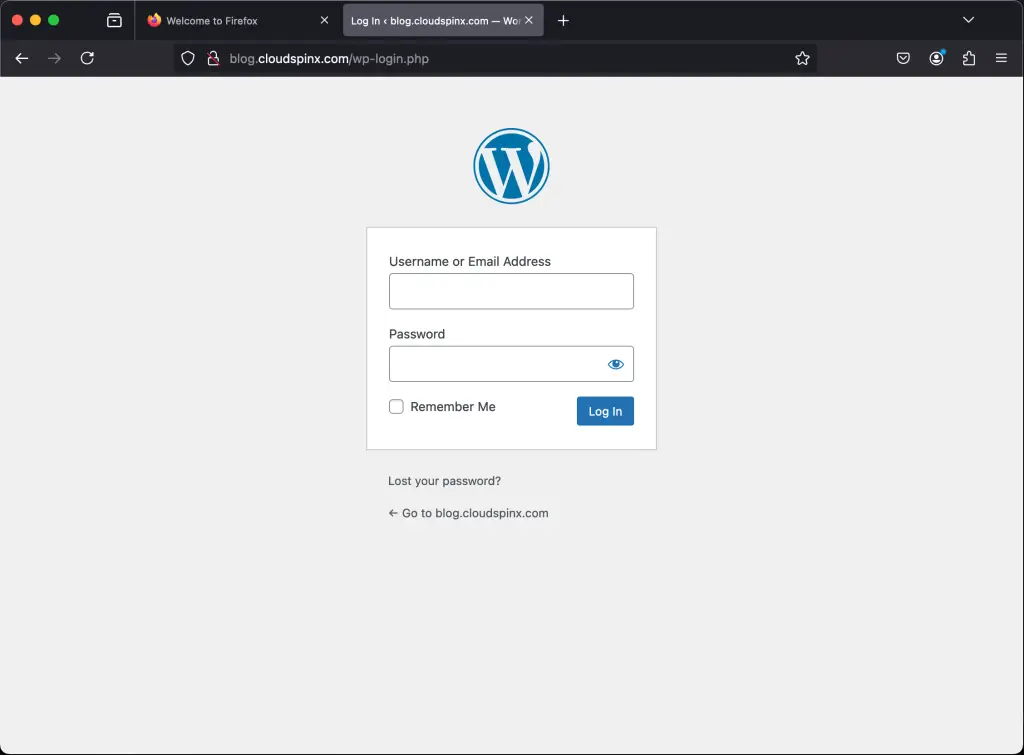
The WordPress dashboard is now accessible and ready for configuration.
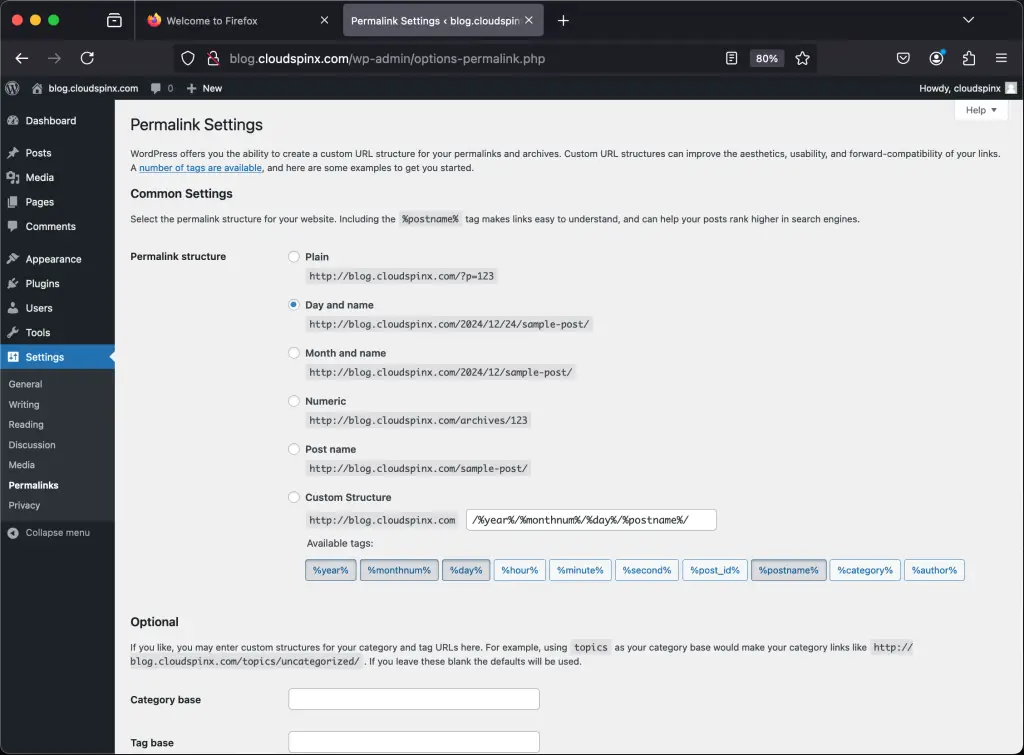
Go to Settings > Permalinks and select “Post name” for clean, SEO-friendly URLs. Nginx is already configured to handle this with the try_files directive in our server block.
Step 11: Secure WordPress with Let’s Encrypt SSL
Every production WordPress site needs HTTPS. Install Certbot and the Nginx plugin from EPEL to obtain a free SSL certificate from Let’s Encrypt.
sudo dnf install certbot python3-certbot-nginx -yRun Certbot with the Nginx plugin. It automatically modifies the Nginx server block to add SSL configuration.
sudo certbot --nginx -d example.com -d www.example.comFollow the interactive prompts: provide your email for renewal notices and agree to the terms of service. Certbot obtains the certificate and configures Nginx for HTTPS with automatic HTTP-to-HTTPS redirection.
Successfully received certificate.
Certificate is saved at: /etc/letsencrypt/live/example.com/fullchain.pem
Key is saved at:         /etc/letsencrypt/live/example.com/privkey.pem
This certificate expires on 2026-06-17.

Deploying certificate
Successfully deployed certificate for example.com to /etc/nginx/conf.d/wordpress.conf
Certbot installs a systemd timer for automatic renewal. Verify the timer is active.
$ sudo systemctl list-timers | grep certbot
Wed 2026-03-20 03:27:00 UTC  certbot-renew.timer  certbot-renew.service
Test the renewal process in dry-run mode to confirm it works.
sudo certbot renew --dry-runAfter SSL is active, update the WordPress URLs in wp-config.php to use HTTPS.
define( 'WP_HOME', 'https://example.com' );
define( 'WP_SITEURL', 'https://example.com' );
Step 12: Enable Caching for Better Performance
Caching drastically reduces page load times and server resource usage. There are two effective approaches: Nginx FastCGI cache for full-page caching at the web server level, and Redis for object caching at the application level. We will set up both.
Option A: Nginx FastCGI Cache
FastCGI cache stores the rendered HTML output so Nginx serves cached pages directly without invoking PHP. Create the cache directory first.
sudo mkdir -p /var/cache/nginx/fastcgi
sudo chown nginx:nginx /var/cache/nginx/fastcgi
Add the cache zone definition at the top of /etc/nginx/nginx.conf, inside the http block but before any server blocks.
fastcgi_cache_path /var/cache/nginx/fastcgi levels=1:2 keys_zone=WORDPRESS:100m inactive=60m max_size=512m;
fastcgi_cache_key "$scheme$request_method$host$request_uri";
fastcgi_cache_use_stale error timeout updating invalid_header http_500 http_503;
fastcgi_ignore_headers Cache-Control Expires Set-Cookie;
Then update the PHP location block in /etc/nginx/conf.d/wordpress.conf to enable caching. Add these directives inside the location ~ \.php$ block.
    # FastCGI cache settings
    fastcgi_cache WORDPRESS;
    fastcgi_cache_valid 200 301 302 60m;
    fastcgi_cache_valid 404 1m;

    # Skip cache for logged-in users, POST requests, and query strings
    set $skip_cache 0;
    if ($request_method = POST) { set $skip_cache 1; }
    if ($query_string != "") { set $skip_cache 1; }
    if ($http_cookie ~* "wordpress_logged_in|comment_author") { set $skip_cache 1; }
    if ($request_uri ~* "/wp-admin/|/wp-json/|/xmlrpc.php") { set $skip_cache 1; }

    fastcgi_cache_bypass $skip_cache;
    fastcgi_no_cache $skip_cache;
    add_header X-FastCGI-Cache $upstream_cache_status;
Restart Nginx after making changes.
sudo nginx -t && sudo systemctl restart nginxOption B: Redis Object Cache
Redis stores frequently queried database results in memory, reducing the number of MariaDB queries per page load. This is especially effective for sites with many plugins or dynamic content. Install Redis on Rocky Linux 9 from the default repositories.
sudo dnf install redis -y
sudo systemctl enable --now redis
Verify Redis is running.
$ redis-cli ping
PONG
Add the Redis configuration to wp-config.php before the “That’s all, stop editing!” comment.
define( 'WP_REDIS_HOST', '127.0.0.1' );
define( 'WP_REDIS_PORT', 6379 );
define( 'WP_REDIS_DATABASE', 0 );
define( 'WP_CACHE', true );
Then install the Redis Object Cache plugin from the WordPress admin dashboard (Plugins > Add New > search for “Redis Object Cache”) and activate it. Go to Settings > Redis and click “Enable Object Cache” to connect WordPress to Redis.
Step 13: Set Up WordPress Cron Jobs
WordPress has a built-in pseudo-cron system (wp-cron.php) that runs on every page load. On low-traffic sites this causes delayed tasks, and on high-traffic sites it wastes resources. Disable the built-in cron and use a real system cron job instead.
Add this line to wp-config.php.
define( 'DISABLE_WP_CRON', true );Create a system cron job that runs WordPress cron every 5 minutes.
sudo crontab -u nginx -eAdd the following line.
*/5 * * * * /usr/bin/php /var/www/wordpress/wp-cron.php > /dev/null 2>&1Verify the cron job is registered.
$ sudo crontab -u nginx -l
*/5 * * * * /usr/bin/php /var/www/wordpress/wp-cron.php > /dev/null 2>&1
Step 14: Security Hardening for WordPress
A default WordPress installation exposes several attack surfaces. Apply these hardening measures to reduce risk in production.
Disable XML-RPC
XML-RPC is an older API that is frequently targeted for brute-force and DDoS amplification attacks. Unless you use the WordPress mobile app or Jetpack, disable it entirely. Add this block to your Nginx server configuration in /etc/nginx/conf.d/wordpress.conf.
    # Block XML-RPC
    location = /xmlrpc.php {
        deny all;
        access_log off;
        log_not_found off;
        return 444;
    }
Limit Login Attempts
Rate-limit access to wp-login.php to slow down brute-force attacks. Add a rate limiting zone to the http block in /etc/nginx/nginx.conf.
limit_req_zone $binary_remote_addr zone=wp_login:10m rate=1r/s;Then add a location block for wp-login.php in your server block in /etc/nginx/conf.d/wordpress.conf.
    # Rate limit wp-login.php
    location = /wp-login.php {
        limit_req zone=wp_login burst=3 nodelay;
        include fastcgi_params;
        fastcgi_pass unix:/run/php-fpm/www.sock;
        fastcgi_param SCRIPT_FILENAME $document_root$fastcgi_script_name;
    }
Disable File Editing from Admin Panel
WordPress allows editing theme and plugin files from the dashboard by default. If an attacker gains admin access, they can inject malicious code. Disable this feature in wp-config.php.
define( 'DISALLOW_FILE_EDIT', true );Restrict Access to wp-admin by IP (Optional)
If your team accesses the admin panel from known IP addresses, restrict wp-admin access at the Nginx level. Add this to your server block.
    location /wp-admin/ {
        allow 192.168.1.100;   # Office IP
        allow 10.0.1.50;       # VPN IP
        deny all;
        location ~ \.php$ {
            include fastcgi_params;
            fastcgi_pass unix:/run/php-fpm/www.sock;
            fastcgi_param SCRIPT_FILENAME $document_root$fastcgi_script_name;
        }
    }
Add Security Headers
Add HTTP security headers to your Nginx server block to protect against common web attacks like clickjacking and content injection.
    # Security headers
    add_header X-Frame-Options "SAMEORIGIN" always;
    add_header X-Content-Type-Options "nosniff" always;
    add_header X-XSS-Protection "1; mode=block" always;
    add_header Referrer-Policy "strict-origin-when-cross-origin" always;
    add_header Permissions-Policy "camera=(), microphone=(), geolocation=()" always;
Test and reload Nginx after all security changes.
sudo nginx -t && sudo systemctl reload nginxStep 15: Performance Tuning
Fine-tune Nginx and PHP-FPM to handle traffic efficiently based on your server resources.
Nginx Worker Configuration
Edit /etc/nginx/nginx.conf and adjust worker settings based on your CPU cores.
worker_processes auto;           # Match number of CPU cores
worker_connections 1024;         # Max connections per worker
multi_accept on;                 # Accept multiple connections at once
use epoll;                       # Efficient event model for Linux
Enable Gzip Compression
Add gzip compression to the http block in /etc/nginx/nginx.conf to reduce the size of responses sent to clients.
gzip on;
gzip_vary on;
gzip_proxied any;
gzip_comp_level 4;
gzip_min_length 256;
gzip_types text/plain text/css application/json application/javascript text/xml application/xml application/xml+rss text/javascript image/svg+xml;
PHP OPcache Tuning
OPcache stores precompiled PHP bytecode in memory, eliminating the need to parse and compile scripts on every request. Edit the OPcache configuration.
sudo vim /etc/php.d/10-opcache.iniUpdate these settings for a WordPress production server.
opcache.enable=1
opcache.memory_consumption=128
opcache.interned_strings_buffer=16
opcache.max_accelerated_files=10000
opcache.revalidate_freq=60
opcache.save_comments=1
opcache.enable_cli=0
Restart PHP-FPM after OPcache changes.
sudo systemctl restart php-fpmPHP-FPM Pool Tuning
For a server with 2GB RAM, adjust the PHP-FPM pool settings in /etc/php-fpm.d/www.conf to manage processes efficiently.
pm = dynamic
pm.max_children = 15
pm.start_servers = 5
pm.min_spare_servers = 3
pm.max_spare_servers = 8
pm.max_requests = 500
For servers with more RAM, increase pm.max_children proportionally. A rough formula is: available RAM (MB) / average PHP process size (typically 30-50MB). Restart PHP-FPM after making changes.
sudo systemctl restart php-fpmConclusion
WordPress is now running on Rocky Linux 10 / AlmaLinux 10 with Nginx, PHP 8.3, MariaDB, and Let’s Encrypt SSL. The setup includes FastCGI caching, Redis object caching, SELinux policies, proper file permissions, and security hardening against common attacks. For a production deployment, add regular backups using a plugin like UpdraftPlus or a cron-based mysqldump script, set up monitoring with tools like Prometheus or Uptime Robot, and consider a CDN such as Cloudflare for global content delivery.
