

With the help of Active Directory Services, often refered to as AD, administrators can control user accounts, workstations, and security settings throughout a company’s network. It is an essential part of Windows Server, and installing Active Directory has gotten much simpler since Windows Server 2022 was released.
In today article, we’ll walk you through the installation of Active Directory on your Windows Server 2022. Well then, let’s get to it:
Step 1: Login to Server Manager
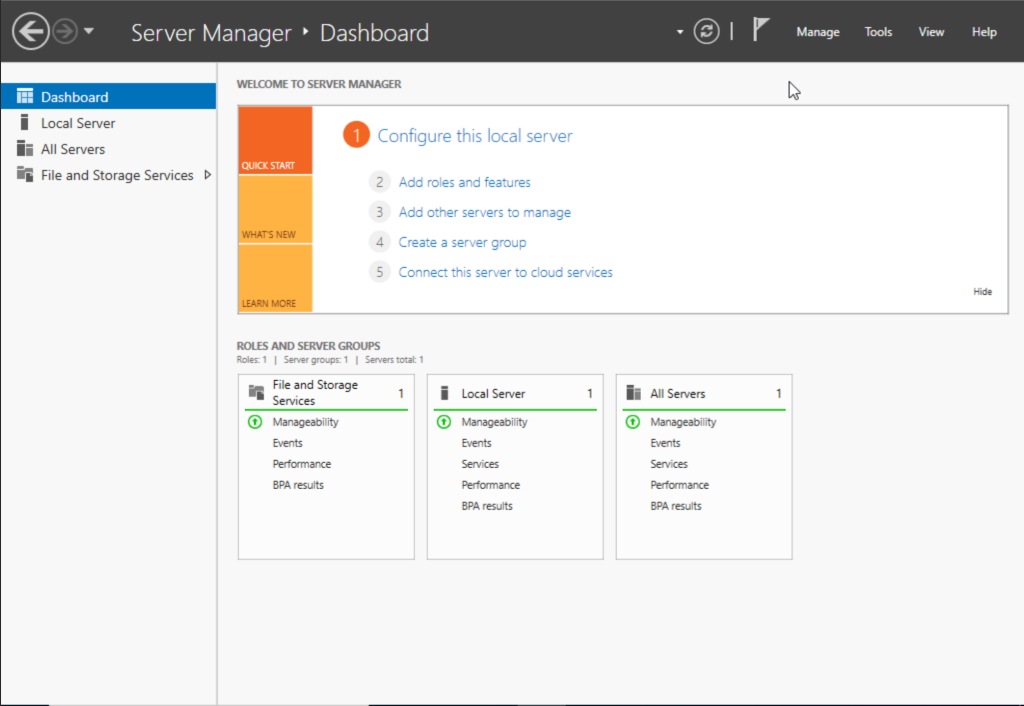
To start the installation process of the Active Directory Domain Services, you need to access server manager. It typically lauches automatically when you boot up your server. If not, type “Server Manager” into the Windows search box and double click on it to launch.
Step 2: Add Roles and Features
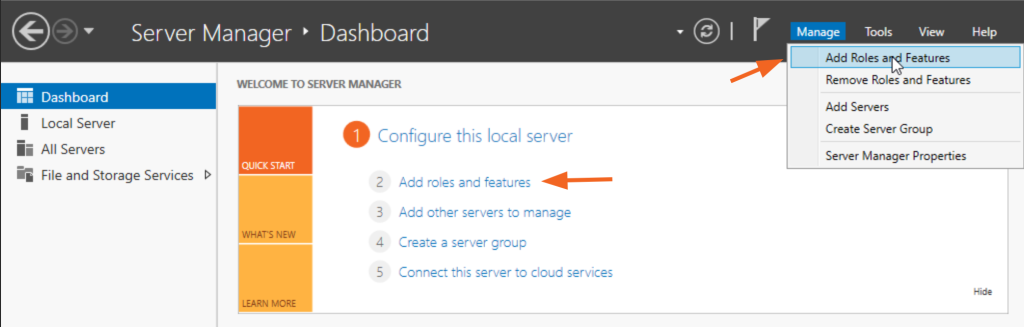
There are two ways to start “Add Roles and Features.” You can click it from the home page, or you can right-click “Manage” to select the function from the pop-out menu.
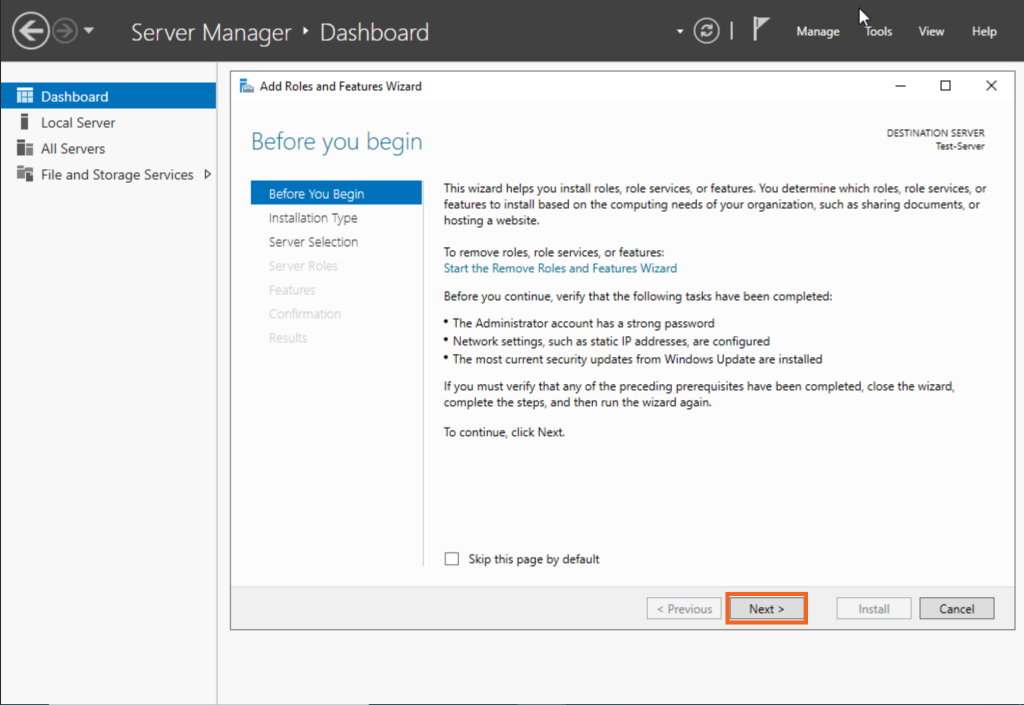
The “Add Roles and Features Wizard” page will be displayed during the process, and the Active Directory installation will then begin. Please select “Next.”
Step 3: Select Installation Type
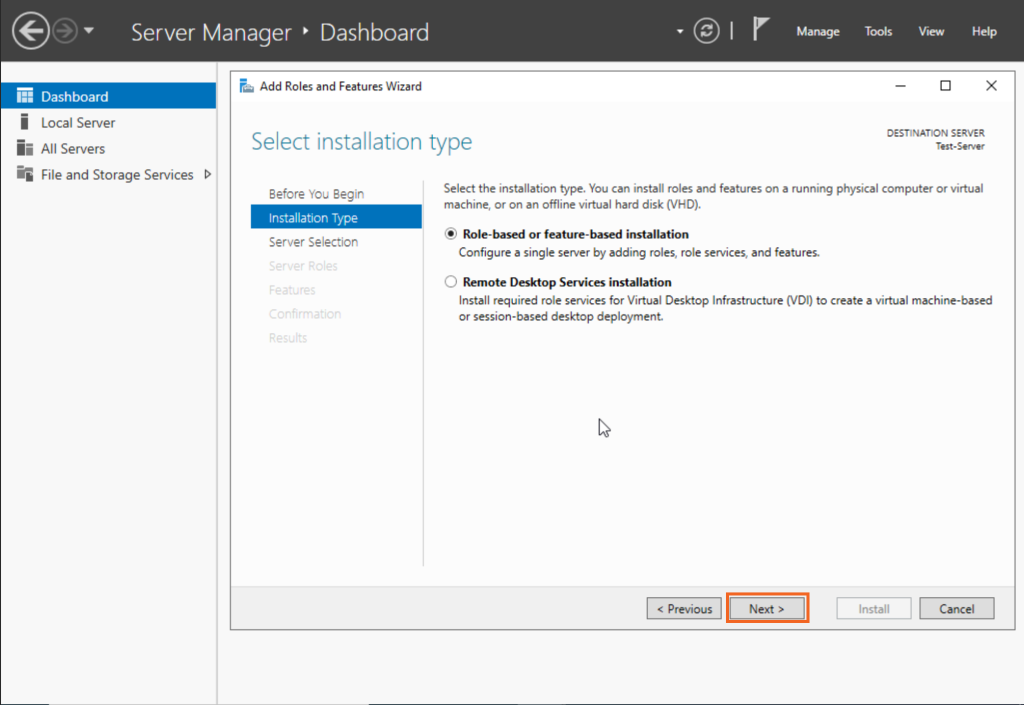
On the “Installation Type” screen, select “Role-based or feature-based installation” and click “Next.”
Step 4: Server Selection
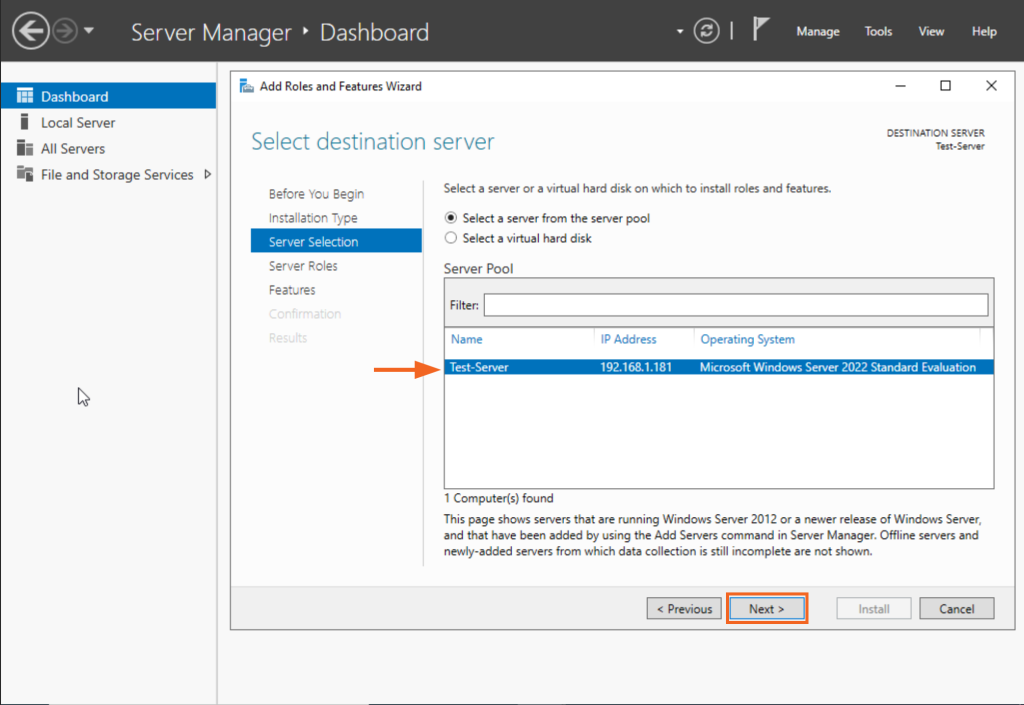
Click “Next” after choosing the server you wish to install Active Directory on from the “Server Selection” screen. We selected the local Windows Server 2022 Standard as the reference, in the image below:
Step 5: Select Server Roles
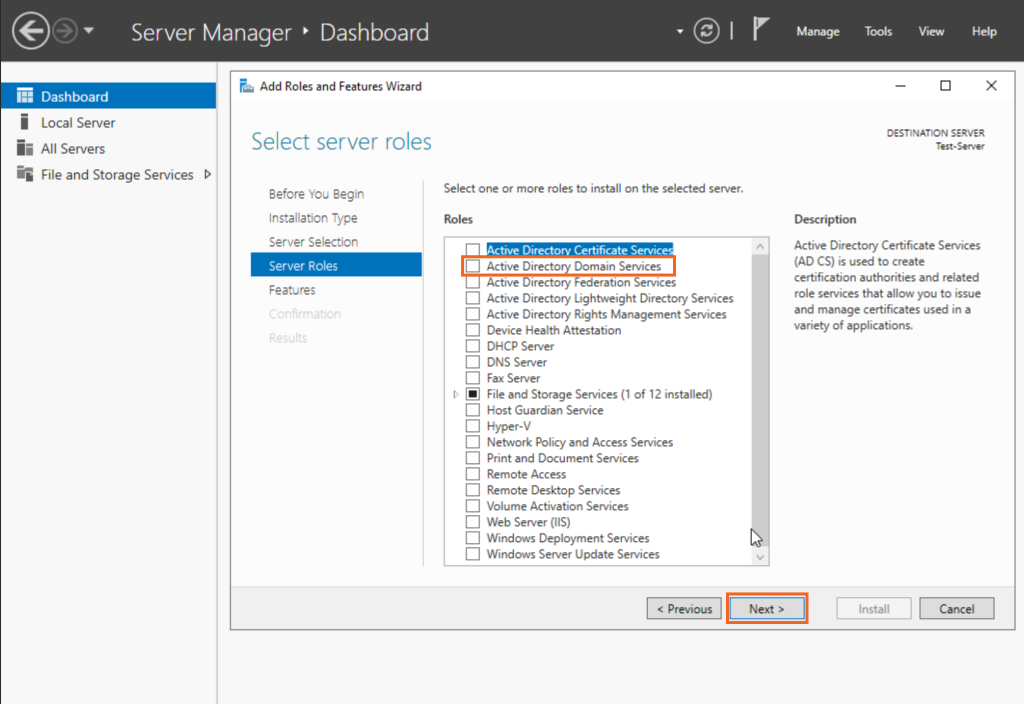
You will be directed to the “Server Roles” page by all of the preceding settings, where you will see a number of options with square checkboxes next to them. Click “Active Directory Domain Services” to continue.
Step 6: Add Selected Features
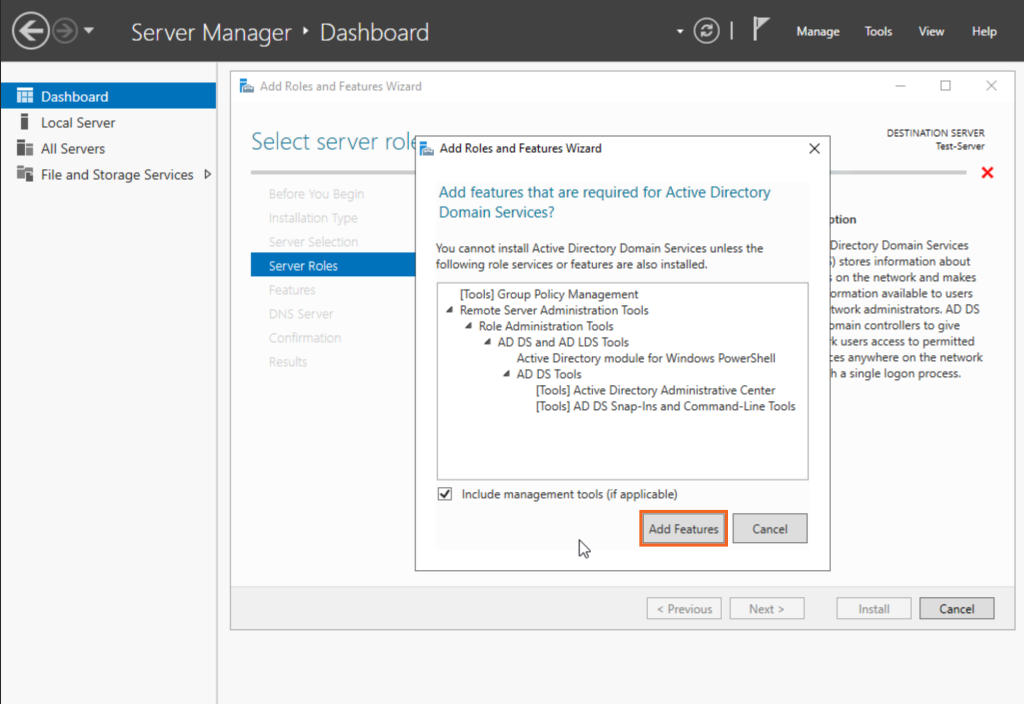
Adding the required features is a prerequisite for installing Active Directory Domain Services. Therefore, please pick features by clicking “Add Features” before continuing with the installation.
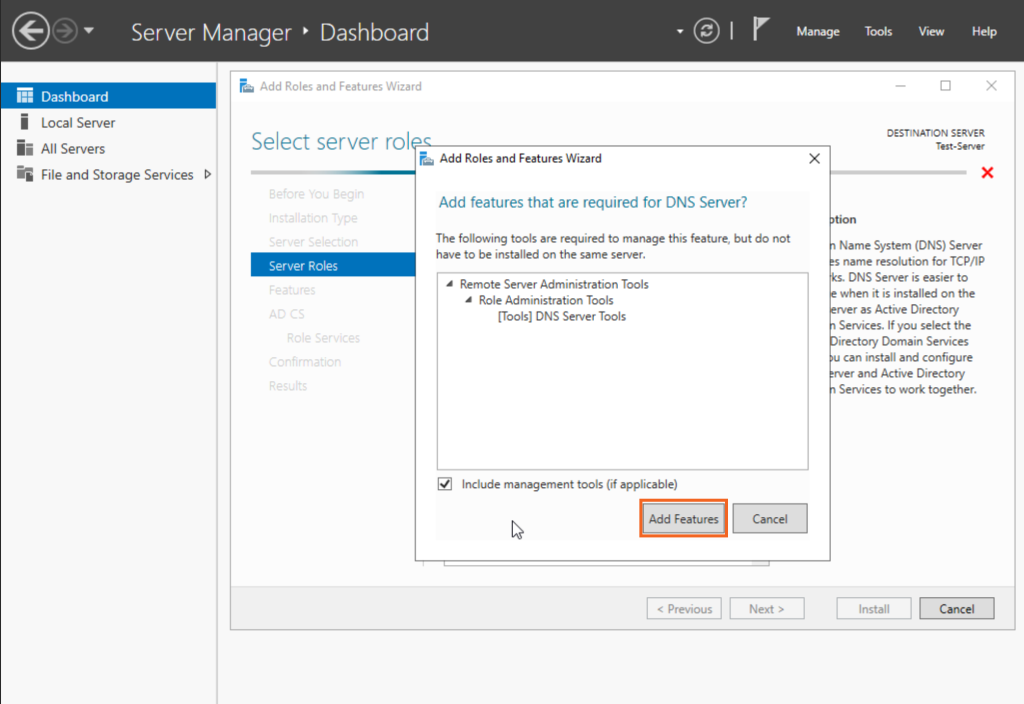
You can also include DNS services if you wish to use the server as the primary DNS for your organization’s network. Add the features required for a DNS server.
Click Next on the next page. Group Policy Management feature is selected automatically when you select Active Directory Domain Services.
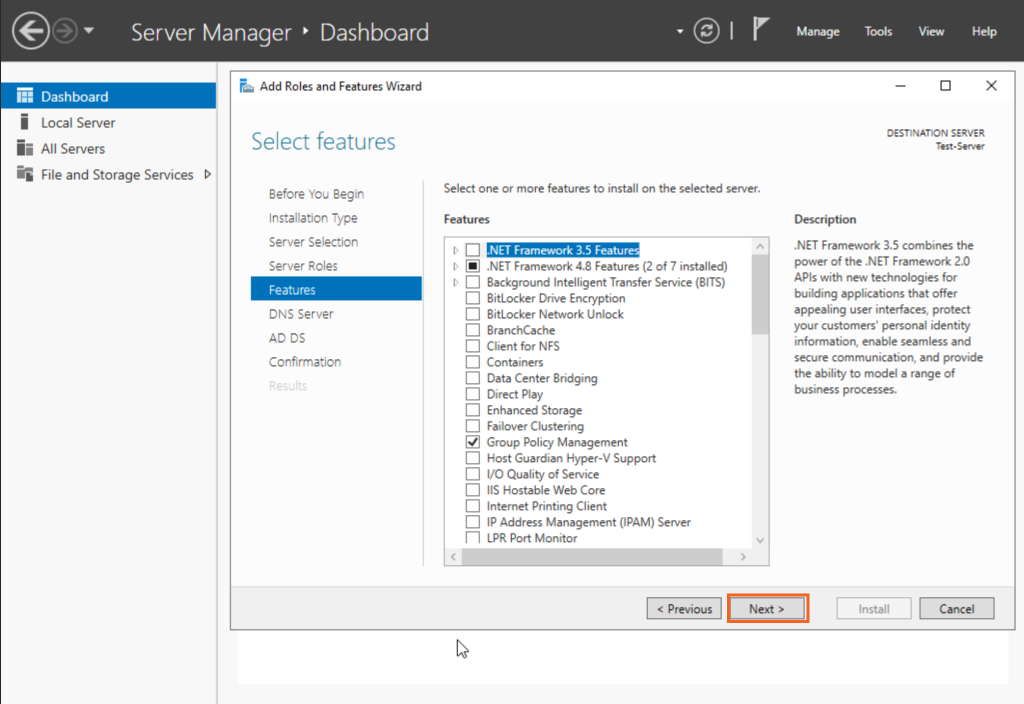
Step 7: Active Directory Domain Service
You will be taken to the “Activate Directory Domain Services” page following step 6. Click “Next” after reviewing the information in the “AD DS” screen.
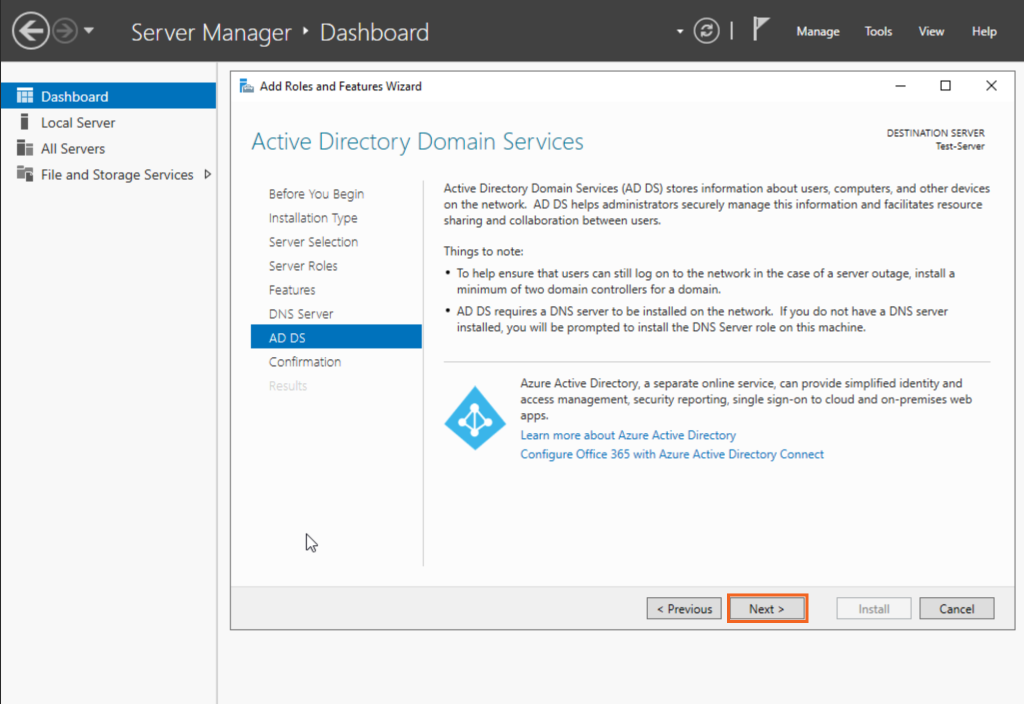
Step 8. Confirm Installation Selections
Before starting the installation process, double-check your installation choices. If necessary, you can choose to have the server restart automatically. Please click “Install” to proceed after checking.
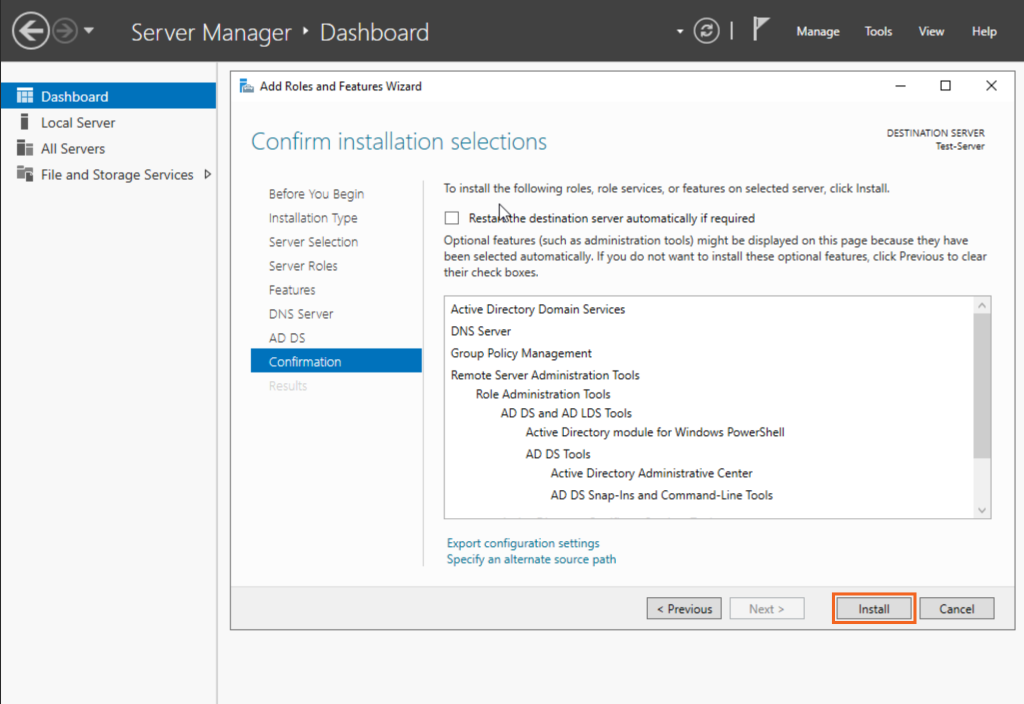
Once the previous settings are done, the installation will proceed.
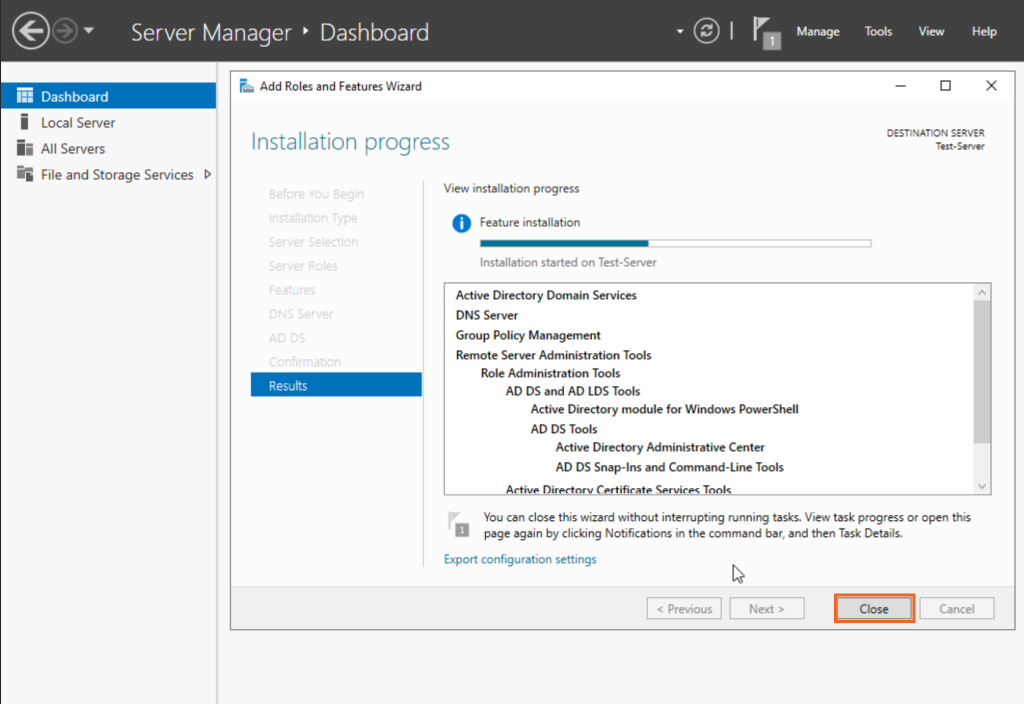
After it finishes, please click “Close”.
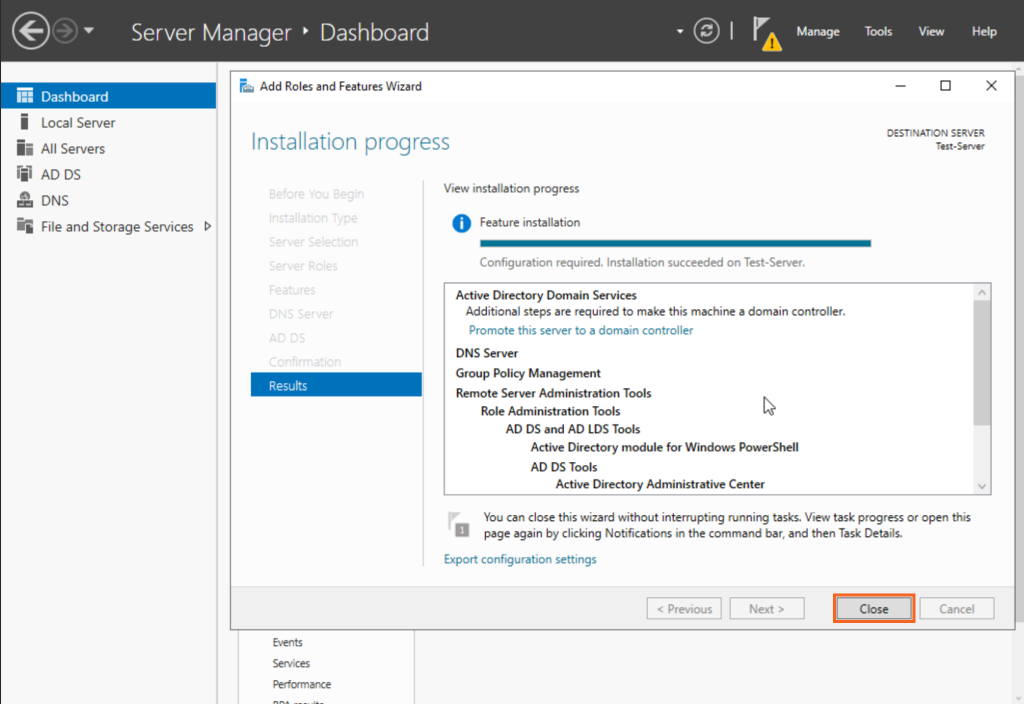
Step 9. Configure Active Directory Domain Services
After Active Directory Domain Services installation is complete, please open Server Manager and locate the “Manage” tab, which will have a yellow exclamation notification next to it. Click on it and select “Promote this server to a domain controller”.
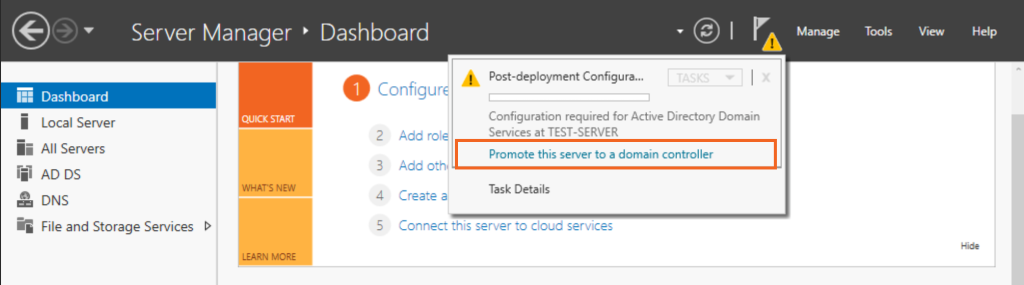
Step 10: Add a New Forest
In this step, we will add a new Forest and customize your root domain name. However, if you have a different preference, you are free to choose the other options. Please enter your root domain name and click on “Next”.
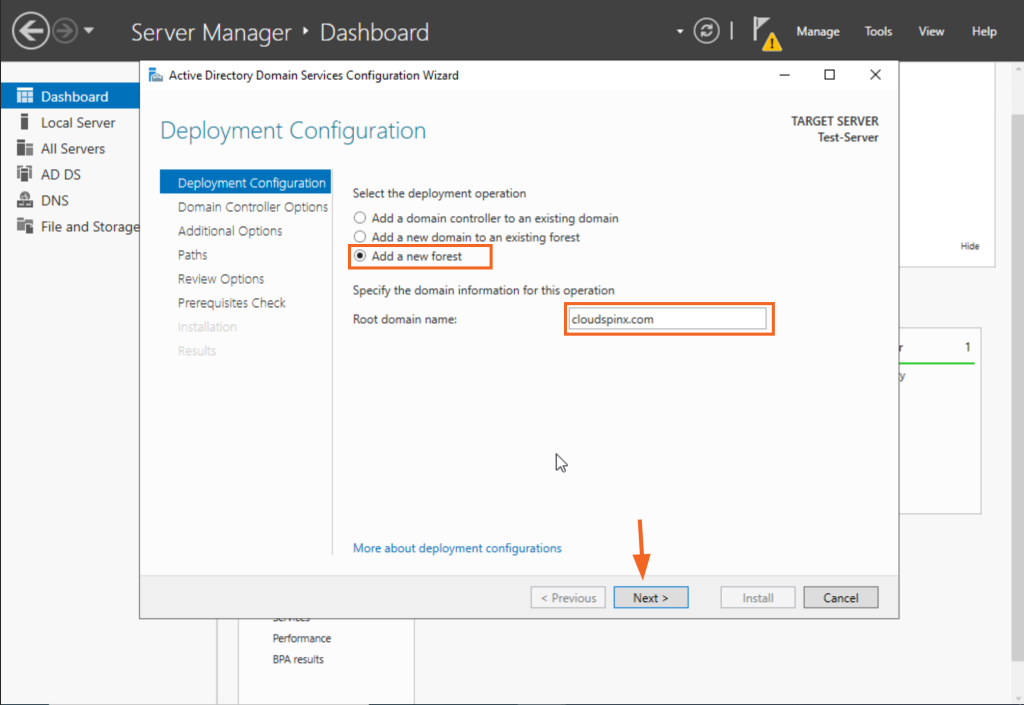
Step 11: Domain Controller Options
In the Domain Controller options, keep the default settings checked and set your password. After that, click on “Next”.
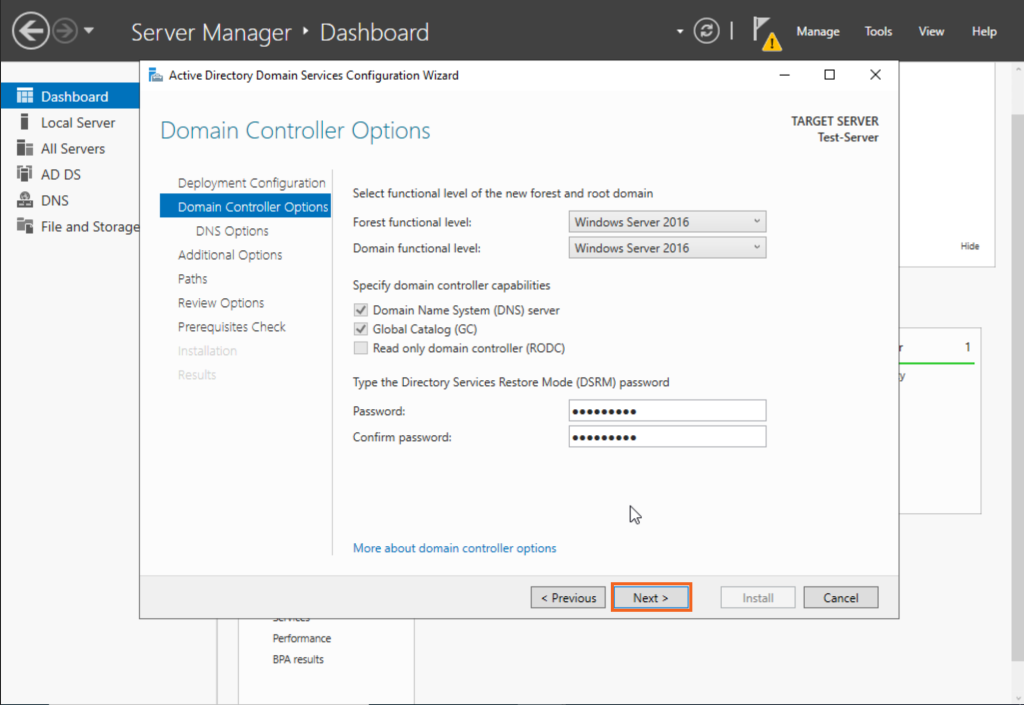
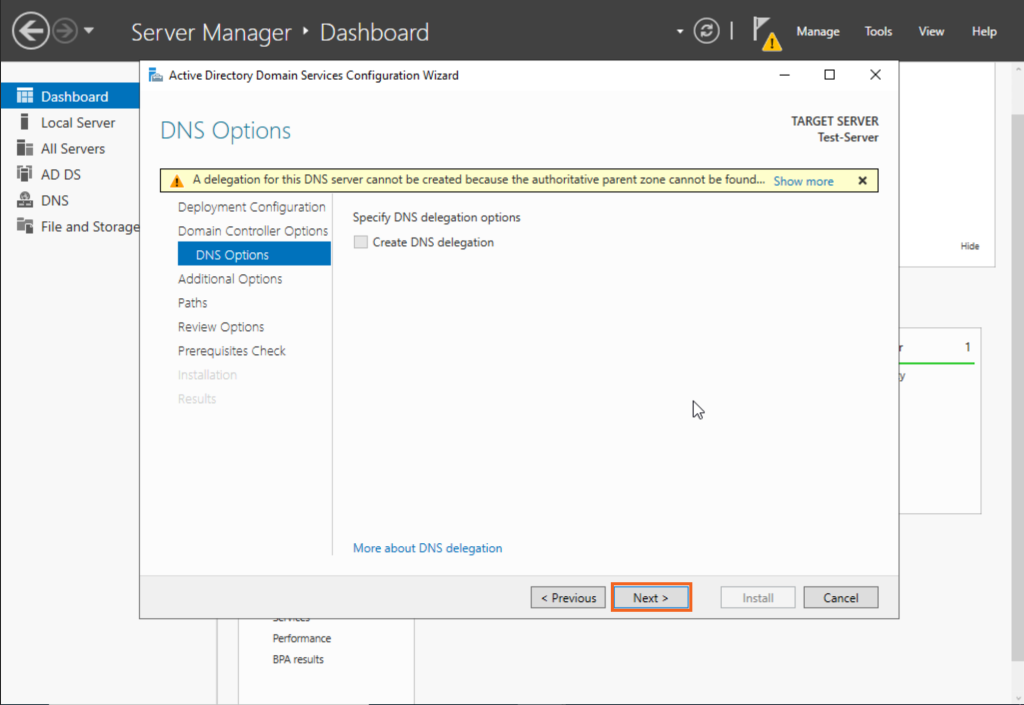
Step 12: DNS Options
On the “DNS Options” page, there will be a notification at the top stating “A delegation for this DNS server cannot be created because the authoritative parent zone cannot be found”. Please disregard this message and proceed by clicking on “Next”.
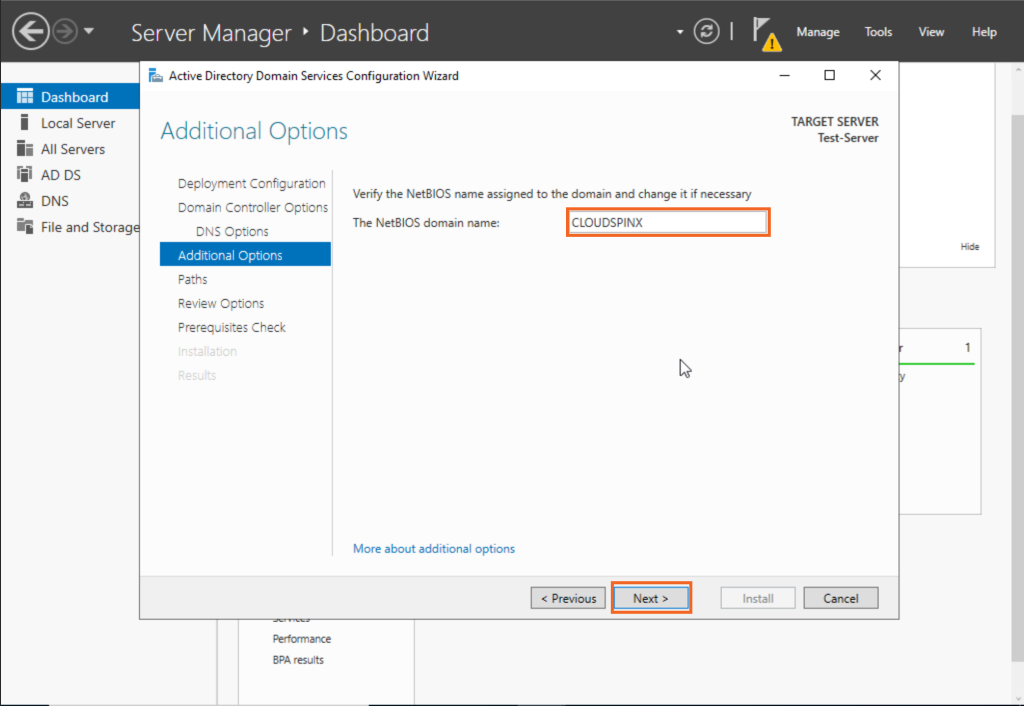
Step 13: Additional Options
On the page, you can modify the NetBios domain name as long as it doesn’t exceed 15 characters. You are also able to keep the NetBIOS domain name as default. Once you have made your selection, click on “Next”.
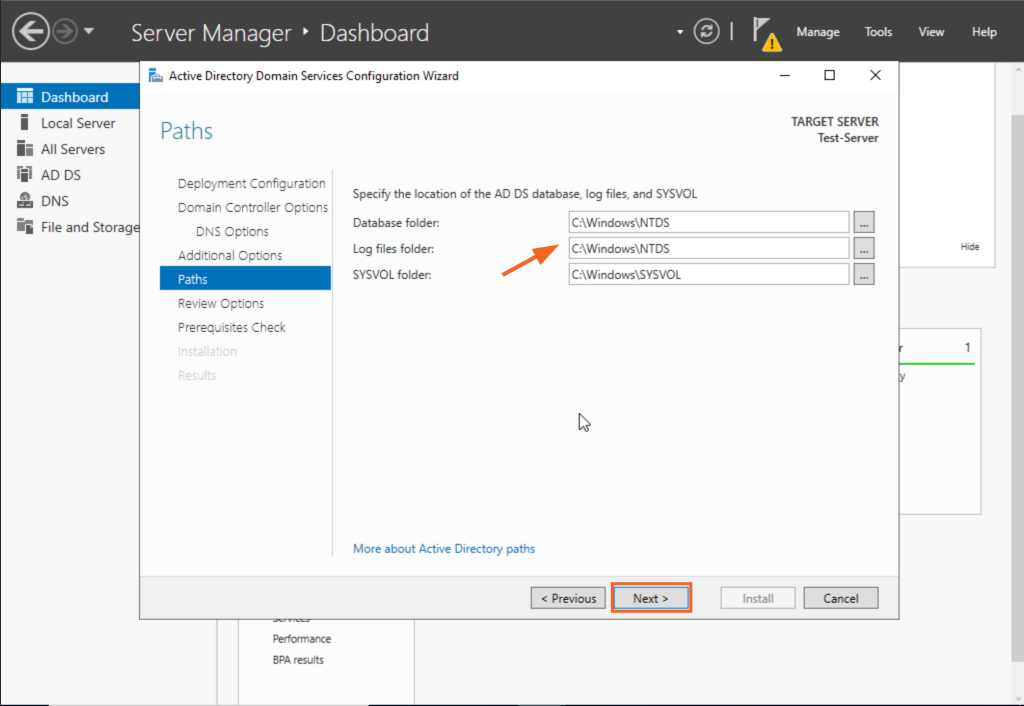
Step 14: Set Path
Please leave paths as default and click “Next” as shown below.
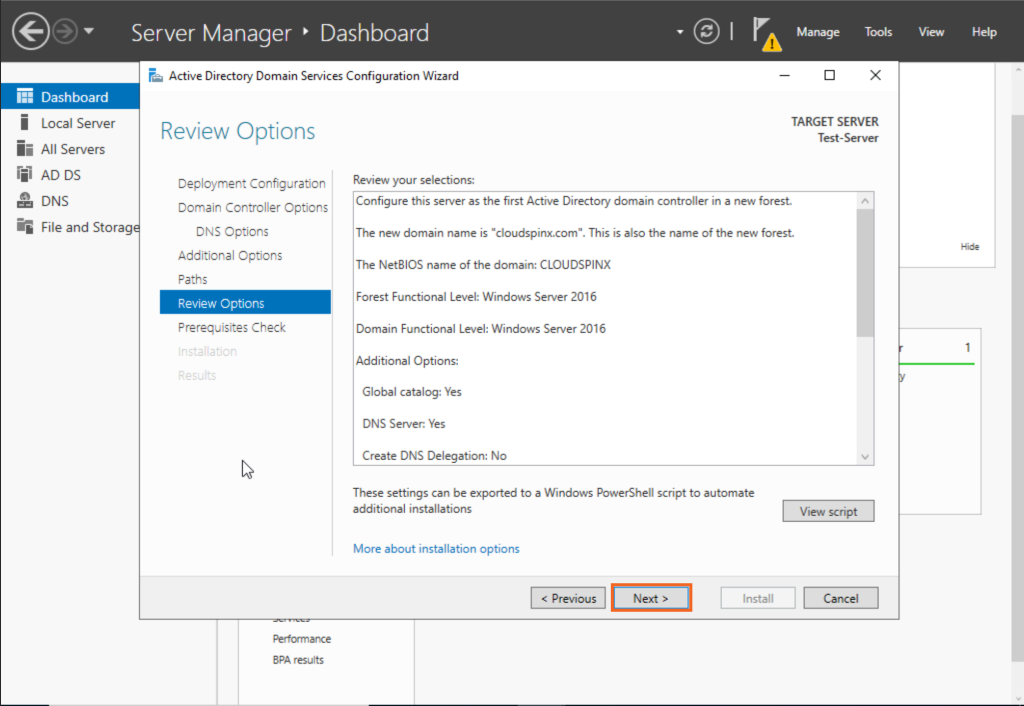
Step 15: Review Options
At this stage, the server will display a summary of the selections you have made. If you don’t want to change your choices, click on “Next” to proceed.
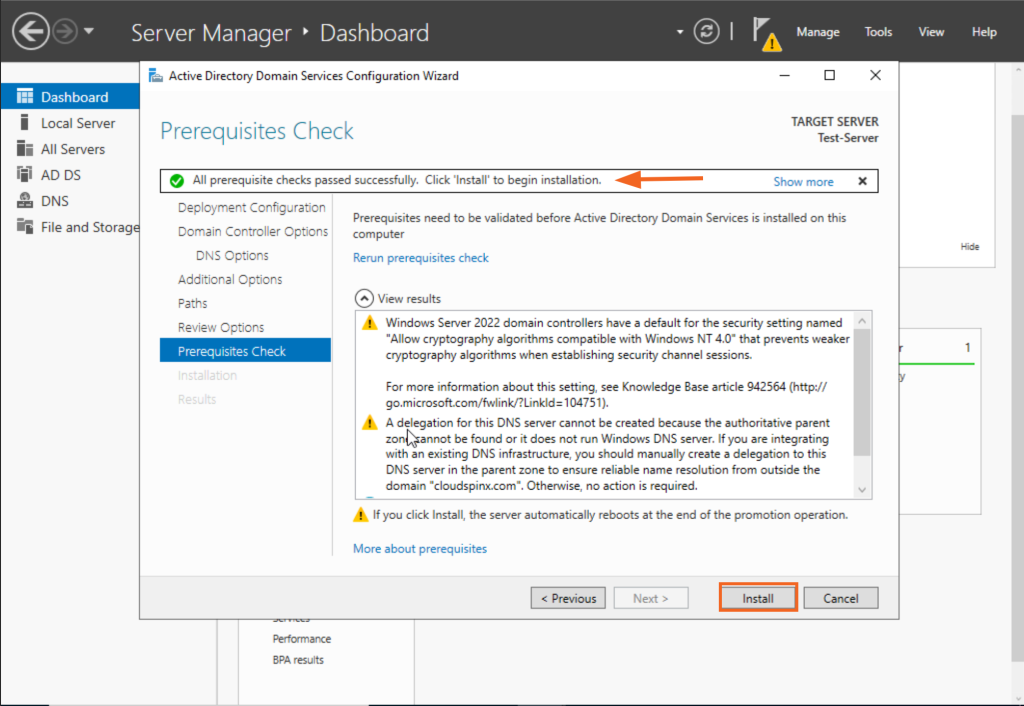
Step 16. Check Prerequisites
Prerequisites need to be validated before Active Directory Services is installed on the computer. The server will provide a summary of the selections you have made. If you are content with your choices, proceed by clicking on “Install”.
Then your server will reboot. After that, you can log into the Domain with your password.
Conlusion
Installing Active Directory on Windows Server 2022 is quite simple, and it will allow administrators to manage user accounts, computers, and security policies over the organization’s network. Follow the steps to set up the Active Directory installation and its configuration on your environment of Windows Server 2022 easily.
Check out more articles:
