

This guide will show you how to easily install VMware Workstation pro/player on Arch Linux / Manjaro Linux distribution. VMware Workstation is a hypervisor used for running multiple operating systems on a single Linux or Windows PC.
It enables developers and users to set up virtual machines on a single physical machine, and run them simultaneously along with the host operating system. There are two distinct types of VMware Workstation – Pro edition and Player edition.
Step 1: Install yay AUR helper
Start by installing a smart AUR helper called yay.
Step 2: Install Dependencies
Install all required dependencies for running VMware Workstation on Arch Linux / Manjaro.
sudo pacman -S fuse2 gtkmm linux-headers pcsclite libcanberra The other package needed by the –console installer is ncurses5-compat-libs. This is available on AUR.
yay -S --noconfirm --needed ncurses5-compat-libsStep 3: Install VMware Workstation Pro or Player
You have two options:
Option 1: Install from Package build for x86_64
The vmware-workstation package is available on AUR and can be installed by running the command.
yay -S --noconfirm --needed vmware-workstationThen, as desired, enable some of the following services:
vmware-networks.servicefor guest network accessvmware-usbarbitrator.servicefor connecting USB devices to guestvmware-hostd.servicefor sharing virtual machines
Example:
sudo systemctl enable vmware-networks.service  vmware-usbarbitrator.service vmware-hostd.service
sudo systemctl start vmware-networks.service  vmware-usbarbitrator.service vmware-hostd.service
Confirm services status with:
sudo systemctl status vmware-networks.service vmware-usbarbitrator.service vmware-hostd.serviceLastly, load the VMware modules:
sudo modprobe -a vmw_vmci vmmonTo Launch VMware Workstation, run:
# Launch VMware Workstation Pro:
$  vmware

# Launch VMware Workstation Player
$ vmplayer
Option 2: Install Using VMware bundle
Download the latest VMware Workstation Pro or Player
Choose the VMware edition to go with and download it. Here are Download links.
- Download VMware Workstation Pro
- Download VMware WorkstationPlayer
After download is complete, start the installation using the bundle file downloaded.
### VMware Workstation Pro ###
wget https://download3.vmware.com/software/WKST-1750-LX/VMware-Workstation-Full-17.5.0-22583795.x86_64.bundle
chmod +x VMware-Workstation-Full-*.x86_64.bundle
sudo ./VMware-Workstation-Full-*.x86_64.bundle

### VMware Workstation Player ###
wget https://download3.vmware.com/software/WKST-PLAYER-1750/VMware-Player-Full-17.5.0-22583795.x86_64.bundle
chmod +x VMware-Player-Full-*.x86_64.bundle
sudo ./VMware-Player-Full-*.x86_64.bundle
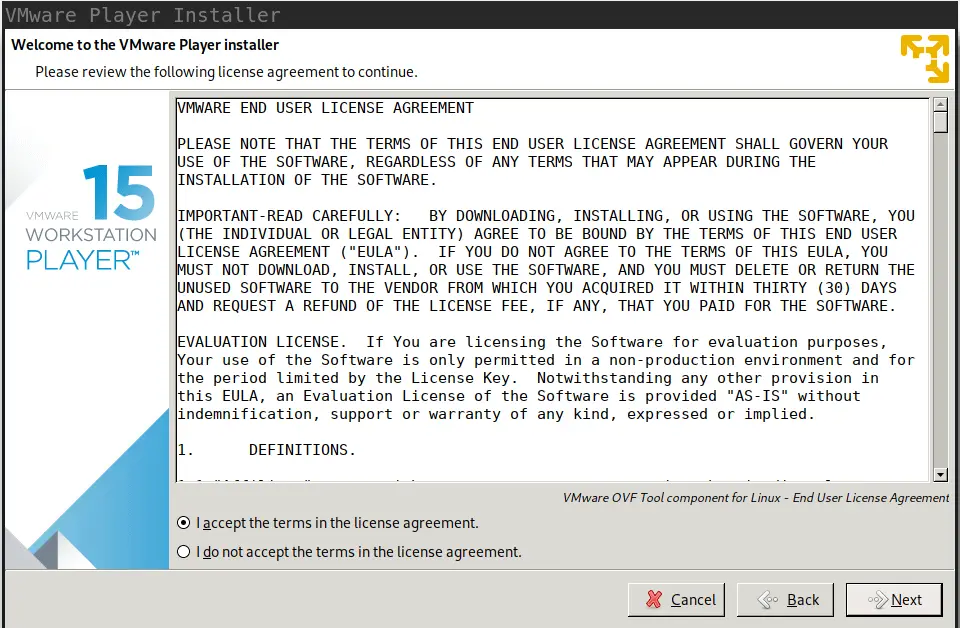
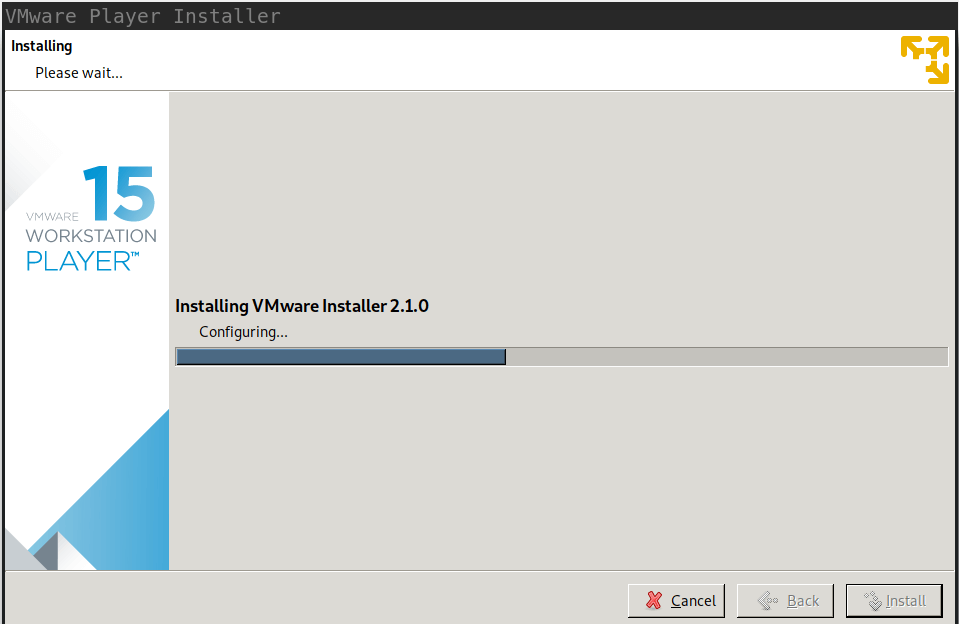
The installer UI will be launched. Accept License Agreement terms and click next.

On the next screen, choose System service scripts directory, use /etc/init.d (the default).

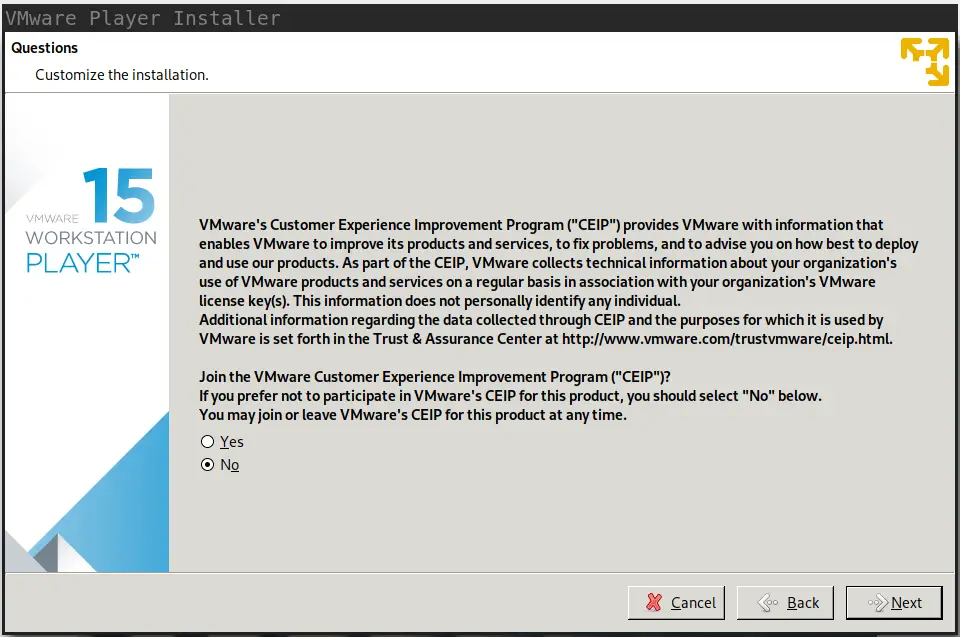
Select if to allow product updates check on startup.

Choose “yes” to join VMware’s Customer Experience Improvement Program(“CEIP”). Use “no” to decline.
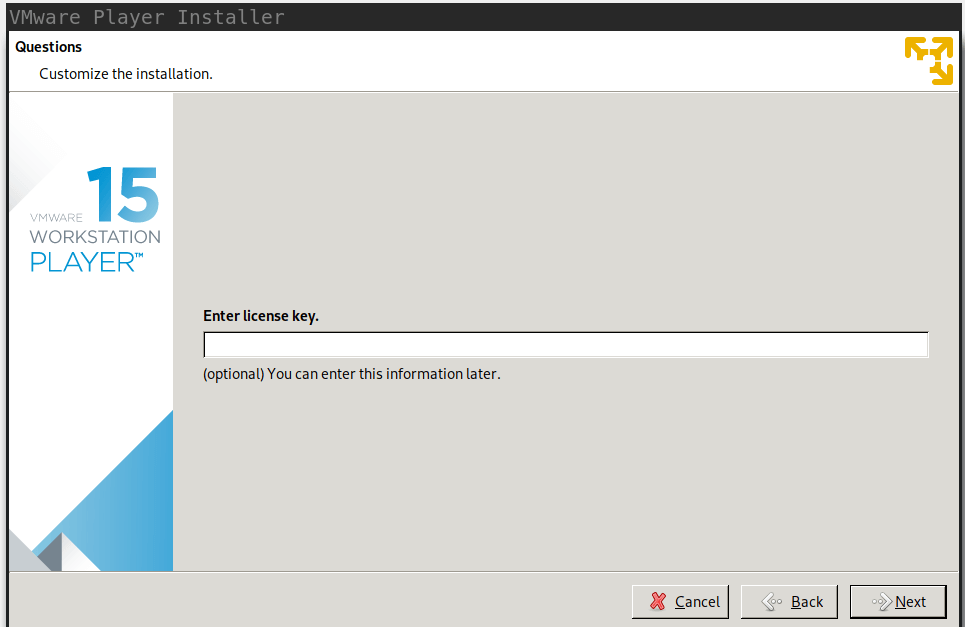
Enter License key if you have one.
The installation should finish in a few minutes.
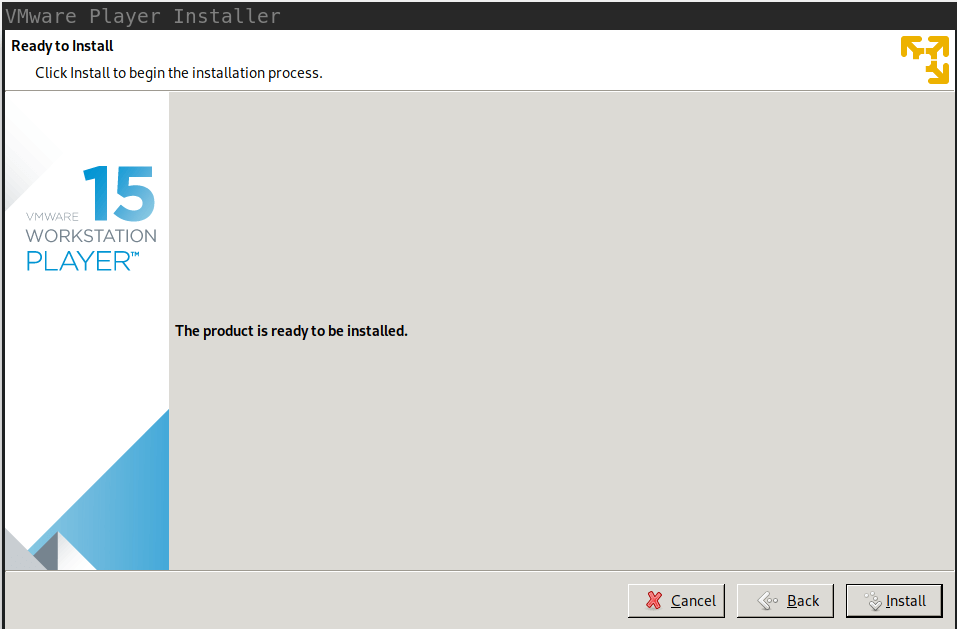
If successful, a success message will be shown.

Configure VMware Workstation systemd services
Add vmware.service.
cat <<EOF | sudo tee /etc/systemd/system/vmware.service
[Unit]
Description=VMware daemon
Requires=vmware-usbarbitrator.service
Before=vmware-usbarbitrator.service
After=network.target

[Service]
ExecStart=/etc/init.d/vmware start
ExecStop=/etc/init.d/vmware stop
PIDFile=/var/lock/subsys/vmware
RemainAfterExit=yes

[Install]
WantedBy=multi-user.target
EOF
Add vmware-usbarbitrator.service.
cat <<EOF | sudo tee /etc/systemd/system/vmware-usbarbitrator.service
[Unit]
Description=VMware USB Arbitrator
Requires=vmware.service
After=vmware.service

[Service]
ExecStart=/usr/bin/vmware-usbarbitrator
ExecStop=/usr/bin/vmware-usbarbitrator --kill
RemainAfterExit=yes

[Install]
WantedBy=multi-user.target
EOF
Add this service as well, if you want to connect to your VMware Workstation installation from another Workstation Server Console:
cat <<EOF | sudo tee /etc/systemd/system/vmware-workstation-server.service
[Unit]
Description=VMware Workstation Server
Requires=vmware.service
After=vmware.service

[Service]
ExecStart=/etc/init.d/vmware-workstation-server start
ExecStop=/etc/init.d/vmware-workstation-server stop
PIDFile=/var/lock/subsys/vmware-workstation-server
RemainAfterExit=yes

[Install]
WantedBy=multi-user.target
EOF
Start VMware services.
sudo systemctl daemon-reload
sudo systemctl start vmware.service vmware-usbarbitrator.service
Recompiling VMware kernel modules
sudo vmware-modconfig --console --install-allUninstalling VMware Workstation on Arch / Manjaro – bundle
To uninstall VMware you need the product name, check installed products by running the command.
$ vmware-installer -l
Product Name         Product Version
==================== ====================
vmware-player        16.2.1-18811642
Run uninstallation with -u option.
sudo vmware-installer -u vmware-player --requiredThe --required skips the confirmation.
For installation from AUR, use:
yay -Rns vmware-workstationEnjoy running VMware Workstation on Arch Linux / Manjaro.

Thanks very much!! I was getting crazy, because every time I boot the host I had to run this command so VMware works:
sudo vmware-modconfig –console –install-all
My install was the bundle one, so I created the VMware Workstation systemd services. But now the problem is that I had to sudo systemctl start every boot. But I discovered that sudo systemctl enable makes it so the services starts every boot themselves!!
So VMware is now working as it was on Ubuntu! Nice
PD: Manjaro 20.1.2, Linux 5.8.16-2, VMware Player 16.0.0. Kde 5.19.5
Thanks a lot, it works !!!
welcome
where i can add the vmware.service i don’t which path to add that file
welp im sorry i miss the part that you show to path to add the file,im get it now
well thanks
well now vmware is running on system thanks
thanks mate
Welcome!
Hello
Your tutorial is very nice. I would like to say that you forgot a important thing. For the bundle installation, just before this line : “The installer UI will be launched. Accept License Agreement terms and click next.” It will be very important to add this line :
System service scripts directory (commonly /etc/init.d).:
Enter /etc/init.d
System service scripts directory (commonly /etc/init.d).: /etc/init.d
It simple, but I don’t know what to do, I write yes, no, just return. We would enter /etc/init.d
Thank you.
dont forget to activate 3D support in the config files for the vm,
Thanks for the pointer.