

Managing Ansible playbooks across teams gets messy fast when everyone runs them from their own terminal. Semaphore gives you a clean web interface for running playbooks, managing inventories, scheduling tasks, and tracking execution history, all without the overhead of Ansible Tower (or its open-source successor AWX). It is lightweight, written in Go, and works well with PostgreSQL, MySQL, or even BoltDB for small setups.
This guide walks through a complete Semaphore deployment on Ubuntu 24.04 and Debian 13 with PostgreSQL as the database backend, Nginx as a reverse proxy, and SSL via Let’s Encrypt. Every command was tested on real VMs and the screenshots show the actual UI you will see after setup. If you are already running Ansible on your infrastructure, Semaphore plugs right in with no changes to your existing playbooks or roles.
Verified working: March 2026 on Ubuntu 24.04.4 LTS (Ansible core 2.16.3, PostgreSQL 16.13) and Debian 13 Trixie (Ansible core 2.19.4, PostgreSQL 17.9). Semaphore 2.17.30.
What You Need
- A server running Ubuntu 24.04 LTS or Debian 13 with at least 2 GB RAM and 2 CPU cores
- Root or sudo access
- A domain or subdomain pointing to your server (for SSL)
- Ports 80 and 443 open in the firewall
- Ansible already installed (Semaphore uses whatever
ansible-playbookbinary is available on the system)
1. Install Ansible, Git, and PostgreSQL
Semaphore needs Ansible to run playbooks, Git to clone repositories, and a database to store project data. Install all three from the default OS repositories:
sudo apt update
sudo apt install -y ansible postgresql postgresql-client git curl wget
Confirm the installed versions:
ansible --version | head -1
psql --version
git --version
On Ubuntu 24.04, you should see output similar to this:
ansible [core 2.16.3]
psql (PostgreSQL) 16.13 (Ubuntu 16.13-0ubuntu0.24.04.1)
git version 2.43.0
Debian 13 ships with newer versions: Ansible core 2.19.4 and PostgreSQL 17.9. Both work fine with Semaphore.
PostgreSQL starts automatically after installation. Verify it is running:
systemctl is-active postgresqlThe output should show active.
2. Create the PostgreSQL Database
Semaphore stores projects, credentials, task history, and user data in the database. Create a dedicated database and user:
sudo -u postgres psql -c "CREATE DATABASE semaphore;"
sudo -u postgres psql -c "CREATE USER semaphore WITH ENCRYPTED PASSWORD 'YourStrongPassword';"
sudo -u postgres psql -c "GRANT ALL PRIVILEGES ON DATABASE semaphore TO semaphore;"
sudo -u postgres psql -c "ALTER DATABASE semaphore OWNER TO semaphore;"
Verify the database was created:
sudo -u postgres psql -l | grep semaphoreYou should see the semaphore database listed with semaphore as the owner:
semaphore | semaphore | UTF8 | libc | C.UTF-8 | C.UTF-8 |3. Install Semaphore
Semaphore publishes .deb packages on their GitHub releases page. The following commands detect the latest version automatically and install it:
VER=$(curl -sL https://api.github.com/repos/semaphoreui/semaphore/releases/latest | grep tag_name | head -1 | sed 's/.*"v\([^"]*\)".*/\1/')
echo "Installing Semaphore version: $VER"
This should print the detected version number:
Installing Semaphore version: 2.17.30Download and install the package:
curl -Lo /tmp/semaphore.deb "https://github.com/semaphoreui/semaphore/releases/download/v${VER}/semaphore_${VER}_linux_amd64.deb"
sudo dpkg -i /tmp/semaphore.deb
rm -f /tmp/semaphore.deb
Confirm the installation:
semaphore versionThe output includes the version and build hash:
2.17.30-3f8c2b9-17744368294. Configure Semaphore
Semaphore reads its configuration from a JSON file. Create the config directory and generate secure random strings for the cookie and encryption keys:
sudo mkdir -p /etc/semaphoreGenerate the three required secret keys:
COOKIE_HASH=$(head -c 32 /dev/urandom | base64 | tr -dc 'a-zA-Z0-9' | head -c 32)
COOKIE_ENC=$(head -c 32 /dev/urandom | base64 | tr -dc 'a-zA-Z0-9' | head -c 32)
ACCESS_KEY_ENC=$(head -c 32 /dev/urandom | base64 | tr -dc 'a-zA-Z0-9' | head -c 32)
Now create the configuration file. Replace YourStrongPassword with the PostgreSQL password you set earlier:
sudo tee /etc/semaphore/config.json > /dev/null <<SEMEOF
{
  "postgres": {
    "host": "127.0.0.1:5432",
    "user": "semaphore",
    "pass": "YourStrongPassword",
    "name": "semaphore",
    "options": {}
  },
  "dialect": "postgres",
  "port": "",
  "interface": "",
  "tmp_path": "/tmp/semaphore",
  "cookie_hash": "$COOKIE_HASH",
  "cookie_encryption": "$COOKIE_ENC",
  "access_key_encryption": "$ACCESS_KEY_ENC",
  "email_alert": false,
  "web_host": "",
  "ldap_enable": false,
  "ldap_needtls": false,
  "ssh_config_path": "~/.ssh/config",
  "demo_mode": false,
  "git_client": ""
}
SEMEOF
The key configuration fields:
| Field | Purpose |
|---|---|
dialect | Database type: postgres, mysql, or bolt |
tmp_path | Where Semaphore clones repositories and runs playbooks |
cookie_hash | Signs session cookies (must be unique per installation) |
access_key_encryption | Encrypts stored SSH keys and passwords at rest |
web_host | Public URL (set this if behind a reverse proxy with a subpath) |
5. Create a Systemd Service
Running Semaphore as a systemd service ensures it starts on boot and restarts on failure. Create a dedicated system user first:
sudo useradd -r -s /bin/false semaphore
sudo mkdir -p /tmp/semaphore
sudo chown semaphore:semaphore /tmp/semaphore
Create the service unit file:
sudo tee /etc/systemd/system/semaphore.service > /dev/null <<'EOF'
[Unit]
Description=Semaphore Ansible UI
Documentation=https://docs.semaphoreui.com
After=network.target postgresql.service
Requires=postgresql.service

[Service]
Type=simple
User=semaphore
Group=semaphore
ExecStart=/usr/bin/semaphore server --config /etc/semaphore/config.json
Restart=on-failure
RestartSec=10
WorkingDirectory=/tmp/semaphore

[Install]
WantedBy=multi-user.target
EOF
Enable and start the service:
sudo systemctl daemon-reload
sudo systemctl enable --now semaphore
Check the status to confirm it is running:
systemctl status semaphore --no-pagerThe output should show active (running) with the database connection confirmed:
● semaphore.service - Semaphore Ansible UI
     Loaded: loaded (/etc/systemd/system/semaphore.service; enabled; preset: enabled)
     Active: active (running)
   Main PID: 4464 (semaphore)
     Memory: 6.5M
        CPU: 119ms

Mar 28 10:43:09 semaphore-ubuntu semaphore[4464]: Postgres [email protected]:5432 semaphore
Mar 28 10:43:09 semaphore-ubuntu semaphore[4464]: Semaphore 2.17.30
Mar 28 10:43:09 semaphore-ubuntu semaphore[4464]: Port :3000
Mar 28 10:43:09 semaphore-ubuntu semaphore[4464]: Server is running
Semaphore listens on port 3000 by default. You can test it locally with curl http://127.0.0.1:3000/ before setting up the reverse proxy.
6. Create the Admin User
Semaphore does not have a default admin account. Create one using the CLI:
sudo semaphore user add --config /etc/semaphore/config.json \
  --admin \
  --login admin \
  --name "Admin User" \
  --email [email protected] \
  --password "YourAdminPassword"
The confirmation message:
User admin <[email protected]> added!7. Set Up Nginx Reverse Proxy with SSL
Serving Semaphore directly on port 3000 over HTTP is not suitable for production. Nginx handles SSL termination and proxies requests to the Semaphore backend. If your server is behind a NAT (no public IP), use certbot’s DNS challenge with your DNS provider. For servers with a public IP, the standard HTTP challenge works fine. For more details, see our guide on configuring Nginx with SSL.
Install Nginx and certbot:
sudo apt install -y nginx certbot python3-certbot-dns-cloudflareFor HTTP challenge (public IP), replace python3-certbot-dns-cloudflare with python3-certbot-nginx. Obtain the SSL certificate (adjust the domain and method for your setup):
sudo certbot certonly --standalone -d semaphore.example.com \
  --non-interactive --agree-tos -m [email protected]
Create the Nginx virtual host configuration:
sudo vi /etc/nginx/sites-available/semaphoreAdd the following configuration:
upstream semaphore_backend {
    server 127.0.0.1:3000;
}

server {
    listen 443 ssl http2;
    server_name semaphore.example.com;

    ssl_certificate /etc/letsencrypt/live/semaphore.example.com/fullchain.pem;
    ssl_certificate_key /etc/letsencrypt/live/semaphore.example.com/privkey.pem;
    ssl_protocols TLSv1.2 TLSv1.3;
    ssl_ciphers HIGH:!aNULL:!MD5;

    location / {
        proxy_pass http://semaphore_backend;
        proxy_set_header Host $host;
        proxy_set_header X-Real-IP $remote_addr;
        proxy_set_header X-Forwarded-For $proxy_add_x_forwarded_for;
        proxy_set_header X-Forwarded-Proto $scheme;
    }

    location /api/ws {
        proxy_pass http://semaphore_backend/api/ws;
        proxy_http_version 1.1;
        proxy_set_header Upgrade $http_upgrade;
        proxy_set_header Connection "upgrade";
        proxy_set_header Host $host;
        proxy_set_header X-Real-IP $remote_addr;
    }
}

server {
    listen 80;
    server_name semaphore.example.com;
    return 301 https://$host$request_uri;
}
The /api/ws location block is critical. Semaphore uses WebSocket connections for real-time task output streaming. Without this block, you will not see live output when running playbooks from the UI.
Enable the site and reload Nginx:
sudo ln -sf /etc/nginx/sites-available/semaphore /etc/nginx/sites-enabled/
sudo rm -f /etc/nginx/sites-enabled/default
sudo nginx -t
sudo systemctl reload nginx
The nginx -t output should confirm the configuration is valid:
nginx: the configuration file /etc/nginx/nginx.conf syntax is ok
nginx: configuration file /etc/nginx/nginx.conf test is successful
Test certificate auto-renewal:
sudo certbot renew --dry-run8. Configure the Firewall
Open HTTP and HTTPS ports through UFW:
sudo ufw allow 'Nginx Full'
sudo ufw allow OpenSSH
sudo ufw enable
sudo ufw status
The firewall rules should show:
Status: active

To                         Action      From
--                         ------      ----
Nginx Full                 ALLOW       Anywhere
OpenSSH                    ALLOW       Anywhere
Nginx Full (v6)            ALLOW       Anywhere (v6)
OpenSSH (v6)               ALLOW       Anywhere (v6)
9. Access the Semaphore Web UI
Open https://semaphore.example.com in your browser. The login page should appear with a valid SSL certificate:

Sign in with the admin credentials you created in step 6. On first login, Semaphore prompts you to create a project:
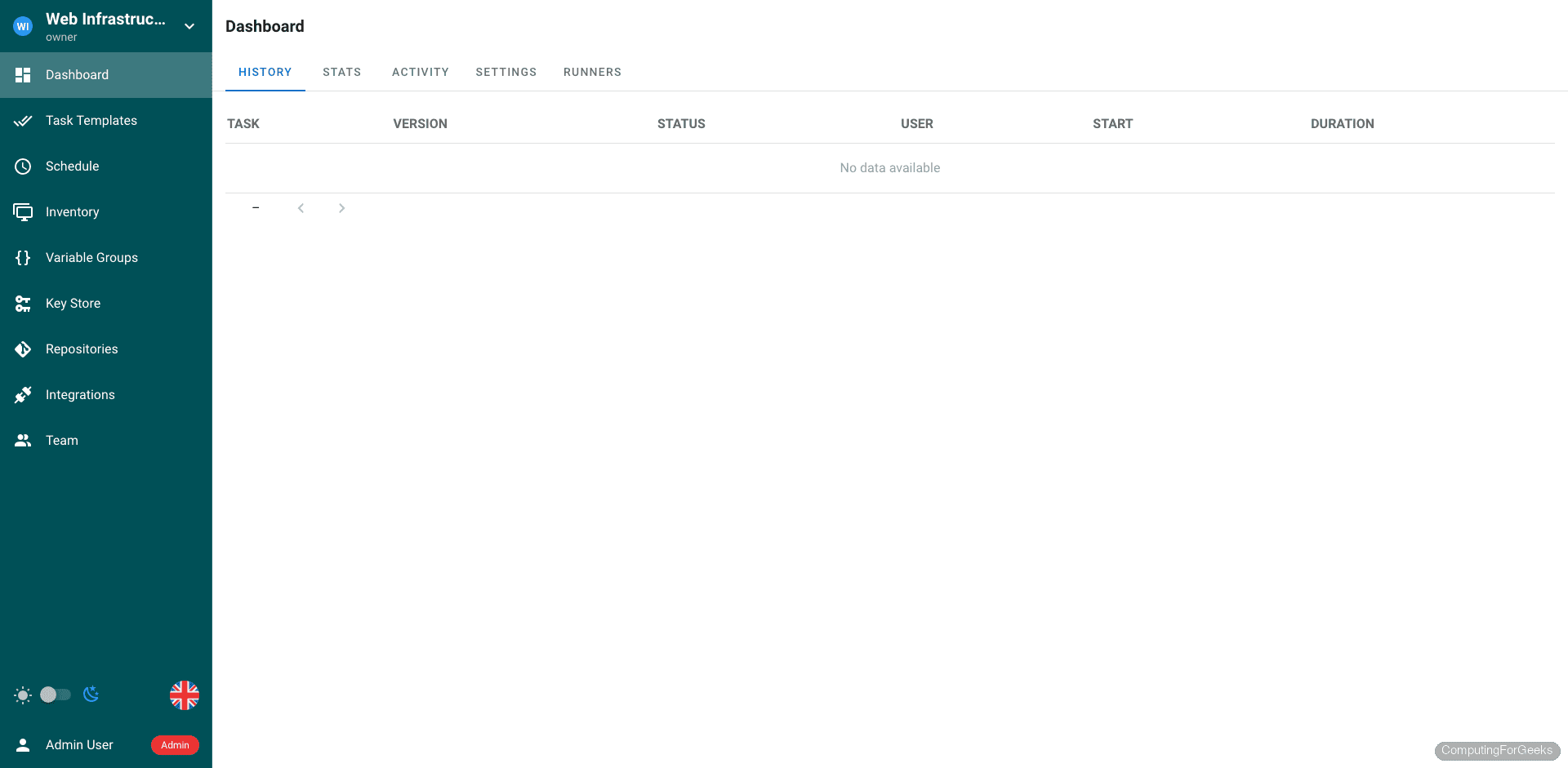
Setting Up Your First Project
A Semaphore project ties together four things: credentials (Key Store), a Git repository, an inventory of target hosts, and task templates that define which playbook to run against which inventory. Here is how each piece fits together.
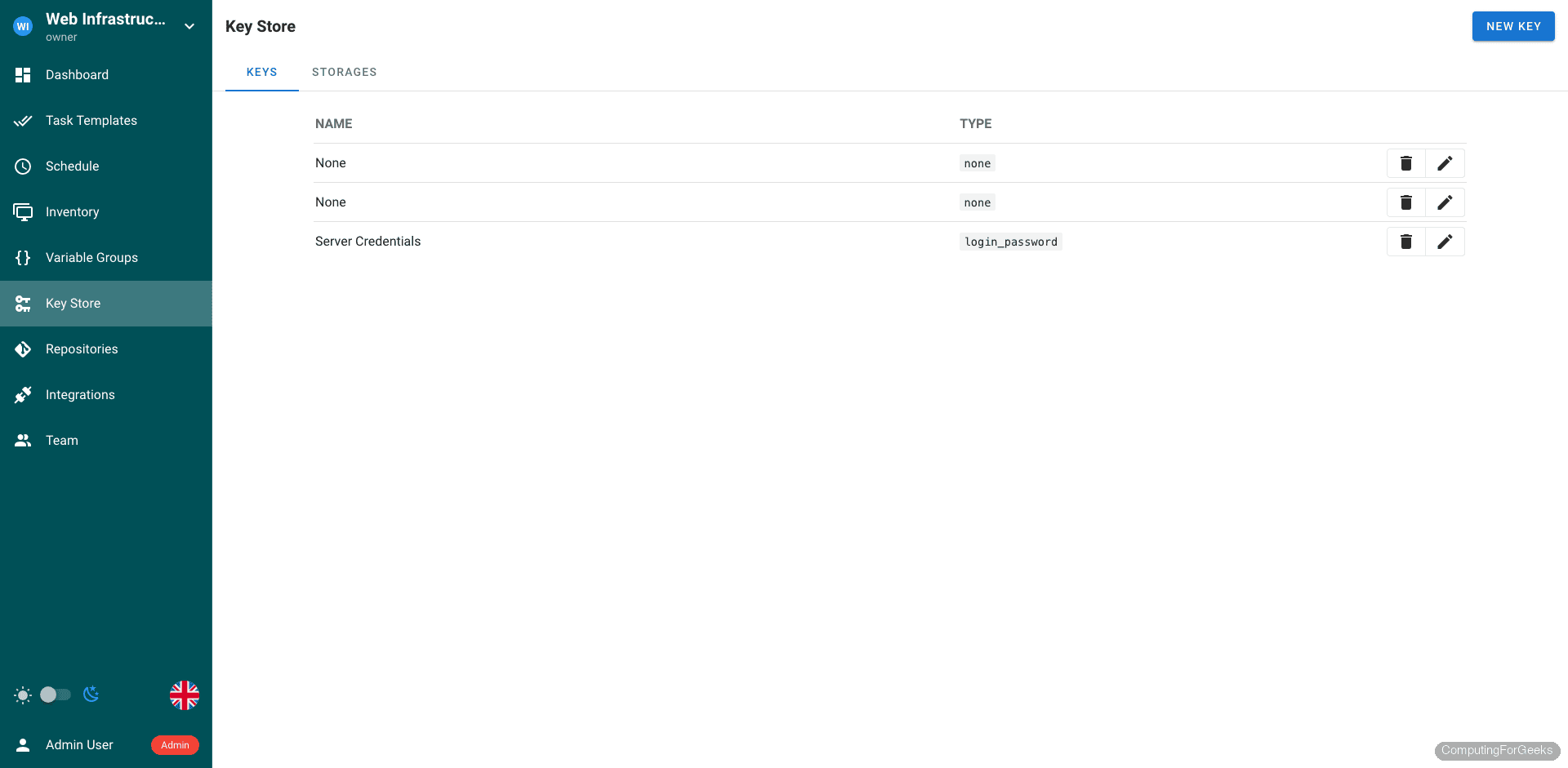
Key Store
The Key Store holds SSH keys, passwords, and API tokens that Semaphore uses to authenticate with Git repositories and target servers. You can store SSH private keys, username/password pairs, or “None” type keys for public repositories that do not require authentication.
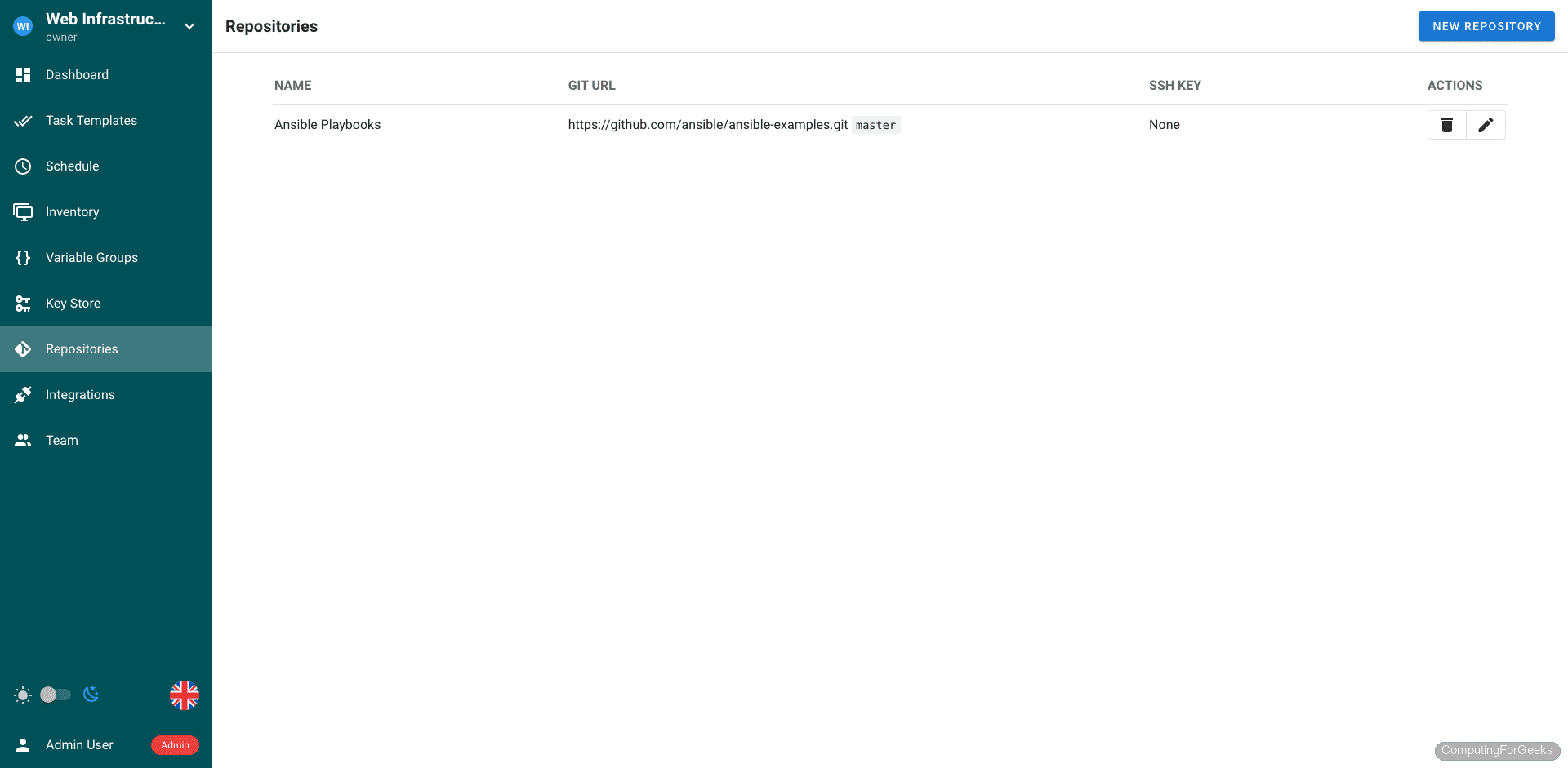
Repositories
Repositories point to Git repos containing your Ansible playbooks and roles. Semaphore clones the repo before each task run, so you always execute the latest version. Both HTTPS and SSH Git URLs are supported.
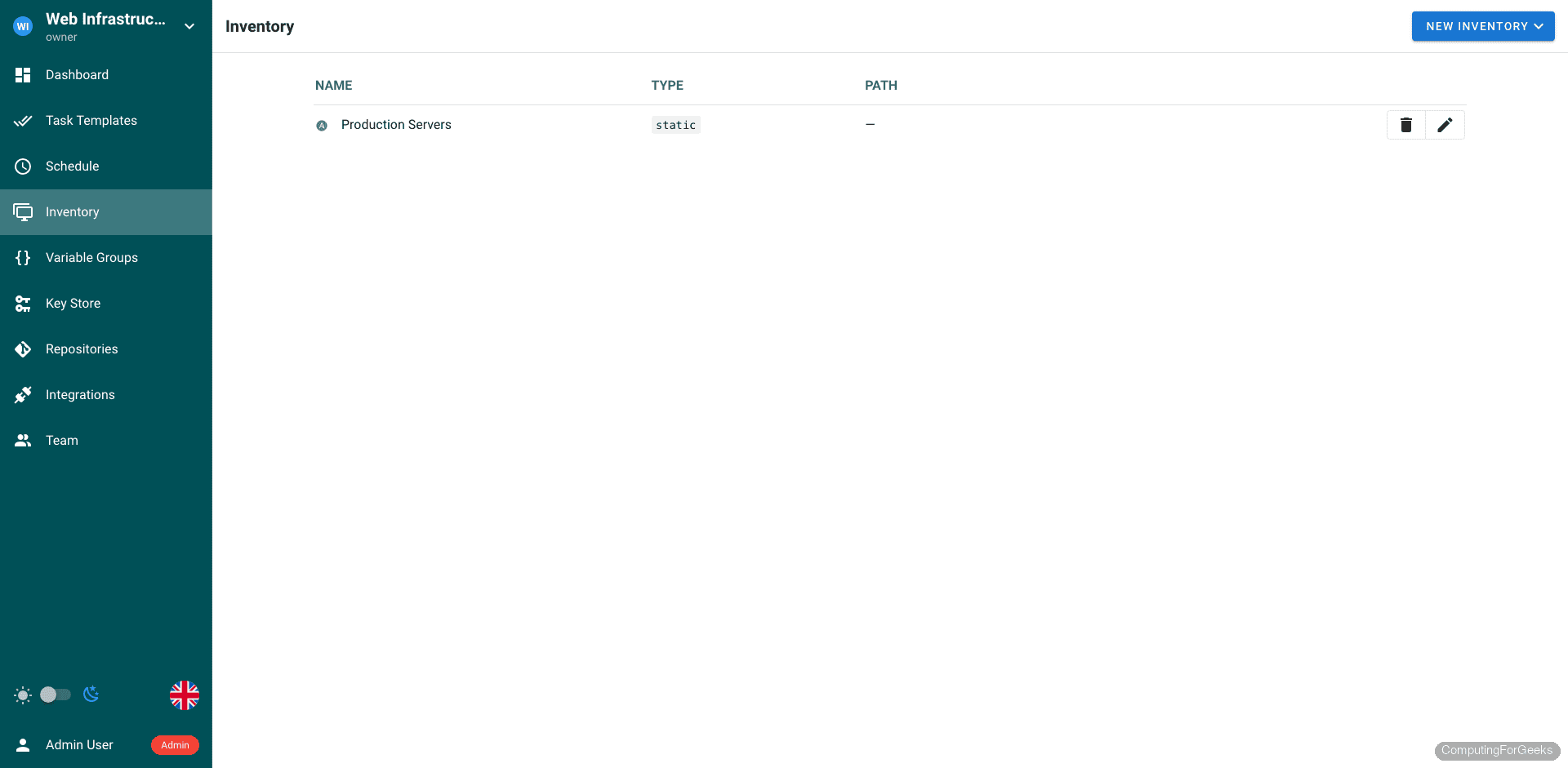
Inventory
Inventories define the target hosts for your playbooks. You can use static inventories (entered directly in the UI), file-based inventories from your Git repository, or Terraform state as a dynamic inventory source.
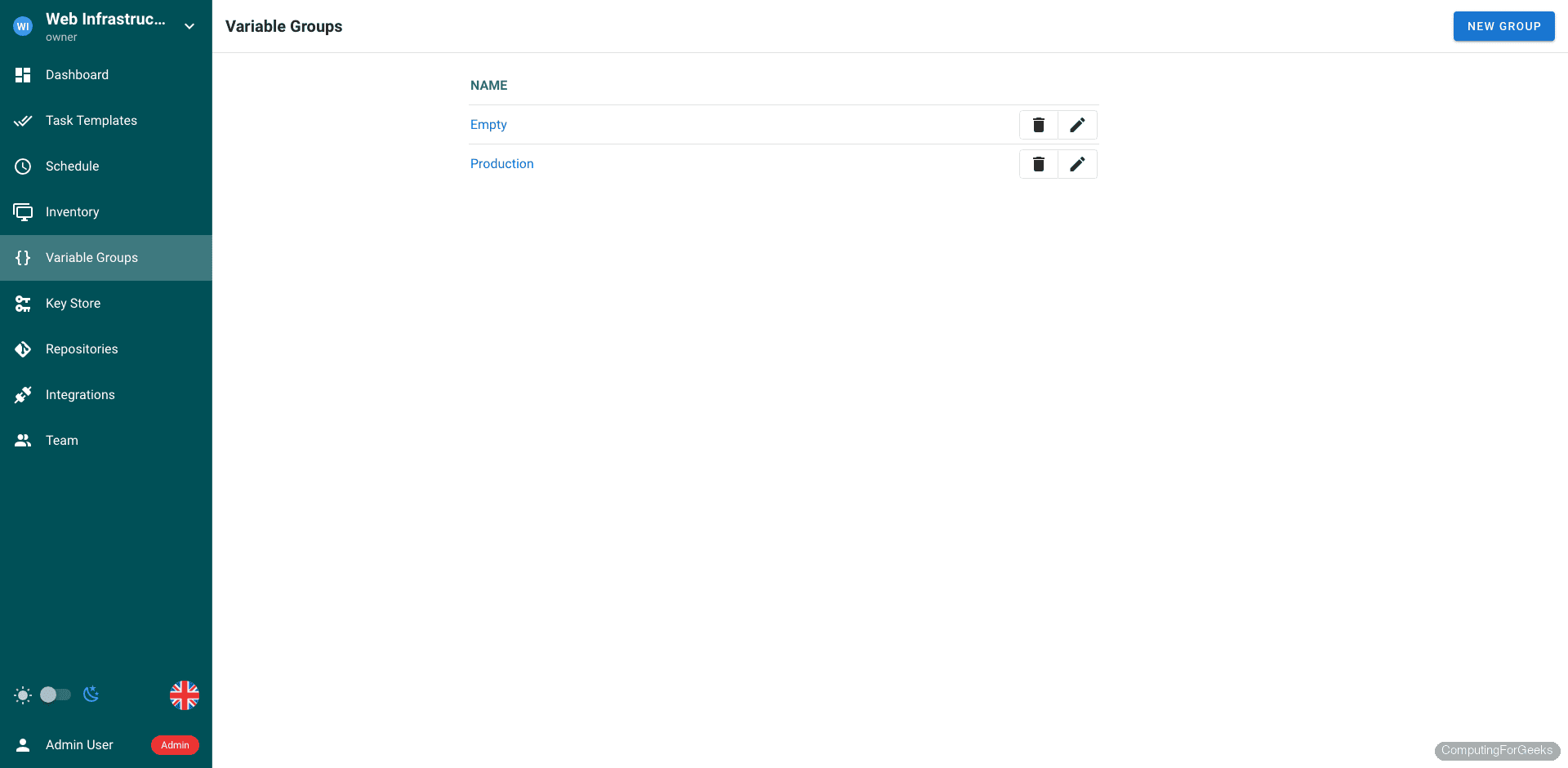
Environment Variables
Variable Groups let you pass environment variables and extra Ansible variables to your playbook runs. This is where you store per-environment configuration (staging vs production database endpoints, API keys, feature flags) without hardcoding them in playbooks.
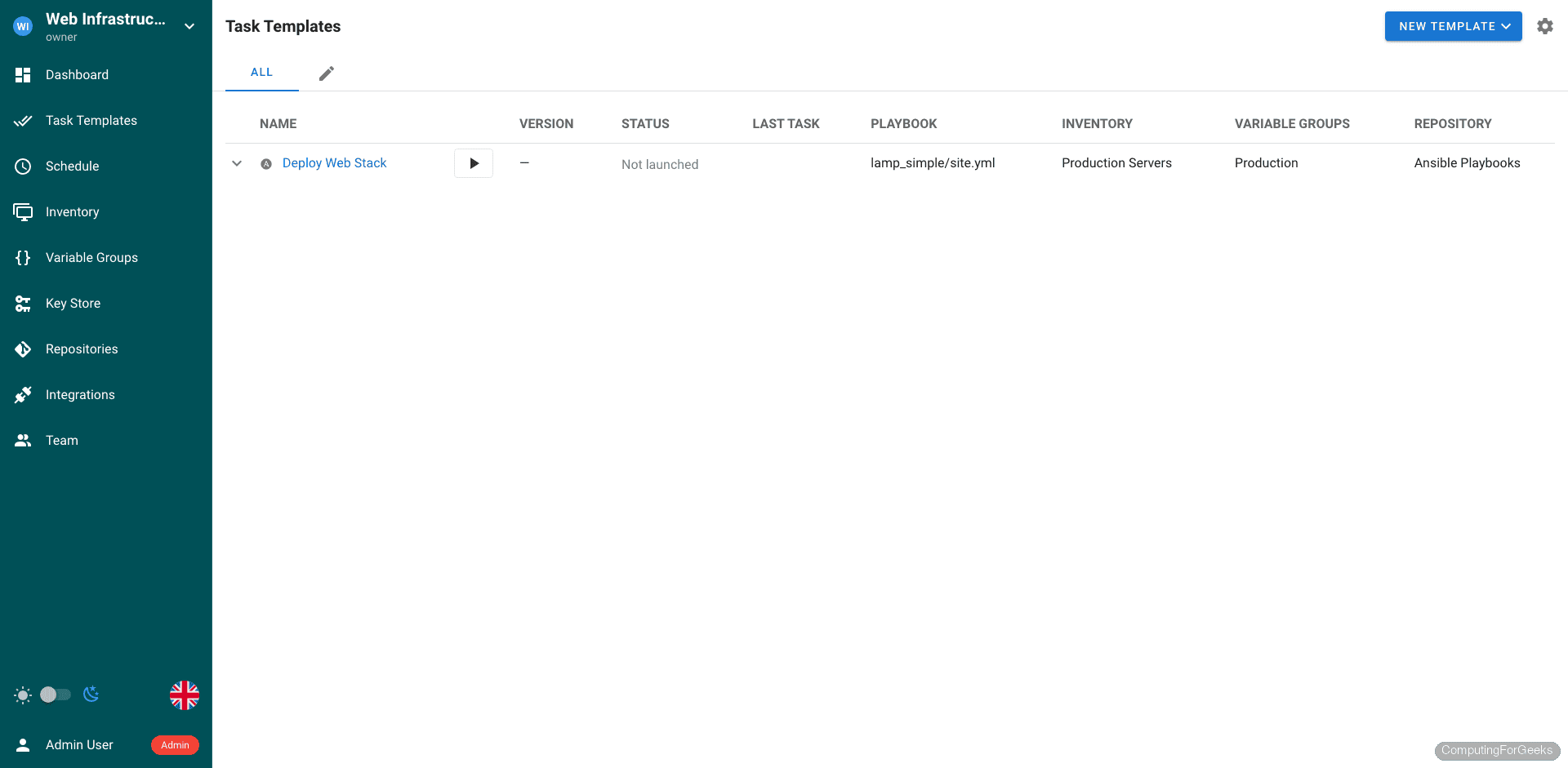
Task Templates
Task Templates are the core of Semaphore. Each template combines a repository, playbook path, inventory, and variable group into a runnable unit. You can trigger templates manually, schedule them with cron expressions, or invoke them via webhook. The template view shows the playbook, target inventory, and last execution status at a glance.
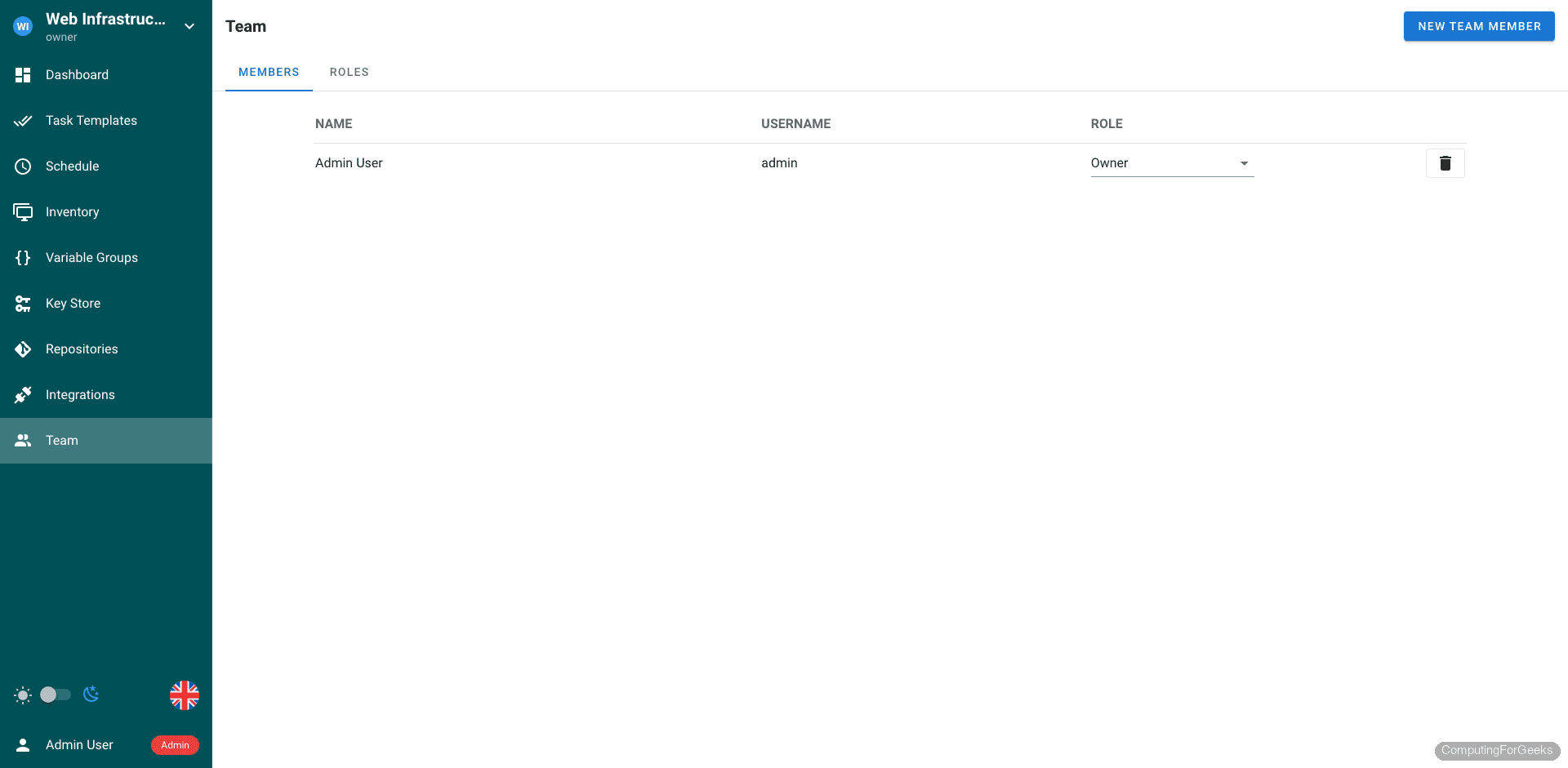
Team Management
The Team page controls who has access to the project. You can add team members with different permission levels (manager, task runner, guest) to enforce least-privilege access across your Ansible operations.
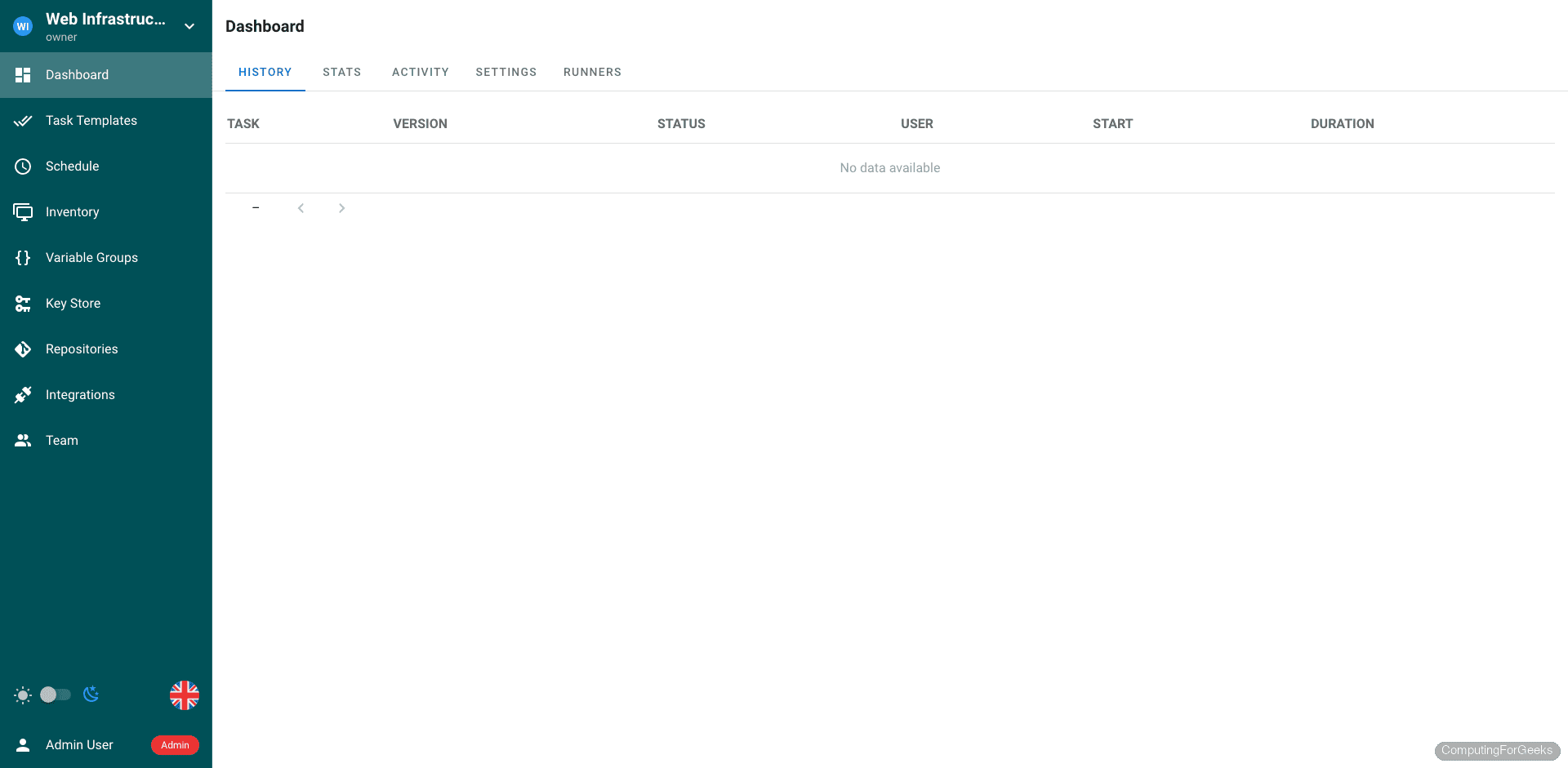
Task History
Every playbook execution is logged in the history with status, duration, the user who triggered it, and the full Ansible output. This is where you go when a deployment fails at 3 AM and you need to figure out what happened.
Differences Between Ubuntu 24.04 and Debian 13
The installation steps are identical on both distributions. The only differences are the package versions from the default repositories:
| Component | Ubuntu 24.04 | Debian 13 |
|---|---|---|
| Ansible core | 2.16.3 | 2.19.4 |
| PostgreSQL | 16.13 | 17.9 |
| Git | 2.43.0 | 2.47.3 |
| Python | 3.12 | 3.13 |
| Semaphore package | Same .deb, works on both | Same .deb, works on both |
| Firewall tool | ufw | ufw (install with apt install ufw) |
One thing worth noting: Debian 13 does not install UFW by default. Run apt install ufw if it is missing. Everything else, including the Semaphore binary, systemd service, Nginx configuration, and certbot, works identically.
Production Hardening
The setup above gets Semaphore running, but a few additional steps make it production-ready:
- Backups – Schedule PostgreSQL dumps with
pg_dump semaphore > /backup/semaphore_$(date +%F).sqlvia cron. Back up/etc/semaphore/config.jsonas well since it contains the encryption keys for stored credentials - LDAP/OAuth integration – For teams, configure LDAP or OpenID Connect in
config.jsoninstead of managing local users. Semaphore supports Active Directory, GitLab, and GitHub as identity providers - Monitoring – Check the
/api/pingendpoint from your monitoring system. It returnspongwhen Semaphore is healthy - Resource limits – Set
max_parallel_tasksin the project settings to prevent runaway playbook executions from exhausting server resources - Log rotation – Semaphore logs to stdout which journald captures. Configure journald retention in
/etc/systemd/journald.confto prevent disk fill
Semaphore vs AWX: Which One?
Both Ansible AWX and Semaphore serve the same purpose: a web UI for managing Ansible. The decision comes down to scale and complexity. AWX requires Kubernetes or a multi-container Docker setup, needs significantly more RAM (8 GB minimum recommended), and takes longer to install and maintain. Semaphore is a single Go binary that runs on a 2 GB server.
If you manage fewer than 50 hosts and your Ansible usage is straightforward (running playbooks, not building complex workflows with approval gates and inventory plugins), Semaphore is the practical choice. For enterprise environments with hundreds of hosts, RBAC requirements, and complex workflows, AWX on Ubuntu/Debian or the commercial Ansible Automation Platform is more appropriate.
What port does Semaphore use?
Semaphore listens on TCP port 3000 by default. You can change this in config.json by setting the "port" field (for example, "port": ":8080"). When using a reverse proxy like Nginx, only ports 80 and 443 need to be exposed publicly.
Can Semaphore use MySQL instead of PostgreSQL?
Yes. Set "dialect": "mysql" in config.json and replace the postgres block with a mysql block containing your MySQL connection details. BoltDB is also supported for single-user or testing setups with "dialect": "bolt". PostgreSQL is recommended for production because it handles concurrent access better under load.
How do I upgrade Semaphore?
Download the new .deb package and install it over the existing one. Semaphore runs database migrations automatically on startup. Back up your PostgreSQL database before upgrading:
sudo -u postgres pg_dump semaphore > /tmp/semaphore_backup.sql
sudo systemctl stop semaphore
sudo dpkg -i semaphore_NEW_VERSION_linux_amd64.deb
sudo systemctl start semaphore
run mysql_secure_installation after installing mariadb and use password in semaphore setup (not -setup)
There are multiple small errors in this tutorial when installing the latest versions.
web_host”: “http://:3000/” (so not 8010).
correct syntax: semaphore setup (not semaphore -setup)
correct syntax: semaphore version (not semaphore -version)
After installing mariadb one shoud run mysql_secure_installation to have the password available at the setup of semaphore (and secure the installation).
Please test your installation with updated guide.