

Seafile gives you Dropbox-like file sync and sharing on your own server. Files are organized into libraries that can be synced across devices, shared with teams, and encrypted end-to-end. Unlike Nextcloud, Seafile focuses specifically on file storage rather than trying to be an entire collaboration suite, which keeps it fast and lightweight.
Seafile 13.0 changed the deployment model significantly. The Community Edition is now Docker-only (binary installation was dropped in 13.0). The upside: deployment is simpler. A single docker compose up -d brings up MariaDB, Redis, the Seafile application server, Caddy as reverse proxy with automatic SSL, and SeaDoc for collaborative editing. This guide walks through the full deployment on Ubuntu 24.04 and 22.04 with Docker Compose.
Tested March 2026 on Ubuntu 24.04.4 LTS with Docker CE 29.3.1, Seafile CE 13.0.19, MariaDB 10.11, Redis, Caddy 2.12
Prerequisites
- Ubuntu 24.04 LTS or Ubuntu 22.04 LTS
- Docker Engine and Docker Compose plugin installed (install Docker on Ubuntu)
- A domain name pointed to your server (for automatic SSL via Caddy)
- Ports 80 and 443 open in your firewall
- At least 2 GB RAM and 20 GB disk (more for file storage)
What Gets Deployed
The Docker Compose stack runs five containers:
| Container | Image | Purpose |
|---|---|---|
| seafile | seafileltd/seafile-mc:13.0-latest | Seafile server (includes internal Nginx) |
| seafile-mysql | mariadb:10.11 | Database backend |
| seafile-redis | redis | Cache (replaced memcached in v13) |
| seafile-caddy | lucaslorentz/caddy-docker-proxy:2.12-alpine | Reverse proxy with automatic Let’s Encrypt SSL |
| seadoc | seafileltd/sdoc-server:2.0-latest | Collaborative document editor (SeaDoc 2.0) |
Caddy handles SSL automatically. When you set the protocol to https, Caddy obtains and renews Let’s Encrypt certificates without any additional configuration. No certbot, no manual certificate management.
Create the Configuration Files
Create the Seafile directory:
sudo mkdir -p /opt/seafile && cd /opt/seafileGenerate a JWT secret key (used for internal authentication between services):
openssl rand -hex 20Save the output. You will need it for the .env file.
Environment File (.env)
Create /opt/seafile/.env with your settings. Replace the placeholder values with your own domain, passwords, and JWT key:
COMPOSE_FILE=seafile-server.yml,caddy.yml,seadoc.yml
COMPOSE_PATH_SEPARATOR=,

SEAFILE_IMAGE=seafileltd/seafile-mc:13.0-latest
SEAFILE_DB_IMAGE=mariadb:10.11
SEAFILE_REDIS_IMAGE=redis
SEAFILE_CADDY_IMAGE=lucaslorentz/caddy-docker-proxy:2.12-alpine
SEADOC_IMAGE=seafileltd/sdoc-server:2.0-latest

SEAFILE_VOLUME=/opt/seafile-data
SEAFILE_MYSQL_VOLUME=/opt/seafile-mysql/db
SEAFILE_CADDY_VOLUME=/opt/seafile-caddy
SEADOC_VOLUME=/opt/seadoc-data

SEAFILE_SERVER_HOSTNAME=seafile.example.com
SEAFILE_SERVER_PROTOCOL=https
TIME_ZONE=Etc/UTC
JWT_PRIVATE_KEY=your_generated_jwt_key_here

SEAFILE_MYSQL_DB_HOST=db
SEAFILE_MYSQL_DB_USER=seafile
SEAFILE_MYSQL_DB_PASSWORD=change_this_db_password
SEAFILE_MYSQL_DB_CCNET_DB_NAME=ccnet_db
SEAFILE_MYSQL_DB_SEAFILE_DB_NAME=seafile_db
SEAFILE_MYSQL_DB_SEAHUB_DB_NAME=seahub_db

CACHE_PROVIDER=redis
REDIS_HOST=redis
REDIS_PORT=6379

INIT_SEAFILE_MYSQL_ROOT_PASSWORD=change_this_root_password
[email protected]
INIT_SEAFILE_ADMIN_PASSWORD=change_this_admin_password

ENABLE_SEADOC=true
Three values are critical: SEAFILE_SERVER_HOSTNAME must match your domain (Caddy uses it for SSL certificate requests), JWT_PRIVATE_KEY must be the value you generated, and all passwords should be strong. The INIT_* variables are only used on the first startup to create the database and admin account.
Docker Compose Files
Create three compose files. The main server file, seafile-server.yml:
services:
  db:
    image: ${SEAFILE_DB_IMAGE:-mariadb:10.11}
    container_name: seafile-mysql
    restart: unless-stopped
    environment:
      - MYSQL_ROOT_PASSWORD=${INIT_SEAFILE_MYSQL_ROOT_PASSWORD:-}
      - MYSQL_LOG_CONSOLE=true
      - MARIADB_AUTO_UPGRADE=1
    volumes:
      - "${SEAFILE_MYSQL_VOLUME}:/var/lib/mysql"
    networks:
      - seafile-net
    healthcheck:
      test: ["CMD", "/usr/local/bin/healthcheck.sh", "--connect", "--innodb_initialized"]
      interval: 20s
      start_period: 30s
      retries: 10

  redis:
    image: ${SEAFILE_REDIS_IMAGE:-redis}
    container_name: seafile-redis
    restart: unless-stopped
    networks:
      - seafile-net

  seafile:
    image: ${SEAFILE_IMAGE:-seafileltd/seafile-mc:13.0-latest}
    container_name: seafile
    restart: unless-stopped
    volumes:
      - ${SEAFILE_VOLUME}:/shared
    environment:
      - SEAFILE_MYSQL_DB_HOST=${SEAFILE_MYSQL_DB_HOST:-db}
      - SEAFILE_MYSQL_DB_USER=${SEAFILE_MYSQL_DB_USER:-seafile}
      - SEAFILE_MYSQL_DB_PASSWORD=${SEAFILE_MYSQL_DB_PASSWORD}
      - INIT_SEAFILE_MYSQL_ROOT_PASSWORD=${INIT_SEAFILE_MYSQL_ROOT_PASSWORD:-}
      - SEAFILE_MYSQL_DB_CCNET_DB_NAME=${SEAFILE_MYSQL_DB_CCNET_DB_NAME:-ccnet_db}
      - SEAFILE_MYSQL_DB_SEAFILE_DB_NAME=${SEAFILE_MYSQL_DB_SEAFILE_DB_NAME:-seafile_db}
      - SEAFILE_MYSQL_DB_SEAHUB_DB_NAME=${SEAFILE_MYSQL_DB_SEAHUB_DB_NAME:-seahub_db}
      - TIME_ZONE=${TIME_ZONE:-Etc/UTC}
      - INIT_SEAFILE_ADMIN_EMAIL=${INIT_SEAFILE_ADMIN_EMAIL:[email protected]}
      - INIT_SEAFILE_ADMIN_PASSWORD=${INIT_SEAFILE_ADMIN_PASSWORD:-asecret}
      - SEAFILE_SERVER_HOSTNAME=${SEAFILE_SERVER_HOSTNAME}
      - SEAFILE_SERVER_PROTOCOL=${SEAFILE_SERVER_PROTOCOL:-http}
      - JWT_PRIVATE_KEY=${JWT_PRIVATE_KEY}
      - ENABLE_SEADOC=${ENABLE_SEADOC:-false}
      - SEADOC_SERVER_URL=${SEAFILE_SERVER_PROTOCOL}://${SEAFILE_SERVER_HOSTNAME}/sdoc-server
      - CACHE_PROVIDER=${CACHE_PROVIDER:-redis}
      - REDIS_HOST=${REDIS_HOST:-redis}
      - REDIS_PORT=${REDIS_PORT:-6379}
    labels:
      caddy: ${SEAFILE_SERVER_PROTOCOL}://${SEAFILE_SERVER_HOSTNAME}
      caddy.reverse_proxy: "{{upstreams 80}}"
    healthcheck:
      test: ["CMD-SHELL", "curl -f http://localhost:80 || exit 1"]
      interval: 30s
      timeout: 10s
      retries: 3
      start_period: 30s
    depends_on:
      db:
        condition: service_healthy
      redis:
        condition: service_started
    networks:
      - seafile-net

networks:
  seafile-net:
    name: seafile-net
The Caddy reverse proxy file, caddy.yml:
services:
  caddy:
    image: ${SEAFILE_CADDY_IMAGE:-lucaslorentz/caddy-docker-proxy:2.12-alpine}
    restart: unless-stopped
    container_name: seafile-caddy
    ports:
      - 80:80
      - 443:443
    environment:
      - CADDY_INGRESS_NETWORKS=seafile-net
    volumes:
      - /var/run/docker.sock:/var/run/docker.sock
      - ${SEAFILE_CADDY_VOLUME}:/data/caddy
    networks:
      - seafile-net

networks:
  seafile-net:
    name: seafile-net
The SeaDoc collaborative editor, seadoc.yml:
services:
  seadoc:
    image: ${SEADOC_IMAGE:-seafileltd/sdoc-server:2.0-latest}
    container_name: seadoc
    restart: unless-stopped
    volumes:
      - ${SEADOC_VOLUME}:/shared
    environment:
      - DB_HOST=${SEAFILE_MYSQL_DB_HOST:-db}
      - DB_USER=${SEAFILE_MYSQL_DB_USER:-seafile}
      - DB_PASSWORD=${SEAFILE_MYSQL_DB_PASSWORD}
      - DB_NAME=${SEAFILE_MYSQL_DB_SEAHUB_DB_NAME:-seahub_db}
      - TIME_ZONE=${TIME_ZONE:-Etc/UTC}
      - JWT_PRIVATE_KEY=${JWT_PRIVATE_KEY}
      - SEAHUB_SERVICE_URL=http://seafile
    labels:
      caddy: ${SEAFILE_SERVER_PROTOCOL}://${SEAFILE_SERVER_HOSTNAME}
      caddy.1_handle_path: "/socket.io/*"
      caddy.1_handle_path.0_rewrite: "* /socket.io{uri}"
      caddy.1_handle_path.1_reverse_proxy: "{{upstreams 80}}"
      caddy.2_handle_path: "/sdoc-server/*"
      caddy.2_handle_path.0_rewrite: "* {uri}"
      caddy.2_handle_path.1_reverse_proxy: "{{upstreams 80}}"
    depends_on:
      db:
        condition: service_healthy
    networks:
      - seafile-net

networks:
  seafile-net:
    name: seafile-net
Deploy Seafile
Start all services:
cd /opt/seafile
docker compose up -d
Docker pulls the images and starts the containers. The first startup takes a minute or two while MariaDB initializes the databases and Seafile creates its schema:
docker compose psAll five containers should show as running, with seafile-mysql and seafile showing healthy:
NAME            STATUS
seadoc          Up 19 seconds
seafile         Up 19 seconds (healthy)
seafile-caddy   Up 35 seconds
seafile-mysql   Up 35 seconds (healthy)
seafile-redis   Up 35 seconds
If SEAFILE_SERVER_PROTOCOL is set to https and your domain’s DNS points to the server, Caddy automatically obtains a Let’s Encrypt certificate. Check the Caddy logs if SSL isn’t working:
docker logs seafile-caddyAccess the Web Interface
Open your domain in a browser. The Seafile 13 login page has a clean, modern design:
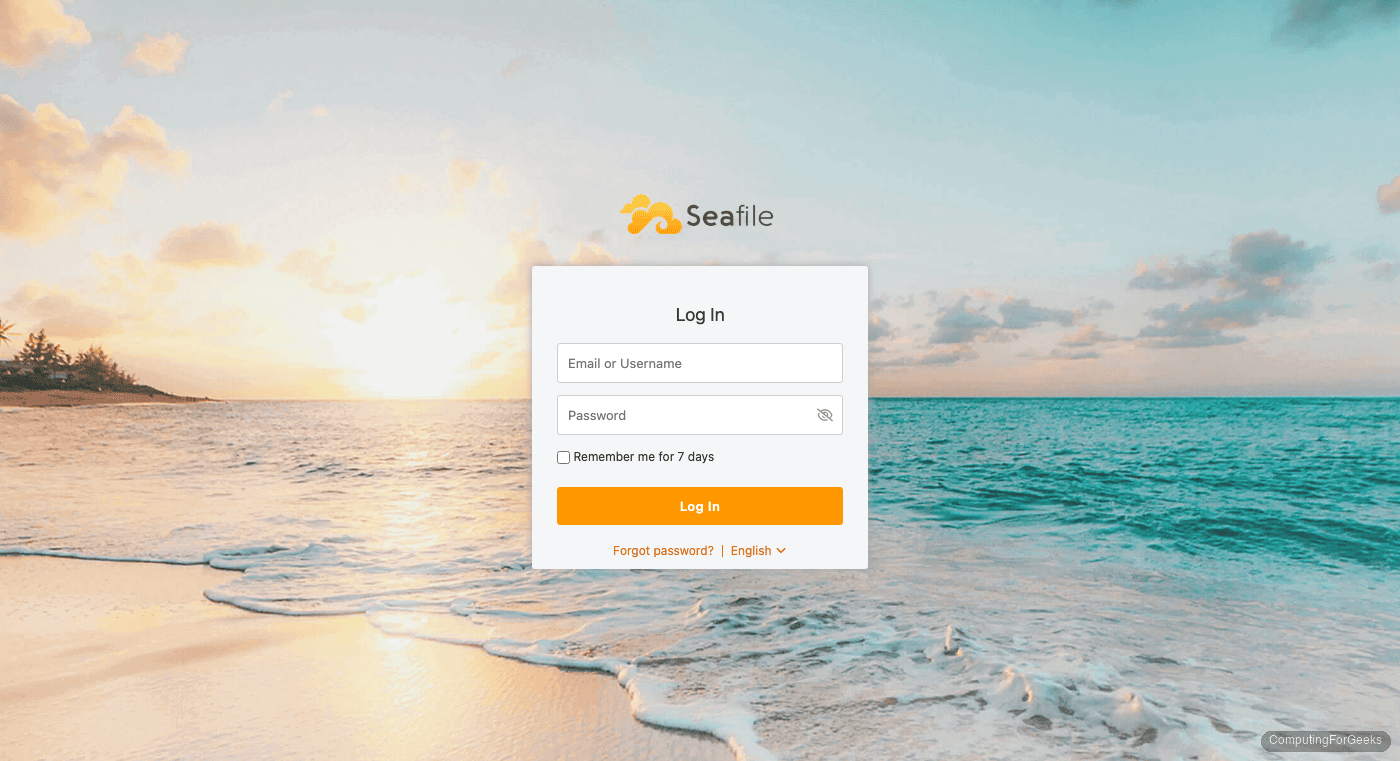
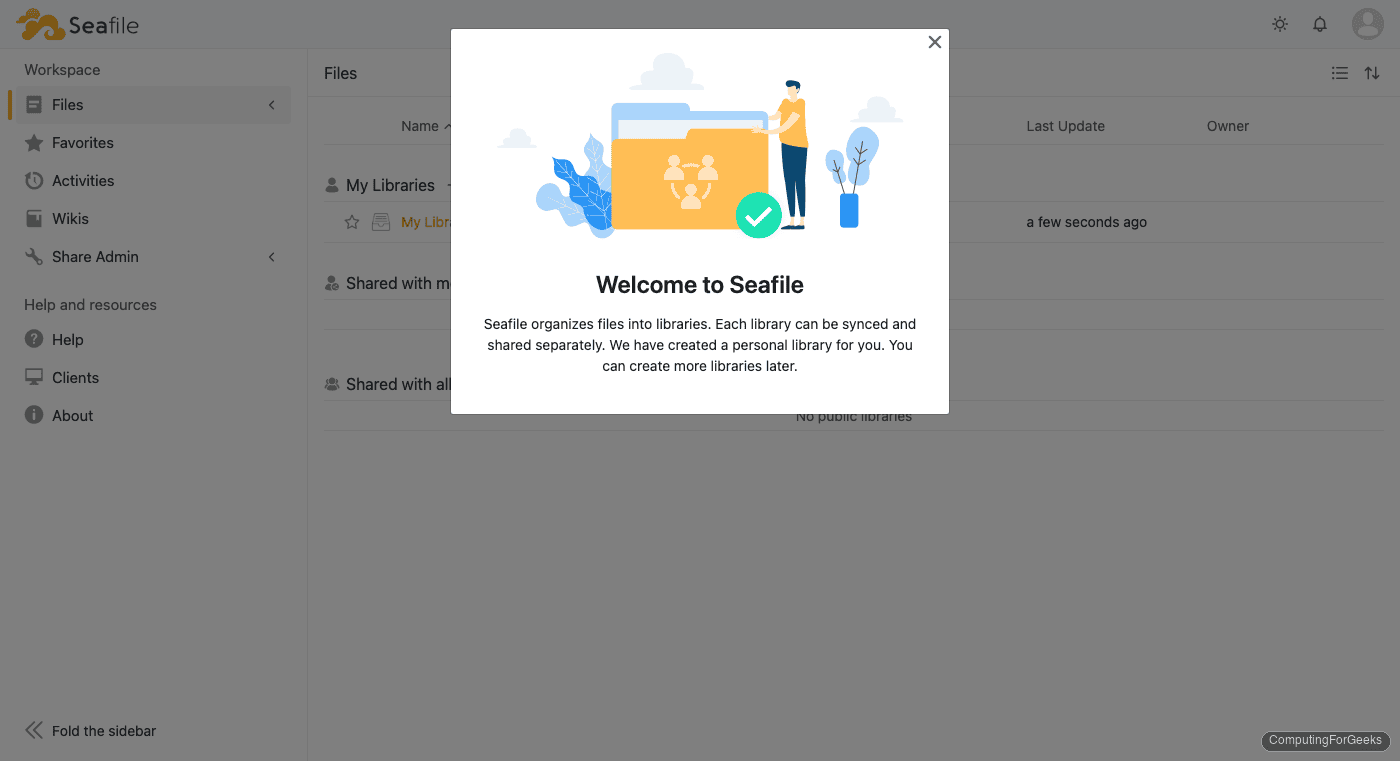
Log in with the admin email and password from your .env file (INIT_SEAFILE_ADMIN_EMAIL and INIT_SEAFILE_ADMIN_PASSWORD). The dashboard shows your libraries, shared files, and the sidebar navigation:
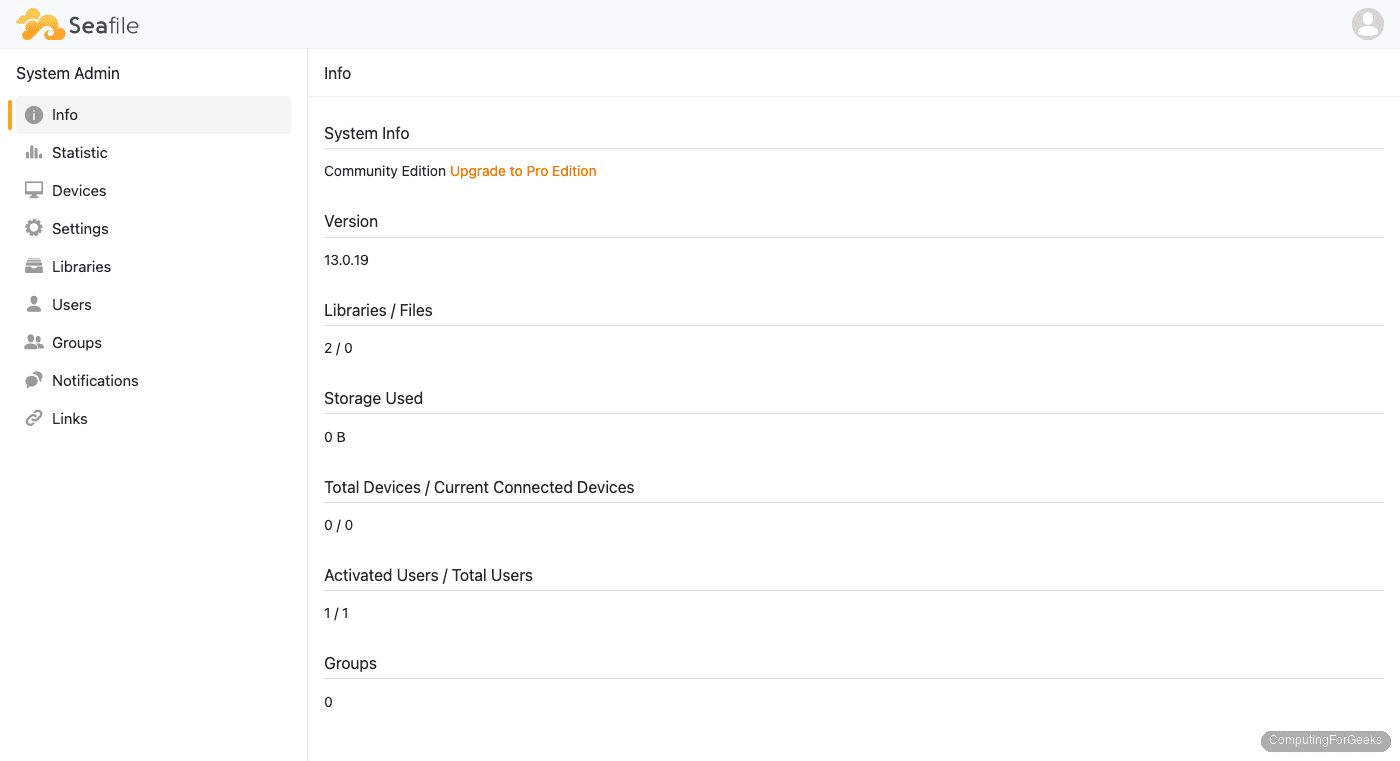
The admin panel at /sys/info/ confirms the version, edition, and system statistics:
Manage the Deployment
View logs from all services:
docker compose logs -f --tail 50View logs from a specific service:
docker compose logs seafile --tail 100Stop all services:
docker compose downStop and remove all data (databases, files, certificates):
docker compose down -vReset the admin password if you forget it:
docker exec -it seafile /opt/seafile/seafile-server-latest/reset-admin.shUpdate Seafile
To update to a newer Seafile version, change the image tag in .env and recreate the containers:
cd /opt/seafile
docker compose pull
docker compose up -d
Docker pulls the new images and recreates only the containers that changed. Volumes persist across updates, so your files and database remain intact.
Troubleshooting
Caddy fails to obtain SSL certificate
Make sure your domain’s DNS A record points to the server’s public IP, and ports 80 and 443 are open. Caddy needs both ports for the ACME HTTP-01 challenge. Check the Caddy container logs for the exact error:
docker logs seafile-caddy 2>&1 | grep -i "error\|certificate"Seafile container keeps restarting
Check if MariaDB is healthy first. Seafile depends on a healthy database before starting:
docker logs seafile-mysql 2>&1 | tail -20
docker logs seafile 2>&1 | tail -30
Common causes: wrong database password in .env, missing JWT_PRIVATE_KEY, or the database not yet initialized on first startup.
Blank page or “Page unavailable” after login
This typically means the internal Nginx proxy inside the Seafile container needs a reload. Restart the container:
docker restart seafileIf the issue persists, check that SEAFILE_SERVER_HOSTNAME in .env matches the domain you are accessing. A hostname mismatch causes Caddy to return empty responses.

Hello, thanks for tuto 👍
All ok, but upload/download error in localhost or remote client.
Thank for help.
Hi,
What’s the error message you’re getting?
Hello
Thank you for the tutorial, I am at the end of the tutorial, Seafile works in my browser, but cannot add a file.
I can add users, create libraries.
Can you help me ?
Thanks in advance.
What about adding an ssl certificate?
We’ll also work on the SSL article.
Friend, thank you for the tutorial.
Just an issue: in systemd configuration, the path to seafile.sh and seahub.sh are wrong. The folder is not “/srv/seafile-server-latest/”, , but “/srv/seafile/”
Sure this has been updated. Thanks for the comment.
Did your tutorial twice, and I always end up with a blank page after I start both services. Web console reads 404.