

Pritunl is an open-source VPN server that supports both OpenVPN and WireGuard protocols. It uses MongoDB as its backend database and provides a web-based management interface for creating organizations, users, and VPN servers. Pritunl works well for site-to-site connectivity, remote access, and multi-cloud VPN peering.
This guide walks through installing and configuring Pritunl VPN server (version 1.32) on Rocky Linux 10 and AlmaLinux 10. We cover repository setup, MongoDB 8.0 installation, firewall configuration, SELinux, web UI setup, and connecting a VPN client.
Prerequisites
- A server running Rocky Linux 10 or AlmaLinux 10 with root or sudo access
- At least 2 GB RAM and 2 CPU cores
- A public IP address or domain name pointing to the server
- Ports 443/TCP (web UI), 80/TCP (Let’s Encrypt), and a custom UDP port for OpenVPN/WireGuard traffic
- Firewall access to allow the ports above
Step 1: Add MongoDB and Pritunl Repositories
Pritunl requires MongoDB 8.0 as its database backend. Both MongoDB and Pritunl have their own repositories that need to be configured before installation.
Create the MongoDB 8.0 repository file:
sudo vi /etc/yum.repos.d/mongodb-org-8.0.repoAdd the following content:
[mongodb-org-8.0]
name=MongoDB Repository
baseurl=https://repo.mongodb.org/yum/redhat/9/mongodb-org/8.0/x86_64/
gpgcheck=1
enabled=1
gpgkey=https://pgp.mongodb.com/server-8.0.asc
Pritunl uses the Oracle Linux 9 compatible repository for RHEL-based systems. Create the Pritunl repository file:
sudo vi /etc/yum.repos.d/pritunl.repoAdd the following content:
[pritunl]
name=Pritunl Repository
baseurl=https://repo.pritunl.com/stable/yum/oraclelinux/9/
gpgcheck=1
enabled=1
gpgkey=https://raw.githubusercontent.com/pritunl/pgp/master/pritunl_repo_pub.asc
Import the Pritunl GPG key to verify package signatures:
sudo gpg --keyserver hkp://keyserver.ubuntu.com --recv-keys 7568D9BB55FF9E5287D586017AE645C0CF8E292A
sudo gpg --armor --export 7568D9BB55FF9E5287D586017AE645C0CF8E292A > key.tmp
sudo rpm --import key.tmp
rm -f key.tmp
Step 2: Install Pritunl VPN Server and MongoDB on Rocky Linux 10
With both repositories configured, install Pritunl along with MongoDB and WireGuard tools. The pritunl-openvpn package provides the bundled OpenVPN binary that Pritunl manages internally.
sudo dnf -y install pritunl pritunl-openvpn wireguard-tools mongodb-orgOnce installation completes, enable and start both MongoDB and Pritunl services so they persist across reboots:
sudo systemctl enable --now mongod pritunlVerify both services are running:
systemctl status mongod pritunlBoth services should show active (running) in the output:
● mongod.service - MongoDB Database Server
     Loaded: loaded (/usr/lib/systemd/system/mongod.service; enabled; preset: disabled)
     Active: active (running) since Fri 2026-03-21 10:15:32 UTC; 5s ago
       Docs: https://docs.mongodb.org/manual
   Main PID: 3412 (mongod)
     Memory: 170.2M
        CPU: 1.125s
     CGroup: /system.slice/mongod.service
             └─3412 /usr/bin/mongod -f /etc/mongod.conf

● pritunl.service - Pritunl Daemon
     Loaded: loaded (/etc/systemd/system/pritunl.service; enabled; preset: disabled)
     Active: active (running) since Fri 2026-03-21 10:15:32 UTC; 5s ago
   Main PID: 3415 (pritunl)
      Tasks: 2 (limit: 10843)
     Memory: 138.5M
        CPU: 2.340s
     CGroup: /system.slice/pritunl.service
             └─3415 /usr/lib/pritunl/usr/bin/python3 /usr/lib/pritunl/usr/bin/pritunl start
Step 3: Configure Firewall for Pritunl VPN
Pritunl needs several ports open in the firewall. Port 443/TCP is used for the web management interface, port 80/TCP for Let’s Encrypt certificate renewal, and a UDP port for the actual VPN tunnel traffic. The default OpenVPN/WireGuard port assigned by Pritunl varies – you can check it later in the server settings. For this guide we open a common range. If you need help with firewalld on Rocky Linux 10 / AlmaLinux 10, refer to our dedicated guide.
sudo firewall-cmd --permanent --add-service=https
sudo firewall-cmd --permanent --add-service=http
sudo firewall-cmd --permanent --add-port=10000-19999/udp
sudo firewall-cmd --reload
Verify the rules are active:
sudo firewall-cmd --list-allThe output should list https, http, and your UDP port range under services and ports:
public (active)
  target: default
  icmp-block-inversion: no
  interfaces: eth0
  sources:
  services: cockpit dhcpv6-client http https ssh
  ports: 10000-19999/udp
  protocols:
  forward: yes
  masquerade: no
  forward-ports:
  source-ports:
  icmp-blocks:
  rich rules:
Note: The official Pritunl documentation recommends disabling firewalld entirely because Pritunl manages its own iptables rules. However, keeping firewalld active with the required ports open is a safer approach. If you experience connectivity issues after starting a VPN server, you may need to add the specific port that Pritunl assigns to your VPN server configuration.
Step 4: Configure SELinux for Pritunl
Rocky Linux 10 and AlmaLinux 10 ship with SELinux in enforcing mode by default. Pritunl needs to bind to network ports and manage network interfaces, which requires SELinux policy adjustments. The simplest approach is to allow Pritunl through SELinux using a boolean and a custom port policy:
sudo setsebool -P httpd_can_network_connect 1If Pritunl still encounters SELinux denials after starting VPN connections, check the audit log and generate a custom policy module:
sudo ausearch -c 'pritunl' --raw | audit2allow -M pritunl_custom
sudo semodule -i pritunl_custom.pp
Confirm SELinux is still enforcing after these changes:
getenforceThe output should confirm Enforcing mode is active.
Step 5: Run Pritunl Initial Setup
Pritunl is now running and accessible at https://your-server-ip. Before logging in, generate the setup key that authenticates the web interface with the MongoDB database:
sudo pritunl setup-keyThe command outputs a long key string. Copy this key – you will paste it into the web interface in the next step.
Open your browser and navigate to https://your-server-ip. Accept the self-signed certificate warning. You will see the initial setup page asking for the setup key and the MongoDB URI.

Paste the setup key into the “Enter Setup Key” field. Leave the MongoDB URI as the default mongodb://localhost:27017/pritunl unless you are using a remote MongoDB instance. Click Save.
After saving, you are redirected to the login page. Retrieve the default admin credentials from the command line:
sudo pritunl default-passwordThe output shows the default username (usually pritunl) and a randomly generated password. Use these credentials to log in.

After logging in, the initial settings dialog prompts you to change the default username and password. Set a strong password and optionally configure your domain name for Let’s Encrypt SSL. Click Save.

Step 6: Create Organization and Users
Pritunl organizes VPN access through organizations. Each organization groups users together and gets attached to a VPN server. Users within an organization share the same server access.
Go to the Users tab and click Add Organization. Give it a descriptive name (e.g., “Engineering” or “Remote Workers”) and click Add.

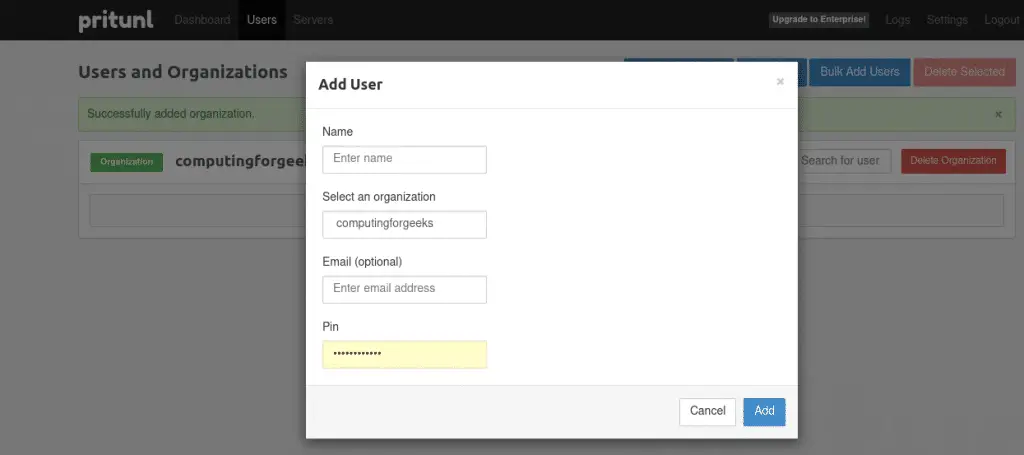
Next, click Add User to create a VPN user. Select the organization you just created, enter a username, and set a PIN. The PIN is required when connecting from the VPN client.
Step 7: Create and Configure VPN Server
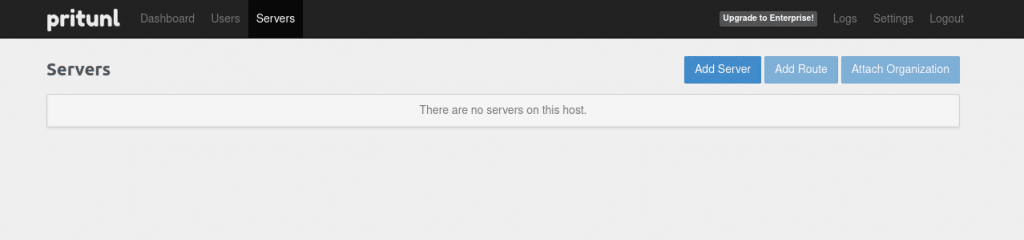
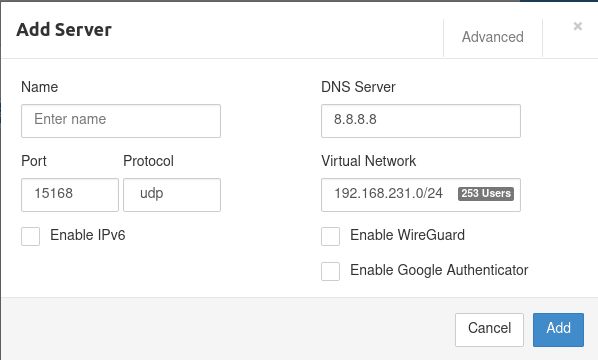
Switch to the Servers tab and click Add Server. Configure the following settings:
- Name – a descriptive name for the VPN server
- Port – the UDP port for VPN traffic (note this port and open it in your firewall if not covered by the range you opened earlier)
- Protocol – UDP is recommended for better performance
- Virtual Network – the subnet for VPN clients (default 10.x.x.x/24 works for most setups)
- DNS Server – DNS resolver for VPN clients (e.g., 8.8.8.8 or 1.1.1.1)
Check Enable WireGuard if you want clients to use the faster WireGuard protocol. If you are looking to set up a standalone WireGuard VPN on Rocky Linux 10, we have a separate guide for that.
Attach Organization to Server
After creating the server, click Attach Organization to link the organization (and its users) to this VPN server. Select the organization and server from the dropdowns, then click Attach.
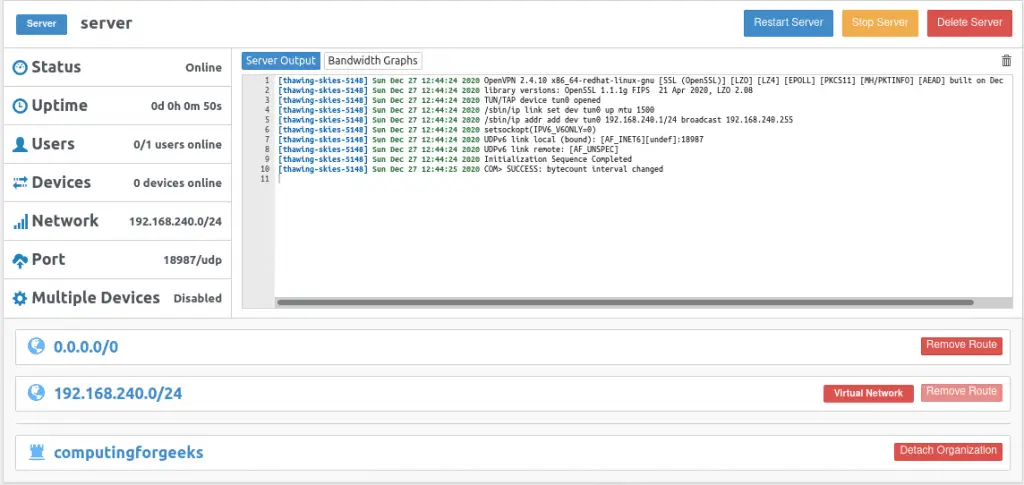
Optionally, click Add Route to add routes to your private networks that VPN clients should access. For example, add 192.168.1.0/24 to allow access to your internal LAN.
Start the VPN Server
Click Start Server to activate the VPN. The server status changes to “Online” and Pritunl begins accepting client connections on the configured port.
Step 8: Download Client Profile and Connect
Each user needs a connection profile to connect to the VPN. Go to the Users tab, find the user you created, and click the download icon on the right side of the user entry.

This downloads a .tar archive containing the .ovpn profile file. Extract it and use it with any OpenVPN-compatible client or the official Pritunl client.
Connect Using Pritunl Client
The Pritunl client is available for Linux, macOS, and Windows from the Pritunl GitHub repository. On Rocky Linux 10 or AlmaLinux 10, you can install the CLI client:
sudo dnf -y install pritunl-clientFor the graphical electron client (requires a desktop environment):
sudo dnf -y install epel-release
sudo dnf -y install pritunl-client-electron
Launch the Pritunl client and click Import Profile. Select the .ovpn file you downloaded from the server. Once imported, click the menu icon on the profile and select Connect. Enter the PIN you set during user creation.
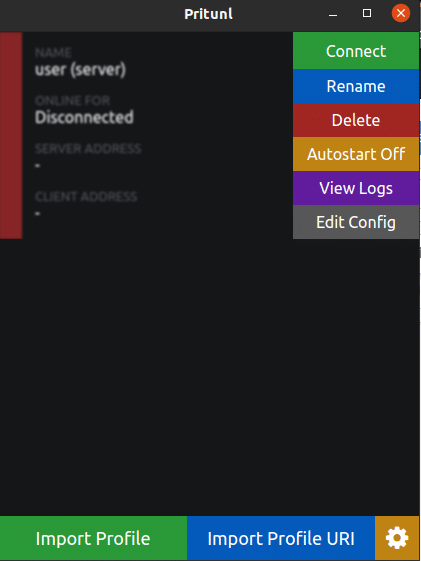

After successful authentication, the client connects to the VPN. You can verify the connection from the Pritunl server dashboard – the connected user appears under the server.

You can also use any standard OpenVPN client with nmcli on Linux to connect using the downloaded .ovpn profile if you prefer not to use the Pritunl client.
Step 9: Verify VPN Connectivity
After connecting from the client, verify the VPN tunnel is working. On the client machine, check that you received a VPN IP address:
ip addr show tun0You should see an IP address from the VPN subnet you configured (e.g., 10.x.x.x):
4: tun0:  mtu 1500 qdisc fq_codel state UNKNOWN group default qlen 500
    link/none
    inet 10.128.45.2/24 scope global tun0
       valid_lft forever preferred_lft forever
Test connectivity to a resource on the remote network:
ping -c 3 10.128.45.1Successful replies confirm the VPN tunnel is operational. If you configured routes to internal subnets, test those as well to confirm full connectivity. For managing an OpenVPN server directly on RHEL / Rocky / AlmaLinux without the Pritunl web interface, check our dedicated guide.
Conclusion
Pritunl VPN server is now running on Rocky Linux 10 / AlmaLinux 10 with MongoDB 8.0, firewall rules configured, and SELinux active. Users can connect using the Pritunl client or any OpenVPN-compatible client with the downloaded profile.
For production deployments, configure a domain name with Let’s Encrypt SSL through the Pritunl settings panel, set up MongoDB authentication, and enable two-factor authentication for VPN users. Consider deploying MongoDB as a replica set if you need high availability for the Pritunl backend.
