

Plex is a streaming media server. It enables one to store all the media content in one server and use a client to access them from another computer or a mobile device. All the media uploaded to a Plex server is properly organized and makes it easy to be accessed from a client. Plex can run on different operating systems including Windows, MacOS and Linux. In this guide, we are going to look at how to install Plex media server on Ubuntu 24.04/ Linux Mint 22.
Step 1: Download Plex Media server on Ubuntu 24.04 | Linux Mint 22
Visit Plex downloads page and download Plex Media server to your system:
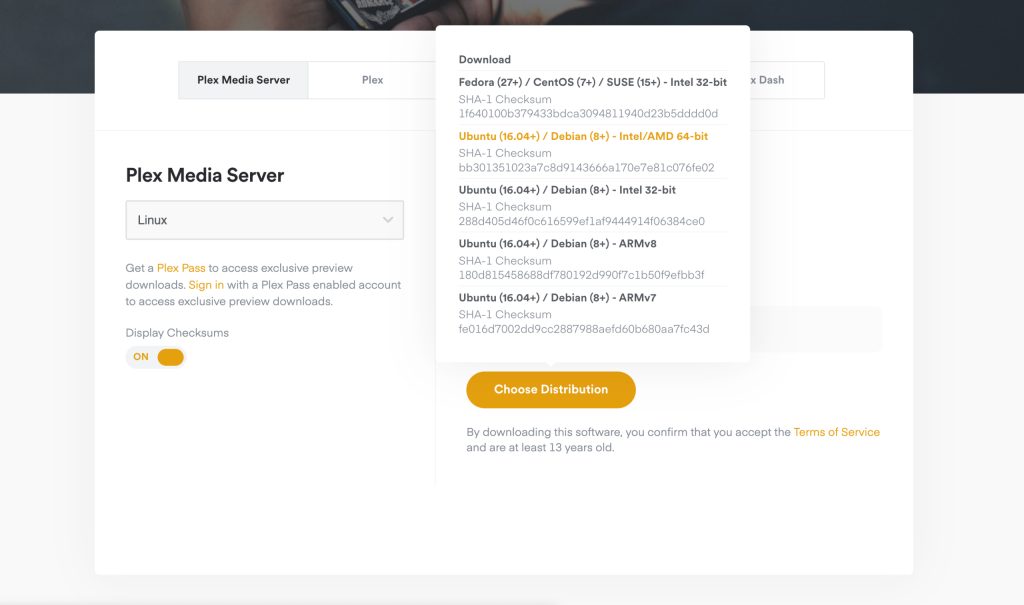
Or use the terminal:
sudo apt update && sudo apt install wget -y
wget https://downloads.plex.tv/plex-media-server-new/1.41.9.9961-46083195d/debian/plexmediaserver_1.41.9.9961-46083195d_amd64.deb
Sample Output:

Step 2: Install Plex Media Server on Ubuntu 24.04 | Linux Mint 22
Once Plex Media server is downloaded to your server, go ahead to install it. Change to the directory of the download file and run the below command to install.
sudo dpkg -i plexmediaserver_*_amd64.debYou should see on your screen a message showing that installation was successful, no errors, no warnings:
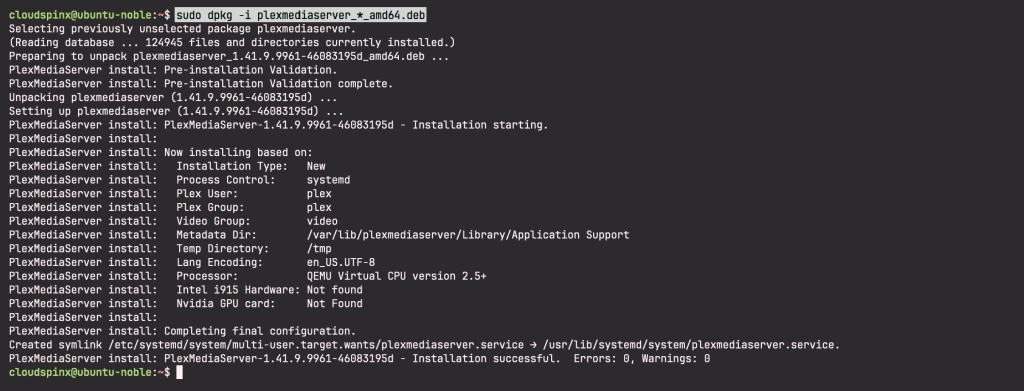
Step 3: Configuring Plex Media Server on Ubuntu 24.04 | Linux Mint 22
After installation, Plex Media server runs automatically. Check status as shown below:
sudo systemctl enable plexmediaserver.service
sudo systemctl status plexmediaserver.service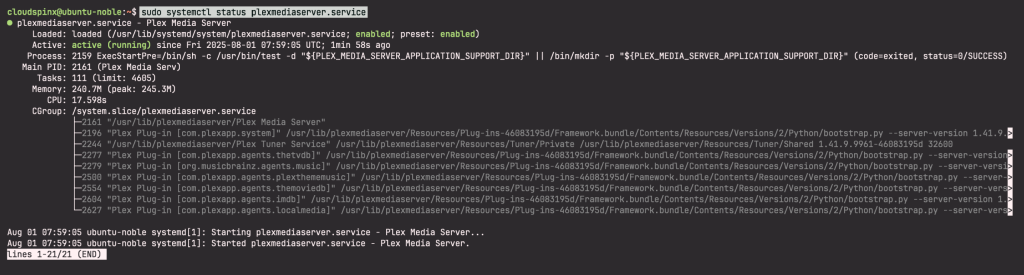
Step 4: Access Plex Media Server on Ubuntu 24.04 | Linux Mint 22
Access Plex Media server from your browser on port 32400 to configure it. On your browser, type http://<plex-media-server-ip>:32400/web. You should see a screen as shown where you are being prompted to sign in to plex:
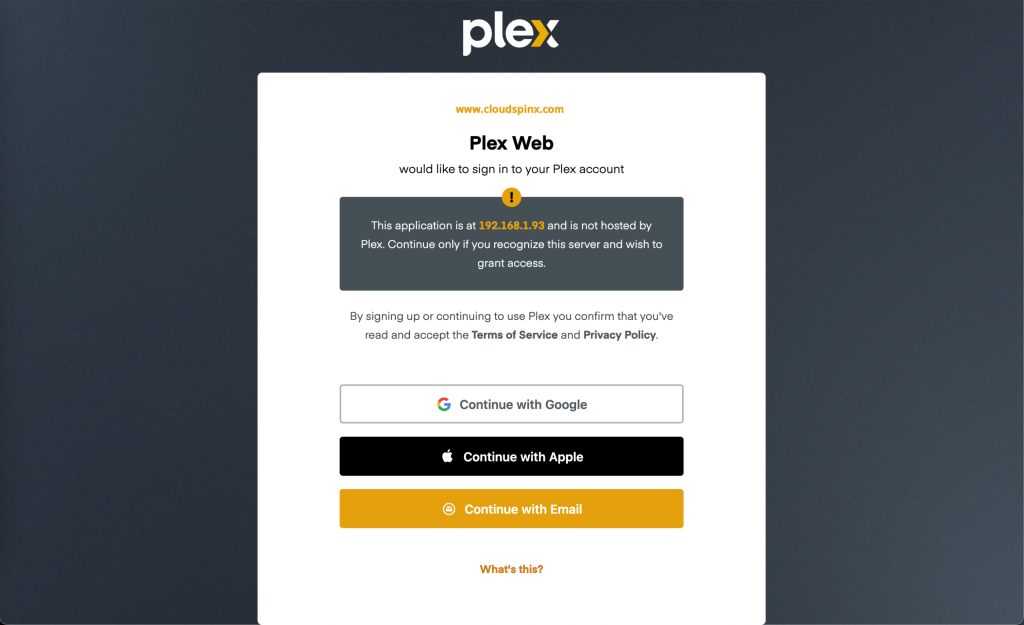
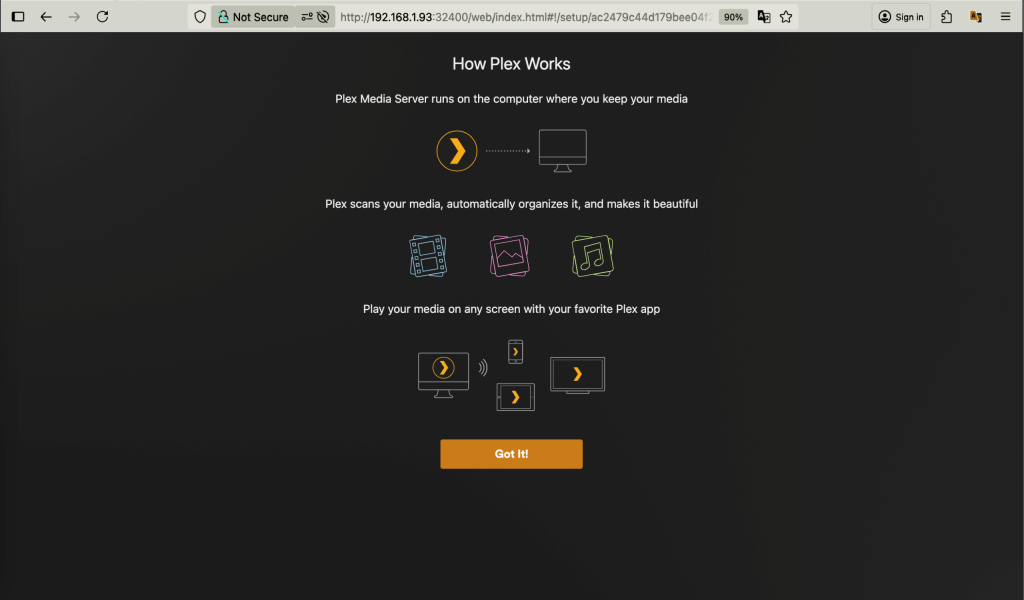
Having signed in, click Got it at the bottom of the next page:
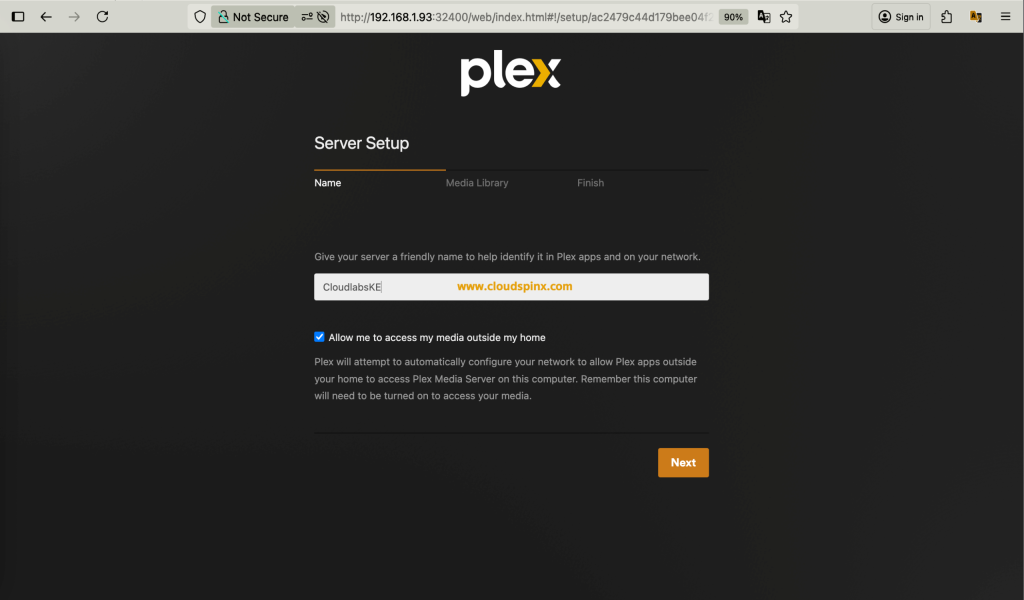
In the next page, give a name to your Plex server. Also ensure that the box allow me to access my media outside my home is check. Click Next:
In the next page, add libraries. Click on ADD LIBRARY:
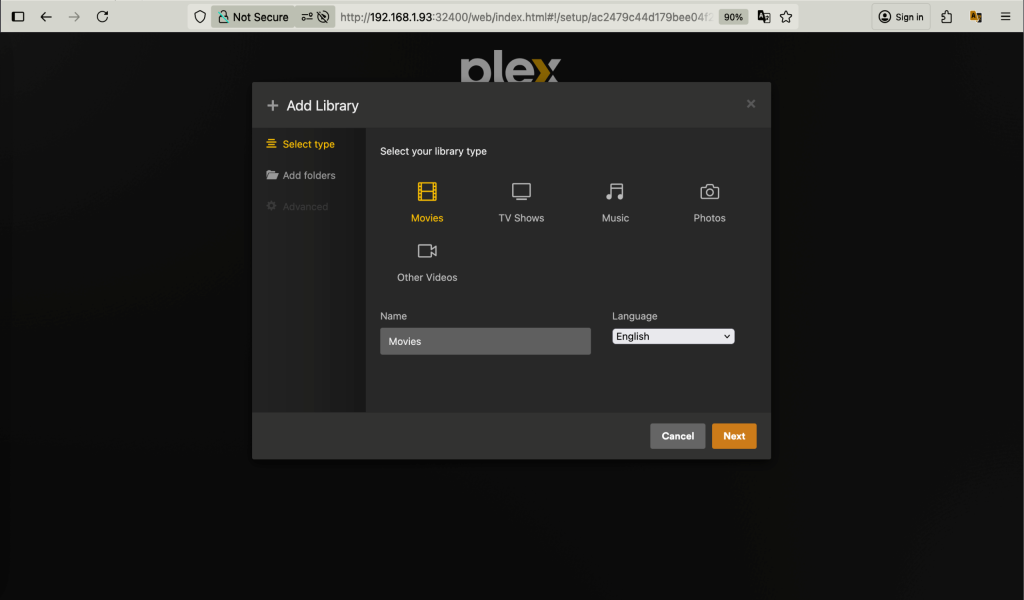
This will take you to a page where you choose libraries to add. Once you pick click ADD LIBRARY. You can go back to add more libraries:
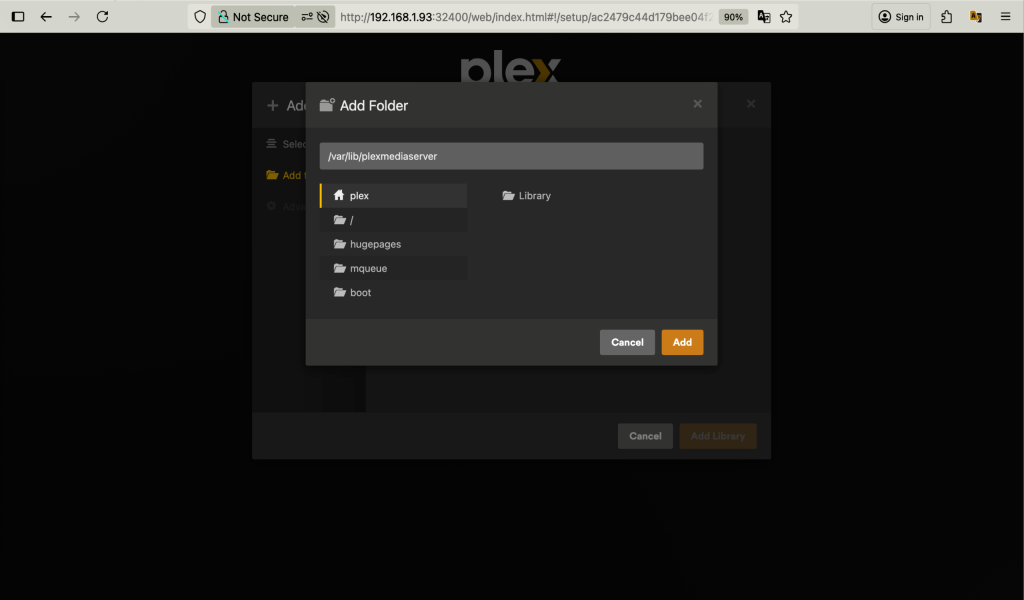
If prompted to choose media folder, go ahead and select then click next.
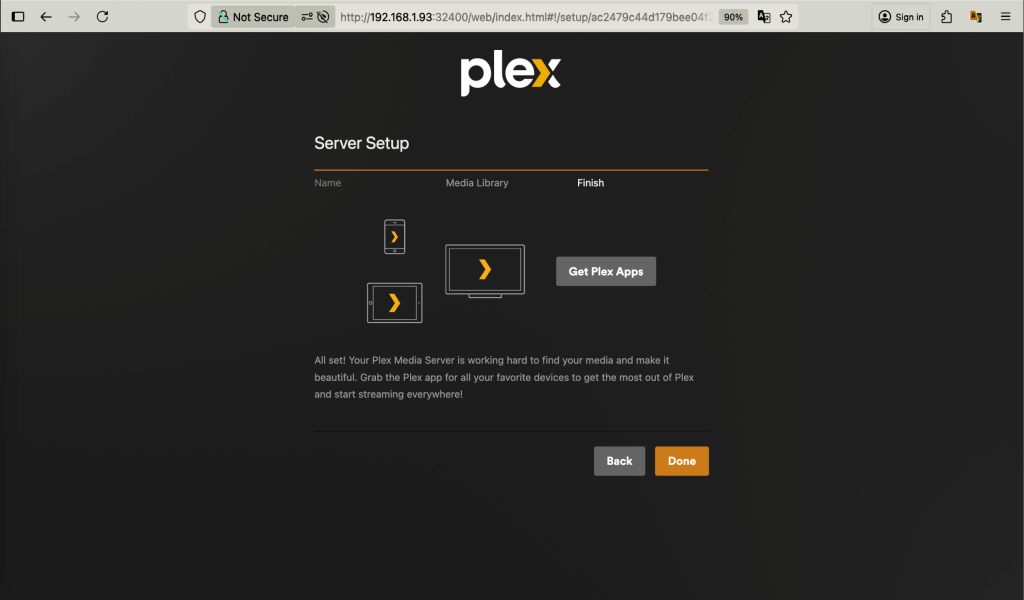
After adding your chosen libraries, click Next. You will see a screen telling you that all has been set up and directing you to get plex app. Clock DONE:
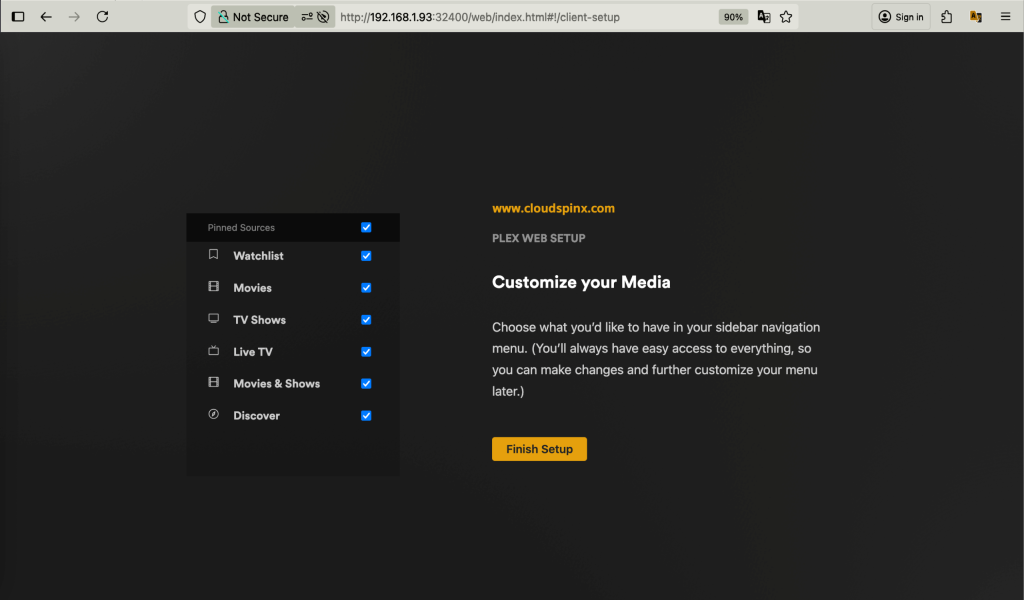
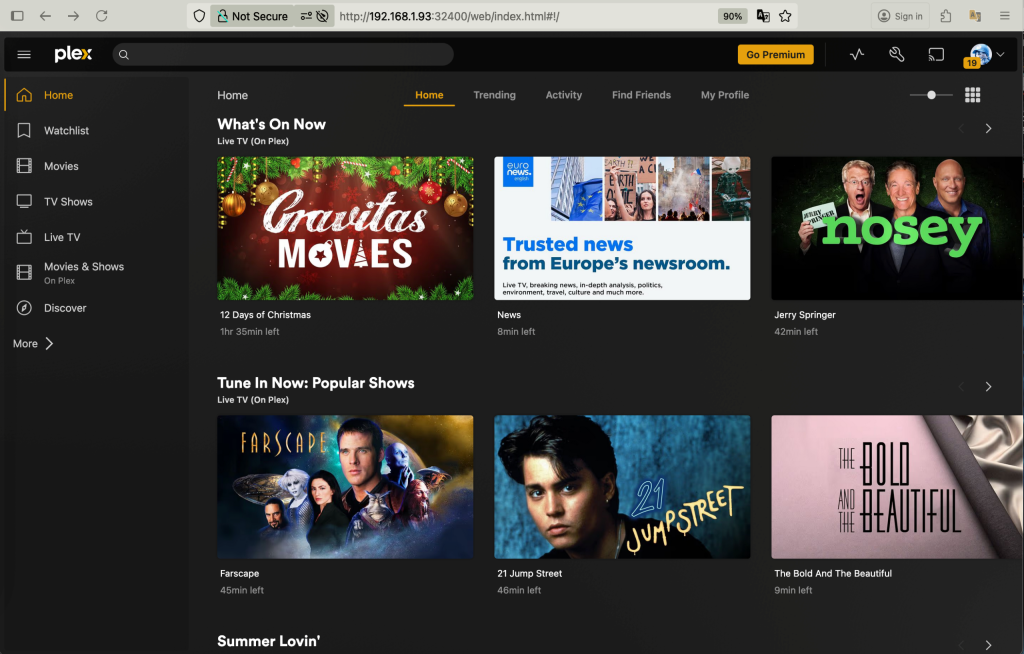
In the next page, you will see all sources marked. Unmark any that you do not need and click FINISH SETUP at the bottom end. You will be taken to a screen as shown:
That’s it. You have successfully installed Plex Media Server on Ubuntu 24.04/ Linux Mint 22.
Step 5: Secure Plex Media Server with Let’s Encrypt SSL
You can consider securing your Plex Media Server with Let’s Encrypt SSL certificate.

this does not work. I’m on current linux mint, fully updated, I installed the server and the client but running the server setup fails.
when I click add library it’s fine until I try to add a folder. I do NOT get the option, only to add the drive. it NEVER lets me select the folder.
thus it NEVER finds my media files.
why is plex impossible to use? it makes this tut useless as it fails half way through the tut by NOT letting you select a folder