

phpIPAM is an open-source IP address management (IPAM) application that makes tracking subnets, IP addresses, and VLANs across your infrastructure straightforward. If you manage more than a handful of networks, a spreadsheet stops being viable pretty quickly. phpIPAM gives you a proper web interface backed by MariaDB, with features like subnet scanning, VLAN management, rack diagrams, and a REST API for automation.
This guide walks through a complete phpIPAM deployment on Rocky Linux 10 and AlmaLinux 10 with Apache, PHP, MariaDB, SELinux enforcing, and SSL via Let’s Encrypt. Rocky Linux 9 differences are noted inline and summarized in a comparison table at the end. For the Debian/Ubuntu version, see our phpIPAM installation guide for Debian.
Tested April 2026 on Rocky Linux 10.1 with phpIPAM 1.7.4, PHP 8.3.29, Apache 2.4.63, MariaDB 10.11.15. Also verified on Rocky Linux 9.4 with PHP 8.0.30
Prerequisites
Before starting, make sure you have the following ready:
- Rocky Linux 10 / AlmaLinux 10 (or Rocky 9 / AlmaLinux 9) with root or sudo access
- Tested versions: PHP 8.3.29, Apache 2.4.63, MariaDB 10.11.15 (Rocky 10), PHP 8.0.30, Apache 2.4.62, MariaDB 10.5.29 (Rocky 9)
- A domain or subdomain pointed to your server’s IP (for SSL)
- SELinux in enforcing mode (default on RHEL family, do not disable it)
- Minimum 1 GB RAM, 10 GB disk
Install Apache, PHP, and Required PHP Modules
phpIPAM needs Apache as the web server and several PHP extensions for database connectivity, SNMP, GD graphics, and LDAP authentication. Install everything in one shot:
sudo dnf install -y httpd php php-mysqlnd php-gd php-xml php-mbstring php-ldap php-json php-pear php-curl php-snmp php-pdo php-cli php-common php-intl php-gmp gitVerify that PHP installed correctly and check the version:
php -vOn Rocky Linux 10, you should see PHP 8.3:
PHP 8.3.29 (cli) (built: Apr  1 2026 00:00:00) (NTS gcc aarch64)
Copyright (c) The PHP Group
Zend Engine v4.3.29, Copyright (c) Zend Technologies
On Rocky 9, this will show PHP 8.0.30 instead. Both versions work with phpIPAM 1.7.4, though Rocky 10 requires one extra configuration flag (covered in the phpIPAM config section below).
For a deeper look at PHP installation options on the RHEL family, check our guide on installing PHP on AlmaLinux and Rocky Linux.
Enable and start Apache:
sudo systemctl enable --now httpdConfirm it is running:
sudo systemctl status httpdThe output should show active (running).
Install and Configure MariaDB
phpIPAM stores all IP address data, subnets, VLANs, and user accounts in a MariaDB database. Rocky Linux 10 ships MariaDB 10.11 from the AppStream repository, while Rocky 9 provides 10.5. Both work fine.
sudo dnf install -y mariadb-server mariadbStart and enable MariaDB:
sudo systemctl enable --now mariadbSecure the installation by setting a root password and removing test databases:
sudo mysql_secure_installationAccept the defaults (set a root password, remove anonymous users, disallow remote root login, remove test database). For a more detailed walkthrough, see our guide on installing MariaDB on Rocky Linux.
Now create the phpIPAM database and a dedicated database user:
sudo mysql -u root -pAt the MariaDB prompt, run these SQL statements:
CREATE DATABASE phpipam;
GRANT ALL PRIVILEGES ON phpipam.* TO 'phpipam'@'localhost' IDENTIFIED BY 'StrongPassword123!';
FLUSH PRIVILEGES;
EXIT;
Replace StrongPassword123! with a strong password of your choice. Keep this password handy because phpIPAM’s config file needs it.
Download and Configure phpIPAM
Clone phpIPAM from GitHub into Apache’s document root. Version 1.7.4 is the latest stable release as of this writing (release notes).
cd /var/www/html
sudo git clone --recursive https://github.com/phpipam/phpipam.git .
Checkout the latest stable release:
sudo git checkout v1.7.4Copy the sample configuration file:
sudo cp config.dist.php config.phpOpen the configuration file:
sudo vi /var/www/html/config.phpUpdate the database credentials to match what you created earlier:
$db['host'] = 'localhost';
$db['user'] = 'phpipam';
$db['pass'] = 'StrongPassword123!';
$db['name'] = 'phpipam';
$db['port'] = 3306;
Rocky Linux 10 users (PHP 8.3): phpIPAM 1.7.4 was released before PHP 8.3 was widely available on RHEL systems. The application works fine with PHP 8.3, but you need to add one line to config.php to suppress the untested version warning:
$allow_untested_php_versions = true;Add this line anywhere in config.php. Without it, phpIPAM displays a warning page and refuses to load the dashboard. Rocky 9 users running PHP 8.0 do not need this flag.
Set the correct file ownership so Apache can read and write to the phpIPAM directory:
sudo chown -R apache:apache /var/www/htmlConfigure Apache Virtual Host
On RHEL-based systems, Apache configuration files go directly into /etc/httpd/conf.d/. There is no sites-available/sites-enabled pattern and no a2ensite command. Just drop a .conf file and Apache picks it up.
Create the phpIPAM virtual host configuration:
sudo vi /etc/httpd/conf.d/phpipam.confAdd the following configuration:
<VirtualHost *:80>
    ServerName ipam.computingforgeeks.com
    DocumentRoot /var/www/html

    <Directory /var/www/html>
        AllowOverride All
        Require all granted
    </Directory>

    ErrorLog /var/log/httpd/phpipam-error.log
    CustomLog /var/log/httpd/phpipam-access.log combined
</VirtualHost>
Replace ipam.computingforgeeks.com with your actual domain or subdomain. The AllowOverride All directive enables .htaccess support, which phpIPAM uses for URL rewriting. On RHEL-family systems, mod_rewrite is loaded by default so there is no separate enable step.
Test the Apache configuration for syntax errors:
sudo apachectl configtestYou should see Syntax OK. Restart Apache to load the new config:
sudo systemctl restart httpdConfigure SELinux for phpIPAM
Rocky Linux and AlmaLinux ship with SELinux in enforcing mode. This is the correct production configuration, and you should never disable it. phpIPAM needs Apache to communicate with MariaDB, which SELinux blocks by default.
Allow Apache to make database connections:
sudo setsebool -P httpd_can_network_connect_db 1The -P flag makes this persistent across reboots. Verify it took effect:
getsebool httpd_can_network_connect_dbThe output should show:
httpd_can_network_connect_db --> onIf phpIPAM needs to perform network operations like SNMP scanning or ping checks, also enable general network connectivity for Apache:
sudo setsebool -P httpd_can_network_connect 1After testing, check the audit log for any remaining SELinux denials:
sudo ausearch -m avc -ts recentNo AVC denials should appear for the standard installation paths. If you see denials related to custom directories or non-standard ports, use semanage fcontext and restorecon to fix the file contexts rather than switching to permissive mode.
Configure the Firewall
Open HTTP and HTTPS ports in firewalld:
sudo firewall-cmd --permanent --add-service=http
sudo firewall-cmd --permanent --add-service=https
sudo firewall-cmd --reload
Confirm the rules are active:
sudo firewall-cmd --list-servicesYou should see http and https in the output alongside ssh and any other services you have enabled.
Configure SSL with Let’s Encrypt
Every production web application should run over HTTPS. On Rocky Linux, certbot is not available in the base repositories, so install EPEL first:
sudo dnf install -y epel-releaseThen install certbot, the Apache plugin, and mod_ssl:
sudo dnf install -y certbot python3-certbot-apache mod_sslThe mod_ssl package is a separate install on RHEL-family systems (unlike Debian where it is bundled with Apache). It provides the SSL module and a default /etc/httpd/conf.d/ssl.conf.
Obtain a certificate for your domain:
sudo certbot --apache -d ipam.computingforgeeks.com --non-interactive --agree-tos -m [email protected]Certbot will automatically modify your Apache virtual host to include the SSL directives and set up a redirect from HTTP to HTTPS. Verify the certificate renewal process works:
sudo certbot renew --dry-runIf the dry run succeeds, Let’s Encrypt will automatically renew the certificate before it expires. For more details on SSL certificate management, see our Let’s Encrypt SSL guide for Linux.
Restart Apache to load the SSL configuration:
sudo systemctl restart httpdImport the Database Schema
phpIPAM ships with a SQL file that creates all the required tables. Import it into the database you created earlier:
sudo mysql -u root -p phpipam < /var/www/html/db/SCHEMA.sqlVerify the tables were created:
sudo mysql -u root -p -e "USE phpipam; SHOW TABLES;" | head -20You should see around 40+ tables including ipaddresses, subnets, vlans, devices, and users.
Complete phpIPAM Setup via Web Interface
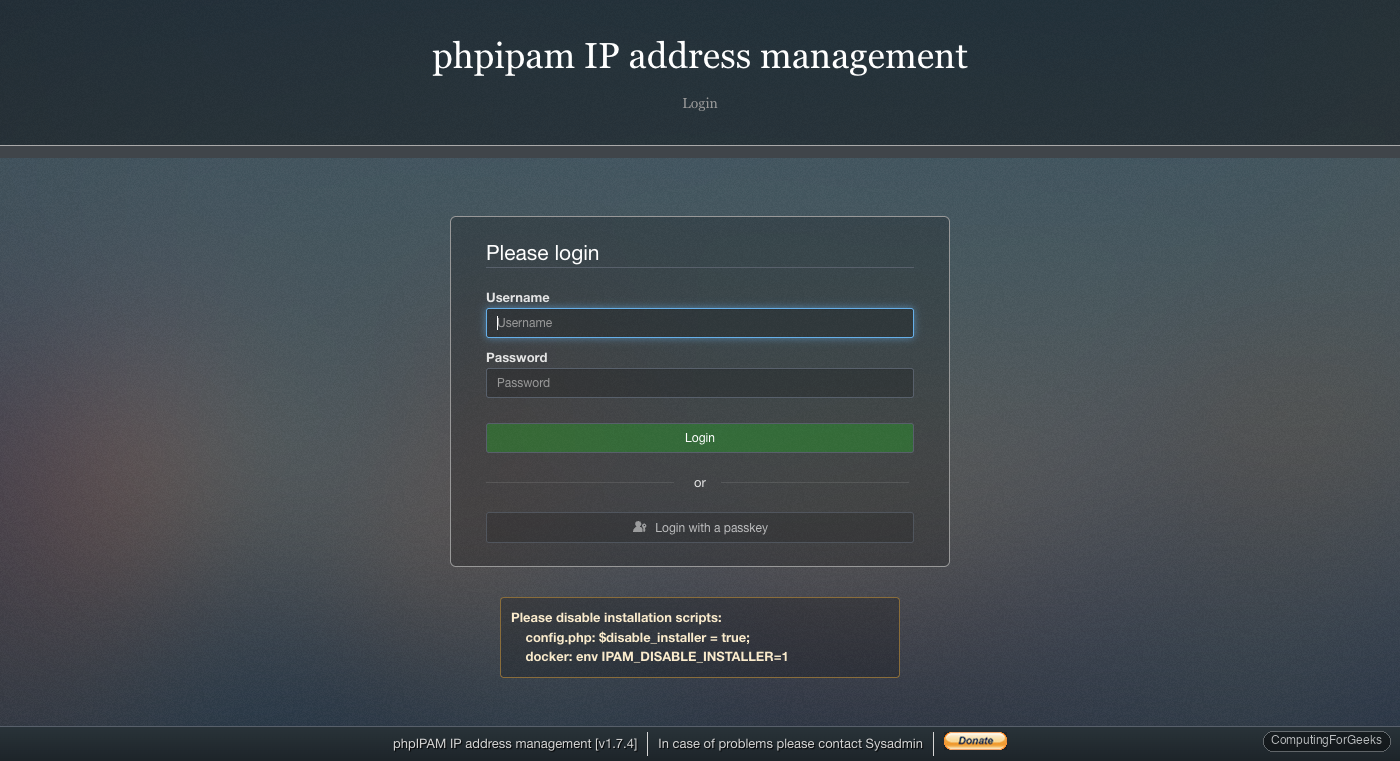
Open your browser and navigate to https://ipam.computingforgeeks.com. Since we already imported the database schema manually, you can skip the web-based database installer. The default login credentials are:
- Username:
admin - Password:
ipamadmin
Change the default password immediately after first login. Go to Administration > Users and update the admin account password.
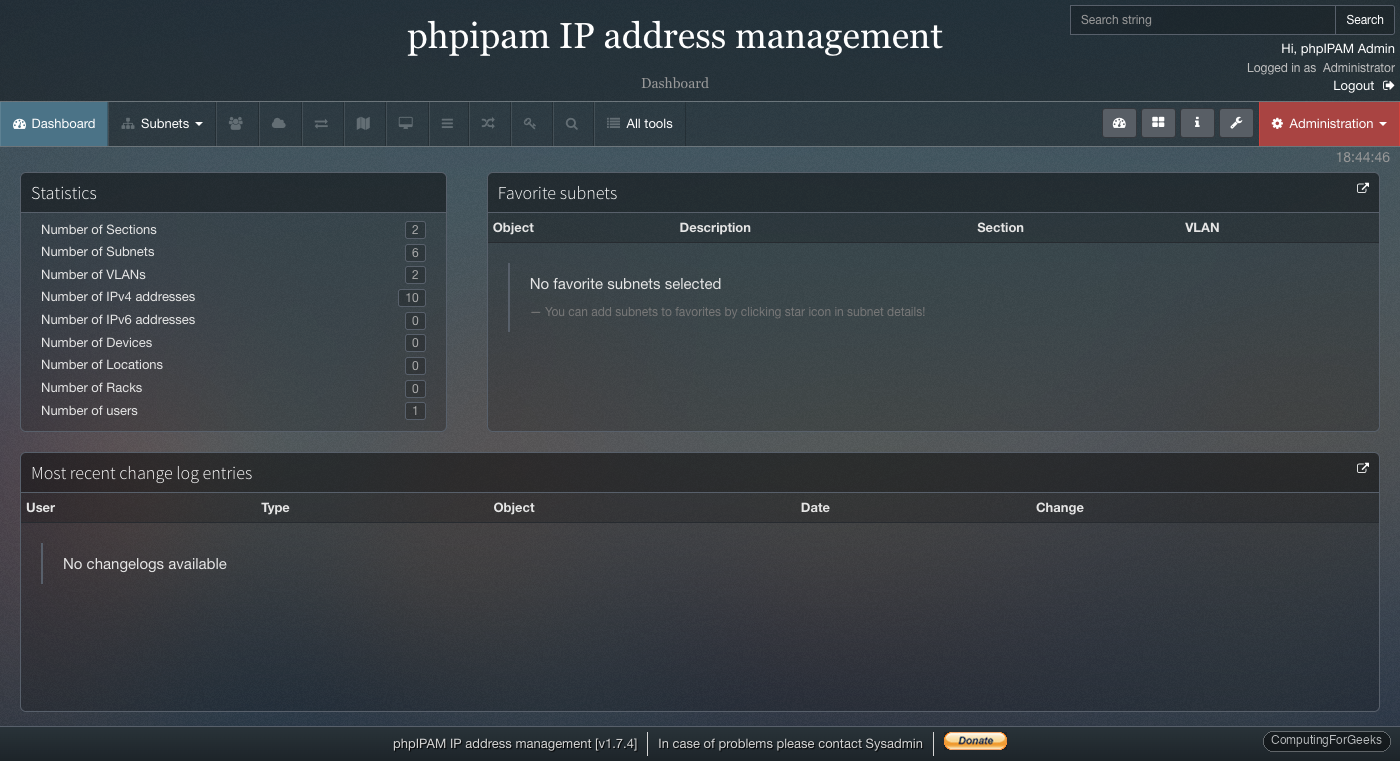
After logging in, the dashboard gives you an overview of your IP address space, including subnet utilization, recent activity, and quick links to common tasks.
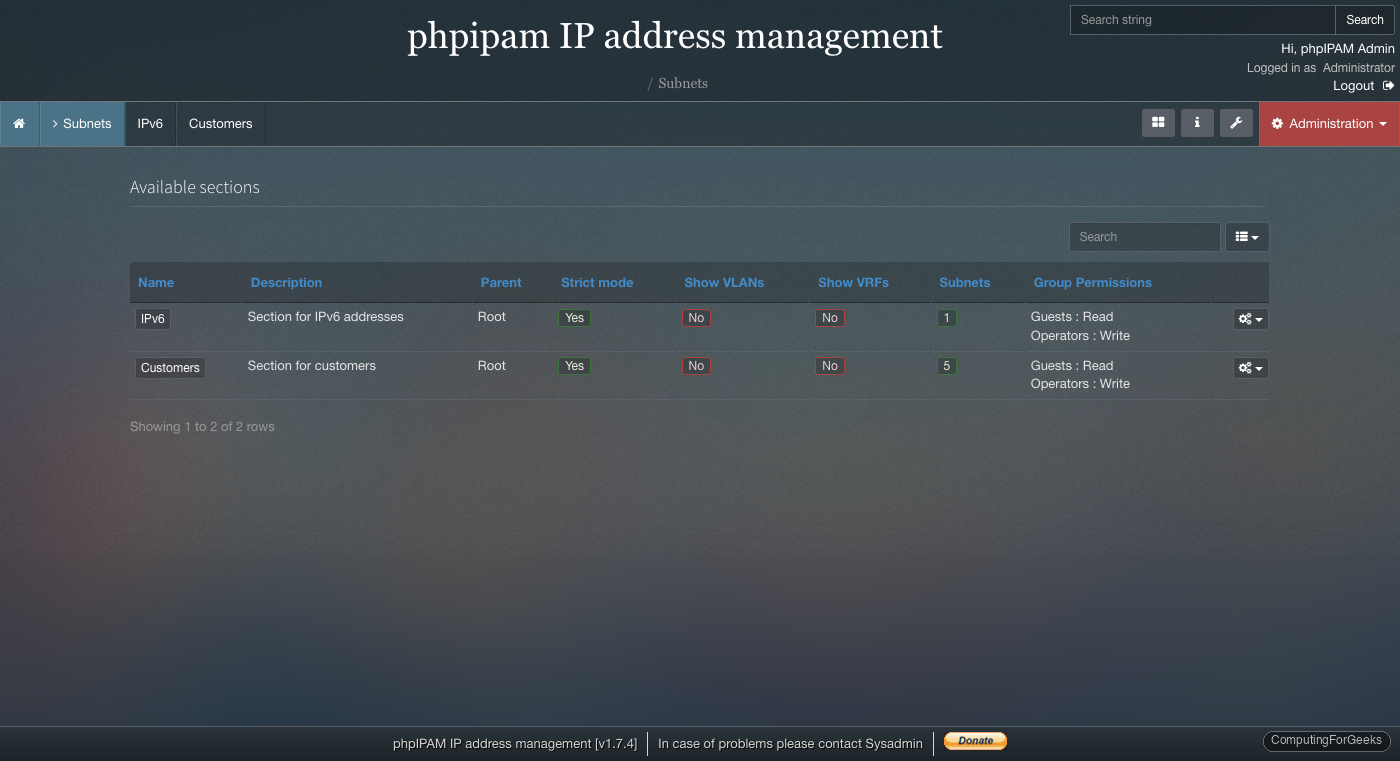
To start managing your network, navigate to Subnets and create your first section and subnet. phpIPAM organizes IP space hierarchically: Sections contain Subnets, and Subnets contain individual IP addresses.
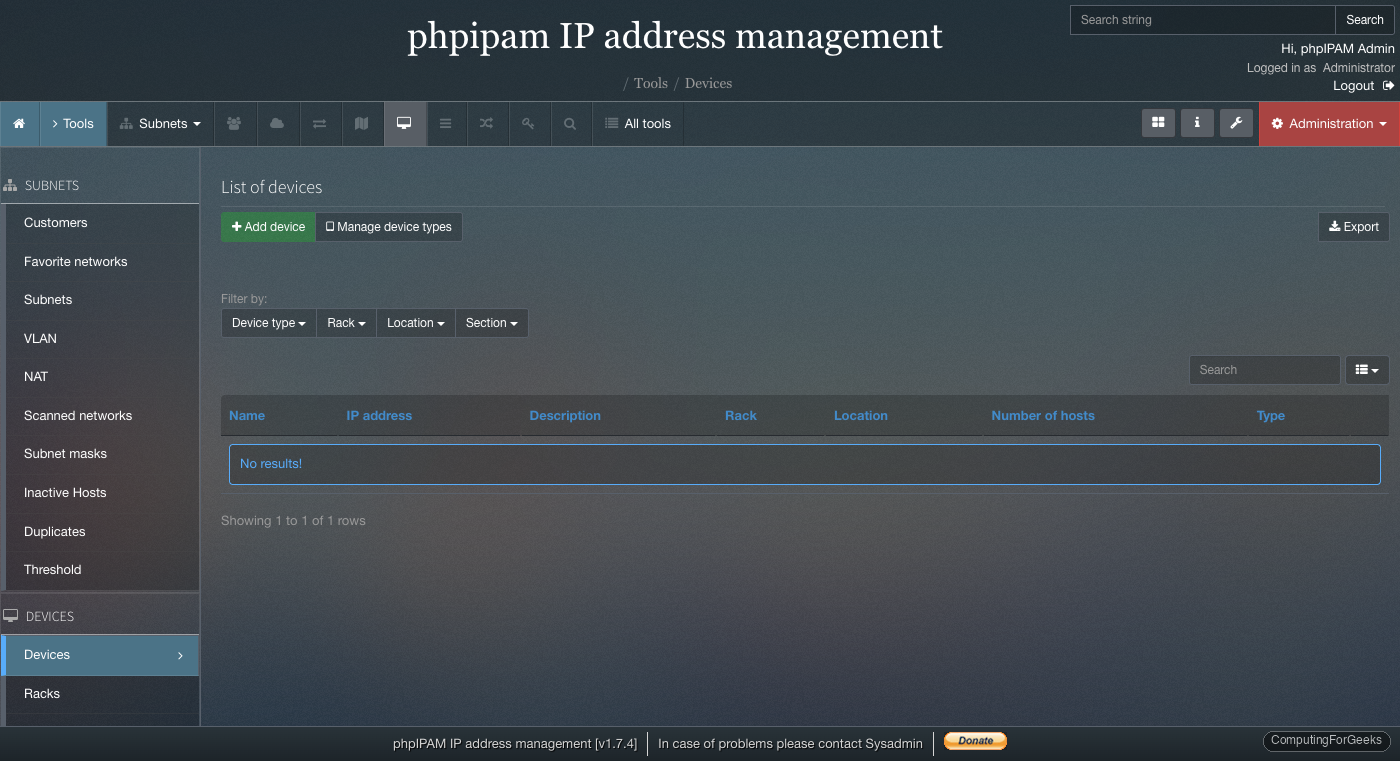
The device management section lets you track network hardware, associate devices with IP addresses, and document your infrastructure topology.
The administration panel provides control over authentication methods (local, LDAP, SAML), API access, scan agents, and mail notifications.
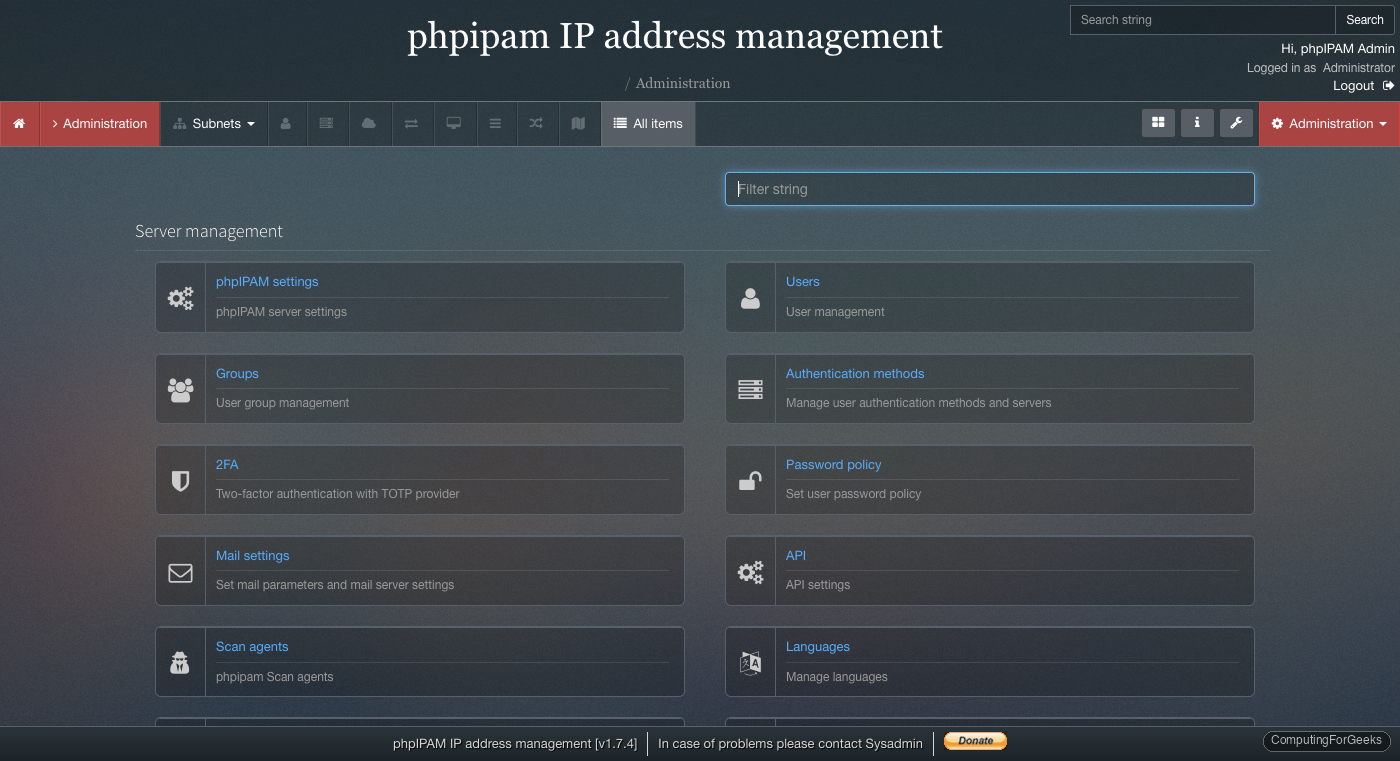
Troubleshooting
“Your PHP version is not supported” warning on Rocky Linux 10
phpIPAM 1.7.4 does not officially list PHP 8.3 as a supported version. When you access the web interface on Rocky 10, you may see a full-page warning saying your PHP version is not supported. The fix is straightforward. Open /var/www/html/config.php and add:
$allow_untested_php_versions = true;Reload the page and the warning disappears. phpIPAM works correctly with PHP 8.3 despite the warning. This catches most people off guard on Rocky 10 since it is the default PHP version from the AppStream repository.
“SQLSTATE[HY000] [2002] Permission denied” when loading phpIPAM
This error means Apache cannot connect to MariaDB through the socket. The cause is almost always a missing SELinux boolean. Verify and fix it:
getsebool httpd_can_network_connect_dbIf the output shows off, enable it:
sudo setsebool -P httpd_can_network_connect_db 1
sudo systemctl restart httpd
“Access denied for user ‘phpipam’@’localhost'” database error
Double-check that the credentials in /var/www/html/config.php match exactly what you granted in MariaDB. A common mistake is copying the password with trailing whitespace. Verify the grant:
sudo mysql -u phpipam -p -e "SHOW DATABASES;"If this command fails, the password or grant is wrong. Re-run the GRANT statement from the MariaDB section above.
Blank page or 500 error after installation
Check the Apache error log for details:
sudo tail -30 /var/log/httpd/phpipam-error.logCommon causes include missing PHP modules (reinstall the packages from the first section), incorrect file ownership (should be apache:apache), or the .htaccess file not being processed because AllowOverride is set to None instead of All.
Rocky Linux 10 vs Rocky Linux 9 Comparison
The installation steps are nearly identical between Rocky 10 and Rocky 9. The differences come down to package versions and one phpIPAM configuration flag.
| Component | Rocky Linux 10 / AlmaLinux 10 | Rocky Linux 9 / AlmaLinux 9 |
|---|---|---|
| Kernel | 6.12 | 5.14 |
| PHP version | 8.3.29 | 8.0.30 |
| Apache version | 2.4.63 | 2.4.62 |
| MariaDB version | 10.11.15 | 10.5.29 |
| SELinux | Enforcing (default) | Enforcing (default) |
| phpIPAM PHP flag needed | $allow_untested_php_versions=true; | Not needed |
| Apache config path | /etc/httpd/conf.d/ | /etc/httpd/conf.d/ |
| Service name | httpd | httpd |
| File ownership | apache:apache | apache:apache |
| Firewall | firewalld | firewalld |
| EPEL needed for certbot | Yes | Yes |
The only real gotcha is the PHP version flag on Rocky 10. Everything else, from Apache paths to SELinux booleans to firewalld commands, is identical across both major releases.
Production Hardening
Before exposing phpIPAM to your wider network, consider these steps to tighten security:
- Restrict access by IP if phpIPAM is only for your NOC team. Add
Require ip 10.0.0.0/8to the Apache virtual host instead ofRequire all granted - Enable LDAP or SAML authentication under Administration > Authentication methods so users authenticate against your directory service instead of local accounts
- Enable the API with token authentication if you plan to integrate phpIPAM with Ansible, Terraform, or other automation tools. Go to Administration > phpIPAM settings > Feature settings and enable the API module
- Set up automated database backups with a cron job running
mysqldump phpipam | gzip > /backup/phpipam-$(date +%F).sql.gz - Configure scan agents for automatic IP discovery. phpIPAM can ping-scan subnets on a schedule to detect new hosts and mark stale entries
