

Managing IP addresses in spreadsheets works until it doesn’t. Once your network grows past a few subnets, tracking allocations, VLANs, and device assignments by hand becomes a liability. phpIPAM is an open-source IP address management tool that replaces those spreadsheets with a proper web-based system, complete with subnet tracking, VLAN management, device inventories, and a REST API for automation.
This guide walks through a full phpIPAM 1.7.4 deployment on Debian 13 (Trixie) and Debian 12 (Bookworm), covering Apache, PHP, MariaDB, SSL with Let’s Encrypt, and the web-based setup wizard. Every command was tested on a clean Debian 13 minimal install.
Tested April 2026 on Debian 13 (Trixie) with phpIPAM 1.7.4, Apache 2.4.66, PHP 8.4.16, MariaDB 11.8.6
Prerequisites
- A Debian 13 or Debian 12 server with at least 1 GB RAM and 10 GB free disk
- Root or sudo access
- A domain name pointing to your server (for SSL). This guide uses
phpipam.example.com - Tested on: Debian 13 (PHP 8.4, MariaDB 11.8), Debian 12 (PHP 8.2, MariaDB 10.11)
Install Apache, PHP, and Required PHP Modules
phpIPAM needs Apache with mod_rewrite and a handful of PHP extensions. If you prefer to set up the LAMP stack on Debian separately first, that works too. Otherwise, update the system and install everything in one shot:
sudo apt update && sudo apt upgrade -yInstall Apache, PHP, and all required extensions:
sudo apt install -y apache2 php php-cli libapache2-mod-php php-curl \
  php-mysql php-gd php-intl php-pear php-apcu php-pspell php-tidy \
  php-mbstring php-gmp php-xml php-ldap php-common php-snmp php-fpm git
Debian 12 note: On Debian 12, also install php-imap if you need IMAP scanning features. This package was removed from Debian 13 because PHP 8.4 dropped the bundled IMAP extension.
Verify PHP is installed and check the version:
php -vYou should see PHP 8.4.x on Debian 13 or PHP 8.2.x on Debian 12:
PHP 8.4.16 (cli) (built: Dec 18 2025 21:19:25) (NTS)
Copyright (c) The PHP Group
Built by Debian
Set your timezone in the PHP configuration. Replace Africa/Nairobi with your local timezone:
sudo sed -i 's/;date.timezone =/date.timezone = Africa\/Nairobi/' /etc/php/8.4/apache2/php.iniOn Debian 12, the path is /etc/php/8.2/apache2/php.ini instead.
Install and Configure MariaDB
phpIPAM stores all IP address data, subnets, VLANs, and device information in a MariaDB (or MySQL) database. For a deeper look at MariaDB configuration options, see our MariaDB installation guide. Install it and start the service:
sudo apt install -y mariadb-server mariadb-client
sudo systemctl enable --now mariadb
Confirm MariaDB is running:
systemctl status mariadbThe output should show active (running). Debian 13 ships MariaDB 11.8, while Debian 12 includes MariaDB 10.11.
Secure the MariaDB installation by setting a root password and removing test databases:
sudo mariadb-secure-installationAccept the defaults for all prompts (set root password, remove anonymous users, disallow remote root login, remove test database).
Now create the phpIPAM database and a dedicated database user:
sudo mariadb -u root -pRun these SQL commands at the MariaDB prompt:
CREATE DATABASE phpipam;
GRANT ALL ON phpipam.* TO 'phpipam'@'localhost' IDENTIFIED BY 'StrongPassword';
FLUSH PRIVILEGES;
EXIT;
Replace StrongPassword with a secure password of your choice.
Download and Configure phpIPAM
Clone phpIPAM from GitHub with all submodules, then check out the latest stable release:
sudo git clone --recursive https://github.com/phpipam/phpipam.git /var/www/html/phpipamThe clone pulls in several submodules (PHPMailer, Google Authenticator, SAML, LDAP libraries). Switch to the latest release tag:
cd /var/www/html/phpipam
sudo git checkout $(git tag -l 'v1.*' | sort -V | tail -1)
This checks out the latest v1.x release automatically. At the time of writing, that’s v1.7.4.
Create the configuration file from the template and edit it:
sudo cp config.dist.php config.php
sudo vi config.php
Update the database connection settings to match what you created earlier:
$db['host'] = 'localhost';
$db['user'] = 'phpipam';
$db['pass'] = 'StrongPassword';
$db['name'] = 'phpipam';
$db['port'] = 3306;
PHP 8.4 on Debian 13: phpIPAM 1.7.4 doesn’t officially support PHP 8.4 yet. Add this line at the end of config.php to bypass the version check:
$allow_untested_php_versions=true;This is safe. phpIPAM works fine with PHP 8.4, and future releases will add official support. On Debian 12 with PHP 8.2, this line is not needed.
Set ownership so Apache can read and write to the phpIPAM directory:
sudo chown -R www-data:www-data /var/www/html/phpipamConfigure Apache Virtual Host
Create a virtual host configuration for phpIPAM. This tells Apache where to find the application and enables URL rewriting for clean URLs:
sudo vi /etc/apache2/sites-available/phpipam.confAdd the following configuration:
<VirtualHost *:80>
    ServerAdmin [email protected]
    DocumentRoot "/var/www/html/phpipam"
    ServerName phpipam.example.com

    <Directory "/var/www/html/phpipam">
        Options FollowSymLinks
        AllowOverride All
        Require all granted
    </Directory>

    ErrorLog "/var/log/apache2/phpipam-error.log"
    CustomLog "/var/log/apache2/phpipam-access.log" combined
</VirtualHost>
Replace phpipam.example.com with your actual domain. Disable the default site, enable phpIPAM, and activate mod_rewrite:
sudo a2dissite 000-default.conf
sudo a2ensite phpipam.conf
sudo a2enmod rewrite
Test the configuration and restart Apache:
sudo apachectl -tThe output should confirm Syntax OK:
Syntax OKRestart Apache to apply the changes:
sudo systemctl restart apache2
sudo systemctl enable apache2
Alternative: Use Nginx Instead of Apache
If you prefer Nginx over Apache, skip the Apache section above and use this instead. phpIPAM works with both, but Nginx uses PHP-FPM instead of mod_php. Stop and disable Apache first if it’s running:
sudo systemctl stop apache2
sudo systemctl disable apache2
Install Nginx:
sudo apt install -y nginxPHP-FPM was already installed earlier. Set the timezone in the FPM config (separate from the Apache php.ini):
sudo sed -i 's/;date.timezone =/date.timezone = Africa\/Nairobi/' /etc/php/8.4/fpm/php.ini
sudo systemctl restart php8.4-fpm
On Debian 12, replace 8.4 with 8.2 in the path above.
Create the Nginx server block:
sudo vi /etc/nginx/sites-available/phpipam.confAdd this configuration:
server {
    listen 80 default_server;
    server_name phpipam.example.com;

    root /var/www/html/phpipam;
    index index.php;

    location / {
        try_files $uri $uri/ /index.php$is_args$args;
    }

    location ~ \.php$ {
        include snippets/fastcgi-php.conf;
        fastcgi_pass unix:/run/php/php8.4-fpm.sock;
        fastcgi_param SCRIPT_FILENAME $document_root$fastcgi_script_name;
    }

    location ~ /\.ht {
        deny all;
    }
}
On Debian 12, change the socket path to /run/php/php8.2-fpm.sock. Enable the site, remove the default, and start Nginx:
sudo rm -f /etc/nginx/sites-enabled/default
sudo ln -sf /etc/nginx/sites-available/phpipam.conf /etc/nginx/sites-enabled/
sudo nginx -t
sudo systemctl start nginx
sudo systemctl enable nginx
The nginx -t command should report syntax is ok and test is successful.
Configure SSL with Let’s Encrypt
Never run an IP address management tool over plain HTTP. phpIPAM handles network credentials, SNMP community strings, and API tokens. Encrypt everything with a free Let’s Encrypt certificate.
Install certbot. If your server has a public IP, use the standalone HTTP challenge. For servers behind NAT, use the Cloudflare DNS challenge method:
sudo apt install -y certbot python3-certbot-dns-cloudflareFor a server with direct public access, obtain the certificate:
sudo certbot certonly --standalone -d phpipam.example.com --non-interactive --agree-tos -m [email protected]SSL for Apache
Enable the SSL module:
sudo a2enmod sslUpdate the virtual host to serve over HTTPS:
sudo vi /etc/apache2/sites-available/phpipam.confReplace the contents with this SSL-enabled configuration:
<VirtualHost *:443>
    ServerAdmin [email protected]
    DocumentRoot "/var/www/html/phpipam"
    ServerName phpipam.example.com

    SSLEngine on
    SSLCertificateFile /etc/letsencrypt/live/phpipam.example.com/fullchain.pem
    SSLCertificateKeyFile /etc/letsencrypt/live/phpipam.example.com/privkey.pem

    <Directory "/var/www/html/phpipam">
        Options FollowSymLinks
        AllowOverride All
        Require all granted
    </Directory>

    ErrorLog "/var/log/apache2/phpipam-error.log"
    CustomLog "/var/log/apache2/phpipam-access.log" combined
</VirtualHost>

<VirtualHost *:80>
    ServerName phpipam.example.com
    Redirect permanent "/" "https://phpipam.example.com/"
</VirtualHost>
Restart Apache:
sudo systemctl restart apache2
sudo certbot renew --dry-run
SSL for Nginx
If you chose Nginx, update the server block to handle HTTPS and redirect HTTP:
sudo vi /etc/nginx/sites-available/phpipam.confReplace the contents with:
server {
    listen 443 ssl;
    server_name phpipam.example.com;

    ssl_certificate /etc/letsencrypt/live/phpipam.example.com/fullchain.pem;
    ssl_certificate_key /etc/letsencrypt/live/phpipam.example.com/privkey.pem;

    root /var/www/html/phpipam;
    index index.php;

    location / {
        try_files $uri $uri/ /index.php$is_args$args;
    }

    location ~ \.php$ {
        include snippets/fastcgi-php.conf;
        fastcgi_pass unix:/run/php/php8.4-fpm.sock;
        fastcgi_param SCRIPT_FILENAME $document_root$fastcgi_script_name;
    }

    location ~ /\.ht {
        deny all;
    }
}

server {
    listen 80;
    server_name phpipam.example.com;
    return 301 https://$host$request_uri;
}
On Debian 12, change the socket path to /run/php/php8.2-fpm.sock. Reload Nginx and verify certificate renewal:
sudo nginx -t
sudo systemctl reload nginx
sudo certbot renew --dry-run
Configure the Firewall
Open HTTP, HTTPS, and SSH ports in the firewall:
sudo apt install -y ufw
sudo ufw allow 80/tcp
sudo ufw allow 443/tcp
sudo ufw allow ssh
sudo ufw enable
Verify the rules are active:
sudo ufw statusYou should see ports 80, 443, and 22 allowed:
Status: active

To                         Action      From
--                         ------      ----
80/tcp                     ALLOW       Anywhere
443/tcp                    ALLOW       Anywhere
22/tcp                     ALLOW       Anywhere
80/tcp (v6)                ALLOW       Anywhere (v6)
443/tcp (v6)               ALLOW       Anywhere (v6)
22/tcp (v6)                ALLOW       Anywhere (v6)
Import the Database Schema
phpIPAM ships a SQL schema file that creates all required tables. Import it into the database you created earlier:
sudo mysql -u root -p phpipam < /var/www/html/phpipam/db/SCHEMA.sqlVerify the tables were created:
sudo mysql -u root -p -e "USE phpipam; SHOW TABLES;" | head -20You should see tables like subnets, ipaddresses, vlans, devices, and about 40 others.
Complete phpIPAM Setup via Web Interface
Open your browser and navigate to https://phpipam.example.com. You’ll see the phpIPAM installation wizard.
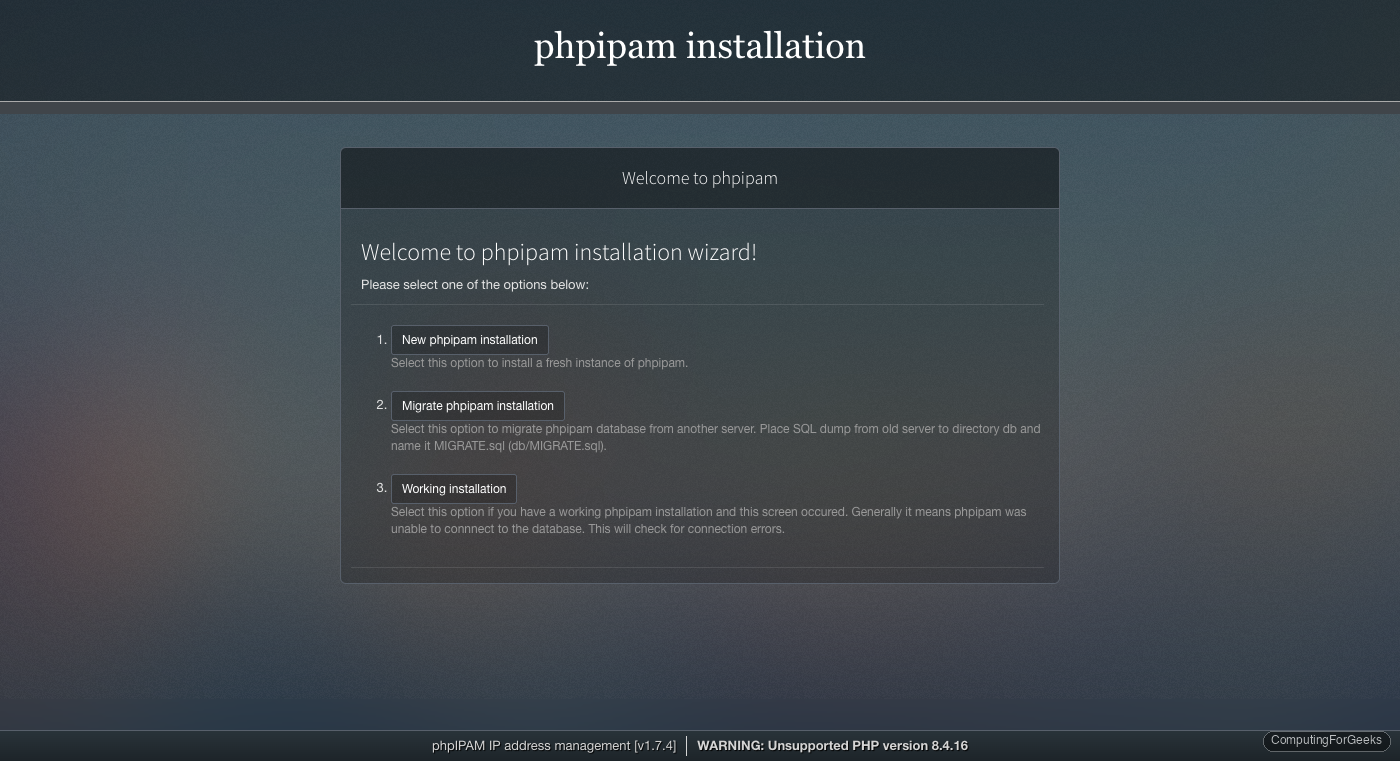
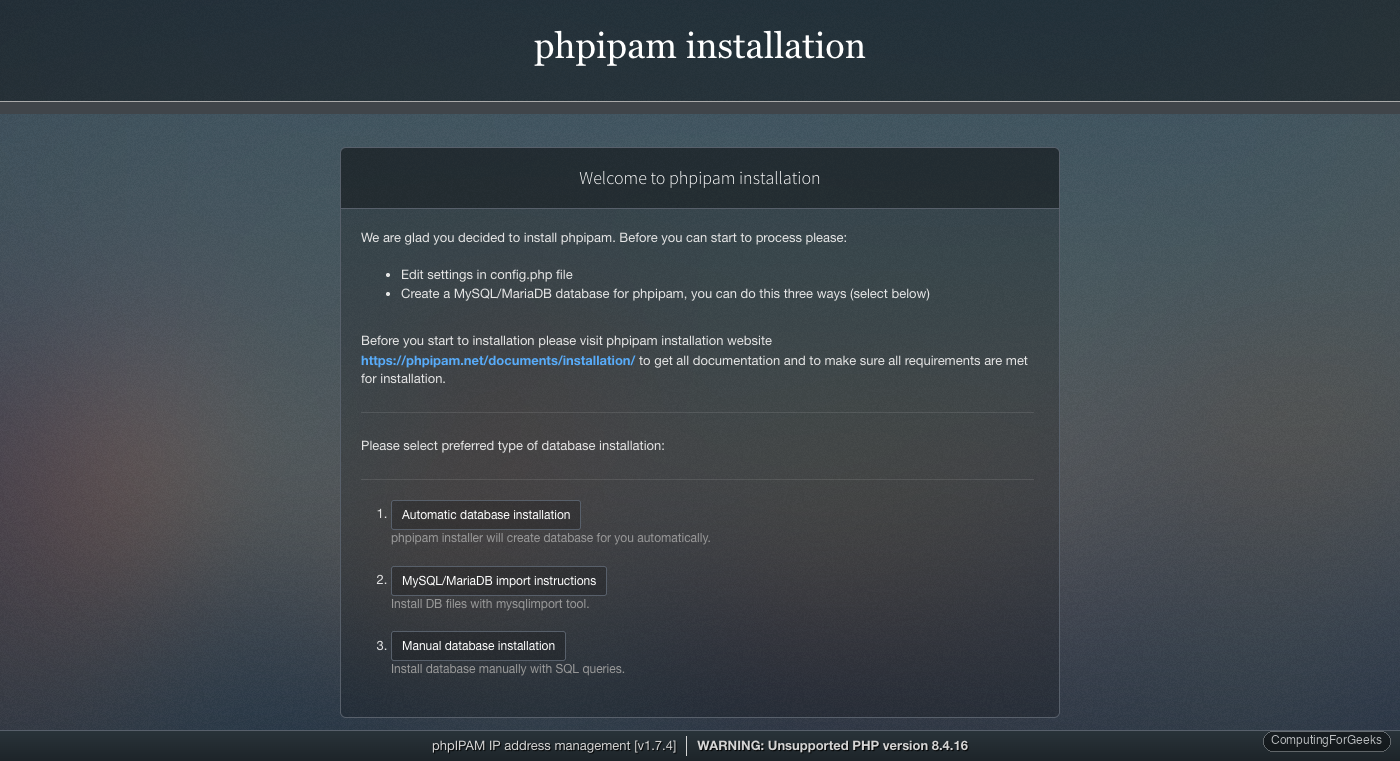
The wizard offers three database setup methods:
- Automatic database installation: phpIPAM creates the database for you
- MySQL/MariaDB import instructions: manual import using the CLI (our method)
- Manual database installation: run SQL queries manually
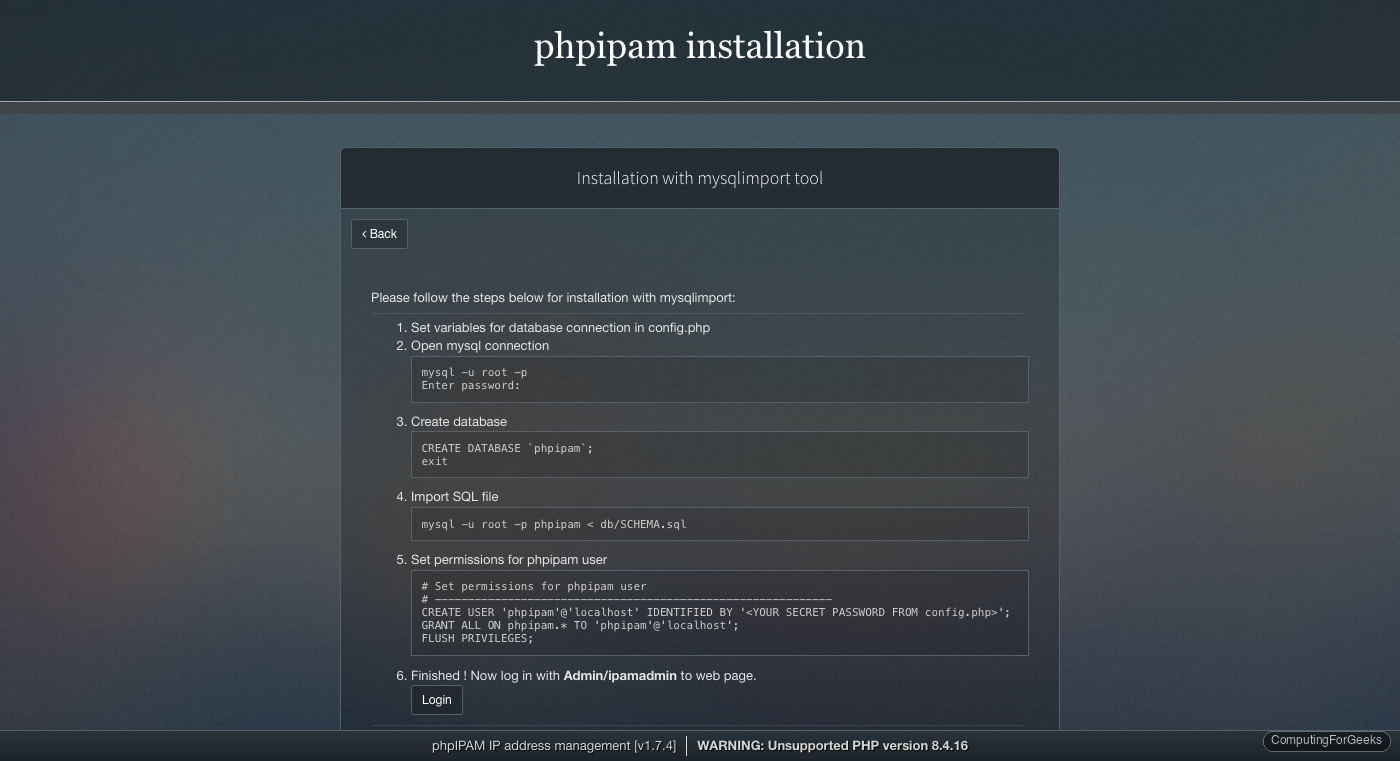
Since we already imported the schema via CLI, click “MySQL/MariaDB import instructions” to confirm the steps match what we did, then click “Login” at the bottom of the page.
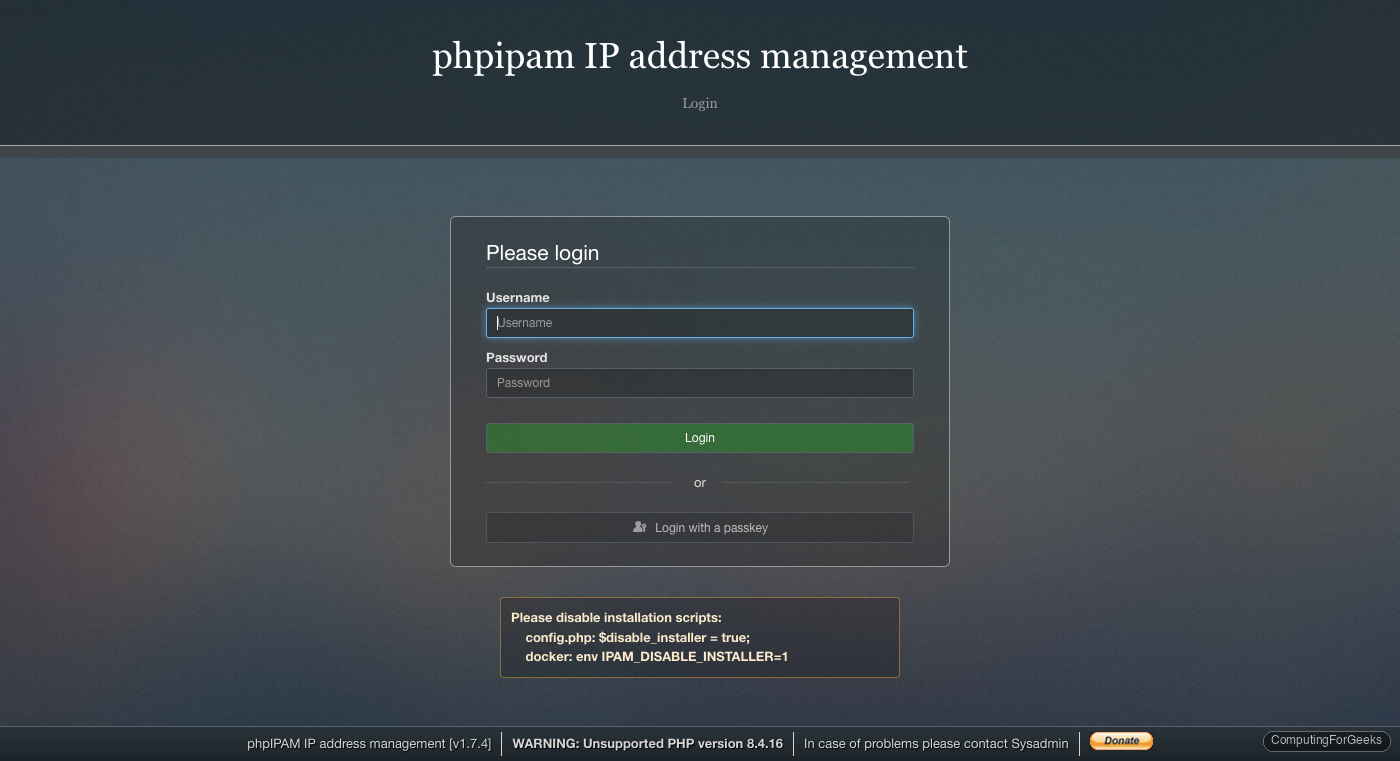
Log in with the default credentials: username admin, password ipamadmin.
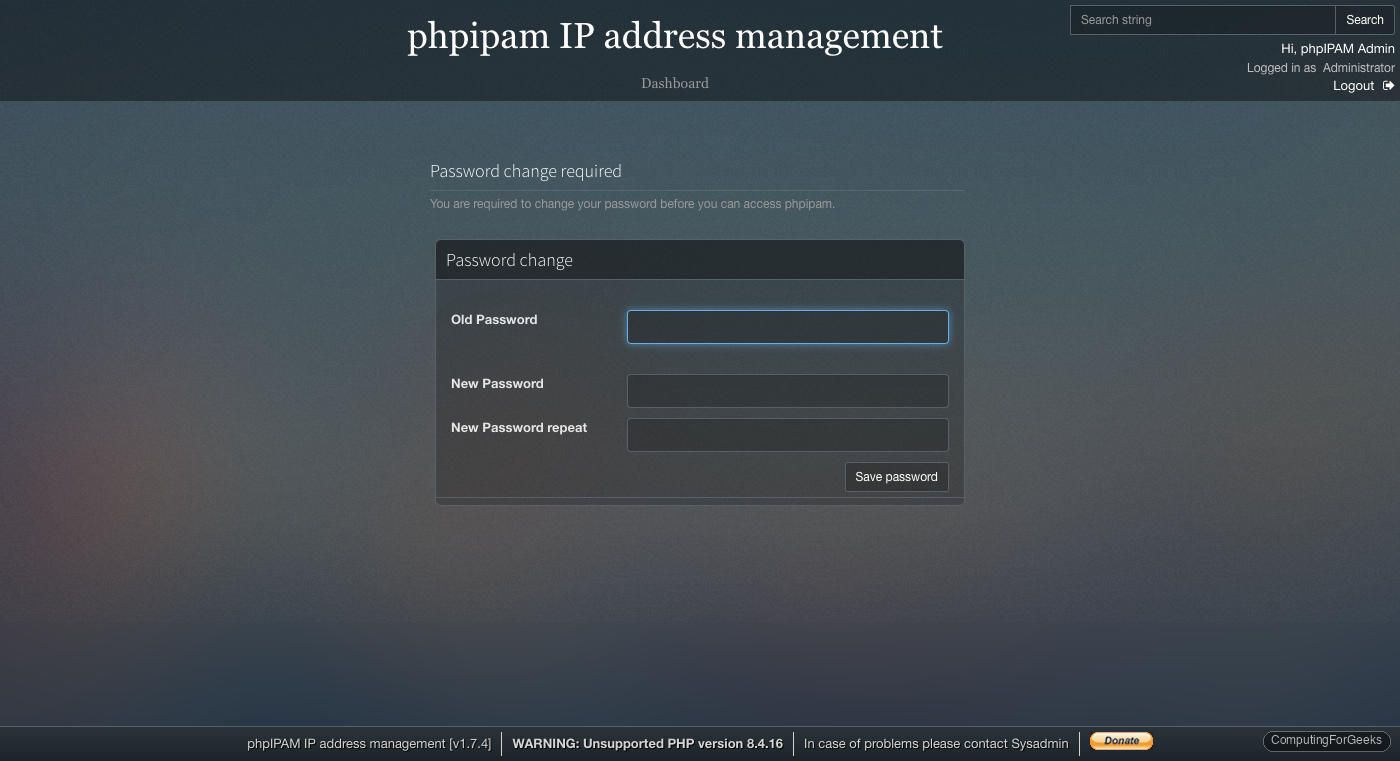
After logging in, phpIPAM immediately requires you to change the default admin password. Pick a strong password (alphanumeric characters, minimum 8 characters).
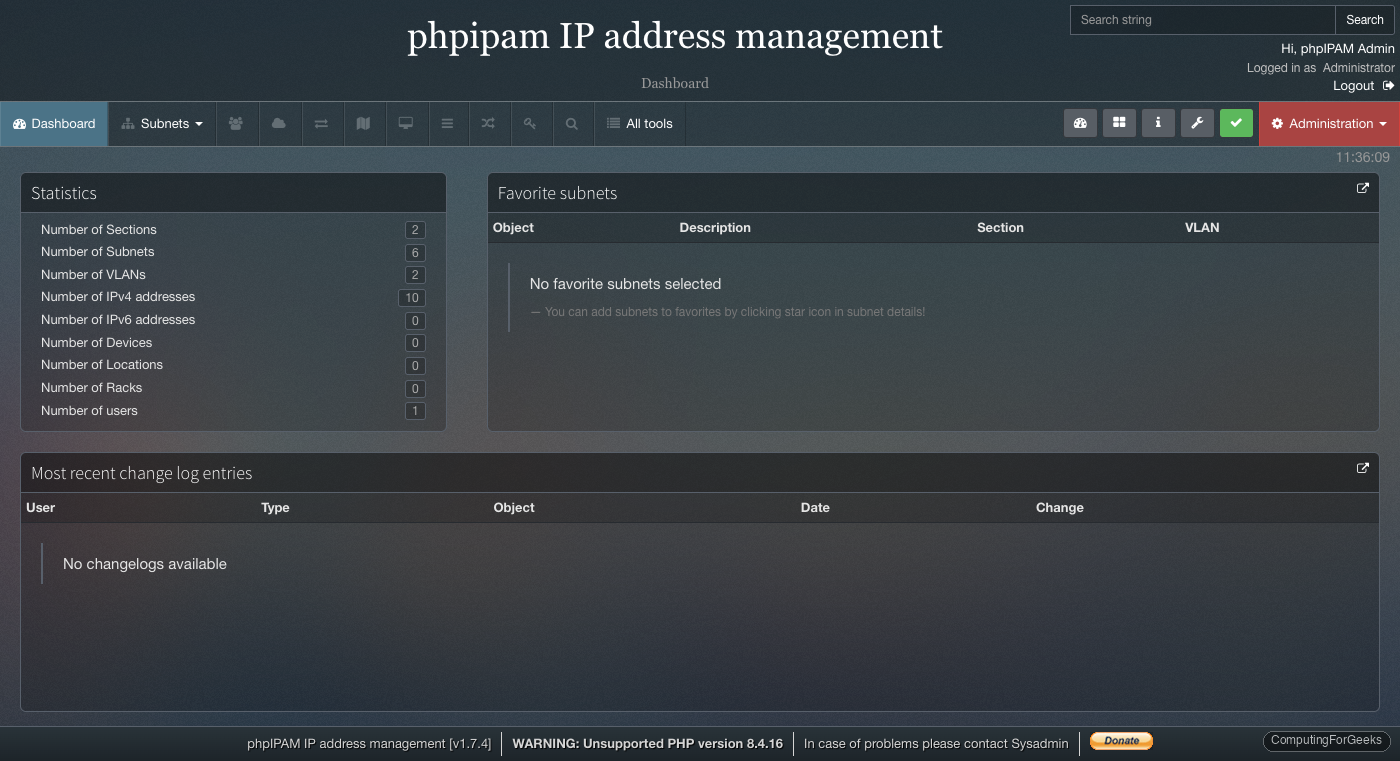
Once the password is updated, you land on the phpIPAM dashboard. The statistics panel shows sections, subnets, VLANs, IP addresses, and devices.
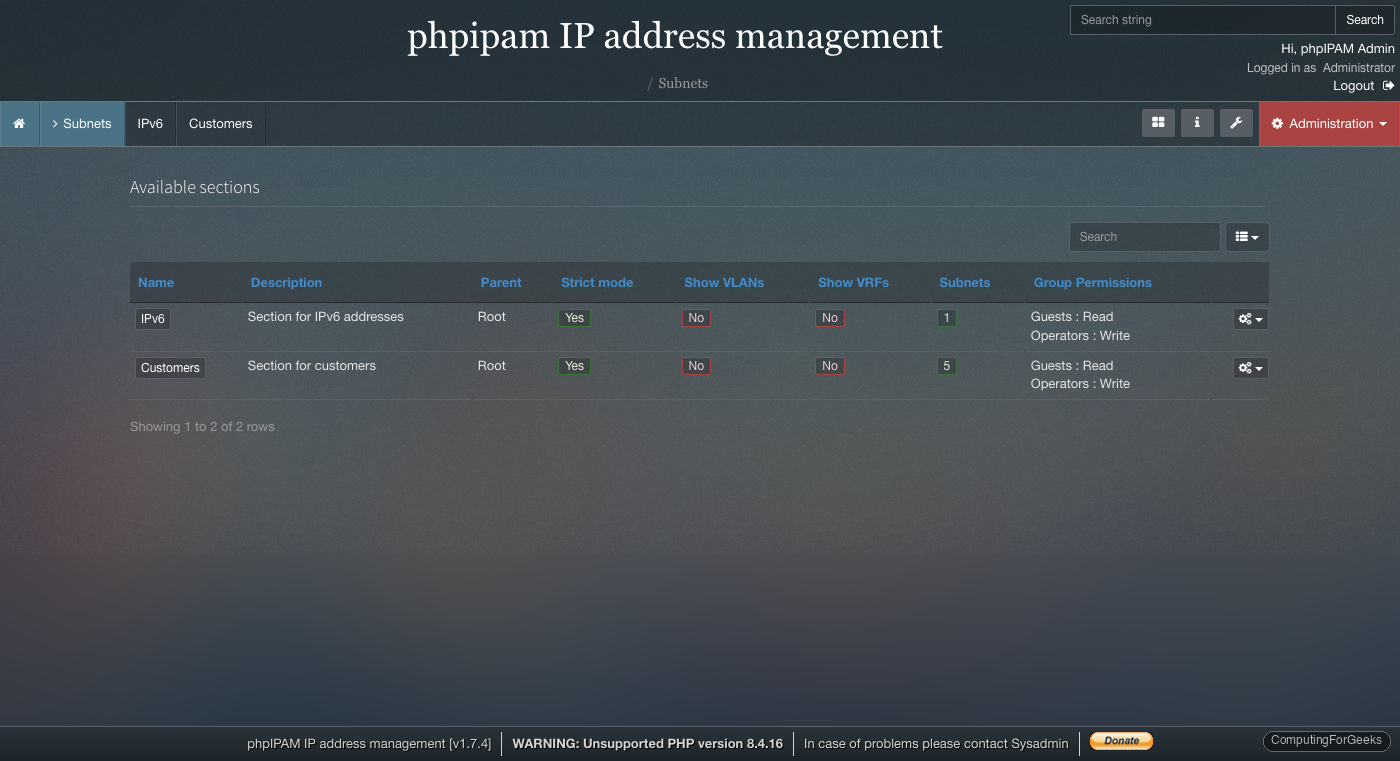
The Subnets page is where you manage IP address sections, subnets, and individual addresses:
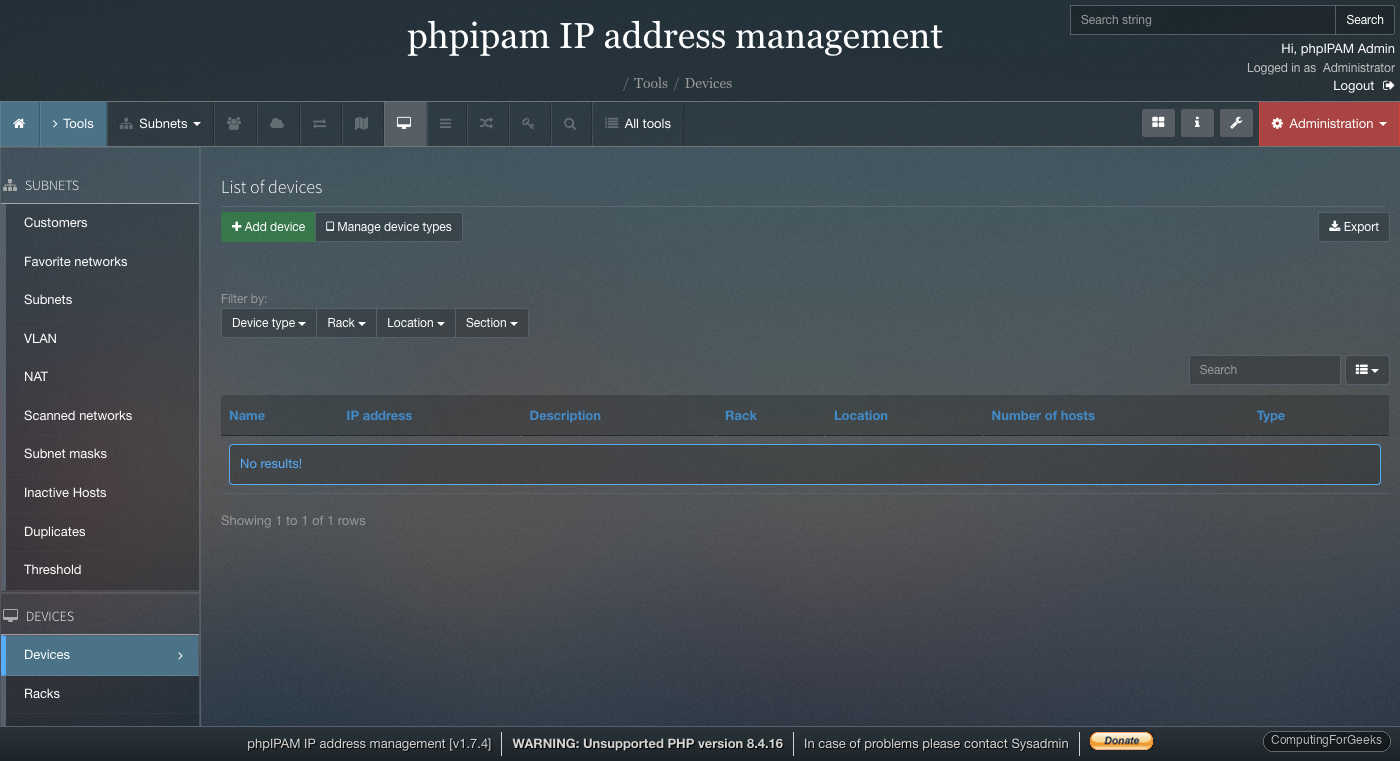
Under Tools > Devices, you can add network devices (switches, routers, firewalls) and track their interfaces and IP assignments:
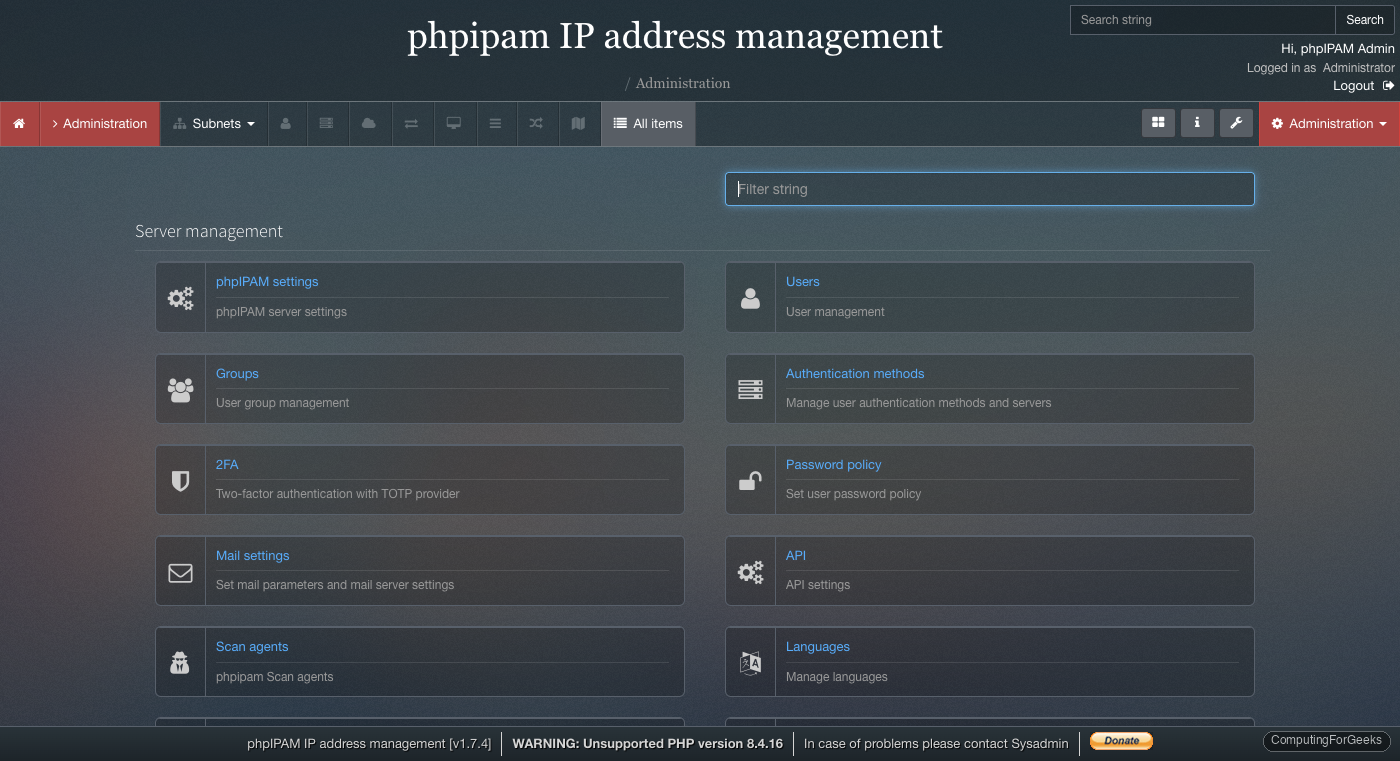
The Administration panel provides server-level settings: phpIPAM configuration, user management, authentication methods, API access, mail settings, and scan agents:
Disable the Installer
After confirming everything works, disable the installer to prevent unauthorized access. Edit config.php:
sudo vi /var/www/html/phpipam/config.phpChange the installer flag:
$disable_installer = true;Production Hardening
With phpIPAM running, a few post-install tweaks will make it production-ready:
- Database backups: Schedule daily MariaDB dumps. phpIPAM has a built-in backup feature under Administration > phpIPAM Settings > Database backup, or use
mysqldumpwith cron - LDAP/AD authentication: If your organization uses Active Directory, configure LDAP auth under Administration > Authentication methods. This avoids managing separate phpIPAM accounts
- API access: phpIPAM includes a REST API for automation. Enable it under Administration > API to integrate with Ansible, Terraform, or custom scripts. See the phpIPAM API documentation for endpoints
- Scan agents: phpIPAM can ping-scan subnets to discover active hosts. Configure scan agents under Administration > Scan agents. This requires
fping:sudo apt install -y fping - SNMP scanning: For automatic device discovery, enable SNMP under Administration > phpIPAM Settings and configure community strings per subnet
Troubleshooting
“Unsupported PHP version” warning on Debian 13
phpIPAM 1.7.4 was released before PHP 8.4 shipped in Debian 13. The warning banner at the bottom of every page is cosmetic. Adding $allow_untested_php_versions=true; to config.php suppresses the installation block, but the warning banner stays. phpIPAM works correctly with PHP 8.4.
Error: “SQLSTATE[HY000] [1045] Access denied for user”
This means the database credentials in config.php don’t match what you set in MariaDB. Double-check $db['user'] and $db['pass'] values. Re-run the GRANT statement if needed:
sudo mariadb -u root -p -e "GRANT ALL ON phpipam.* TO 'phpipam'@'localhost' IDENTIFIED BY 'YourPassword'; FLUSH PRIVILEGES;"“mod_rewrite” not enabled
If you see 404 errors when navigating phpIPAM pages, mod_rewrite is not enabled. Check with:
apache2ctl -M | grep rewriteIf empty, enable it and restart Apache:
sudo a2enmod rewrite
sudo systemctl restart apache2
Package differences between Debian 13 and Debian 12
| Component | Debian 13 (Trixie) | Debian 12 (Bookworm) |
|---|---|---|
| PHP version | 8.4 | 8.2 |
| MariaDB version | 11.8 | 10.11 |
| php-imap | Not available (removed) | Available |
| PHP config path | /etc/php/8.4/ | /etc/php/8.2/ |
| PHP version flag needed | Yes ($allow_untested_php_versions) | No |
