

PHP 8.5 brings Zend Engine 4.5, improved OPcache with a 64 MB JIT buffer by default, the new uri extension for URL parsing, the lexbor HTML parser, and performance improvements across the board. It’s available on Ubuntu 24.04 through the Ondrej Sury PPA, which tracks PHP releases within days of their official release.
This guide covers installing PHP 8.5 on Ubuntu 24.04 LTS with all common extensions, configuring PHP-FPM with Nginx, tuning OPcache and JIT for production, and verifying everything works. All commands tested on a live Ubuntu 24.04 server.
Prerequisites
- Ubuntu 24.04 LTS with sudo access
- At least 512 MB RAM (1 GB+ for PHP-FPM with multiple workers)
Step 1: Add the Ondrej Sury PHP PPA
Ubuntu 24.04 ships PHP 8.3 in its default repos. For PHP 8.5, add the Ondrej Sury PPA which is the de facto standard source for PHP on Ubuntu and Debian:
sudo apt update
sudo apt install -y software-properties-common apt-transport-https
sudo add-apt-repository -y ppa:ondrej/php
sudo apt update
Verify PHP 8.5 packages are available:
$ apt-cache search php8.5 | head -10
libapache2-mod-php8.5 - server-side, HTML-embedded scripting language (Apache 2 module)
php8.5 - server-side, HTML-embedded scripting language (metapackage)
php8.5-bcmath - Bcmath module for PHP
php8.5-cli - command-line interpreter for the PHP scripting language
php8.5-common - documentation, examples and common module for PHP
php8.5-curl - CURL module for PHP
php8.5-fpm - server-side, HTML-embedded scripting language (FPM-CGI binary)
php8.5-gd - GD module for PHP
php8.5-intl - Internationalisation module for PHP
php8.5-mbstring - MBSTRING module for PHP
Step 2: Install PHP 8.5 with Common Extensions
sudo apt install -y php8.5 php8.5-fpm php8.5-cli php8.5-common \
  php8.5-mysql php8.5-pgsql php8.5-curl php8.5-gd php8.5-mbstring \
  php8.5-xml php8.5-zip php8.5-intl php8.5-redis \
  php8.5-bcmath php8.5-soap php8.5-ldap php8.5-imagick
Note: OPcache is bundled in php8.5-common starting with PHP 8.5 – there’s no separate php8.5-opcache package.
Here’s what each extension is for:
| Extension | Used By |
|---|---|
| mysql, pgsql | WordPress, Laravel, Drupal (database drivers) |
| curl | API calls, HTTP clients |
| gd, imagick | Image processing (thumbnails, avatars, charts) |
| mbstring | Unicode/UTF-8 string handling |
| xml | RSS feeds, SOAP, SVG processing |
| zip | Plugin/theme uploads, file exports |
| intl | Localization, number/date formatting |
| redis | Session storage, caching (WooCommerce, Magento) |
| bcmath | Financial calculations, cryptocurrency |
| soap | Legacy SOAP web service integrations |
| ldap | Active Directory / LDAP authentication |
Step 3: Verify the Installation
$ php8.5 --version
PHP 8.5.3 (cli) (built: Feb 13 2026 16:01:19) (NTS)
Copyright (c) The PHP Group
Built by Debian
Zend Engine v4.5.3, Copyright (c) Zend Technologies
    with Zend OPcache v8.5.3, Copyright (c), by Zend Technologies
Check loaded modules (should be 59+):
$ php8.5 -m | wc -l
60

$ php8.5 -m | head -20
[PHP Modules]
bcmath
calendar
Core
ctype
curl
date
dom
exif
FFI
fileinfo
filter
ftp
gd
gettext
hash
iconv
igbinary
imagick
intl
New in PHP 8.5 – the uri and lexbor extensions are loaded by default:
$ php8.5 -m | grep -E 'uri|lexbor'
lexbor
uri
Step 4: Enable and Start PHP-FPM
sudo systemctl enable --now php8.5-fpmVerify it’s running:
$ sudo systemctl status php8.5-fpm
● php8.5-fpm.service - The PHP 8.5 FastCGI Process Manager
     Loaded: loaded (/usr/lib/systemd/system/php8.5-fpm.service; enabled; preset: enabled)
     Active: active (running)
   Main PID: 16108 (php-fpm8.5)
     Status: "Processes active: 0, idle: 2, Requests: 0, slow: 0, Traffic: 0.00req/sec"
Check the FPM socket:
$ ls -la /run/php/php8.5-fpm.sock
srw-rw---- 1 www-data www-data 0 Mar 18 18:17 /run/php/php8.5-fpm.sock
Step 5: Configure php.ini for Production
The default php.ini values are conservative. For web applications, adjust these in /etc/php/8.5/fpm/php.ini:
sudo vim /etc/php/8.5/fpm/php.iniKey settings to change:
; Memory and execution limits
memory_limit = 256M
max_execution_time = 60
max_input_time = 60
max_input_vars = 5000

; File uploads
upload_max_filesize = 64M
post_max_size = 64M

; Error handling (production)
display_errors = Off
log_errors = On
error_log = /var/log/php8.5-fpm.log

; Timezone
date.timezone = UTC

; OPcache (enabled by default in 8.5)
opcache.enable = 1
opcache.memory_consumption = 256
opcache.interned_strings_buffer = 16
opcache.max_accelerated_files = 20000
opcache.validate_timestamps = 0
opcache.save_comments = 1

; JIT Compilation (new default buffer in 8.5)
opcache.jit = tracing
opcache.jit_buffer_size = 64M
Setting opcache.validate_timestamps = 0 means PHP won’t check if files changed on every request – significant performance gain. Restart PHP-FPM after deploying new code instead. Set to 1 during development.
Restart PHP-FPM to apply:
sudo systemctl restart php8.5-fpmStep 6: Configure PHP-FPM Pool
Edit the default pool at /etc/php/8.5/fpm/pool.d/www.conf:
sudo vim /etc/php/8.5/fpm/pool.d/www.confAdjust the process manager settings based on your server RAM:
; For a 2GB RAM server
pm = dynamic
pm.max_children = 20
pm.start_servers = 5
pm.min_spare_servers = 3
pm.max_spare_servers = 10
pm.max_requests = 500

; Enable slow log for debugging
slowlog = /var/log/php8.5-fpm-slow.log
request_slowlog_timeout = 5s

; Status page (useful for monitoring)
pm.status_path = /fpm-status
ping.path = /fpm-ping
Process manager modes explained:
dynamic– spawns workers on demand between min/max. Best for most workloadsstatic– fixed number of workers (setpm.max_childrenonly). Best for predictable high trafficondemand– no idle workers, spawns on request. Best for low-traffic sites sharing a server
Formula for pm.max_children: divide available RAM by average PHP process size. Check process memory with ps -eo rss,comm | grep php-fpm | awk '{sum+=$1; n++} END {print sum/n/1024 " MB per process"}'
Step 7: Integrate with Nginx
sudo apt install -y nginxCreate an Nginx server block that passes PHP to FPM:
sudo tee /etc/nginx/sites-available/default > /dev/null << 'NGINX'
server {
    listen 80 default_server;
    root /var/www/html;
    index index.php index.html;
    server_name _;

    location / {
        try_files $uri $uri/ /index.php?$query_string;
    }

    location ~ \.php$ {
        include snippets/fastcgi-php.conf;
        fastcgi_pass unix:/run/php/php8.5-fpm.sock;
        fastcgi_param SCRIPT_FILENAME $document_root$fastcgi_script_name;
    }

    # Deny access to hidden files
    location ~ /\. {
        deny all;
    }
}
NGINX

sudo nginx -t && sudo systemctl restart nginx
Step 8: Test PHP with Nginx
Create a test page:
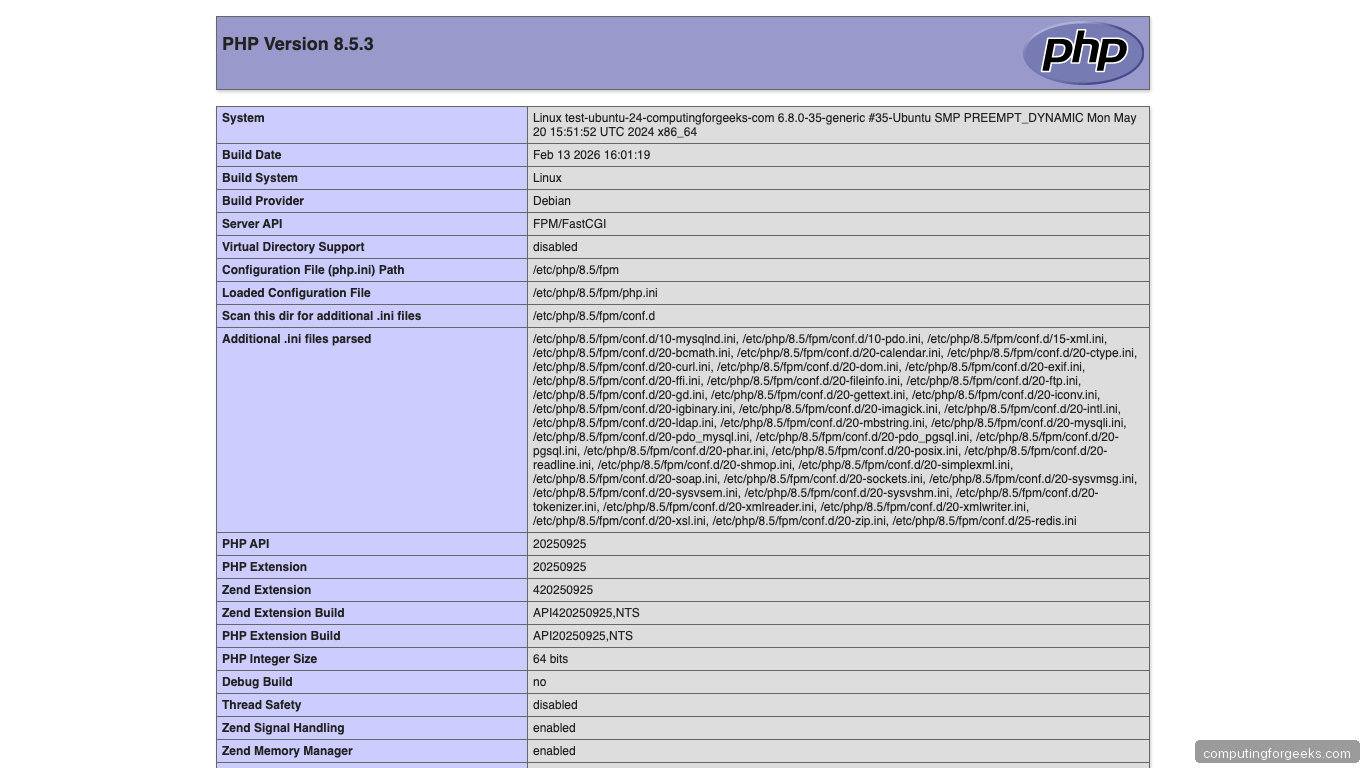
echo '<?php phpinfo(); ?>' | sudo tee /var/www/html/info.phpOpen http://your-server-ip/info.php in your browser. You should see the PHP 8.5 information page:
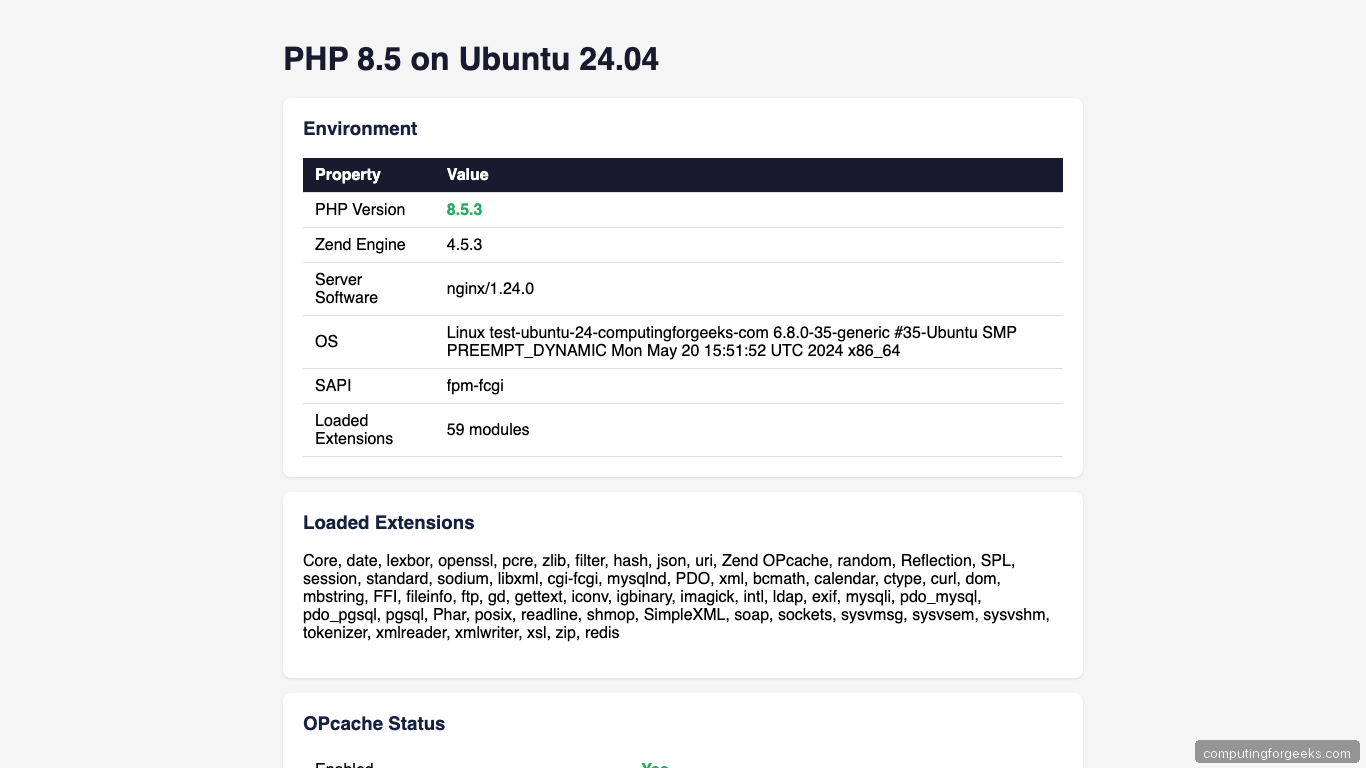
A more detailed test page showing extensions and OPcache status:
Remove the test files after verifying:
sudo rm /var/www/html/info.php /var/www/html/test.phpStep 9: Integrate with Apache (Alternative)
If you use Apache instead of Nginx:
# Option A: PHP-FPM with Apache (recommended)
sudo apt install -y apache2 libapache2-mod-fcgid
sudo a2enmod proxy_fcgi setenvif
sudo a2enconf php8.5-fpm
sudo systemctl restart apache2

# Option B: mod_php (simpler but less performant)
sudo apt install -y apache2 libapache2-mod-php8.5
sudo systemctl restart apache2
PHP-FPM with Apache is the better choice - it separates the PHP process from Apache, allows independent scaling, and doesn't load PHP into every Apache worker.
Step 10: Set PHP 8.5 as Default Version
If you have multiple PHP versions installed, set 8.5 as the default CLI version:
sudo update-alternatives --set php /usr/bin/php8.5
sudo update-alternatives --set phpize /usr/bin/phpize8.5
sudo update-alternatives --set php-config /usr/bin/php-config8.5

# Verify
$ php --version
PHP 8.5.3 (cli) ...
To switch between versions:
sudo update-alternatives --config phpWhat's New in PHP 8.5
Key changes from PHP 8.4:
- uri extension - built-in URL parsing and manipulation (replaces
parse_url()for complex cases) - lexbor HTML parser - fast, standards-compliant HTML5 parsing built into core
- Pipe operator -
$result = $value |> strtolower(...) |> trim(...);for functional-style chaining - Improved JIT - 64 MB default buffer, better trace optimization
- OPcache improvements - reduced memory usage, faster warm-up
- Locale-independent float to string - consistent behavior across locales
Troubleshooting
502 Bad Gateway after restarting Nginx:
PHP-FPM isn't running or the socket path is wrong. Check: sudo systemctl status php8.5-fpm and verify the socket path in your Nginx config matches /run/php/php8.5-fpm.sock.
"Call to undefined function" errors:
A required extension isn't installed. Check which extensions are loaded with php8.5 -m and install missing ones with sudo apt install php8.5-EXTENSION.
php.ini changes not taking effect:
You edited the CLI php.ini instead of the FPM one. FPM config is at /etc/php/8.5/fpm/php.ini, CLI is at /etc/php/8.5/cli/php.ini. Always restart FPM after changes: sudo systemctl restart php8.5-fpm
OPcache not caching scripts:
php8.5 -r "var_dump(opcache_get_status()['opcache_enabled']);"OPcache is enabled for FPM by default but disabled for CLI. If it shows false in FPM, check that opcache.enable=1 is set in /etc/php/8.5/fpm/php.ini.
Multiple PHP versions conflicting:
# List all installed PHP versions
dpkg -l | grep php | grep -E '^ii' | awk '{print $2}' | grep -oP 'php\d+\.\d+' | sort -u

# Disable old FPM versions
sudo systemctl disable --now php8.3-fpm
sudo systemctl disable --now php8.4-fpm
Conclusion
PHP 8.5 on Ubuntu 24.04 gives you the latest performance improvements and language features. For production WordPress, Laravel, or Drupal sites, enable OPcache with JIT tracing, tune pm.max_children based on your RAM, and set opcache.validate_timestamps=0 for maximum throughput. The PHP 8.5 upgrade from 8.4 is backward compatible for most applications - test in staging first if you're migrating from 8.3 or earlier.
Related guides:
