

If you run PHP in production on Debian, you already know the default repos are always a version or two behind. Debian 13 (Trixie) ships PHP 8.2, which is fine for maintenance but misses the performance gains and language features in PHP 8.5. The Sury repository fixes this – it’s maintained by the same person who packages PHP for Debian officially, so the packages are well-tested and follow Debian conventions.
This guide covers installing PHP 8.5 on Debian 13 (Trixie) and Debian 12 (Bookworm) from the Sury repo, setting up PHP-FPM with Nginx, tuning for production, and the Debian-specific details you need to know. Every command was tested on a fresh Debian 13 server.
Prerequisites
- Debian 13 or Debian 12 with sudo access
- At least 512 MB RAM
Step 1: Add the Sury PHP Repository
Unlike Ubuntu where you use a PPA, Debian requires adding the Sury APT repo manually with a signed GPG key. Install the prerequisites first:
sudo apt update
sudo apt install -y lsb-release ca-certificates curl
Download the repository signing key and add the source:
sudo mkdir -p /etc/apt/keyrings
sudo curl -sSL https://packages.sury.org/php/apt.gpg -o /etc/apt/keyrings/sury-php.gpg

CODENAME=$(lsb_release -sc)
echo "deb [signed-by=/etc/apt/keyrings/sury-php.gpg] https://packages.sury.org/php/ ${CODENAME} main" | \
  sudo tee /etc/apt/sources.list.d/sury-php.list

sudo apt update
This works for both Debian 13 (trixie) and Debian 12 (bookworm) – the lsb_release -sc command picks the right codename automatically.
Verify PHP 8.5 packages are available:
$ apt-cache search php8.5 | head -5
libapache2-mod-php8.5 - server-side, HTML-embedded scripting language (Apache 2 module)
php8.5 - server-side, HTML-embedded scripting language (metapackage)
php8.5-bcmath - Bcmath module for PHP
php8.5-cli - command-line interpreter for the PHP scripting language
php8.5-fpm - server-side, HTML-embedded scripting language (FPM-CGI binary)
Step 2: Install PHP 8.5 with Extensions
sudo apt install -y php8.5 php8.5-fpm php8.5-cli php8.5-common \
  php8.5-mysql php8.5-pgsql php8.5-curl php8.5-gd php8.5-mbstring \
  php8.5-xml php8.5-zip php8.5-intl php8.5-redis \
  php8.5-bcmath php8.5-soap php8.5-imagick
A few Debian-specific notes:
- OPcache is bundled in
php8.5-commonin PHP 8.5 – no separate package needed php8.5-ldapis available on Debian (it wasn’t on some earlier builds)- The
php8.5-imagickpackage works on both Debian 13 and 12
Step 3: Verify the Installation
$ php8.5 --version
PHP 8.5.3 (cli) (built: Feb 13 2026 15:50:47) (NTS)
Copyright (c) The PHP Group
Built by Debian
Zend Engine v4.5.3, Copyright (c) Zend Technologies
    with Zend OPcache v8.5.3, Copyright (c), by Zend Technologies
Check loaded modules:
$ php8.5 -m | grep -c '^\w'
59
59 modules loaded. New in PHP 8.5 – the uri and lexbor extensions ship by default:
$ php8.5 -m | grep -E 'uri|lexbor'
lexbor
uri
The lexbor extension provides fast HTML5 parsing (replaces DOMDocument for many use cases), and uri adds proper URL parsing and manipulation to core.
Step 4: Enable and Start PHP-FPM
Start and enable php-fpm service:
sudo systemctl enable --now php8.5-fpmVerify:
$ sudo systemctl status php8.5-fpm
● php8.5-fpm.service - The PHP 8.5 FastCGI Process Manager
     Loaded: loaded (/usr/lib/systemd/system/php8.5-fpm.service; enabled)
     Active: active (running)
   Main PID: 16108 (php-fpm8.5)
     Status: "Processes active: 0, idle: 2, Requests: 0"
Check the socket is listening:
$ ls -la /run/php/php8.5-fpm.sock
srw-rw---- 1 www-data www-data 0 Mar 18 19:55 /run/php/php8.5-fpm.sock
Step 5: Configure php.ini for Production
The FPM and CLI have separate php.ini files on Debian. For web applications, edit the FPM config:
sudo vim /etc/php/8.5/fpm/php.iniKey settings to change from defaults:
; Memory and limits
memory_limit = 256M
max_execution_time = 60
max_input_time = 60
max_input_vars = 5000

; Uploads
upload_max_filesize = 64M
post_max_size = 64M

; Error handling
display_errors = Off
log_errors = On
error_log = /var/log/php8.5-fpm.log

; Timezone
date.timezone = UTC

; OPcache
opcache.enable = 1
opcache.memory_consumption = 256
opcache.interned_strings_buffer = 16
opcache.max_accelerated_files = 20000
opcache.validate_timestamps = 0

; JIT (PHP 8.5 defaults to 64M buffer)
opcache.jit = tracing
opcache.jit_buffer_size = 64M
The opcache.validate_timestamps = 0 setting is important for production – PHP won’t stat files on every request. After deploying new code, restart PHP-FPM to pick up changes. Set it to 1 during development.
sudo systemctl restart php8.5-fpmStep 6: Configure PHP-FPM Pool
The default pool config is at /etc/php/8.5/fpm/pool.d/www.conf. The defaults are conservative:
$ grep '^pm\.' /etc/php/8.5/fpm/pool.d/www.conf
pm.max_children = 5
pm.start_servers = 2
pm.min_spare_servers = 1
pm.max_spare_servers = 3
For a 2 GB server, adjust to:
sudo vim /etc/php/8.5/fpm/pool.d/www.confAdd or update the following settings:
pm = dynamic
pm.max_children = 20
pm.start_servers = 5
pm.min_spare_servers = 3
pm.max_spare_servers = 10
pm.max_requests = 500

; Slow log for finding bottlenecks
slowlog = /var/log/php8.5-fpm-slow.log
request_slowlog_timeout = 5s
To calculate pm.max_children for your server, check how much memory each PHP worker uses:
ps -eo rss,comm | grep php-fpm | awk '{sum+=$1; n++} END {print sum/n/1024 " MB per process"}'Divide your available RAM (minus what the OS and other services need) by that number.
sudo systemctl restart php8.5-fpmStep 7: Set Up Nginx with PHP-FPM
Install Nginx web server
sudo apt install -y nginxConfigure the default site to pass PHP requests to FPM:
sudo tee /etc/nginx/sites-available/default > /dev/null << 'NGINX'
server {
    listen 80 default_server;
    root /var/www/html;
    index index.php index.html;
    server_name _;

    location / {
        try_files $uri $uri/ /index.php?$query_string;
    }

    location ~ \.php$ {
        include snippets/fastcgi-php.conf;
        fastcgi_pass unix:/run/php/php8.5-fpm.sock;
        fastcgi_param SCRIPT_FILENAME $document_root$fastcgi_script_name;
    }

    location ~ /\. { deny all; }
}
NGINX

sudo nginx -t && sudo systemctl restart nginx
Step 8: Test PHP
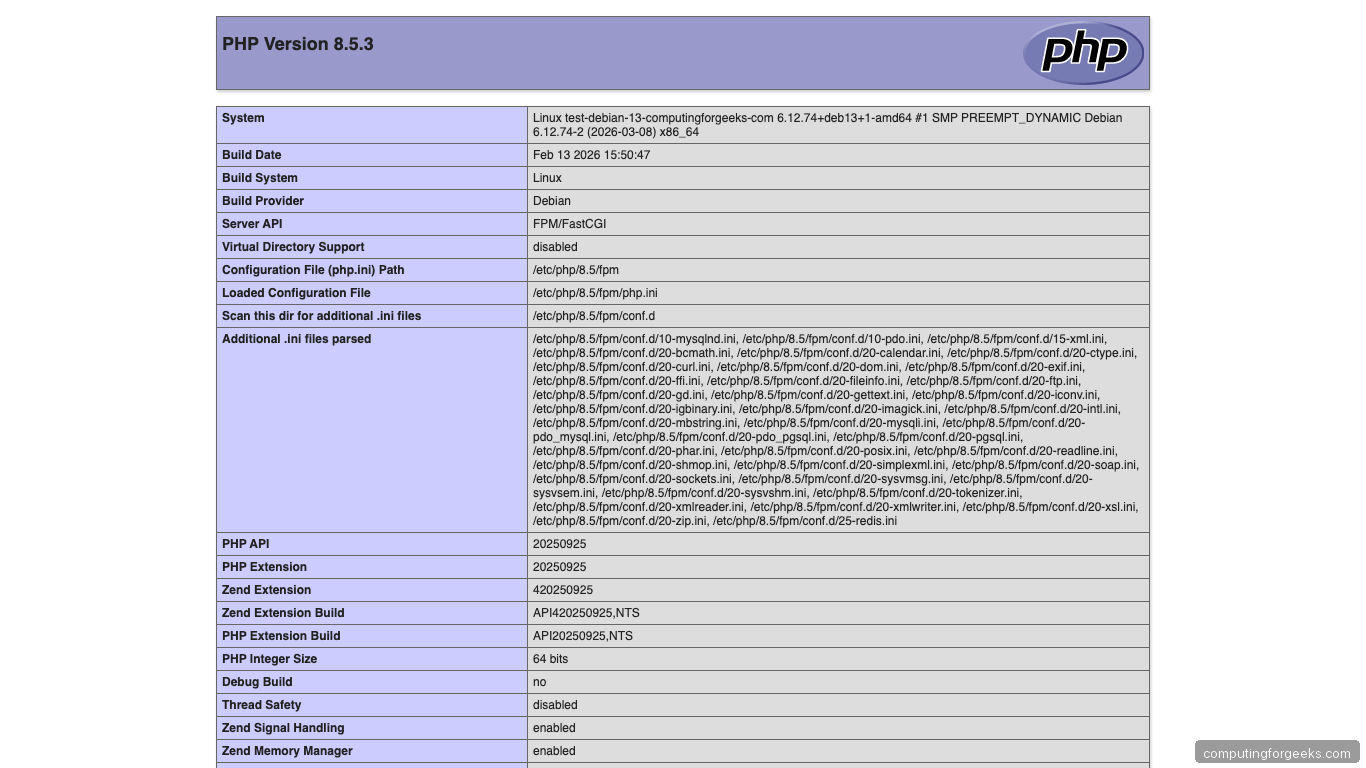
Create a test page:
echo '<?php phpinfo(); ?>' | sudo tee /var/www/html/info.phpOpen http://your-server-ip/info.php in your browser:
Delete the test file after verifying:
sudo rm /var/www/html/info.phpStep 9: Apache Alternative
If you use Apache instead of Nginx, PHP-FPM is still the recommended approach over mod_php:
# Install Apache with FPM support
sudo apt install -y apache2 libapache2-mod-fcgid
sudo a2enmod proxy_fcgi setenvif
sudo a2enconf php8.5-fpm
sudo systemctl restart apache2
If you want the simpler (but less performant) mod_php approach:
sudo apt install -y apache2 libapache2-mod-php8.5
sudo systemctl restart apache2
Step 10: Manage Multiple PHP Versions
The Sury repo lets you run multiple PHP versions side by side. Set 8.5 as the default CLI version:
sudo update-alternatives --set php /usr/bin/php8.5Switch between versions interactively:
sudo update-alternatives --config phpRun different PHP versions for different sites by configuring each Nginx server block to use a different FPM socket (/run/php/php8.4-fpm.sock vs /run/php/php8.5-fpm.sock).
Common troubleshooting
Sury repo returns “not signed” error:
The GPG key download failed or is in the wrong location. Re-run:
sudo curl -sSL https://packages.sury.org/php/apt.gpg -o /etc/apt/keyrings/sury-php.gpgMake sure your sources.list entry references signed-by=/etc/apt/keyrings/sury-php.gpg.
502 Bad Gateway with Nginx:
PHP-FPM is not running or the socket path doesn’t match. Check both:
sudo systemctl status php8.5-fpm
grep fastcgi_pass /etc/nginx/sites-enabled/default
php.ini changes not taking effect:
Debian has separate php.ini files for CLI and FPM. Web changes go in /etc/php/8.5/fpm/php.ini, not /etc/php/8.5/cli/php.ini. Always restart FPM after changes.
Firewall blocking port 80:
Debian 13 uses nftables by default (not UFW). Allow HTTP:
sudo nft add rule inet filter input tcp dport 80 accept
sudo nft add rule inet filter input tcp dport 443 accept
Or install UFW if you prefer it:
sudo apt install -y ufw
sudo ufw allow 'Nginx Full'
sudo ufw enable
Conclusion
PHP 8.5 on Debian 13 works the same as on Ubuntu once the Sury repo is set up – the main difference is the GPG key method. For WordPress, Laravel, or any PHP application, enable OPcache with JIT tracing and tune pm.max_children based on your available RAM. If you’re upgrading from PHP 8.3 or 8.4, the transition is smooth – test your application first, then switch the FPM socket in your Nginx config.
Related guides:
