

We recently published an article on the installation and configuration of oVirt Engine on CentOS Stream 9. While the oVirt Engine provides a web-based administration interface for the management of the virtualized infrastructure, the oVirt Node is compute hypervisor server that will host the virtual machines and provide RAM, CPU, Networking and Storage access to the instances running. The order of installations when setting up oVirt is the engine configurations, then compute hypervisor setup.
oVirt supports two types of Hosts:
- oVirt Node – ISO based installation (it has own image)
- Enterprise Linux (such as CentOS Stream or RHEL)
Our installation process is designed for manual setup on CentOS Stream 9 or Rocky Linux 9 OS. The procedure is applicable to any other Linux derivative of RHEL 9.
Add oVirt Repository
Add the RPM repository that contains oVirt packages for compute.
sudo dnf -y install centos-release-ovirt45For Rocky Linux 9, update repository configurations file to replace $stream with 9-stream. This will enable us to use CentOS Stream 9 repository on Rocky Linux 9 system.
for repo in oVirt-4.5 Storage-common OpenStack-yoga Messaging-rabbitmq NFV-OpenvSwitch Ceph-Pacific Gluster-10 OpsTools; do
 sudo sed -i 's/$stream/9-stream/' /etc/yum.repos.d/CentOS-$repo.repo
done
Install Virtualization tools
Update your CentOS Stream 9 system.
sudo dnf -y updatePerform a reboot after the upgrade.
sudo rebootNext we install Virtualization tools on the hypervisor server machine, including cockpit and vdsm packages.
sudo dnf -y install libvirt qemu-kvm virt-install cockpit vdsmStart and enable the services to come up at system boot.
sudo systemctl enable --now libvirtd cockpit.socketAdd Compute host on oVirt Engine / Manager
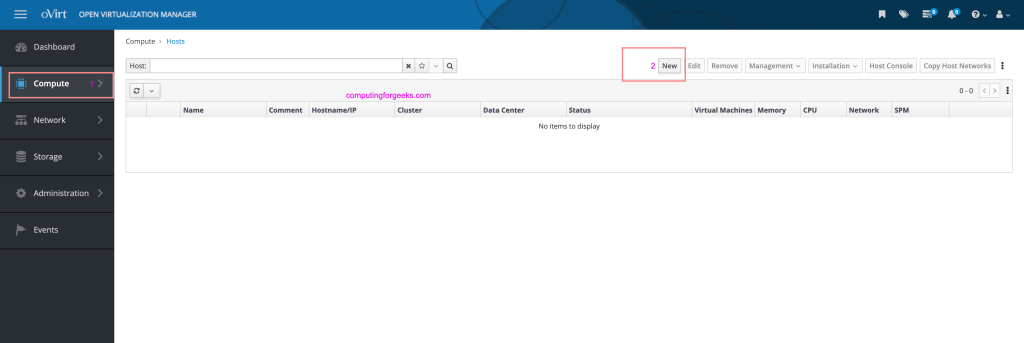
Login to your oVirt Admin portal and navigate to Compute –> Hosts. In this section we can add or remove Virtualization hosts on oVirt. Since we are adding select
Click “New” to add a new host.
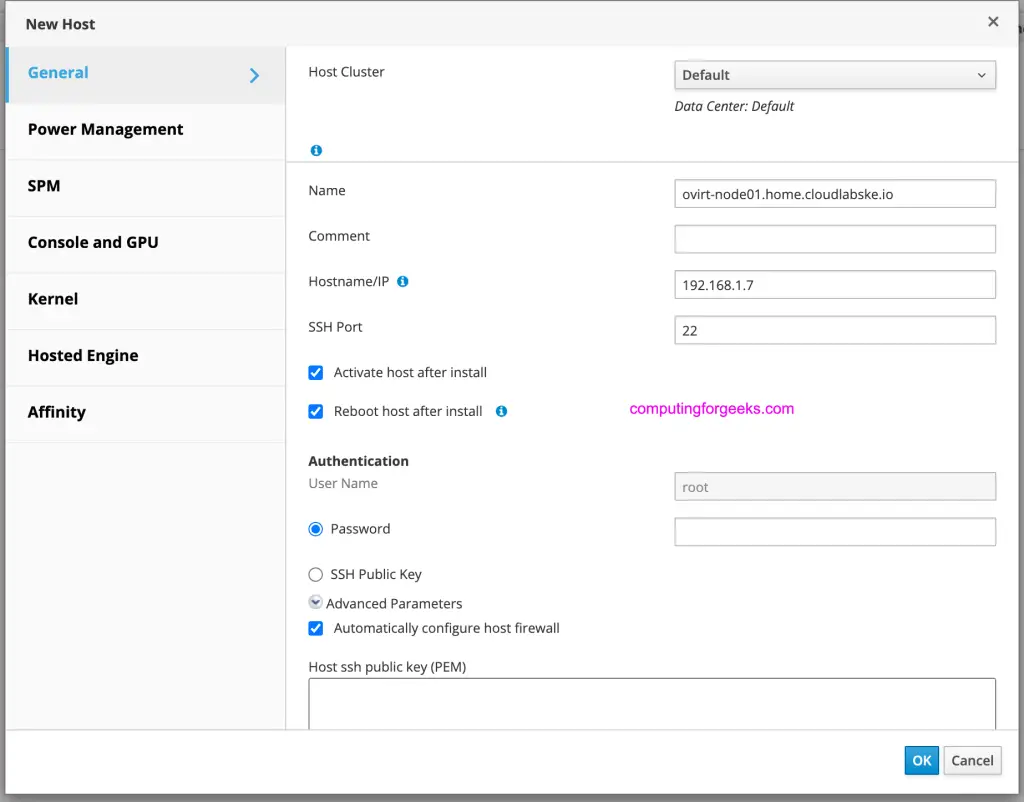
In the next screen you are requested to:
- Select cluster host – Default is okay for most setups
- Provide Name – Used to identify the node in oVirt
- Input the Hostname or IP address of the compute host
- Choose authentication method – Password or SSH key-pair
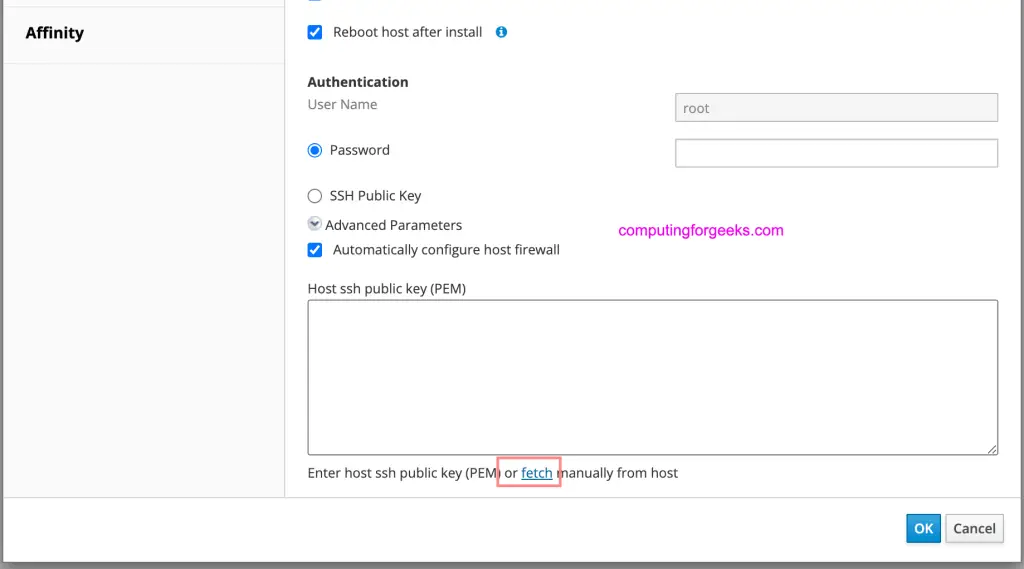
For SSH Public Key, use “fetch” link to get oVirt Manager public key contents.
Copy all text in the text area and paste in in /root/.ssh/authorized_keys on target new Node to be added.
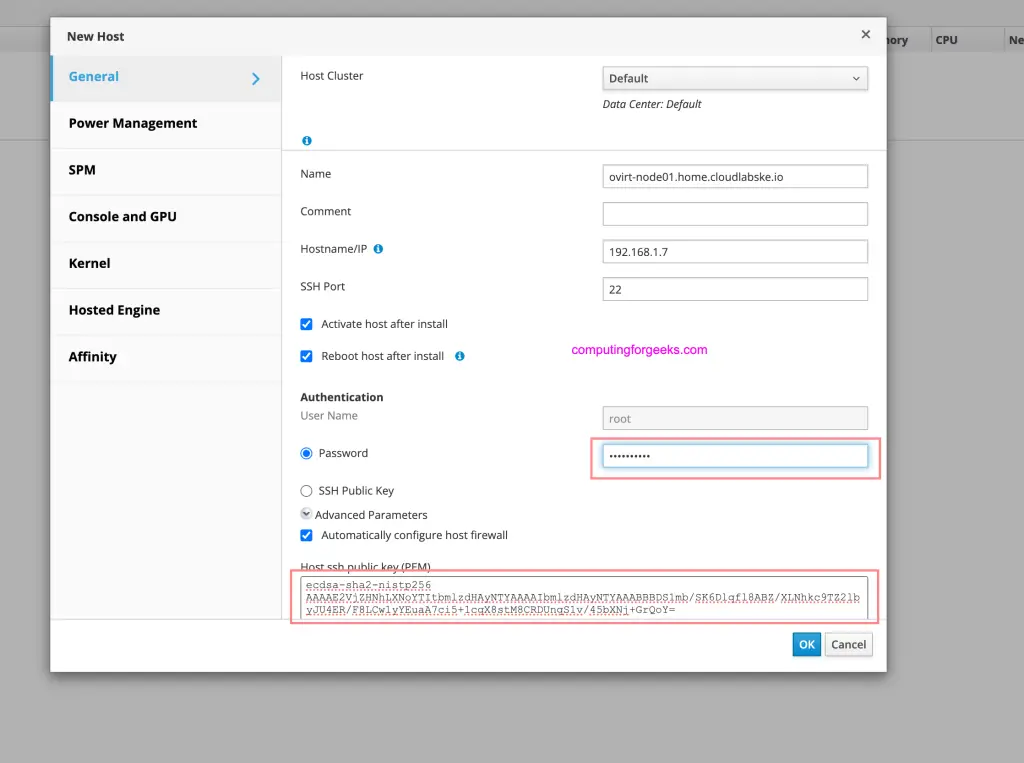
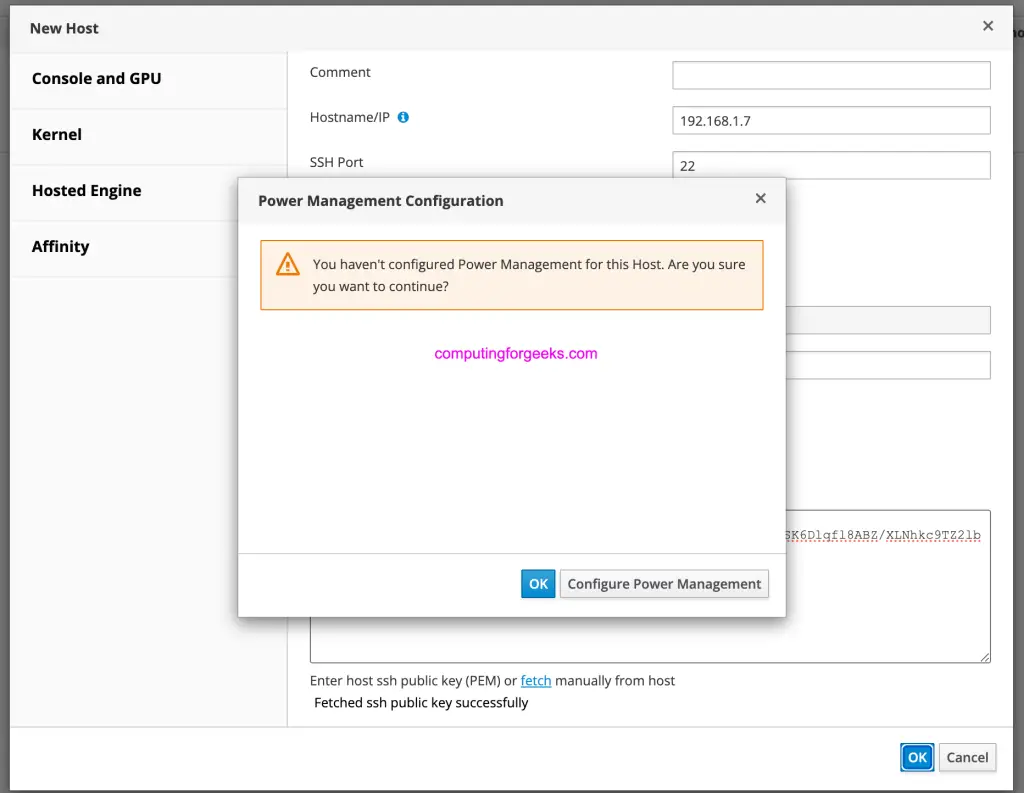
Depending on your compute hardware you can configure “Power Management” if you have IPMI / iLO. This will allow for remote access through hardware console if the server is not reachable on IP / SSH.
If power management is not applicable, click [OK] to proceed without its configuration.
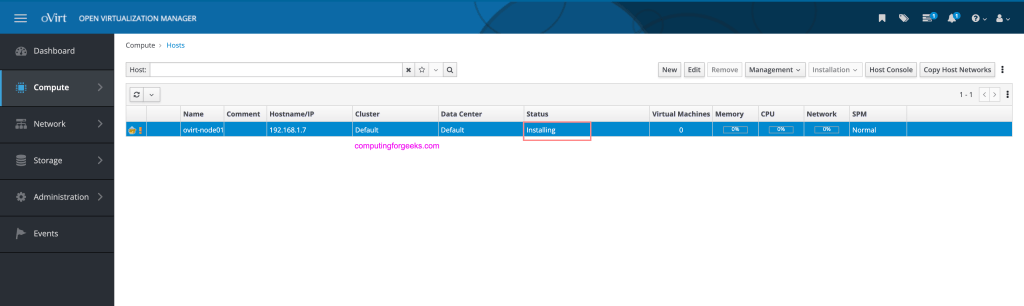
oVirt will use Ansible tasks to configure the new node. A series of actions are applied to ensure the host is ready for use in running Virtual Machines on oVirt virtualization infrastructure.
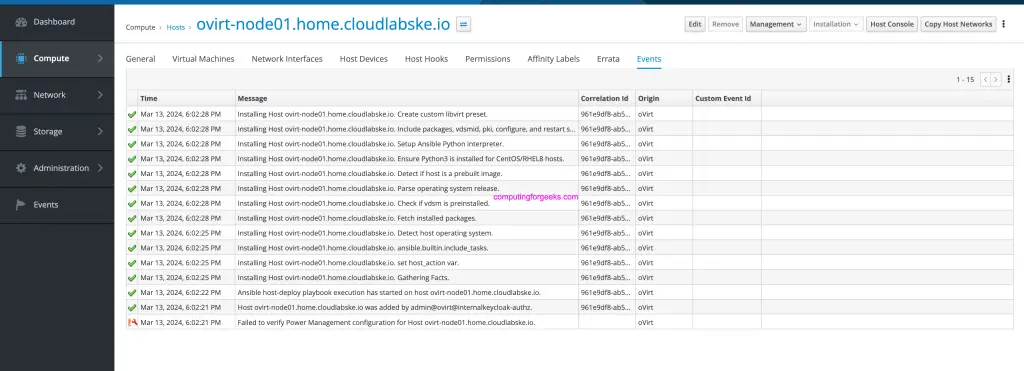
You check node configuration progress under “Events” tab.
If all goes well the node should show “Up” in Status.

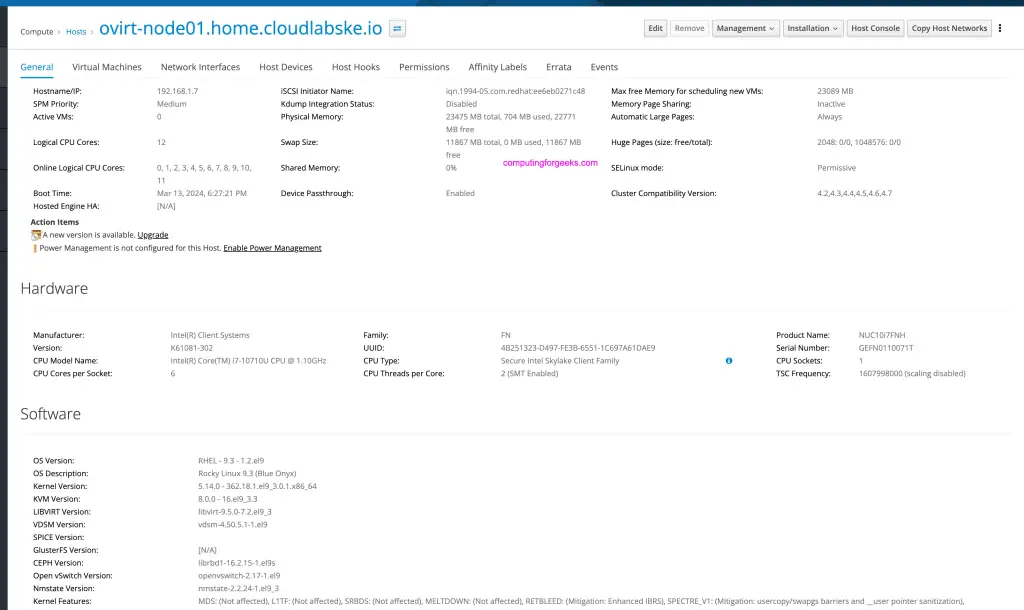
Detailed node information is available on “General” section.
Configure Storage Domain
A storage domain is required for storage of VM disks, ISO images, and VM snapshots. oVirt supports the following storage types.
- NFS Storage
- PosixFS Storage
- iSCSI and FCP Storage
- LocalFS Storage
See the guide below for a step-by-step configurations of Storage Domain.
