

osTicket is a widely used open-source support ticket system that routes inquiries from email, web forms, and API into a shared web interface. It handles ticket assignment, SLA management, canned responses, and team collaboration out of the box. This guide walks through a complete osTicket v1.18 installation on Rocky Linux 10 or AlmaLinux 10 using Nginx as the web server, PHP 8.3 for the application runtime, and MariaDB as the database backend.
Prerequisites
Before starting, make sure you have the following ready:
- A Rocky Linux 10 or AlmaLinux 10 server with root or sudo access
- At least 2 GB RAM and 10 GB disk space
- A domain name or subdomain pointed to the server IP (for production use)
- Ports 80 and 443 open in the firewall
Update the system packages to the latest versions before proceeding.
sudo dnf update -yStep 1: Install Nginx Web Server
Nginx is available in the default Rocky Linux 10 and AlmaLinux 10 repositories. Install and start it with a single command.
sudo dnf install -y nginxEnable the service so it starts automatically on boot, and start it immediately.
sudo systemctl enable --now nginxConfirm Nginx is running and healthy.
sudo systemctl status nginxThe output should show active (running) in green text, confirming the web server is operational.
Step 2: Install PHP 8.3 and Required Extensions
osTicket requires PHP 8.2 or newer. PHP 8.3 is a solid choice that is well-supported and performs well. On Rocky Linux 10 and AlmaLinux 10, PHP 8.3 is available through the Remi repository. For a detailed walkthrough of PHP installation options, see our guide on installing PHP on Rocky Linux 10 / AlmaLinux 10.
Start by installing the EPEL and Remi repositories.
sudo dnf install -y epel-release
sudo dnf install -y https://rpms.remirepo.net/enterprise/remi-release-10.rpm
Enable the PHP 8.3 module stream from the Remi repository.
sudo dnf module reset php -y
sudo dnf module enable php:remi-8.3 -y
Now install PHP-FPM along with all the extensions osTicket needs. This covers both the required extensions (mysqli) and recommended ones (gd, imap, mbstring, intl, xml, json, apcu, opcache).
sudo dnf install -y php php-fpm php-mysqlnd php-gd php-imap php-mbstring php-xml php-json php-intl php-apcu php-opcache php-ldap php-phar php-ctype php-iconv php-dom php-zipVerify the installed PHP version to confirm 8.3 is active.
php -vYou should see PHP 8.3.x in the version output, confirming the correct version is installed.
Configure PHP-FPM for Nginx
By default, PHP-FPM on RHEL-based systems runs under the Apache user. Since we are using Nginx, update the pool configuration to use the nginx user and group.
sudo vi /etc/php-fpm.d/www.confFind and change the following directives:
user = nginx
group = nginx
listen.owner = nginx
listen.group = nginx
Also adjust a few PHP settings in the main configuration file to handle file uploads and session management properly for osTicket.
sudo vi /etc/php.iniSet these values (search for each directive and update it):
upload_max_filesize = 20M
post_max_size = 20M
max_execution_time = 300
date.timezone = UTC
Set the timezone value to match your server location. UTC works for most deployments.
Enable and start PHP-FPM.
sudo systemctl enable --now php-fpmVerify it is running without errors.
sudo systemctl status php-fpmThe service should report active (running) and listening on the Unix socket at /run/php-fpm/www.sock.
Step 3: Install and Configure MariaDB
osTicket stores all ticket data, user accounts, and configuration in a relational database. MariaDB ships in the default repositories on Rocky Linux 10 and AlmaLinux 10. For more details on MariaDB installation and tuning, check our MariaDB installation guide for Rocky Linux 10 / AlmaLinux 10.
sudo dnf install -y mariadb-serverEnable and start the MariaDB service.
sudo systemctl enable --now mariadbRun the initial security hardening script. This sets a root password, removes anonymous users, disables remote root login, and drops the test database.
sudo mariadb-secure-installationAnswer Y to all prompts and set a strong root password when asked.
Create the osTicket Database and User
Log into MariaDB as root and create a dedicated database and user for osTicket.
sudo mariadb -u root -pRun the following SQL statements at the MariaDB prompt. Replace StrongPassword123 with your own secure password.
CREATE DATABASE osticket CHARACTER SET utf8mb4 COLLATE utf8mb4_unicode_ci;
CREATE USER 'osticket'@'localhost' IDENTIFIED BY 'StrongPassword123';
GRANT ALL PRIVILEGES ON osticket.* TO 'osticket'@'localhost';
FLUSH PRIVILEGES;
EXIT;
The utf8mb4 character set is important because osTicket handles international characters and emoji in ticket content.
Step 4: Download and Install osTicket
Download the latest osTicket release from the official GitHub repository. At the time of writing, that is v1.18.3.
cd /tmp
curl -LO https://github.com/osTicket/osTicket/releases/download/v1.18.3/osTicket-v1.18.3.zip
Install the unzip utility if it is not already available, then extract the archive.
sudo dnf install -y unzip
sudo mkdir -p /var/www/osticket
sudo unzip /tmp/osTicket-v1.18.3.zip -d /var/www/osticket
The extraction creates two directories: upload (the application files) and scripts (cron and helper scripts). The web root points to the upload directory.
Create the osTicket Configuration File
osTicket ships with a sample configuration file that needs to be copied to the expected location. The web installer writes database credentials and settings to this file during setup.
sudo cp /var/www/osticket/upload/include/ost-sampleconfig.php /var/www/osticket/upload/include/ost-config.phpSet File Ownership and Permissions
Nginx needs read access to the application files, and the configuration file must be writable during installation. Set the correct ownership and permissions.
sudo chown -R nginx:nginx /var/www/osticket
sudo chmod 0666 /var/www/osticket/upload/include/ost-config.php
After the web installer completes, we will lock down the config file permissions. Do not forget that step. It is a security requirement.
Step 5: Configure Nginx Virtual Host for osTicket
Create an Nginx server block to serve osTicket. If you are setting this up on a domain, replace osticket.example.com with your actual domain name. For local testing, the server IP works fine.
sudo vi /etc/nginx/conf.d/osticket.confAdd the following configuration:
server {
    listen 80;
    server_name osticket.example.com;
    root /var/www/osticket/upload;
    index index.php index.html;

    access_log /var/log/nginx/osticket_access.log;
    error_log /var/log/nginx/osticket_error.log;

    client_max_body_size 20M;

    location / {
        try_files $uri $uri/ /index.php?$query_string;
    }

    location ~ \.php$ {
        fastcgi_pass unix:/run/php-fpm/www.sock;
        fastcgi_index index.php;
        fastcgi_param SCRIPT_FILENAME $document_root$fastcgi_script_name;
        include fastcgi_params;
    }

    location ~ /\.ht {
        deny all;
    }

    location ~* \.(js|css|png|jpg|jpeg|gif|ico|svg|woff|woff2|ttf|eot)$ {
        expires 30d;
        add_header Cache-Control "public, no-transform";
    }
}
Test the Nginx configuration for syntax errors.
sudo nginx -tYou should see syntax is ok and test is successful in the output. If there are errors, double-check the file paths and bracket placement.
Reload Nginx to apply the new virtual host configuration.
sudo systemctl reload nginxStep 6: Configure SELinux for osTicket
Rocky Linux 10 and AlmaLinux 10 run SELinux in enforcing mode by default. Without the correct SELinux configuration, Nginx and PHP-FPM will not be able to read or write osTicket files. This is where most people get stuck – do not skip this section. For deeper SELinux troubleshooting, our SELinux troubleshooting guide for Rocky Linux 10 covers the diagnostic workflow.
First, set the correct SELinux file context on the osTicket directory so Nginx can serve the content.
sudo semanage fcontext -a -t httpd_sys_rw_content_t "/var/www/osticket/upload/include/ost-config.php"
sudo semanage fcontext -a -t httpd_sys_content_t "/var/www/osticket(/.*)?"
sudo restorecon -Rv /var/www/osticket
The httpd_sys_content_t type allows Nginx to read the files, while httpd_sys_rw_content_t on the config file allows writing during installation.
Enable the SELinux booleans that osTicket needs. These allow the web server to connect to the database and send emails.
sudo setsebool -P httpd_can_network_connect 1
sudo setsebool -P httpd_can_network_connect_db 1
sudo setsebool -P httpd_can_sendmail 1
If you need to install osTicket plugins or language packs later, PHP needs write access to additional directories. Set those up now.
sudo semanage fcontext -a -t httpd_sys_rw_content_t "/var/www/osticket/upload/include/plugins(/.*)?"
sudo semanage fcontext -a -t httpd_sys_rw_content_t "/var/www/osticket/upload/include/i18n(/.*)?"
sudo restorecon -Rv /var/www/osticket/upload/include
Verify there are no SELinux denials by checking the audit log.
sudo ausearch -m avc -ts recentIf this returns no matches, SELinux is properly configured and not blocking anything.
Step 7: Configure the Firewall
Open HTTP and HTTPS ports in firewalld to allow web traffic to reach the server. For a comprehensive firewalld guide, see configuring firewalld on Rocky Linux 10 / AlmaLinux 10.
sudo firewall-cmd --permanent --add-service=http
sudo firewall-cmd --permanent --add-service=https
sudo firewall-cmd --reload
Confirm the rules are active.
sudo firewall-cmd --list-servicesThe output should include both http and https in the listed services.
Step 8: Complete the osTicket Web Installer
Open your browser and navigate to your server’s domain or IP address. The osTicket web installer will launch automatically.
http://osticket.example.com/setup/Prerequisites Check
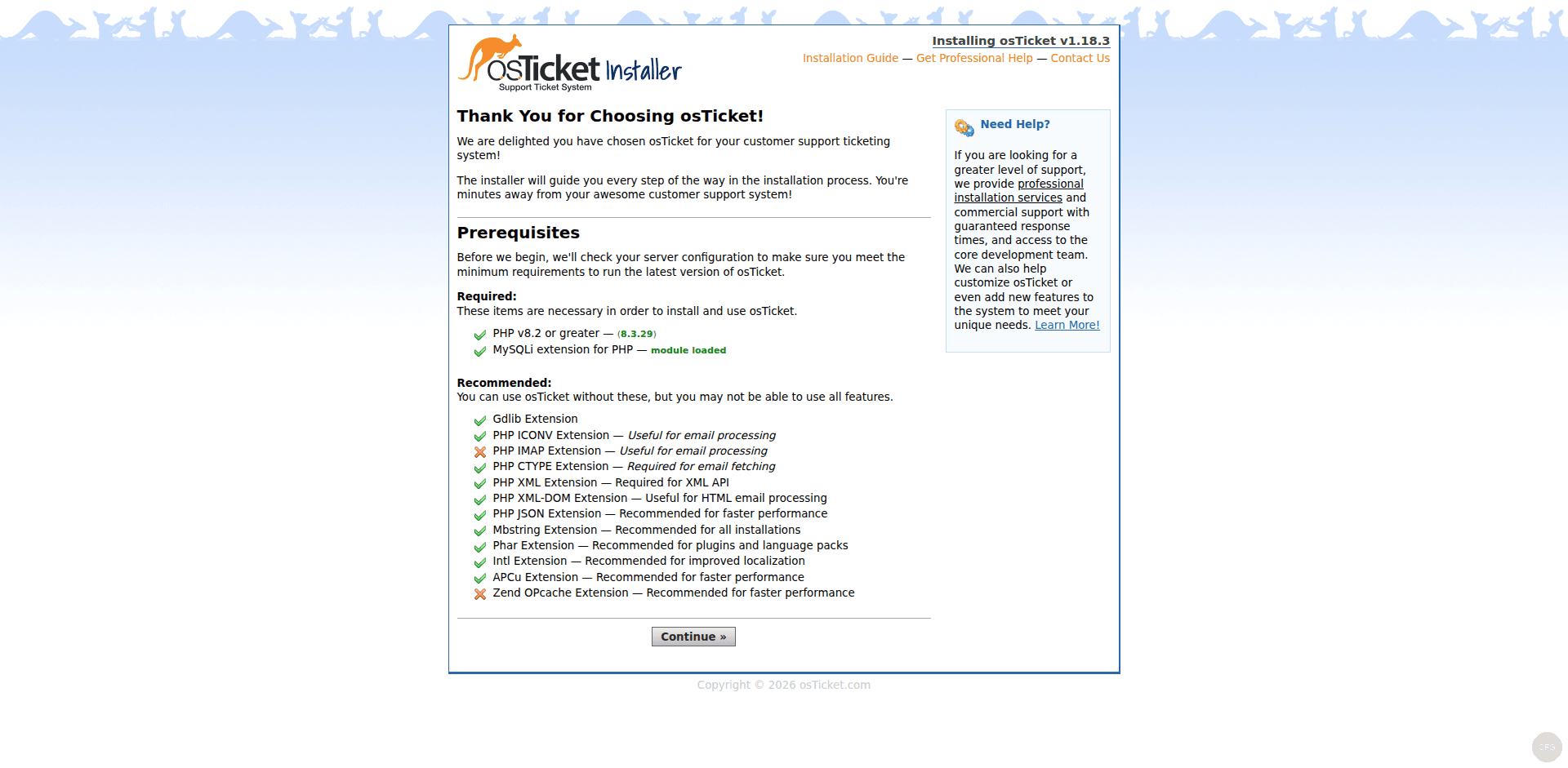
The first page checks that your server meets the requirements. All items under “Required” should show green checkmarks. The “Recommended” section lists optional extensions – if you followed the PHP installation steps above, most of these will be checked as well. Click Continue to proceed.
System Settings and Database Configuration
The installation form has three sections to fill in:
System Settings:
- Helpdesk Name – the name of your support portal (e.g., “IT Support”)
- Default Email – the system email address for outgoing notifications
Admin Information:
- First Name, Last Name – admin user details
- Email Address – admin login email
- Username – admin login username
- Password – use a strong password with at least 12 characters
Database Settings:
- MySQL Hostname –
localhost - MySQL Database –
osticket - MySQL Username –
osticket - MySQL Password – the password you set when creating the database user
- Table Prefix – leave as
ost_unless you have a reason to change it
Click Install Now to begin the database table creation and configuration. This takes a few seconds.
Installation Complete
After a successful installation, osTicket displays a confirmation page with links to the staff control panel and the client-facing portal.
Step 9: Post-Installation Security Hardening
Two things must be done immediately after the web installer finishes. These are not optional. osTicket itself will warn you until they are fixed.
First, lock down the configuration file so it is no longer writable.
sudo chmod 0644 /var/www/osticket/upload/include/ost-config.phpSecond, remove the setup directory entirely. Leaving it in place is a security risk because anyone could re-run the installer.
sudo rm -rf /var/www/osticket/upload/setupUpdate the SELinux context on the config file now that it should be read-only.
sudo semanage fcontext -m -t httpd_sys_content_t "/var/www/osticket/upload/include/ost-config.php"
sudo restorecon -v /var/www/osticket/upload/include/ost-config.php
Step 10: Set Up the Cron Job for Email Fetching
osTicket uses a cron job to fetch emails and process background tasks like SLA escalations. Without this, email piping and auto-responses will not work.
sudo crontab -e -u nginxAdd the following line to run the cron script every 5 minutes:
*/5 * * * * /usr/bin/php /var/www/osticket/upload/api/cron.phpThis runs under the nginx user to match file ownership. The 5-minute interval is the recommended default – adjust it based on your ticket volume if needed.
Step 11: Configure osTicket – Departments, Agents, and Email
Log into the admin panel at http://osticket.example.com/scp/ using the admin credentials you created during installation.
Configure Departments
Departments control how tickets are routed and which agents can see them. Navigate to Admin Panel > Agents > Departments. osTicket creates a default “Support” department during installation.
Click Add New Department to create additional departments based on your team structure. Common examples include:
- Technical Support – for technical issues and troubleshooting
- Billing – for payment and account inquiries
- Sales – for pre-sales questions
For each department, set the Manager (receives escalation alerts), SLA (response time target), and Outgoing Email (the From address on replies). Save each department after configuration.
Add Agents (Support Staff)
Agents are the staff members who work tickets. Go to Admin Panel > Agents > Agents and click Add New Agent.
Fill in the agent details:
- Name and Email – the agent’s real name and work email
- Username and Password – login credentials for the staff panel
- Department – primary department assignment
- Role – permission level (All Access, Expanded Access, Limited Access, or View Only)
On the Access tab, you can give agents extended access to additional departments beyond their primary one. On the Permissions tab, fine-tune what each agent can do – create tickets, edit threads, manage users, and more.
Set Up Email Integration
Email integration is what turns osTicket from a basic form-based system into a full email-based support platform. Navigate to Admin Panel > Emails > Emails.
Click Add New Email and configure the following:
- Email Address – the support address (e.g., [email protected])
- Email Name – display name in outgoing messages
- Department – which department receives tickets from this address
- New Ticket Priority – default priority for tickets from this address
Under the Remote Mailbox tab, configure IMAP or POP3 settings to fetch incoming emails:
- Status – Enable
- Host – your mail server hostname (e.g., mail.example.com)
- Port – 993 for IMAP SSL, 995 for POP3 SSL
- Protocol – IMAP recommended (keeps emails on the server)
- Fetch Frequency – controlled by the cron job interval (5 minutes)
Under the SMTP tab (or via Admin Panel > Emails > Settings), configure outgoing email so osTicket can send notifications and replies:
- SMTP Server – your outgoing mail server
- Port – 587 (STARTTLS) or 465 (SSL)
- Authentication – enable and enter credentials
Click the Send Test Email button to verify outgoing email works before saving.
Step 12: Accessing osTicket
osTicket provides two separate interfaces:
- Staff Panel –
http://osticket.example.com/scp/– where agents manage and respond to tickets - Client Portal –
http://osticket.example.com/– where users submit and track their tickets
The client portal is the public-facing page. Users can open new tickets, check ticket status with their email and ticket number, and browse the knowledge base if you set one up.
Troubleshooting Common Issues
403 Forbidden or Blank Page
This is almost always SELinux. Check for denials first.
sudo ausearch -m avc -ts recent | grep nginxIf you see denials related to httpd_t, the SELinux contexts were not applied correctly. Re-run the semanage fcontext and restorecon commands from Step 6.
PHP-FPM Socket Connection Refused
If Nginx returns a 502 Bad Gateway error, PHP-FPM is either not running or the socket path is wrong. Verify the socket file exists.
ls -la /run/php-fpm/www.sockIf the file is missing, restart PHP-FPM and check the logs for errors.
sudo systemctl restart php-fpm
sudo journalctl -u php-fpm --no-pager -n 20
Database Connection Failed During Installation
Double-check that the MariaDB user has the correct privileges. Log in as root and verify.
sudo mariadb -u root -p -e "SHOW GRANTS FOR 'osticket'@'localhost';"If the grant is missing, re-run the GRANT statement from Step 3. Also confirm the httpd_can_network_connect_db SELinux boolean is enabled.
Emails Not Being Fetched
Verify the cron job is running and producing output.
sudo -u nginx /usr/bin/php /var/www/osticket/upload/api/cron.phpIf this command produces errors, check that the php-imap extension is installed and that your IMAP credentials are correct in the admin panel.
The osTicket installer runs a prerequisites check showing PHP version and extensions status:
Conclusion
You now have a working osTicket v1.18.3 installation on Rocky Linux 10 or AlmaLinux 10, running on a modern stack with Nginx, PHP 8.3, and MariaDB. The system is ready to receive tickets through the web portal and email. From here, explore the admin panel to customize help topics, ticket forms, SLA plans, and auto-responder templates to match your support workflow. For a production deployment, the next step is adding SSL/TLS with Let’s Encrypt and configuring automated database backups.
