

Managing an OpenLDAP directory from the command line gets tedious fast, especially when non-technical staff need to reset passwords or browse user entries. phpLDAPadmin gives you a clean web interface for all of that. It’s not the newest tool out there (LDAP Account Manager is more actively maintained), but phpLDAPadmin is still the most widely deployed LDAP web client on Debian and Ubuntu systems because it’s a single apt install away.
This guide walks through a full OpenLDAP + phpLDAPadmin deployment on Ubuntu 24.04 LTS, from installing slapd and seeding the directory with OUs and users, to configuring phpLDAPadmin and locking things down with HTTPS. If you’re on Ubuntu 22.04, the same steps apply with minor version differences noted at the end.
Tested March 2026 | OpenLDAP 2.6.10, phpLDAPadmin 1.2.6.7, PHP 8.3.6, Apache 2.4.58, Ubuntu 24.04.4 LTS
Prerequisites
Before starting, confirm you have the following in place:
- Ubuntu 24.04 or 22.04 LTS server with root or sudo access
- A domain name or FQDN for the server (the guide uses
dc=example,dc=comas the LDAP base DN) - Ports 80 and 443 open in the firewall
- Tested on: Ubuntu 24.04.4 LTS, slapd 2.6.10, phpLDAPadmin 1.2.6.7, PHP 8.3.6, Apache/2.4.58
Install OpenLDAP Server
Ubuntu packages OpenLDAP as slapd (the standalone LDAP daemon). Install it along with ldap-utils, which provides command-line tools like ldapsearch and ldapadd.
sudo apt update
sudo apt install -y slapd ldap-utils
During installation, you’ll be prompted to set an LDAP admin password. Choose a strong password and remember it. The installer creates a minimal directory, but it doesn’t set the correct domain suffix yet. That requires a reconfigure step.
Reconfigure slapd with Your Domain
This is the step most guides skip, and it causes “Invalid credentials (49)” errors later. Pre-seed the debconf values, then reconfigure slapd to use your actual domain as the base DN.
Set the debconf values first:
sudo debconf-set-selections <<< "slapd slapd/domain string example.com"
sudo debconf-set-selections <<< "slapd shared/organization string Example Inc"
sudo debconf-set-selections <<< "slapd slapd/purge_database boolean true"
sudo debconf-set-selections <<< "slapd slapd/move_old_database boolean true"
Now reconfigure the package. The -f noninteractive flag applies the debconf values without prompting:
sudo dpkg-reconfigure -f noninteractive slapdReplace example.com and Example Inc with your actual domain and organization name. The domain translates to the LDAP base DN, so example.com becomes dc=example,dc=com.
Verify the Directory
Confirm the admin entry exists with slapcat:
sudo slapcat | grep "dn: cn=admin"You should see the admin DN matching your domain:
dn:cn=admin,dc=example,dc=comIf this returns empty or shows a different suffix, the reconfigure didn’t apply properly. Re-run the debconf and reconfigure steps, making sure slapd/purge_database is set to true.
Add Base Organizational Units
A bare LDAP directory needs structure before you can add users. The standard approach is to create two OUs: people for user accounts and groups for group entries.
Create the LDIF file:
sudo vi /tmp/basedn.ldifAdd the following content:
dn: ou=people,dc=example,dc=com
objectClass: organizationalUnit
ou: people

dn: ou=groups,dc=example,dc=com
objectClass: organizationalUnit
ou: groups
Import it into the directory:
sudo ldapadd -x -D "cn=admin,dc=example,dc=com" -W -f /tmp/basedn.ldifEnter the admin password when prompted. The output confirms both entries were created:
adding new entry "ou=people,dc=example,dc=com"
adding new entry "ou=groups,dc=example,dc=com"
Add Users and Groups
With the OUs in place, you can populate the directory. Start by generating a hashed password for the new user with slappasswd.
Generate a Password Hash
Run slappasswd and enter the desired password twice:
slappasswdCopy the output hash (it starts with {SSHA}). You’ll paste it into the user LDIF file below.
Create a User Entry
Create the user LDIF:
sudo vi /tmp/user.ldifAdd the following, replacing the userPassword value with the hash from slappasswd:
dn: uid=jdoe,ou=people,dc=example,dc=com
objectClass: inetOrgPerson
objectClass: posixAccount
objectClass: shadowAccount
uid: jdoe
sn: Doe
givenName: John
cn: John Doe
displayName: John Doe
uidNumber: 10000
gidNumber: 10000
userPassword: {SSHA}YOUR_HASH_HERE
gecos: John Doe
loginShell: /bin/bash
homeDirectory: /home/jdoe
Import the user:
sudo ldapadd -x -D "cn=admin,dc=example,dc=com" -W -f /tmp/user.ldifThe output confirms the entry was added:
adding new entry "uid=jdoe,ou=people,dc=example,dc=com"Create a Group Entry
Create the group LDIF:
sudo vi /tmp/group.ldifAdd the group definition with the user as a member:
dn: cn=developers,ou=groups,dc=example,dc=com
objectClass: posixGroup
cn: developers
gidNumber: 10000
memberUid: jdoe
Import it:
sudo ldapadd -x -D "cn=admin,dc=example,dc=com" -W -f /tmp/group.ldifVerify the Directory Tree
Search the entire directory to confirm everything is in place:
ldapsearch -x -LLL -b "dc=example,dc=com" dnThe output should show all entries in the tree:
dn: dc=example,dc=com
dn: ou=people,dc=example,dc=com
dn: ou=groups,dc=example,dc=com
dn: uid=jdoe,ou=people,dc=example,dc=com
The group entry (cn=developers) will also appear if you added it. OpenLDAP is now fully configured with a working directory structure.
Install phpLDAPadmin
phpLDAPadmin is available directly from Ubuntu’s repositories. Installing it pulls in Apache and PHP as dependencies, so you don’t need to set those up separately.
sudo apt install -y phpldapadminApache is configured automatically with an alias at /phpldapadmin/. Verify the service is running:
sudo systemctl enable --now apache2
sudo systemctl status apache2
The status should show active (running). If you have ufw enabled, open the firewall for HTTP and HTTPS:
sudo ufw allow "Apache Full"Configure phpLDAPadmin
The default configuration points to dc=example,dc=com, which may or may not match your setup. Edit the config file to set the correct base DN and admin bind DN.
sudo vi /etc/phpldapadmin/config.phpFind and update these lines to match your domain. For example.com, the values are:
$servers->setValue('server','base',array('dc=example,dc=com'));
$servers->setValue('login','bind_id','cn=admin,dc=example,dc=com');
If your domain is different (say mycompany.org), change dc=example,dc=com to dc=mycompany,dc=org accordingly. Save and close the file.
Restart Apache to apply the changes:
sudo systemctl restart apache2Access phpLDAPadmin Web Interface
Open your browser and navigate to http://your-server-ip/phpldapadmin/. You’ll see the phpLDAPadmin login page with the LDAP tree on the left side.
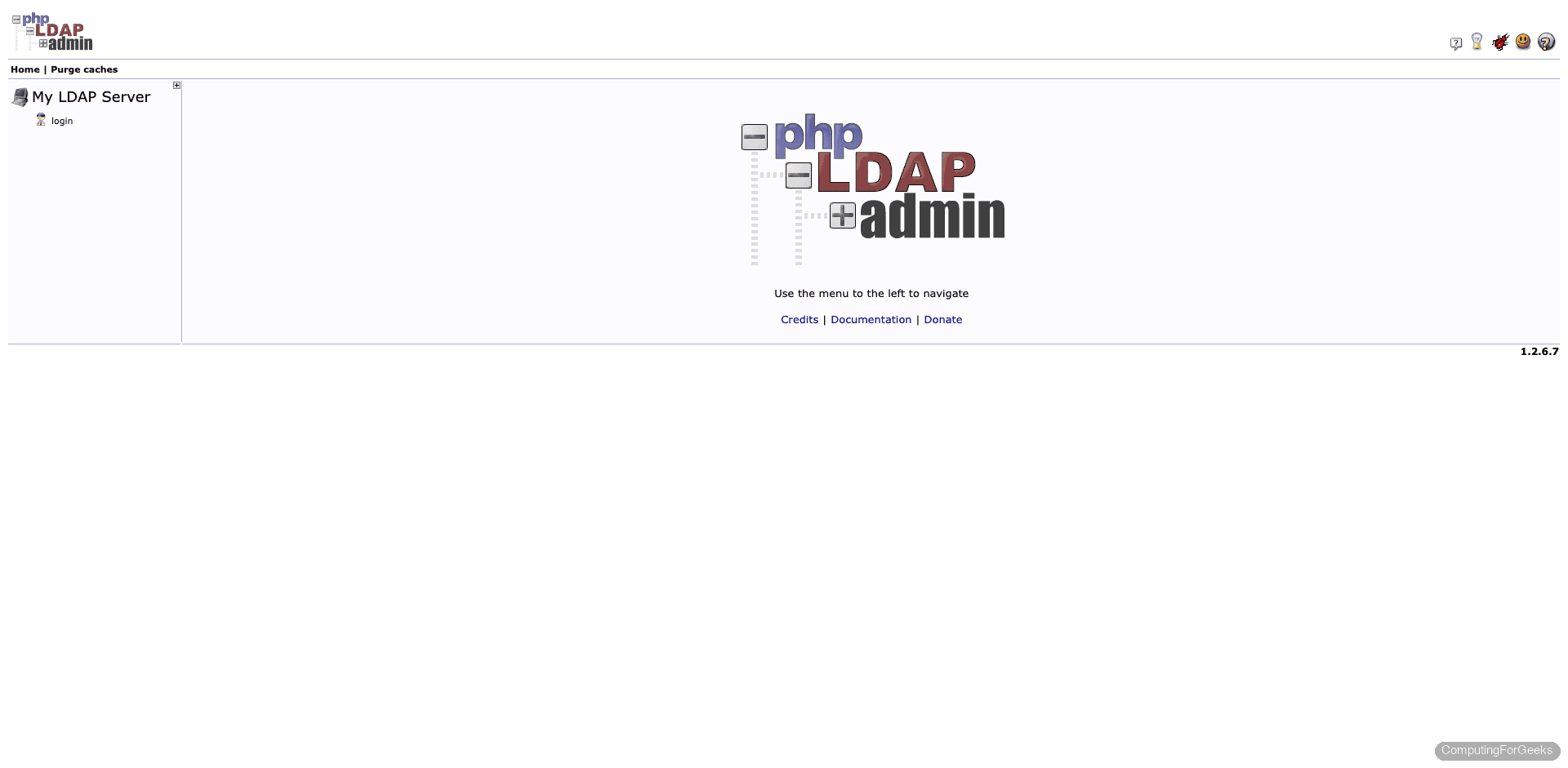
Click login on the left panel. The Login DN is pre-filled with cn=admin,dc=example,dc=com from the config file. Enter the LDAP admin password you set during the slapd installation.
After logging in, expand the tree on the left to browse the directory. You should see the ou=people and ou=groups OUs, along with the uid=jdoe user entry created earlier.
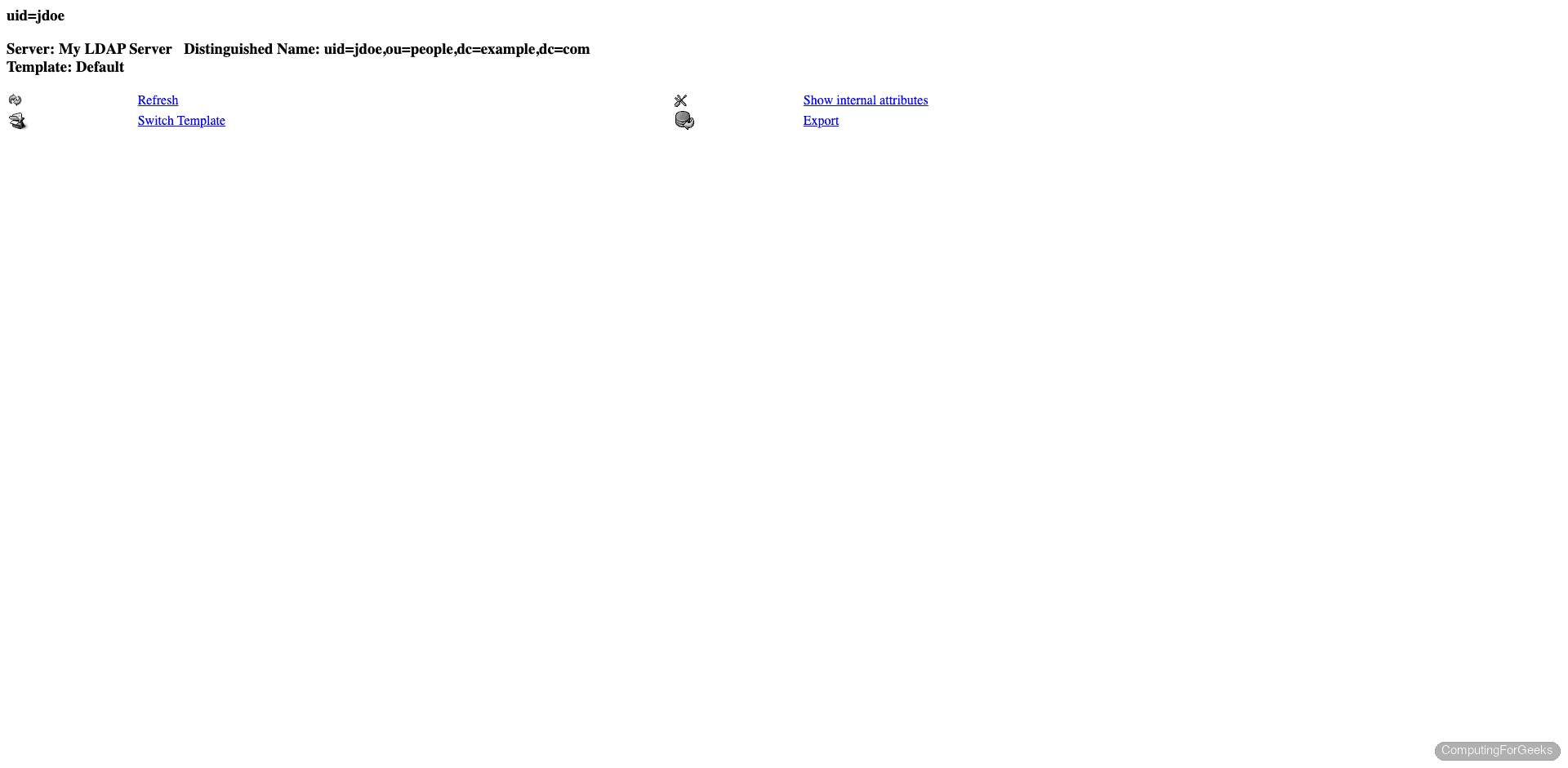
From this interface you can create, modify, and delete LDAP entries without touching the command line. Clicking on any entry shows its full attributes, and you can edit them directly in the browser.
Secure with HTTPS
LDAP credentials pass through the web interface in plain text over HTTP. For anything beyond a lab environment, you need TLS. The approach depends on whether the server has a public domain or sits on a private network.
Option 1: Let’s Encrypt (Public-Facing Servers)
If the server has a public IP and a DNS record, use certbot with the Apache plugin:
sudo apt install -y certbot python3-certbot-apache
sudo certbot --apache -d ldap.example.com --non-interactive --agree-tos -m [email protected]
Certbot configures Apache’s SSL virtual host automatically. Verify the renewal timer is active:
sudo certbot renew --dry-runAfter this, phpLDAPadmin is accessible at https://ldap.example.com/phpldapadmin/.
Option 2: Self-Signed Certificate (Internal Networks)
For private or lab environments without public DNS, generate a self-signed certificate:
sudo openssl req -x509 -nodes -days 365 -newkey rsa:2048 \
  -keyout /etc/ssl/private/ldap-selfsigned.key \
  -out /etc/ssl/certs/ldap-selfsigned.crt \
  -subj "/C=US/ST=State/L=City/O=Org/CN=ldap.internal"
Enable the SSL module and default SSL site in Apache:
sudo a2enmod ssl
sudo a2ensite default-ssl
Edit the default SSL virtual host to use your certificate:
sudo vi /etc/apache2/sites-available/default-ssl.confUpdate the certificate paths inside the <VirtualHost> block:
SSLCertificateFile /etc/ssl/certs/ldap-selfsigned.crt
SSLCertificateKeyFile /etc/ssl/private/ldap-selfsigned.key
Restart Apache to load the SSL configuration:
sudo systemctl restart apache2Access phpLDAPadmin at https://your-server-ip/phpldapadmin/. Your browser will warn about the self-signed certificate, which is expected on internal networks.
Ubuntu 22.04 Differences
The same installation steps work on Ubuntu 22.04 LTS. The main differences are package versions:
| Component | Ubuntu 24.04 | Ubuntu 22.04 |
|---|---|---|
| OpenLDAP (slapd) | 2.6.10 | 2.5.x |
| PHP | 8.3.6 | 8.1.x |
| Apache | 2.4.58 | 2.4.52 |
| phpLDAPadmin | 1.2.6.7 | 1.2.6.7 |
The phpLDAPadmin version is identical across both releases. Configuration paths, LDIF syntax, and the debconf reconfigure steps are unchanged. One thing to watch on 22.04: some older tutorials reference ldap-auth-config for PAM integration, which is still relevant if you’re setting up LDAP-based system authentication (that’s a separate topic from the web admin interface covered here).
Alternative: LDAP Account Manager
phpLDAPadmin works fine for browsing and basic edits, but its development has slowed considerably. If you need a more actively maintained web interface with features like bulk user import, password policies, and PDF exports, take a look at LDAP Account Manager (LAM). LAM supports the same OpenLDAP backend and can run alongside phpLDAPadmin on the same server if you want to compare them.
Going Further
With OpenLDAP and phpLDAPadmin running, here are some next steps to consider:
- Enable LDAPS (LDAP over TLS) for encrypted communication between LDAP clients and the server. This is separate from the HTTPS config for the web interface
- Configure LDAP client authentication on Linux systems using
sssdornslcdso users can log in with their LDAP credentials - Set up replication with a second OpenLDAP server for high availability using syncrepl
- Implement password policies via the
ppolicyoverlay to enforce complexity, expiration, and lockout rules - Integrate with applications like Gitea, Nextcloud, Grafana, and Jenkins that support LDAP authentication

Hi,
Where do you create basedn.ldif, in witch folder ?
Thanks for this post.
You can create in your current working directory. We’ve updated the guide to include vim command.