

Omarchy is an opinionated Arch-based Linux distribution built around the Hyprland tiling window manager on Wayland. Created by David Heinemeier Hansson (DHH) and maintained under the Basecamp organization on GitHub, it ships a fully configured developer desktop that works out of the box – no hours spent customizing Arch from scratch. Every installation includes mandatory LUKS full-disk encryption, Alacritty terminal, Neovim, tmux, Chromium, and a curated set of productivity tools.
This guide walks through installing Omarchy 3.4.2 on a virtual machine using Proxmox VE, from downloading the ISO to booting into the Hyprland desktop. The same steps apply to bare metal installations on any x86_64 hardware.
Prerequisites
- A dedicated disk or VM with at least 60GB storage (Omarchy wipes the entire drive during installation)
- Minimum 4GB RAM (8GB recommended for a smooth Hyprland experience)
- UEFI boot mode enabled (Omarchy does not support legacy BIOS)
- Secure Boot and TPM disabled in BIOS/firmware settings
- Working internet connection during installation
- USB flash drive (8GB+) for bare metal installs, or Proxmox/VirtualBox for VM installs
- A wired or 2.4GHz wireless keyboard (Bluetooth keyboards won’t work for the LUKS password at boot)
Step 1: Download the Omarchy ISO
Download the latest Omarchy ISO from the official website. As of this writing, the current version is 3.4.2 (released March 8, 2026). The ISO is approximately 6.8GB.
wget https://iso.omarchy.org/omarchy-3.4.2-2.isoVerify the download integrity with the SHA256 checksum.
echo "cf5ff60b7a9de4b4b82512bc6068e450bf0e9ff77c7082ae6624d022ec6faa33 omarchy-3.4.2-2.iso" | sha256sum -cFor bare metal installs, flash the ISO to a USB drive.
sudo dd if=omarchy-3.4.2-2.iso of=/dev/sdX bs=4M status=progress oflag=syncReplace /dev/sdX with your USB device path. Use lsblk to identify the correct device.
Step 2: Create a Virtual Machine (Proxmox)
If you are installing on Proxmox VE, create a VM with UEFI boot and virtio GPU. Upload the ISO to your Proxmox storage first, then create the VM.
qm create 110 \
  --name omarchy \
  --memory 8192 \
  --cores 4 \
  --sockets 1 \
  --cpu host \
  --bios ovmf \
  --efidisk0 local-lvm:1,efitype=4m,pre-enrolled-keys=0 \
  --machine q35 \
  --scsihw virtio-scsi-single \
  --scsi0 local-lvm:60,iothread=1,discard=on \
  --ide2 local:iso/omarchy-3.4.2.iso,media=cdrom \
  --boot order='ide2;scsi0' \
  --net0 virtio,bridge=vmbr0 \
  --vga virtio,memory=64 \
  --ostype l26 \
  --agent 1 \
  --tablet 1
Key settings: OVMF (UEFI) firmware is required – Omarchy does not boot with SeaBIOS. The Q35 machine type and virtio GPU provide the best Wayland compatibility. Start the VM after creation.
qm start 110For VirtualBox users, enable EFI under System settings and allocate at least 128MB video memory with the VBoxSVGA adapter.
Step 3: Walk Through the Omarchy Installer
Boot from the ISO and the Omarchy text-based installer starts automatically. The entire installation takes about 5 minutes and asks only a few questions.
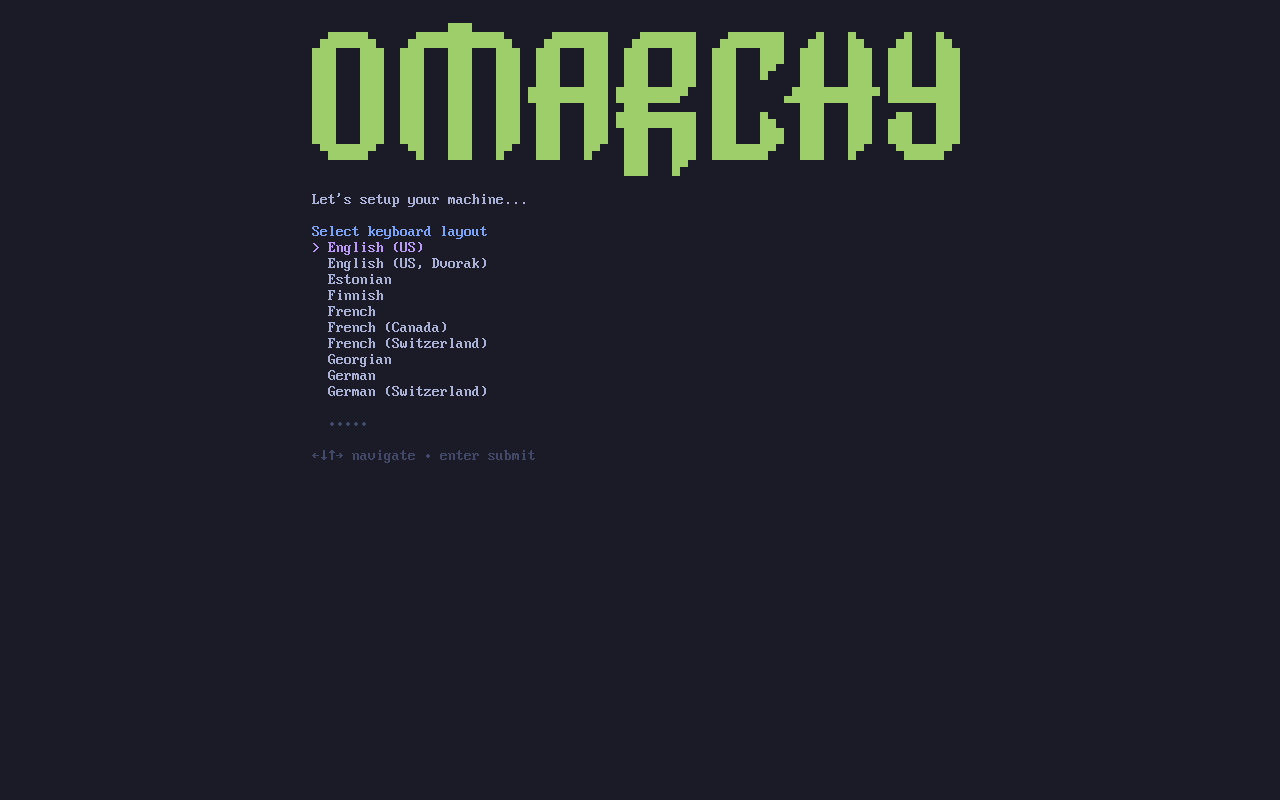
Select Keyboard Layout
The first screen asks for your keyboard layout. Use arrow keys to navigate and press Enter to select.
Set Username and Password
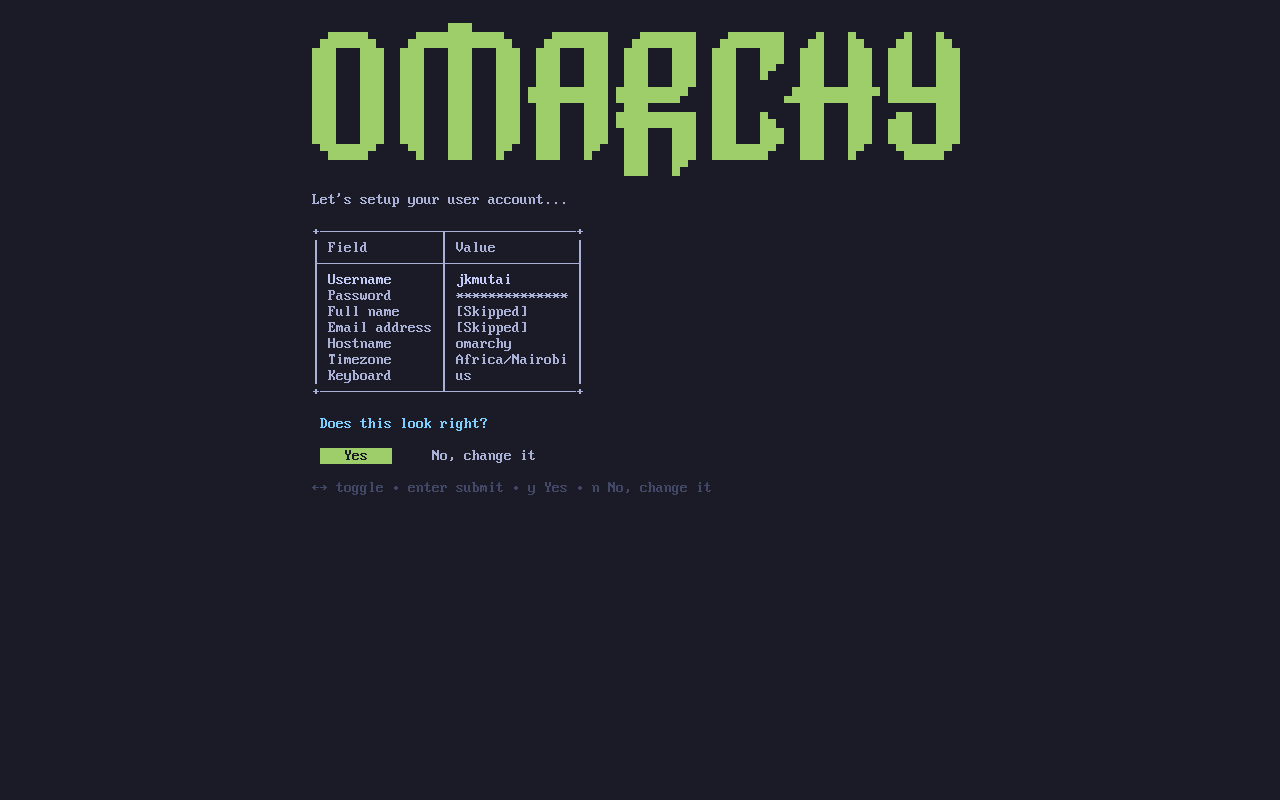
Next, the installer asks for a username (alphanumeric, no spaces), a password, and optionally a full name and email for git configuration. The password you set here is used for three things: your user account login, the root account, and the LUKS disk encryption. Choose a strong password.
After entering hostname and timezone, you get a summary of all settings to confirm before proceeding.
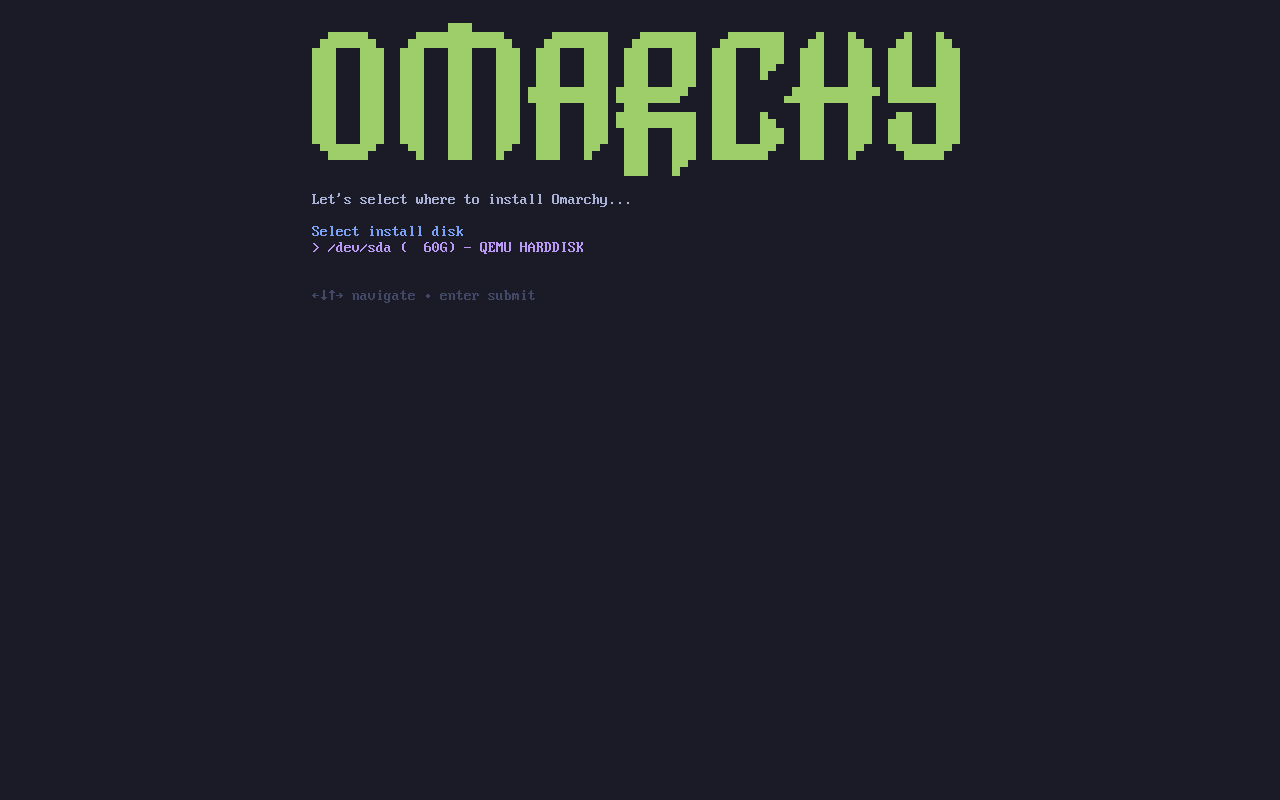
Select Installation Disk
Choose the target disk for installation. Omarchy will wipe the entire disk, create a GPT partition table with an EFI system partition, and set up LUKS encryption on the root partition with btrfs as the filesystem.
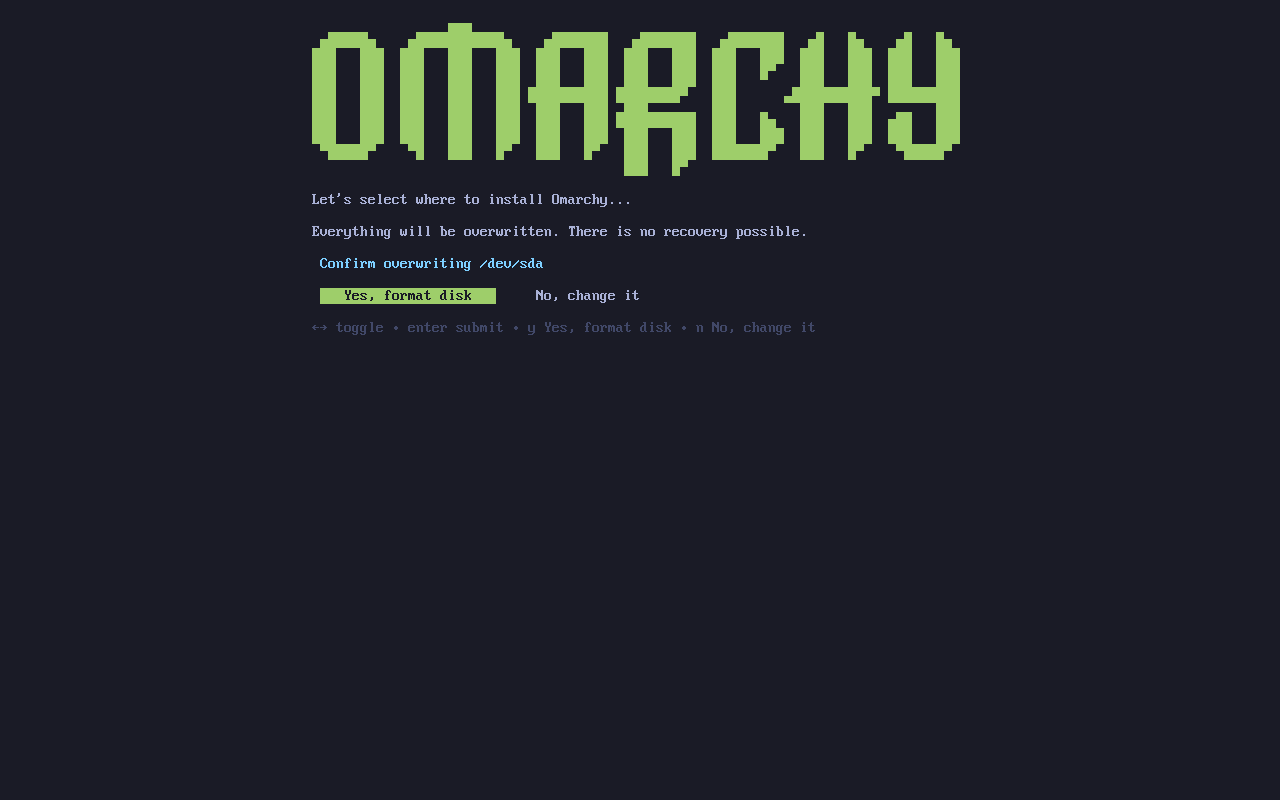
Confirm that you want to format the disk. There is no recovery possible after this step.
Installation Progress
The installer partitions the disk, sets up LUKS encryption, creates the btrfs filesystem, and installs all packages from the ISO. It imports GPG keys for both Arch Linux and Omarchy repositories, downloads and installs the base system, desktop environment, and all bundled applications.
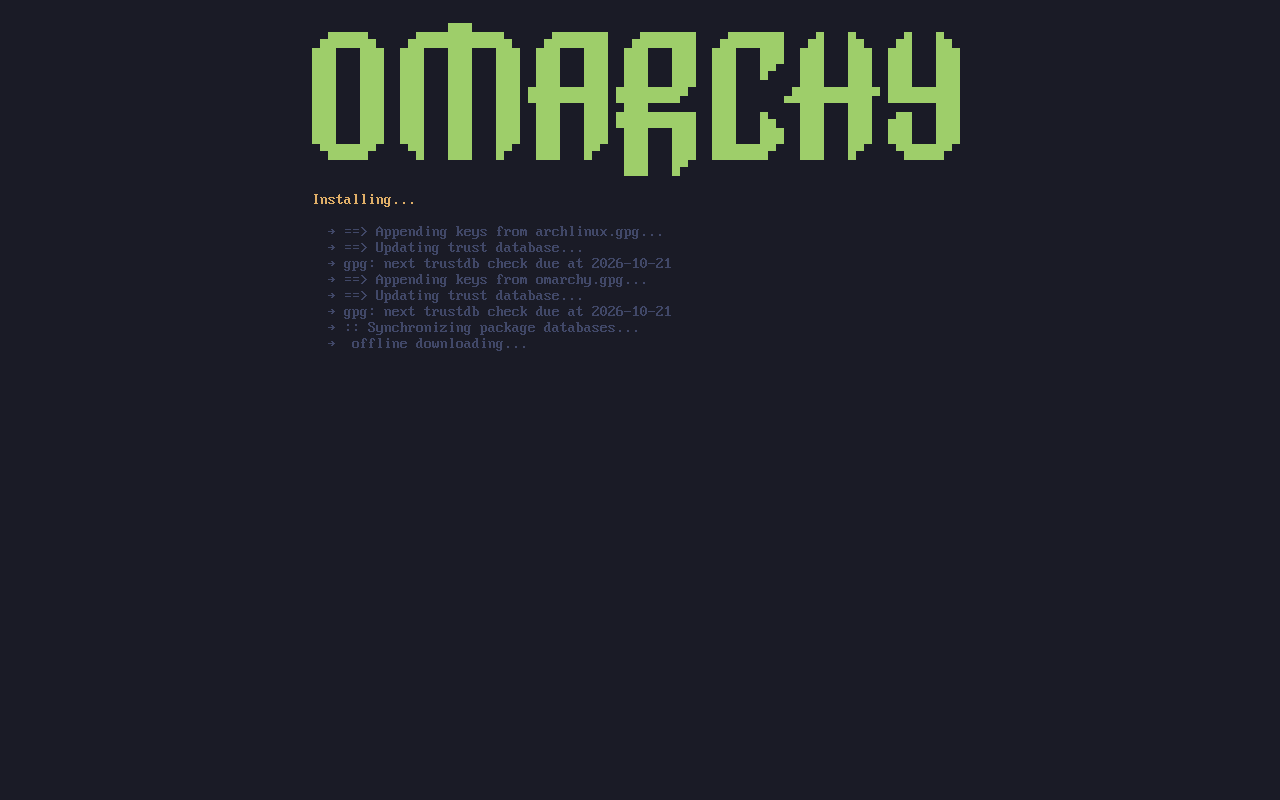
The installation completes in about 5 minutes. The Omarchy logo changes to a blue/purple gradient on the completion screen.
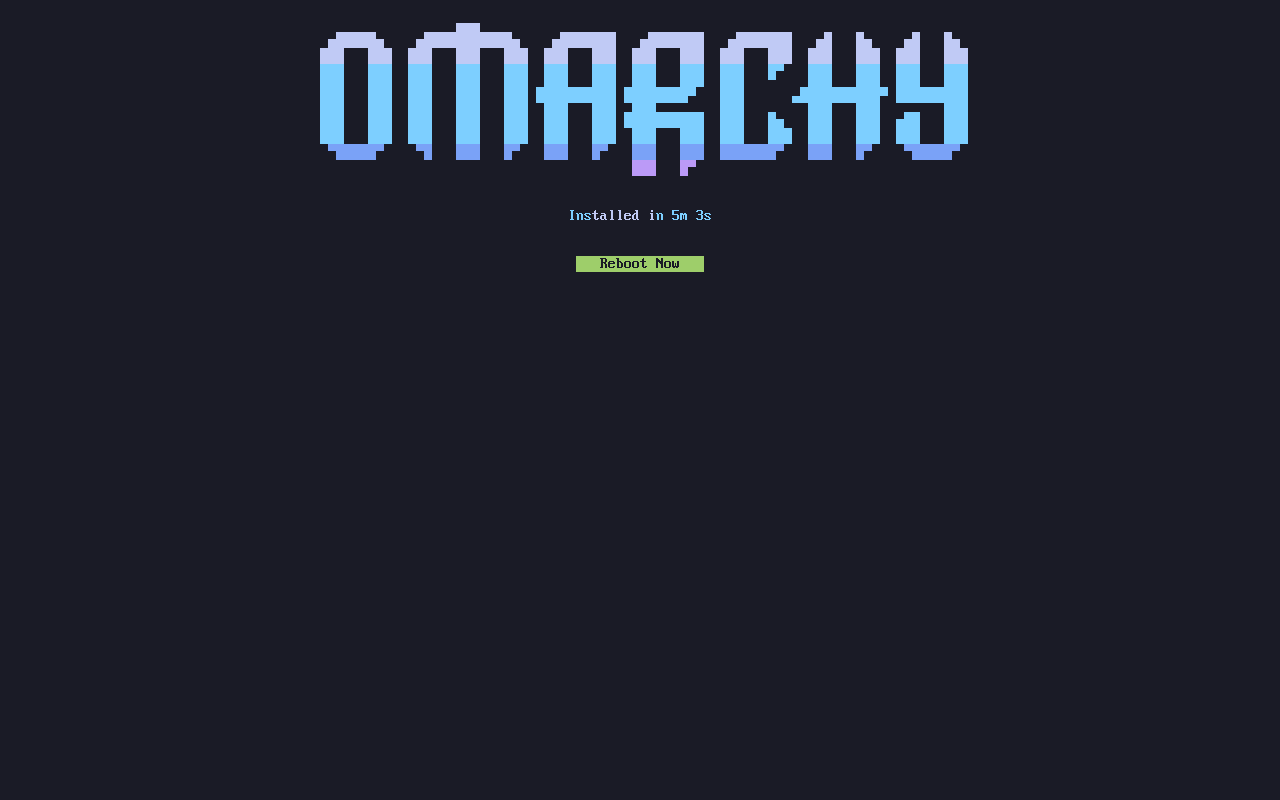
Press “Reboot Now” to restart into the installed system. For Proxmox VMs, change the boot order to disk before rebooting.
qm set 110 --ide2 none,media=cdrom --boot order='scsi0'Step 4: First Boot and LUKS Unlock
On every boot, Omarchy presents a Plymouth-themed LUKS password prompt. Enter the password you set during installation to decrypt the disk.
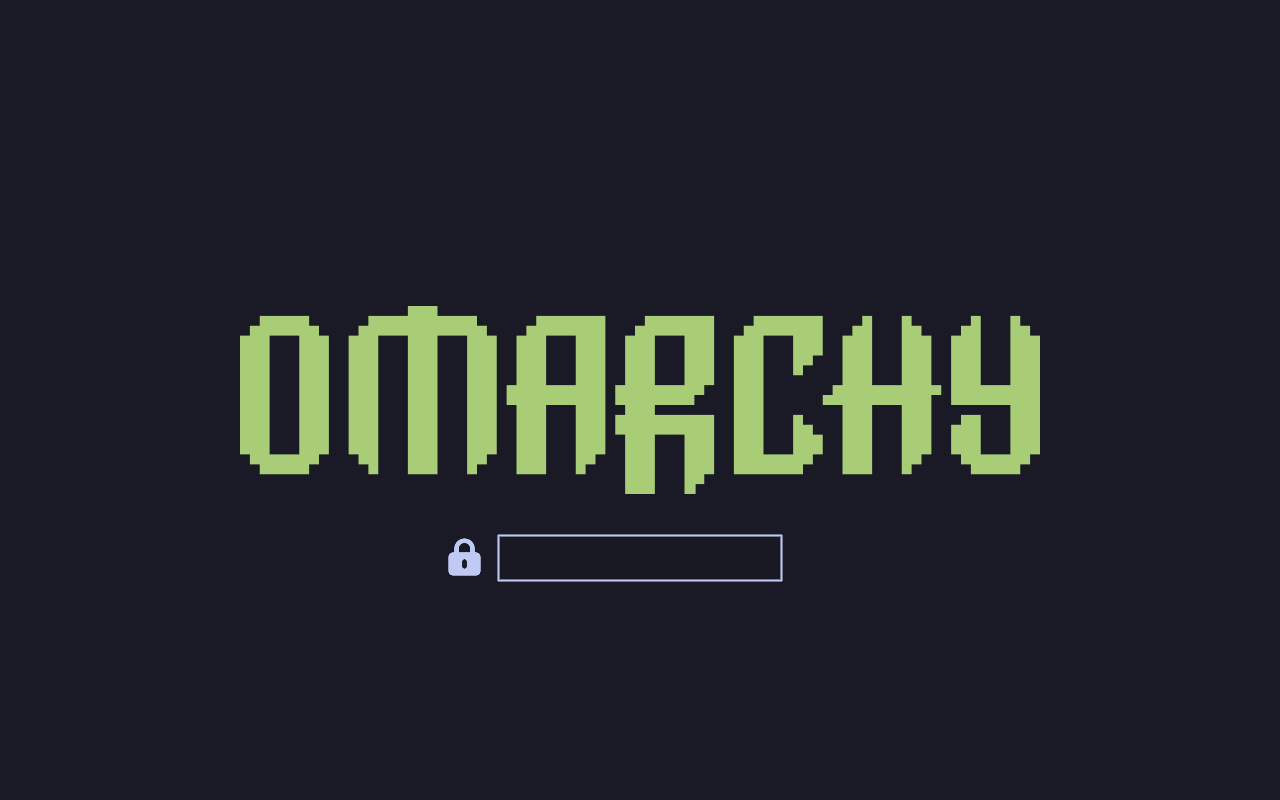
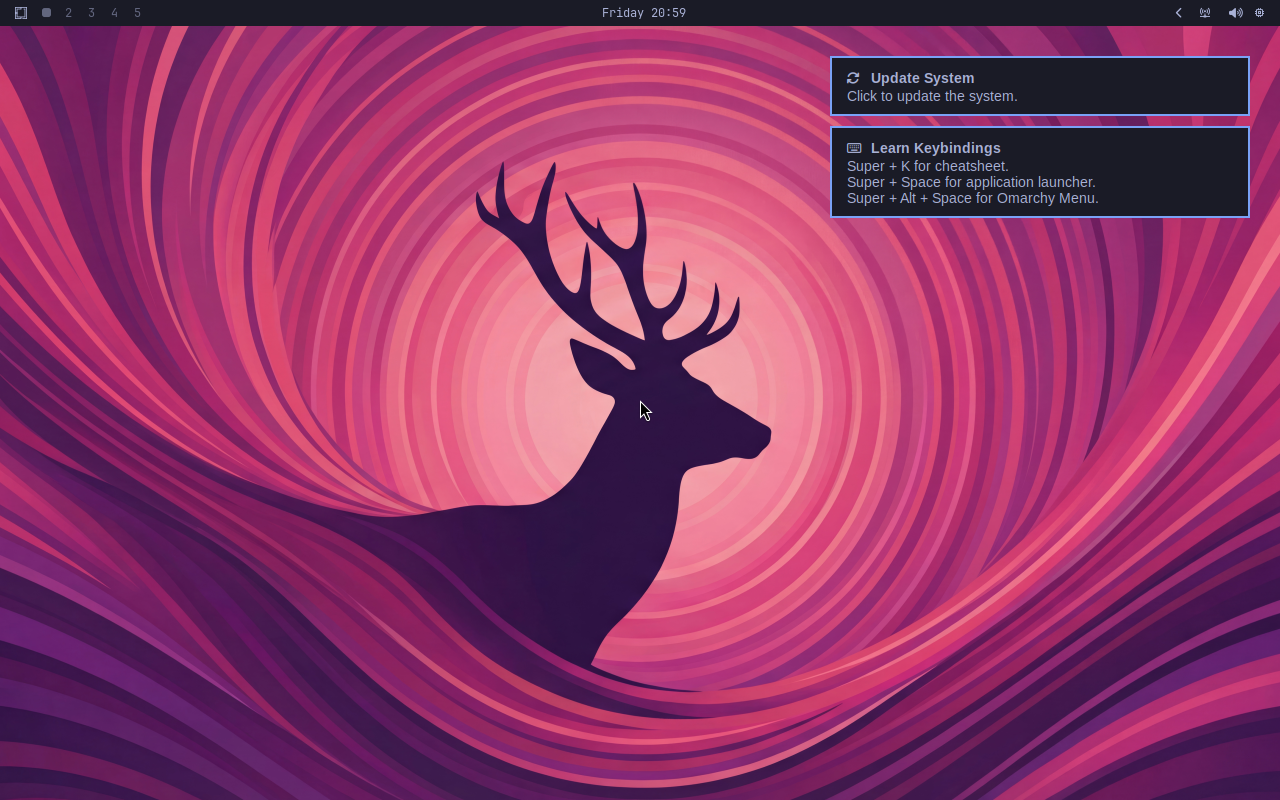
After entering the correct password, the system boots directly into the Hyprland desktop – there is no display manager or login screen. The first boot shows two helpful notifications: “Update System” and “Learn Keybindings” with the essential shortcuts.
Step 5: Explore the Omarchy Desktop
Omarchy uses Hyprland as its tiling window manager running on Wayland. The desktop is keyboard-driven by design. Here are the essential shortcuts to get started:
| Shortcut | Action |
|---|---|
Super + Return | Open Alacritty terminal |
Super + Space | Application launcher (Walker) |
Super + Alt + Space | Omarchy menu |
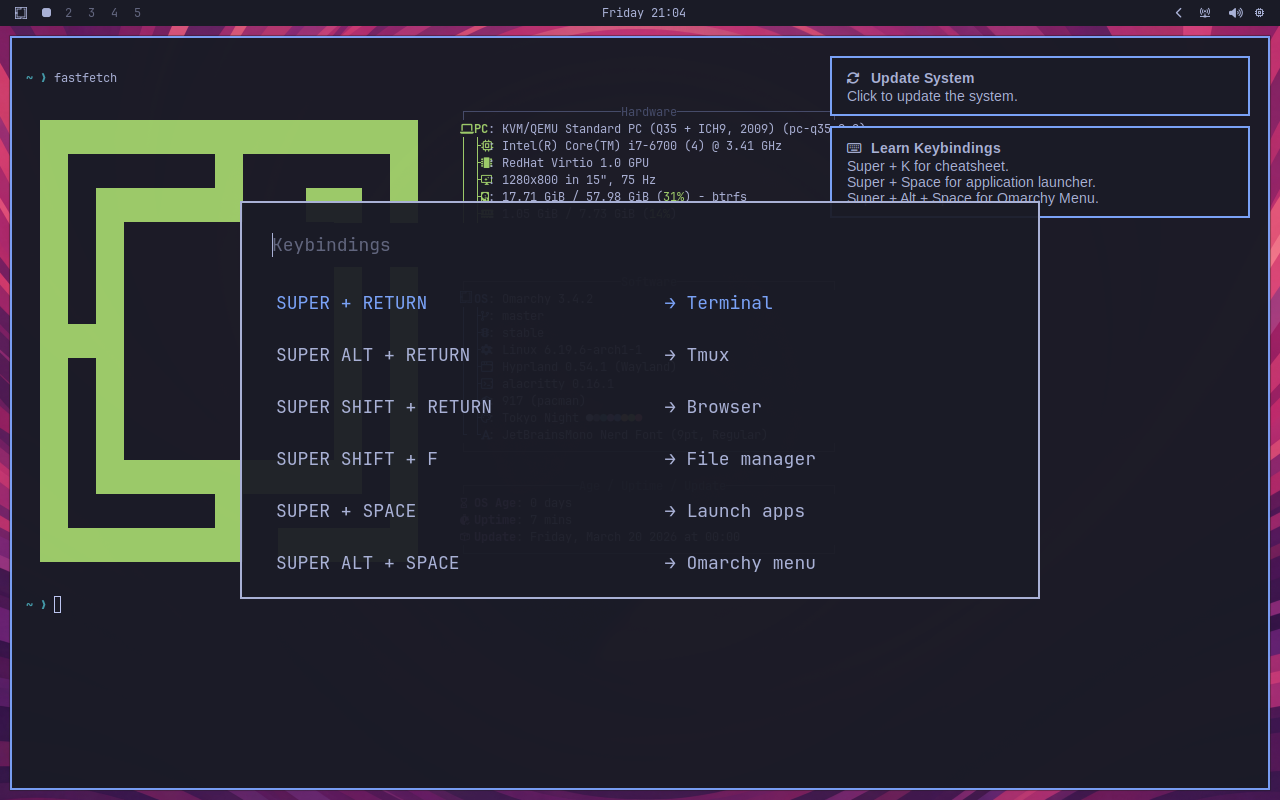
Super + K | Keybinding cheatsheet |
Super + Shift + Return | Open Chromium browser |
Super + Alt + Return | Open tmux session |
Super + Shift + F | File manager |
Super + Q | Close focused window |
Super + 1-5 | Switch to workspace 1-5 |
Press Super + K to pull up the full keybinding reference at any time.
Terminal and System Information
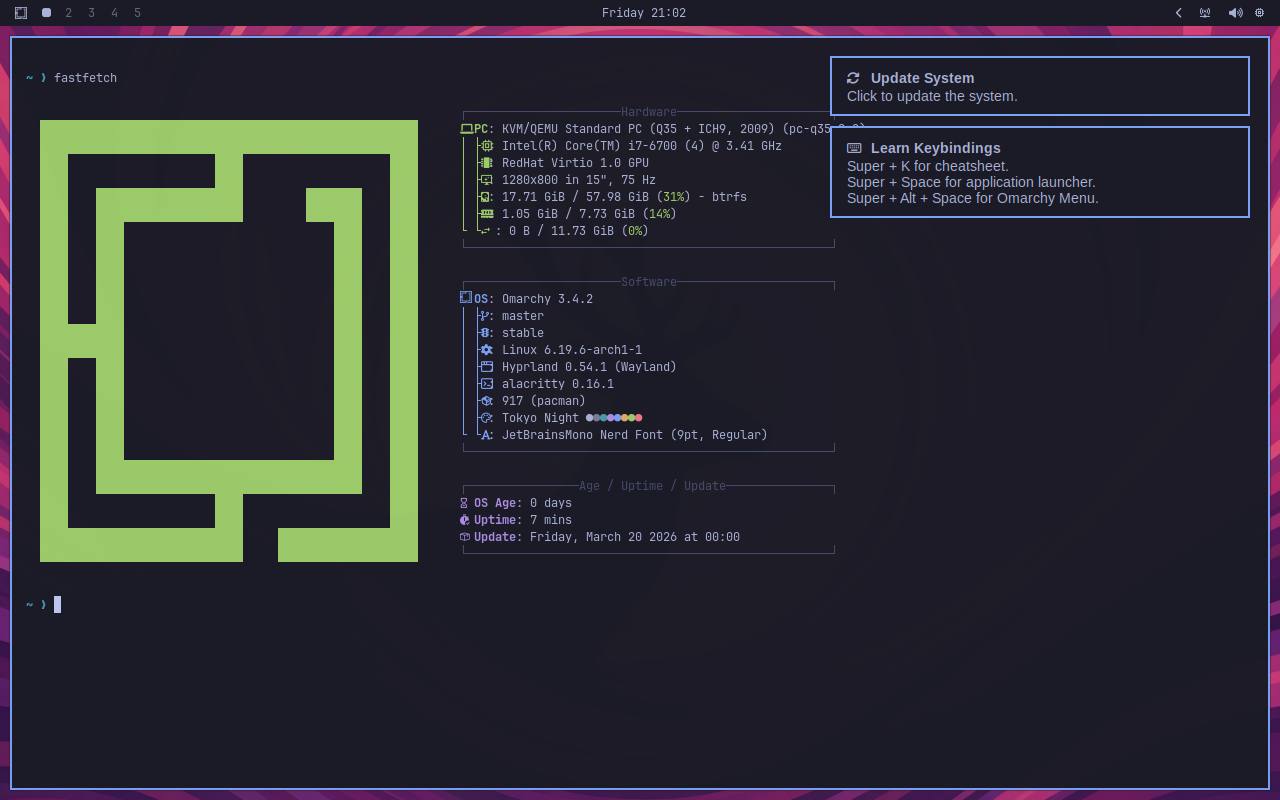
Press Super + Return to open the Alacritty terminal. Omarchy ships with zsh as the default shell, JetBrainsMono Nerd Font, and the Tokyo Night color theme. Running fastfetch shows the system details including the kernel version (6.19.6), Hyprland version, and the btrfs filesystem.
Application Launcher
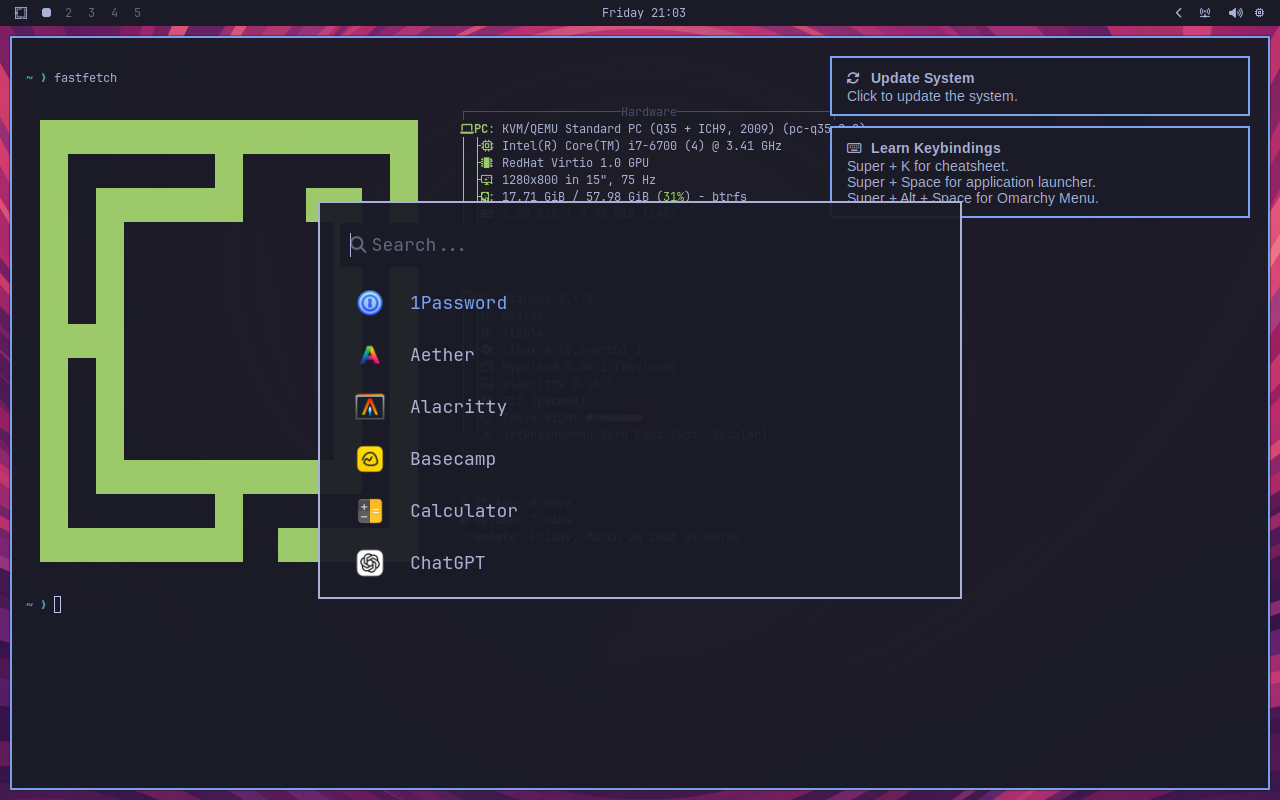
Press Super + Space to open Walker, the application launcher. It provides a search bar and lists all installed applications. Omarchy comes with a curated set of apps including 1Password, Basecamp, ChatGPT, Chromium, LibreOffice, and Spotify.
Tiling Window Management
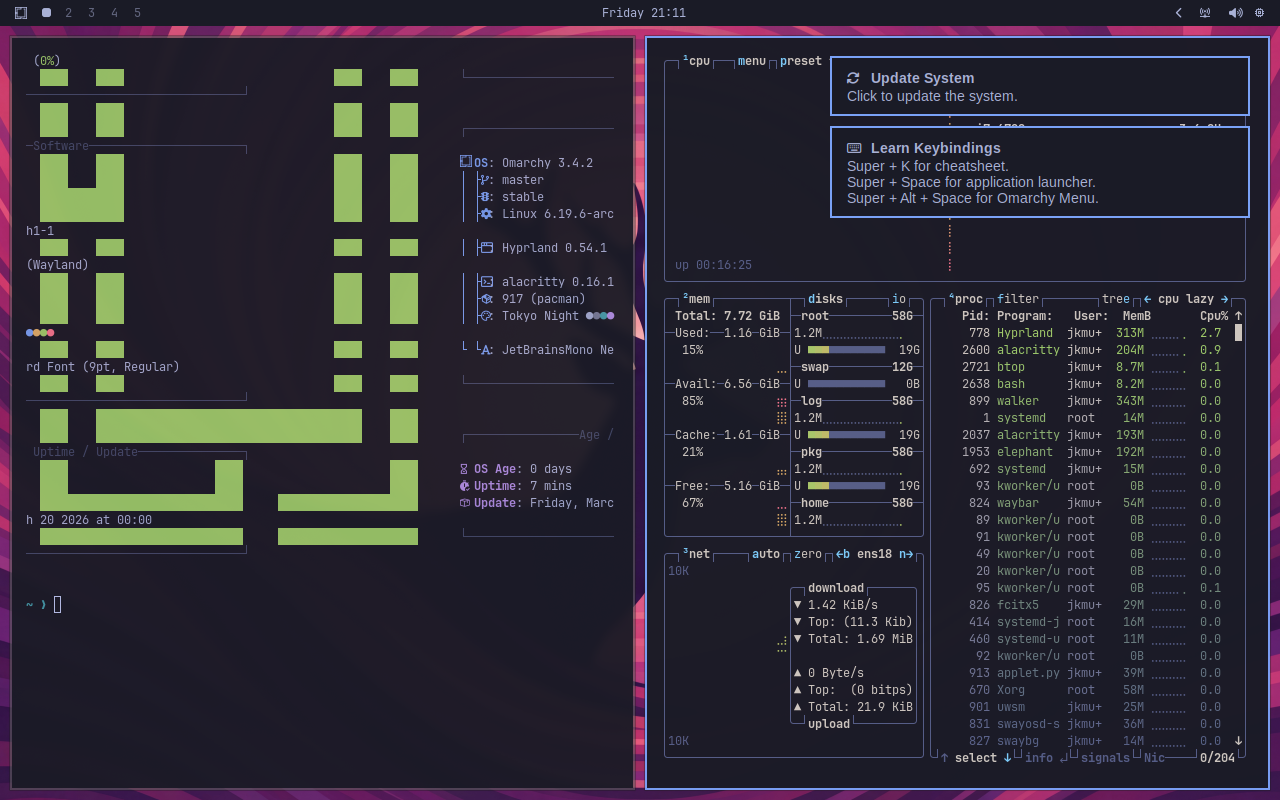
Hyprland automatically tiles windows side by side as you open them. Open a terminal in one half and btop in the other for a system monitoring setup. New windows split the focused container, and you can resize with Super + arrow keys or drag window borders.
Step 6: Customize Themes and Appearance
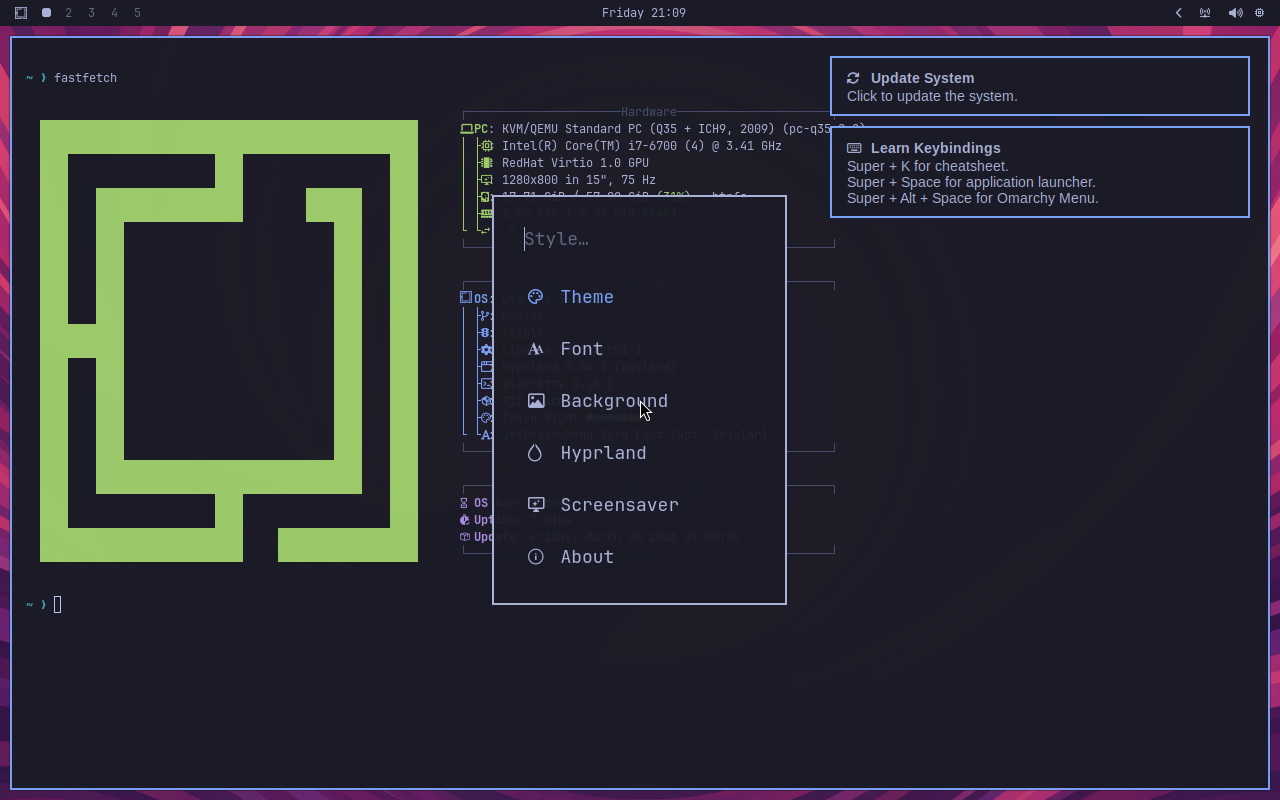
Press Super + Alt + Space to open the Omarchy menu, then select Style to access theme customization. The Style menu offers options for Theme, Font, Background, Hyprland settings, and Screensaver.
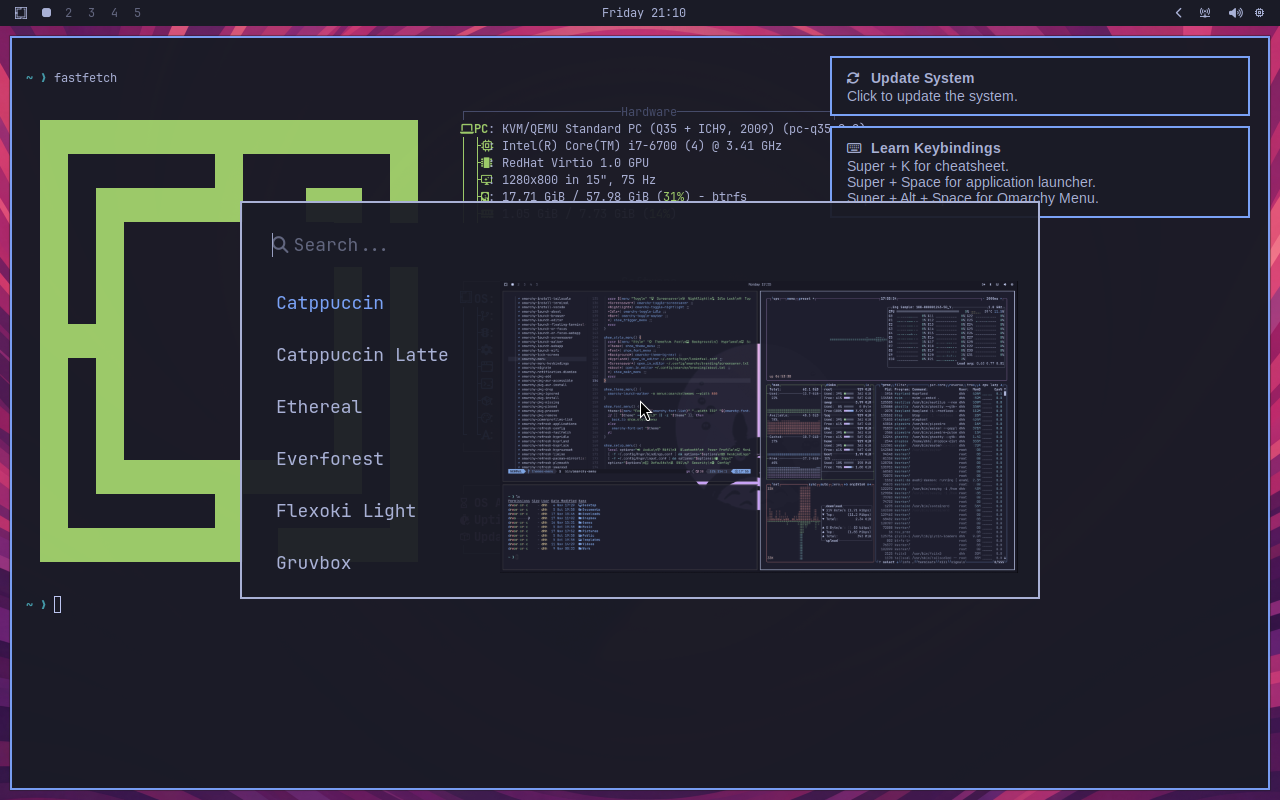
The theme selector includes a live preview showing how each theme looks across the terminal, Neovim, and Waybar. Available themes include Catppuccin, Catppuccin Latte, Ethereal, Everforest, Flexoki Light, Gruvbox, Hackerman, and Tokyo Night (the default). Each theme styles the entire desktop consistently – terminal colors, Neovim syntax highlighting, btop graphs, notification popups, Waybar, and the lock screen.
Step 7: Update the System
After the first boot, update the system to get the latest packages from the Arch and Omarchy repositories. Use the Omarchy menu or run the update from the terminal.
sudo pacman -SyuAlternatively, open the Omarchy menu (Super + Alt + Space) and select Update to run the system update through the built-in update tool.
Omarchy Key Features Summary
| Feature | Details |
|---|---|
| Base | Arch Linux (rolling release) |
| Window Manager | Hyprland 0.46.1 (Wayland) |
| Terminal | Alacritty 0.16.1 with tmux |
| Shell | zsh with custom prompt |
| Editor | Neovim (pre-configured) |
| Browser | Chromium |
| Font | JetBrainsMono Nerd Font |
| Filesystem | btrfs with LUKS encryption |
| Kernel | Linux 6.19.6 |
| Default Theme | Tokyo Night |
| Boot Loader | Limine (UEFI) |
Conclusion
Omarchy delivers a polished, keyboard-driven Arch Linux desktop that takes about 5 minutes to install and works immediately after first boot. The mandatory LUKS encryption, curated application selection, and consistent theming system across all tools make it a strong choice for developers who want a productive Linux desktop without the Arch setup overhead. For bare metal installs, disable Secure Boot and TPM before booting the ISO, and keep a wired keyboard on hand for the LUKS prompt at each boot.
Related guides:
