

Nginx 1.28 on Ubuntu 26.04 ships with HTTP/3 compiled in, OpenSSL 3.5, and a dedicated UFW profile for QUIC traffic. The package structure is simpler too: just nginx and nginx-common, no more choosing between nginx-full and nginx-core.
This guide covers installing Nginx, setting up virtual hosts, configuring UFW, and securing everything with a free Let’s Encrypt certificate using Certbot 4.0. All commands tested on a live Ubuntu 26.04 server. For context on what’s changed in the base OS, see the Ubuntu 26.04 LTS new features overview.
Verified working: April 2026 on Ubuntu 26.04 LTS (Resolute Raccoon), Nginx 1.28.3, Certbot 4.0.0, OpenSSL 3.5.5
Prerequisites
- Ubuntu 26.04 LTS server with a public IP (or a private IP behind a reverse proxy). Nginx is also available on other platforms, including Nginx on Void Linux
- A registered domain name pointing to your server’s IP address
- A user with
sudoprivileges
For the Let’s Encrypt section, you’ll need a real domain. We use app.example.com as a placeholder throughout the guide.
Install Nginx
Nginx 1.28.3 is available in Ubuntu 26.04’s main repository:
sudo apt update
sudo apt install -y nginx
That’s it. Two packages (nginx and nginx-common), about 652 KB to download. The service starts automatically.
Confirm the version:
nginx -vUbuntu 26.04 ships Nginx 1.28:
nginx version: nginx/1.28.3 (Ubuntu)Check that the service is running:
sudo systemctl status nginxThe service starts automatically after install:
● nginx.service - A high performance web server and a reverse proxy server
     Loaded: loaded (/usr/lib/systemd/system/nginx.service; enabled; preset: enabled)
     Active: active (running)
   Main PID: 21027 (nginx)
      Tasks: 5 (limit: 3519)
     Memory: 4.4M
Nginx starts 4 worker processes (matching the CPU core count) with the new worker_cpu_affinity auto setting that pins each worker to a core.
Test the Default Page
Verify Nginx is serving traffic:
curl -sI http://localhostNginx returns a 200:
HTTP/1.1 200 OK
Server: nginx/1.28.3 (Ubuntu)
Content-Type: text/html
Content-Length: 615
If you open your server’s IP in a browser, you’ll see the Nginx welcome page. The 26.04 default page now includes color-scheme: light dark for dark mode support in browsers.
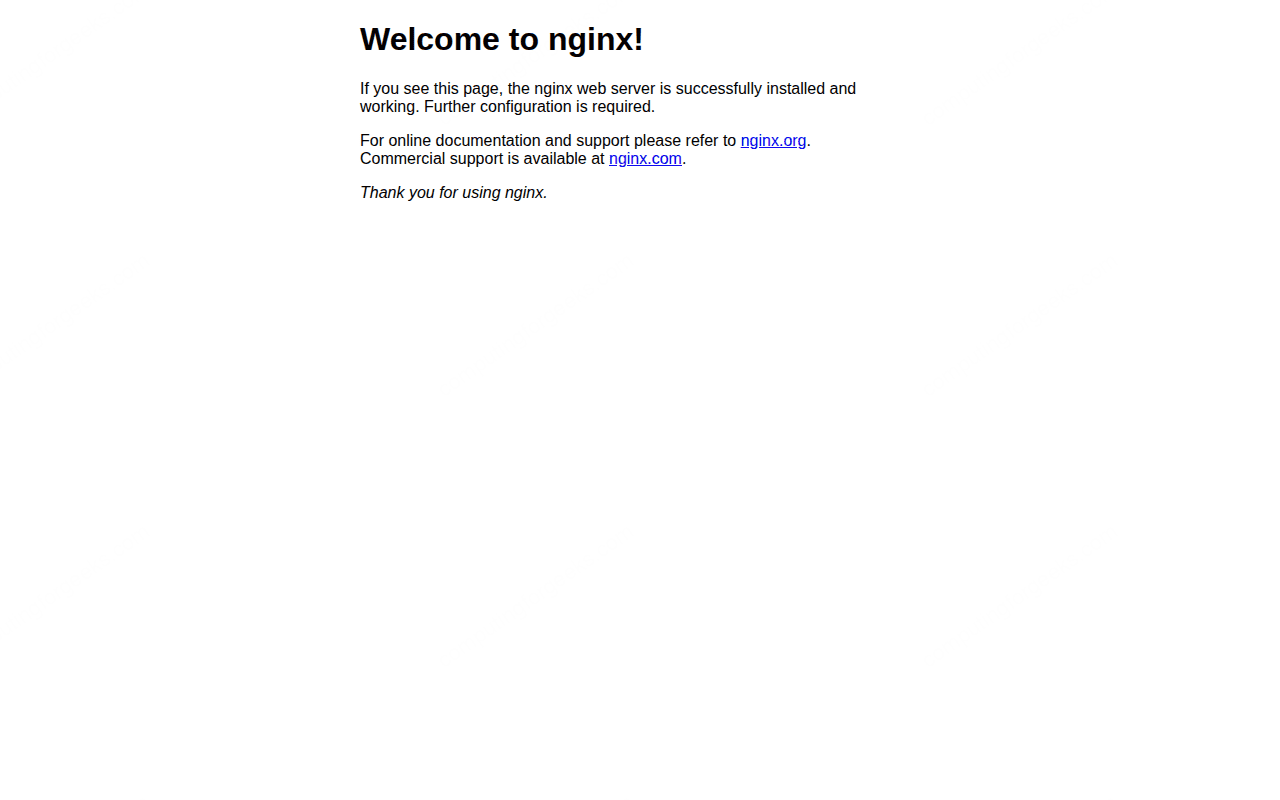
The default page confirms Nginx is serving traffic. Now let’s look at the config structure before creating virtual hosts.
Nginx Configuration Layout
Ubuntu keeps Nginx configs in the standard Debian layout:
| Path | Purpose |
|---|---|
/etc/nginx/nginx.conf | Main config (workers, gzip, SSL defaults) |
/etc/nginx/sites-available/ | Virtual host configs (one file per site) |
/etc/nginx/sites-enabled/ | Symlinks to active sites |
/etc/nginx/conf.d/ | Additional global config snippets |
/etc/nginx/snippets/ | Reusable config fragments |
/var/log/nginx/ | Access and error logs |
/var/www/html/ | Default document root |
Create a Virtual Host
Create the document root for your site:
sudo mkdir -p /var/www/app.example.com/htmlAdd a test page:
echo '<html><body><h1>app.example.com</h1><p>Running on Nginx 1.28.3, Ubuntu 26.04</p></body></html>' | sudo tee /var/www/app.example.com/html/index.htmlCreate the virtual host configuration:
sudo vi /etc/nginx/sites-available/app.example.comAdd the following server block:
server {
    listen 80;
    listen [::]:80;

    server_name app.example.com;

    root /var/www/app.example.com/html;
    index index.html;

    location / {
        try_files $uri $uri/ =404;
    }

    access_log /var/log/nginx/app.example.com.access.log;
    error_log /var/log/nginx/app.example.com.error.log;
}
Enable the site by creating a symlink:
sudo ln -s /etc/nginx/sites-available/app.example.com /etc/nginx/sites-enabled/Test the configuration for syntax errors:
sudo nginx -tNo syntax errors:
nginx: the configuration file /etc/nginx/nginx.conf syntax is ok
nginx: configuration file /etc/nginx/nginx.conf test is successful
Reload Nginx to apply:
sudo systemctl reload nginxThe virtual host is live. Now open the firewall to allow web traffic.
Configure UFW Firewall
Ubuntu 26.04 includes UFW app profiles for Nginx. Check what’s available:
sudo ufw app listThe QUIC profile is new for Ubuntu 26.04:
Available applications:
  Nginx Full
  Nginx HTTP
  Nginx HTTPS
  Nginx QUIC
  OpenSSH
The Nginx QUIC profile is new for Ubuntu 26.04, reflecting HTTP/3 support in this build. For a standard web server setup, allow both HTTP and HTTPS along with SSH:
sudo ufw allow 'Nginx Full'
sudo ufw allow OpenSSH
sudo ufw --force enable
Verify the rules:
sudo ufw statusBoth HTTP and HTTPS are allowed:
Status: active

To                         Action      From
--                         ------      ----
80,443/tcp (Nginx Full)    ALLOW IN    Anywhere
22/tcp (OpenSSH)           ALLOW IN    Anywhere
80,443/tcp (Nginx Full (v6)) ALLOW IN    Anywhere (v6)
22/tcp (OpenSSH (v6))      ALLOW IN    Anywhere (v6)
For a more detailed reference on UFW rules, see our UFW firewall commands guide.
Secure with Let’s Encrypt SSL
Ubuntu 26.04 ships Certbot 4.0 with the Nginx plugin. Install both:
sudo apt install -y certbot python3-certbot-nginxCertbot 4.0 automatically creates a systemd timer for certificate renewal on install. Verify it’s active:
sudo systemctl list-timers | grep certbotRequest a certificate for your domain. Certbot’s Nginx plugin handles the configuration changes automatically:
sudo certbot --nginx -d app.example.com --non-interactive --agree-tos -m [email protected]Certbot will:
- Verify domain ownership via HTTP-01 challenge
- Obtain the certificate from Let’s Encrypt
- Modify your Nginx vhost to add SSL listeners on port 443
- Add an HTTP to HTTPS redirect
After Certbot finishes, your site will be accessible at https://app.example.com with a valid certificate.
Test that automatic renewal works:
sudo certbot renew --dry-runIf the dry run passes, your certificates will renew automatically before they expire. For a deeper dive into Certbot configuration across different web servers, see our Let’s Encrypt SSL certificate guide.
Enable HTTP/2
Nginx 1.28 on Ubuntu 26.04 has HTTP/2 support compiled in but it’s only active on SSL listeners. After Certbot adds your SSL configuration, verify that the listen 443 ssl directive is present:
grep -E 'listen.*443' /etc/nginx/sites-enabled/app.example.comIn Nginx 1.28, HTTP/2 is enabled by default when SSL is configured. You no longer need to add http2 to the listen directive manually (that syntax was deprecated in Nginx 1.25.1). If you want to explicitly control it, add this inside your server block:
http2 on;HTTP/2 is handled. The next step is tuning Nginx for production traffic.
Production Tuning
The default nginx.conf on Ubuntu 26.04 is reasonable, but a few tweaks help on production servers. Our Nginx vs Apache vs Caddy performance benchmark shows where Nginx gains the most from tuning. Edit the main config:
sudo vi /etc/nginx/nginx.confKey settings to adjust:
# Increase connections per worker (default is 768)
events {
    worker_connections 2048;
    multi_accept on;
}

http {
    # Hide server version from responses
    server_tokens off;

    # Expand gzip to cover more content types
    gzip on;
    gzip_vary on;
    gzip_proxied any;
    gzip_comp_level 4;
    gzip_types text/plain text/css application/json application/javascript text/xml application/xml application/xml+rss text/javascript image/svg+xml;

    # Client body and timeouts
    client_max_body_size 64m;
    client_body_timeout 12;
    client_header_timeout 12;
    send_timeout 10;
    keepalive_timeout 65;

    # Security headers (add to http block or individual server blocks)
    add_header X-Frame-Options "SAMEORIGIN" always;
    add_header X-Content-Type-Options "nosniff" always;
    add_header Referrer-Policy "strict-origin-when-cross-origin" always;
}
Test and reload:
sudo nginx -t && sudo systemctl reload nginxNginx picks up the tuning changes on reload without dropping active connections.
Nginx as a Reverse Proxy
When running application servers (Node.js, Python, Go) behind Nginx, configure a reverse proxy block. Here’s a typical setup for an app running on port 3000:
sudo vi /etc/nginx/sites-available/app.example.comReplace the static file serving with a proxy pass:
server {
    listen 80;
    listen [::]:80;
    server_name app.example.com;

    location / {
        proxy_pass http://127.0.0.1:3000;
        proxy_set_header Host $host;
        proxy_set_header X-Real-IP $remote_addr;
        proxy_set_header X-Forwarded-For $proxy_add_x_forwarded_for;
        proxy_set_header X-Forwarded-Proto $scheme;
        proxy_http_version 1.1;
        proxy_set_header Upgrade $http_upgrade;
        proxy_set_header Connection "upgrade";
    }
}
The Upgrade and Connection headers enable WebSocket proxying, which many modern frameworks need. A common use case for this pattern is running WordPress with Nginx on Ubuntu as a high-performance frontend.
sudo nginx -t && sudo systemctl reload nginxThat covers both static file serving and reverse proxy configurations. Here are the commands you’ll use most often.
Useful Nginx Commands
| Command | What it does |
|---|---|
sudo nginx -t | Test config syntax without reloading |
sudo systemctl reload nginx | Apply config changes (zero-downtime) |
sudo systemctl restart nginx | Full restart (brief downtime) |
sudo nginx -T | Dump the full effective config |
tail -f /var/log/nginx/error.log | Watch error log in real time |
tail -f /var/log/nginx/access.log | Watch access log in real time |
Does Nginx 1.28 on Ubuntu 26.04 support HTTP/3?
Yes. Nginx 1.28.3 on Ubuntu 26.04 is compiled with --with-http_v3_module and there’s a dedicated Nginx QUIC UFW profile. To enable HTTP/3, add listen 443 quic; alongside your existing SSL listener and open UDP port 443 with sudo ufw allow 443/udp.
What TLS versions does Nginx use by default on Ubuntu 26.04?
The default nginx.conf sets ssl_protocols TLSv1.2 TLSv1.3; with ssl_prefer_server_ciphers off;. TLS 1.0 and 1.1 are disabled out of the box. This matches current security best practices.
How many worker processes should I configure?
The default worker_processes auto; sets one worker per CPU core. For most servers, this is optimal. On a 4-core server, you’ll see 4 worker processes. Each worker handles up to worker_connections simultaneous connections (768 by default, increase to 2048+ for busy sites).