

Nagios has been the backbone of infrastructure monitoring for over two decades, and it still earns its place in production environments where you need granular control over what gets checked and how. If you’ve outgrown basic uptime pings but don’t want the overhead of a full observability platform, Nagios Core gives you host and service monitoring with a lightweight footprint. This guide walks through a source-based install on Rocky Linux 10 and AlmaLinux 10 with SELinux enforcing.
We’ll compile the latest Nagios Core release and the official plugin suite, set up Apache with password-protected web access, and verify everything works before touching firewall rules. The process is the same on both Rocky and AlmaLinux since they share the RHEL 10 package base. For the full reference on checks, escalations, and templates, the official Nagios documentation covers it thoroughly.
Verified working: March 2026 on Rocky Linux 10.1 (kernel 6.12), SELinux enforcing, Nagios Core 4.5.11, Plugins 2.4.12
Before You Begin
You’ll need a Rocky Linux 10 or AlmaLinux 10 server with root or sudo access. A minimal install works fine since we’ll pull in everything Nagios needs during the dependency step.
- Rocky Linux 10.1 or AlmaLinux 10 (minimal or server install)
- Root or sudo privileges
- At least 2 GB RAM and 20 GB disk (Nagios itself is lightweight, but retention data grows)
- A working network connection for downloading source tarballs
- SELinux in enforcing mode (the default, and we keep it that way)
Confirm your OS release and SELinux status before proceeding:
cat /etc/redhat-release
getenforce
You should see Rocky Linux 10.1 (or AlmaLinux 10) and Enforcing:
Rocky Linux release 10.1 (Blue Onyx)
Enforcing
Install Build Dependencies
Nagios compiles from source, so we need development tools along with Apache and PHP for the web interface. Install everything in one shot:
sudo dnf install -y gcc glibc glibc-common make gettext automake autoconf wget \
  openssl-devel net-snmp net-snmp-utils perl-Net-SNMP unzip \
  httpd php php-cli php-gd gd gd-devel perl perl-devel
This pulls in GCC for compilation, Apache 2.4.63 as the web server, PHP 8.3.29 for the CGI interface, and the SNMP utilities that several Nagios plugins depend on. The GD library handles the status map graphics in the web UI.
Create Nagios User and Group
Nagios runs under its own user account. We also create a nagcmd group that lets Apache submit external commands (acknowledging alerts, scheduling downtime) through the web interface:
sudo useradd -m nagios
sudo groupadd nagcmd
sudo usermod -aG nagcmd nagios
sudo usermod -aG nagcmd apache
Both the nagios user and the apache user now belong to nagcmd. This shared group membership is what allows the web UI to write to the Nagios command pipe.
Download and Compile Nagios Core
First, fetch the latest Nagios Core version number from GitHub so the install always pulls the current release:
NAGIOS_VER=$(curl -sL https://api.github.com/repos/NagiosEnterprises/nagioscore/releases/latest | grep tag_name | head -1 | sed 's/.*nagios-//;s/".*//')
echo "Latest Nagios Core version: $NAGIOS_VER"
Now download and extract the source tarball:
cd /tmp
wget https://assets.nagios.com/downloads/nagioscore/releases/nagios-${NAGIOS_VER}.tar.gz
tar -xzf nagios-${NAGIOS_VER}.tar.gz
cd nagios-${NAGIOS_VER}
Configure the build with the nagcmd group for external command access:
sudo ./configure --with-command-group=nagcmdThe configure script checks for all required libraries and prints a summary at the end. Look for no errors before moving on. Now compile and install:
sudo make all
sudo make install
sudo make install-init
sudo make install-commandmode
sudo make install-config
sudo make install-webconf
Here’s what each make install-* target does:
- install puts the Nagios binary and CGIs into
/usr/local/nagios/ - install-init creates the systemd unit file
- install-commandmode sets up the external command pipe with correct permissions
- install-config drops sample configuration files into
/usr/local/nagios/etc/ - install-webconf creates the Apache config at
/etc/httpd/conf.d/nagios.conf
Set Up Web Authentication
The Nagios web interface uses HTTP Basic Auth through Apache. Create the nagiosadmin user with htpasswd:
sudo htpasswd -c /usr/local/nagios/etc/htpasswd.users nagiosadminEnter a strong password when prompted. The -c flag creates the file. If you add more users later, omit -c so you don’t overwrite the existing file.
Install Nagios Plugins
Without plugins, Nagios has no way to actually check anything. The official plugin package provides check_ping, check_http, check_disk, check_ssh, and dozens more. Grab the latest version the same way we did for Nagios Core:
PLUG_VER=$(curl -sL https://api.github.com/repos/nagios-plugins/nagios-plugins/releases/latest | grep tag_name | head -1 | sed 's/.*release-//;s/".*//')
echo "Latest plugins version: $PLUG_VER"
Download and extract the plugin source:
cd /tmp
wget https://nagios-plugins.org/download/nagios-plugins-${PLUG_VER}.tar.gz
tar -xzf nagios-plugins-${PLUG_VER}.tar.gz
cd nagios-plugins-${PLUG_VER}
Compile and install the plugins into the Nagios libexec directory:
sudo ./configure --with-nagios-user=nagios --with-nagios-group=nagios
sudo make
sudo make install
The plugins land in /usr/local/nagios/libexec/. Verify they’re there:
ls /usr/local/nagios/libexec/ | head -20You should see a list of check_* binaries. If the directory is empty, the plugin compilation failed and you need to review the ./configure output for missing dependencies.
Configure the Firewall
Rocky Linux 10 uses firewalld by default. Open HTTP access so you can reach the Nagios web UI:
sudo firewall-cmd --permanent --add-service=http
sudo firewall-cmd --reload
Confirm the rule is active:
sudo firewall-cmd --list-servicesThe output should include http alongside ssh and any other services you’ve previously allowed:
cockpit dhcpv6-client http sshFor production deployments, you’ll want HTTPS instead of plain HTTP. Set up a reverse proxy with Let’s Encrypt or place Nagios behind your existing TLS termination point.
Verify and Start Nagios
Before starting the daemon, run the built-in configuration verifier. This catches syntax errors, missing files, and circular dependencies in your host/service definitions:
sudo /usr/local/nagios/bin/nagios -v /usr/local/nagios/etc/nagios.cfgThe last few lines of output should confirm a clean configuration:
Total Warnings: 0
Total Errors:   0

Things look okay - No serious problems were detected during the pre-flight check
If you see errors, the output tells you exactly which config file and line number to fix. With a clean check, enable and start both Apache and Nagios:
sudo systemctl enable --now httpd
sudo systemctl enable --now nagios
Check that both services are running:
sudo systemctl status nagios --no-pagerThe output confirms Nagios is active:
● nagios.service - Nagios Core 4.5.11
     Loaded: loaded (/usr/lib/systemd/system/nagios.service; enabled; preset: disabled)
     Active: active (running)
     CGroup: /system.slice/nagios.service
Access the Web Interface
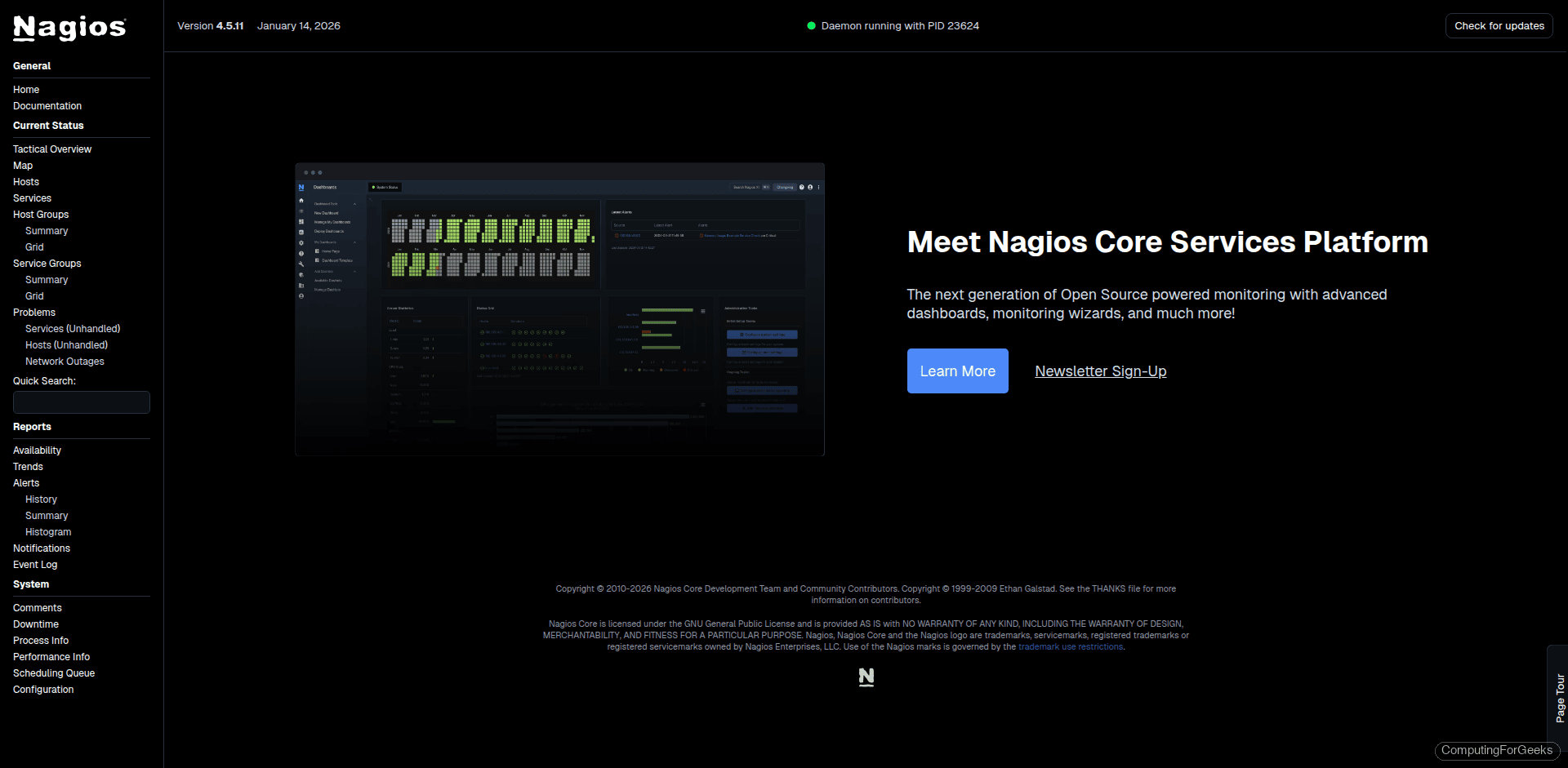
Open a browser and navigate to http://your-server-ip/nagios. Enter the nagiosadmin credentials you created earlier. The main dashboard loads with the Nagios daemon status and version information on the right, along with the full navigation menu on the left sidebar.
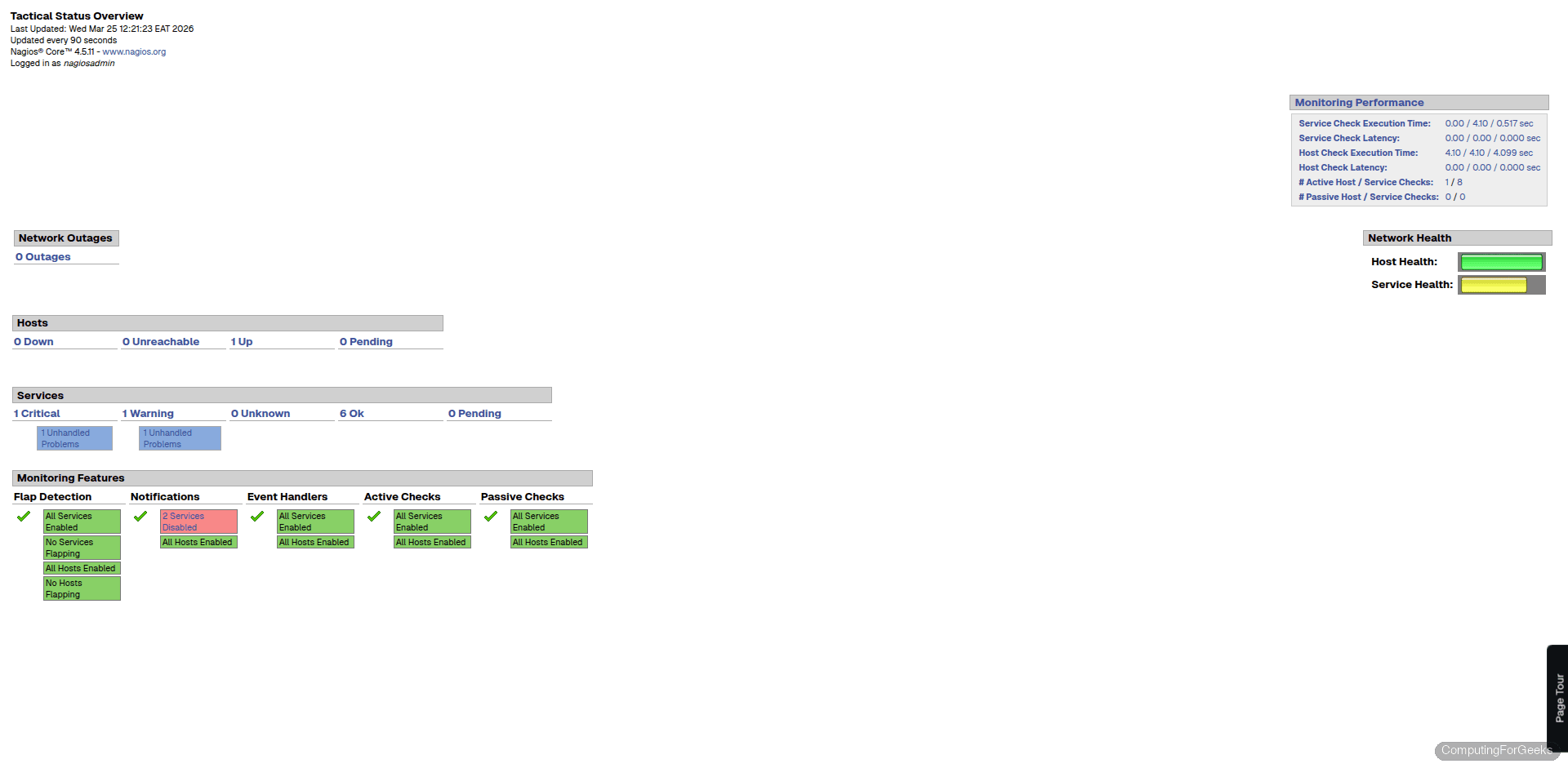
Click “Tactical Overview” in the left menu to see the high-level summary. This page shows host and service totals broken down by status (up, down, unreachable for hosts; OK, warning, critical, unknown for services). It’s the quickest way to spot problems across your entire monitored infrastructure.
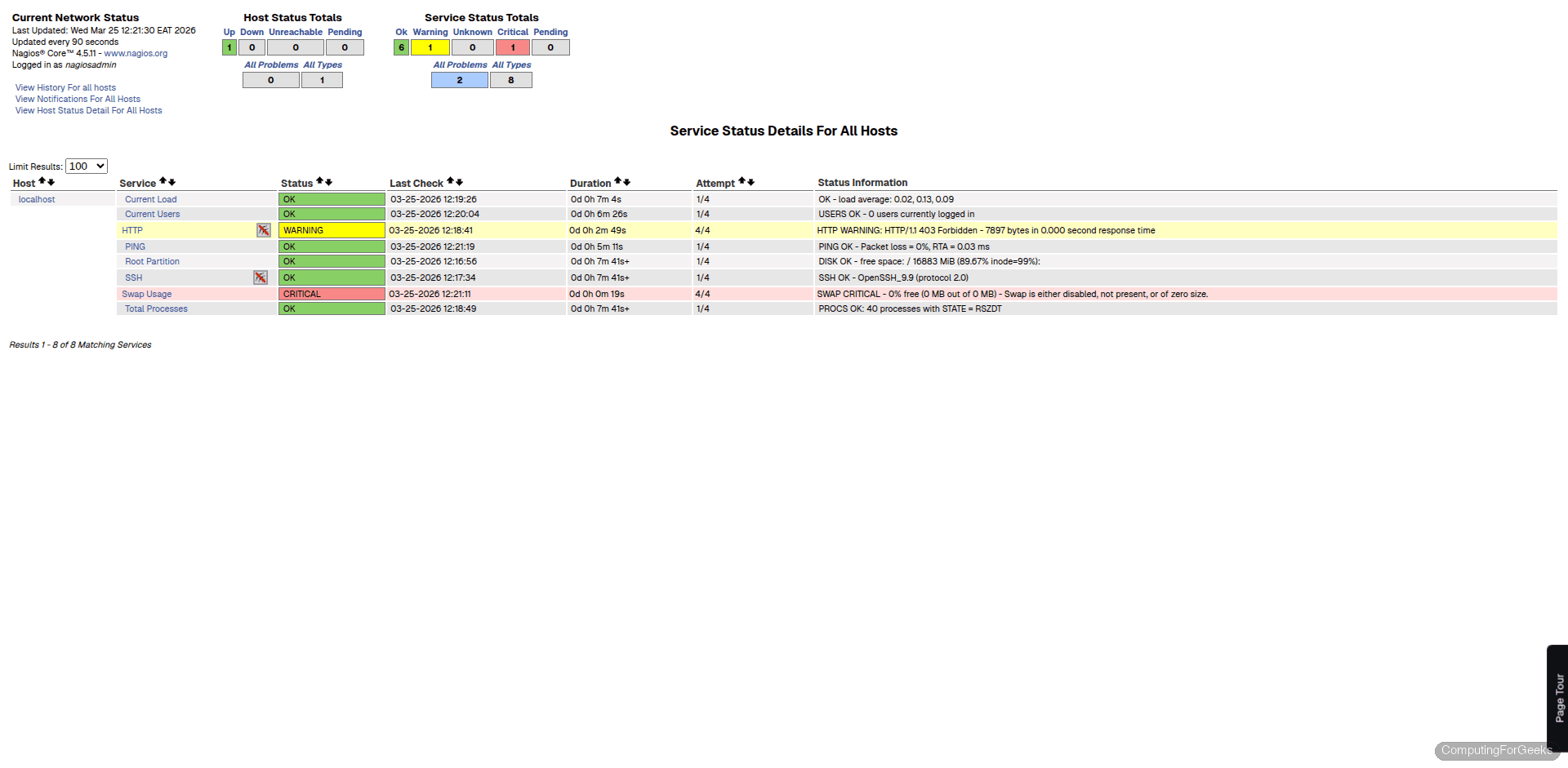
The “Services” view gives you the full breakdown. Each service row shows the host, service description, status, last check time, and status duration. The default configuration monitors localhost only, so you’ll see checks for current load, current users, disk space, HTTP, ping, root partition, SSH, swap usage, and total processes. All of these should show green (OK) within a few minutes as the initial check cycle completes.
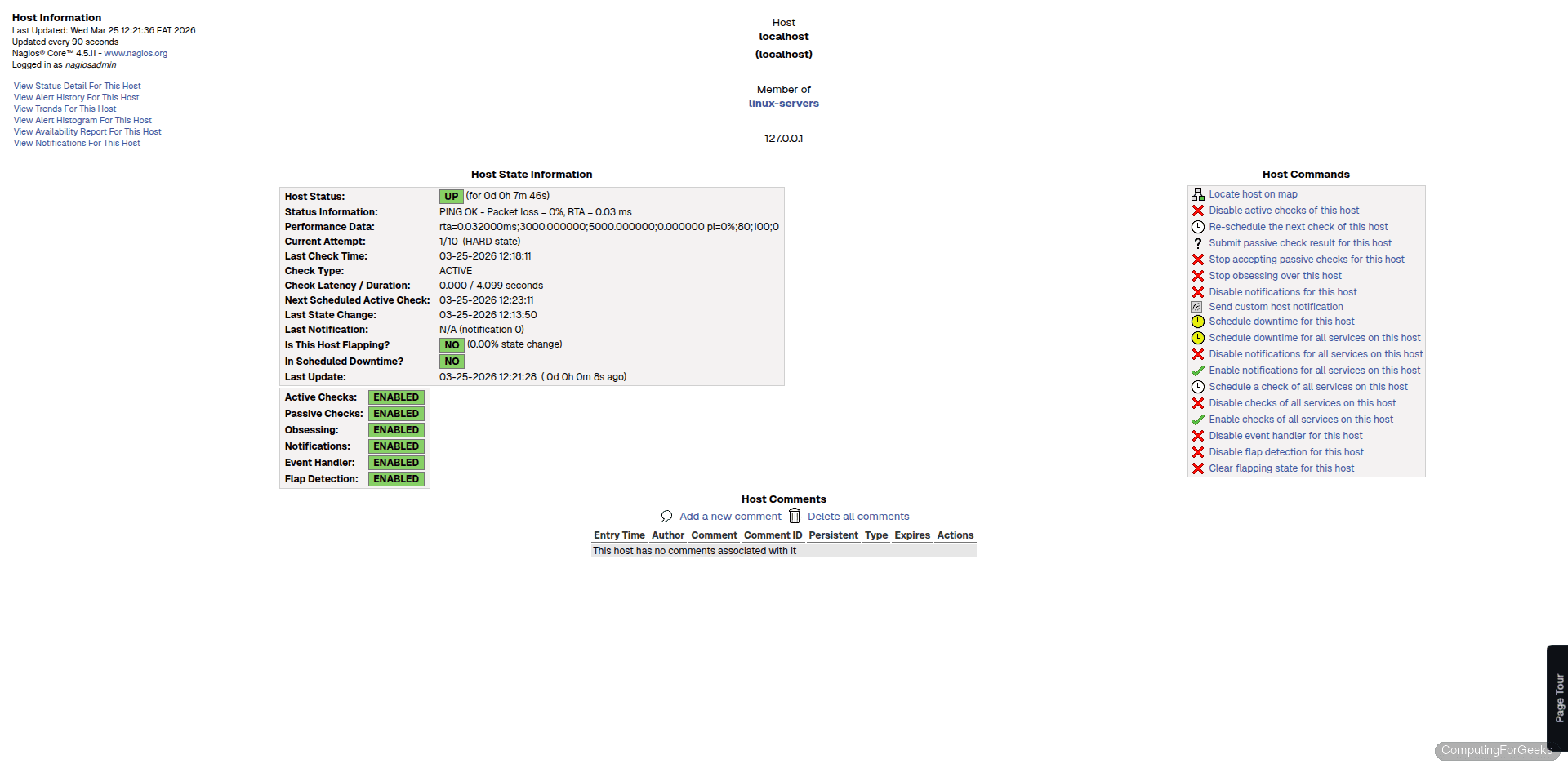
Clicking on the hostname takes you to the host detail page. Here you’ll find uptime, check latency, last state change, and the full check output. This page is where you go when troubleshooting why a particular host is reporting problems.
SELinux Notes
With a standard source install to /usr/local/nagios/, Nagios runs cleanly under SELinux enforcing on Rocky Linux 10.1. During testing, no AVC denials were logged. Verify this on your system:
sudo ausearch -m avc -ts recentIf the output shows <no matches>, SELinux is not blocking anything. The default install paths and the Apache integration work within the existing policy without any custom booleans or context changes.
This can change if you move Nagios files to non-standard locations, use custom plugins that access restricted paths, or enable features like SNMP traps that write to different directories. In those cases, check ausearch for denials and use semanage fcontext and restorecon to label the paths correctly. Never disable SELinux as a workaround.
Add a Remote Host
Monitoring localhost is just the starting point. To check remote servers, you need NRPE (Nagios Remote Plugin Executor) installed on each target machine. NRPE runs as a lightweight daemon on the remote host and executes local plugins when your Nagios server asks for a check result.
The workflow is straightforward: install NRPE and the Nagios plugins on the remote host, configure which checks NRPE is allowed to run, then add a host and service definition on the Nagios server pointing to that machine. The remote host needs SSH access configured for initial setup, and NRPE communicates over TCP port 5666 after that.
Create a config file for the remote host on your Nagios server:
sudo vi /usr/local/nagios/etc/objects/webserver01.cfgAdd a basic host and service definition:
define host {
    use                 linux-server
    host_name           webserver01
    alias               Web Server 01
    address             192.168.1.50
    max_check_attempts  5
    check_period        24x7
    notification_interval 30
    notification_period 24x7
}

define service {
    use                 generic-service
    host_name           webserver01
    service_description PING
    check_command       check_ping!100.0,20%!500.0,60%
}

define service {
    use                 generic-service
    host_name           webserver01
    service_description SSH
    check_command       check_ssh
}
Include this file in the main configuration. Open /usr/local/nagios/etc/nagios.cfg and add:
cfg_file=/usr/local/nagios/etc/objects/webserver01.cfgVerify the configuration and reload:
sudo /usr/local/nagios/bin/nagios -v /usr/local/nagios/etc/nagios.cfg
sudo systemctl reload nagios
The new host appears in the web UI within one check cycle. For database servers, you can monitor PostgreSQL connectivity and query response times using the check_pgsql plugin that ships with the plugin package.
Production Tips
A few things worth doing before you rely on this in production:
- Adjust data retention in
/usr/local/nagios/etc/nagios.cfg. The defaults keep performance data and logs for a limited period. Setmax_service_check_spreadand retention values based on how much history you need for capacity planning. - Configure notifications early. Nagios does nothing useful with alerts unless you set up email or integrate with PagerDuty, Slack, or another alerting tool. Edit
contacts.cfgwith real email addresses and test that mail delivery works from the server. - Enable HTTPS for the web interface. Running the Nagios dashboard over plain HTTP exposes credentials on every login. Set up a reverse proxy with TLS termination or configure Apache with mod_ssl and a Let’s Encrypt certificate.
- Back up your configuration regularly. The entire Nagios config lives under
/usr/local/nagios/etc/, which makes it easy to version control with Git or include in your BorgBackup schedule. Losing host definitions after months of tuning thresholds is painful.
