

MediaWiki powers Wikipedia and thousands of internal knowledge bases. It runs on PHP and MySQL/MariaDB, which means a standard LAMP stack on Ubuntu gets you up and running in about 15 minutes.
This guide walks through installing MediaWiki 1.43 on Ubuntu 24.04 with Apache, PHP 8.3, and MariaDB. The same steps apply to Debian 13 with minor package name differences. For a containerized alternative, see how to run Docker on Debian and deploy MediaWiki as a container instead.
Current as of March 2026. Verified on Ubuntu 24.04.4 LTS with MediaWiki 1.43.1, PHP 8.3.6, MariaDB 10.11.14, Apache 2.4.58
Prerequisites
- Ubuntu 24.04 LTS or Debian 13 (server install)
- Root or sudo access
- At least 512 MB RAM (1 GB recommended for production)
- A domain name for SSL (optional for local testing)
Install Apache, PHP, and MariaDB
MediaWiki needs a web server, PHP with several extensions, and a database. Install everything in one shot:
sudo apt update
sudo apt install -y apache2 mariadb-server php php-mysql php-xml php-mbstring php-intl php-curl php-gd php-apcu libapache2-mod-php imagemagick
Verify the key versions:
php -v | head -1
mariadb --version
apache2 -v | head -1
On Ubuntu 24.04, you get:
PHP 8.3.6 (cli) (built: Jan 27 2026 03:09:47) (NTS)
mariadb  Ver 15.1 Distrib 10.11.14-MariaDB
Server version: Apache/2.4.58 (Ubuntu)
All three services should already be running. Confirm Apache and MariaDB are active:
systemctl status apache2 --no-pager | head -3
systemctl status mariadb --no-pager | head -3
Create the MediaWiki Database
Connect to MariaDB and create a database with a dedicated user:
sudo mariadbRun the following SQL statements to create the database, user, and grant permissions:
CREATE DATABASE mediawiki;
CREATE USER 'wikiuser'@'localhost' IDENTIFIED BY 'YourSecurePassword';
GRANT ALL PRIVILEGES ON mediawiki.* TO 'wikiuser'@'localhost';
FLUSH PRIVILEGES;
EXIT;
Download and Extract MediaWiki
The commands below automatically detect the latest stable MediaWiki release from the official download page, so you always get the current version without hardcoding a version number:
MW_VER=$(curl -sL https://www.mediawiki.org/wiki/Special:Export/Template:MediaWiki_download 2>/dev/null | grep -oP 'mediawiki_version>[^<]+' | head -1 | sed 's/mediawiki_version>//')
MW_MAJOR=$(echo $MW_VER | cut -d. -f1,2)
echo "Detected MediaWiki version: $MW_VER (branch $MW_MAJOR)"
If the detection succeeds, you should see output like:
Detected MediaWiki version: 1.43.1 (branch 1.43)If the version comes back empty (the export page structure may change), set it manually. Check the MediaWiki download page for the current stable release:
MW_VER="1.43.1"
MW_MAJOR=$(echo $MW_VER | cut -d. -f1,2)
Now download and extract:
cd /tmp
wget "https://releases.wikimedia.org/mediawiki/${MW_MAJOR}/mediawiki-${MW_VER}.tar.gz"
Extract and move it to the web root:
tar xf "mediawiki-${MW_VER}.tar.gz"
sudo mv "mediawiki-${MW_VER}" /var/www/html/mediawiki
sudo chown -R www-data:www-data /var/www/html/mediawiki
Quick sanity check that Apache serves the MediaWiki directory:
curl -sI http://localhost/mediawiki/ | head -3You should see HTTP 200 from Apache:
HTTP/1.1 200 OK
Date: Wed, 25 Mar 2026 01:25:04 GMT
Server: Apache/2.4.58 (Ubuntu)
Run the Web Installer
Open your browser and navigate to http://your-server-ip/mediawiki/. MediaWiki detects that no LocalSettings.php exists and launches the setup wizard.
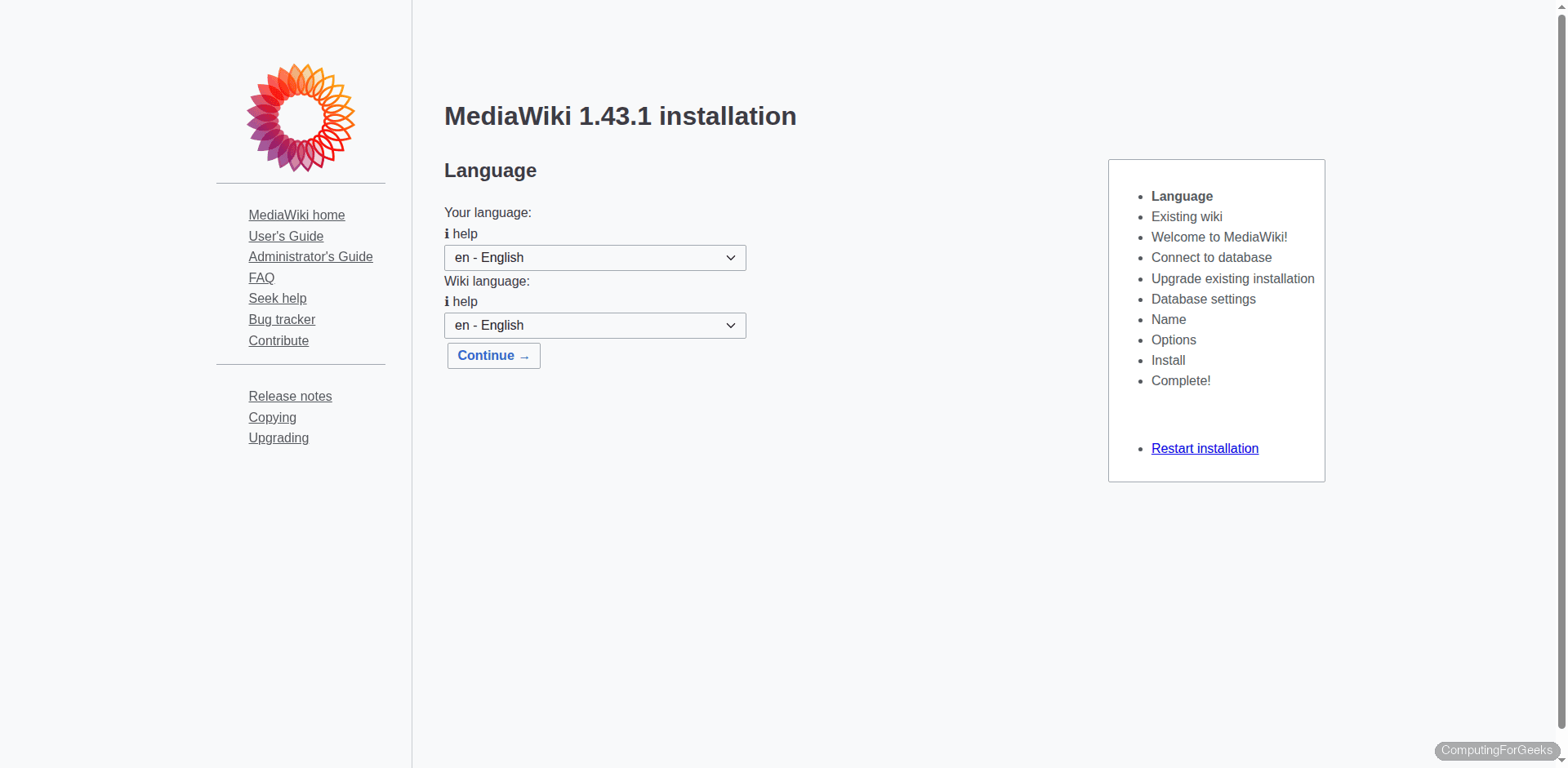
The installer walks you through several configuration screens:
Language selection: Choose your wiki’s language and the installer language.
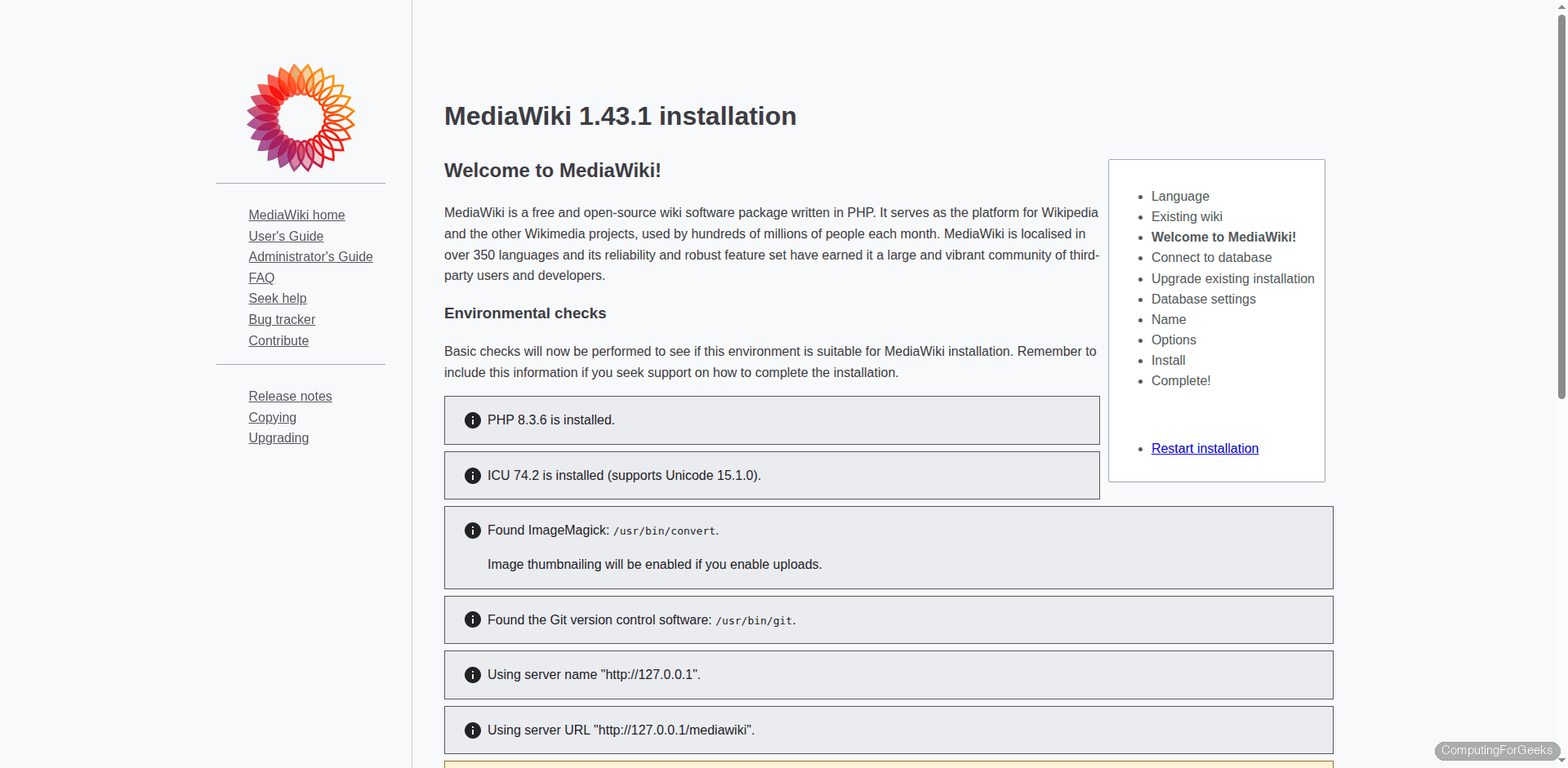
Environment check: MediaWiki verifies PHP version, required extensions, and directory permissions. All checks should pass with the packages installed above.
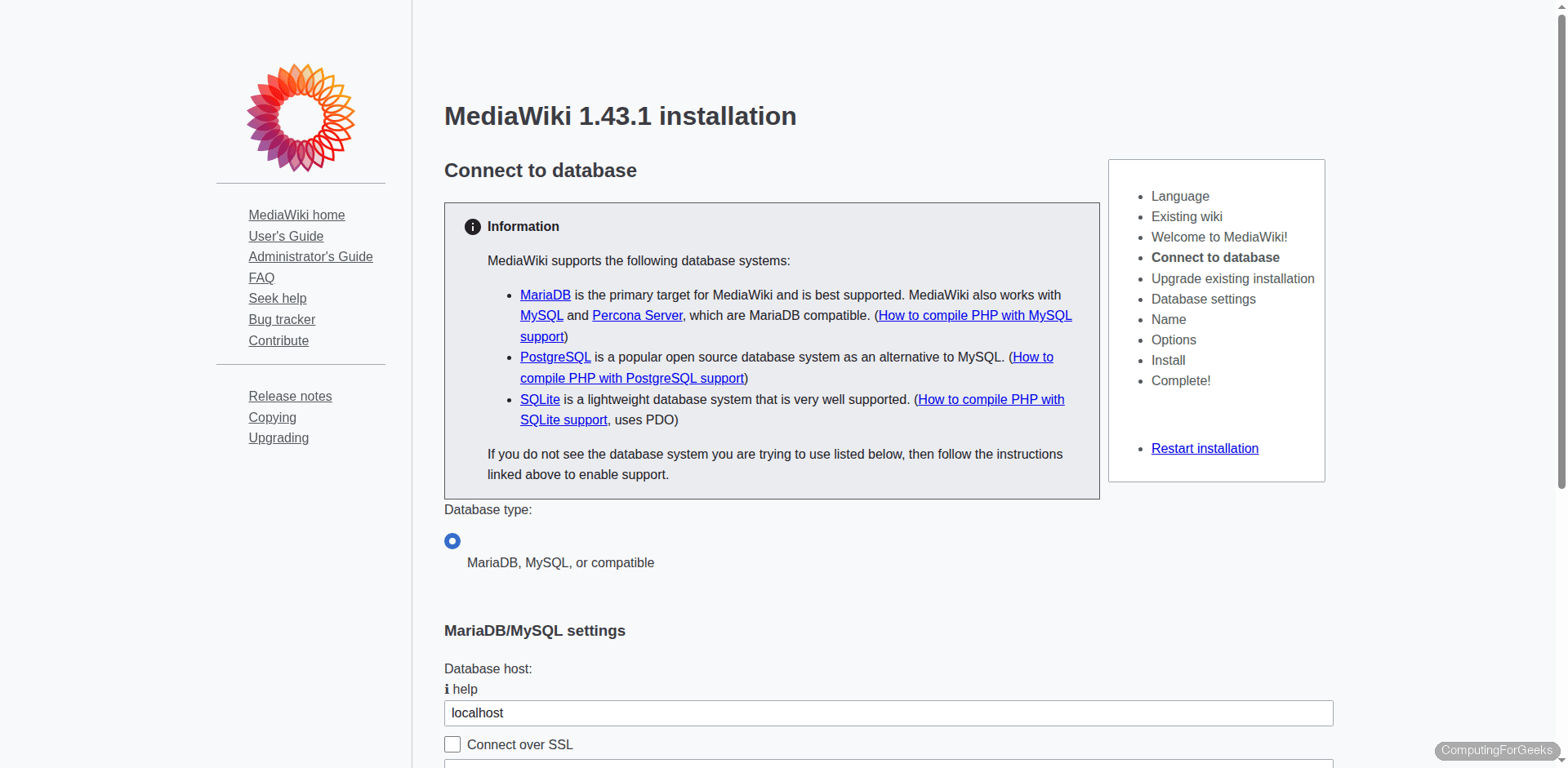
Database connection: Enter mediawiki as the database name, wikiuser as the user, and the password you set earlier.
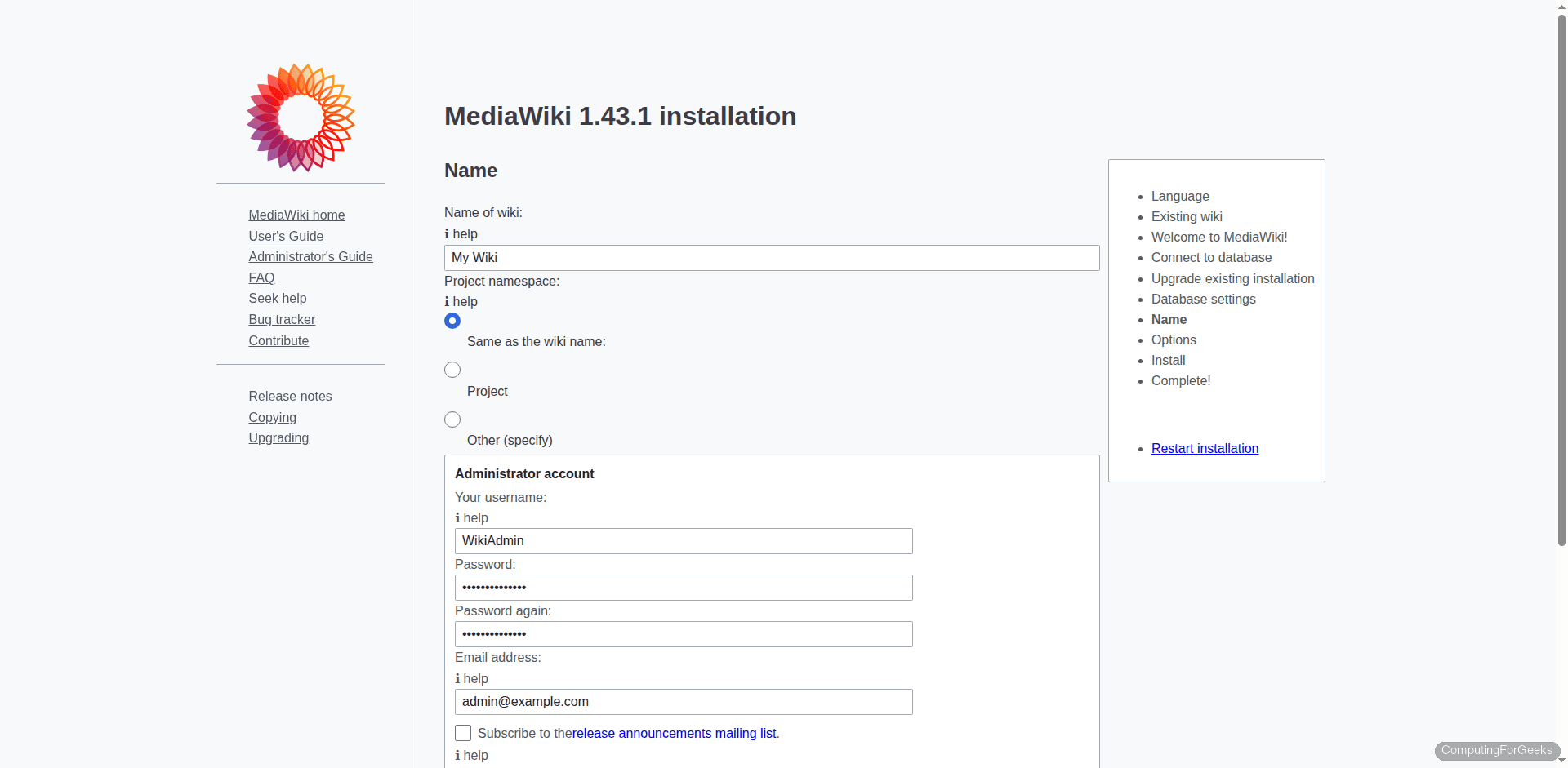
Wiki name and admin account: Set the wiki name and create the administrator account.
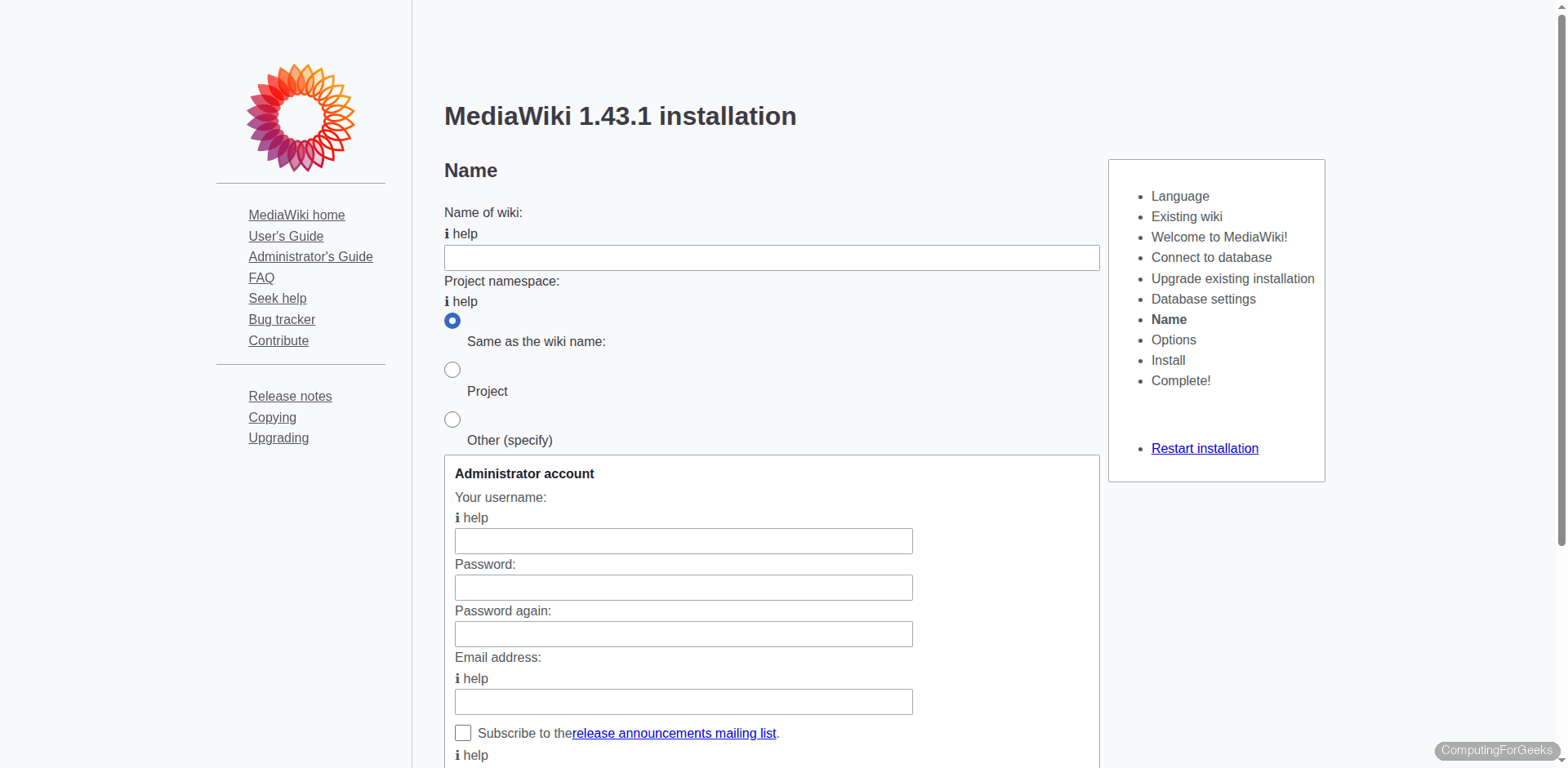
Fill in the administrator username, password, and email address. This account will have full administrative privileges on the wiki.
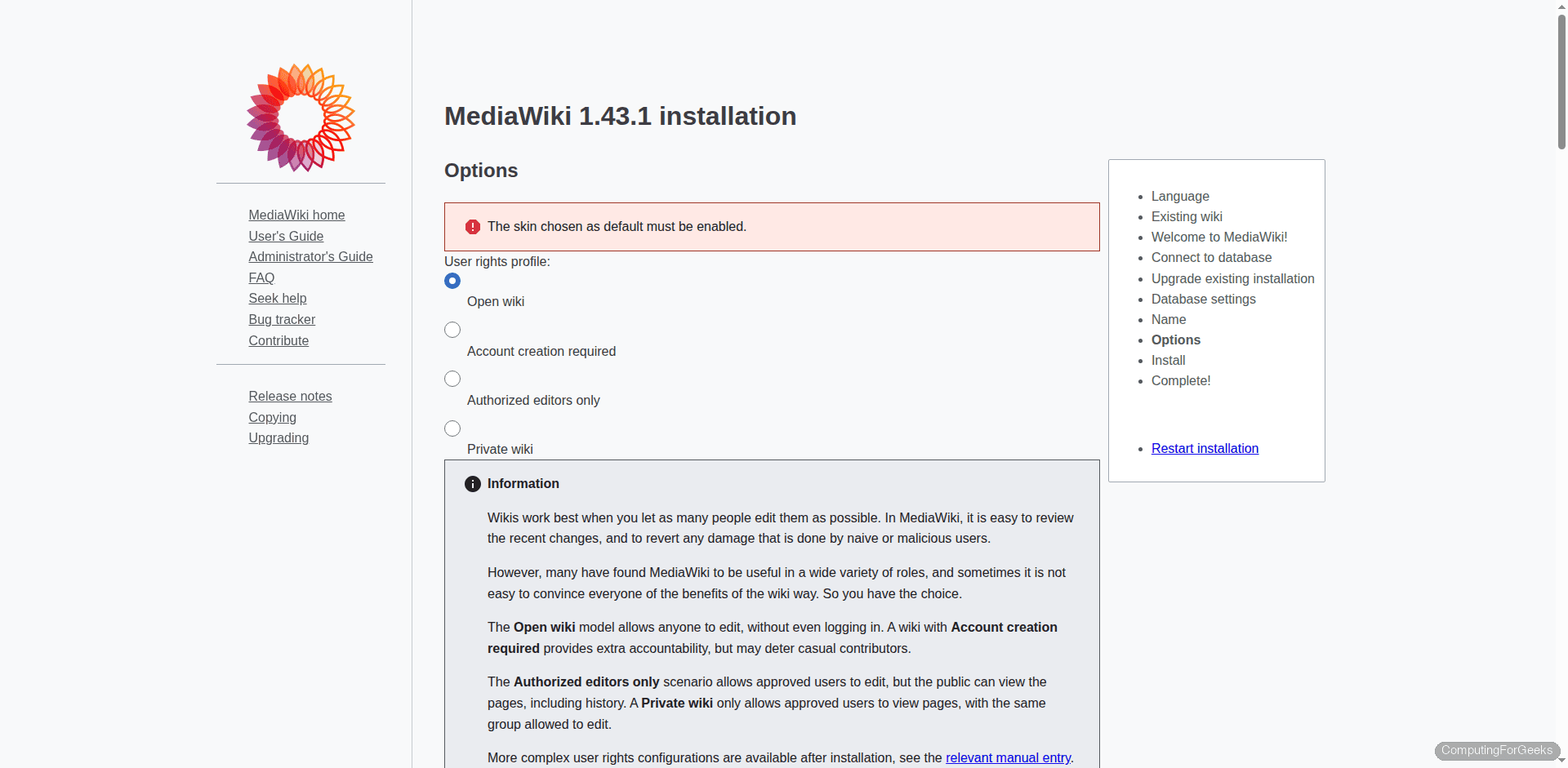
Optional settings: Email, file uploads, skins, and extensions. The defaults work fine for initial setup.
At the end, the installer generates a LocalSettings.php file. Download it and place it in the MediaWiki root.
Move the downloaded file into place:
sudo mv ~/Downloads/LocalSettings.php /var/www/html/mediawiki/
sudo chown www-data:www-data /var/www/html/mediawiki/LocalSettings.php
Configure Apache Virtual Host
For production use, create a dedicated virtual host instead of relying on the default. Create the config file:
sudo vi /etc/apache2/sites-available/mediawiki.confAdd the following configuration:
<VirtualHost *:80>
    ServerName wiki.example.com
    DocumentRoot /var/www/html/mediawiki

    <Directory /var/www/html/mediawiki>
        AllowOverride All
        Require all granted
    </Directory>

    ErrorLog ${APACHE_LOG_DIR}/mediawiki-error.log
    CustomLog ${APACHE_LOG_DIR}/mediawiki-access.log combined
</VirtualHost>
Enable the site and required Apache modules:
sudo a2ensite mediawiki.conf
sudo a2enmod rewrite
sudo systemctl reload apache2
Enable Short URLs
By default, MediaWiki URLs look like /mediawiki/index.php?title=Main_Page. Short URLs give you cleaner paths like /wiki/Main_Page.
Add these lines to LocalSettings.php:
$wgArticlePath = "/wiki/$1";
$wgUsePathInfo = true;
Then add a rewrite rule to the Apache virtual host (inside the <Directory> block) or create a .htaccess file:
RewriteEngine On
RewriteRule ^wiki/(.*)$ /mediawiki/index.php?title=$1 [PT,L,QSA]
PHP Settings for MediaWiki
The defaults work for small wikis, but production instances benefit from a few tweaks. Edit the PHP configuration:
sudo vi /etc/php/8.3/apache2/php.iniAdjust these values:
upload_max_filesize = 20M
post_max_size = 25M
memory_limit = 256M
max_execution_time = 60
Restart Apache to apply:
sudo systemctl restart apache2Enable File Uploads
File uploads are disabled by default. Enable them in LocalSettings.php:
$wgEnableUploads = true;The images directory must be writable by the web server:
sudo chown -R www-data:www-data /var/www/html/mediawiki/imagesUseful MediaWiki Maintenance Commands
| Command | What it does |
|---|---|
php maintenance/run.php update | Run database schema updates after upgrading |
php maintenance/run.php createAndPromote --sysop Admin password | Create an admin user from CLI |
php maintenance/run.php rebuildall | Rebuild search index and link tables |
php maintenance/run.php showJobs | Show pending background jobs |
php maintenance/run.php runJobs | Process all pending background jobs |
All maintenance commands run from the MediaWiki root directory as the www-data user:
cd /var/www/html/mediawiki
sudo -u www-data php maintenance/run.php update
Secure the Installation
A few security steps for production wikis:
- Set up SSL – Use Let’s Encrypt with certbot. Every public wiki should run over HTTPS
- Restrict account creation – Add
$wgGroupPermissions['*']['createaccount'] = false;toLocalSettings.phpif you don’t want open registration - Enable email confirmation – Set
$wgEmailConfirmToEdit = true;to require verified emails before editing - Protect the uploads directory – Prevent PHP execution in the images folder with an
.htaccessrule:php_flag engine off - Regular backups – Back up both the database (
mariadb-dump mediawiki) and theimages/directory. Consider automating with BorgBackup and Borgmatic
For Apache tuning and virtual host management across multiple sites, the guide on hosting PHP applications with Apache and Nginx covers the underlying configuration in more depth.
