

MariaDB 12.0 is the latest rolling release from the MariaDB Foundation, introducing new collation defaults (UCA 14.0), SYS_REFCURSOR support, SET SESSION AUTHORIZATION, new GIS functions, multi-event triggers, and Galera 26.4.23. It replaces the traditional LTS model with a rolling release approach – you get the newest features as they land.
This guide walks through installing MariaDB 12.0 on Rocky Linux 10 and AlmaLinux 10 from the official MariaDB repository. The default RHEL 10 repos ship MariaDB 10.11, so we need the upstream repo to get 12.0. All commands were tested on Rocky Linux 10.1 with MariaDB 12.0.2. For the full list of changes, check the official MariaDB 12.0 release notes.
Prerequisites
- Rocky Linux 10 or AlmaLinux 10 server (minimal or server install)
- Root or sudo access
- Internet connectivity to download packages from MariaDB repos
- Firewall port 3306/TCP open if accepting remote connections
Step 1: Update System Packages
Start by updating all installed packages to their latest versions.
sudo dnf update -yStep 2: Add the Official MariaDB 12.0 Repository
Rocky Linux 10 and AlmaLinux 10 ship with MariaDB 10.11 in the default AppStream repository. To get MariaDB 12.0, add the official MariaDB repository using their setup script.
curl -LsS https://r.mariadb.com/downloads/mariadb_repo_setup | sudo bash -s -- --mariadb-server-version=mariadb-12.0The script adds the MariaDB Server, MaxScale, and Tools repositories. On Rocky/AlmaLinux 10, the GPG key import for MaxScale and Enterprise repos may fail. Fix this by importing the server GPG key manually and disabling the MaxScale repo (unless you need it):
sudo rpm --import https://supplychain.mariadb.com/MariaDB-Server-GPG-KEY
sudo dnf config-manager --set-disabled mariadb-maxscale
Verify the repository is configured:
dnf repolist | grep mariadbYou should see the MariaDB server repository listed:
mariadb-main             MariaDB Server
mariadb-main-debuginfo   MariaDB Server - Debug
Step 3: Install MariaDB 12.0 Server on Rocky Linux 10 / AlmaLinux 10
Install the MariaDB server, client, and backup packages. Note the package names use a capital M – this is different from the distro-provided packages.
sudo dnf install -y MariaDB-server MariaDB-client MariaDB-backupStep 4: Start and Enable MariaDB Service
Enable MariaDB to start on boot and start it immediately.
sudo systemctl enable --now mariadbVerify the service is running:
systemctl status mariadbThe output should show MariaDB 12.0.2 active and running:
● mariadb.service - MariaDB 12.0.2 database server
     Loaded: loaded (/usr/lib/systemd/system/mariadb.service; enabled; preset: disabled)
     Active: active (running)
Step 5: Verify MariaDB 12.0 Installation
Confirm the installed version by checking the MariaDB client.
mariadb --versionThis confirms the MariaDB 12.0.2 client is installed:
mariadb from 12.0.2-MariaDB, client 15.2 for Linux (x86_64) using EditLine wrapperCheck the installed packages:
rpm -qa | grep MariaDBYou should see the 12.0.2 packages:
MariaDB-server-12.0.2-1.el10.x86_64
MariaDB-client-12.0.2-1.el10.x86_64
MariaDB-backup-12.0.2-1.el10.x86_64
MariaDB-common-12.0.2-1.el10.x86_64
MariaDB-shared-12.0.2-1.el10.x86_64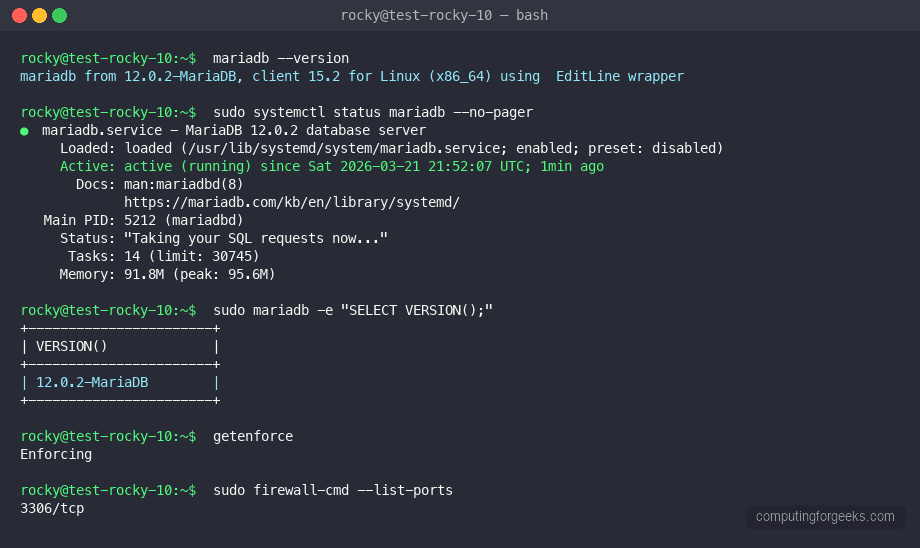
Step 6: Secure MariaDB Installation
Run the security hardening script to set a root password, remove anonymous users, disable remote root login, and drop the test database.
sudo mariadb-secure-installationFollow the interactive prompts:
- Enter current password for root – press Enter (no password set yet)
- Switch to unix_socket authentication – Y (recommended for local root access)
- Change the root password – Y, then set a strong password
- Remove anonymous users – Y
- Disallow root login remotely – Y
- Remove test database – Y
- Reload privilege tables – Y
Step 7: Connect to MariaDB 12.0
After securing the installation, connect to verify everything works. If you enabled unix_socket authentication, root connects without a password when using sudo.
sudo mariadbRun a quick version check from the MariaDB prompt:
MariaDB [(none)]> SELECT VERSION();
+------------------+
| VERSION()        |
+------------------+
| 12.0.2-MariaDB   |
+------------------+
1 row in set (0.000 sec)

MariaDB [(none)]> exit;
Step 8: Configure Firewall for MariaDB
If remote clients need to connect to this MariaDB server, open port 3306/TCP in firewalld.
sudo firewall-cmd --permanent --add-service=mysql
sudo firewall-cmd --reload
Verify the service was added:
sudo firewall-cmd --list-servicesYou should see mysql in the list of allowed services, which covers port 3306/TCP.
Step 9: SELinux Configuration
Rocky Linux 10 and AlmaLinux 10 run SELinux in enforcing mode by default. MariaDB works out of the box because port 3306 is already defined in the mysqld_port_t SELinux type. Verify this:
sudo semanage port -l | grep mysqldThe output confirms port 3306 is allowed for MariaDB under SELinux:
mysqld_port_t tcp 1186, 3306, 63132-63164If you change MariaDB to a non-standard port, you need to add the new port to SELinux. For example, to allow port 3307:
sudo semanage port -a -t mysqld_port_t -p tcp 3307For more on managing SELinux policies, see Troubleshoot SELinux on Rocky Linux 10 / AlmaLinux 10.
Step 10: Configure MariaDB for Remote Access
By default on Rocky Linux 10, MariaDB 12.0 listens on all interfaces (0.0.0.0:3306 and [::]:3306). You can verify this:
ss -tlnp | grep 3306The output shows MariaDB listening on both IPv4 and IPv6:
LISTEN 0      80           0.0.0.0:3306      0.0.0.0:*    users:(("mariadbd",pid=1234,fd=22))
LISTEN 0      80              [::]:3306         [::]:*    users:(("mariadbd",pid=1234,fd=23))
If you want to restrict MariaDB to only listen on a specific IP or localhost, edit the server configuration file:
sudo vi /etc/my.cnf.d/server.cnfAdd or modify the bind-address directive under the [mariadbd] section:
[mariadbd]
bind-address = 127.0.0.1   # Listen on localhost only
# bind-address = 0.0.0.0   # Listen on all interfaces (default)
Restart MariaDB after any configuration changes:
sudo systemctl restart mariadbStep 11: Create a Database and User
Create a new database and a dedicated user with full privileges on it. Never use the root account for application connections.
sudo mariadbRun the following SQL statements to create a database named appdb and a user appuser that can connect from any host:
MariaDB [(none)]> CREATE DATABASE appdb CHARACTER SET utf8mb4 COLLATE utf8mb4_uca1400_ai_ci;
Query OK, 1 row affected (0.001 sec)

MariaDB [(none)]> CREATE USER 'appuser'@'%' IDENTIFIED BY 'StrongPassword123!';
Query OK, 0 rows affected (0.003 sec)

MariaDB [(none)]> GRANT ALL PRIVILEGES ON appdb.* TO 'appuser'@'%';
Query OK, 0 rows affected (0.002 sec)

MariaDB [(none)]> FLUSH PRIVILEGES;
Query OK, 0 rows affected (0.001 sec)

MariaDB [(none)]> exit;
Note the use of utf8mb4_uca1400_ai_ci as the collation – this is the new UCA 14.0 collation introduced in MariaDB 12.0 as the default, providing better Unicode sorting for international character sets.
Step 12: Configure MariaDB Performance Tuning
For production workloads, tune MariaDB settings based on your available RAM and workload type. Edit the server configuration file:
sudo vi /etc/my.cnf.d/server.cnfAdd these commonly tuned parameters under the [mariadbd] section. Adjust values based on your server’s RAM (this example targets a 4GB RAM server):
[mariadbd]
# InnoDB buffer pool - set to 50-70% of available RAM
innodb_buffer_pool_size = 2G

# Log file size - larger values improve write performance
innodb_log_file_size = 512M

# Max connections - adjust based on expected concurrent connections
max_connections = 200

# Slow query log - enable to find poorly performing queries
slow_query_log = 1
slow_query_log_file = /var/log/mysql/slow-query.log
long_query_time = 2
Create the log directory and set ownership:
sudo mkdir -p /var/log/mysql
sudo chown mysql:mysql /var/log/mysql
Restart MariaDB to apply the changes:
sudo systemctl restart mariadbVerify the buffer pool size took effect:
sudo mariadb -e "SHOW VARIABLES LIKE 'innodb_buffer_pool_size';"The output confirms the buffer pool is set to 2GB (value shown in bytes):
+--------------------------+------------+
| Variable_name            | Value      |
+--------------------------+------------+
| innodb_buffer_pool_size  | 2147483648 |
+--------------------------+------------+
Step 13: Set Up MariaDB Backups with mariadb-backup
The MariaDB-backup package (mariabackup) provides hot, non-blocking physical backups. This is the recommended backup method for production databases – it does not lock tables during the backup process.
Create a backup directory:
sudo mkdir -p /var/backups/mariadbRun a full backup:
sudo mariabackup --backup --target-dir=/var/backups/mariadb/full_$(date +%Y%m%d)To restore from a backup, first prepare it, then copy it to the data directory:
sudo mariabackup --prepare --target-dir=/var/backups/mariadb/full_20260322
sudo systemctl stop mariadb
sudo mariabackup --copy-back --target-dir=/var/backups/mariadb/full_20260322
sudo chown -R mysql:mysql /var/lib/mysql/
sudo systemctl start mariadb
For automated daily backups, add a cron job:
sudo crontab -eAdd this line to run a full backup every day at 2 AM and keep the last 7 days:
0 2 * * * /usr/bin/mariabackup --backup --target-dir=/var/backups/mariadb/full_$(date +\%Y\%m\%d) && find /var/backups/mariadb/ -maxdepth 1 -type d -mtime +7 -exec rm -rf {} \;For database replication setups, see our guide on MariaDB Primary-Replica Replication on Rocky Linux 10. To monitor your MariaDB server with Prometheus and Grafana, check Monitoring MySQL or MariaDB with Prometheus.
MariaDB 12.0 Key Features
MariaDB 12.0 moves to a rolling release model instead of the traditional Long Term Support approach. Here are the notable changes in this release:
- UCA 14.0 collation default – improved Unicode sorting and comparison, the new
utf8mb4_uca1400_ai_cicollation is now the default - SYS_REFCURSOR – Oracle-compatible cursor type for stored procedures
- SET SESSION AUTHORIZATION – allows privileged users to switch session identity
- New GIS functions – expanded spatial data support
- Multi-event triggers – define triggers that fire on multiple events
- Galera 26.4.23 – updated Galera cluster library for synchronous multi-master replication
Since 12.0 follows a rolling release model, updates arrive more frequently than the LTS branches. Keep your installation current with regular dnf update runs. If you need an LTS version for production environments that prefer stability over features, consider MariaDB 11.4 LTS instead.
Conclusion
MariaDB 12.0 is installed and running on Rocky Linux 10 / AlmaLinux 10 with the firewall configured, SELinux verified, and backup procedures in place. The server is ready for application connections on port 3306.
For production deployments, enable SSL/TLS encryption for client connections, set up replication or Galera clustering for high availability, and configure monitoring with Prometheus to track query performance and resource usage.
