

LXC (Linux Containers) provides OS-level virtualization for running multiple isolated Linux systems on a single host. Unlike Docker which runs application containers, LXC runs full system containers with their own init system, services, and networking – closer to a lightweight VM than an app container.
This guide covers installing LXC and Incus (the actively maintained LXD fork) on Ubuntu 24.04 and 22.04, managing containers from the CLI, and setting up the Incus web UI for browser-based management. We also cover the classic LXC tooling for those who need direct LXC access without the Incus/LXD layer.
LXC vs LXD vs Incus – Quick Overview
| Tool | What It Is | Status |
|---|---|---|
| LXC | Low-level container runtime (liblxc). Direct kernel interface | Active, stable |
| LXD | Higher-level container/VM manager built on LXC. REST API + CLI | Canonical-only (snap) |
| Incus | Community fork of LXD after Canonical took it proprietary | Active, recommended |
For most users, Incus is the recommended choice – it gives you the LXD experience (easy CLI, REST API, web UI, VM support) without being locked to Canonical’s snap. If you need raw LXC access for custom setups, we cover that too.
Prerequisites
- Ubuntu 24.04 or 22.04 with root or sudo access
- At least 2 GB RAM and 20 GB free disk space
- Kernel 5.15+ (default on both Ubuntu versions)
Option A: Install Incus (Recommended)
Step 1: Add the Zabbly Repository
Incus is maintained by the Zabbly team (led by the original LXD creator). Add their stable repository:
curl -fsSL https://pkgs.zabbly.com/key.asc | sudo gpg --dearmor -o /etc/apt/keyrings/zabbly.gpg

CODENAME=$(. /etc/os-release && echo ${VERSION_CODENAME})

echo "Enabled: yes
Types: deb
URIs: https://pkgs.zabbly.com/incus/stable
Suites: ${CODENAME}
Components: main
Architectures: $(dpkg --print-architecture)
Signed-By: /etc/apt/keyrings/zabbly.gpg" | sudo tee /etc/apt/sources.list.d/zabbly-incus-stable.sources

sudo apt update
Step 2: Install Incus
sudo apt install -y incus incus-ui-canonicalThe incus-ui-canonical package adds the web-based management UI. Add your user to the incus-admin group so you can run Incus commands without sudo:
sudo usermod -aG incus-admin $USER
newgrp incus-admin
Verify the installation:
$ incus version
Client version: 6.x
Server version: 6.x
Step 3: Initialize Incus
Run the interactive setup wizard. For a single-server setup, the defaults work well:
$ incus admin init
Would you like to use clustering? (yes/no) [default=no]: no
Do you want to configure a new storage pool? (yes/no) [default=yes]: yes
Name of the new storage pool [default=default]: default
Name of the storage backend to use (dir, btrfs, lvm, zfs) [default=zfs]: zfs
Create a new ZFS pool? (yes/no) [default=yes]: yes
Would you like to use an existing empty block device? (yes/no) [default=no]: no
Size in GiB of the new loop device (1GiB minimum) [default=30GiB]: 30GiB
Would you like to connect to a MAAS server? (yes/no) [default=no]: no
Would you like to create a new local network bridge? (yes/no) [default=yes]: yes
What should the new bridge be called? [default=incusbr0]: incusbr0
What IPv4 address should be used? (CIDR subnet notation, "auto" or "none") [default=auto]: auto
What IPv6 address should be used? (CIDR subnet notation, "auto" or "none") [default=auto]: none
Would you like the server to be available over the network? (yes/no) [default=no]: yes
Address to bind to (not including port) [default=all]: all
Port to bind to [default=8443]: 8443
Would you like stale cached images to be updated automatically? (yes/no) [default=yes]: yes
Would you like a YAML "init" preseed to be printed? (yes/no) [default=no]: no
Verify the storage pool and network bridge were created:
$ incus storage list
+---------+--------+--------+---------+---------+
|  NAME   | DRIVER | SOURCE | USED BY | STATE   |
+---------+--------+--------+---------+---------+
| default | zfs    | ...    | 1       | CREATED |
+---------+--------+--------+---------+---------+

$ incus network list
+----------+----------+---------+----------------+------+-------------+---------+
|   NAME   |   TYPE   | MANAGED |     IPV4       | IPV6 | DESCRIPTION | USED BY |
+----------+----------+---------+----------------+------+-------------+---------+
| incusbr0 | bridge   | YES     | 10.x.x.1/24   | -    |             | 1       |
+----------+----------+---------+----------------+------+-------------+---------+
Step 4: Launch Your First Container
# Launch an Ubuntu 24.04 container
incus launch images:ubuntu/24.04 my-ubuntu

# Launch a Debian 12 container
incus launch images:debian/12 my-debian

# Launch an AlmaLinux 9 container
incus launch images:almalinux/9 my-alma
Check running containers:
$ incus list
+-----------+---------+---------------------+------+-----------+-----------+
|   NAME    |  STATE  |        IPV4         | IPV6 |   TYPE    | SNAPSHOTS |
+-----------+---------+---------------------+------+-----------+-----------+
| my-ubuntu | RUNNING | 10.x.x.100 (eth0)  | -    | CONTAINER | 0         |
| my-debian | RUNNING | 10.x.x.101 (eth0)  | -    | CONTAINER | 0         |
| my-alma   | RUNNING | 10.x.x.102 (eth0)  | -    | CONTAINER | 0         |
+-----------+---------+---------------------+------+-----------+-----------+
Step 5: Manage Containers
# Execute a command inside the container
incus exec my-ubuntu -- apt update

# Get a shell inside the container
incus exec my-ubuntu -- bash

# Stop a container
incus stop my-ubuntu

# Start a container
incus start my-ubuntu

# Delete a container (must be stopped first)
incus stop my-ubuntu && incus delete my-ubuntu

# Force delete a running container
incus delete my-ubuntu --force
Step 6: File Transfer and Snapshots
# Push a file into the container
incus file push /local/file.conf my-ubuntu/etc/myapp/file.conf

# Pull a file from the container
incus file pull my-ubuntu/var/log/syslog ./syslog-backup

# Create a snapshot
incus snapshot create my-ubuntu snap-before-upgrade

# List snapshots
incus snapshot list my-ubuntu

# Restore from snapshot
incus snapshot restore my-ubuntu snap-before-upgrade
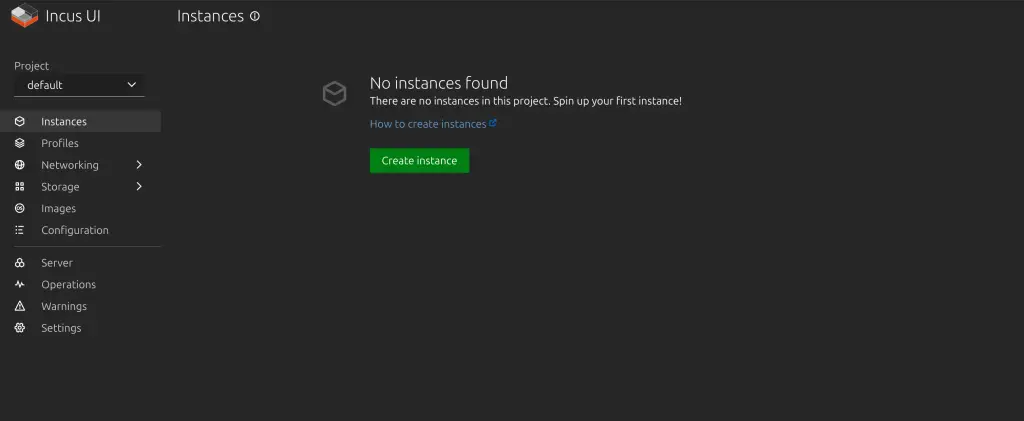
Step 7: Access the Incus Web UI
If you installed incus-ui-canonical and chose to expose the server over the network during init (port 8443), the web UI is available at:
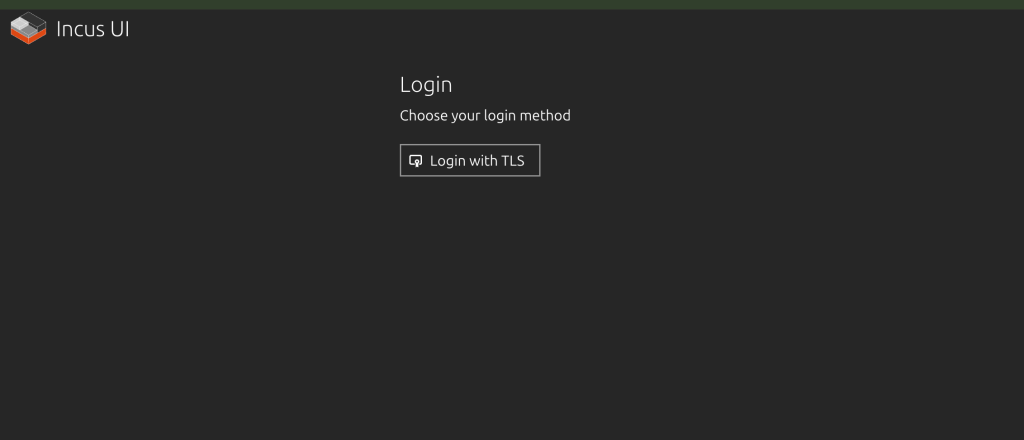
https://your-server-ip:8443Choose Login with TLS:
Generate a client certificate for browser access and download it locally. Run the given commands to trust it.
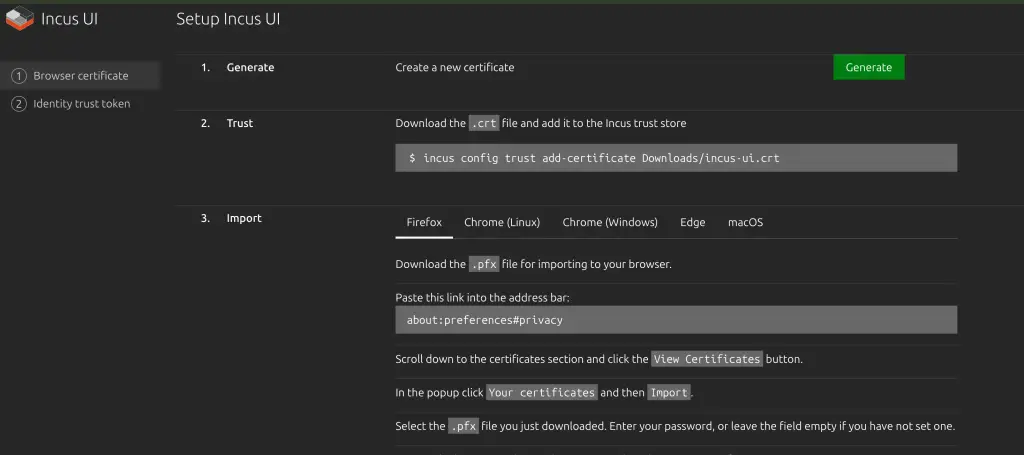
Import it into your browser by following the instructions provided:
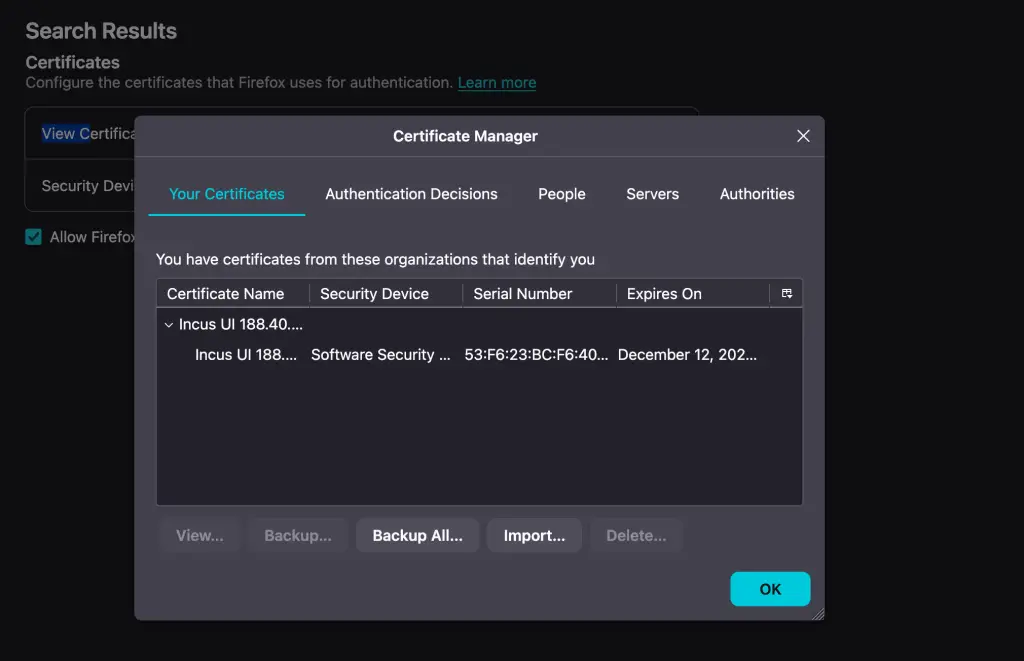
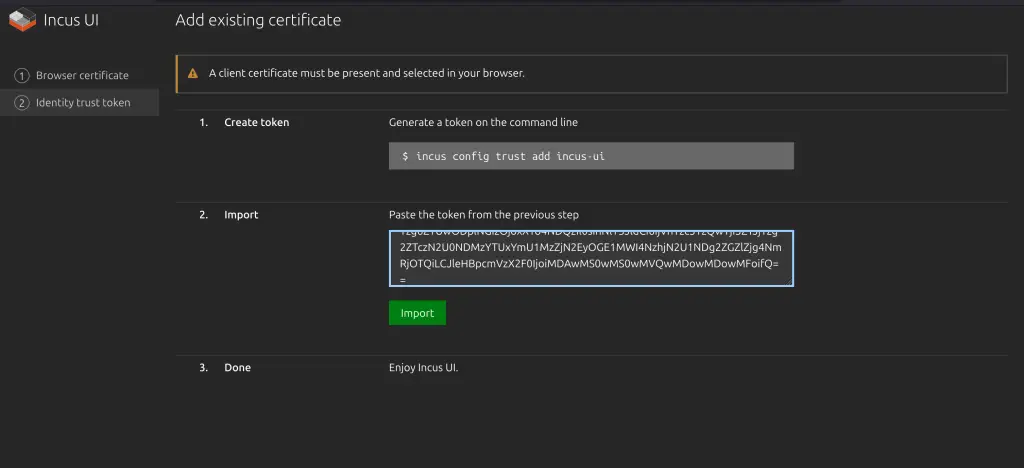
Quit the browser and start it again. Then generate token in step 2, and import by pasting token value.
The UI lets you create, start, stop, snapshot, and configure containers and VMs visually.
Option B: Install Classic LXC (Low-Level)
If you need raw LXC without the Incus/LXD management layer:
sudo apt update && sudo apt install -y lxc lxc-utilsVerify the bridge network was created:
$ ip ad | grep lxc
3: lxcbr0: <NO-CARRIER,BROADCAST,MULTICAST,UP> mtu 1500 qdisc noqueue state DOWN
    inet 10.0.3.1/24 scope global lxcbr0
Configure unprivileged containers (run as your user, not root):
mkdir -p ~/.config/lxc

echo "lxc.include = /etc/lxc/default.conf
lxc.idmap = u 0 100000 65536
lxc.idmap = g 0 100000 65536
lxc.net.0.type = veth
lxc.net.0.link = lxcbr0" > ~/.config/lxc/default.conf

echo "$USER veth lxcbr0 10" | sudo tee -a /etc/lxc/lxc-usernet
Create and start a container:
# Create Ubuntu 24.04 container
lxc-create -t download -n my-container -- \
  --dist ubuntu --release noble --arch amd64

# Start it
lxc-start -n my-container

# Attach to it
lxc-attach -n my-container

# List containers
lxc-ls --fancy

# Stop
lxc-stop -n my-container

# Destroy
lxc-destroy -n my-container
If you get “ERROR: Unable to fetch GPG key from keyserver“, add --no-validate:
lxc-create -t download -n my-container -- \
  --dist ubuntu --release noble --arch amd64 --no-validate
Container Networking
By default, containers get a private IP on the bridge network (NAT). For more advanced setups:
# Expose a container port to the host (Incus)
incus config device add my-ubuntu http proxy listen=tcp:0.0.0.0:8080 connect=tcp:127.0.0.1:80

# Give a container a static IP (Incus)
incus config device override my-ubuntu eth0 ipv4.address=10.x.x.50

# Use macvlan for direct LAN access (Incus)
incus network create macvlan-net --type=macvlan parent=eth0
incus launch images:ubuntu/24.04 web-server --network=macvlan-net
Launch Virtual Machines (Incus Only)
Incus can run full VMs alongside containers using QEMU. The same CLI works for both:
# Launch a VM (note the --vm flag)
incus launch images:ubuntu/24.04 my-vm --vm -c limits.cpu=2 -c limits.memory=2GiB

# Check type
incus list
# TYPE column shows CONTAINER or VIRTUAL-MACHINE
Useful Container Images
Browse all available images:
incus image list images: | head -40Common images:
| Image | Command |
|---|---|
| Ubuntu 24.04 | incus launch images:ubuntu/24.04 name |
| Debian 13 | incus launch images:debian/trixie name |
| Rocky Linux 9 | incus launch images:rockylinux/9 name |
| AlmaLinux 9 | incus launch images:almalinux/9 name |
| Fedora 41 | incus launch images:fedora/41 name |
| Arch Linux | incus launch images:archlinux name |
| Alpine Linux | incus launch images:alpine/3.20 name |
| openSUSE Leap | incus launch images:opensuse/15.6 name |
Troubleshooting
Incus service not starting:
sudo systemctl status incus
sudo journalctl -u incus -n 50 --no-pager
Permission denied running incus commands:
Make sure your user is in the incus-admin group and you logged out/in (or ran newgrp incus-admin).
Container has no network:
# Check bridge exists
ip link show incusbr0

# Check container network config
incus config show my-container | grep -A5 network
GPG key error with lxc-create:
Use --no-validate flag or install gnupg: sudo apt install gnupg
Storage pool full:
incus storage info default
# Expand the pool if using ZFS loop device
sudo zpool set autoexpand=on default
Conclusion
For most use cases, Incus gives you the best LXC experience – easy CLI, web UI, VM support, snapshots, and clustering built in. Use raw LXC only when you need direct liblxc control for custom orchestration or embedded systems. Both are production-ready and actively maintained.
Related guides:

This no longer works on ubuntu 22.04. Install says successful, but no joy.
Additional libraries required include for install include:
python-is-python3
python3-pyflakes
pyflakes
python3-pip
Last additional library:
python3-flask
python3-itsdangerous
Successful launch after these two installed. However, there are deprecated classes that will be removed in python 3.12. SafeConfigParser needs to be altered to ConfigParser
Thank you, this worked well for following on with an older tutorial which was using 18.04 LTS. Cheers
Great thank you!